1
Dell™ SmartStep™ 150D
FILE LOCATION: C:\Wolverine 150D\PDF web\1N016tp0.fm
DELL CONFIDENTIAL – PRELIMINARY 2/19/02
w w w. d e l l . c o m | s u p p o r t . d e l l . c o m
FILE LOCATION: C:\Wolverine 150D\PDF web\1N016tp0.fm
HINT: A HINT indicates important information that helps you make better
use of your computer.
NOTICE: A NOTICE indicates either potential damage to hardware or loss of
data and tells you how to avoid the problem.
CAUTION: A CAUTION indicates a potential for property damage,
personal injury, or death.
For a complete list of abbreviations and acronyms, see the Tell Me How help
file. To access help files, see page 22.
____________________
Information in this document is subject to change without notice.
© 2002 Dell Computer Corporation. All rights reserved.
Reproduction in any manner whatsoever without the written permission of Dell Computer
Corporation is strictly forbidden.
Trademarks used in this text: Dell, the DELL logo, SmartStep, Dimension, Inspiron, Latitude,
OptiPlex, Dell Precision, DellPlus, and DellNet are trademarks of Dell Computer Corporation;
Intel is a registered trademark and Celeron is a trademark of Intel Corporation; Microsoft and
Windows are registered trademarks of Microsoft Corporation.
Other trademarks and trade names may be used in this document to refer to either the entities
claiming the marks and names or their products. Dell Computer Corporation disclaims any
proprietary interest in trademarks and trade names other than its own.
This product incorporates copyright protection technology that is protected by method claims of
certain U.S. patents and other intellectual property rights owned by Macrovision Corporation
and other rights owners. Use of this copyright protection technology must be authorized by
Macrovision Corporation, and is intended for home and other limited viewing uses only unless
otherwise authorized by Macrovision Corporation. Reverse engineering or disassembly is
prohibited.
February 2002
P/N 1N016
Rev. A00
DELL CONFIDENTIAL – PRELIMINARY 2/19/02
Safety Instructions
. . . . . . . . . . . . . . . . . . . . . . . . .
When Using Your Computer
. . . . . . . . . . . . . . . . . . .
Ergonomic Computing Habits
. . . . . . . . . . . . . . . . . .
When Working Inside Your Computer
. . . . . . . . . . . . . .
7
7
8
10
. . . . . . . . . . .
11
. . . . . . . . . . . . . . . . . . . . . . . .
14
. . . . . . . . . . . . . . . . . . . . . . . . .
14
. . . . . . . . . . . . . . . . . . . . . . . . . .
15
Protecting Against Electrostatic Discharge
1 Setting Up
Connecting a Printer
Parallel Printer
USB Printer
Installing the Printer Driver
. . . . . . . . . . . . . . . . . . .
Transferring Information to a New Computer
16
. . . . . . . . . . .
17
. . . . . . . . . . . . . .
17
. . . . . . . . . . . . . . . . . . . . .
18
. . . . . . . . . . . . . . . . . . . . . . . . . .
20
Setting Up a Home and Office Network
Turning Off the Computer
2 Solving Problems
Finding Solutions
Accessing Help Files
Power Problems .
. . . . . . . . . . . . . . . . . . . . . . . .
22
. . . . . . . . . . . . . . . . . . . . . . . . . .
22
Start-Up Error Messages
. . . . . . . . . . . . . . . . . . . . . .
. . . . . . . . . . . . . . . . . . . .
23
. . . . . . . . . . . . . . . . . . . . . .
23
Video and Monitor Problems
If the screen is blank
23
If the screen is difficult to read
. . . . . . . . . . . . . . . . .
24
Contents
3
Sound and Speaker Problems
. . . . . . . . . . . . . . . . . . .
If your computer has speakers, use this section
to solve speaker problems . . . . . . . . . .
Printer Problems
. . . . . . . . .
25
. . . . . . . . . . . . . . . . . . . . . . . . .
27
If you cannot print to a parallel port printer
. . . . . . . . . .
27
. . . . . . . . . . . . . .
28
Scanner Problems
. . . . . . . . . . . . . . . . . . . . . . . . .
28
Modem Problems
. . . . . . . . . . . . . . . . . . . . . . . . .
29
. . . . . . . . . . . . . . . . . . . . . . . . . .
30
If you cannot print to a USB printer
Mouse Problems
Keyboard Problems
Drive Problems
. . . . . . . . . . . . . . . . . . . . . . . .
31
. . . . . . . . . . . . . . . . . . . . . . . . . .
31
If you cannot save a file to a floppy disk
. . . . . . . . . . . .
31
If you cannot play a music CD or install
a program from a CD . . . . . . . . .
. . . . . . . . . . . .
32
. . . . . . . . . . . . . . . .
33
. . . . . . . . . . . . . . . . . . . . . . . . .
33
If you have a hard drive problem
Network Problems
Microsoft® Windows® Error Messages
. . . . . . . . . . . . . .
34
. . . . . . . . . . . . . . . . . . . .
35
. . . . . . . . . . . . . . . . . . . . . . .
35
General Program Problems
A program crashes
A program stops responding
. . . . . . . . . . . . . . . . . .
A solid blue screen appears
35
. . . . . . . . . . . . . . . . . .
36
A program is designed for an earlier
Windows operating system . . . . .
Internet Connection Problems
. . . . . . . . . . . . . .
36
. . . . . . . . . . . . . . . . . .
36
. . . . . .
36
. . . . . . . . . . . . . . . . . . . . . . . . . .
37
If you have a problem with your Internet connection
E-Mail Problems
Resolving Other Technical Problems
Contents
35
. . . . . . . . .
A program error causes the system to lock up
4
25
. . . . . . . . . . . . . . .
37
Reinstalling Drivers
. . . . . . . . . . . . . . . . . . . . . . . . .
Using the Windows XP Device Driver Rollback
. . . . . . . . .
39
. . . . . . .
40
. . . . . . . . . . . . . . . . . . . . . . .
41
Resolving Software and Hardware Incompatibilities
Using System Restore
38
Creating a Restore Point
. . . . . . . . . . . . . . . . . . . .
. . . . . .
43
. . . . . . . . . . . . . . . .
44
. . . . . . . . . . . . . . . . . . . . . .
44
Restoring the Computer to an Earlier Operating State
Undoing the Last System Restore
Reinstalling Windows XP
42
3 Adding Parts
Front and Back View of the Computer
. . . . . . . . . . . . . . .
48
. . . . . . . . . . . . . . . . . .
52
. . . . . . . . . . . . . . . . . . . . .
53
Removing the Computer Cover .
Rotating the Power Supply
Looking Inside Your Computer
System Board
. . . . . . . . . . . . . . . . . . .
56
. . . . . . . . . . . . . . . . . . . . . . . . . .
57
Adding a 3.5-Inch Drive
Adding Cards
. . . . . . . . . . . . . . . . . . . . . .
58
. . . . . . . . . . . . . . . . . . . . . . . . . . . .
65
. . . . . . . . . . . . . . . . . . . . . . . .
68
. . . . . . . . . . . . . . . . . . . . . . . . . .
69
Removing Cards .
Adding Memory .
. . . . . . . . . . . . . . . . . . .
71
. . . . . . . . . . . . . . . . . . . . . . . . . . .
74
Replacing the Computer Cover
4 Appendix
Specifications .
Standard Settings
. . . . . . . . . . . . . . . . . . . . . . . . .
Viewing Settings
. . . . . . . . . . . . . . . . . . . . . . . .
System Setup Program Screens
. . . . . . . . . . . . . . . . .
78
79
79
Contents
5
Clearing Forgotten Passwords
Replacing the Battery
. . . . . . . . . . . . . . . . . . .
80
. . . . . . . . . . . . . . . . . . . . . . .
81
Dell Technical Support Policy (U.S. Only)
. . . . . . . . . . . .
Definition of "Dell-Installed" Software and Peripherals
. . . . .
83
. . . . . .
83
. . . . . . . . . . . . . . . . . . . . . . . . . .
84
Definition of "Third-Party" Software and Peripherals
Contacting Dell
Contact Numbers and Addresses
. . . . . . . . . . . . . . . .
Regulatory Information
99
. . . . . . . . . . . . . . . . . . . . . .
99
. . . . . . . . . . . . . . . . . . . .
101
. . . . . . . . . . . . . . . . . . . . . . . .
103
FCC Notices (U.S. Only)
Battery Disposal
NOM Information (Mexico Only)
. . . . . . . . . . . . . . . .
Limited Warranties and Return Policy
. . . . . . . . . . . . . .
One-Year Limited Warranty (United States
and Canada Only) . . . . . . . . . . . .
105
105
. . . . . . . . . . .
107
"Total Satisfaction" Return Policy (United States Only)
Contents
104
. . . . . . . .
90-Day Limited Warranty (United States Only)
6
84
. . . . . . . .
Returning Items for Warranty Repair or Credit .
Index
82
. . . . .
. . . . . . . . . . . . . . . . . . . . . . . . . . . . . . . . . .
110
111
FILE LOCATION: C:\Wolverine 150D\PDF web\1N016si0.fm
Use the following safety guidelines to protect yourself and your computer.
When Using Your Computer
CAUTION: Do not operate your computer with any cover(s)
(including the computer cover, filler brackets, front-panel inserts,
and so on) removed or opened.
•
To help avoid damaging your computer, be sure that the voltage
selection switch is set to match the AC power available at your
location:
–
115 V/60 Hz in most of North and South America and some Far
Eastern countries such as South Korea and Taiwan
–
100 V/50 Hz in eastern Japan and 100 V/60 Hz in western Japan
NOTE: The voltage selection switch must be set to the 115V position
even though the AC supply in Japan is 100 V.
–
230 V/50 Hz in most of Europe, the Middle East, and the Far East
115V
Also be sure that your monitor and attached devices are electrically
rated to operate with the AC power available in your location.
•
To avoid shorting out your computer when disconnecting a network
cable, first unplug the cable from the network adapter on the back of
your computer, and then from the network jack. When reconnecting a
network cable to your computer, first plug the cable into the network
jack, and then into the network adapter.
•
To help avoid possible damage to the system board, wait 5 seconds
after turning off the computer before disconnecting or connecting a
non-USB device from the computer.
DELL CONFIDENTIAL – PRELIMINARY 2/19/02
Safety Instr uctions
7
w w w. d e l l . c o m | s u p p o r t . d e l l . c o m
FILE LOCATION: C:\Wolverine 150D\PDF web\1N016si0.fm
•
To help prevent electric shock, plug the computer and device power
cables into properly grounded power sources. These cables are
equipped with 3-prong plugs to help ensure proper grounding. Do not
use adapter plugs or remove the grounding prong from a cable. If you
must use an extension cable, use a 3-wire cable with properly grounded
plugs.
•
To help protect your computer from sudden, transient increases and
decreases in electrical power, use a surge suppressor, line conditioner,
or uninterruptible power supply.
•
Be sure that nothing rests on your computer’s cables and that the
cables are not located where they can be stepped on or tripped over.
•
Do not spill food or liquids on your computer. If the computer gets
wet, contact Dell (see page 84).
•
Do not push any objects into the openings of your computer. Doing so
can cause fire or electric shock by shorting out interior components.
•
Keep your computer away from radiators and heat sources. Also, do not
block cooling vents. Avoid placing loose papers underneath your
computer; do not place your computer in a closed-in wall unit or on a
bed, sofa, or rug.
Ergonomic Computing Habits
CAUTION: Improper or prolonged keyboard use may result in
injury.
CAUTION: Viewing the monitor screen for extended periods of
time may result in eye strain.
For comfort and efficiency, observe the following ergonomic guidelines
when setting up and using your computer:
•
Position your computer so that the monitor and keyboard are directly
in front of you as you work. Special shelves are available (from Dell and
other sources) to help you correctly position your keyboard.
•
Set the monitor at a comfortable viewing distance (usually 510 to 610
millimeters [20 to 24 inches] from your eyes).
•
Make sure the monitor screen is at eye level or slightly lower when you
are sitting in front of the monitor.
DELL CONFIDENTIAL – PRELIMINARY 2/19/02
8
Safety Instr uctions
FILE LOCATION: C:\Wolverine 150D\PDF web\1N016si0.fm
•
Adjust the tilt of the monitor, its contrast and brightness settings, and
the lighting around you (such as overhead lights, desk lamps, and the
curtains or blinds on nearby windows) to minimize reflections and
glare on the monitor screen.
•
Use a chair that provides good lower back support.
•
Keep your forearms horizontal with your wrists in a neutral,
comfortable position while using the keyboard or mouse.
•
Always leave space to rest your hands while using the keyboard or
mouse.
•
Let your upper arms hang naturally at your sides.
•
Sit erect with your feet resting on the floor and your thighs level.
•
When sitting, make sure the weight of your legs is on your feet and not
on the front of your chair seat. Adjust your chair’s height or use a
footrest, if necessary, to maintain proper posture.
•
Vary your work activities. Try to organize your work so that you do not
have to type for extended periods of time. When you stop typing, try
to do things that use both hands.
DELL CONFIDENTIAL – PRELIMINARY 2/19/02
Safety Instr uctions
9
w w w. d e l l . c o m | s u p p o r t . d e l l . c o m
FILE LOCATION: C:\Wolverine 150D\PDF web\1N016si0.fm
monitor screen at or
below eye level
wrists relaxed
and flat
computer positioned
directly in front of
user
arms at desk
level
feet flat on the
floor
When Working Inside Your Computer
As you use your computer, observe the following safe-handling guidelines.
CAUTION: Do not attempt to service the computer yourself,
except as explained in this guide and elsewhere in Dell
documentation. Always follow installation and service
instructions closely.
1
Perform an orderly computer shutdown using the operating system
menu (see page 18).
2
Turn off your computer and any devices.
DELL CONFIDENTIAL – PRELIMINARY 2/19/02
10
Safety Instr uctions
FILE LOCATION: C:\Wolverine 150D\PDF web\1N016si0.fm
3
Ground yourself by touching an unpainted metal surface at the back of
the computer before touching anything inside your computer.
While you work, periodically touch an unpainted metal surface on the
computer to dissipate any static electricity that might harm internal
components.
4
Disconnect any devices connected to the computer, including the
monitor, from their electrical outlets to reduce the potential for
personal injury or shock. Also, disconnect any telephone or
telecommunication lines from the computer.
5
Disconnect the power cable to your computer, and then press the
power button to ground the system board.
In addition, take note of these safety guidelines when appropriate:
•
When you disconnect a cable, pull on its connector, not on the cable
itself. As you pull connectors apart, keep them evenly aligned to avoid
bending any pins. Also, before you connect a cable, make sure that
both connectors are correctly oriented and aligned.
•
Handle components and cards with care. Don’t touch the components
on a card. Hold a card by its edges or by its metal bracket.
CAUTION: There is a danger of a new battery exploding if it is
incorrectly installed. Replace the battery only with the same or
equivalent type recommended by the manufacturer. Discard used
batteries according to the manufacturer’s instructions.
Protecting Against Electrostatic Discharge
To prevent static damage, discharge static electricity from your body before
you touch anything inside your computer and periodically while you work
inside the computer. You can do so by touching an unpainted metal surface
on the back of the computer.
You can also take the following steps to prevent static damage:
•
Do not remove items from their antistatic packing material until you
are ready to install them in your computer. Just before unwrapping the
antistatic packaging, be sure to discharge static electricity from your
body.
•
When transporting a sensitive component, first place it in an antistatic
container or packaging.
DELL CONFIDENTIAL – PRELIMINARY 2/19/02
Safety Instr uctions
11
w w w. d e l l . c o m | s u p p o r t . d e l l . c o m
FILE LOCATION: C:\Wolverine 150D\PDF web\1N016si0.fm
DELL CONFIDENTIAL – PRELIMINARY 2/19/02
12
Safety Instr uctions
SECTION 1
Connecting a Printer
Transferring Information to a New Computer
Setting Up a Home and Office Network
Turning Off the Computer
w w w. d e l l . c o m | s u p p o r t . d e l l . c o m
w w w. d e l l . c o m | s u p p o r t . d e l l . c o m
See the documentation that came with the printer for any recommended
preparation procedures, such as:
•
Removing the packaging
•
Installing the toner or ink cartridge
•
Loading paper
Then follow the instructions that came with the printer to connect it to the
computer. If no information is provided, see the following sections.
Parallel Printer
Follow the instructions that came with the parallel printer to connect it to
the computer. If no information is provided, then follow the instructions in
this section.
1
Turn off the computer (see page 18).
NOTICE: Use only a standard IEEE parallel cable measuring 3 m (10 ft) or
less to connect the printer to the computer. Use of a nonstandard cable may
prevent the printer from working.
2
14
Setting Up
Attach the parallel printer cable to the parallel connector on the
computer and tighten the two screws. Attach the cable to the parallel
connector on the printer and snap the two clips into the two notches.
parallel connector
on computer
screws (2)
parallel connector
on printer
clips (2)
parallel printer
cable
notches (2)
3
Turn on the printer and then turn on the computer. If the Add New
Hardware Wizard window appears, click Cancel.
4
Install the printer driver if necessary (see "Installing the Printer Driver"
on this page).
USB Printer
Follow the instructions that came with the USB printer to connect it to the
computer. If no information is provided, then follow the instructions in this
section.
1
Install the printer driver if necessary (see the following section).
2
Attach the USB printer cable to the USB connector on the computer
and the printer. The USB connectors only fit one way.
HINT: You can connect
USB devices while the
computer is turned on.
Setting Up
15
w w w. d e l l . c o m | s u p p o r t . d e l l . c o m
HINT: Your computer has
four USB connectors on
the back panel (see
page 48).
USB connector
on computer
USB printer
cable
USB connector
on printer
Installing the Printer Driver
Follow the instructions that came with the printer to install printer drivers.
If no information was provided with the printer, then refer to the following
instructions.
If you need to install a printer driver, insert the printer installation CD into
the CD drive. Then follow the prompts on the screen using the instructions
that came with the printer.
If your printer installation CD does not automatically run, click the Start
button on the Microsoft® Windows® desktop, click Run, and type
x:\setup.exe (where x is the letter of your CD drive [usually drive D]).
Then click OK and follow the prompts on your screen. If your printer
installation CD still does not run, check the documentation that came with
your printer for instructions on how to start the printer installation CD.
If you connect an older printer and it doesn’t work after you install the
driver, access the system setup program (see page 78) and ensure that the
parallel port is set to operate in bidirectional mode.
16
Setting Up
To check if your printer driver is installed on a computer running the
Windows XP operating system, click the Start button, click Control Panel,
click Printers and Other Hardware, and then click View installed printers
or fax printers. If your printer is listed in the Printers window, the printer is
ready to use.
Windows XP provides a Files and Settings Transfer Wizard to move data,
such as e-mails, window sizes, toolbar settings, and Internet bookmarks,
from one computer to another. First you collect the data from the source
computer, and then you import the data to the new computer.
If the source computer uses another Windows operating system, the wizard
can be launched from the Windows XP operating system CD or from a
floppy disk created on the Windows XP computer. You may transfer the
data to the new computer over a network or serial connection, or you may
store it on a removable medium, such as a floppy disk, a Zip disk, or a
writable CD.
1
Click the Start button, point to All Programs—> Accessories—>
System Tools, and then click Files and Settings Transfer Wizard.
2
On the welcome screen, click Next.
3
On the Which computer is this? screen, select New Computer, and
then click Next.
4
Follow the instructions on the screen.
HINT: The CD that you
need to place in your CD
drive is titled Operating
System.
Windows XP provides a Network Setup Wizard to guide you through the
process of sharing files, printers, or an Internet connection between
computers in a home or small office.
1
Click the Start button, point to All Programs—>
Accessories—> Communications, and then click Network Setup
Wizard.
2
On the welcome screen, click Next.
Setting Up
17
w w w. d e l l . c o m | s u p p o r t . d e l l . c o m
HINT: Selecting the
connection method This
computer connects
directly to the Internet
enables the integrated
firewall provided with
Windows XP.
3
Click checklist for creating a network.
4
Complete the checklist and required preparations, and then return to
the Network Setup Wizard.
5
Follow the instructions on the screen.
NOTICE: To prevent data loss, you must turn off your computer through the
Start menu rather than by pressing the power button.
HINT: If you are having
difficulty turning off your
computer, see "General
Program Problems" on
page 35.
1
Save and close any open files and exit any open programs.
2
Click the Start button and then click Turn off Computer.
3
Click Turn off.
The computer automatically turns off after the shutdown process
finishes.
4
18
Setting Up
Turn off your monitor and any other devices connected to power.
SECTION 2
w w w. d e l l . c o m | s u p p o r t . d e l l . c o m
Finding Solutions
Accessing Help Files
Power Problems
Start-Up Error Messages
Video and Monitor Problems
Sound and Speaker Problems
Printer Problems
Scanner Problems
Modem Problems
Mouse Problems
Keyboard Problems
Drive Problems
Network Problems
Microsoft® Windows® Error Messages
General Program Problems
Internet Connection Problems
E-Mail Problems
Resolving Other Technical Problems
Reinstalling Drivers
Resolving Software and Hardware Incompatibilities
Using System Restore
Reinstalling Windows XP
w w w. d e l l . c o m | s u p p o r t . d e l l . c o m
Sometimes it’s difficult to figure out where to go for answers. Use this chart
to help you quickly find the answers to your questions.
See page 22.
Get technical assistance from
Dell. See page 84.
See page 23.
20
Solving Pr oblems
See page 23.
See page 25.
See page 27.
See page 29.
See page 30.
See page 31.
See page 31.
See page 33.
See page 28.
See page 34.
See page 35.
See page 36.
See page 37.
See page 37.
Solving Pr oblems
21
w w w. d e l l . c o m | s u p p o r t . d e l l . c o m
TO A C C E S S T H E Tell Me How H E L P F I L E
Microsoft® Windows® XP
1 Click the Start button, and then click Help and Support.
2 Click User and system guides, and then click User’s guides.
3 Click Tell Me How.
TO A C C E S S H E L P I N W I N D O W S X P
1 Click the Start button, and then click Help and Support.
2 Type a word or phrase that describes your problem, and then click the arrow
icon.
3 Click the topic that describes your problem.
4 Follow the instructions shown on the screen.
HINT: See the Tell Me
How help file for
information on the
standby mode.
C H E C K T H E P O W E R L I G H T — When the power light is lit or blinking, the
computer has power. If the power light is blinking, the computer is in standby
mode—press a key on the keyboard or move the mouse.
TE S T T H E E L E C T R I C A L O U T L E T — Ensure that the electrical outlet is working
by testing it with another device, such as a lamp.
C H E C K T H E P O W E R C A B L E C O N N E C T I O N — Be sure that the power cable is
firmly inserted into the electrical outlet and the computer power connector.
CONNECT THE COMPUTER DIRECTLY TO AN ELECTRICAL OUTLET—
Bypass power protection devices, power strips, and the extension cable to verify
that the computer turns on.
S W A P T H E C O M P U T E R A N D M O N I T O R P O W E R C A B L E S — Swap the
computer and monitor power cables to determine if the power cable is defective.
22
Solving Pr oblems
C H E C K F O R I N T E R F E R E N C E — Electrical appliances on the same circuit or
operating near the computer can cause interference. Other causes of
interference: power extension cables, keyboard and mouse extension cables, too
many devices on a power strip, or multiple power strips connected to the same
electrical outlet.
C H E C K T H E P O W E R P R O P E R T I E S — See the Tell Me How help file or search
for the keyword standby in the Help and Support Center. To access help files, see
page 22.
O P E R A T I N G S Y S T E M N O T F O U N D — Call Dell for technical assistance (see
page 84).
I N S E R T B O O T A B L E M E D I A — The operating system is trying to boot to a
nonbootable floppy disk or CD. Insert a bootable floppy disk or CD.
N O N - S Y S T E M D I S K E R R O R — There is a floppy disk in the floppy drive.
Remove the floppy disk and restart the computer.
If the screen is blank
C H E C K T H E V I D E O C A B L E C O N N E C T I O N — Check for bent pins (most video
cable connectors have missing pins, but not bent pins). Ensure that the video
cable is connected as shown on the START HERE sheet for your computer.
HINT: See the
documentation that came
with your monitor for
fault indications and
troubleshooting
procedures specific to
your monitor.
P R E S S T H E M O N I T O R P O W E R B U T T O N — Be sure that you firmly pressed the
monitor power button.
Solving Pr oblems
23
w w w. d e l l . c o m | s u p p o r t . d e l l . c o m
C H E C K T H E P O W E R L I G H T — When the power light is lit or blinking, the
monitor has power. If the power light is blinking, press a key on the keyboard or
move the mouse.
TE S T T H E E L E C T R I C A L O U T L E T — Ensure that the electrical outlet is working
by testing it with another device, such as a lamp.
S W A P T H E C O M P U T E R A N D M O N I T O R P O W E R C A B L E S — Swap the
computer and monitor power cables to determine if the power cable is defective.
TE S T T H E V I D E O E X T E N S I O N C A B L E ( I F U S E D ) — If you are using a video
extension cable and removing the cable solves the problem, the cable is defective.
TE S T T H E M O N I T O R — If another monitor is available, connect it to the
computer.
C H E C K T H E B A C K P A N E L L I G H T S — If all four lights below the serial
connector are not green, call Dell for technical assistance (see page 84).
C H E C K T H E P O W E R P R O P E R T I E S — See the Tell Me How help file or search
for the keyword standby in the Help and Support Center. To access help files, see
page 22.
If the screen is difficult to read
A D J U S T T H E C O N T R A S T A N D B R I G H T N E S S — See the documentation that
came with your monitor for instructions on adjusting the contrast and brightness.
M O V E T H E S U B W O O F E R A W A Y F R O M T H E M O N I T O R — If your speaker
system includes a subwoofer, ensure that the subwoofer is at least 60 cm (2 ft)
away from the monitor.
M O V E T H E M O N I T O R A W A Y F R O M E X T E R N A L P O W E R S O U R C E S — Fans,
fluorescent lights, halogen lamps, and other electrical devices can cause the
screen image to appear "shaky." Turn off nearby devices to check for interference.
24
Solving Pr oblems
R O T A T E T H E M O N I T O R T O F A C E A D I F F E R E N T D I R E C T I O N — Eliminate
sunlight glare, which can cause poor picture quality.
D E G A U S S ( D E M A G N E T I Z E ) T H E M O N I T O R — See the documentation that
came with your monitor.
R U N T H E M O N I T O R S E L F - T E S T — See the documentation that came with
your monitor.
R E S T O R E T H E R E C O M M E N D E D S E T T I N G S — Restore the original resolution
and refresh rate settings. See the Tell Me How help file for instructions. To access
help files, see page 22.
C H E C K F O R A D D I T I O N A L A D J U S T M E N T S — See the documentation that
came with your monitor for any additional adjustments that your monitor may
require.
ADJUST THE WINDOWS DISPLAY SETTINGS
1 Click the Start button, and then click Control Panel.
2 Click Appearance and Themes.
3 Click Display, and then click the Settings tab.
4 Try different settings for Screen resolution and Color quality.
C H E C K F O R I N T E R R U P T R E Q U E S T C O N F L I C T S — See page 40.
If your computer has speakers, use this section to solve speaker
problems
ENSURE THAT THE SUBWOOFER AND THE SPEAKERS ARE TURNED
O N — See the setup diagram supplied with the speakers.
HINT: The volume
control in some MP3
players overrides the
Windows volume setting.
If you have been listening
to MP3 songs, make sure
that you did not turn the
player volume down or off.
Solving Pr oblems
25
w w w. d e l l . c o m | s u p p o r t . d e l l . c o m
A D J U S T T H E S P E A K E R C O N T R O L S — Adjust the volume, bass, or treble
controls to eliminate distortion.
V E R I F Y T H E S P E A K E R C A B L E C O N N E C T I O N S — Ensure that the speakers
are connected as shown on the START HERE sheet for your computer and the
setup diagram supplied with the speakers.
A D J U S T T H E W I N D O W S V O L U M E C O N T R O L — Click the speaker icon in the
lower-right corner of your screen. Be sure that the volume is turned up and that
the sound is not muted.
M O V E T H E S U B W O O F E R A W A Y F R O M T H E M O N I T O R — If your speaker
system includes a subwoofer, ensure that the subwoofer is at least 60 cm (2 ft)
away from the monitor.
R U N T H E S P E A K E R D I A G N O S T I C S — Some speaker systems have selfcontained diagnostics. See the speaker documentation for diagnostics
instructions.
E L I M I N A T E P O S S I B L E I N T E R F E R E N C E — Turn off nearby fans, fluorescent
lights, or halogen lamps to check for interference.
TE S T T H E E L E C T R I C A L O U T L E T — Ensure that the electrical outlet is working
by testing it with another device, such as a lamp.
R E I N S T A L L T H E S O U N D ( A U D I O ) D R I V E R — See page 38.
C H E C K F O R I N T E R R U P T R E Q U E S T C O N F L I C T S — See page 40.
26
Solving Pr oblems
If you cannot print to a parallel port printer
V E R I F Y T H E P R I N T E R C A B L E C O N N E C T I O N S — Ensure that the printer
cable is connected as described on page 14.
E N S U R E T H A T T H E P R I N T E R I S T U R N E D O N — See the documentation
supplied with the printer.
HINT: If you need
technical assistance for
your printer, call the
printer’s manufacturer
(see the documentation
that came with the printer
for the correct phone
number). Dell does not
cover the printer’s
warranty.
VE R I F Y T H A T T H E P R I N T E R I S R E C O G N I Z E D B Y W I N D O W S
1 Click the Start button.
2 Click Control Panel.
3 Click Printers and Other Hardware.
4 Click View installed printers or fax printers. If the printer is listed, right-click
the printer icon.
5 Click Properties, and then select the Ports tab. Ensure that the Print to the
following port(s): setting is LPT1 (Printer Port).
TE S T T H E E L E C T R I C A L O U T L E T — Ensure that the electrical outlet is working
by testing it with another device, such as a lamp.
R E I N S T A L L T H E P R I N T E R D R I V E R — See page 16.
C H E C K F O R I N T E R R U P T R E Q U E S T C O N F L I C T S — See page 40.
Solving Pr oblems
27
w w w. d e l l . c o m | s u p p o r t . d e l l . c o m
If you cannot print to a USB printer
V E R I F Y T H E P R I N T E R C A B L E C O N N E C T I O N S — Ensure that the printer
cable is connected as described on page 15.
E N S U R E T H A T T H E P R I N T E R I S T U R N E D O N — See the documentation
supplied with the printer.
VE R I F Y T H A T T H E P R I N T E R I S R E C O G N I Z E D B Y W I N D O W S
1 Click the Start button.
2 Click Control Panel.
3 Click Printers and Other Hardware.
4 Click View installed printers or fax printers. If the printer is listed, right-click
the printer name.
5 Click Properties, and then select the Ports tab. Ensure that the Print to the
following port(s): setting is USB.
TE S T T H E E L E C T R I C A L O U T L E T — Ensure that the electrical outlet is working
by testing it with another device, such as a lamp.
R E I N S T A L L T H E P R I N T E R D R I V E R — See page 16.
C H E C K F O R I N T E R R U P T R E Q U E S T C O N F L I C T S — See page 40.
HINT: If you need
technical assistance for
your scanner, call the
scanner’s manufacturer
(see the documentation
that came with the
scanner for the correct
phone number). Dell does
not cover the scanner’s
warranty.
28
Solving Pr oblems
C H E C K T H E P O W E R C A B L E C O N N E C T I O N — Ensure that the scanner power
cable is firmly connected to a working electrical power source and that the
scanner is turned on.
C H E C K T H E S C A N N E R C A B L E C O N N E C T I O N — Ensure that the scanner
cable is firmly connected to the computer and to the scanner.
U N L O C K T H E S C A N N E R — Ensure that your scanner is unlocked if it has a
locking tab or button.
R E I N S T A L L T H E S C A N N E R D R I V E R — Reinstall the scanner driver. See the
scanner documentation for instructions.
C H E C K F O R I N T E R R U P T R E Q U E S T C O N F L I C T S — See page 40.
C H E C K T H E C O N N E C T I O N — Verify that the telephone line is connected to the
green connector on the modem. (The green line-in connector has either a LINE
IN label or a connector-shaped icon next to it.) Make sure you hear a click when
you insert the telephone line connector.
HINT: Connect the
modem to an analog
telephone jack only. The
modem does not operate
while it is connected to a
digital telephone network.
C H E C K T H E T E L E P H O N E J A C K — Disconnect the telephone line from the
modem and connect it to a telephone. Listen for a dial tone.
C O N N E C T T H E M O D E M D I R E C T L Y T O T H E T E L E P H O N E W A L L J A C K — If
you have other telephone devices sharing the line, such as an answering machine,
fax machine, surge protector, or line splitter, then bypass them and connect the
modem directly to the telephone wall jack with the telephone line.
C H E C K T H E T E L E P H O N E L I N E — Try using a different telephone line. If you
are using a line that is 3 m (10 ft) or more in length, try a shorter one.
VE R I F Y T H A T T H E M O D E M I S C O M M U N I C A T I N G W I T H W I N D O W S
1 Click the Start button, and then click Control Panel.
2 Click Printers and Other Hardware.
3 Click Phone and Modem Options.
4 Click the Modems tab.
5 Click the COM port for your modem.
6 Click Properties, click the Diagnostics tab, and then click Query Modem to
verify that the modem is communicating with Windows.
If all commands receive responses, the modem is operating properly.
Solving Pr oblems
29
w w w. d e l l . c o m | s u p p o r t . d e l l . c o m
BE SURE THAT YOU HAVE SUBSCRIBED TO AN INTERNET SERVICE
P R O V I D E R — Contact an Internet service provider to subscribe.
C H E C K F O R I N T E R R U P T R E Q U E S T C O N F L I C T S — See page 40.
IF YOU CONNECTED THE MOUSE BEFORE TURNING ON THE
C O M P U T E R, R E C O N N E C T T H E M O U S E C A B L E
1 Press <Ctrl><Esc> to display the Start menu.
2 Type u, press the keyboard arrow keys to highlight Shut down or Turn Off, and
then press <Enter>.
3 After the computer turns off, reconnect the mouse cable as shown on the
START HERE sheet for your computer.
4 Start the computer.
I F Y O U C O N N E C T E D T H E M O U S E A F T E R T U R N I N G O N T H E C O M P U T E R,
REMOVE THE POWER CABLE, AND THEN RECONNECT THE MOUSE
C A B L E — If the mouse is connected after the power is turned on, the mouse will
appear to be nonfunctional. To make the mouse function properly:
1 While your computer is on, remove the power cable from the back of the
computer.
2 Connect the mouse to the computer.
3 Reconnect the power cable.
4 Turn on your computer.
Pressing the power button does not clear the computer’s settings and does not
restore mouse functionality.
CHECK THE MOUSE SETTINGS
1 Click the Start button, click Control Panel, and then click Printers and Other
Hardware.
2 Click Mouse.
3 Try adjusting the settings.
C H E C K F O R I N T E R R U P T R E Q U E S T C O N F L I C T S — See page 40.
30
Solving Pr oblems
R E C O N N E C T T H E K E Y B O A R D C A B L E — Shut down the computer (see
page 18), reconnect the keyboard cable as shown on the START HERE sheet for
your computer, and then restart the computer.
C H E C K F O R I N T E R R U P T R E Q U E S T C O N F L I C T S — See page 40.
If you cannot save a file to a floppy disk
E N S U R E T H A T W I N D O W S R E C O G N I Z E S T H E D R I V E — Click the Start
button, and then click My Computer. If the floppy drive is not listed, perform a
full scan with your antivirus software to check for and remove viruses. Viruses can
sometimes prevent Windows from recognizing the drive.
TE S T T H E D R I V E W I T H A N O T H E R F L O P P Y D I S K — Insert another floppy
disk to eliminate the possibility that the original floppy disk is defective.
Solving Pr oblems
31
w w w. d e l l . c o m | s u p p o r t . d e l l . c o m
C A N N O T S A V E F I L E S T O A F L O P P Y D I S K — Ensure that the floppy disk is
not full or write-protected (locked). See the following illustration.
back of floppy disk
write-protected
not writeprotected
If you cannot play a music CD or install a program from a CD
HINT: High-speed CD
drive vibration is normal
and may cause noise. This
does not indicate a defect
in the drive or the CD.
E N S U R E T H A T W I N D O W S R E C O G N I Z E S T H E D R I V E — Click the speaker
icon in the lower-right corner of your screen. If the CD drive is not listed, perform
a full scan with your antivirus software to check for and remove viruses. Viruses
can sometimes prevent Windows from recognizing the drive.
TE S T T H E D R I V E W I T H A N O T H E R C D — Insert another CD to eliminate the
possibility that the original CD is defective.
C L E A N T H E D I S C — See the Tell Me How help file for instructions. To access
help files, see page 22.
A D J U S T T H E W I N D O W S V O L U M E C O N T R O L — Click the speaker icon in the
lower-right corner of your screen. Be sure that the volume is turned up and that
the sound is not muted.
32
Solving Pr oblems
C H E C K T H E S P E A K E R S A N D S U B W O O F E R — See page 25.
If you have a hard drive problem
RUN SCANDISK
1 Click the Start button, and then click My Computer.
2 Right-click on the drive letter (local disk) that you want to scan for errors, and
then click Properties.
3 Click the Tools tab.
4 Under Error-checking, click Check Now.
5 Click Start.
C H E C K F O R I N T E R R U P T R E Q U E S T C O N F L I C T S — See page 40.
C H E C K T H E N E T W O R K C A B L E C O N N E C T O R — Ensure that the network
cable connector is firmly connected to the connector on the computer and the
network wall jack as shown on the START HERE sheet for your computer.
CHECK THE NETWORK LIGHTS ON THE BACK OF THE COMPUTER— A
green light indicates a 10-Mbps network connection, and an orange light
indicates a 100-Mbps network connection. The light blinks amber when there is
any network traffic. If the light is dark, try replacing the network cable.
R E S T A R T T H E C O M P U T E R — Try to log on to the network again.
C O N T A C T Y O U R N E T W O R K A D M I N I S T R A T O R — Verify that your network
settings are correct and that the network is functioning.
C H E C K F O R I N T E R R U P T R E Q U E S T C O N F L I C T S — See page 40.
Solving Pr oblems
33
w w w. d e l l . c o m | s u p p o r t . d e l l . c o m
®
®
x: \ I S N O T A C C E S S I B L E . T H E D E V I C E I S N O T R E A D Y — Insert a disk into
the drive and try again.
A FILENAME CANNOT CONTAIN ANY OF THE FOLLOWING
C H A R A C T E R S : \ / : * ? “ < > | — Do not use these characters in
filenames.
NOT ENOUGH MEMORY OR RESOURCES. CLOSE SOME PROGRAMS AND
T R Y A G A I N — You have too many programs open. Close all windows and open
the program that you want to use. In some cases, you might have to restart your
computer to restore computer resources. If so, try running the program that you
want to use first.
THE FILE BEING COPIED IS TOO LARGE FOR THE DESTINATION
D R I V E — The file that you are trying to copy is too large to fit on the disk. Try
copying the file to a blank disk or use a larger-capacity disk.
A R E Q U I R E D . D L L F I L E W A S N O T F O U N D — The program that you are
trying to open is missing an essential file. To remove and then reinstall the
program:
1 Click the Start button.
2 Click Control Panel.
3 Click Add or Remove Programs.
4 Select the program you want to remove.
5 Click the Change or Remove Program icon.
6 See the program documentation for installation instructions.
34
Solving Pr oblems
A program crashes
S E E T H E S O F T W A R E D O C U M E N T A T I O N — Many software manufacturers
maintain websites with information that may help you to solve the problem.
A program stops responding
END THE PROGRAM
1 Simultaneously press <Ctrl><Shift><Esc>.
2 Click the Applications tab, and then select the program that is no longer
responding.
3 Click the End Task button.
A program error causes the system to lock up
TU R N T H E C O M P U T E R O F F — If your computer locks up and you are unable to
get a response by pressing a key on your keyboard or moving your mouse, press
and hold the power button for at least 8 to 10 seconds until the computer turns
off. Then press the power button again to turn on the computer. You might lose
data if you are unable to perform a Microsoft Windows shutdown.
HINT: ScanDisk may
run when you restart the
computer. Follow the
instructions on the screen.
Solving Pr oblems
35
w w w. d e l l . c o m | s u p p o r t . d e l l . c o m
A solid blue screen appears
HINT: ScanDisk may
run when you restart the
computer. Follow the
instructions on the screen.
TU R N T H E C O M P U T E R O F F — If your computer locks up and you are unable to
get a response by pressing a key on your keyboard or moving your mouse, press
and hold the power button for at least 8 to 10 seconds until the computer turns
off. Then press the power button again to turn on the computer. The solid blue
screen appears because you were not able to perform a proper Windows
shutdown. You might lose data if you are unable to perform a Microsoft Windows
shutdown.
A program is designed for an earlier Windows operating system
RUN THE PROGRAM COMPATIBILITY WIZARD
Windows XP provides a Program Compatibility Wizard that configures a
program to run in an environment more similar to older Windows operating
system environments.
1 Click the Start button, point to All Programs—> Accessories, and then click
Program Compatibility Wizard.
2 On the welcome screen, click Next.
3 Follow the instructions on the screen.
If you have a problem with your Internet connection
R E V I E W " M O D E M P R O B L E M S "— See page 29.
36
Solving Pr oblems
TU R N O F F C A L L W A I T I N G ( C A T C H - P H O N E )— See your telephone directory
for instructions on deactivating this feature. Then adjust the dial-up networking
connection properties.
1 Click the Start button, and then click Control Panel.
2 Click Printers and Other Hardware, and then click Phone and Modem
Options.
3 Click to highlight your connection type in the displayed list.
4 Click the Dialing Rules tab, and then click the Edit button.
5 Click to place a checkmark in the To Disable Call Waiting box.
6 Select the disable code from the drop down menu (for example, *70).
7 Click Apply, and then click OK.
BE SURE THAT YOU HAVE SUBSCRIBED TO AN INTERNET SERVICE
P R O V I D E R — Contact an Internet service provider to subscribe.
E N S U R E T H A T Y O U A R E C O N N E C T E D T O T H E I N T E R N E T — With the
Outlook Express e-mail program open, click File. If Work Offline has a check
next to it, click the check to remove it and connect to the Internet.
C O N T A C T Y O U R I N T E R N E T S E R V I C E P R O V I D E R — Contact your Internet
service provider for assistance.
G O T O T H E D E L L | S U P P O R T W E B S I T E — Go to support.dell.com for help
with general usage, installation, and troubleshooting questions. See "Dell
Technical Support Policy" on page 82 for a description of the hardware and
software support provided by Dell.
Solving Pr oblems
37
w w w. d e l l . c o m | s u p p o r t . d e l l . c o m
E - M A I L D E L L — Go to support.dell.com, and then click E-Mail Dell in the
Communicate list. Send an e-mail message to Dell about your problem; you can
expect to receive an e-mail message from Dell within hours. See "Dell Technical
Support Policy" on page 82 for a description of the hardware and software support
provided by Dell.
C A L L D E L L — If you cannot solve your problem using the Dell | Support
website or e-mail service, call Dell for technical assistance (see page 84). See
"Dell Technical Support Policy" on page 82 for a description of the hardware and
software support provided by Dell.
NOTICE: The Dell | Support website, support.dell.com, and the Dell
ResourceCD provide approved drivers for Dell™ computers. If you install
drivers obtained from other sources, your computer might not work correctly.
A driver is a software program that allows a hardware device controller to
function properly and to communicate with the computer. Sometimes you
can fix a device problem by reinstalling its driver:
1
From the Windows desktop, insert the Dell ResourceCD into the CD
drive.
If this is your first time to use the ResourceCD, go to step 2. If not, go
to step 5.
38
Solving Pr oblems
2
When the ResourceCD Installation program starts, follow the
prompts on the screen.
3
When the InstallShield Wizard Complete window appears, remove
the ResourceCD and click Finish to restart the computer.
4
When you see the Windows desktop, reinsert the ResourceCD into the
CD drive.
5
At the Welcome Dell System Owner screen, click Next.
A message appears that says the ResourceCD is detecting hardware in
your computer.
The drivers that are used by your computer are automatically displayed
in the My Drivers—The ResourceCD has identified these
components in your system window.
6
Click the driver that you want to reinstall and follow the instructions
on the screen.
If a particular driver is not listed, then that driver is not required by
your operating system.
To view other contents on the ResourceCD:
1
Verify that your computer is selected in the System Model list.
2
Verify that your operating system is selected in the Operating System
list.
3
Select the type of device in the Device Type list.
HINT: The ResourceCD
displays drivers only for
hardware that Dell
installed at the time of
purchase. If you installed
any additional hardware,
those drivers may not be
displayed by the
ResourceCD. If those
drivers are not displayed,
exit the ResourceCD
program and refer to the
documentation and
drivers that came with
that product.
NOTICE: The ResourceCD contains drivers for devices that are not part of
your computer. Only reinstall the specific drivers for hardware included in your
computer. Otherwise, your computer might not work correctly.
4
Select a topic in the Topic list.
If you select Drivers in the Topic list and a particular driver is not
listed, then that driver is not required by your operating system.
Using the Windows XP Device Driver Rollback
The Windows XP Device Driver Rollback can replace a device driver with
the previously installed version if you install a new device driver that causes
system instability. If you cannot reinstall your previous driver with the
Driver Rollback process, then use System Restore (see page 41) to attempt
to return your operating system to its previous operating state before the
new device driver installation:
1
Click the Start button, and then right-click My Computer.
2
Click Properties.
3
Click the Hardware tab, and then click Device Manager.
Solving Pr oblems
39
w w w. d e l l . c o m | s u p p o r t . d e l l . c o m
4
In the Device Manager window, right-click the device for which the
new driver was installed, and then click Properties.
5
Click the Drivers tab.
6
Click Roll Back Driver.
Windows XP IRQ conflicts occur if a device either is not detected during
the operating system setup or is detected but incorrectly configured.
To check for conflicts on a computer running Windows XP:
1
Click the Start button, and then click Control Panel.
2
Click Performance and Maintenance, and then click System.
3
Click the Hardware tab, and then click the Device Manager button.
4
In the Device Manager list, check for conflicts with the other devices.
Conflicts are indicated by a yellow exclamation point (!) beside the
conflicting device or a red X if the device has been disabled.
5
Double-click any conflicting device listed to bring up the Properties
window so you can determine what needs to be reconfigured or
removed from the Device Manager.
Resolve these conflicts before checking specific devices.
6
Double-click the malfunctioning device type in the Device Manager
list.
7
Double-click the icon for the specific device in the expanded list.
The Properties window appears.
40
Solving Pr oblems
8
Resolve any IRQ conflicts.
If there is an IRQ conflict, the Device status area in the Properties
window reports what cards or devices are sharing the device's IRQ.
You can also use the Windows XP Hardware Troubleshooter. To use the
troubleshooter, click the Start button and click Help and Support. Type
hardware troubleshooter in the Search field, and then click the arrow
to start the search. Click Hardware Troubleshooter in the Search Results
list. In the Hardware Troubleshooter list, click I need to resolve a hardware
conflict on my computer, and then click Next.
Windows XP provides a System Restore feature that allows you to return
your computer to an earlier operating state if changes to the computer’s
hardware or software (including new hardware or program installations), or
other system settings, have left the computer in an undesirable operating
state. You can also undo the last System Restore.
System Restore automatically creates system checkpoints. You can also
manually create your own checkpoints by creating Restore Points. To limit
the amount of hard disk space used, older restore points will be
automatically purged.
If your computer experiences an operating system problem, you can use
System Restore from Safe Mode or Normal Mode to return your computer
to an earlier operating state.
System Restore does not cause you to lose personal files stored in the My
Documents folder, data files, or e-mail messages after restoring the
computer to an earlier time. If you restore the computer to a point before
you installed a program, the program’s data files won’t be lost, but you will
have to reinstall the actual program again.
NOTICE: It is important to make regular backups of your data files. System
Restore does not monitor changes to or recover your data files. If the original
data on the hard disk is accidentally erased or overwritten, or becomes
inaccessible because of a hard disk malfunction, you will need your backup
files to recover the lost or damaged data.
Solving Pr oblems
41
w w w. d e l l . c o m | s u p p o r t . d e l l . c o m
System Restore is enabled on your new computer. However, if you reinstall
Windows XP with less than 200 MB of free hard-disk space available,
System Restore is automatically disabled. To see if System Restore is
enabled:
1
Click the Start button, and then click Control Panel.
2
Click Performance and Maintenance.
3
Click System.
4
Click the System Restore tab.
5
Make sure that Turn off System Restore is unchecked.
Before proceeding with any System Restore function, Dell recommends that
you thoroughly read Microsoft’s information about using System Restore.
To access this information:
1
Click the Start button, point to All Programs—> Accessories—>
System Tools, and then click System Restore.
2
Click Help in the upper-right corner of the Welcome to System
Restore screen.
Creating a Restore Point
Using the XP System Restore Wizard
In Windows XP you can manually create restore points or you can use the
System Restore Wizard to create the restore points for you. To use the
System Restore Wizard, click the Start button, click Help and Support,
click System Restore, and then follow the instructions on the screen. You
can also create and name a restore point if you are logged on as the
computer administrator or a user with administrator rights.
Manually Creating the Restore Points
42
Solving Pr oblems
1
Click the Start button, point to All Programs—>
Accessories—> System Tools, and then click System Restore.
2
Click Create a restore point.
3
Click Next.
4
Type a name for your new restore point in the Restore point
description field.
The present date and time are automatically added to your restore
point.
5
Click Create.
6
Click OK.
Restoring the Computer to an Earlier Operating State
If problems occur after installing a device driver, first try using Device
Driver Rollback (see page 39). If that is unsuccessful, then use System
Restore.
NOTICE: Before restoring the computer to an earlier time, save and close all
open files and close all open programs. Do not alter, open, or delete any files or
programs until the system restoration is complete.
1
Click the Start button, point to All Programs—> Accessories—>
System Tools, and then click System Restore.
2
Be sure Restore my computer to an earlier time is selected, and then
click Next.
3
Click a calendar date to which you want to restore your computer.
The Select a Restore Point screen provides a calendar that allows you
to see and select restore points. All calendar dates with available
restore points appear in bold.
4
Select a restore point, and then click Next.
If a calendar date has only one restore point, then that restore point is
automatically selected. If two or more restore points are available, click
the restore point that you want to use.
NOTICE: Save and close all open files and close all open programs. Do not
alter, open, or delete any files or programs until the system restoration is
complete.
5
Click Next.
The Restoration Complete screen appears after System Restore
completes collecting data, and then the computer automatically
restarts.
Solving Pr oblems
43
w w w. d e l l . c o m | s u p p o r t . d e l l . c o m
6
After the computer restarts, click OK.
To change the restore point, you can either repeat the steps using a
different restore point, or you can undo the restoration.
Undoing the Last System Restore
NOTICE: Before undoing the last system restore, save and close all open files
and close all open programs. Do not alter, open, or delete any files or programs
until the system restoration is complete.
1
Click the Start button, point to All Programs—> System Tools, and
then click System Restore.
2
Select Undo my last restoration and click Next.
NOTICE: Save and close all open files and close all open programs. Do not
alter, open, or delete any files or programs until the system restoration is
complete.
3
Click Next.
4
The System Restore screen appears, and then the computer
automatically restarts.
5
After the computer restarts, click OK.
Before reinstalling the Windows XP operating system to correct a problem,
try correcting the problem by performing a Windows XP System Restore
(see page 41).
NOTICE: The Operating System CD provides options for reinstalling your
Windows XP operating system. The options can potentially overwrite files
installed by Dell and possibly affect programs installed on your hard drive.
Therefore, Dell does not recommend that you reinstall your operating system
unless instructed to do so by a Dell technical support representative.
NOTICE: To prevent conflicts with Windows XP, you must disable any
virus protection software installed on your computer before you reinstall
Windows XP.
HINT: The CD that you
need to place in your CD
drive is titled Operating
System.
44
Solving Pr oblems
1
Insert the Operating System CD into the CD drive.
Close any program or utility that may start to run after you insert the
CD into the drive.
2
Turn off the computer (see page 18), and then turn the computer on
again.
3
When the blue DELL™ logo appears, press <F12> immediately.
If you wait too long and the operating system logo appears, continue to
wait until you see the Microsoft Windows desktop. Then shut down
the computer and try again.
4
Use the arrow keys to select the CD-ROM option, and then press
<Enter>.
5
When the Windows XP Setup screen appears, press <Enter> to
select To set up Windows now.
6
Read the information in the License Agreement window, and then
press <F8> on your keyboard to agree with the license information.
7
If your computer already has Windows XP installed and you want to
recover your current Windows XP data, type R to select the repair
option, and then go to step 16.
If you want to install a new copy of Windows XP, press <Esc> to
select the fresh copy option, and then press <Enter> on the next
screen to select the highlighted partition (recommended). Then follow
the instructions on the screen.
8
The Windows XP Setup screen appears and Windows XP begins to
copy files and install the devices. The computer automatically restarts
multiple times before it requires additional input.
9
When the Welcome to Microsoft screen appears, click the green arrow
icon at the bottom of the screen to continue. Follow the on-screen
directions to finish.
10
When the Regional Settings screen appears, select the settings for
your locale, and then click Next.
11
Enter your name and organization in the Personalize Your Software
screen, and then click Next.
12
If you are reinstalling Windows XP Home Edition, enter a name for
your computer when the Computer Name window appears, and then
click Next.
If you are reinstalling Windows XP Professional, enter a name for your
computer and a password when the Computer Name and
Administrator Password window appears, and then click Next.
Solving Pr oblems
45
w w w. d e l l . c o m | s u p p o r t . d e l l . c o m
13
If you have a modem installed, the Modem Dialing Information
screen appears. Enter the requested information, and then click Next.
14
Enter the date, time, and time zone in the Date and Time Settings
window, and then click Next.
15
If you have a network card in your computer, select the appropriate
network settings. If you do not have a network card, you will not see
this option.
Windows XP begins to install its components and configure the
computer. The computer automatically restarts.
46
Solving Pr oblems
16
When the Welcome to Microsoft screen appears, click the green arrow
icon at the bottom of the screen to continue. Follow the on-screen
directions to finish.
17
Remove the CD from the drive.
18
Reinstall the appropriate drivers (see page 38).
19
Reinstall your virus protection software.
SECTION 3
Front and Back View of the Computer
Removing the Computer Cover
Rotating the Power Supply
Looking Inside Your Computer
Adding a 3.5-Inch Drive
Adding Cards
Adding Memory
Replacing the Computer Cover
w w w. d e l l . c o m | s u p p o r t . d e l l . c o m
w w w. d e l l . c o m | s u p p o r t . d e l l . c o m
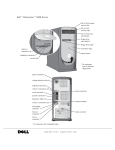
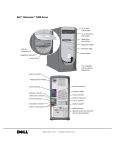
CD headphone
connector
CD activity light
CD volume
control dial
CD drive eject
button
floppy drive light
floppy drive
eject button
power button
hard drive light
CD Activity Light
The CD activity light is on when the computer reads data from the CD
drive.
CD Drive Eject Button
Press this button to eject your CD from the CD drive.
Floppy Drive Eject Button
Press this button to eject a disk from the floppy drive.
Hard-Drive Light
The hard-drive light is on when the computer reads data from or writes data
to your hard drive.
Power Button
Press the power button to turn on the computer.
48
Adding Parts
NOTICE: To turn off your computer, perform a Windows® shutdown rather
than pressing the power button. Otherwise, you may lose data.
Floppy Drive Light
The floppy drive light is on when the computer reads data from or writes
data to the floppy drive.
CD Volume Control Dial
Move the dial to adjust the volume of your audio CD.
CD Headphone Connector
Use the CD headphone connector to attach headphones to the CD drive.
Your headphones won’t work if the CD drive is operating in digital mode. To
disable digital mode:
1
Click Control Panel, and then double-click Sounds and Audio
Devices.
2
Click the Hardware tab.
3
Double-click the name of your CD drive.
4
Click the Properties tab.
5
Uncheck the Enable digital CD audio for this CD-ROM device box.
Adding Pa rts
49
w w w. d e l l . c o m | s u p p o r t . d e l l . c o m
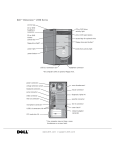
voltage selection switch
serial connector
parallel connector
video connector
keyboard connector
power connector
diagnostic lights
mouse connector
USB connectors
microphone connector
line-out connector
line-in connector
Power Connector
Plug one end of your computer power cable into the power connector, and
plug the other end into an electrical outlet.
Diagnostic Lights
These lights display codes that help you troubleshoot a problem with the
computer.
Mouse Connector
Plug a standard mouse into the green mouse connector. If you have a USB
mouse, plug it into a USB connector.
Line-In Connector
Use the blue line-in connector (available on computers with integrated
sound) to attach a record/playback device such as a cassette player, CD
player, or VCR.
On computers with a sound card, the line-in connector is on the card.
50
Adding Parts
Line-Out Connector
Use the green line-out connector (available on computers with integrated
sound) to attach headphones and most speakers with integrated amplifiers.
On computers with a sound card, the line-out connector is on the card.
Microphone Connector
Use the pink microphone connector (available on computers with
integrated sound) to attach a personal computer microphone for voice or
musical input into a sound or telephony program.
On computers with a sound card, the microphone connector is on the card.
USB Connectors
Connect USB devices, such as USB digital cameras, gaming controllers, and
scanners to these connectors.
Keyboard Connector
If you have a standard keyboard, plug the keyboard into the purple keyboard
connector. If you have a USB keyboard, plug it into a USB connector.
Video Connector
Plug the cable from your monitor into the blue video connector.
HINT: If you attach a
USB device that was not
included in your original
computer order, you may
need to install a specific
driver to make the device
work. Check the
documentation that came
with the device or contact
the USB device
manufacturer for more
information.
Parallel Connector
Connect a parallel device, such as a printer, to the parallel connector. If you
have a USB printer, plug it into a USB connector.
Serial Connector
Connect a serial device, like a handheld device, to the serial connector.
Voltage-Selection Switch
See "Safety Instructions" on page 7 for voltage setting information.
Adding Pa rts
51
w w w. d e l l . c o m | s u p p o r t . d e l l . c o m
CAUTION: Before you begin any of the procedures in this section,
follow the safety instructions on page 7.
CAUTION: To guard against electrical shock, always unplug your
computer from the electrical outlet before opening the cover.
1
Shut down the computer (see page 18).
2
Turn off any attached devices and disconnect them from their
electrical outlets.
NOTICE: To disconnect a network cable, first unplug the cable from your
computer and then unplug it from the network wall jack.
3
Disconnect the computer power cable from the wall outlet, and then
press the power button to ground the system board.
4
Face the front of the computer. Place your left hand on the left side of
the computer. Push back the release latch at the top-back edge of the
computer to release the computer cover into your left hand.
computer cover
release latch
52
Adding Parts
CAUTION: Keep your hands clear of the metal edges on the
computer.
5
Lift the cover out from the curved hinge at the bottom of the
computer.
CAUTION: Before you begin any of the procedures in this section,
follow the safety instructions on page 7.
CAUTION: To guard against electrical shock, always unplug your
computer from the electrical outlet before opening the cover.
To access components on the system board or to add parts to the computer,
you must rotate the power supply out of the way:
1
Shut down the computer (see page 18).
2
Turn off any attached devices and disconnect them from their
electrical outlets.
NOTICE: To disconnect a network cable, first unplug the cable from your
computer and then unplug it from the network wall jack.
3
Disconnect the computer power cable from the wall outlet, and then
press the power button to ground the system board.
4
Remove the computer cover (see page 52).
Adding Pa rts
53
w w w. d e l l . c o m | s u p p o r t . d e l l . c o m
5
Lay the computer on its side as shown in the following illustration.
Press the release latch while lifting the power supply. Rotate the power
supply out of the computer while keeping the drive power cables clear.
power supply
release latch
drive power cables
54
Adding Parts
When you rotate the power supply back into the computer, gently lift the
and hold the drive cables out of the way. Rotate the power supply into
position until its release latch clicks. Lay the drive power cables along the
top of the latch.
power supply
drive power cables
Adding Pa rts
55
w w w. d e l l . c o m | s u p p o r t . d e l l . c o m
CAUTION: Before you begin any of the procedures in this section,
follow the safety instructions on page 7.
release latch and
padlock ring
drive bay
drive bay
I/O panel
hard drive
power supply
AC power receptacle
56
Adding Parts
System Board
In the illustration, the text in parentheses indicates how items are identified
on the system board.
serial
connector (SER)
parallel
connector (PAR)
fan connector
(FAN)
microprocessor socket
(MICROPROCESSOR)
DIMM sockets
(DIMM_A, DIMM_B)
page 69
power input
connector (POWER)
video
connector (VID)
floppy drive
interface connector
(DSKT)
diagnostic lights
(DIAG LED)
keyboard/mouse
connectors (KEYBD
MOUSE)
primary IDE channel
connector (IDE 1)
page 58
USB connectors
(USB 01, USB 23)
microphone, line-out,
line-in (AUDIO)
secondary IDE channel
connector (IDE 2)
page 58
modem TAD
connector (MODEM)
CD audio
connector (CD IN)
control panel
connector (FRONT
PANEL)
speaker (SPEAKER)
PCI card connectors
(PCI1, PCI2,
PCI3, PCI4) page 65
battery socket
(BATTERY) page 81
power indicator (AUX PWR)
password jumper
(PSWD) page 80
Adding Pa rts
57
w w w. d e l l . c o m | s u p p o r t . d e l l . c o m
CAUTION: Before you begin any of the procedures in this section,
follow the safety instructions on page 7.
CAUTION: To guard against electrical shock, always unplug your
computer from the electrical outlet before opening the cover.
Your computer includes one 3.5-inch drive. To add a second 3.5-inch drive:
1
Shut down the computer (see page 18).
2
Turn off any attached devices and disconnect them from their
electrical outlets.
NOTICE: To disconnect a network cable, first unplug the cable from your
computer and then unplug it from the network wall jack.
58
Adding Parts
3
Disconnect the computer power cable from the wall outlet, and then
press the power button to ground the system board.
4
Remove the computer cover (see page 52).
5
While facing the front of the computer, press the front-panel release
tab on the top of the computer.
Swing the front panel away from the computer, disengage the two
retaining hooks on the front panel, and carefully pull it away from the
computer.
front-panel release tab
retaining hooks
Adding Pa rts
59
w w w. d e l l . c o m | s u p p o r t . d e l l . c o m
6
Remove the front-panel insert.
From the back of the front panel, press the release tab to the side.
Then rotate the insert toward you, and remove it from the front panel.
insert
tabs (2)
release tab
7
60
Adding Parts
Rotate the power supply (see page 53).
8
Remove the metal drive bay plate covering the bay.
Using a screwdriver, pop out the metal plate from the left or right side
of the computer.
drive bay plate
Adding Pa rts
61
w w w. d e l l . c o m | s u p p o r t . d e l l . c o m
9
Remove the extra rails from the front of the computer frame (see the
illustration below).
Install the rail marked "L" on the left side of the drive and the rail
marked "R" on the right side of the drive.
front of computer
left rail
right rail
10
Slide the drive assembly into the drive bay.
NOTICE: Dell does not recommend routing cables over cards because the
cables can restrict airflow, cause cooling problems, and interfere with
removing and replacing the computer cover. If you must route cables over
cards, be extremely cautious when removing and replacing the computer cover.
11
If you are installing a controller card, configure and install it in a
connector slot now (see page 65 for instructions).
Install the card as close as you can to the drive cage.
62
Adding Parts
12
Connect a power cable to the drive.
power cable from
power supply
NOTICE: When you attach the extra connector to the new drive in the
following step, match the colored strip on the cable with pin 1 on the drive.
13
If you didn’t install a controller card in step 11, remove the tape from
the wide cable connector and reattach the connector to the original
drive. Then locate the extra connector on the cable and attach it to the
new drive. Be sure that the wide cable is properly connected to the
IDE connector on the system board.
Adding Pa rts
63
w w w. d e l l . c o m | s u p p o r t . d e l l . c o m
If you installed a controller card in step 11, attach the other end of the
interface cable to the controller card rather than to the system board.
pin 1
cable
14
Replace the front panel.
Fit the front panel’s two retaining hooks into their corresponding slots
on the computer (see page 59). Then, rotate the front panel toward
the computer until the front panel latches into position.
64
Adding Parts
15
Make sure that no cable connections were loosened during the
procedure. Arrange cables so that they will not interfere with replacing
the power supply and computer cover.
16
Rotate the power supply back into place (see page 55).
17
Replace the computer cover (see page 71).
18
Plug your computer and devices into their electrical outlets, and turn
them on.
19
See the drive’s documentation for instructions on installing any
software required for drive operation.
CAUTION: Before you begin any of the procedures in this section,
follow the safety instructions on page 7.
CAUTION: To guard against electrical shock, always unplug your
computer from the electrical outlet before opening the cover.
To install a card:
1
Shut down the computer (see page 18).
2
Turn off any attached devices and disconnect them from their
electrical outlets.
NOTICE: To disconnect a network cable, first unplug the cable from your
computer and then unplug it from the network wall jack.
3
Disconnect the computer power cable from the wall outlet, and then
press the power button to ground the system board.
4
Remove the computer cover (see page 52).
5
Rotate the power supply (see page 53).
6
Unscrew and remove the filler bracket for the card slot you want to use.
filler bracket
Adding Pa rts
65
w w w. d e l l . c o m | s u p p o r t . d e l l . c o m
7
Align the cutout on the bottom of the card with the crossbar in the
system board connector. Gently rock the card into the connector until
it is fully seated.
If the card is full-length, insert the front end of the card into the
corresponding card guide at the front of the computer as you insert the
card into its connector.
card
card cutout
card connector
on system board
66
Adding Parts
crossbar
Make sure that the card is fully seated and that its bracket is within the
card slot.
fully seated
not fully seated
bracket within slot
bracket caught
outside of slot
8
Secure the bracket on the end of the card with the screw you removed
in step 6.
9
Connect any cables required for the card as described in the card
documentation.
10
Rotate the power supply back into place (see page 55).
11
Replace the computer cover (see page 71).
12
Plug your computer and devices into their electrical outlets, and turn
them on.
13
Install any drivers required for the card as described in the card
documentation.
Adding Pa rts
67
w w w. d e l l . c o m | s u p p o r t . d e l l . c o m
Removing Cards
CAUTION: Before you begin any of the procedures in this section,
follow the safety instructions on page 7.
CAUTION: To guard against electrical shock, always unplug your
computer from the electrical outlet before opening the cover.
1
Shut down the computer (see page 18).
2
Turn off any attached devices and disconnect them from their
electrical outlets.
NOTICE: To disconnect a network cable, first unplug the cable from your
computer and then unplug it from the network wall jack.
68
Adding Parts
3
Disconnect the computer power cable from the wall outlet, and then
press the power button to ground the system board.
4
Remove the computer cover (see page 52).
5
Rotate the power supply (see page 53).
6
Disconnect any cables connected to the card.
7
Remove the screw from the card bracket.
8
Grasp the card by its top corners, and lift it from the system board.
9
If you are removing the card permanently, reinstall a filler bracket.
10
Rotate the power supply back into place (see page 55).
11
Replace the computer cover (see page 71).
12
Plug your computer and devices into their electrical outlets, and turn
them on.
CAUTION: Before you begin any of the procedures in this section,
follow the safety instructions on page 7.
CAUTION: To guard against electrical shock, always unplug your
computer from the electrical outlet before opening the cover.
You can increase your computer memory by installing memory modules on
the system board. See page 74 for information on the type of memory
supported by your computer.
1
Shut down the computer (see page 18).
2
Turn off any attached devices and disconnect them from their
electrical outlets.
HINT: Memory
purchased from Dell is
covered under your
computer warranty.
NOTICE: To disconnect a network cable, first unplug the cable from your
computer and then unplug it from the network wall jack.
3
Disconnect the computer power cable from the wall outlet, and then
press the power button to ground the system board.
4
Open the computer cover (see page 52).
5
Rotate the power supply (see page 53).
6
If necessary, remove a memory module:
a
Press out the securing clip at each end of the memory connector.
b
Grasp the module and pull up.
If the module is difficult to remove, gently ease the module back
and forth to remove it from the connector.
Adding Pa rts
69
w w w. d e l l . c o m | s u p p o r t . d e l l . c o m
7
To insert a module, press out the securing clip at each end of the
memory connector.
memory connectors
on system board
securing clips (2)
notches (2)
memory module
connector
cutouts (2)
step 7
step 8
step 9
8
Align the notches on the bottom of the module with the crossbars in
the connector.
NOTICE: To avoid breaking the memory module, do not press near the middle
of the module.
9
Insert the module straight down into the connector, making sure that
it fits into the vertical guides at each end of the connector.
Press firmly on the ends of the module until it snaps into place.
If you insert the module correctly, the securing clips snap into the
cutouts at each end of the module.
70
Adding Parts
10
Rotate the power supply back into place (see page 55).
11
Replace the computer cover (see the following section).
1
Rotate the power supply back into place (see page 55).
2
Check all cable connections, especially those that might have come
loose during your work. Fold cables and unused connectors out of the
way so that they do not catch on the computer cover or interfere with
airflow inside the computer.
3
Check to see that no tools or extra parts (including screws) are left
inside the computer.
4
Place the computer upright with the front facing you. Align the
computer cover so its bottom hooks fit in the computer’s curved
hinge.
5
Lift up the cover, making sure to keep the bottom hooks aligned with
the curves in the computer.
6
Gently squeeze the right and left sides of the computer together until
the cover clicks into position.
HINT: The system
memory value reported by
the operating system is 1
or 2 MB less than the
memory installed because
that memory is reserved
for video functions.
Adding Pa rts
71
72
Adding Parts
w w w. d e l l . c o m | s u p p o r t . d e l l . c o m
SECTION 4
Specifications
Standard Settings
Clearing Forgotten Passwords
Replacing the Battery
Dell Technical Support Policy (U.S. Only)
Contacting Dell
Regulatory Information
Limited Warranties and Return Policy
w w w. d e l l . c o m | s u p p o r t . d e l l . c o m
w w w. d e l l . c o m | s u p p o r t . d e l l . c o m
Microprocessor
Microprocessor type
Intel® Celeron™ microprocessor
L1 cache
32 KB (16-KB data cache; 16-KB instruction
cache)
L2 cache
256-KB SRAM that resides in the processor’s
core. The L2 cache runs at the processor’s
internal clock speed.
System Information
System chip set
Intel 810E
DMA channels
two
Interrupt levels
24 APIC mode
System BIOS chip
4 Mb (256 KB)
Expansion Bus
Bus types
PCI (version 2.2)
Bus speed
PCI: 33 MHz
PCI connectors
supports four three-quarter–length cards
PCI connector size
120 pins
PCI connector data width
(maximum)
32 bits
Memory
74
Appendix
Architecture
non-ECC SDRAM modules
Memory connectors
two; gold contacts
Memory capacities
128, 256, and 512 MB (non-ECC)
Minimum memory
128 MB (non-ECC)
Maximum memory
512 MB (non-ECC)
Frequency
100 MHz
Voltage
3.3 V
Data bus width
64 bits
Drives
Externally accessible
one 5.25-inch bay
two 3.5-inch bays
Internally accessible
one bay for 1-inch–high IDE hard drive
Ports and Connectors
Externally accessible:
Serial
9-pin connector; 16550C-compatible
Parallel
25-hole connector (bidirectional)
Video
15-hole connector
Keyboard
6-pin mini-DIN connector or USB connector
Mouse
6-pin mini-DIN connector or USB connector
USB
four USB-compliant connectors
Audio1
three miniature connectors for line-in, lineout, and microphone
Internally accessible:
Primary EIDE channel
40-pin connector on PCI local bus
Secondary EIDE channel
40-pin connector on PCI local bus
Floppy drive
34-pin connector
Video
Video controller
Intel 3D AGP graphics
Audio 1
Audio controller
1
ADI 1885
Present only on computers with built-in audio capabilities.
Appendix
75
w w w. d e l l . c o m | s u p p o r t . d e l l . c o m
Controls and Lights
Power control
push button
Power light
green
Hard-drive access light
green
Diagnostic code lights
four bicolor (amber and green) located on
back panel
Power
DC power supply:
Wattage
145 W
Heat dissipation
495 BTU (fully loaded computer without
monitor)
Voltage (switch-selectable
on back panel)
90 to 135 V at 60 Hz; 180 to 265 V at 50 Hz;
100 V at 50 to 60 Hz for Japanese computers
Backup battery
3-V CR2032 coin cell
Physical
Height x Width x Depth
39 x 16.8 x 34 cm
(15.375 x 6.625 x 13.375 inches)
Weight
9.9 Kg (22 lbs)
Environmental
Temperature:
2
76
Appendix
Operating
10° to 35°C (50° to 95°F)2
Storage
–40° to 65°C (–40° to 149°F)
At 35°C (95°F), the maximum operating altitude is 914 m (3000 ft).
Environmental (continued)
Relative humidity
20% to 80% (noncondensing)
Maximum vibration:
Operating
0.25 G at 3 to 200 Hz at 1/2 octave/min
Storage
0.5 G at 3 to 200 Hz at 1/2 octave/min
Maximum shock:
Operating
bottom half-sine pulse with a change in
velocity of 50.8 cm/sec (20 inches/sec)
Storage
23-G faired-square wave with a velocity
change of 508 cm/sec (200 inches/sec)
Altitude:
3
Operating
–15.2 to 3048 m (–50 to 10,000 ft)3
Storage
–15.2 to 10,600 m (–50 to 35,000 ft)
At 35°C (95°F), the maximum operating altitude is 914 m (3000 ft).
Appendix
77
w w w. d e l l . c o m | s u p p o r t . d e l l . c o m
The system setup program contains the standard settings for your
computer.
NOTICE: Unless you are an expert computer user, don’t change the settings
for this program. Certain changes might make your computer work incorrectly.
See the following figure for an example of the main program screen.
78
Appendix
Viewing Settings
1
Turn on (or restart) your computer.
2
When the blue DELL™ logo appears, press <F2> immediately.
If you wait too long and the operating system logo appears, continue to
wait until you see the Microsoft® Windows® desktop. Then shut
down your computer and try again.
System Setup Program Screens
The system setup program screens display the current configuration
information for your computer. Information on the screen is divided into
five areas:
•
Title – The area at the top of all system setup screens that displays
your computer’s model number.
•
Computer data – Two boxes below the title that display the system
processor, L2 cache, service tag, and the version number of the BIOS.
•
Options – A scrollable box listing options that define the configuration
of your computer (including installed hardware, power conservation,
and security features).
Fields to the right of the listed options contain settings or values. The
settings and values that you can change are brighter on the screen. All
other settings and values are set by the computer and cannot be
changed. When <Enter> appears to the right of an option, press
<Enter> to access a pop-up menu of additional options.
•
Key functions – A line of boxes across the bottom of all system setup
screens that lists keys and their functions within the system setup
program.
•
Help – Press <F1> for information on the option that is selected
(highlighted).
Appendix
79
w w w. d e l l . c o m | s u p p o r t . d e l l . c o m
CAUTION: Before you begin this procedure, follow the safety
instructions listed in "When Working Inside Your Computer" on
page 10.
If you forget your user or setup password, you cannot operate your computer
or change settings in the system setup program until you clear the forgotten
password(s).
NOTICE: This process erases both the system and setup passwords.
1
Shut down the computer (see page 18).
2
Turn off any attached devices and disconnect them from their
electrical outlets.
NOTICE: To disconnect a network cable, first unplug the cable from your
computer and then unplug it from the network wall jack.
3
Disconnect the computer power cable from the wall outlet, and then
press the power button to ground the system board.
4
Remove the computer cover (see page 52).
5
Locate jumper PSWD on the system board (see page 57) and remove
the jumper plug.
6
Replace the computer cover (see page 71), plug your computer into an
electrical outlet, and turn on the computer.
The existing password(s) will be erased.
7
Shut down the computer (see page 18).
8
Turn off any attached devices and disconnect them from their
electrical outlets.
NOTICE: To disconnect a network cable, first unplug the cable from your
computer and then unplug it from the network wall jack.
9
80
Appendix
Disconnect the computer power cable from the wall outlet, and then
press the power button to ground the system board.
10
Remove the computer cover (see page 52).
11
Reconnect the jumper plug to jumper PSWD (see page 57).
12
Replace the computer cover (see page 71), plug your computer into an
electrical outlet, and turn on the computer.
Turning on your computer with the PSWD jumper installed reenables
the password feature.
A coin-cell battery maintains computer configuration, date, and time
information. The battery can last several years.
If you have to repeatedly reset time and date information after turning on
the computer, replace the battery.
CAUTION: A new battery can explode if it is incorrectly installed.
Replace the 3-V CR2032 battery only with the same or equivalent
type recommended by the manufacturer. Discard used batteries
according to the manufacturer’s instructions (see "Battery
Disposal" on page 103).
1
Record all the screens in the system setup program so that you can
restore the correct settings in step 8 (see page 78).
2
Remove the computer cover (see page 52).
3
Rotate the power supply (see page 53).
NOTICE: To avoid damage to the system board while you pry the battery
loose, be sure to insert the plastic screwdriver between the battery and the
socket (not the system board).
4
Locate the battery socket BATTERY (see page 57) and pry the battery
out of its socket with your fingers or with a plastic screwdriver.
Appendix
81
w w w. d e l l . c o m | s u p p o r t . d e l l . c o m
5
Insert the battery into the socket with the side labeled "+" facing up.
battery
battery socket
(BATTERY)
6
Rotate the power supply back into place (see page 55).
7
Replace the computer cover (see page 71), and plug your computer
and devices into their electrical outlets.
8
Access the system setup program and restore the settings you recorded
in step 1.
Technician-assisted technical support requires the cooperation and
participation of the customer in the troubleshooting process and provides
for restoration of the operating system, application software, and hardware
drivers to the original default configuration as shipped from Dell, as well as
the verification of appropriate functionality of the computer and all Dellinstalled hardware. In addition to this technician-assisted technical support,
online technical support is available at support.dell.com. Additional
technical support options may be available for purchase.
82
Appendix
Dell provides limited technical support for the computer and any "Dellinstalled" software and peripherals1. Support for third-party software and
peripherals is provided by the original manufacturer, including those
purchased and/or installed through Dell Software and Peripherals,
Readyware, and Custom Factory Integration (DellPlus™)2.
1 Repair services are provided pursuant to the terms and conditions of your limited
warranty and any optional support service contract purchased with the computer.
2 All Dell-standard components included in a Custom Factory Integration (CFI)
project are covered by the standard Dell limited warranty for your computer. However, Dell also extends a parts replacement program to cover all nonstandard,
third-party hardware components integrated through CFI for the duration of the
computer’s service contract.
Definition of "Dell-Installed" Software and Peripherals
Dell-installed software includes the operating system and some of the
application software that is preinstalled on the computer during the
manufacturing process (Microsoft Office, Norton Antivirus, and so on).
Dell-installed peripherals include any internal expansion cards, or Dellbranded module bay or PC Card accessories. In addition, any Dell-branded
monitors, keyboards, mice, speakers, microphones for telephonic modems,
docking stations/port replicators, networking products, and all associated
cabling are included.
Definition of "Third-Party" Software and Peripherals
Third-party software and peripherals include any peripheral, accessory, or
application software sold by Dell not under the Dell brand (printers,
scanners, cameras, games, and so on). Support for all third-party software
and peripherals is provided by the original manufacturer of the product.
Appendix
83
w w w. d e l l . c o m | s u p p o r t . d e l l . c o m
HINT: Toll-free numbers
are for use within the
country for which they are
listed.
When you need to contact Dell, use the telephone numbers, codes, and
electronic addresses provided in the following tables. If you need assistance
in determining which codes to use, contact a local or an international
operator.
See "Dell Technical Support Policy" on page 82 for a description of the
hardware and software support provided by Dell.
Contact Numbers and Addresses
Country (City)
International Access Code
Country Code
City Code
Department Name or Service Area,
Website and E-Mail Address
Area Codes,
Local Numbers, and
Toll Free Numbers
Antigua and Barbuda
General Support
1-800-805-5924
Argentina (Buenos Aires)
Tech Support and Customer Care
toll free: 1-800-444-0733
International Access Code: 00
Sales
toll free: 1-800-444-3355
Country Code: 54
Tech Support Fax
11 4515 7139
City Code: 11
Customer Care Fax
11 4515 7138
Website: www.dell.com.ar
Australia (Sydney)
Home and Small Business
1-300-65-55-33
International Access Code: 0011
Government and Business
toll free: 1-800-633-559
Country Code: 61
Preferred Accounts Division (PAD)
toll free: 1-800-060-889
City Code: 2
Customer Care
toll free: 1-800-819-339
Corporate Sales
toll free: 1-800-808-385
Transaction Sales
toll free: 1-800-808-312
Fax
toll free: 1-800-818-341
84
Appendix
Country (City)
International Access Code
Country Code
City Code
Department Name or Service Area,
Website and E-Mail Address
Area Codes,
Local Numbers, and
Toll Free Numbers
Austria (Vienna)
Home/Small Business Sales
01 795 67602
International Access Code: 900
Home/Small Business Fax
01 795 67605
Country Code: 43
Home/Small Business Customer Care
01 795 67603
City Code: 1
Preferred Accounts/Corporate Customer Care
Home/Small Business Technical Support
Preferred Accounts/Corporate Technical Support
Switchboard
0660 8056
01 795 67604
0660 8779
01 491 04 0
Website: support.euro.dell.com
E-mail: [email protected]
Barbados
General Support
Belgium (Brussels)
Technical Support
1-800-534-3066
02 481 92 88
International Access Code: 00
Customer Care
02 481 91 19
Country Code: 32
Home/Small Business Sales
City Code: 2
Corporate Sales
02 481 91 00
Fax
02 481 92 99
Switchboard
02 481 91 00
toll free: 0800 16884
Website: support.euro.dell.com
E-mail: [email protected]
E-mail for French Speaking Customers:
support.euro.dell.com/be/fr/emaildell/
Bermuda
General Support
1-800-342-0671
Brazil
Customer Support, Technical Support
International Access Code: 0021
Tech Support Fax
51 481 5470
Country Code: 55
Customer Care Fax
51 481 5480
City Code: 51
Sales
0800 90 3355
0800 90 3390
Website: www.dell.com/br
Brunei
Customer Technical Support (Penang, Malaysia)
604 633 4966
Country Code: 673
Customer Service (Penang, Malaysia)
604 633 4949
Transaction Sales (Penang, Malaysia)
604 633 4955
Appendix
85
w w w. d e l l . c o m | s u p p o r t . d e l l . c o m
Country (City)
International Access Code
Country Code
City Code
Department Name or Service Area,
Website and E-Mail Address
Area Codes,
Local Numbers, and
Toll Free Numbers
Canada (North York, Ontario)
Automated Order-Status System
toll free: 1-800-433-9014
International Access Code: 011
AutoTech (Automated technical support)
toll free: 1-800-247-9362
Customer Care (From outside Toronto)
toll free: 1-800-387-5759
Customer Care (From within Toronto)
416 758-2400
Customer Technical Support
toll free: 1-800-847-4096
Sales (Direct sales—from outside Toronto)
toll free: 1-800-387-5752
Sales (Direct sales—from within Toronto)
416 758-2200
Sales (Federal government, education, and
medical)
toll free: 1-800-567-7542
Sales (Major accounts)
toll free: 1-800-387-5755
TechFax
toll free: 1-800-950-1329
Cayman Islands
General Support
Chile (Santiago)
Sales, Customer Support, and Technical Support
1-800-805-7541
toll free: 1230-020-4823
Country Code: 56
City Code: 2
China (Xiamen)
Home and Small Business Technical Support
toll free: 800 858 2437
Country Code: 86
Corporate Accounts Technical Support
toll free: 800 858 2333
City Code: 592
Customer Experience
toll free: 800 858 2060
Home and Small Business
toll free: 800 858 2222
Preferred Accounts Division
toll free: 800 858 2062
Large Corporate Accounts North
toll free: 800 858 2999
Large Corporate Accounts East
toll free: 800 858 2020
Large Corporate Accounts South
toll free: 800 858 2355
Large Corporate Accounts GCP
toll free: 800 858 2055
Large Corporate Accounts HK
toll free: 800 964108
Large Corporate Accounts GCP HK
toll free: 800 907308
Colombia
General Support
980-9-15-3978
Costa Rica
General Support
0800-012-0435
86
Appendix
Country (City)
International Access Code
Country Code
City Code
Department Name or Service Area,
Website and E-Mail Address
Area Codes,
Local Numbers, and
Toll Free Numbers
Czech Republic (Prague)
Technical Support
02 22 83 27 27
International Access Code: 00
Customer Care
02 22 83 27 11
Country Code: 420
Fax
02 22 83 27 14
City Code: 2
TechFax
02 22 83 27 28
Switchboard
02 22 83 27 11
Website: support.euro.dell.com
E-mail: [email protected]
Denmark (Horsholm)
Technical Support
45170182
International Access Code: 00
Relational Customer Care
45170184
Country Code: 45
Home/Small Business Customer Care
32875505
Switchboard
45170100
Fax Technical Support (Upplands Vasby, Sweden)
Fax Switchboard
46 0 859005594
45170117
Website: support.euro.dell.com
E-mail: [email protected]
E-mail Support for Servers:
[email protected]
Dominican Republic
General Support
1-800-148-0530
El Salvador
General Support
01-899-753-0777
Finland (Helsinki)
Technical Support
09 253 313 60
International Access Code: 990
Technical Support Fax
09 253 313 81
Country Code: 358
Relational Customer Care
09 253 313 38
City Code: 9
Home/Small Business Customer Care
09 693 791 94
Fax
09 253 313 99
Switchboard
09 253 313 00
Website: support.euro.dell.com
E-mail: [email protected]
Appendix
87
w w w. d e l l . c o m | s u p p o r t . d e l l . c o m
Country (City)
International Access Code
Country Code
City Code
Department Name or Service Area,
Website and E-Mail Address
Area Codes,
Local Numbers, and
Toll Free Numbers
France (Paris) (Montpellier)
Home and Small Business
International Access Code: 00
Technical Support
0825 387 270
Country Code: 33
Customer Care
0825 823 833
City Codes: (1) (4)
Switchboard
0825 004 700
Switchboard (Alternative)
04 99 75 40 00
Sales
0825 004 700
Fax
0825 004 701
Fax (Alternative)
04 99 75 40 01
Website: support.euro.dell.com
E-mail: support.euro.dell.com/fr/fr/emaildell/
Corporate
Technical Support
0825 004 719
Customer Care
0825 338 339
Switchboard
01 55 94 71 00
Sales
01 55 94 71 00
Fax
01 55 94 71 01
Website: support.euro.dell.com
E-mail: support.euro.dell.com/fr/fr/emaildell/
Germany (Langen)
Technical Support
06103 766-7200
International Access Code: 00
Home/Small Business Customer Care
Country Code: 49
Global Segment Customer Care
06103 766-9570
City Code: 6103
Preferred Accounts Customer Care
06103 766-9420
Large Accounts Customer Care
06103 766-9560
Public Accounts Customer Care
06103 766-9555
Switchboard
06103 766-7000
0180-5-224400
Website: support.euro.dell.com
E-mail: [email protected]
Guatemala
88
Appendix
General Support
1-800-999-0136
Country (City)
International Access Code
Country Code
City Code
Department Name or Service Area,
Website and E-Mail Address
Area Codes,
Local Numbers, and
Toll Free Numbers
Hong Kong
Technical Support
International Access Code: 001
Customer Service (Penang, Malaysia)
Country Code: 852
Transaction Sales
toll free: 800 96 4109
Corporate Sales
toll free: 800 96 4108
India
Technical Support
toll free: 800 96 4107
604 633 4949
1600 33 8045
Sales
1600 33 8044
Ireland (Cherrywood)
Ireland Technical Support
1850 543 543
International Access Code: 16
UK Technical Support
Country Code: 353
Home User Customer Care
City Code: 1
UK Customer Care
0870 908 0800
01 204 4095
0870 906 0010
Small Business Customer Care
01 204 4444
Corporate Customer Care
01 204 4003
Ireland Sales
01 204 4444
UK Sales
0870 907 4000
SalesFax
01 204 0144
Ireland Fax
01 204 5960
Switchboard
01 204 4444
Website: support.euro.dell.com
E-mail: [email protected]
Appendix
89
w w w. d e l l . c o m | s u p p o r t . d e l l . c o m
Country (City)
International Access Code
Country Code
City Code
Department Name or Service Area,
Website and E-Mail Address
Area Codes,
Local Numbers, and
Toll Free Numbers
Italy (Milan)
Home and Small Business
International Access Code: 00
Technical Support
02 577 826 90
Country Code: 39
Customer Care
02 696 821 14
City Code: 02
Fax
02 696 821 13
Switchboard
02 696 821 12
Website: support.euro.dell.com
E-mail: support.euro.dell.com/it/it/emaildell/
Corporate
Technical Support
02 577 826 90
Customer Care
02 577 825 55
Fax
02 575 035 30
Switchboard
02 577 821
Website: support.euro.dell.com
E-mail: support.euro.dell.com/it/it/emaildell/
Jamaica
90
General Support
Appendix
1-800-682-3639
Country (City)
International Access Code
Country Code
City Code
Department Name or Service Area,
Website and E-Mail Address
Area Codes,
Local Numbers, and
Toll Free Numbers
Japan (Kawasaki)
Technical Support (Server)
International Access Code: 001
Technical Support Outside of Japan (Server)
Country Code: 81
Technical Support (Dimension™ and Inspiron™)
toll free: 0120-1982-26
City Code: 44
Technical Support Outside of Japan (Dimension
and Inspiron)
81-44-520-1435
Technical Support (Dell Precision™, OptiPlex™,
and Latitude™)
toll free: 0120-1984-33
Technical Support Outside of Japan (Dell
Precision, OptiPlex, and Latitude)
toll free: 0120-1984-35
81-44-556-4152
81-44-556-3894
24-Hour Automated Order Service
044 556-3801
Customer Care
044 556-4240
Business Sales Division (Up to 400 employees)
044 556 3494
Preferred Accounts Division Sales (Over 400
employees)
044 556-3433
Large Corporate Accounts Sales (Over 3500
employees)
044 556-3440
Public Sales (Government agencies, educational
institutions, and medical institutions)
044 556 3440
Global Segment Japan
044 556 3469
Individual User
044 556 1657
Faxbox Service
044 556-3490
Switchboard
044 556-4300
Website: support.jp.dell.com
Korea (Seoul)
Technical Support
toll free: 080-200-3800
International Access Code: 001
Sales
toll free: 080-200-3600
Country Code: 82
Customer Service (Seoul, Korea)
toll free: 080-200-3800
City Code: 2
Customer Service (Penang, Malaysia)
604 633 4949
Fax
2194-6202
Switchboard
2194-6000
Appendix
91
w w w. d e l l . c o m | s u p p o r t . d e l l . c o m
Country (City)
International Access Code
Country Code
City Code
Latin America
Department Name or Service Area,
Website and E-Mail Address
Area Codes,
Local Numbers, and
Toll Free Numbers
Customer Technical Support (Austin, Texas,
U.S.A.)
512 728-4093
Customer Service (Austin, Texas, U.S.A.)
512 728-3619
Fax (Technical Support and Customer
Service)(Austin, Texas, U.S.A.)
512 728-3883
Sales (Austin, Texas, U.S.A.)
512 728-4397
SalesFax (Austin, Texas, U.S.A.)
512 728-4600
or 512 728-3772
Luxembourg
Technical Support (Brussels, Belgium)
02 481 92 88
International Access Code: 00
Home/Small Business Sales (Brussels, Belgium)
Country Code: 352
Corporate Sales (Brussels, Belgium)
02 481 91 00
Customer Care (Brussels, Belgium)
02 481 91 19
Fax (Brussels, Belgium)
02 481 92 99
Switchboard (Brussels, Belgium)
02 481 91 00
toll free: 080016884
Website: support.euro.dell.com
E-mail: [email protected]
Macau
Technical Support
Country Code: 853
Customer Service (Penang, Malaysia)
Transaction Sales
toll free: 0800 582
604 633 4949
toll free: 0800 581
Malaysia (Penang)
Technical Support
toll free: 1 800 888 298
International Access Code: 00
Customer Service
04 633 4949
Country Code: 60
Transaction Sales
toll free: 1 800 888 202
City Code: 4
Corporate Sales
toll free: 1 800 888 213
92
Appendix
Country (City)
International Access Code
Country Code
City Code
Mexico
Department Name or Service Area,
Website and E-Mail Address
Customer Technical Support
International Access Code: 00
Country Code: 52
Area Codes,
Local Numbers, and
Toll Free Numbers
001-877-384-8979
or 001-877-269-3383
Sales
50-81-8800
or 01-800-888-3355
Customer Service
001-877-384-8979
or 001-877-269-3383
Main
50-81-8800
or 01-800-888-3355
Netherlands Antilles
General Support
001-800-882-1519
Netherlands (Amsterdam)
Technical Support
020 581 8838
International Access Code: 00
Customer Care
020 581 8740
Country Code: 31
Home/Small Business Sales
City Code: 20
Home/Small Business Sales Fax
020 682 7171
Corporate Sales
020 581 8818
Corporate Sales Fax
020 686 8003
Fax
020 686 8003
Switchboard
020 581 8818
toll free: 0800-0663
Website: support.euro.dell.com
E-mail: [email protected]
New Zealand
Home and Small Business
0800 446 255
International Access Code: 00
Government and Business
0800 444 617
Country Code: 64
Sales
0800 441 567
Fax
0800 441 566
Nicaragua
General Support
001-800-220-1006
Appendix
93
w w w. d e l l . c o m | s u p p o r t . d e l l . c o m
Country (City)
International Access Code
Country Code
City Code
Department Name or Service Area,
Website and E-Mail Address
Area Codes,
Local Numbers, and
Toll Free Numbers
Norway (Lysaker)
Technical Support
671 16882
International Access Code: 00
Relational Customer Care
671 17514
Country Code: 47
Home/Small Business Customer Care
23162298
Switchboard
671 16800
Fax Technical Support (Upplands Vasby, Sweden)
Fax Switchboard
46 0 85 590 05 594
671 16865
Website: support.euro.dell.com
E-mail: [email protected]
E-mail Support for Servers:
[email protected]
Panama
General Support
001-800-507-0962
Peru
General Support
0800-50-669
Poland (Warsaw)
Customer Service Phone
International Access Code: 011
Customer Care
57 95 999
Country Code: 48
Sales
57 95 999
City Code: 22
Customer Service Fax
57 95 806
Reception Desk Fax
57 95 998
Switchboard
57 95 999
57 95 700
Website: support.euro.dell.com
E-mail: [email protected]
Portugal
Technical Support
35 800 834 077
International Access Code: 00
Customer Care
800 300 415 or
35 800 834 075
Country Code: 35
Sales
800 300 410 or 800 300 411
or 800 300 412 or
351 214 220 710
Fax
35 121 424 01 12
E-mail: support.euro.dell.com/es/es/emaildell/
Puerto Rico
General Support
1-800-805-7545
St. Lucia
General Support
1-800-882-1521
94
Appendix
Country (City)
International Access Code
Country Code
City Code
Department Name or Service Area,
Website and E-Mail Address
Area Codes,
Local Numbers, and
Toll Free Numbers
Singapore (Singapore)
Technical Support
International Access Code: 005
Customer Service (Penang, Malaysia)
Country Code: 65
Transaction Sales
toll free: 800 6011 054
Corporate Sales
toll free: 800 6011 053
South Africa (Johannesburg)
Technical Support
toll free: 800 6011 051
604 633 4949
011 709 7710
International Access Code: 09/091 Customer Care
011 709 7707
Country Code: 27
Sales
011 709 7700
City Code: 11
Fax
011 706 0495
Switchboard
011 709 7700
Website: support.euro.dell.com
E-mail: [email protected]
Southeast Asian and Pacific
Countries
Customer Technical Support, Customer Service,
and Sales (Penang, Malaysia)
604 633 4810
Spain (Madrid)
Home and Small Business
International Access Code: 00
Technical Support
902 100 130
Country Code: 34
Customer Care
902 118 540
City Code: 91
Sales
902 118 541
Switchboard
902 118 541
Fax
902 118 539
Website: support.euro.dell.com
E-mail: support.euro.dell.com/es/es/emaildell/
Corporate
Technical Support
902 100 130
Customer Care
902 118 546
Switchboard
91 722 92 00
Fax
91 722 95 83
Website: support.euro.dell.com
E-mail: support.euro.dell.com/es/es/emaildell/
Appendix
95
w w w. d e l l . c o m | s u p p o r t . d e l l . c o m
Country (City)
International Access Code
Country Code
City Code
Department Name or Service Area,
Website and E-Mail Address
Area Codes,
Local Numbers, and
Toll Free Numbers
Sweden (Upplands Vasby)
Technical Support
08 590 05 199
International Access Code: 00
Relational Customer Care
08 590 05 642
Country Code: 46
Home/Small Business Customer Care
08 587 70 527
City Code: 8
Fax Technical Support
08 590 05 594
Sales
08 590 05 185
Website: support.euro.dell.com
E-mail: [email protected]
E-mail Support for Latitude and Inspiron:
[email protected]
E-mail Support for OptiPlex: [email protected]
E-mail Support for Servers:
[email protected]
Switzerland (Geneva)
Technical Support (Home and Small Business)
International Access Code: 00
Technical Support (Corporate)
0844 822 844
Country Code: 41
Customer Care (Home and Small Business)
0848 802 202
City Code: 22
Customer Care (Corporate)
0848 821 721
Fax
022 799 01 90
Switchboard
022 799 01 01
0844 811 411
Website: support.euro.dell.com
E-mail: [email protected]
E-mail for French Speaking HSB and Corporate
Customers: support.euro.dell.com/ch/fr/emaildell/
Taiwan
Technical Support
toll free: 0080 60 1255
International Access Code: 002
Technical Support (Servers)
toll free: 0080 60 1256
Country Code: 886
Transaction Sales
toll free: 0080 651 228
Corporate Sales
toll free: 0080 651 227
or 0800 33 556
or 0800 33 555
Thailand
Technical Support
International Access Code: 001
Customer Service (Penang, Malaysia)
Country Code: 66
Sales
96
Appendix
toll free: 0880 060 07
604 633 4949
toll free: 0880 060 09
Country (City)
International Access Code
Country Code
City Code
Department Name or Service Area,
Website and E-Mail Address
Area Codes,
Local Numbers, and
Toll Free Numbers
Trinidad/Tobago
General Support
1-800-805-8035
U.K. (Bracknell)
Technical Support (Corporate/Preferred
Accounts/PAD [1000+ employees])
0870 908 0500
International Access Code: 00
Country Code: 44
Technical Support (Direct/PAD and general)
0870 908 0800
City Code: 1344
Global Accounts Customer Care
01344 373 186
Home and Small Business Customer Care
0870 906 0010
Corporate Customer Care
0870 908 0500
Preferred Accounts (500–5000 employees)
Customer Care
01344 373 196
Central Government Customer Care
01344 373 193
Local Government Customer Care
01344 373 199
Home and Small Business Sales
0870 907 4000
Corporate/Public Sector Sales
01344 860 456
Website: support.euro.dell.com
E-mail: [email protected]
Appendix
97
w w w. d e l l . c o m | s u p p o r t . d e l l . c o m
Country (City)
International Access Code
Country Code
City Code
Department Name or Service Area,
Website and E-Mail Address
Area Codes,
Local Numbers, and
Toll Free Numbers
U.S.A. (Austin, Texas)
Automated Order-Status System
toll free: 1-800-433-9014
International Access Code: 011
AutoTech (For portable and desktop computers)
toll free: 1-800-247-9362
Country Code: 1
Dell Home and Small Business Group (For portable and desktop computers):
Customer Technical Support (Return Material
Authorization Numbers)
toll free: 1-800-624-9896
Customer Technical Support (Home sales
purchased via www.dell.com)
toll free: 1-877-576-3355
Customer Service (Credit Return Authorization
Numbers)
toll free: 1-800-624-9897
National Accounts (Computers purchased by established Dell national accounts
[have your account number handy] or value-added resellers [VARs]):
Customer Service and Technical Support (Return
Material Authorization Numbers)
toll free: 1-800-822-8965
Public Americas (Computers purchased by governmental agencies [local, state, or
federal], educational institutions, or medical institutions):
Customer Service and Technical Support (Return
Material Authorization Numbers)
Dell Sales
toll free: 1-800-234-1490
toll free: 1-800-289-3355
or toll free: 1-800-879-3355
Spare Parts Sales
toll free: 1-800-357-3355
Desktop and Portable Fee-Based Technical Support
toll free: 1-800-433-9005
Sales (Catalogs)
toll free: 1-800-426-5150
Fax
toll free: 1-800-727-8320
TechFax
toll free: 1-800-950-1329
Dell Services for the Deaf, Hard-of-Hearing, or
Speech-Impaired
Switchboard
DellNet™ Technical Support
toll free: 1-877-DELLTTY
(1-877-335-5889)
512 338-4400
toll free: 1-877-Dellnet
(1-877-335-5638)
US Virgin Islands
General Support
1-877-673-3355
Venezuela
General Support
8001-3605
98
Appendix
Returning Items for Warranty Repair or Credit
Prepare all items being returned, whether for repair or credit, as follows:
1
Call Dell to obtain an authorization number, and write it clearly and
prominently on the outside of the box.
2
Include a copy of the invoice and a letter describing the reason for the
return.
3
Include any accessories that belong with the item(s) being returned
(power cables, CDs, guides, and so on) if the return is for credit.
4
Pack the equipment to be returned in the original (or equivalent)
packing materials.
You are responsible for paying shipping expenses. You are also responsible
for insuring any product returned, and you assume the risk of loss during
shipment to Dell. Collect-on-delivery packages are not accepted.
Returns that are missing any of the preceding requirements will be refused
at our receiving dock and returned to you.
Electromagnetic Interference (EMI) is any signal or emission, radiated in
free space or conducted along power or signal leads, that endangers the
functioning of a radio navigation or other safety service or seriously
degrades, obstructs, or repeatedly interrupts a licensed radio
communications service. Radio communications services include but are
not limited to AM/FM commercial broadcast, television, cellular services,
radar, air-traffic control, pager, and Personal Communication Services
(PCS). These licensed services, along with unintentional radiators such as
digital devices, including computer systems, contribute to the
electromagnetic environment.
Appendix
99
w w w. d e l l . c o m | s u p p o r t . d e l l . c o m
Electromagnetic Compatibility (EMC) is the ability of items of electronic
equipment to function properly together in the electronic environment.
While this computer system has been designed and determined to be
compliant with regulatory agency limits for EMI, there is no guarantee that
interference will not occur in a particular installation. If this equipment
does cause interference with radio communications services, which can be
determined by turning the equipment off and on, you are encouraged to try
to correct the interference by one or more of the following measures:
•
Reorient the receiving antenna.
•
Relocate the computer with respect to the receiver.
•
Move the computer away from the receiver.
•
Plug the computer into a different outlet so that the computer and the
receiver are on different branch circuits.
If necessary, consult a Dell Technical Support representative or an
experienced radio/television technician for additional suggestions.
Dell computer systems are designed, tested, and classified for their
intended electromagnetic environment. These electromagnetic
environment classifications generally refer to the following harmonized
definitions:
•
Class A is typically for business or industrial environments.
•
Class B is typically for residential environments.
Information Technology Equipment (ITE), including peripherals,
expansion cards, printers, input/output (I/O) devices, monitors, and so on,
that are integrated into or connected to the system should match the
electromagnetic environment classification of the computer system.
A Notice About Shielded Signal Cables: Use only shielded cables for
connecting peripherals to any Dell device to reduce the possibility of
interference with radio communications services. Using shielded cables
ensures that you maintain the appropriate EMC classification for the
intended environment. For parallel printers, a cable is available from Dell.
If you prefer, you can order a cable from Dell on the World Wide Web at
accessories.us.dell.com/sna/segmenter/asp.
100
Appendix
Most Dell computer systems are classified for Class B environments.
However, the inclusion of certain options can change the rating of some
configurations to Class A. To determine the electromagnetic classification
for your system or device, refer to the following sections specific for each
regulatory agency. Each section provides country-specific EMC/EMI or
product safety information.
FCC Notices (U.S. Only)
Most Dell computer systems are classified by the Federal Communications
Commission (FCC) as Class B digital devices. To determine which
classification applies to your computer system, examine all FCC
registration labels located on the bottom or back panel of your computer, on
card-mounting brackets, and on the cards themselves. If any one of the
labels carries a Class A rating, your entire system is considered to be a Class
A digital device. If all labels carry an FCC Class B rating as distinguished by
either an FCC ID number or the FCC logo, ( ), your system is considered
to be a Class B digital device.
Once you have determined your system’s FCC classification, read the
appropriate FCC notice. Note that FCC regulations provide that changes
or modifications not expressly approved by Dell could void your authority to
operate this equipment.
This device complies with Part 15 of the FCC Rules. Operation is subject to
the following two conditions:
•
This device may not cause harmful interference.
•
This device must accept any interference received, including
interference that may cause undesired operation.
Appendix
101
w w w. d e l l . c o m | s u p p o r t . d e l l . c o m
Class A
This equipment has been tested and found to comply with the limits for a
Class A digital device pursuant to Part 15 of the FCC Rules. These limits
are designed to provide reasonable protection against harmful interference
when the equipment is operated in a commercial environment. This
equipment generates, uses, and can radiate radio frequency energy and, if
not installed and used in accordance with the manufacturer’s instruction
manual, may cause harmful interference with radio communications.
Operation of this equipment in a residential area is likely to cause harmful
interference, in which case you will be required to correct the interference at
your own expense.
Class B
This equipment has been tested and found to comply with the limits for a
Class B digital device pursuant to Part 15 of the FCC Rules. These limits are
designed to provide reasonable protection against harmful interference in a
residential installation. This equipment generates, uses, and can radiate
radio frequency energy and, if not installed and used in accordance with the
manufacturer’s instruction manual, may cause interference with radio
communications. However, there is no guarantee that interference will not
occur in a particular installation. If this equipment does cause harmful
interference to radio or television reception, which can be determined by
turning the equipment off and on, you are encouraged to try to correct the
interference by one or more of the following measures:
102
Appendix
•
Reorient or relocate the receiving antenna.
•
Increase the separation between the equipment and the receiver.
•
Connect the equipment into an outlet on a circuit different from that
to which the receiver is connected.
•
Consult the dealer or an experienced radio/television technician for
help.
The following information is provided on the device or devices covered in
this document in compliance with FCC regulations:
•
Model number: MCM
•
Company name:
Dell Computer Corporation
One Dell Way
Round Rock, Texas 78682 USA
Battery Disposal
Your computer uses a lithium-ion battery. The lithium-ion battery is a longlife battery, and it is very possible that you will never need to replace it.
However, should you need to replace it, see page 81.
Do not dispose of the battery along with household waste. Contact your
local waste disposal agency for the address of the nearest battery deposit
site.
Appendix
103
w w w. d e l l . c o m | s u p p o r t . d e l l . c o m
NOM Information (Mexico Only)
The following information is provided on the device(s) described in this
document in compliance with the requirements of the official Mexican
standards (NOM):
104
Appendix
Exporter:
Dell Computer Corporation
One Dell Way
Round Rock, TX 78682
Importer:
Dell Computer de México,
S.A. de C.V.
Paseo de la Reforma 2620 - 11° Piso
Col. Lomas Altas
11950 México, D.F.
Ship to:
Dell Computer de México,
S.A. de C.V. al Cuidado de Kuehne &
Nagel de México S. de R.I.
Avenida Soles No. 55
Col. Peñon de los Baños
15520 México, D.F.
Supply voltage:
115–230 VAC
Frequency:
60–50 Hz
Input current rating:
6.0/3.0 A or 4.0/2.0 A
The Dell-branded hardware product you purchased comes with either a 90day limited warranty or a one-year limited warranty. The information below
is a description of Dell's 90-day and one-year limited warranties for systems
purchased in the United States or Canada. The limited warranty covering
your system will be noted on your invoice.
NOTE: This information applies to the United States and Canada only, unless
specifically stated otherwise.
90-Day Limited Warranty (United States Only)
Dell Computer Corporation ("Dell") manufactures its hardware products
from parts and components that are new or equivalent to new in accordance
with industry-standard practices. Dell warrants that the hardware products
it manufactures will be free from defects in materials and workmanship.
The warranty term is 90-days beginning on the date of invoice, as further
described below.
Damage due to shipping the products to you is covered under this warranty.
Otherwise, this warranty does not cover damage due to external causes,
including accident, abuse, misuse, problems with electrical power, servicing
not authorized by Dell, usage not in accordance with product instructions,
failure to perform required preventive maintenance, and problems caused
by use of parts and components not supplied by Dell.
This warranty does not cover any items that are in one or more of the
following categories: software; external devices; accessories or parts added to
a Dell system after the system is shipped from Dell; accessories or parts
added to a Dell system through Dell's system integration department;
accessories or parts that are not installed in the Dell factory; or Software and
Peripherals division products. Monitors, keyboards, and mice that are Dellbranded or that are included on Dell's standard price list are covered under
this warranty; all other monitors, keyboards, and mice (including those sold
through the Software and Peripherals division program) are not covered.
NOTE: Before you ship the product(s) to Dell, back up the data on the hard drive(s)
and any other storage device(s) in the product(s). Remove any removable media, such
as diskettes, CDs, or PC Cards. If you have any questions, call Dell for technical
assistance.
Appendix
105
w w w. d e l l . c o m | s u p p o r t . d e l l . c o m
Dell will repair or replace products returned to Dell's facility. To request
warranty service, you must call Dell within the warranty period. Refer to
"Contacting Dell" on page 84 to find the appropriate telephone number for
obtaining customer assistance. If warranty service is required, Dell will issue
a Return Material Authorization Number. You must ship the products back
to Dell in their original or equivalent packaging, prepay shipping charges,
and insure the shipment or accept the risk of loss or damage during
shipment. Dell will ship the repaired or replacement products to you freight
prepaid if you use an address in the United States. Shipments to other
locations will be made freight collect.
Dell owns all parts removed from repaired products. Dell uses new and
reconditioned parts made by various manufacturers in performing warranty
repairs and building replacement products. If Dell repairs or replaces a
product, its warranty term is not extended.
THIS WARRANTY GIVES YOU SPECIFIC LEGAL RIGHTS, AND YOU
MAY ALSO HAVE OTHER RIGHTS THAT VARY FROM STATE TO
STATE (OR JURISDICTION TO JURISDICTION). DELL'S
RESPONSIBILITY FOR MALFUNCTIONS AND DEFECTS IN
HARDWARE IS LIMITED TO REPAIR AND REPLACEMENT AS SET
FORTH IN THIS WARRANTY STATEMENT. ALL EXPRESS AND
IMPLIED WARRANTIES FOR THE PRODUCT, INCLUDING BUT
NOT LIMITED TO ANY IMPLIED WARRANTIES OF AND
CONDITIONS OF MERCHANTABILITY AND FITNESS FOR A
PARTICULAR PURPOSE, ARE LIMITED IN DURATION TO THE
WARRANTY PERIOD SET FORTH ABOVE AND NO WARRANTIES,
WHETHER EXPRESS OR IMPLIED, WILL APPLY AFTER SUCH
PERIOD. SOME STATES (OR JURISDICTIONS) DO NOT ALLOW
LIMITATIONS ON HOW LONG AN IMPLIED WARRANTY LASTS, SO
THE ABOVE LIMITATION MAY NOT APPLY TO YOU.
106
Appendix
DELL DOES NOT ACCEPT LIABILITY BEYOND THE REMEDIES
SET FORTH IN THIS WARRANTY STATEMENT OR LIABILITY FOR
INCIDENTAL OR CONSEQUENTIAL DAMAGES, INCLUDING
WITHOUT LIMITATION ANY LIABILITY FOR PRODUCTS NOT
BEING AVAILABLE FOR USE OR FOR LOST DATA OR SOFTWARE.
SOME STATES (OR JURISDICTIONS) DO NOT ALLOW THE
EXCLUSION OR LIMITATION OF INCIDENTAL OR
CONSEQUENTIAL DAMAGES, SO THE ABOVE EXCLUSION OR
LIMITATION MAY NOT APPLY TO YOU.
These provisions apply to Dell's 90-day limited warranty only. For provisions
of any on-site service contract covering your system, refer to the separate
on-site service contract that you will receive.
One-Year Limited Warranty (United States and Canada Only)
Dell Computer Corporation ("Dell") manufactures its hardware products
from parts and components that are new or equivalent to new in accordance
with industry-standard practices. Dell warrants that the hardware products
it manufactures will be free from defects in materials and workmanship.
The warranty term is one year beginning on the date of invoice, as further
described below.
Damage due to shipping the products to you is covered under this warranty.
Otherwise, this warranty does not cover damage due to external causes,
including accident, abuse, misuse, problems with electrical power, servicing
not authorized by Dell, usage not in accordance with product instructions,
failure to perform required preventive maintenance, and problems caused
by use of parts and components not supplied by Dell.
Appendix
107
w w w. d e l l . c o m | s u p p o r t . d e l l . c o m
This warranty does not cover any items that are in one or more of the
following categories: software; external devices; accessories or parts added to
a Dell system after the system is shipped from Dell; accessories or parts
added to a Dell system through Dell's system integration department;
accessories or parts that are not installed in the Dell factory; or Software and
Peripherals division products. Monitors, keyboards, and mice that are Dellbranded or that are included on Dell's standard price list are covered under
this warranty; all other monitors, keyboards, and mice (including those sold
through the Software and Peripherals division program) are not covered.
NOTE: Before you ship the product(s) to Dell, back up the data on the hard drive(s)
and any other storage device(s) in the product(s). Remove any removable media, such
as diskettes, CDs, or PC Cards. If you have any questions, call Dell for technical
assistance.
Dell will repair or replace products returned to Dell's facility. To request
warranty service, you must call Dell within the warranty period. Refer to
"Contacting Dell" on page 84 to find the appropriate telephone number for
obtaining customer assistance. If warranty service is required, Dell will issue
a Return Material Authorization Number. You must ship the products back
to Dell in their original or equivalent packaging, prepay shipping charges,
and insure the shipment or accept the risk of loss or damage during
shipment. Dell will ship the repaired or replacement products to you freight
prepaid if you use an address in the U.S. (excluding Puerto Rico and U.S.
possessions) or Canada, as applicable. Shipments to other locations will be
made freight collect.
Dell owns all parts removed from repaired products. Dell uses new and
reconditioned parts made by various manufacturers in performing warranty
repairs and building replacement products. If Dell repairs or replaces a
product, its warranty term is not extended.
108
Appendix
THIS WARRANTY GIVES YOU SPECIFIC LEGAL RIGHTS, AND YOU
MAY ALSO HAVE OTHER RIGHTS WHICH VARY FROM STATE TO
STATE (OR JURISDICTION TO JURISDICTION). DELL'S
RESPONSIBILITY FOR MALFUNCTIONS AND DEFECTS IN
HARDWARE IS LIMITED TO REPAIR AND REPLACEMENT AS SET
FORTH IN THIS WARRANTY STATEMENT. ALL EXPRESS AND
IMPLIED WARRANTIES OR CONDITIONS FOR THE PRODUCT,
INCLUDING BUT NOT LIMITED TO ANY IMPLIED WARRANTIES
OF AND CONDITIONS OF MERCHANTABILITY AND FITNESS FOR
A PARTICULAR PURPOSE, ARE LIMITED IN DURATION TO THE
WARRANTY PERIOD SET FORTH ABOVE AND NO WARRANTIES
OR CONDITIONS, WHETHER EXPRESS OR IMPLIED, WILL APPLY
AFTER SUCH PERIOD. SOME STATES (OR JURISDICTIONS) DO
NOT ALLOW LIMITATIONS ON HOW LONG AN IMPLIED
WARRANTY OR CONDITION LASTS, SO THE ABOVE LIMITATION
MAY NOT APPLY TO YOU.
DELL DOES NOT ACCEPT LIABILITY BEYOND THE REMEDIES
SET FORTH IN THIS WARRANTY STATEMENT OR LIABILITY FOR
INCIDENTAL, INDIRECT, SPECIAL, PUNITIVE OR
CONSEQUENTIAL DAMAGES, INCLUDING WITHOUT
LIMITATION ANY LIABILITY FOR PRODUCTS NOT BEING
AVAILABLE FOR USE OR FOR LOST OR CORRUPTED DATA OR
SOFTWARE. SOME STATES (OR JURISDICTIONS) DO NOT ALLOW
THE EXCLUSION OR LIMITATION OF INCIDENTAL, INDIRECT,
SPECIAL, PUNITIVE OR CONSEQUENTIAL DAMAGES, SO THE
ABOVE EXCLUSION OR LIMITATION MAY NOT APPLY TO YOU.
These provisions apply to Dell's one-year limited warranty only. For
provisions of any on-site service contract covering your system, refer to the
separate on-site service contract that you will receive.
Appendix
109
w w w. d e l l . c o m | s u p p o r t . d e l l . c o m
"Total Satisfaction" Return Policy (United States Only)
If you are an end-user customer who bought new products directly from a
Dell company, you may return them to Dell within 30 days of the date of
invoice for a refund or credit of the product purchase price. If you are an
end-user customer who bought reconditioned or refurbished products from
a Dell company, you may return them to Dell within 14 days of the date of
invoice for a refund or credit of the product purchase price. In either case,
the refund or credit will not include any shipping and handling charges
shown on your invoice. If you are an organization that bought the products
under a written agreement with Dell, the agreement may contain different
terms for the return of products than specified by this policy.
To return products, you must call Dell Customer Service to receive a Credit
Return Authorization Number. Refer to "Contacting Dell" on page 84 to
find the appropriate telephone number for obtaining customer assistance.
To expedite the processing of your refund or credit, Dell expects you to
return the products to Dell in their original packaging within five days of
the date that Dell issues the Credit Return Authorization Number. You
must also prepay shipping charges and insure the shipment or accept the
risk of loss or damage during shipment. You may return software for a refund
or credit only if the sealed package containing the diskette(s) or CD(s) is
unopened. Returned products must be in as-new condition, and all of the
manuals, diskette(s), CD(s), power cables, and other items included with a
product must be returned with it. For customers who want to return, for
refund or credit only, either applications software or an operating system
that has been installed by Dell, the whole system must be returned, along
with any media and documentation that may have been included in the
original shipment.
This "Total Satisfaction" Return Policy does not apply to items purchased
from our Software and Peripherals division. For those items, please instead
refer to the Software and Peripherals division's then-current return policy.
The "Total Satisfaction" Return Policy also does not apply to Dell | EMC
storage products.
110
Appendix
A
audio. See sound
B
battery
disposal, 103
replacing, 81
BIOS, 78
C
cards
adding, 65
connectors, 57
removing, 68
CD drive
fixing problems, 32
computer
back view, 48
crashes, 35
error messages, 23
front door, 48
front view, 48
internal parts, 56
removing cover, 52
replacing cover, 71
specifications, 74
turning off, 18
conflicts
resolving software and
hardware
incompatibilities, 40
connectors, 57
contact numbers, 84
cover
removing, 52
replacing, 71
crashes, 35
D
Dell support policy, 82
display. See monitor
drivers
reinstalling, 38
drives
adding a 3.5-inch, 58
fixing problems, 31
E
e-mail
fixing problems, 37
error messages
start-up, 23
Windows, 34
F
FCC notices, 101
Files and Settings Transfer
Wizard, 17
finding solutions, 20
fixing problems
drive, 31
e-mail, 37
general program, 35
Internet connection, 36
modem, 29
mouse, 30
network, 33
power, 22
printer, 27
scanner, 28
sound and speakers, 25
start-up error messages, 23
video and monitor, 23
Windows error messages, 34
floppy drive
fixing problems, 31
front door, 48
H
hard drive
fixing problems, 33
Index
111
112
Index
help file
accessing, 22
I
installing cards, 65
installing drives, 58
N
S
network
fixing problems, 33
setting up, 17
safety instructions, 7
Network Setup Wizard, 17
ScanDisk, 33
screen. See monitor
settings
system setup program, 78
installing memory, 69
P
shutdown, 18
Internet
fixing problems, 36
password
clearing system setup, 80
IRQ conflicts, 40
PCI card, 65
software
fixing problems, 35
reinstalling software, 38
K
power
fixing problems, 22
turning off, 18
keyboard
fixing problems, 31
power supply
rotating, 53
M
memory
adding, 69
connectors, 57
removing, 69
messages
start-up, 23
Windows, 34
modem
fixing problems, 29
monitor
fixing problems, 23
motherboard. See system
board
mouse
fixing problems, 30
112
Index
printer
connecting, 14
fixing problems, 27
reinstalling driver, 16
setting up, 14
troubleshooting, 27
sound
adjusting volume, 25
fixing problems, 25
speaker
adjusting volume, 25
fixing problems, 25
specifications, 74
system board
connectors, 57
System Restore, 41, 44
system setup program, 78
programs
fixing problems, 35
T
R
RAM. See memory
regulatory notices, 101
reinstalling
drivers, 38
ResourceCD, 38
technical assistance
telephone numbers and
addresses, 84
warranty repair or credit, 99
Tell Me How help file
accessing, 22
troubleshooting, 20
turning off the computer, 18
V
W
video
fixing problems, 23
warranty information, 105
volume
adjusting, 25
Windows XP
device driver rollback, 39
error messages, 34
Help, 22
printer, 27
reinstalling, 44
Index
113
114
Index
114
Index