1
Overview
Return to Cover Page
Getting Ready
Printing
Appendices
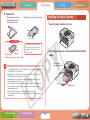
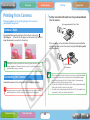
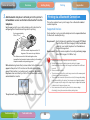
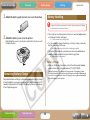
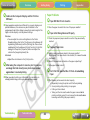
5 Press the W, X, + and – buttons to shift the print area as
desired.
Pressing the
(Display) button again will switch back to the mode
for setting the print area size and orientation.
+
W
X
–
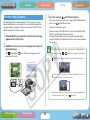
6 When you finish the adjustments, press the
(Trimming) button.
7 Press W or X to select
(OK), and press the
(Trimming) button again to conclude the trimming
settings.
To cancel the trimming settings, select
(Cancel).
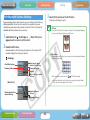
The trimming setting is reset when the print is completed. If you press the
(Trimming) button again after printing has completed however, the
trimming frame will reappear in the same location. Use this trimming setting
when you want to print multiple trimmed copies of the same image.
Troubleshooting
Tasks and Index
23
Back
Next