1
CC4001N_01_eng 06.5.17 6:14 PM ページ5
ENGLISH
NAMES AND FUNCTIONS
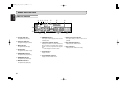
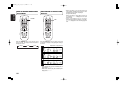
FRONT PANEL
⁄3
⁄4 v
b
⁄0
OPEN/CLOSE
.
PLAY
,
STOP
m
PAUSE
5 DISC CD CHANGER CC4001
MP3 CD
PROGRAM
1
1
2
3
4
5
DISC SKIP
2
3
RANDOM REPEAT 1DISC
R
TRACK
DISC
MIN
4
TOTAL
EACH
REMAIN
5
SEC
REPEAT
RANDOM
1 2 3 4 5
6 7 8 9 10
11 12 13 14 15
16 17 18 19 20
LEVEL
STANDBY
POWER ON/STANDBY
x
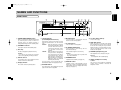
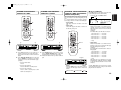
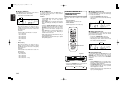
z POWER ON/STANDBY button
When it is pressed, the display window lights
up, and the power comes on. When it is
pressed again, the display window is
extinguished, and goes into the standby status.
x STANDBY indicator
Lights up in red color while standby status.
c Disc tray
The disc to be played is placed on the tray.
Caution
Close the tray by pressing the operation
button, not by pressing it in with your hand.
v Remote sensor
The infrared control signal emitted from the
remote control unit is sensed here.
b Display window
This screen shows the operating status.
z
PHONES
⁄2
c
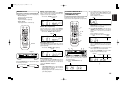
n 4/1, ¡/¢
(Track Skip/Search buttons)
These buttons can be used as both track skip
and track search buttons. (on the main unit
only.)
¡/¢ : Each time this button is pressed,
the track being played is skipped
forward. When this button is
continuously held down, tracks
are searched forward (Fast
Forward).
4/1 : When this button is pressed, the
unit goes back to the beginning
of the current track. If the button
is pressed more times, the track
being played is skipped back.
When this button is continuously
held down, tracks are searched
backward (Fast Rewind).
In program play, Fast Forward and Fast
Rewind can be done in the playing track only.
m 8 PAUSE button
Press this button to pause playback. If pressed
again, the unit returns to playback.
⁄1
n
⁄5 ⁄6
, 7 STOP button
Press this button to stop playback. Also this
button is used to clear programs.
. 3 PLAY button
Press this button to start playback.
⁄0 0 OPEN/CLOSE button
Press this button to open the tray. Put on a
disc with label side up.
Press the button again to close the tray.
Caution
Do not press the disc tray in by hand. This
may cause malfunction.
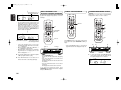
⁄1 RANDOM button
Playback tracks randomly. (See page 14)
⁄2 REPEAT button
Playback a track or disc repeatedly. Use this
button also to switch to the Repeat mode (One
Track Repeat, One Disc Repeat, and All Disc
Repeat). (See page 15)
⁄3 1-5 (Disc Select button)
Choose a disc to play.
⁄4 DISC SKIP button
When this button is pressed while multiple
discs are placed on the tray, a disc to play can
be chosen with rotating the tray clockwise.
When this button is pressed while the tray is
open, the turn table in the tray rotates so that
the disc can be replaced.
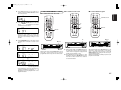
⁄5 PHONES (headphones) jack
The headphones are connected to this jack.
Caution
Use headphones with a standard plug.
⁄6 LEVEL (headphone volume)
control
This control is used to adjust the headphone
volume. Turn it clockwise to increase the
headphone volume.
5