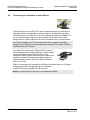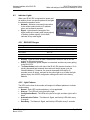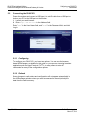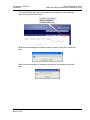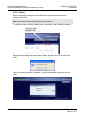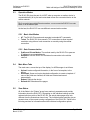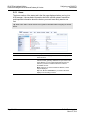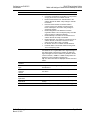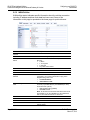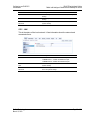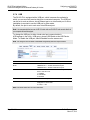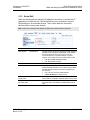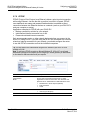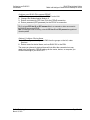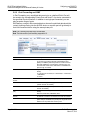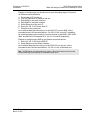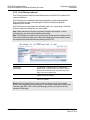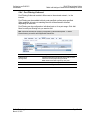
1
RLXIC-EV Intelligent Cellular RadioLinx® Intelligent Cellular Ethernet Gateway for Verizon March 10, 2010 USER MANUAL Important Safety Information The following Information and warnings pertaining to the radio module must be heeded: WARNING – EXPLOSION HAZARD – DO NOT REPLACE ANTENNAS UNLESS POWER HAS BEEN SWITCHED OFF OR THE AREA IS KNOWN TO BE NON-HAZARDOUS. A B C D E F "THIS DEVICE CONTAINS A TRANSMITTER MODULE, FCC ID: SDZ-WA-1. PLEASE SEE FCC ID LABEL ON BACK OF DEVICE." "THIS DEVICE USES AN INTERNAL COMPACT FLASH RADIO MODULE AS THE PRIMARY RADIO COMPONENT. THE COMPACT FLASH RADIO MODULE DOES NOT HAVE AN FCC ID LABEL. THE COMPACT FLASH RADIO MODULE HAS NO USER SERVICEABLE PARTS." "THIS DEVICE COMPLIES WITH PART 15 OF THE FCC RULES. OPERATION IS SUBJECT TO THE FOLLOWING TWO CONDITIONS: (1) THIS DEVICE MAY NOT CAUSE HARMFUL INTERFERENCE, AND (2) THIS DEVICE MUST ACCEPT ANY INTERFERENCE RECEIVED, INCLUDING INTERFERENCE THAT MAY CAUSE UNDESIRED OPERATION." "THIS DEVICE AND ANY RADIO ACCESSORY SOLD BY PROSOFT MUST BE INSTALLED BY AN AUTHORIZED PROFESSIONAL INDUSTRIAL RADIO SYSTEM INTEGRATOR. FURTHER, ONLY RADIO ACCESSORIES SOLD BY PROSOFT AND SPECIFICALLY TESTED FOR USE WITH THIS DEVICE MAY BE USED WITH THIS DEVICE." "THE USER OF THIS EQUIPMENT CANNOT BE WITHIN 20 cm. FROM THE RADIATING ELEMENT DEVICE." "CHANGES OR MODIFICATIONS NOT EXPRESSLY APPROVED BY THE PARTY RESPONSIBLE FOR COMPLIANCE COULD VOID THE USER’s AUTHORITY TO OPERATE THE EQUIPMENT." Industry Canada Requirements: A B C "THIS DEVICE HAS BEEN DESIGNED TO OPERATE WITH AN ANTENNA HAVING A MAXIMUM GAIN OF 24 dB. AN ANTENNA HAVING A HIGHER GAIN IS STRICTLY PROHIBITED PER REGULATIONS OF INDUSTRY CANADA. THE REQUIRED ANTENNA IMPEDANCE IS 50 OHMS." "TO REDUCE POTENTIAL RADIO INTERFERENCE TO OTHER USERS, THE ANTENNA TYPE AND ITS GAIN SHOULD BE CHOSEN SUCH THAT THE EQUIVALENT ISOTROPICALLY RADIATED POWER (EIRP) IS NOT MORE THAN THAT REQUIRED FOR SUCCESSFUL COMMUNICATION." "THE INSTALLER OF THIS RADIO EQUIPMENT MUST INSURE THAT THE ANTENNA IS LOCATED OR POINTED SUCH THAT IT DOES NOT EMIT RF FIELD IN EXCESS OF HEALTH CANADA LIMITS FOR THE GENERAL POPULATION; CONSULT SAFETY CODE 6, OBTAINABLE FROM HEALTH CANADA." WARNING: This is a Class A product. In a domestic environment this product may cause radio interference in which case the user may be required to take adequate measures. Important Notice Due to the nature of wireless communications, transmission and reception of data can never be guaranteed. Data may be delayed, corrupted (i.e., have errors) or be totally lost. Although significant delays or losses of data are rare when wireless devices such as the RLXIC-EV device are used in a normal manner with a well-constructed network, the RLXIC-EV device should not be used in situations where failure to transmit or receive data could result in damage of any kind to the user or any other party, including but not limited to personal injury, death, or loss of property. ProSoft Technology accepts no responsibility for damages of any kind resulting from delays or errors in data transmitted or received using the RLXIC-EV device, or for failure of the RLXIC-EV device to transmit or receive such data. Safety and Hazards Do not operate the RLXIC-EV device in areas where blasting is in progress, where explosive atmospheres may be present, near medical equipment, near life support equipment, or any equipment which may be susceptible to any form of radio interference. In such areas, the RLXIC-EV device MUST BE POWERED OFF. The RLXIC-EV device can transmit signals that could interfere with this equipment. Do not operate the RLXIC-EV device in any aircraft, whether the aircraft is on the ground or in flight. In aircraft, the RLXIC-EV device MUST BE POWERED OFF. When operating, the RLXIC-EV device can transmit signals that could interfere with various onboard systems. Note: Some airlines may permit the use of cellular phones while the aircraft is on the ground and the door is open. RLXIC-EV device may be used at this time. The driver or operator of any vehicle should not operate the RLXIC-EV device while in control of a vehicle. Doing so will detract from the driver or operator's control and operation of that vehicle. In some states and provinces, operating such communications devices while in control of a vehicle is an offense. Limitation of Liability The information in this manual is subject to change without notice, and does not represent a commitment on the part of ProSoft Technology. PROSOFT TECHNOLOGY, INC AND ITS AFFILIATES SPECIFICALLY DISCLAIM LIABILITY FOR ANY AND ALL DIRECT, INDIRECT, SPECIAL, GENERAL, INCIDENTAL, CONSEQUENTIAL, PUNITIVE OR EXEMPLARY DAMAGES INCLUDING, BUT NOT LIMITED TO, LOSS OF PROFITS OR REVENUE OR ANTICIPATED PROFITS OR REVENUE ARISING OUT OF THE USE OR INABILITY TO USE ANY PROSOFT TECHNOLOGY PRODUCT, EVEN IF PROSOFT TECHNOLOGY AND/OR ITS AFFILIATES HAS BEEN ADVISED OF THE POSSIBILITY OF SUCH DAMAGES OR THEY ARE FORESEEABLE OR FOR CLAIMS BY ANY THIRD PARTY. Notwithstanding the foregoing, in no event shall ProSoft Technology and/or its affiliates aggregate liability arising under or in connection with the ProSoft Technology product, regardless of the number of events, occurrences, or claims giving rise to liability, be in excess of the price paid by the purchaser for the ProSoft Technology product. Patents Portions of this product may be covered by some or all of the following US patents: 5,515,013 5,629,960 5,845,216 5,847,553 5,878,23 45,890,057 5,929,815 6,169,884 6,191,741 6,199,168 6,339,405 6,359,591 6,400,336 6,516,204 6,561,851 6,643,501 6,653,979 6,697,030 6,785,830 6,845,249 6,847,830 6,876,697 6,879,585 6,886,049 6,968,171 6,985,757 7,023,878 7,053,843 7,106,569 7,145,267 7,200,512 D442,170 D459,303 and other patents pending. This product includes technology licensed from: QUALCOMM® 3G Licensed by QUALCOMM Incorporated under one or more of the following United States patents and/or their counterparts in other nations: 4,901,307 5,056,109 5,101,501 5,109,390 5,228,054 5,267,261 5,267,262 5,337,338 5,414,796 5,416,797 5,490,165 5,504,773 5,506,865 5,511,073 5,535,239 5,544,196 5,568,483 5,600,754 5,657,420 5,659,569 5,710,784 5,778,338 Manufactured or sold by ProSoft Technology or its licensees under one or more patents licensed from InterDigital Group. Your Feedback Please We always want you to feel that you made the right decision to use our products. If you have suggestions, comments, compliments or complaints about the product, documentation, or support, please write or call us. ProSoft Technology 5201 Truxtun Ave., 3rd Floor Bakersfield, CA 93309 +1 (661) 716-5100 +1 (661) 716-5101 (Fax) www.prosoft-technology.com [email protected] Copyright © 2010 ProSoft Technology, Inc., all rights reserved. RLXIC-EV User Manual 3/3/2010 ProSoft Technology ®, ProLinx ®, inRAx ®, ProTalk®, and RadioLinx ® are Registered Trademarks of ProSoft Technology, Inc. All other brand or product names are or may be trademarks of, and are used to identify products and services of, their respective owners. ProSoft Technology® Product Documentation In an effort to conserve paper, ProSoft Technology no longer includes printed manuals with our product shipments. User Manuals, Datasheets, Sample Ladder Files, and Configuration Files are provided on the enclosed CD-ROM, and are available at no charge from our web site: www.prosoft-technology.com Printed documentation is available for purchase. Contact ProSoft Technology for pricing and availability. North America: +1.661.716.5100 Asia Pacific: +603.7724.2080 Europe, Middle East, Africa: +33 (0) 5.3436.87.20 Latin America: +1.281.298.9109 Contents User Manual RLXIC-EV ♦ Intelligent Cellular RadioLinx® Intelligent Cellular Ethernet Gateway for Verizon Contents Important Safety Information............................................................................................................... 2 Important Notice.................................................................................................................................. 2 Safety and Hazards ............................................................................................................................ 2 Limitation of Liability............................................................................................................................ 3 Patents ................................................................................................................................................ 3 Your Feedback Please........................................................................................................................ 4 ProSoft Technology® Product Documentation.................................................................................... 4 1 Introduction to the RLXIC-EV 1.1 1.2 1.3 1.4 1.5 1.6 1.7 1.8 2 ALEOS™ ................................................................................................................... 8 ACEware™................................................................................................................ 8 Connecting to Verizon ............................................................................................. 10 EV-DO ..................................................................................................................... 12 Connection methods ............................................................................................... 12 Networking .............................................................................................................. 13 Applications ............................................................................................................. 14 Software .................................................................................................................. 14 Specifications 2.1 2.2 2.3 2.4 2.5 2.6 2.7 2.8 2.9 2.10 2.11 3 3.1 15 Features and Benefits ............................................................................................. 15 Technology.............................................................................................................. 15 Bands ...................................................................................................................... 16 Environmental ......................................................................................................... 16 Power Consumption: (@12V DC) ........................................................................... 16 Standards/Approvals ............................................................................................... 16 Host Interfaces ........................................................................................................ 16 Dimensions.............................................................................................................. 17 Application Interfaces .............................................................................................. 17 LED Indicators......................................................................................................... 17 Power Connector..................................................................................................... 17 Activating your RLXIC-EV on Verizon 4 7 19 Automatic Activation................................................................................................ 19 Hardware Installation of the RLXIC-EV 4.1 4.2 4.3 4.4 4.5 ProSoft Technology, Inc. March 10, 2010 21 Connecting to Power ............................................................................................... 23 Connecting to a Computer or other Device............................................................. 24 Indicator Lights ........................................................................................................ 25 Mounting.................................................................................................................. 26 Connecting Antennas .............................................................................................. 28 Page 5 of 104 RLXIC-EV ♦ Intelligent Cellular RadioLinx® Intelligent Cellular Ethernet Gateway for Verizon Configuring your RLXIC-EV 5 5.1 5.2 5.3 5.4 5.5 5.6 5.7 5.8 5.9 5.10 5.11 5.12 5.13 5.14 5.15 6 Contents User Manual 29 Installing the USB driver ......................................................................................... 29 Connecting the RLXIC-EV ...................................................................................... 32 Operation Modes .................................................................................................... 35 Main Menu Tabs ..................................................................................................... 35 View Status ............................................................................................................. 35 WAN/Cellular Configuration.................................................................................... 43 LAN Configuration .................................................................................................. 48 VPN Configuration .................................................................................................. 56 Security Configuration ............................................................................................ 63 Services Configuration............................................................................................ 70 Report Configuration............................................................................................... 82 I/O Configuration..................................................................................................... 85 Admin...................................................................................................................... 87 Applying Templates ................................................................................................ 89 Updating RLXIC-EV firmware ................................................................................. 92 Support, Service & Warranty 95 6.1 6.2 6.3 How to Contact Us: Technical Support................................................................... 95 Return Material Authorization (RMA) Policies and Conditions ............................... 96 LIMITED WARRANTY ............................................................................................ 98 Index 103 Page 6 of 104 ProSoft Technology, Inc. March 10, 2010 Introduction to the RLXIC-EV User Manual 1 RLXIC-EV ♦ Intelligent Cellular RadioLinx® Intelligent Cellular Ethernet Gateway for Verizon Introduction to the RLXIC-EV In This Chapter ALEOS™................................................................................................. 8 ACEware™.............................................................................................. 8 Connecting to Verizon ........................................................................... 10 EV-DO ................................................................................................... 12 Connection methods ............................................................................. 12 Networking ............................................................................................ 13 Applications ........................................................................................... 14 Software ................................................................................................ 14 The RLXIC-EV is an intelligent wireless gateway, powered by ALEOS™, and optimal for providing primary or backup network connectivity for any highreliability/ high-availability applications. The RLXIC-EV is the perfect solution for any device with an Ethernet connection that requires pervasive connectivity including PCs, routers, network equipment and POS/ATMs as well as commercial automation equipment. Powered by ALEOS™, RLXIC-EV modems are designed to maintain a reliable, consistent network connection. Class I Division 2 certified as nonincendive equipment, the RLXIC Series is ideally suited for use in hazardous environments. Key applications include utilities, manufacturing, automation, oil and gas, Ethernet-based SCADA, telemetry, Homeland Security and asset monitoring. ProSoft Technology, Inc. March 10, 2010 Page 7 of 104 RLXIC-EV ♦ Intelligent Cellular RadioLinx® Intelligent Cellular Ethernet Gateway for Verizon 1.1 Introduction to the RLXIC-EV User Manual ALEOS™ ALEOS, the embedded core technology of the RadioLinx Intelligent Cellular products, simplifies installation, operation, and maintenance of any solution, and provides an always-on, always-aware intelligent connection for mission-critical applications. ALEOS enables: Persistent Network Connectivity Over-The-Air (OTA) Upgrades Wireless Optimized TCP/IP Real-Time Notification Packet Level Diagnostics Device Management & Control Protocol Spoofing 1.2 ACEware™ A wireless solution is not complete until you have software tools to manage the devices monitoring your valuable equipment. Using the AirLink Control Environment (ACE), ACEWare is the device management and monitoring application suite for RadioLinx Intelligent Cellular devices powered by ALEOS. The ACEware suite encompasses an application internal to the firmware (ACEmanager), Windows-based applications (ACEview and Modem Doctor), and a web-hosted application (ACEnet). You can download the applications and their user guides from the RadioLinx Intelligent Cellular Solutions web site: www.prosoft-technology.com. Contact your dealer or ProSoft Technology representative for any further information. Note: ACEview requires the Microsoft .NET Framework v. 2.0 and Microsoft Windows 98, Windows 2000, Windows XP, or later. You can obtain the Microsoft .NET Framework from Microsoft at: http://www.microsoft.com/. Page 8 of 104 ProSoft Technology, Inc. March 10, 2010 Introduction to the RLXIC-EV User Manual RLXIC-EV ♦ Intelligent Cellular RadioLinx® Intelligent Cellular Ethernet Gateway for Verizon 1.2.1 ACEmanager ACEmanager, the ACEware remote configuration and monitoring tool, simplifies deployment and provides extensive monitoring, control and management capabilities. ACEmanager gives you the power to monitor and control your RadioLinx Intelligent Cellular communications platforms in real-time. 1.2.2 Simplified Deployment ACEmanager provides the ability to remotely set up and configure your RadioLinx Intelligent Cellular products. Remote device setup and configuration reduces the deployment timeline of your wireless solution and provides a quicker path to ROI. Templates allow you to easily configure devices in your fleet with identical settings, ensuring a simple, accurate deployment. 1.2.3 Monitor and Control ACEmanager allows an administrator to remotely monitor a modem's status, health, and configuration settings. The user interface displays signal strength, cell site information, byte counters, and error conditions, enabling you to pinpoint any issues and troubleshoot immediately. ACEmanager enables remote configuration and parameter settings to be changed or reset instantly over the air, change a device's port configuration, IP address settings, and much more. After configuring one modem, use the template feature to copy that device configuration to other devices. ProSoft Technology, Inc. March 10, 2010 Page 9 of 104 RLXIC-EV ♦ Intelligent Cellular RadioLinx® Intelligent Cellular Ethernet Gateway for Verizon Introduction to the RLXIC-EV User Manual Tip: Configuration steps and examples in this guide use ACEmanager. 1.2.4 ACEview ACEview is an efficient status and connection monitoring application with a lowprofile, easy to read interface. In ACEview, you can also update the Preferred Roaming List (PRL). 1.2.5 Modem Doctor Modem Doctor and Modem Doctor USB is a troubleshooting and diagnostics utility. This utility will allow you to get a log file of the RLXIC-EV activity, which you can then send to ProSoft Technology support or erase the current configuration completely. 1.3 Connecting to Verizon The RLXIC-EV uses Verizon as an ISP (Internet Service Provider) to connect you to the Internet. 1.3.1 Steps of a connection: 1 2 3 When your RLXIC-EV is powered on, it automatically searches for cellular service using CDMA-based cellular technology. Your RLXIC-EV establishes a PPP (Point-to-Point Protocol or "dial" up connection) link to the Verizon network, also called registering on the network, and receives an IP address. When your RLXIC-EV has received its IP address from Verizon, a connection to the Internet or the cellular network is also available for computers or other devices connected directly to the RLXIC-EV. The RLXIC-EV will perform routing for all internet traffic to and from the computers or other end devices. Page 10 of 104 ProSoft Technology, Inc. March 10, 2010 Introduction to the RLXIC-EV User Manual RLXIC-EV ♦ Intelligent Cellular RadioLinx® Intelligent Cellular Ethernet Gateway for Verizon With the RLXIC-EV in Ethernet Public mode, only one device connected to the Ethernet port will receive the public IP address which is the one provided by the cellular network. In Ethernet Private mode, with a hub or switch connected to the Ethernet port, the RLXIC-EV will provide NAT for a range of computers or other devices connected to the switch or hub and Internet access to all of them. 1.3.2 Dynamic vs. Static IP Addresses There are two types of addresses on networks: dynamic and static. Dynamic addresses are assigned on a "need to have" basis. Your RLXIC-EV might not always receive the same address each time it connects with Verizon. Static addresses are permanently assigned to a particular account and will always be used whenever your RLXIC-EV connects to the Internet. The IP address will not be given to anyone else. Most ISPs (cellular included) use dynamic IP addresses rather than static IP addresses since it allows them to reuse a smaller number of IP addresses for a large number of customers. A dynamic IP address is suitable for many common Internet uses, such as web browsing, looking up data on another computer system, or other client functions (such as data only being sent out or only being received after an initial request). Tip: If your account with Verizon includes a dynamic IP address and you need a static IP, please consult your Verizon Representative for more information about changing your account for static IP support. If you need to contact your RLXIC-EV, a device connected to the RLXIC-EV, or a host system using the RLXIC-EV from the Internet, you need to have a known IP (such as one which is static) or domain name (an IP address, which is converted by a DNS server into a word-based name). If you have a dynamic IP address for your modem, you can use a Dynamic DNS service (such as IP Manager) to translate your IP address into to a domain name. Caution: If you want to connect remotely to your RLXIC-EV using TCP/IP, the IP address given to your modem by Verizon cannot be a private or internal IP address (such as a special private network) unless you are on the same network or inside that network's firewall (such as with frame relay). ProSoft Technology, Inc. March 10, 2010 Page 11 of 104 RLXIC-EV ♦ Intelligent Cellular RadioLinx® Intelligent Cellular Ethernet Gateway for Verizon 1.4 Introduction to the RLXIC-EV User Manual EV-DO CDMA (Code Division Multiple Access) is the underlying digital radio network technology used by many cellular providers across the globe and is prevalent in North America. To provide backward compatibility and seamless connections in a wider range of locations, the RLXIC-EV will fall back to 1x when EV-DO is not available. ProSoft Technology is certified with Verizon, a prominent North American 1x and EV-DO carrier. EV-DO revision A is an enhancement on the original revision 0 adding expanded upload capabilities and a more robust connection overall. In addition to increasing the downlink speed, revision A also increases the uplink speed. In addition, it is backwards compatible and automatically connects with existing and broadly deployed EV-DO Rev. 0 and 1x networks ensuring reliable and pervasive connectivity. 1.4.1 Security 1x data transmissions are highly secure. Originally developed based upon the "spread spectrum" pioneered by the US Department of Defense, security in CDMA technologies is obtained by spreading the digital information contained in a particular signal of interest over multiple coded paths, over a much greater bandwidth than the original signal. 1.5 Connection methods You can connect the RLXIC-EV to a USB or an Ethernet (RJ45) on a computer. When connected to a USB or Ethernet port, the RLXIC-EV behaves like a network card. 1.5.1 USB The RLXIC-EV is equipped with a USB port, which increases the methods by which you can send and receive data. The USB port can be set to work as either a virtual Ethernet port or a virtual serial port. A driver installation is required to use the USB port in either mode. It is recommended that you use a USB 2.0 cable with your RLXIC-EV and connect directly to your computer for best throughput. 1.5.2 Virtual serial port The RLXIC-EV supports one virtual serial port over USB. This VSP can be used, for example, to send AT commands, or to run many serial based applications such as HyperTerminal®. Page 12 of 104 ProSoft Technology, Inc. March 10, 2010 Introduction to the RLXIC-EV User Manual 1.6 RLXIC-EV ♦ Intelligent Cellular RadioLinx® Intelligent Cellular Ethernet Gateway for Verizon Networking 1.6.1 IPSec The IP protocol that drives the Internet is inherently insecure. Internet Protocol Security (IPSec), which is a standards-based protocol, secures communications of IP packets over public networks. IPSec is a common network layer security control and is used to create a virtual private network (VPN). The advantages of the IPSec feature include: Data Protection: Data Content Confidentiality allows users to protect their data from any unauthorized view, because the data is encrypted (encryption algorithms are used). Access Control: Access Control implies a security service that prevents unauthorized use of a Security Gateway, a network behind a gateway or bandwidth on that network. Data Origin Authentication: Data Origin Authentication verifies the actual sender, thus eliminating the possibility of forging the actual sender's identification by a third party. Data Integrity: Data Integrity Authentication allows both ends of the communication channel to confirm that the original data sent has been received as transmitted, without being tampered with in transit. This is achieved by using authentication algorithms and their outputs. The IPSec architecture model includes the RadioLinx Intelligent Cellular gateway as a remote gateway at one end communicating, through a VPN tunnel, with a VPN gateway at the other end. The remote gateway is connected to a Remote network and the VPN is connected to the Local network. The communication of data is secure through the IPSec protocols. 1.6.2 GRE GRE (Generic Routing Encapsulation) tunnel is used to carry non-IP packets through an IP Network. Non -IP packets, that are sent over the GRE tunnel, need to be first encapsulated. Hence, ALEOS is used to configure and encapsulate non-IP packets and transmit over IP through the GRE tunnel. ProSoft Technology, Inc. March 10, 2010 Page 13 of 104 RLXIC-EV ♦ Intelligent Cellular RadioLinx® Intelligent Cellular Ethernet Gateway for Verizon 1.7 Introduction to the RLXIC-EV User Manual Applications 1.7.1 Events Reporting Events Reporting allows you to generate reports from the events that take place. Event Reporting Protocol is an intuitive embedded protocol, which automatically formats the messages based on an event trigger. The messages generated are then reported to the remote server. 1.8 Software The RLXIC-EV modem comes with the following software: ACEview, the software for the RLXIC-EV which allows you to monitor your connections. The driver that forms the interface between the RLXIC-EV and your Windows operating system when using USB virtual Ethernet or USB virtual serial. The firmware that is stored in non-volatile memory and includes ACEmanager. The RLXIC-EV has an embedded radio module. There are two firmware programs on the device—one stored on the controller board of the RLXIC-EV and one on the radio module. The firmware was loaded into the radio module and controller board when the RLXIC-EV was assembled. As new versions of the software and firmware are released, they are posted at www.prosoft-technology.com. Page 14 of 104 ProSoft Technology, Inc. March 10, 2010 Specifications User Manual 2 RLXIC-EV ♦ Intelligent Cellular RadioLinx® Intelligent Cellular Ethernet Gateway for Verizon Specifications In This Chapter 2.1 Features and Benefits ........................................................................... 15 Technology............................................................................................ 15 Bands .................................................................................................... 16 Environmental ....................................................................................... 16 Power Consumption: (@12V DC).......................................................... 16 Standards/Approvals ............................................................................. 16 Host Interfaces ...................................................................................... 16 Dimensions............................................................................................ 17 Application Interfaces ............................................................................ 17 LED Indicators....................................................................................... 17 Power Connector................................................................................... 17 Features and Benefits 2.2 Embedded Intelligence Low Power Consumption Compact Size Rugged Aluminum Case High-Speed Processor (ARM 9) High-Speed 2-way Data 10/100 Mbps Ethernet Port Persistent Network Connectivity Remote Management and Configuration Class I Div 2 Certified Technology CDMA EV-DO Revision A With Fallback to: o CDMA 1xRTT o CDMA IS-95 ProSoft Technology, Inc. March 10, 2010 Page 15 of 104 RLXIC-EV ♦ Intelligent Cellular RadioLinx® Intelligent Cellular Ethernet Gateway for Verizon 2.3 Bands 2.4 Operating Temperature: -30° to 70° Celsius Storage Temperature: -40° to 85° Celsius Power Consumption: (@12V DC) 2.6 800 MHz Cellular 1900 MHz PCS Environmental 2.5 Specifications User Manual Transmit (Typical/Max) 110/265 mA Idle 80 mA Input Current 75 mA to 265 mA Input Voltage 9 - 28V DC Standards/Approvals Carrier specific approvals RoHS FCC Industry Canada This apparatus is suitable for use in Class I, Division 2, Groups A, B, C, D or unclassified or non-hazardous locations. Warning: Explosion Hazard - Substitution of any components may impair suitability for Class I, Division 2. 2.7 Host Interfaces Ethernet: 10BaseT RJ-45 USB Type B 5 Pin mini Antenna Connection: o Cellular - 50 Ohm SMA o Receive Diversity - 50 Ohm SMA o I/O Ports: 2 Warning: The antenna should be installed no closer than 20 cm from the human body. It is one of the RSS-102 requirements for devices not requiring SAR. Page 16 of 104 ProSoft Technology, Inc. March 10, 2010 Specifications User Manual 2.8 Dimensions 2.9 TCP/IP, UDP/IP, DHCP, HTTP, SNMP, SMTP, SMS, MSCI, Modbus and more LED Indicators 2.11 75mm x 27mm x 103mm 185 grams Application Interfaces 2.10 RLXIC-EV ♦ Intelligent Cellular RadioLinx® Intelligent Cellular Ethernet Gateway for Verizon Network Signal Activity Power Reset Button Power Connector * Configuration terminology in ACEmanager Warning: Explosion Hazard - Do not disconnect equipment unless power has been switched off or the area is known to be non-hazardous. Note: RLXIC-EV I/O Port 4 is software configurable. ProSoft Technology, Inc. March 10, 2010 Page 17 of 104 RLXIC-EV ♦ Intelligent Cellular RadioLinx® Intelligent Cellular Ethernet Gateway for Verizon Page 18 of 104 Specifications User Manual ProSoft Technology, Inc. March 10, 2010 Activating your RLXIC-EV on Verizon User Manual 3 RLXIC-EV ♦ Intelligent Cellular RadioLinx® Intelligent Cellular Ethernet Gateway for Verizon Activating your RLXIC-EV on Verizon In This Chapter Automatic Activation .............................................................................. 19 This chapter provides step-by-step directions for activating your RLXIC-EV on Verizon's network. 3.1 Automatic Activation One of the special features of your RLXIC-EV for Verizon is the ability to activate itself automatically. When you first power on the RLXIC-EV, it will check to see if it has been activated with account data. If it finds that it has not yet been activated, the RLXIC-EV will attempt to retrieve the account data from the Verizon network using Over-the-Air Service Provisioning (OTASP). Important: You need to have an account with Verizon before you attempt automatic activation. If you have not ordered an account from Verizon for your RLXIC-EV, it will not succeed at activating. 1 2 3 4 5 Connect the RLXIC-EV with antennas. Plug the power cable to the power connector on the back panel of the RLXICEV. Connect your computer to the RLXIC-EV with an Ethernet cable. Observe the LEDs. Wait approximately 30 seconds, to allow the RLXIC-EV to initialize and go over the air. Caution: Do not move your RLXIC-EV while it is being programmed. 6 When the lights illuminate, your RLXIC-EV has successfully completed OTASP and is registered on the Verizon network. ProSoft Technology, Inc. March 10, 2010 Page 19 of 104 RLXIC-EV ♦ Intelligent Cellular RadioLinx® Intelligent Cellular Ethernet Gateway for Verizon Page 20 of 104 Activating your RLXIC-EV on Verizon User Manual ProSoft Technology, Inc. March 10, 2010 Hardware Installation of the RLXIC-EV User Manual 4 RLXIC-EV ♦ Intelligent Cellular RadioLinx® Intelligent Cellular Ethernet Gateway for Verizon Hardware Installation of the RLXIC-EV In This Chapter Connecting to Power ............................................................................. 23 Connecting to a Computer or other Device ........................................... 24 Indicator Lights ...................................................................................... 25 Mounting................................................................................................ 26 Connecting Antennas ............................................................................ 28 Note: During installation, please be sure that the cables are secure but do not bear any additional weight that could loosen the connector from the unit. Your RLXIC-EV should be mounted in a position that allows easy access for the cables so they are not bent, constricted, in close proximity to high amperage, or exposed to extreme temperatures. The LEDs on the front panel should be visible for ease of operational verification. You should ensure that there is adequate airflow around the modem but that it is kept free from direct exposure to the elements, such as sun, rain, dust, etc. Caution: The RLXIC-EV is in a hardened case and designed for use in industrial and extreme environments. However, unless you are using cables expressly designed for such environments, they can fail if exposed to the same conditions the RLXIC-EV can withstand. Note: This device is not intended for use within close proximity of the human body. Antenna installation should provide for at least a 20 CM separation from the operator. ProSoft Technology, Inc. March 10, 2010 Page 21 of 104 RLXIC-EV ♦ Intelligent Cellular RadioLinx® Intelligent Cellular Ethernet Gateway for Verizon Hardware Installation of the RLXIC-EV User Manual Antennas selected should not exceed a maximum gain of 5 dBi under standard installation configuration. In more complex installations (such as those requiring long lengths of cable and/or multiple connections), it's imperative that the installer follow maximum dBi gain guidelines in accordance with the radio communications regulations of the Federal Communications Commission (FCC), Industry Canada, or your country's regulatory body (if used outside the US). Your RLXIC-EV will work with most PCS cellular antennas with a SMA connector that works in the high and low frequencies of the cellular technology of your modem. Connect the primary antenna or primary RF cable directly to the antenna connector on the back of the RLXIC-EV. Tip: When using a cable to an antenna placed away from the modem, minimize the length of your cable. All gain from a more advantageous antenna placement can be lost with a long cable to the modem. Note: Use of receive diversity for EV-DO is optional. Data transmission and reception may be adversely affected if it is not used. To provide for diversity in the signal reception, connect the second antenna to the second antenna port (SMA, labeled Rx Div ANT2) on the back of the RLXICEV. Caution: If you are not using a diversity antenna, you should disable the receive diversity option. In ACEmanager, in the WAN/Cellular group, configure RX Diversity. Page 22 of 104 ProSoft Technology, Inc. March 10, 2010 Hardware Installation of the RLXIC-EV User Manual 4.1 RLXIC-EV ♦ Intelligent Cellular RadioLinx® Intelligent Cellular Ethernet Gateway for Verizon Connecting to Power This I/O port handles external input and output events. An external device can send digital input to the modem, through the digital I/O port. Your RLXIC-EV can be used with either DC or AC, with the appropriate power adapter. DC cables and AC adapters are available as optional accessories in addition to the one included with your RLXIC-EV. The color wires are: BLACK (2 conductor) = Ground RED (1 conductor) = Power Note: When using a DC power source (such as a solar cell), ProSoft Technology recommends placing a fuse (1-2 Amp) on the line close to the power source to protect your power source from possible surges due to shorts or other line issues. The DC power cable positive lead should be connected to the battery or power source positive terminal. The power cable negative lead should be connected to the battery or power source negative terminal. Tip: The DC power cable has a white wire lead in addition to the power positive and negative. This is for a feature not present in the RLXIC line modems. In the RLXIC-EV, the white wire lead has no function and can be ignored. Warning: Explosion Hazard - Do not disconnect equipment unless power has been switched off or the area is known to be non-hazardous. ProSoft Technology, Inc. March 10, 2010 Page 23 of 104 RLXIC-EV ♦ Intelligent Cellular RadioLinx® Intelligent Cellular Ethernet Gateway for Verizon 4.2 Hardware Installation of the RLXIC-EV User Manual Connecting to a Computer or other Device The Ethernet port of your RLXIC-EV can be connected directly to a computer or other Ethernet device with either a crossover cable or a straight-through cable. The Ethernet port on the RLXIC-EV is auto-sensing and connects at 10Base-T. If you are connecting the modem to a hub or switch you should use a straight through cable or use the uplink port on the hub o4 switch with a crossover cable. Tip: On some computers, the TCP receive window may be set to 16 Kbytes. To optimize the throughput of your RLXIC-EH, it is recommended that you change the TCP window to 128 Kbytes to 256 kbytes using a TCP Optimizer. Your RLXIC-EV's full-speed (12 Mbit) USB 2.0 port can be connected directly to most computers or other devices using a standard full-speed USB 2.0 cable. If the computer or device you are connecting or the cable is not rated for full-speed, the modem will communicate at a reduced speed to match. The RLXIC-EV functions as a device, not a host. When it is connected to a computer, the USB port should be seen as a COM port or Ethernet port after the applicable driver is installed. The RLXIC-EV has a standard mini-B connector. Warning: The USB port can only be used in a non-hazardous environment. Page 24 of 104 ProSoft Technology, Inc. March 10, 2010 Hardware Installation of the RLXIC-EV User Manual 4.3 RLXIC-EV ♦ Intelligent Cellular RadioLinx® Intelligent Cellular Ethernet Gateway for Verizon Indicator Lights When your RLXIC-EV is connected to power and an antenna, there is a specific pattern to the lights to indicate its operation mode. Network - Indicates a successful connection to the cellular network with an IP address given, and a channel acquired. Signal - Light shows the strength of the signal, and may be nearly solid (strong signal) or flashing (weaker signal). A slow flash indicates a very weak signal. 4.3.1 RSSI LED Ranges RSSI/Signal LED Status Ranges of RSSI (dBm) On Solid Equal to or stronger than -69 Fast Blink -70 to -79 Normal blink -80 to -89 Slow Blink -90 to -99 Extinguished Equal to or weaker than -100 Activity - Lights will flash as data is transferred to and from the RLXIC-EV modem on the remote network. Power - Indicates the power adapter is connected, and there is power getting to the RLXIC-EV. The Reset button (on the left side of the RLXIC-EV) has two functions. If it is quickly depressed and released, the modem will simply power cycle the internal hardware. If, however, the reset is depressed and held for 45 seconds (count 45 slowly, and wait for the power light to go off after the light pattern stops), the ALEOS configuration settings will return to the factory defaults. 4.3.2 Light Patterns The LEDs on the front of the modem will respond in different patterns to indicate modem states. Normal - Each LED, mentioned above, is lit as applicable. Start up - The LEDs will cycle from left to right. Configuration Reset - The LEDs will cycle left to right, and then right to left 4 times. Authentication Failure - The Network, Signal, and Activity LEDs blink every 2 seconds. Data Retry - The Network, Signal, and Activity LEDs blink every 3 seconds. ProSoft Technology, Inc. March 10, 2010 Page 25 of 104 RLXIC-EV ♦ Intelligent Cellular RadioLinx® Intelligent Cellular Ethernet Gateway for Verizon 4.4 Hardware Installation of the RLXIC-EV User Manual Mounting An optional accessory for your RLXIC-EV is a DIN-rail mounting kit, which includes a bracket. The bracket is designed to hold the modem in place on the DIN-rail. To install the radio in the mounting kit, follow these steps. 1 Mount the bracket using number 6 screws. There are two holes each, to fasten screws, and minimum of one hole each end is required for mounting bracket. 2 Position RLXIC-EV between Alignment ears. 3 Engage top groove in body of RLXIC-EV with two tabs. 4 Push on far side of RLXIC-EV in center so that it touches side of Bracket. 5 Press down and release when upper groove on far side of RLXIC-EV, aligns with tabs. 6 Release to complete installation into mounting bracket. To remove, press on the two edges of the modem and the brackets, as pointed by arrows in the diagram provided below. By doing this, the modem will snap out of the mounting bracket. To mount the bracket on the DIN-rail, follow these steps 1 Position the mounting bracket on a 35 x 7.5mm DIN-rail at a slight angle with the hook on the left side of the bracket hooked into the right side of the unit on the left. 2 Rotate the bracket onto the DIN-rail with the top of the rail hooked under the lip on the rear of the bracket. 3 Press the bracket down onto the DIN-rail until flush. The locking tab snaps into position and locks the bracket to the DIN-rail. 4 If the bracket does not lock in place, use a screwdriver or similar device to move the locking tab down, press the bracket flush with the DIN-rail and release the locking tab to lock the bracket in place. Page 26 of 104 ProSoft Technology, Inc. March 10, 2010 Hardware Installation of the RLXIC-EV User Manual RLXIC-EV ♦ Intelligent Cellular RadioLinx® Intelligent Cellular Ethernet Gateway for Verizon 4.4.1 Optional Mounting Bracket 4.4.2 Mounting Bracket Installation ProSoft Technology, Inc. March 10, 2010 Page 27 of 104 RLXIC-EV ♦ Intelligent Cellular RadioLinx® Intelligent Cellular Ethernet Gateway for Verizon Hardware Installation of the RLXIC-EV User Manual 4.4.3 Mounting Bracket Dimensions 4.5 Connecting Antennas The RLXIC-EH radio has two antenna ports. For best performance, ProSoft Technology recommends using two antennas. If you plan to use only a single antenna, you must disable the setting *EVDODIVERSITY in the radio configuration (page 43). With ALEOS as its "brain", the RLXIC-EV is a highly configurable device. To configure your RLXIC-EV, you have two options. You can use the configuration and management applications of the ACEware suite or you can use a terminal emulator application such as HyperTerminal, PuTTY, or many others. Page 28 of 104 ProSoft Technology, Inc. March 10, 2010 Configuring your RLXIC-EV User Manual 5 RLXIC-EV ♦ Intelligent Cellular RadioLinx® Intelligent Cellular Ethernet Gateway for Verizon Configuring your RLXIC-EV In This Chapter 5.1 Installing the USB driver ........................................................................ 29 Connecting the RLXIC-EV..................................................................... 32 Operation Modes................................................................................... 35 Main Menu Tabs.................................................................................... 35 View Status ........................................................................................... 35 WAN/Cellular Configuration................................................................... 43 LAN Configuration ................................................................................. 48 VPN Configuration................................................................................. 56 Security Configuration ........................................................................... 63 Services Configuration .......................................................................... 70 Report Configuration ............................................................................. 82 I/O Configuration ................................................................................... 85 Admin .................................................................................................... 87 Applying Templates ............................................................................... 89 Updating RLXIC-EV firmware................................................................ 92 Installing the USB driver 5.1.1 Connect the RLXIC-EV to your computer's USB port When you connect the RLXIC-EV for the first time to a USB port on your computer, Windows should detect a new device, and prompt you to install the driver. ProSoft Technology, Inc. March 10, 2010 Page 29 of 104 RLXIC-EV ♦ Intelligent Cellular RadioLinx® Intelligent Cellular Ethernet Gateway for Verizon Configuring your RLXIC-EV User Manual Note: Windows will see each port type as a different USB device, and will see every port on your computer separately. If you change the port type on the RLXIC-EV or connect to a different USB port on your computer or hub, Windows will see it as a new device. 1 2 To start the install of the USB virtual Ethernet driver, select No, not this time, and click Next. Select Install from a list of specific location, and click Next. Page 30 of 104 ProSoft Technology, Inc. March 10, 2010 Configuring your RLXIC-EV User Manual RLXIC-EV ♦ Intelligent Cellular RadioLinx® Intelligent Cellular Ethernet Gateway for Verizon 5.1.2 Install the driver from a specific location 1 Select and/or enter the location of the driver. o If the driver is on the CD, and the CD is in your drive, you can just select Search removable media. o If you have installed ACEmanager or the Setup Wizard, the drivers have been conveniently copied to your hard drive. Enter C:\Program Files\Common Files\AirLink as the location to search. o If you will be installing the driver from a file downloaded from the ProSoft Technology website, select Include this location in the search, and type in the location where you downloaded the file. 2 Click NEXT. After you select the location, the installation should begin. If you get a message asking if you want to continue the instalclick CONTINUE ANYWAY. 3 Click FINISH to complete the installation. The driver should be enabled without any need to reboot your computer. ProSoft Technology, Inc. March 10, 2010 Page 31 of 104 RLXIC-EV ♦ Intelligent Cellular RadioLinx® Intelligent Cellular Ethernet Gateway for Verizon 5.2 Configuring your RLXIC-EV User Manual Connecting the RLXIC-EV Power the modem and connect a USB type A to mini B cable from a USB port or hub on your PC to the USB port on the modem. 1 Launch your web browser 2 Enter http://192.168.13.31 in the Address field Enter "user" in the User Name field, and "12345" in the Password field, and click Log In 5.2.1 Configuring To configure your RLXIC-EV, you have two options. You can use the browser based ACEmanager, as detailed in this guide, or you can use a terminal emulator application such as HyperTerminal, PuTTY, or many others to enter AT commands for many of the configuration options. 5.2.2 Refresh Some changes to radio status and configuration will not appear automatically in the ACEmanager window unless you send a command to reread (refresh) the data from the radio's memory. Page 32 of 104 ProSoft Technology, Inc. March 10, 2010 Configuring your RLXIC-EV User Manual RLXIC-EV ♦ Intelligent Cellular RadioLinx® Intelligent Cellular Ethernet Gateway for Verizon To refresh ACEmanager with current status and configuration values from the radio, click the Refresh All button. Read and acknowledge the information window, and then click OK to reboot the radio. When the refresh operation is complete, the following confirmation window will open. ProSoft Technology, Inc. March 10, 2010 Page 33 of 104 RLXIC-EV ♦ Intelligent Cellular RadioLinx® Intelligent Cellular Ethernet Gateway for Verizon Configuring your RLXIC-EV User Manual 5.2.3 Reboot Some configuration changes require the radio to restart (reboot) before the changes take effect. Note: Network operation will be interrupted while the radio reboots. To reboot the radio, click the Reboot button, as shown in the following illustration. Read and acknowledge the information window, and then click OK to reboot the radio. When the reboot operation completes, you will be prompted to log back into the radio. Page 34 of 104 ProSoft Technology, Inc. March 10, 2010 Configuring your RLXIC-EV User Manual 5.3 RLXIC-EV ♦ Intelligent Cellular RadioLinx® Intelligent Cellular Ethernet Gateway for Verizon Operation Modes The RLXIC-EV plays the part of a HOST when a computer or another device is connected directly to its port and routes data to/from the connected device to the cellular network. Tip: If you need to have multiple Ethernet connections, you can connect the RLXIC-EV to a router, switch, or hub for additional ports. As the host, the RLXIC-EV can use different communication modes: 5.3.1 Basic Host Modes AT: The RLXIC-EV accepts and responds to standard AT commands. Telnet: The RLXIC-EV auto-answers TCP connections to allow terminal emulation using either a local connection or remotely using the cellular connection. 5.3.2 Data Communication 5.4 Public and Private Modes: The method used by the RLXIC-EV to pass an IP address to a connected device. Keepalive: How the RLXIC-EV maintains its connection to the cellular network. Main Menu Tabs The main menu, across the top of the display, for ACEmanager is as follows: Upload: Loads configured information, in the form of a template, to the device. Download: Saves and copies checked configuration to create a template. If none of the fields are checked, all fields are selected and saved automatically. Reboot: Reboots the device. Refresh All: Refreshes all the pages. 5.5 View Status All of the fields in the "Status" group have read-only parameters and provide information about the RLXIC-EV. Depending on the individual settings and the onboard cellular module of the RLXIC-EV, the actual status pages may look different from the illustrations shown here. The individual status sections give an accurate view of the current running configuration of the RLXIC-EV. Refer to the following sections for information about the individual configuration options. ProSoft Technology, Inc. March 10, 2010 Page 35 of 104 RLXIC-EV ♦ Intelligent Cellular RadioLinx® Intelligent Cellular Ethernet Gateway for Verizon Configuring your RLXIC-EV User Manual 5.5.1 Home The home section of the status tab is the first page displayed when you log in to ACEmanager. It shows basic information about the cellular network connection and important information about the device you would most likely want to see first. Tip: Refer to the "WAN / Cellular" section of this guide for information about configuring the cellular device. Field Phone Number AT Command *NETPHONE IP Address *NETIP Page 36 of 104 Description The phone number (programmed into the device) is part of carrier account. The current IP address of the device reported by the internal module, generally obtained from your carrier. This is the address you can contact the RLXIC-EV from the Internet if you have a mobile terminated or Internet accessible account. Note: If there is no current network IP address, 0.0.0.0 may be displayed. Tip: Use *NETALLOWZEROIP if you need to allow the display of an IP ending in a zero. ProSoft Technology, Inc. March 10, 2010 Configuring your RLXIC-EV User Manual Field Network State AT Command *NETSTATE RSSI *NETRSSI Network Operator Network Service Type ALEOS Software Version Channel WAN/Cellular Bytes Sent WAN/Cellular Bytes Rcvd Device Name *NETOP ProSoft Technology, Inc. March 10, 2010 *NETSERV I1 *NETCHAN *MODEMNAME RLXIC-EV ♦ Intelligent Cellular RadioLinx® Intelligent Cellular Ethernet Gateway for Verizon Description The current network state: Connecting To Network: The modem is in the process of trying to connect to the cellular network. Network Authentication Fail: Authentication to the cellular network has failed. Verify settings to activate the modem. Data Connection Failed: The modem failed to connect, and it is now waiting a set time interval before it attempts to reconnect. Verify settings to activate the modem. Network Negotiation Fail: Network connection negotiation failed. This is usually temporary and often clears up during a subsequent attempt. Network Ready: The modem is connected to the 1x cellular network and ready to send data. Network Dormant: The modem is connected to the 1x cellular network, but the link is dormant. It will be woken up when data is sent or received. No Service: There is no cellular network detected. Hardware Reset: The internal module is being reset. This is a temporary state. The current RSSI (Receive Signal Strength Indicator) of the RLXIC-EV as a negative dBm value. Signal strength of the cellular signal. The lower the number, the better the signal strength. The exact numbers vary between cellular carriers. However, -40dBm to -70dBm usually means the RLXIC-EV is in an excellent coverage area. Tip: The same information is displayed with the command S202?. Indicates the network the device is currently on. The type of service being used by the device, for example EV-DO Rev A Software version of the ALEOS build currently installed in the device. The current active 1x / CDMA channel number. Number of bytes sent to the network since system startup. Number of bytes received from the network since system startup. Name of the your modem (up to 20 characters long) Page 37 of 104 RLXIC-EV ♦ Intelligent Cellular RadioLinx® Intelligent Cellular Ethernet Gateway for Verizon Configuring your RLXIC-EV User Manual 5.5.2 WAN/Cellular WAN/cellular status indicates specific information about the cellular connection including IP address and how much data has been used. Some of the information on this page is repeated on the home page for quick reference. Field Cellular IP Address PRL version PRL Update Status SID PN Offset Base Class Keepalive IP Address Keepalive Ping Time DNS Server 1 DNS Server 2 Error Rate Bytes Sent Page 38 of 104 AT Command Description Cellular WAN IP Address. +PRL *PRLSTATUS Preferred Roaming List (PRL) version. The status of the most recent PRL Update. CDMA or EVDO Only. 0: None 1: In Progress 2: Success Any other value: Failure The SID PN Offset Base Class The IP address that WAN keepalive uses to test cellular connectivity. IP or name of destination to ping when Keepalive Ping Time is set. d.d.d.d=IP address name=domain name Set the period to ping (if no valid packets have been received) a specified address (*IPPINGADDR) to keep the modem alive (online). n=0: Disable pinging (default) n=15-255 minutes Note: 15 minutes is the minimum interval that can be set for Keepalive. If you set *IPPING for a value between 0 and 15, the minimum value of 15 will be set. First DNS IP addresses of cellular or Ethernet network. Second DNS IP addresses of cellular or Ethernet. The network frame error rate. Number of bytes sent to the cellular network, since the system startup. *IPPINGADDR *IPPING *NETERR ProSoft Technology, Inc. March 10, 2010 Configuring your RLXIC-EV User Manual Field Bytes Received AT Command Packets Sent Packets Received RLXIC-EV ♦ Intelligent Cellular RadioLinx® Intelligent Cellular Ethernet Gateway for Verizon Description Number of bytes received from the network, since system startup. Number of packets sent to the network, since system startup. Number of packets received from the network, since system startup. 5.5.3 LAN This is the status of the local network. It lists information about the network and connected clients. Field AT Command Description USB Mode *USBDEVICE Indicates which virtual mode of the USB port is set. *USBDEVICE=1 – enable virtual Ethernet port *USBDEVICE=0 – disable virtual Ethernet port LAN IP Packets Sent Number of IP packets sent to the host interface since the system startup. LAN IP Packets Received Number of IP packets received from the host interface since the system startup. ProSoft Technology, Inc. March 10, 2010 Page 39 of 104 RLXIC-EV ♦ Intelligent Cellular RadioLinx® Intelligent Cellular Ethernet Gateway for Verizon Configuring your RLXIC-EV User Manual 5.5.4 VPN The VPN section gives an overview of the VPN settings and indicates whether a VPN connection has been made. Field AT Command Description Incoming out of band Incoming out of band. Outgoing out of band Outgoing ALEOS out of band Outgoing Host out of band Outgoing Host out of band. VPN 1 to 5 Disabled, Enabled, Connected. The status of the IPSec VPN client or GRE client. Page 40 of 104 ProSoft Technology, Inc. March 10, 2010 Configuring your RLXIC-EV User Manual RLXIC-EV ♦ Intelligent Cellular RadioLinx® Intelligent Cellular Ethernet Gateway for Verizon 5.5.5 Security The security section provides an overview of the security settings on the RLXICEV. Field AT Command Description Port Filtering Inbound Enabled or disabled. Show status of inbound port filtering. Port Filtering Outbound Enabled or disabled. Show status of outbound port filtering. Trusted Hosts FM IP Reject Count Friends Mode - Only allow specified IPs to access the modem. n=0: Disable Friends mode n=1: Enable Friends mode - Only packets from friends will be accepted, packets from other IP addresses are ignored. Rejected IP Data. 5.5.6 Services This section shows status of RLXIC-EV services, including the ACEmanager access level. Field AT Command ACEmanager Enable time update ProSoft Technology, Inc. March 10, 2010 Description ACEmanager access mode. *SNTP Enables daily SNTP update of the system time. n=0: Off n=1: On Page 41 of 104 RLXIC-EV ♦ Intelligent Cellular RadioLinx® Intelligent Cellular Ethernet Gateway for Verizon Configuring your RLXIC-EV User Manual 5.5.7 About The About section of the Status group provides basic information about the cellular device. Field AT Command Description device name Name of the RLXIC-EV (up to 20 characters long) to use when performing IP address change notifications to IP Manager. On RLXIC-EVs with Wi-Fi, this is not the SSID. Radio Module Type MC 5727. The model number of the internal cellular radio module. Radio Firmware Version Firmware version in the radio module. Device ID *DEVICEID The 64-bit device ID the device uses to identify itself to the cellular network. Ethernet Mac Address *ETHMAC The MAC address of the Ethernet port. ALEOS Software Version I1 Displays version of ALEOS software running on the RLXIC-EV. device Hardware Configuration Indication of the internally configured hardware. Boot Version The version of boot code installed in the device. MSCI Version Version of MSCI Page 42 of 104 ProSoft Technology, Inc. March 10, 2010 Configuring your RLXIC-EV User Manual 5.6 RLXIC-EV ♦ Intelligent Cellular RadioLinx® Intelligent Cellular Ethernet Gateway for Verizon WAN/Cellular Configuration The WAN/Cellular tab that displays in ACEmanager, is applicable across all RadioLinx Intelligent Cellular devices. The WAN/Cellular section allows changes to the cellular connection and main operating mode of the RLXIC-EV. Note: The Network Credential and Advanced settings will appear differently and is dependent on cellular carrier settings. Field AT Command Description Dormancy Idle Timer (secs) +CTA Inactivity timer, in seconds. Typical network settings cause a link to go dormant after 10 to 20 seconds of inactivity, no packets transmitted or received. This time can be shortened to release the physical RF link sooner when the application only transmits short bursts. n=0: Allows the cellular network to determine the inactivity timer. n= seconds (maximum 20 seconds) Mobile IP $QCMIP Mobile IP (MIP) Preferences. On a Mobile IP network, a device connects to the network using PPP. During the negotiation process the RLXIC-EV is NOT required to present a username and password to authenticate because the authentication parameters are stored in the device itself. n=0: Disabled, SIP only n=1: MIP preferred n=2: MIP only Note: Your account with your cellular carrier may not support Mobile IP. ProSoft Technology, Inc. March 10, 2010 Page 43 of 104 RLXIC-EV ♦ Intelligent Cellular RadioLinx® Intelligent Cellular Ethernet Gateway for Verizon Configuring your RLXIC-EV User Manual Field AT Command Description MSL Code ~NAMLCK The NAMLCK is the device's 6-digit OTSL (One Time Subsidy Lock), MSL (Master Subsidy Lock), or SPC (Service Provisioning Code). Your cellular carrier will provide the unlock code. nnnnnn=6 digit unlock code Note: If the number is accepted by the device, the OK result code is returned. If the number is rejected, the ERROR result is returned. If three successive Errors are returned, the device must be reset by RadioLinx Intelligent Cellular Solutions to allow any further attempts. The device permits 99 failures of this command during its lifetime. After that, the device becomes permanently disabled. EV-DO Diversity *EVDODIVERSITY Note: If you are not using a diversity antenna, *EVDODIVERSITY should be disabled. EV-DO Diversity allows two antennas to provide more consistent connection. n=0: Disabled. n=1: Allow EV-DO Data Service Change the allowable Network type. EV-DO preferred but can "fall back" on CDMA/1x EV-DO only, fall back disabled CDMA/1x only, EV-DO disabled *PROVISION=MSL,MDN/MIN[,SID][,NID] It is recommended to use the Setup Wizard for your carrier to provision the device. Provision the device with the lock code and phone number. Cannot be configured in ACEmanager. MSL=master lock code MDN/MIN=phone number SID=system ID NID=network ID *EVDODATASERV Network Roaming Preference Automatically allows home and roaming network preference. Auto PRL *AUTOPRLFREQ Schedule (days) Indicates PRL update schedule. n=0: Disabled n=1-255 days Page 44 of 104 ProSoft Technology, Inc. March 10, 2010 Configuring your RLXIC-EV User Manual RLXIC-EV ♦ Intelligent Cellular RadioLinx® Intelligent Cellular Ethernet Gateway for Verizon 5.6.1 Keep Alive Keepalive is used to test the connection to the cellular network by pinging an IP address after a specified period of inactivity. Keepalive is only recommended for users who have a remote terminated device that infrequently communicates to the network or if you have experienced issues over time where the device can no longer be reached remotely. When Keepalive pings the IP address, an acknowledgment indicates there is an active connection to the network. If the RLXIC-EV does not receive a response from the IP address, it will make additional attempts according to a backoff algorithm before determining the Internet connection is not functioning properly. If it determines the connection is not functioning, the device will then attempt to reconnect to the carrier to reestablish IP connectivity. Data usage using Keepalive Keepalive is an optional feature. If you frequently pass data with your device, you most likely do not need to have Keepalive enabled. When using Keepalive, be aware that a ping moves approximately 66 bytes of data over the network and is billable by the carrier. The following *IPPING settings will incur approximate monthly data usage in addition to any other data usage: *IPPING Estimated Usage 15 minutes 400k / month 30 minutes 200k / month 60 minutes 100k / month 120 minutes 50k / month ProSoft Technology, Inc. March 10, 2010 Page 45 of 104 RLXIC-EV ♦ Intelligent Cellular RadioLinx® Intelligent Cellular Ethernet Gateway for Verizon Configuring your RLXIC-EV User Manual Field AT Command Description Keepalive IP Address *IPPINGADDR The IP address that the RLXIC-EV will ping to determine if there is internet connectivity and make sure this IP address is accessible. Set the IP address or valid internet domain name for the RLXIC-EV to ping to keep itself alive (online). *IPPING must to be set to a value other than 0 to enable pinging. d.d.d.d=IP address name=domain name *IPPINGADDR sets the IP address you want to use for the connection test. If *IPPINGADDR is left blank or is set to an invalid IP address (example, an IP which is unreachable or one which is not a valid IP address), device performance will be adversely affected. Keepalive Ping Time *IPPING The amount of time between pings when the device is idle. Set the period to ping (if no valid packets have been received) a specified address (*IPPINGADDR) to keep the device alive (online). Disable pinging (default) 5-255 minutes 15 minutes is the minimum interval that can be set for Keepalive. If you set *IPPING for a value between 0 and 15, the minimum value of 15 will be set. *IPPING sets the interval, in minutes, you want Keepalive to test the network connection. To disable Keepalive, set *IPPING to 0 (default setting). 15 to 60 minutes is the minimum time that can be set for Keepalive. If you set *IPPING for a value less than the minimum, the minimum value will be set. Force Keepalive *IPPINGFORCE ping Page 46 of 104 If the ping should occur even if the device is not idle. ProSoft Technology, Inc. March 10, 2010 Configuring your RLXIC-EV User Manual RLXIC-EV ♦ Intelligent Cellular RadioLinx® Intelligent Cellular Ethernet Gateway for Verizon 5.6.2 Advanced Field Respond to Incoming Ping Network Authentication Mode AT Command Description *CLIENT_PPP_AUTH Specifies the authentication method to be used in the network PPP session. PAP and CHAP are two options. Network User ID The login that is used to login to the cellular network, when required. uid=user id (up to 64 bytes) Network Password. The password that is used to login to the cellular network, when required. pw=password (30 characters maximum). Enables checking and updating the Profile 1 Parameters. Sets the Network Access ID. Sets the IP address of the primary home agent. Sets the IP address of the secondary home agent. Sets the home agent shared secret key. Sets the AAA shared secret key. Network connection watchdog: The number of minutes to wait for a network connection. If no connection is established within the set number of minutes, the device resets. n=0: Disabled. n=minutes: Default = 120 min. Network User ID *NETUID Network Password Check profile 1 Params NAI PHA SHA MHSS MASS Network Watch Dog ProSoft Technology, Inc. March 10, 2010 *NETPW *NETWDOG Page 47 of 104 RLXIC-EV ♦ Intelligent Cellular RadioLinx® Intelligent Cellular Ethernet Gateway for Verizon Field Enable Overthe-Air Programming 5.7 AT Command OPRG Configuring your RLXIC-EV User Manual Description Enables/disables over-the-air firmware upgrading of the RLXIC-EV. When ProSoft Technology releases a new version of ALEOS, you can upgrade your remote devices with Over-the-Air Programming (OPRG) enabled. Disables Enables LAN Configuration The primary purpose of the RLXIC-EV is to route data from one or more devices connected to one or more of the ports to the cellular network and, ultimately, under most circumstances, to the Internet. 5.7.1 Public and Private Mode To support some legacy installations, the RLXIC-EV has the ability to act as a one-to-one gateway giving the cellular network granted IP address directly, to a connected device. This is Public mode. Since the one-to-one gateway configuration will not allow the flexibility of a LAN environment where several devices can connect to the RLXIC-EV, Private Mode provides a NAT environment with an optional DHCP server. Tip: When using Public mode, ProSoft Technology recommends connecting the device directly to the computer or other end device. Using a hub or switch may prevent the RLXIC-EV from updating the IP address of the end device when an IP address is received from the cellular network. In ACEmanager, the Host Public mode and DHCP settings are part of the LAN tab. The DHCP addresses for USB/net are on LAN > USB page, the DHCP addresses for the serial PPP are on the PPPoE page, and the DHCP addresses for the Wi-Fi, as applicable, are on the Wi-Fi page. Page 48 of 104 ProSoft Technology, Inc. March 10, 2010 Configuring your RLXIC-EV User Manual RLXIC-EV ♦ Intelligent Cellular RadioLinx® Intelligent Cellular Ethernet Gateway for Verizon 5.7.2 Addressing This section governs Ethernet port connections and the Public/Private mode of all ports. Changing settings in this area requires a reboot of the RLXIC-EV after applying any changes. Field Host Public Mode AT Command *HOSTPRIVMODE Device IP *HOSTPEERIP Subnet mask *HOSTNETMASK DHCP Server Mode *DHCPSERVER DHCP Network Mask Starting IP Ending IP Link Radio Coverage to Interface Radio Link Delay (Seconds) ProSoft Technology, Inc. March 10, 2010 *HOSTPRIVIP Description Sets the Host Interface that uses the Public IP address grated by the cellular network or if all should use private IP addresses. All host interfaces that are not using the public IP address will use private IP addresses. 0 = Ethernet Uses Public IP ; 1 = All Hosts Use Private IP's 2 = USB Uses Public IP 3 = RS232 Uses Public IP The Ethernet IP address of the RLXIC-EV. By default, this is set to 192.168.13.31. The subnet mask indicates the range of host IP addresses which can be reached directly. Changing this will limit or expand the number of clients that can connect to the RLXIC-EV. The default is 255.255.255.0 and means that 254 clients can connect to the RLXIC-EV. Using 192.168.13. as the first three octets of their IP address if the device IP is 192.168.13.31. Enabled or Disabled. By default, the Ethernet DHCP server is enabled. Disabling the DHCP server will require all connected clients to have static IP addressing. The Netmask given to any Ethernet DHCP client. Ethernet DHCP pool starting IP address. Note: If you have only one computer or device connected directly to the Ethernet port, this is the IP address it will be assigned. The ending IP for the Ethernet Interface. This will disable the specified port when there is no cellular coverage. 1 = Ethernet; 2 = USB The delay in seconds before the radio link goes down. Page 49 of 104 RLXIC-EV ♦ Intelligent Cellular RadioLinx® Intelligent Cellular Ethernet Gateway for Verizon Configuring your RLXIC-EV User Manual Tip: If you are using Private Mode for all hosts (*HOSTPRIVMODE=1), you will need to make sure that device IP, Starting IP and Ending IP are on the same subnet defined by the DHCP network mask. If the subnet mask is 255.255.255.0, it is safe to use 192.168.x.y for each as long as the x is the same number (0 in the example screen shot above) and the y is different (1 and 2 in the example) and between 0 and 254. Internal DHCP Server DHCP (Dynamic Host Configuration Protocol) has become a primary component of today's network environments. DHCP allows one server to automatically and dynamically allocate network IP addresses and other network related settings (such as subnet masks, routers, etc.) to each computer or device without the need to set up each specifically or keep track of what addresses have already been used. In a default configuration, the RLXIC-EV acts as a DHCP host to any device connected to its ports, providing that device with an IP address which can be used to communicate on the Internet. In Public Mode, that will be the IP address assigned by the cellular network. In Private Mode, that will be the IP addresses defined in the LAN pages. Address assignment in Public mode 1 When the RLXIC-EV registers on the cellular network, it is assigned an IP address from the carrier, for example, 10.1.2.0. 2 Acting as a DHCP server, with Ethernet uses Public IP, when the RLXIC-EV receives a DHCP request from an Ethernet device connected to its ports, it hands off the assigned address to the device and sets up the default gateway address as 10.1.2.1. If the fourth octet is already a 1, it assigns 10.1.2.2 as the router address. Note: The primary gateway, to the cellular network for any connected device, is enabled by default 3 The RLXIC-EV also sends a /24 netmask (255.255.255.0 by default) and sets up a static route which maps 192.168.13.31 (or the address configured with *HOSTPEERIP if it is changed) to 10.1.2.1 (or 10.1.2.2 if that was what the gateway address was given as). Tip: When PPPoE is used with the RLXIC-EV, DHCP is not needed. A tunnel is set up connecting a device (such as your computer or a router) with the device. The device will then simply use the MAC address of the RLXIC-EV to send all outgoing packets. Page 50 of 104 ProSoft Technology, Inc. March 10, 2010 Configuring your RLXIC-EV User Manual RLXIC-EV ♦ Intelligent Cellular RadioLinx® Intelligent Cellular Ethernet Gateway for Verizon 5.7.3 Host Port Routing The "Host Network" is the equivalent of the IP route command. Field AT Command Description Primary Gateway Your device is the Primary Gateway for the network behind a router connected to it and ALEOS responds to ARPs for all non-host Ethernet subnets. Host Network 2 and Host Network 3 Network to route to host IF. Host Network 2 and 3 are secondary networks connected to the RLXIC-EV. For example, 192.168.10.0. Host Network Subnet Mask 2 and Host Network Subnet Mask 3 This is the subnet for the applicable network. For example, 255.255.255.0, which would with the setting above define a secondary network of 192.168.10.0/24. Host Network 2 Route and Host Network 3 Route This indicates what type of router is being used for the host network. If it is a traditional router, which handles ARP for addresses on its subnet, select Ethernet. If it is a "dumb" gateway, which is a conduit to a subnet but does not handle any ARP, select Gateway. When Gateway is selected, ALEOS will ARP for the destination address and send it to the defined Host Network Gateway address. Host Network 2 Gateway and Host Network 3 Gateway This is the IP address of the 'dumb' Gateway. This should be left as 0.0.0.0 if the Host Network Route is Ethernet. Many routers will respond to ARP requests for subnets behind the router. The default is Ethernet, which means the user does not have to configure the gateway IP. However, some routers do not respond to ARP requests for subnets. Hence, users need to enter the gateway address. ProSoft Technology, Inc. March 10, 2010 Page 51 of 104 RLXIC-EV ♦ Intelligent Cellular RadioLinx® Intelligent Cellular Ethernet Gateway for Verizon Configuring your RLXIC-EV User Manual 5.7.4 USB The RLXIC-EV is equipped with a USB port, which increases the methods by which you can send and receive data from a connected computer. The USB port can be set to work as either a virtual Ethernet port or a virtual serial port. A driver installation is required to use the USB port in either mode. By default, the port is set to work as a virtual Ethernet port. Note: It is recommended that you use a USB 2.0 cable with your RLXIC-EV and connect directly to your computer for best throughput. To change the USB port to allow virtual serial port communication in ACEmanager in the LAN > USB group, choose USB Serial as the USB Device Mode. To disable the USB port, select Disabled from the same menu. Note: The change to the USB mode is immediate and generally does not require a reboot. Field AT Command Description USB Device Mode *USBDEVICE Indicates which virtual mode of the USB port is set. *USBDEVICE=1 – enable virtual Ethernet port *USBDEVICE=0 – disable virtual Ethernet port Device USB IP The USB/net IP address of the RLXIC-EV. By default, this is set to 192.168.14.31. 1 - USBNET 0 - USB Serial 2 - Disabled Host USB IP The IP for the computer or device connect to the USB port. USB Serial Echo Toggle AT command echo mode when the USB is configured for virtual serial. 0 = OFF; 1 = ON Note: USB Serial works with Linx CDC-ACM driver. Page 52 of 104 ProSoft Technology, Inc. March 10, 2010 Configuring your RLXIC-EV User Manual RLXIC-EV ♦ Intelligent Cellular RadioLinx® Intelligent Cellular Ethernet Gateway for Verizon 5.7.5 Global DNS When the cellular network grants the IP address to the device, it includes the IP addresses to its DNS servers. Global DNS allows you to override the carrier's DNS settings for all connected devices. This is useful when the connected devices need to use a private network. Note: If there are no alternate DNS defined, the default is the cellular network DNS sever. Field AT Command Description DNS Updates *DNSUPDATE Indicates whether the modem should send DNS updates to the DNS server specified by *DNSUSER. These updates are as per RFC2136. They are not secure and are recommended only for a private network. In a public network, the IP Logger services should be used instead. n=0: DNS updates disabled (Default). n=1: DNS updates enabled. Primary DNS *DNS1 Primary carrier DNS IP Address. Secondary DNS *DNS2 Secondary carrier DNS IP Address. Queries the DNS addresses. Your cellular carrier provides the DNS addresses while your modem is registering on their network. n=1 or 2: First and second DNS address. d.d.d.d=IP address of domain server. Alternate Primary DNS *DNSUSER Alternate primary DNS address. This is optional. If the primary DNS is unavailable, this DNS address will be used. Alternate Secondary DNS ProSoft Technology, Inc. March 10, 2010 Alternate secondary DNS address. This is optional. If the secondary DNS is unavailable, this DNS address will be used. Page 53 of 104 RLXIC-EV ♦ Intelligent Cellular RadioLinx® Intelligent Cellular Ethernet Gateway for Verizon Configuring your RLXIC-EV User Manual 5.7.6 PPPOE PPPoE (Point-to-Point Protocol over Ethernet) allows a point-to-point connection while using Ethernet. Just like the dial up protocol on which it is based, PPPoE uses traditional user name and password authentication to establish a direct connection between two Ethernet devices on a network (such as your RLXIC-EV and your computer or router). Application examples for PPPoE with your RLXIC-EV: Backup connectivity solution for your network. Individualized Internet connection on a LAN. Password restricted Internet connection. Only one computer, router, or other network device at a time can connect to the RLXIC-EV using PPPoE. If you are using the RLXIC-EV connected to a router as a back up Internet connection for your network, you should configure the router to use the PPPoE connection and not the individual computers. Tip: You may need to use Private Mode to configure the IP address of your RLXIC-EV to be available on a LAN. Note: To configure a PPPoE connection on Microsoft Windows XP, 2000 or NT, you will need administrator privileges to the computer you are configuring or access granted by an administrator on the network to add/remove devices to your computer. Field AT Command Description Host Authentication Mode *HOSTAUTH Host Authentication Mode: Use PAP or CHAP to request the user login and password during PPP or CHAP negotiation on the host connection. The username and password set in *HOSTUID and *HOSTPW will be used. Disable PAP or CHAP request (Default) PAP and CHAP CHAP PPP User ID *HOSTUID Host User ID for PAP or CHAP. user id (up to 64 bytes) PPP Password *HOSTPW Host Password for PAP or CHAP. Page 54 of 104 ProSoft Technology, Inc. March 10, 2010 Configuring your RLXIC-EV User Manual RLXIC-EV ♦ Intelligent Cellular RadioLinx® Intelligent Cellular Ethernet Gateway for Verizon Configure your RLXIC-EV to support PPPoE 1 From the groups on the left, select PPPoE under LAN. 2 Change Host Authentication Mode to 2. 3 Enter a user name for PPP User ID for the PPPoE connection. 4 Enter a password (PPP password) for the PPPoE to connection. Tip: If you leave PPP User ID and PPP password blank, any computer or device can connect to the RLXIC-EV device using PPPoE. Note: ACEmanager shows the existing values for PPP User ID and PPP password encrypted and character padded. Optional: Configure *Device Name 1 In ACEmanager, select Dynamic DNS from the groups on the left, under Services. 2 Enter a name for device Name, such as RLXIC-EV or the ESN. The name you choose for device Name will not affect the connection but may need to be configured in PPPoE settings for the router, device, or computer you will be connecting to your RLXIC-EV. ProSoft Technology, Inc. March 10, 2010 Page 55 of 104 RLXIC-EV ♦ Intelligent Cellular RadioLinx® Intelligent Cellular Ethernet Gateway for Verizon 5.8 Configuring your RLXIC-EV User Manual VPN Configuration The RLXIC-EV can act as a Virtual Private Network (VPN) client, providing enterprise VPN access to any device connected to the RLXIC-EV even when a device has no VPN client capability on its own. The RLXIC-EV supports two tunneling protocols, IPSec and GRE. Both can be used at the same time. 5.8.1 IPSec The IP protocol that drives the Internet is inherently insecure. Internet Protocol Security (IPSec), which is a standards-based protocol, secures communications of IP packets over public networks. IPSec is a common network layer security control and is used to create a virtual private network (VPN). The advantages of using IPSec or GRE feature includes: Data Protection: Data Content Confidentiality allows users to protect their data from any unauthorized view, because the data is encrypted (encryption algorithms are used). Access Control: Access Control implies a security service that prevents unauthorized use of a Security Gateway, a network behind a gateway or bandwidth on that network. Data Origin Authentication: Data Origin Authentication verifies the actual sender, thus eliminating the possibility of forging the actual sender's identification by a third party. Data Integrity: Data Integrity Authentication allows both ends of the communication channel to confirm that the original data sent has been received as transmitted, without being tampered with in transit. This is achieved by using authentication algorithms and their outputs. Page 56 of 104 ProSoft Technology, Inc. March 10, 2010 Configuring your RLXIC-EV User Manual RLXIC-EV ♦ Intelligent Cellular RadioLinx® Intelligent Cellular Ethernet Gateway for Verizon 5.8.2 Split Tunnel The RLXIC-EV supports split tunnels with one encrypted tunnel and one open tunnel. A sample server subnet for a split tunnel would be 172.16.1.0/24. Split tunnel VPNs should be setup with care, as a split tunnel configuration with both an enterprise VPN and access to the public Internet can inadvertently expose company resources. Field AT Command Description Incoming out of Band Disabled or Enabled. Disables or Enables port forwarding rules. Outgoing Management Out of Band Outgoing ALEOS out of band can be blocked or allowed. Outgoing Host Out of Band Outgoing Host out of band can be blocked or allowed. ProSoft Technology, Inc. March 10, 2010 Page 57 of 104 RLXIC-EV ♦ Intelligent Cellular RadioLinx® Intelligent Cellular Ethernet Gateway for Verizon Configuring your RLXIC-EV User Manual 5.8.3 VPN 1 to 5 Each of the VPN tunnels 1 to 5, can be configured as IPSec, GRE or IPSec and GRE. When you select the VPN type for a tunnel, the configuration settings specific to the VPN type will become available. The IPSec architecture model includes the RadioLinx Intelligent Cellular gateway as a remote gateway at one end communicating, through a VPN tunnel, with a VPN gateway at the other end. The remote gateway is connected to a Remote network and the VPN is connected to the Local network. The communication of data is secure through the IPSec protocols. Field AT Command Description VPN # Type Tunnel Disabled or IPSec tunnel. Use this option to enable or disable the VPN tunnel. If custom settings are used, they will be saved and the tunnel can be disabled and reenabled without needing to reenter any of the settings. The IPSec VPN employs the IKE (Internet Key Exchange) protocol to set up a Security Association (SA) between the RLXIC-EV and a Cisco (or Cisco compatible) enterprise VPN server. IPSec consists of two phases to setup an SA between peer VPNs. Phase 1 creates a secure channel between the RLXIC-EV VPN and the enterprise VPN, thereby enabling IKE exchanges. Phase 2 sets up the IPSec SA that is used to securely transmit enterprise data. For a successful configuration, all settings for the VPN tunnel must be identical between the RLXIC-EV VPN and the enterprise VPN server. VPN1 Status Disabled, Not Connected, or Connected. This indicates the current status of the VPN connection. Use this as part of troubleshooting a VPN connection. Page 58 of 104 ProSoft Technology, Inc. March 10, 2010 Configuring your RLXIC-EV User Manual RLXIC-EV ♦ Intelligent Cellular RadioLinx® Intelligent Cellular Ethernet Gateway for Verizon IPSec Tunnel Field VPN # Type VPN1 Status VPN Gateway Address Pre-shared Key 1 ProSoft Technology, Inc. March 10, 2010 AT Command Description Tunnel Disabled or IPSec tunnel. Use this option to enable or disable the VPN tunnel. If custom settings are used, they will be saved and the tunnel can be disabled and reenabled without needing to reenter any of the settings. The IPSec VPN employs the IKE (Internet Key Exchange) protocol to set up a Security Association (SA) between the RLXIC-EV and a Cisco (or Cisco compatible) enterprise VPN server. IPSec consists of two phases to setup an SA between peer VPNs. Phase 1 creates a secure channel between the RLXIC-EV VPN and the enterprise VPN, thereby enabling IKE exchanges. Phase 2 sets up the IPSec SA that is used to securely transmit enterprise data. For a successful configuration, all settings for the VPN tunnel must be identical between the RLXIC-EV VPN and the enterprise VPN server. Disabled, Not Connected, or Connected. This indicates the current status of the VPN connection. Use this as part of troubleshooting a VPN connection. The IP address of the server that this client connects to. This IP address must be open to connections from the RLXIC-EV Box. Pre-shared Key (PSK) used to initiate the VPN tunnel. Page 59 of 104 RLXIC-EV ♦ Intelligent Cellular RadioLinx® Intelligent Cellular Ethernet Gateway for Verizon Field My Identity Peer Identity Negotiation Mode IKE Encryption Algorithm IKE Authentication Algorithm IKE Key Group IKE SA Life Time Local Address Type Local Address Local Address – Netmask Remote Address Type Remote Address Remote Address – Netmask Perfect Forward Secrecy IPSec Encryption Algorithm IPSec Authentication Algorithm Page 60 of 104 AT Command Configuring your RLXIC-EV User Manual Description If these fields are left blank, My Identity will default to the WAN IP address assigned by the carrier and Peer Identity will default to the VPN Server IP. For a fully qualified domain name (FQDN), these values should be preceded by an '@'character (@www.domain.com). For user-FQDN, these values should include a username ([email protected]) Required in some configurations to identify the client or peer side of a VPN connection. This defaults to the VPN server IP address. Main Mode or Aggressive. To operate the onboard VPN under Aggressive mode, enable this configuration. By default, the RLXIC-EV operates under Main Mode. Aggressive mode offers increased performance at the expense of security. DES, 3DES, or AES. Determines the type and length of encryption key used to encrypt/decrypt ESP (Encapsulating Security Payload) packets. 3DES supports 168-bit encryption. AES (Advanced Encryption Standard) is supports 128 bit encryption. SHA1 or MD5. Can be configured with MD5 or SHA1. MD5 is an algorithm that produces a 128-bit digest for authentication. SHA1 is a more secure algorithm that produces a 160-bit digest. 180 to 86400. Determines how long the VPN tunnel is active in seconds. The default value is 28,800 seconds, or 8 hours The default configuration is 0.0.0.0/0, which will direct all traffic over the GRE tunnel. Yes or No. Provides additional security through a DH shared secret value. When this feature is enabled, one key cannot be derived from another. This ensures previous and subsequent encryption keys are secure even if one key is compromised. DES, 3DES, or AES. Determines the type and length of encryption key used to encrypt/decrypt ESP (Encapsulating Security Payload) packets. 3DES supports 168-bit encryption. AES (Advanced Encryption Standard) supports 128 bit encryption. SHA1 or MD5. Can be configured with MD5 or SHA1. MD5 is an algorithm that produces a 128-bit digest for authentication. SHA1 is a more secure algorithm that produces a 160-bit digest. ProSoft Technology, Inc. March 10, 2010 Configuring your RLXIC-EV User Manual Field IPSec Key Group AT Command IPSec SA Life Time RLXIC-EV ♦ Intelligent Cellular RadioLinx® Intelligent Cellular Ethernet Gateway for Verizon Description DH1, DH2, or DH5. Determines how the RLXIC-EV VPN creates an SA with the VPN server. The DH (DiffieHellman) key exchange protocol establishes pre-shared keys using the phase 1 authentication. RLXIC-EV supports three prime key lengths, including Group 1 (768 bits), Group 2 (1,024 bits), and Group 5 (1,536 bits). 180 to 86400. Determines how long the VPN tunnel is active in seconds. The default value is 28,800 seconds, or 8 hours. Keep Tunnel Alive GRE The RLXIC-EV can act as a Generic Routing Encapsulation (GRE) endpoint, providing a means to encapsulate a wide variety of network layer packets inside IP tunneling packets. With this feature, you can reconfigure IP architectures without worrying about connectivity. GRE creates a point-to-point link between routers on an IP network. Field VPN # Type VPN1 Status VPN Gateway Address ProSoft Technology, Inc. March 10, 2010 AT Command Description Tunnel Disabled or IPSec tunnel. Use this option to enable or disable the VPN tunnel. If custom settings are used, they will be saved and the tunnel can be disabled and reenabled without needing to reenter any of the settings. The IPSec VPN employs the IKE (Internet Key Exchange) protocol to set up a Security Association (SA) between the RLXIC-EV and a Cisco (or Cisco compatible) enterprise VPN server. IPSec consists of two phases to setup an SA between peer VPNs. Phase 1 creates a secure channel between the RLXIC-EV VPN and the enterprise VPN, thereby enabling IKE exchanges. Phase 2 sets up the IPSec SA that is used to securely transmit enterprise data. For a successful configuration, all settings for the VPN tunnel must be identical between the RLXIC-EV VPN and the enterprise VPN server. Disabled, Not Connected, or Connected. This indicates the current status of the VPN connection. Use this as part of troubleshooting a VPN connection. The IP address of the server that this client connects to. This IP address must be open to connections from the RLXIC-EV Box. Page 61 of 104 RLXIC-EV ♦ Intelligent Cellular RadioLinx® Intelligent Cellular Ethernet Gateway for Verizon Field AT Command Remote Address Type Remote Address Remote Address – Netmask Keep Tunnel Alive Configuring your RLXIC-EV User Manual Description The default configuration is 0.0.0.0/0, which will direct all traffic over the GRE tunnel. 5.8.4 Log The VPN log can be used for troubleshooting purposes when setting up the IPSec and/or GRE configuration. The Log page will allow you to establish the tunnel connection and monitor the results directly. To change the intervals at which the log is displayed, you can change the settings in Auto Refresh. Following are few main action tabs on the log page: Connect - indicates connecting to the tunnel. Refresh - is the option to refresh the page manually. Clear - clicking on Clear will clear out the tunnels. Apply Policy - will establish tunnel specification. Page 62 of 104 ProSoft Technology, Inc. March 10, 2010 Configuring your RLXIC-EV User Manual 5.9 RLXIC-EV ♦ Intelligent Cellular RadioLinx® Intelligent Cellular Ethernet Gateway for Verizon Security Configuration The security tab covers firewall type functions, how data is routed or restricted from one side of the Device to the other, from computers or devices connected to the Device (LAN) and from computers or devices contacting it from a remote source (WAN). These features are set as "rules". Tip: For additional security, it is recommended you change the default password for ACEmanager. Refer to the Admin chapter. 5.9.1 Solicited vs. Unsolicited How the device responds to data being routed from one network connection to the other depends on the origin of the data. If a computer on the LAN initiates a contact to a WAN location (such as a LAN connected computer accessing an Internet web site), the response to that contact would be solicited. If, however, a remote computer initiates the contact (such as a computer on the Internet accessing a camera connected to the device), the connection is considered unsolicited. ProSoft Technology, Inc. March 10, 2010 Page 63 of 104 RLXIC-EV ♦ Intelligent Cellular RadioLinx® Intelligent Cellular Ethernet Gateway for Verizon Configuring your RLXIC-EV User Manual 5.9.2 Port Forwarding and DMZ In Port Forwarding, any unsolicited data coming in on a defined Public Port will be routed to the corresponding Private Port and Host IP of a device connected to the specified Physical Interface. In addition to a single port forwarded, you can also forward a range of ports. DMZ defines a single LAN connected device where all unsolicited data should be routed. Anything coming into the ALEOS device on a public port will go directly to that LAN connected device using the same private port. Note: Port Forwarding and DMZ require Private Mode. Note: The total number of port forwarding supported is 19. Field AT Command Description DMZ IP IP address of a DMZ. The RLXIC-EV allows a single client to connect to the Internet through a demilitarized zone (DMZ). The DMZ is particularly useful for certain services like VPN, NetMeeting, and streaming video that may not work well with a NAT router. DMZ host is unavailable if IP pass-through is enabled. Default Interface Physical connection type to the device. (USB, Ethernet, Serial) 0 = Use what is connected; 2 = Serial PPP; 4 = Ethernet; 5 = USB NDIS; 6 = Wi-Fi Number of PF entries The number of port forwarding rules. Public Start Port The first of a range or a single port on the public network (cellular network accessible). Public End Port The end of the range on the public network (cellular network accessible). Host Interface (I/F) Physical connection type to the device. (USB, Ethernet, Serial) Ethernet; Serial PPP; USB NDIS; Wi-Fi Host IP IP address of a device connected to the Host I/F interface. Private Port The single or starting port on the device at the Host IP. If a public end port is defined, the private port range will be the difference of the public start and end point. Page 64 of 104 ProSoft Technology, Inc. March 10, 2010 Configuring your RLXIC-EV User Manual RLXIC-EV ♦ Intelligent Cellular RadioLinx® Intelligent Cellular Ethernet Gateway for Verizon Example of configuring a port forward rule for port forwarding range of 5 ports on an Ethernet connected device: 1 Set number of PF entries to 1. 2 Click on "Add More" to display a rule line. 3 Enter 8080 for the public start port. 4 Enter 8085 for the public end port. 5 Select Ethernet as the Host I/F. 6 Enter 192.168.13.100 as the Host IP. 7 Enter 80 as the private port. An unsolicited data request coming in to the RLXIC-EV on port 8080, will be forwarded to the LAN connected device, 192.168.13.100, at port 80. In addition, an unsolicited data request coming in from the internet on port 8081, 8082, 8083, 8084, and 8085 will be forwarded to 81, 82, 83, 84, and 85 respectively. Example of configuring the DMZ on an Ethernet connected device: 1 Enter 192.168.13.100 for the DMZ IP. 2 Select Ethernet as the Default Interface. An unsolicited data request coming in to the RLXIC-EV on any port, will be forwarded to the LAN connected device, 192.168.13.100, at the same port. Note: The DMZ settings are independent of the number of Port Forward entries and can be used with port forwarding to pass anything not forwarded to specific ports. ProSoft Technology, Inc. March 10, 2010 Page 65 of 104 RLXIC-EV ♦ Intelligent Cellular RadioLinx® Intelligent Cellular Ethernet Gateway for Verizon Configuring your RLXIC-EV User Manual 5.9.3 Port Filtering- Inbound Port Filtering-Inbound restricts unsolicited access to the RLXIC-EV and all LAN connected devices. Port Filtering can be enabled to block ports specified or allow ports specified. When enabled, all ports not matching the rule will be allowed or blocked depending on the mode. Port Filtering can be configured on individual ports or for a port range. Click Add More for each port filtering rule you want to add. Note: Inbound restrictions do not apply to responses to outbound data requests. To restrict outbound access, you need to set the applicable outbound filter. Note: The Port Filtering is in addition to any port blocking or allowing done by the cellular provider. If the port is blocked by the cellular carrier, setting it for allowed here will have no effect, because the connection would be blocked before even reaching the RLXIC-EV. Field AT Command Description Inbound Port Filtering Mode 0 = Not Used; 1 = Blocked Ports; 2 = Allowed Ports Allowed Ports - All ports through which traffic is allowed are listed below. Blocked Ports - All ports though which traffic is blocked are listed below. Start Port The first of a range or a single port on the public network (cellular network accessible). End Port The end of the range on the public network (cellular network accessible). Warning: Selecting Allowed Ports will *block* all ports not allowed, and will *prevent remote access* if the management ports are not allowed. To allow remote management, the allowed ports list should include 8088, 17339, 17336, and ACEmanager port 9191 (or the port the user has selected for ACEmanager). Page 66 of 104 ProSoft Technology, Inc. March 10, 2010 Configuring your RLXIC-EV User Manual RLXIC-EV ♦ Intelligent Cellular RadioLinx® Intelligent Cellular Ethernet Gateway for Verizon 5.9.4 Port Filtering-Outbound Port Filtering-Outbound restricts LAN access to the external network, i.e. the Internet. Port Filtering can be enabled to block ports specified or allow ports specified. When enabled, all ports not matching the rule will be allowed or blocked depending on the mode. Port Filtering can be configured on individual ports or for a port range. Click Add More for each port filtering rule you want to add. Note: Outbound restrictions do not apply to responses to inbound data requests. To restrict inbound access, you need to set the applicable inbound filter. Field AT Command Description Outbound Port Filtering Mode Allowed and blocked ports through which traffic is either allowed or blocked (respectively) are listed. Note: Outbound IP filter supports up to 9 ports. Start Port The first of a range or a single port on the LAN. End Port The end of the range on the LAN. ProSoft Technology, Inc. March 10, 2010 Page 67 of 104 RLXIC-EV ♦ Intelligent Cellular RadioLinx® Intelligent Cellular Ethernet Gateway for Verizon Configuring your RLXIC-EV User Manual 5.9.5 Trusted IPs - Inbound (Friends) Trusted IPs-Inbound restricts unsolicited access to the RLXIC-EV and all LAN connected devices. Tip: Trusted IPs-Inbound was called Friends List in legacy RLXIC products. When enabled, only packets with source IP addresses matching those in the list or range of trusted hosts will have unrestricted access to the RLXIC-EV and/or LAN connected devices. Note: Inbound restrictions do not apply to responses to outbound data requests. To restrict outbound access, you need to set the applicable outbound filter. Field AT Command Description Inbound Trusted FM IP (Friends List) Mode Friends Mode - Only allow specified IPs to access the RLXIC-EV. n=0: Disable Friends mode n=1: Enable Friends mode - Only packets from friends will be accepted, packets from other IP addresses are ignored. Non-Friends Port Forwarding Non-Friends port forwarding is like an allow rule for any of the forwarded ports. If it is enabled, the port forwarding rules apply to all incoming packets. If it is disabled, only Friends List IPs get through. Trusted IP Each entry can be configured to allow a single IP address, for example, 64.100.100.2, or the IP addresses from a complete subnet, such as 64.100.10.255 allowing all IP addresses from 64.100.10.0 to 64.100.10.255. Range Start Specify the IP address range that is allowed access, for example, 64.100.10.2 to start and 64.100.10.15 to end would allow 64.100.10.5 but would not allow 64.100.10.16. Range End Caution: If you are using Firewall mode you will not be able to use ACEmanager remotely or Telnet to the modem unless you are contacting the modem from one of the configured IP addresses. Page 68 of 104 ProSoft Technology, Inc. March 10, 2010 Configuring your RLXIC-EV User Manual RLXIC-EV ♦ Intelligent Cellular RadioLinx® Intelligent Cellular Ethernet Gateway for Verizon Note: Firewall mode will only prevent the RLXIC-EV modem from receiving data from those IP addresses not on the Friends List. It cannot prevent data, such as pings, from traversing the network to the modem, which may be billable traffic even though the modem does not receive the data. Tip: ATF? will return a list of all the current Fn settings. 5.9.6 Trusted IPs - Outbound Trusted IPs-Outbound restricts LAN access to the external network, i.e. the Internet. When enabled, only packets with the destination IP addresses matching those in the list of trusted hosts will be routed from the LAN to the external location. Note: Outbound restrictions do not apply to responses to inbound data requests. To restrict inbound access, you need to set the applicable inbound filter. Field AT Command Description Outbound Firewall Mode Disabled or Enabled. Disables or Enables port forwarding rules. Trusted IP Each entry can be configured to allow a single IP address, for example, 64.100.100.2, or the IP addresses from a complete subnet, such as 64.100.10.255 allowing all IP addresses from 64.100.10.0 to 64.100.10.255. ProSoft Technology, Inc. March 10, 2010 Page 69 of 104 RLXIC-EV ♦ Intelligent Cellular RadioLinx® Intelligent Cellular Ethernet Gateway for Verizon Configuring your RLXIC-EV User Manual 5.9.7 MAC Filtering MAC filtering restricts LAN connection access. You can specifically block or allow a connection from a computer or other device by blocking or allowing the MAC address of its network interface adapter. Field 5.10 AT Command Description MAC Filtering Enable or disable MAC Filtering. MAC Filtering Mode Allows or blocks the MAC Addresses listed. You can add the MAC addresses by clicking on Add More. MAC Address This is the MAC Address of the interface adapter on a computer or other device. Services Configuration The services sections allows configuration of external services that extend the functionality of the RLXIC-EV. 5.10.1 ACEmanager Field AT Command Description Enable ACEmanager Enable for ACEmanager to run in: Tethered Host only Tethered Host and OTA All ACEmanager port Port for ACEmanager, for example, 9191. Reboot the device if you change the port settings. Page 70 of 104 ProSoft Technology, Inc. March 10, 2010 Configuring your RLXIC-EV User Manual RLXIC-EV ♦ Intelligent Cellular RadioLinx® Intelligent Cellular Ethernet Gateway for Verizon 5.10.2 Dynamic DNS Dynamic DNS allows a RLXIC-EV WAN IP address to be published to a proprietary ProSoft Technology dynamic DNS service called IP Manager. If you have a fleet of RadioLinx Intelligent Cellular devices or even if you only have one, it can be difficult to keep track of the current IP addresses, especially if the addresses are not static but change every time the devices connect to the cellular network. If you need to connect to a gateway, or the device behind it, it is so much easier when you have a domain name (car54.mydomain.com, where are you?). Reasons to contact the device and/or the connected device: Requesting a location update from a delivery truck. Contacting a surveillance camera to download logs or survey a specific area. An oil derrick that needs to be triggered to begin pumping. Sending text to be displayed by a road sign. Updating the songs to be played on a juke box. Updating advertisements to be displayed in a cab. Remote access to a computer, a PLC, an RTU, or other system. Monitoring and troubleshooting the status of the device itself without needing to bring it in or go out to it. A dynamic IP address is suitable for many Internet activities such as web browsing, looking up data on another computer system, data only being sent out, or data only being received after an initial request (also called Mobile Originated). However, if you need to contact the RLXIC-EV directly, a device connected to the RLXIC-EV, or a host system using your RLXIC-EV (also called Mobile Terminated), a dynamic IP will not give you a reliable address to contact (since it may have changed since the last time it was assigned). Domain names are often only connected to static IP addresses because of the way most domain name (DNS) servers are set-up. Dynamic DNS servers require notification of IP Address changes so they can update their DNS records and link a dynamic IP address to the correct name. Dynamic IP addresses are granted only when your RLXIC-EV is connected and can change each time the gateway reconnects to the network. Static IP addresses are granted the same address every time your RLXIC-EV is connected and are not in use when your gateway is not connected. ProSoft Technology, Inc. March 10, 2010 Page 71 of 104 RLXIC-EV ♦ Intelligent Cellular RadioLinx® Intelligent Cellular Ethernet Gateway for Verizon Configuring your RLXIC-EV User Manual Since many cellular providers, like wire-based ISPs, do not offer static IP addresses or static address accounts cost a premium vs. dynamic accounts, RadioLinx Intelligent Cellular Solutions developed IP Manager to work with a Dynamic DNS server to receive notification from RadioLinx Intelligent Cellular devices to translate the dynamic IP address to a fully qualified domain name. Thus, you can contact your RLXIC-EV directly from the Internet using a domain name. Field Device Name AT Command *MODEMNAME Domain *DOMAIN Page 72 of 104 Description Name of the modem (up to 20 characters long) to use when performing IP address change notifications to IP Manager. The value in *DOMAIN provides the domain zone to add to this name. name=modem name (for example, mymodem) Example: if *MODEMNAME=mymodem and *DOMAIN=eairlink.com, then the modem's fully qualified domain name is mymodem.eairlink.com. Automatically Generated Names: #I3 - The ESN/IMEI will be used as the name. #CCID - The CCID will be used as the name. #NETPHONE - The phone number will be used as the name. Tip: Each modem using IP Manager needs a unique name. Two modems cannot be called "mymodem". One could be "mymodem1" with the other as "mymodem". Domain (or domain zone) of which the modem is a part. This value is used during name resolutions if a fully qualified name is not provided, and for DNS updates. This value can be up to 20 characters long. name=domain name (i.e. eairlink.com) If *DOMAIN=eairlink.com, then when ATDT@remote1 is entered, the fully qualified name remote1.eairlink.com will be used to perform a DNS query to resolve the name to an IP address. Tip: Only letters, numbers, hyphens, and periods can be used in a domain name. ProSoft Technology, Inc. March 10, 2010 Configuring your RLXIC-EV User Manual Field IP Manager 1 AT Command *IPMANAGER1 *IPMANAGER2 IPMServer Update1 / IPMServer Update 2 *IPMGRUPDATE1 *IPMGRUPDATE2 IPMServer 1 Key/IPMServer 2 Key *IPMGRKEY1 *IPMGRKEY2 RLXIC-EV ♦ Intelligent Cellular RadioLinx® Intelligent Cellular Ethernet Gateway for Verizon Description Sets a domain name or IP address to send IP change notifications to. Up to two independent IP Manager servers can be set, using either AT*IPMANAGER1 or AT*IPMANAGER2. Updates to a server can be disabled by setting that entry to nothing (for example, "AT*IPMANAGER1="). n=1: First IP Manager server. n=2: Second IP Manager server. name=domain name Sets the number of minutes to periodically send an IP update notification to the corresponding server. This will occur even if the IP address of the modem does not change. *IPMGRUPDATE1 is used to set the refresh rate to *IPMANAGER1, while *IPMGRUPDATE2 is used with *IPMANAGER2. If the value is set to 0, then periodic updates will not be issued (i.e. IP change notifications will only be sent when the IP actually changes). n=1: First IP Manager server. n=2: Second IP Manager server. m=0, 5-255: Number of minutes to send an update. Sets the 128-bit key to use to authenticate the IP update notifications. If the key's value is all zeros, a default key will be used. If all the bytes in the key are set to FF, then no key will be used (i.e. the IP change notifications will not be authenticated). AT*IPMGRKEY1 is used to set the key to use with AT*IPMANAGER1, while AT*IPMGRKEY2 is used to the key with AT*IPMANAGER2. n=1: First IP Manager server. n=2: Second IP Manager server. key=128-bit key in hexadecimal [32 hex characters] Tip: Some PPPoE connections can use a Service Name to differentiate PPPoE devices. Use the device name to set a Station Name for the PPPoE connection. Understanding Domain Names A domain name is a name of a server or device on the Internet that is associated with an IP address. Similar to how the street address of your house is one way to contact you and your phone number is another, both the IP address and the domain name can be used to contact a server or device on the Internet. While contacting you at your house address or with your phone number employ different methods, using a domain name instead of the IP address actually uses the same method, just a word-based name is commonly easier to remember for most people than a string of numbers. Understanding the parts of a domain name can help to understand how IP Manager works and what you need to be able to configure the device. A fully qualified domain name (FQDN) generally has several parts. Top Level Domain (TLD): The TLD is the ending suffix for a domain name (.com, .net, .org, etc.) Country Code Top Level Domain (ccTLD): This suffix is often used after the TLD for most countries except the US (.ca, .uk, .au, etc.) ProSoft Technology, Inc. March 10, 2010 Page 73 of 104 RLXIC-EV ♦ Intelligent Cellular RadioLinx® Intelligent Cellular Ethernet Gateway for Verizon Configuring your RLXIC-EV User Manual Domain name: This is the name registered with ICANN (Internet Corporation for Assigned Names and Numbers) or the registry for the country of the ccTLD (i.e. if a domain is part of the .ca TLD, it would be registered with the Canadian domain registry). It is necessary to have a name registered before it can be used. Sub-domain or server name: A domain name can have many sub-domain or server names associated with it. Sub-domains need to be registered with the domain, but do not need to be registered with ICANN or any other registry. It is the responsibility of a domain to keep track of its own subs. car54.mydomain.com .com is the TLD mydomain is the domain (usually noted as mydomain.com since the domain is specific to the TLD) car54 is the subdomain or server name associated with the device, computer, or device registered with mydomain.com car54.mydomain.com.ca This would be the same as above, but with the addition of the country code. In this example, the country code (.ca) is for Canada. Tip: A URL (Universal Resource Locater) is different from a domain name in that it also indicates information on the protocol used by a web browser to contact that address, such as http://www.prosoft-technology.com. www.prosoft-technology.com is a fully qualified domain name, but the http://, the protocol identifier, is what makes the whole thing a URL. Dynamic Names When an IP address is not expected to change, the DNS server can indicate to all queries that the address can be cached and not looked up for a long period of time. Dynamic DNS servers, conversely, have a short caching period for the domain information to prevent other Internet sites or queries from using the old information. Since the IP address of a device with a dynamic account can change frequently, if the old information was used (such as with a DNS server which indicates the address can be cached for a long period of time) when the IP address changed, the domain would no longer point to the new and correct IP address of the device. If your RLXIC-EV is configured for Dynamic IP, when it first connects to the Internet, it sends an IP change notification to IP Manager. IP Manager will acknowledge the change and update the Dynamic DNS server. The new IP address will then be the address for your device's configured name. Once your device's IP address has been updated in IP Manager, it can be contacted via name. If the IP address is needed, you can use the domain name to determine the IP address. Note: The fully qualified domain name of your RLXIC-EV will be a subdomain of the domain used by the IP Manager server. Page 74 of 104 ProSoft Technology, Inc. March 10, 2010 Configuring your RLXIC-EV User Manual RLXIC-EV ♦ Intelligent Cellular RadioLinx® Intelligent Cellular Ethernet Gateway for Verizon 5.10.3 Using IP Manager with your RLXIC-EV To allow your RadioLinx modem to be addressed by name, the modem needs to have a minimum of three elements configured. You can also configure a second dynamic server as a backup, secondary, or alternate server. In ACEmanager, select DYNAMIC IP. Understanding DNS The RLXIC-EV has the ability to query DNS servers in order to translate domain names into IP addresses. This allows you to use domain names in place of IP addresses for most of the configuration options requiring IP addresses. This is important if your RLXIC-EV will need to contact another modem or other device that has a domain name but an unknown or dynamic IP address (such as another remote RLXIC-EV using IP Manager). Eairlink.com As a service, ProSoft Technology offers an IP Manager server, which can be used for any RadioLinx Intelligent Cellular modem. Note: The IP Manager service is currently not a guaranteed service, although every effort is made to keep it operational 24/7. *DOMAIN: eairlink.com *IPMANAGER1: edns2.eairlink.com *IPMANAGER2: eairlink.com Important: Because many modems use the IP Manager service, you must have a unique name for your modem. Restrictions for Modem Name For the Modem Name, you should use something that is unique but also easy to remember. Your company name, or the intended function of the modem, are recommended. If you have more than one modem, and want to name them the same, you can append a number for each. Because it is an Internet domain name, there are some restrictions for the name. Must begin with a letter or number Can include a hyphen (-) Cannot contain spaces Must be no longer than 20 characters total ProSoft Technology, Inc. March 10, 2010 Page 75 of 104 RLXIC-EV ♦ Intelligent Cellular RadioLinx® Intelligent Cellular Ethernet Gateway for Verizon Configuring your RLXIC-EV User Manual The "PPP-Peer" Domain Name The RLXIC-EV uses the unqualified domain name of "ppp-peer" when it is in PPP or SLIP address mode to resolve the address of the device or computer connected via PPP or SLIP address. If the RLXIC-EV is not in PPP or SLIP address mode, "ppp-peer" will resolve to 0.0.0.0. 5.10.4 SMS The ALEOS SMS feature allows some remote management of the RLXIC-EV with SMS messaging. SMS allows users to control: Current Status Reset RLXIC-EV Control up to two relays When an SMS command is received from a pre-defined "Trusted" phone number, the RLXIC-EV performs the action requested and sends a response back to that same phone number. SMS Command Device Action SMS Response Note: All responses start with "reply from [modem name]:" status None [Network IP] [Network Status]: [technology type] RSSS [original] reset Resets the device First message: Reset in 30 seconds 30 seconds after the Second message: Status message when back up. first response message is sent. relay x y Sets the applicable relay to the desired setting. relay x set to y x can be 1 or 2 y can be 0 or 1 Warning: To use SMS with your RLXIC-EV, you will need an account with SMS enabled and your carrier cannot block SMS for data accounts. Follow the instructions below to add a Trusted Phone Number on the SMS page. 1 Send an SMS command to the device and hit Refresh. No maintenance response will be sent to a number until it is defined as Trusted. Page 76 of 104 ProSoft Technology, Inc. March 10, 2010 Configuring your RLXIC-EV User Manual 2 3 RLXIC-EV ♦ Intelligent Cellular RadioLinx® Intelligent Cellular Ethernet Gateway for Verizon Once you have the Last incoming Phone number, that shows up on the SMS screen in ACEmanager, note the exact phone number displayed. Click on Add More to add a Trusted Phone Number. Note: The Trusted Phone number can be 15 characters and has to be numbers only. 4 5 Enter the Last incoming Phone number as the Trusted Phone Number. Click on Apply. Note: Do not enter any extra digits and use the Last incoming displayed as a guide to type the phone number. Use "1" only if it is used in the beginning of the Last incoming Phone number. 5.10.5 Telnet The device can be connected to using the Telnet protocol. Once in a telnet session with the device you can send AT commands. The default telnet port is 2332. You can also change the Telnet timeout, if the connection is idle, default 2 minutes. This is the internal telnet on the modem to pass AT commands and not TCP pad. Field AT Command Description AT Telnet Port *TPORT Sets or queries the port used for the AT Telnet server. If 0 is specified, the AT Telnet server will be disabled. The default value is 2332. n=0: Disabled. n=1: 65535 Tip: Many networks have the ports below 1024 blocked. It is recommended to use a higher numbered port. AT Telnet Port Timeout (Minutes) *TELNETTIMEOUT Telnet port inactivity time out. By default, this value is set to close the AT telnet connection if no data is received for 2 minutes. n=minutes Telnet Echo E Enable or disable toggle AT command echo mode. Telnet Echo Mode S60 ProSoft Technology, Inc. March 10, 2010 Page 77 of 104 RLXIC-EV ♦ Intelligent Cellular RadioLinx® Intelligent Cellular Ethernet Gateway for Verizon Configuring your RLXIC-EV User Manual 5.10.6 Email (SMTP) For some functions, the device needs to be able to send email. Since it does not have an embedded email server, you need to specify the email setting for the device to use. Field AT Command Description Server IP Address *SMTPADDR Specify the IP address or Fully Qualified Domain Name (FQDN) of the SMTP server to use. d.d.d.d = IP Address name = domain name (maximum: 40 characters). From email address *SMTPFROM Sets the email address from which the SMTP message is being sent. email = email address (maximum: 30 characters). User Name (Optional) *SMTPUSER Specifies the username to use when authenticating with the server. Password (Optional) *SMTPPW Sets the password to use when authenticating the email account (*SMTPFROM) with the server (*SMTPADDR). pw = password Note: Not required to use SMTP settings but may be required by your cellular carrier. Message Subject *SMTPSUBJ Allows configuration of the default Subject to use if one is not specified in the message by providing a "Subject: xxx" line as the initial message line. subject = message subject Page 78 of 104 ProSoft Technology, Inc. March 10, 2010 Configuring your RLXIC-EV User Manual RLXIC-EV ♦ Intelligent Cellular RadioLinx® Intelligent Cellular Ethernet Gateway for Verizon 5.10.7 Management (SNMP) The Simple Network Management Protocol (SNMP) was designed to allow remote management and monitoring of a variety of devices from a central location. The SNMP management system is generally composed of agents (such as your RLXIC-EV, a router, a UPS, a web server, a file server, or other computer equipment) and a Network Management Station (NMS), which monitors all the agents on a specific network. Using the management information base (MIB), an NMS can include reporting, network topology mapping, tools to allow traffic monitoring and trend analysis, and device monitoring. Authentication ensures SNMP messages coming from the agent, such as the RLXIC-EV, have not been modified and the agent may not be queried by unauthorized users. SNMPv3 uses a User-Based Security Model (USM) to authenticate and, if desired or supported, message encryption. USM uses a user name and password specific to each device. The RLXIC-EV can be configured as an SNMP agent and supports SNMPv2c and SNMPv3. Field SNMP Port AT Command *SNMPPORT SNMP Security Level *SNMPSECLVL ProSoft Technology, Inc. March 10, 2010 Description This controls which port the SNMP Agent listens on. SNMP is disabled 65535 Selects the security level requirements for SNMP communications. n=0: No security required. SNMPv2c and SNMPv3 communications are allowed. n=1: Authentication equivalent to "authNoPriv" setting in SNMPv3. SNMPv3 is required to do authentication, SNMPv2c transmissions will be silently discarded. n=2: Authentication and encryption, equivalent to "authPriv"' setting in SNMPv3. SNMPv3 is required to do authentication and encryption, SNMPv2c and SNMPv3 authNoPriv transmissions will be silently discarded. Messages are both authenticated and encrypted to prevent a hacker from viewing its contents. Page 79 of 104 RLXIC-EV ♦ Intelligent Cellular RadioLinx® Intelligent Cellular Ethernet Gateway for Verizon Field SNMP Trap Destination SNMP community String SNMP Contact SNMP Name SNMP Location Configuring your RLXIC-EV User Manual AT Command *SNMPTRAPDEST Description Controls destination for SNMP Trap messages. If port is 0 or host is empty, traps are disabled. Traps are sent out according to the SNMP security level (i.e. if the security level is 2, traps will be authenticated and encrypted). Currently, the only trap that can be generated is linkup. host = IP address port = TCP port *SNMPCOMMUNITY The SNMP Community String acts like a password to limit access to the device's SNMP data. string = string of no more than 20 characters (default = public). This is a personal identifier of the contact person you want to address queries to. This is a customer defined field. This is the name of the device you want to refer to. This is a customer defined field. Location of where your device is stored. This is a customer defined field. 5.10.8 Time (SNTP) The device can be configured to synchronize its internal clock with a time server on the Internet using the Simple Network Time Protocol. Field AT Command Description Enable Time Update *SNTP Enables daily SNTP update of the system time. n=0: Off n=1: On SNTP Server Address *SNTPADDR SNTP Server IP address, or fully qualified domain name, to use if *SNTP=1. If blank, time.nist.gov is used. d.d.d.d=IP address name=domain name Page 80 of 104 ProSoft Technology, Inc. March 10, 2010 Configuring your RLXIC-EV User Manual RLXIC-EV ♦ Intelligent Cellular RadioLinx® Intelligent Cellular Ethernet Gateway for Verizon 5.10.9 Logging For troubleshooting purposes, tech support may direct you to enable certain logging elements and then, after a span of time, download a log file from the device using Modem Doctor. Caution: Logging is intended for diagnostic purposes only. Extensive use of logging features can cause degraded modem performance. Field AT Command Description PPP Logging Detail *DBGPPPLVL Sets the logging level for the PPP stack. n=0: No logging n=1: Log client events (default) n=2: Log server events n=3: Log client and Server events IP Logging Detail *DBGIPLVL Sets the logging level for the IP subsystem. n=0: No logging n=1: Log errors (i.e. invalid/corrupt packets, etc.). n=2: Log the header of all received packets. Note that this can quickly exhaust available space for the event log. n=3: Log the header of all received and sent packets. Note that this can quickly exhaust available space for the event log. COM Port Logging Detail *DBGCOMMLVL Set the logging level for the host or module COM port. n=0: No logging n=1: Host COM Port n=2: Module COM Port Ethernet Logging Detail *DBGETHLVL Sets the logging level for the Ethernet port. No logging Log errors: invalid/corrupt packets, etc. Log the header of all received packets. Note that this can quickly exhaust available space for the event log. DHCP Logging Detail *DBGDHCPLVL Enable or disable internal DHCP logging. No logging Log DHCP events ProSoft Technology, Inc. March 10, 2010 Page 81 of 104 RLXIC-EV ♦ Intelligent Cellular RadioLinx® Intelligent Cellular Ethernet Gateway for Verizon 5.11 Configuring your RLXIC-EV User Manual Report Configuration 5.11.1 Reports Server Reports using the Events Protocol are sent to the Reports Server. Event Reporting allows the RLXIC-EV to send reports to a remote server. The Reports Server would be running an application to parse the messages and send responses to the RLXIC-EV devices. 5.11.2 Server 1 Field AT Command Description Report Server IP *PPIP IP address where Event Reports are sent (RAP Server IP). Also see *PPPORT. d.d.d.d=IP address Example: AT*PPIP=192.100.100.100 Server Port Port where Event Reports are sent. n=1-65535 *PPPORT Minimum Report *PPMINTIME Time (secs) Page 82 of 104 Report Time Interval. n=seconds (1 - 65535) Note: Your cellular carrier may impose a minimum transmit time. Caution: A report time of less than 30 seconds can possibly keep an RF link up continuously. This could eventually cause the device to overheat and shutdown. An RF resource may continue be tied up to transfer small amounts of data. Generally the RF channel will be released and go dormant in 10-20 seconds of no data sent or received. ProSoft Technology, Inc. March 10, 2010 Configuring your RLXIC-EV User Manual RLXIC-EV ♦ Intelligent Cellular RadioLinx® Intelligent Cellular Ethernet Gateway for Verizon Field AT Command Description SNF Enable *PPSNF Store and Forward will cause reports to be stored up if the device goes out of network coverage. Once the vehicle is in coverage, the reports will be sent in bulk to the server. n=0: Disabled n=1: Enabled (default) Use IMEI for Device ID in Location Reports *PPDEVID Enabling this will force the use of the IMEI in the Device ID instead of the phone number. Use Device ID in Location Reports Whether or not the device should include the 64-bit device ID in its reports. The Device ID MUST be enabled if the device uses a Dynamic IP. n=0: Disable ID. n=1: Enable/display ID. SNF Reliable Mode *PPSNFR Store and Forward Reliability: Reports will be retransmitted if not acknowledged by the server. n=0: Disabled n=1: Reliable mode enabled for RAP messages n=2: Simple reliable mode SNF Mode *PPSNFB Store and Forward Behavior. When Store and forward is enabled, the type of Store and Forward behavior is defined by: n=0: Normal Store and Forward. Data is stored when the MP is out of cellular coverage; when the MP is in coverage, data is sent to server as soon as possible. This is the default form MP devices with RAP version 1.3 or lower. n=1: Data sent only when polled. Data is stored until polled using the Poll command sent by a server. n=2: Grouped Reports. Data is stored until the desired minimum number of reports (see *PPSNFM) has been stored. The data is then sent to the server in groups with at least the specified number of reports. SNF Minimum Reports *PPSNFM Store and Forward Minimum Reports. Specifies the minimum number of reports that must be stored before they are forwarded to the server. The data is then sent to the server in packets that contain at least this number of reports. n=0-255 SNF Simple Reliable Max. Retries *PPMAXRETRIES Maximum number retries when in Simple Reliable Mode. n=0: Disabled n=1-255 retries Redundant Server 1 IP and Redundant Server 2 IP Send duplicate unreliable report to this Server. Redundant Server 1 Port and Redundant Server 2 Port Send duplicate unreliable report to this port. ProSoft Technology, Inc. March 10, 2010 Page 83 of 104 RLXIC-EV ♦ Intelligent Cellular RadioLinx® Intelligent Cellular Ethernet Gateway for Verizon Configuring your RLXIC-EV User Manual Redundant Server When a redundant server is enabled, each time a message is sent out to the main, or failover, a second identical message will be sent to the redundant server. This can allow the data to be used by two or more different applications. The redundant servers can be running the same or different application than the primary and failover servers. The messages to the redundant server are independent of the primary/failover server settings or state. You can set one or both redundant servers. The messages are sent independently to either or both. Note: Messages will be sent regardless if the server is available or not and do not use any reliable mode format. Receipt of a message is not acknowledged nor is any message resent. Currently, redundant servers cannot use TCP. Store and Forward Store and Forward will store reports when the primary Reports Server is unavailable and forwards them when the server is available again. Store and Forward can also group multiple reports in to a single message, rather than individually. The Report Server could be unavailable because the RLXIC-EV leaves coverage, has very low signal (an RSSI of -105 or lower), or the server is unreachable, regardless will store reports in memory. When the RLXIC-EV is able to reach the server again, it will forward the reports. The RLXIC-EV can also store messages and send them to the server in a packet or only when the messages are requested rather than individually to conserve bandwidth. Reliability Modes Reliability Modes provide methods for the RLXIC-EV and receive an acknowledgment from the Reports Server to determine if a sent message was received. Reliable Mode - The RLXIC-EV will transmit a sequence number (1 to 127) as part of a packet of messages that may contain one or more reports. To reduce overhead, the server only acknowledges receipt of every eighth packet. The RLXIC-EV considers the eight packets a "window" of outstanding packets. If the RLXIC-EV does not receive acknowledgment for a "window", the device will PING the server with a message containing the sequence numbers of the first and last packets that have not been acknowledged. The RLXIC-EV will continue until the server acknowledges receipt. When the RLXIC-EV receives the acknowledgment, it will advance its "window" to the next group. When the RLXIC-EV is first powered on (or reset), it will send a Set Window message to synchronize with the server for the current "window". Page 84 of 104 ProSoft Technology, Inc. March 10, 2010 Configuring your RLXIC-EV User Manual 5.12 RLXIC-EV ♦ Intelligent Cellular RadioLinx® Intelligent Cellular Ethernet Gateway for Verizon On the other side, if the server receives an out of sequence packet, it will send a message to the device noting the missing sequence and the RLXICEV will retransmit. Simple Reliable Mode - The RLXIC-EV will 'give up' after a configured number, *PPMAXRETRIES, of attempts and discard messages that cannot be transmitted or received after that number of tries. The acknowledgment message is the ASCII string "UDPACK" followed by the sequence number. UDP Sequence Reliable - A sequence number is prepended to the report packet in a range of 0c30 to 0x7f inclusive. The sequence number is ASCII readable, allowing test tools to acknowledge the packets. The acknowledgment message is the ASCII string "SEQACK" followed by the sequence number. The sequence number is not stored and will be reinitialized to 0x30 when the RLXIC-EV is reset or power cycled. If a message packet is not acknowledged within the specified number of retries, the packet and its contents will be dropped. TCP Sequence Reliable - The same as UDP Sequence Reliable but using TCP instead of UDP. TCP Listen Reliable - TCP Listen reliable is same as TCP Sequence Reliable except the Reports Server must initiate the connection before the RLXIC-EV will send reports. This allows servers to by-pass some firewalls. I/O Configuration This group includes configuration commands for the digital and analog inputs and relay and digital outputs as applicable to a specific device. Some of the values shown as a part of this group are not changeable but reflect the current status. Only those devices with available inputs and outputs will display this group. Please refer to the Hardware Users Guide, in the Inputs, Relay Outputs, and Power Status chapter, for more information on the basic features of the I/O settings. Note: The I/O configuration options and displayed status of the I/O depends on the RLXIC-EV. ProSoft Technology, Inc. March 10, 2010 Page 85 of 104 RLXIC-EV ♦ Intelligent Cellular RadioLinx® Intelligent Cellular Ethernet Gateway for Verizon Configuring your RLXIC-EV User Manual 5.12.1 Current State The current state screen will show the current values for the available inputs as well as the current values for pulse counts (digital) and transformed analog. The current state of the Relay or Digital Output is displayed and can be changed directly. Field AT Command Description Digital IN # *DIGITALIN1 *DIGITALIN2 Query individual digital inputs. The digital inputs report either a 0 (open) or 1 (closed). n=1-4 Input number Relay Output # *RELAYOUT1 *RELAYOUT2 Set or query the relay outputs. n=1-2 Input number s=OPEN or CLOSED 5.12.2 Configuration To enhance the usability of the I/O, the configuration will allow you to set an initial value for the output relays and a coefficient, offset, and unit label for the analog in. Field Relay # Initial Setting Page 86 of 104 AT Command Description When the RLXIC-EV reboots, the relay settings you want can be configured here. Relay setting can be: ON OFF Last Value ProSoft Technology, Inc. March 10, 2010 Configuring your RLXIC-EV User Manual 5.13 RLXIC-EV ♦ Intelligent Cellular RadioLinx® Intelligent Cellular Ethernet Gateway for Verizon Admin The Admin section contains features that are intended for Administrator configuration only. 5.13.1 Change Password It is highly recommended to change the default password of the RLXIC-EV. To change the default password, 1 Enter the user name (admin). 2 Enter the old password. 3 Enter the new password twice. 4 Click on Change Password You will be prompted to restart the RLXIC-EV. When the box has restarted, reconnect to ACEmanager and enter the new password. 5.13.2 Advanced Features that should be rarely changed and will affect the operation of the device are present on this screen. ProSoft Technology, Inc. March 10, 2010 Page 87 of 104 RLXIC-EV ♦ Intelligent Cellular RadioLinx® Intelligent Cellular Ethernet Gateway for Verizon Configuring your RLXIC-EV User Manual Field AT Command Description Date and Time *DATE Sets and queries the internal clock. Either the date and time can be specified, or simply one of the two can be specified in which case the unspecified value will remain unchanged. The date and time are always specified 24 hour notation. mm/dd/yyyy=date in month/day/year notation hh:mm:ss=time in 24 hour notation - The time noted by this setting will be changed by the SNTP. Enable or disable Event Reporting. If you choose to enable, click on Refresh all. n=0: Disables n=1: Enables Enable Event Reporting Status Update Address *MSCIUPDADDR Device Status Update Address where Name/Port is the domain name and port of the machine where the device status updates will be sent. The status parameters are sent in an XML format. name=domain name port=port Status Update Period *MSCIUPDPERIOD Modem Status Update Period - where n defines the update period in seconds. n=0: Disabled. n=1-255 seconds Radio Module Internal Temperature The temperature of the internal radio module. Number of System Resets Counter of the number of system resets over the life of the device or since the configuration was reset. Page 88 of 104 ProSoft Technology, Inc. March 10, 2010 Configuring your RLXIC-EV User Manual 5.14 RLXIC-EV ♦ Intelligent Cellular RadioLinx® Intelligent Cellular Ethernet Gateway for Verizon Applying Templates If you have a device configuration that works well for your needs, using ACEmanager, you can save that device's configuration as a template and then apply it to other RadioLinx Intelligent Cellular devices. 5.14.1 Creating the Template with ACEmanager 1 2 3 4 5 Configure your RLXIC-EV in ACEmanager. Click on Apply (upper right hand) so that the configuration settings write to the device. Click on Download (menu tab) to save the template. A confirmation dialog box comes. Click on Ok. Click on Save button, once the File Download box displays. 6 Type in a file name that is descriptive of the template (so you can find it easily later) and save it to a location on your computer. Not all browsers will allow you to change the name of the file while downloading. As long as you do not change the extension, .xml, you can change the name and location of the file after it has downloaded. The template will now download. ProSoft Technology, Inc. March 10, 2010 Page 89 of 104 RLXIC-EV ♦ Intelligent Cellular RadioLinx® Intelligent Cellular Ethernet Gateway for Verizon Configuring your RLXIC-EV User Manual 5.14.2 Applying a Template to one device with ACEmanager You can use a template you created yourself, using the steps above, or a template provided by ProSoft Technology, or by someone in your company who has set up a device template. The template you wish to apply must be saved to your hard drive. 1 Connect to the device you want to configure using ACEmanager. 2 Click on the Upload button on the toolbar. Page 90 of 104 ProSoft Technology, Inc. March 10, 2010 Configuring your RLXIC-EV User Manual RLXIC-EV ♦ Intelligent Cellular RadioLinx® Intelligent Cellular Ethernet Gateway for Verizon 3 Browse and Select the template you have saved (you may need to change folders if you saved it to a different location). 4 5 Click on Upload File to device. Click on Load Template. Tip: After you load the template, it is best to go back over the ACEmanager tabs to make sure all the settings are what you require. 6 Click the Apply button on the toolbar to write the configuration to the device. 7 8 Click on OK. Click on the Reboot tab to reset the device. Caution: Many of the configuration settings will not take effect until the device has been reset. Tip: You can use common settings on one device to configure those same settings on another device even of a different type. For example, you can use the serial settings of one device (such as RLXIC-SV) to configure the serial settings of a RLXIC-EV. Settings not applicable to the device on which you are loading the template, will be discarded. ProSoft Technology, Inc. March 10, 2010 Page 91 of 104 RLXIC-EV ♦ Intelligent Cellular RadioLinx® Intelligent Cellular Ethernet Gateway for Verizon 5.15 Configuring your RLXIC-EV User Manual Updating RLXIC-EV firmware For installing the latest firmware version (.exe file), you can go to the ProSoft Technology website: www.prosoft-technology.com. For the updater tool to execute, please install the USB drivers available on the website before executing the .exe file. Tip: Copy the USB Serial Driver.inf file to your desktop. Then power up the RLXIC-EV and connect USB. Install from specific location and point to this .inf file. For detailed instructions on installing the USB drivers, please refer to Universal Serial Bus Application Note. 1 2 3 Connect the RLXIC-EV to your computer using an Ethernet cable or a USB cable. Connect the power adapter and antennas to your RLXIC-EV. A ProSoft Technology firmware update welcome screen appears. Click on Next. 4 Choose the interface you want to program the modem through and click on Next. The default private for Ethernet is also in a different subnet from the other connection types. Interface RLXIC-EV Connected Device Ethernet Private default 192.168.13.31* 192.168.13.100 USB/NET 192.168.14.31 192.168.14.100 DUN 192.168.15.31 192.168.15.100 Page 92 of 104 ProSoft Technology, Inc. March 10, 2010 Configuring your RLXIC-EV User Manual RLXIC-EV ♦ Intelligent Cellular RadioLinx® Intelligent Cellular Ethernet Gateway for Verizon *can be changed via ACEmanager The next screen will prompt you to reset the modem manually. Click on Next after resetting the modem manually. Installation begins and can take up to a few minutes. Once the installation is complete, you will get a confirmation screen. 5.15.1 Verifying USB connection Verify that your USB is connected as USB/net by checking the Network Connections window in your computer. ProSoft Technology, Inc. March 10, 2010 Page 93 of 104 RLXIC-EV ♦ Intelligent Cellular RadioLinx® Intelligent Cellular Ethernet Gateway for Verizon Configuring your RLXIC-EV User Manual 5.15.2 Confirming IP Address Check the IP Address in your Local Area Connection window. Page 94 of 104 ProSoft Technology, Inc. March 10, 2010 Support, Service & Warranty User Manual 6 RLXIC-EV ♦ Intelligent Cellular RadioLinx® Intelligent Cellular Ethernet Gateway for Verizon Support, Service & Warranty In This Chapter 6.1 How to Contact Us: Technical Support.................................................. 95 Return Material Authorization (RMA) Policies and Conditions............... 96 LIMITED WARRANTY........................................................................... 98 How to Contact Us: Technical Support ProSoft Technology, Inc. (ProSoft) is committed to providing the most efficient and effective support possible. Before calling, please gather the following information to assist in expediting this process: 1 Product Version Number 2 System architecture 3 Network details If the issue is hardware related, we will also need information regarding: 1 Module configuration and associated ladder files, if any 2 Module Operation o Configuration/Debug status information o LED patterns 3 Details about the serial, Ethernet or fieldbus devices interfaced with, if any. Note: For technical support calls within the United States, an after-hours answering system allows pager access to one of our qualified technical and/or Application Support Engineers at any time to answer your questions. Internet Web Site: www.prosoft-technology.com/support E-mail address: [email protected] Asia Pacific (location in Malaysia) Tel: +603.7724.2080, E-mail: [email protected] Languages spoken include: Chinese, English Asia Pacific (location in China) Tel: +86.21.5187.7337 x888, E-mail: [email protected] Languages spoken include: Chinese, English Europe (location in Toulouse, France) Tel: +33 (0) 5.34.36.87.20, E-mail: [email protected] Languages spoken include: French, English Europe (location in Dubai, UAE) Tel: +971-4-214-6911, E-mail: [email protected] Languages spoken include: English, Hindi ProSoft Technology, Inc. March 10, 2010 Page 95 of 104 RLXIC-EV ♦ Intelligent Cellular RadioLinx® Intelligent Cellular Ethernet Gateway for Verizon North America (location in California) Tel: +1.661.716.5100, E-mail: [email protected] Languages spoken include: English, Spanish Latin America (Oficina Regional) Tel: +1-281-2989109, E-Mail: [email protected] Languages spoken include: Spanish, English Support, Service & Warranty User Manual Latin America Tel: +52-222-3-99-6565, (location in Puebla, Mexico) E-mail: [email protected] Languages spoken include: Spanish Brasil (location in Sao Paulo) 6.2 Tel: +55-11-5083-3776, E-mail: [email protected] Languages spoken include: Portuguese, English Return Material Authorization (RMA) Policies and Conditions The following RMA Policies and Conditions (collectively, "RMA Policies") apply to any returned Product. These RMA Policies are subject to change by ProSoft without notice. For warranty information, see Limited Warranty (page 98). In the event of any inconsistency between the RMA Policies and the Warranty, the Warranty shall govern. 6.2.1 All Product Returns: a) In order to return a Product for repair, exchange or otherwise, the Customer must obtain a Return Material Authorization (RMA) number from ProSoft and comply with ProSoft shipping instructions. b) In the event that the Customer experiences a problem with the Product for any reason, Customer should contact ProSoft Technical Support at one of the telephone numbers listed above (page 95). A Technical Support Engineer will request that you perform several tests in an attempt to isolate the problem. If after completing these tests, the Product is found to be the source of the problem, we will issue an RMA. c) All returned Products must be shipped freight prepaid, in the original shipping container or equivalent, to the location specified by ProSoft, and be accompanied by proof of purchase and receipt date. The RMA number is to be prominently marked on the outside of the shipping box. Customer agrees to insure the Product or assume the risk of loss or damage in transit. Products shipped to ProSoft using a shipment method other than that specified by ProSoft, or shipped without an RMA number will be returned to the Customer, freight collect. Contact ProSoft Technical Support for further information. Page 96 of 104 ProSoft Technology, Inc. March 10, 2010 Support, Service & Warranty User Manual RLXIC-EV ♦ Intelligent Cellular RadioLinx® Intelligent Cellular Ethernet Gateway for Verizon d) A 10% restocking fee applies to all warranty credit returns, whereby a Customer has an application change, ordered too many, does not need, etc. Returns for credit require that all accessory parts included in the original box (i.e.; antennas, cables) be returned. Failure to return these items will result in a deduction from the total credit due for each missing item. 6.2.2 Procedures for Return of Units Under Warranty: A Technical Support Engineer must approve the return of Product under ProSoft’s Warranty: a) A replacement module will be shipped and invoiced. A purchase order will be required. b) Credit for a product under warranty will be issued upon receipt of authorized product by ProSoft at designated location referenced on the Return Material Authorization i. If a defect is found and is determined to be customer generated, or if the defect is otherwise not covered by ProSoft’s warranty, there will be no credit given. Customer will be contacted and can request module be returned at their expense; ii. If defect is customer generated and is repairable, customer can authorize ProSoft repair the unit by providing a purchase order for 30% of the current list price plus freight charges, duties and taxes as applicable. 6.2.3 Procedures for Return of Units Out of Warranty: a) Customer sends unit in for evaluation to location specified by ProSoft, freight prepaid. b) If no defect is found, Customer will be charged the equivalent of $100 USD, plus freight charges, duties and taxes as applicable. A new purchase order will be required. c) If unit is repaired, charge to Customer will be 30% of current list price (USD) plus freight charges, duties and taxes as applicable. A new purchase order will be required or authorization to use the purchase order submitted for evaluation fee. The following is a list of non-repairable units: o 3150 - All o 3750 o 3600 - All o 3700 o 3170 - All o 3250 o 1560 - Can be repaired, only if defect is the power supply o 1550 - Can be repaired, only if defect is the power supply o 3350 ProSoft Technology, Inc. March 10, 2010 Page 97 of 104 RLXIC-EV ♦ Intelligent Cellular RadioLinx® Intelligent Cellular Ethernet Gateway for Verizon o o 6.3 Support, Service & Warranty User Manual 3300 1500 - All LIMITED WARRANTY This Limited Warranty ("Warranty") governs all sales of hardware, software and other products (collectively, "Product") manufactured and/or offered for sale by ProSoft, and all related services provided by ProSoft, including maintenance, repair, warranty exchange, and service programs (collectively, "Services"). By purchasing or using the Product or Services, the individual or entity purchasing or using the Product or Services ("Customer") agrees to all of the terms and provisions (collectively, the "Terms") of this Limited Warranty. All sales of software or other intellectual property are, in addition, subject to any license agreement accompanying such software or other intellectual property. 6.3.1 What Is Covered By This Warranty a) Warranty On New Products: ProSoft warrants, to the original purchaser, that the Product that is the subject of the sale will (1) conform to and perform in accordance with published specifications prepared, approved and issued by ProSoft, and (2) will be free from defects in material or workmanship; provided these warranties only cover Product that is sold as new. This Warranty expires three (3) years from the date of shipment for Product purchased on or after January 1st, 2008, or one (1) year from the date of shipment for Product purchased before January 1st, 2008 (the "Warranty Period"). If the Customer discovers within the Warranty Period a failure of the Product to conform to specifications, or a defect in material or workmanship of the Product, the Customer must promptly notify ProSoft by fax, email or telephone. In no event may that notification be received by ProSoft later than 39 months from date of original shipment. Within a reasonable time after notification, ProSoft will correct any failure of the Product to conform to specifications or any defect in material or workmanship of the Product, with either new or remanufactured replacement parts. ProSoft reserves the right, and at its sole discretion, may replace unrepairable units with new or remanufactured equipment. All replacement units will be covered under warranty for the 3 year period commencing from the date of original equipment purchase, not the date of shipment of the replacement unit. Such repair, including both parts and labor, will be performed at ProSoft’s expense. All warranty service will be performed at service centers designated by ProSoft. b) Warranty On Services: Materials and labor performed by ProSoft to repair a verified malfunction or defect are warranteed in the terms specified above for new Product, provided said warranty will be for the period remaining on the original new equipment warranty or, if the original warranty is no longer in effect, for a period of 90 days from the date of repair. Page 98 of 104 ProSoft Technology, Inc. March 10, 2010 Support, Service & Warranty User Manual RLXIC-EV ♦ Intelligent Cellular RadioLinx® Intelligent Cellular Ethernet Gateway for Verizon 6.3.2 What Is Not Covered By This Warranty a) ProSoft makes no representation or warranty, expressed or implied, that the operation of software purchased from ProSoft will be uninterrupted or error free or that the functions contained in the software will meet or satisfy the purchaser’s intended use or requirements; the Customer assumes complete responsibility for decisions made or actions taken based on information obtained using ProSoft software. b) This Warranty does not cover the failure of the Product to perform specified functions, or any other non-conformance, defects, losses or damages caused by or attributable to any of the following: (i) shipping; (ii) improper installation or other failure of Customer to adhere to ProSoft’s specifications or instructions; (iii) unauthorized repair or maintenance; (iv) attachments, equipment, options, parts, software, or user-created programming (including, but not limited to, programs developed with any IEC 61131-3, "C" or any variant of "C" programming languages) not furnished by ProSoft; (v) use of the Product for purposes other than those for which it was designed; (vi) any other abuse, misapplication, neglect or misuse by the Customer; (vii) accident, improper testing or causes external to the Product such as, but not limited to, exposure to extremes of temperature or humidity, power failure or power surges; or (viii) disasters such as fire, flood, earthquake, wind and lightning. c) The information in this Agreement is subject to change without notice. ProSoft shall not be liable for technical or editorial errors or omissions made herein; nor for incidental or consequential damages resulting from the furnishing, performance or use of this material. The user guide included with your original product purchase from ProSoft contains information protected by copyright. No part of the guide may be duplicated or reproduced in any form without prior written consent from ProSoft. 6.3.3 Disclaimer Regarding High Risk Activities Product manufactured or supplied by ProSoft is not fault tolerant and is not designed, manufactured or intended for use in hazardous environments requiring fail-safe performance including and without limitation: the operation of nuclear facilities, aircraft navigation of communication systems, air traffic control, direct life support machines or weapons systems in which the failure of the product could lead directly or indirectly to death, personal injury or severe physical or environmental damage (collectively, "high risk activities"). ProSoft specifically disclaims any express or implied warranty of fitness for high risk activities. ProSoft Technology, Inc. March 10, 2010 Page 99 of 104 RLXIC-EV ♦ Intelligent Cellular RadioLinx® Intelligent Cellular Ethernet Gateway for Verizon Support, Service & Warranty User Manual 6.3.4 Intellectual Property Indemnity Buyer shall indemnify and hold harmless ProSoft and its employees from and against all liabilities, losses, claims, costs and expenses (including attorney’s fees and expenses) related to any claim, investigation, litigation or proceeding (whether or not ProSoft is a party) which arises or is alleged to arise from Buyer’s acts or omissions under these Terms or in any way with respect to the Products. Without limiting the foregoing, Buyer (at its own expense) shall indemnify and hold harmless ProSoft and defend or settle any action brought against such Companies to the extent based on a claim that any Product made to Buyer specifications infringed intellectual property rights of another party. ProSoft makes no warranty that the product is or will be delivered free of any person’s claiming of patent, trademark, or similar infringement. The Buyer assumes all risks (including the risk of suit) that the product or any use of the product will infringe existing or subsequently issued patents, trademarks, or copyrights. a) Any documentation included with Product purchased from ProSoft is protected by copyright and may not be duplicated or reproduced in any form without prior written consent from ProSoft. b) ProSoft’s technical specifications and documentation that are included with the Product are subject to editing and modification without notice. c) Transfer of title shall not operate to convey to Customer any right to make, or have made, any Product supplied by ProSoft. d) Customer is granted no right or license to use any software or other intellectual property in any manner or for any purpose not expressly permitted by any license agreement accompanying such software or other intellectual property. e) Customer agrees that it shall not, and shall not authorize others to, copy software provided by ProSoft (except as expressly permitted in any license agreement accompanying such software); transfer software to a third party separately from the Product; modify, alter, translate, decode, decompile, disassemble, reverse-engineer or otherwise attempt to derive the source code of the software or create derivative works based on the software; export the software or underlying technology in contravention of applicable US and international export laws and regulations; or use the software other than as authorized in connection with use of Product. f) Additional Restrictions Relating To Software And Other Intellectual Property In addition to compliance with the Terms of this Warranty, Customers purchasing software or other intellectual property shall comply with any license agreement accompanying such software or other intellectual property. Failure to do so may void this Warranty with respect to such software and/or other intellectual property. 6.3.5 Disclaimer of all Other Warranties The Warranty set forth in What Is Covered By This Warranty (page 98) are in lieu of all other warranties, express or implied, including but not limited to the implied warranties of merchantability and fitness for a particular purpose. Page 100 of 104 ProSoft Technology, Inc. March 10, 2010 Support, Service & Warranty User Manual RLXIC-EV ♦ Intelligent Cellular RadioLinx® Intelligent Cellular Ethernet Gateway for Verizon 6.3.6 Limitation of Remedies ** In no event will ProSoft or its Dealer be liable for any special, incidental or consequential damages based on breach of warranty, breach of contract, negligence, strict tort or any other legal theory. Damages that ProSoft or its Dealer will not be responsible for include, but are not limited to: Loss of profits; loss of savings or revenue; loss of use of the product or any associated equipment; loss of data; cost of capital; cost of any substitute equipment, facilities, or services; downtime; the claims of third parties including, customers of the Purchaser; and, injury to property. ** Some areas do not allow time limitations on an implied warranty, or allow the exclusion or limitation of incidental or consequential damages. In such areas, the above limitations may not apply. This Warranty gives you specific legal rights, and you may also have other rights which vary from place to place. 6.3.7 Time Limit for Bringing Suit Any action for breach of warranty must be commenced within 39 months following shipment of the Product. 6.3.8 No Other Warranties Unless modified in writing and signed by both parties, this Warranty is understood to be the complete and exclusive agreement between the parties, suspending all oral or written prior agreements and all other communications between the parties relating to the subject matter of this Warranty, including statements made by salesperson. No employee of ProSoft or any other party is authorized to make any warranty in addition to those made in this Warranty. The Customer is warned, therefore, to check this Warranty carefully to see that it correctly reflects those terms that are important to the Customer. 6.3.9 Allocation of Risks This Warranty allocates the risk of product failure between ProSoft and the Customer. This allocation is recognized by both parties and is reflected in the price of the goods. The Customer acknowledges that it has read this Warranty, understands it, and is bound by its Terms. ProSoft Technology, Inc. March 10, 2010 Page 101 of 104 RLXIC-EV ♦ Intelligent Cellular RadioLinx® Intelligent Cellular Ethernet Gateway for Verizon Support, Service & Warranty User Manual 6.3.10 Controlling Law and Severability This Warranty shall be governed by and construed in accordance with the laws of the United States and the domestic laws of the State of California, without reference to its conflicts of law provisions. If for any reason a court of competent jurisdiction finds any provisions of this Warranty, or a portion thereof, to be unenforceable, that provision shall be enforced to the maximum extent permissible and the remainder of this Warranty shall remain in full force and effect. Any cause of action with respect to the Product or Services must be instituted in a court of competent jurisdiction in the State of California. Page 102 of 104 ProSoft Technology, Inc. March 10, 2010 Support, Service & Warranty User Manual RLXIC-EV ♦ Intelligent Cellular RadioLinx® Intelligent Cellular Ethernet Gateway for Verizon Dynamic Names • 74 Dynamic vs. Static IP Addresses • 11 E Index A About • 42 AceManager • 9, 70 ACEview • 10 ACEware™ • 8 Activating your RLXIC-EV on Verizon • 19 Address assignment in Public mode • 50 Addressing • 49 Admin • 87 Advanced • 47, 87 ALEOS™ • 8 All Product Returns: • 96 Allocation of Risks • 101 Application Interfaces • 17 Applications • 14 Applying a Template to one device with AceManager • 90 Applying Templates • 89 Automatic Activation • 19 B Bands • 16 Basic Host Modes • 35 C Change Password • 87 Configuration • 86 Configure your RLXIC-EV to support PPPoE • 55 Configuring • 32 Configuring your RLXIC-EV • 29 Confirming IP Address • 94 Connect the RLXIC-EV to your computer's USB port • 29 Connecting Antennas • 28 Connecting the RLXIC-EV • 32 Connecting to a Computer or other Device • 24 Connecting to Power • 23 Connecting to Verizon • 10 Connection methods • 12 Controlling Law and Severability • 102 Creating the Template with AceManager • 89 Current State • 86 D Data Communication • 35 Data usage using Keepalive • 45 Default Password • 32 Dimensions • 17 Disclaimer of all Other Warranties • 100 Disclaimer Regarding High Risk Activities • 99 Dynamic DNS • 71 ProSoft Technology, Inc. March 10, 2010 Eairlink.com • 75 Email (SMTP) • 78 Environmental • 16 EV-DO • 12 Events Reporting • 14 F Features and Benefits • 15 G Global DNS • 53 GRE • 13, 61 H Hardware Installation of the RLXIC-EV • 21 Home • 36 Host Interfaces • 16 Host Port Routing • 51 How to Contact Us Technical Support • 95, 96 I I/O Configuration • 85 Important Notice • 2 Important Safety Information • 2 Indicator Lights • 25 Install the driver from a specific location • 31 Installing the USB driver • 29 Intellectual Property Indemnity • 100 Internal DHCP Server • 50 Introduction to the RLXIC-EV • 7 IPSec • 13, 56 IPSec Tunnel • 59 K Keep Alive • 45 L LAN • 39 LAN Configuration • 48 LED Indicators • 17 Light Patterns • 25 Limitation of Liability • 3 Limitation of Remedies ** • 101 LIMITED WARRANTY • 96, 98 Log • 62 Logging • 81 M MAC Filtering • 70 Main Menu Tabs • 35 Management (SNMP) • 79 Modem Doctor • 10 Page 103 of 104 RLXIC-EV ♦ Intelligent Cellular RadioLinx® Intelligent Cellular Ethernet Gateway for Verizon Monitor and Control • 9 Mounting • 26 Mounting Bracket Dimensions • 28 Mounting Bracket Installation • 27 N Networking • 13 No Other Warranties • 101 O Operation Modes • 35 Optional Configure *Device Name • 55 Optional Mounting Bracket • 27 Support, Service & Warranty User Manual Standards/Approvals • 16 Status Data • 35 Steps of a connection: • 10 Store and Forward • 84 Support, Service & Warranty • 95 T Technology • 15 Telnet • 77 The • 76 Time (SNTP) • 80 Time Limit for Bringing Suit • 101 Trusted IPs - Inbound (Friends) • 68 Trusted IPs - Outbound • 69 U P Password, default • 32 Patents • 3 Pinouts • 24 Port Filtering- Inbound • 66 Port Filtering-Outbound • 67 Port Forwarding and DMZ • 64 Power Connector • 17 Power Consumption (@12V DC) • 16 PPPOE • 54 Procedures for Return of Units Out of Warranty: • 97 Procedures for Return of Units Under Warranty: • 97 ProSoft Technology® Product Documentation • 4 Public and Private Mode • 48 R Reasons to contact the device and/or the connected device: • 71 Reboot • 34 Redundant Server • 84 Refresh • 32 Reliability Modes • 84 Report Configuration • 82 Reports Server • 82 Restrictions for Modem Name • 75 Return Material Authorization (RMA) Policies and Conditions • 96 RSSI LED Ranges • 25 Understanding DNS • 75 Understanding Domain Names • 73 Updating RLXIC-EV firmware • 92 USB • 12, 52 Using IP Manager with your RLXIC-EV • 75 V Verifying USB connection • 93 View Status • 35 Virtual serial port • 12 VPN • 40 VPN 1 to 5 • 58 VPN Configuration • 56 W WAN/Cellular • 38 WAN/Cellular Configuration • 28, 43 What Is Covered By This Warranty • 98, 100 What Is Not Covered By This Warranty • 99 Y Your Feedback Please • 4 S Safety and Hazards • 2 Security • 12, 41 Security Configuration • 63 Server 1 • 82 Services • 41 Services Configuration • 70 Simplified Deployment • 9 SMS • 76 Software • 14 Solicited vs. Unsolicited • 63 Specifications • 15 Split Tunnel • 57 Page 104 of 104 ProSoft Technology, Inc. March 10, 2010