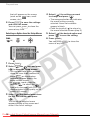
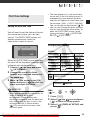
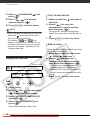
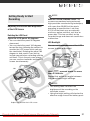
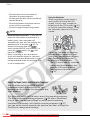
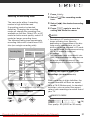
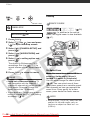
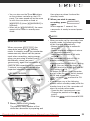
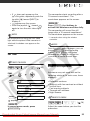
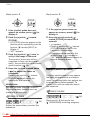
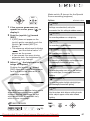
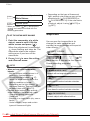
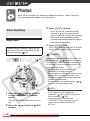
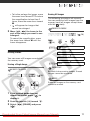
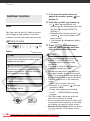
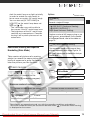
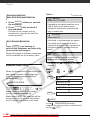
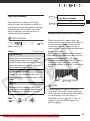
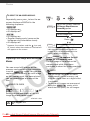
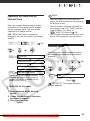
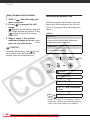
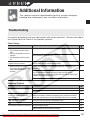
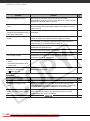
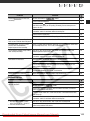
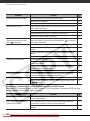
1
PUB.DIM-810 English Français HD Camcorder Instruction Manual Caméscope HD Manuel d'instruction Videocámara HD Manual de Instrucciones Please read also the Digital Video Software instruction manual (on PDF file). Refer to the installation guide for further details. Veuillez lire aussi le manuel d'instruction Digital Video Software (sur fichier PDF). Pour d'autres détails, référez-vous au guide d'installation. Lea también el manual de instrucciones Digital Video Software (en archivo PDF). Para mayores detalles, refiérase a la guía de instalación. Downloaded From VideoCamera-Manual.com Manuals Español Important Usage Instructions Introduction WARNING! TO REDUCE THE RISK OF FIRE OR ELECTRIC SHOCK, DO NOT EXPOSE THIS PRODUCT TO RAIN OR MOISTURE. WARNING! TO REDUCE THE RISK OF ELECTRIC SHOCK AND TO REDUCE ANNOYING INTERFERENCE, USE THE RECOMMENDED ACCESSORIES ONLY. COPYRIGHT WARNING: Unauthorized recording of copyrighted materials may infringe on the rights of copyright owners and be contrary to copyright laws. HD Camcorder, HR10 A systems This device complies with Part 15 of the FCC Rules. Operation is subject to the following two conditions: (1) This device may not cause harmful interference, and (2) this device must accept any interference received, including interference that may cause undesired operation. Note: This equipment has been tested and found to comply with the limits for class B digital device, pursuant to Part 15 of the FCC Rules. These limits are designed to provide reasonable protection against harmful interference in a residential installation. This equipment generates, uses and can radiate radio frequency energy and, if not installed and use in accordance with the instructions, may cause harmful interference to radio communications. However, there is no guarantee that interference will not occur in a particular installation. If this equipment does cause harmful interference to radio or television reception, which can be determined by turning the equipment off and on, the user is encouraged to try to correct the interference by one or more of the following measures: • Reorient or relocate the receiving antenna. • Increase the separation between the equipment and receiver. • Connect the equipment into an outlet on a circuit different from that to which the receiver is connected. • Consult the dealer or an experienced radio/TV technician for help. The cable with the ferrite core provided with the digital video camcorder must be used with this equipment in order to comply with Class B limits in Subpart B of Part 15 of the FCC rules. Do not make any changes or modifications to the equipment unless otherwise specified in the manual. If such changes or modifications should be made, you could be required to stop operation of the equipment. Canon U.S.A. Inc. One Canon Plaza, Lake Success, NY 11042, U.S.A. Tel No. (516)328-5600 CAUTION: TO PREVENT ELECTRIC SHOCK, MATCH WIDE BLADE OF PLUG TO WIDE SLOT, FULLY INSERT. Important Warning CAUTION RISK OF ELECTRIC SHOCK DO NOT OPEN CAUTION: TO REDUCE THE RISK OF ELECTRIC SHOCK, DO NOT REMOVE COVER (OR BACK). NO USER-SERVICEABLE PARTS INSIDE. REFER SERVICING TO QUALIFIED SERVICE PERSONNEL. The lightning flash with arrowhead symbol, within an equilateral triangle, is intended to alert the user to the presence of uninsulated “dangerous voltage” within the product’s enclosure, that may be of sufficient magnitude to constitute a risk of electric shock to persons. The exclamation point, within an equilateral triangle, is intended to alert the user to the presence of important operating and maintenance (servicing) instructions in the literature accompanying the product. Downloaded From VideoCamera-Manual.com Manuals 2 IMPORTANT SAFETY INSTRUCTIONS In these safety instructions the word “product” refers to the Canon HD Camcorder HR10 A and all its accessories. 1 2 3 4 5 6 7 8 9 Read Instructions — All the safety and operating instructions should be read before the product is operated. Retain Instructions — The safety and operating instructions should be retained for future reference. Heed Warnings — All warnings on the product and in the operating instructions should be adhered to. Follow Instructions — All operating and maintenance instructions should be followed. Cleaning — Unplug this product from the wall outlet before cleaning. Do not use liquid or aerosol cleaners. The product should be cleaned only as recommended in this manual. Accessories — Do not use accessories not recommended in this manual as they may be hazardous. Avoid magnetic or electric fields — Do not use the camera close to TV transmitters, portable communication devices or other sources of electric or magnetic radiation. They may cause picture interference, or permanently damage the camera. Water and Moisture — Hazard of electric shock — Do not use this product near water or in rainy/moist situations. Placing or Moving — Do not place on an unstable cart, stand, tripod, bracket or table. The product may fall, causing serious injury to a child or adult, and serious damage to the product. A product and cart combination should be moved with care. Quick stops, excessive force, and uneven surfaces may cause the product and cart combination to overturn. 10 11 12 13 Power Sources — The CA-570 Compact Power Adapter should be operated only from the type of power source indicated on the marking label. If you are not sure of the type of power supply to your home, consult your product dealer or local power company. Regarding other power sources such as battery power, refer to instructions in this manual. Polarization — The CA-570 Compact Power Adapter is equipped with a polarized 2-prong plug (a plug having one blade wider than the other). The 2-prong polarized plug will fit into the power outlet only one way. This is a safety feature. If you are unable to insert the plug fully into the outlet, try reversing the plug. If the plug still fails to fit, contact your electrician to replace your obsolete outlet. Do not defeat the safety purpose of the polarized plug. Power Cord Protection — Power cords should be routed so that they are not likely to be walked on or pinched by items placed upon or against them. Pay particular attention to plugs and the point from which the cords exit the product. Outdoor Antenna Grounding — If an outside antenna is connected to the product, be sure the antenna is grounded so as to provide some protection against voltage surges and built-up static charges. Section 810 of the National Electrical Code, ANSI / NFPA No. 70—1984, provides information with respect to proper grounding of the mast and supporting structure, grounding of the lead-in wire to an antenna discharge unit, size of grounding conductors, location of antenna discharge unit, connection to grounding electrodes, and requirements for the grounding electrode. See figure 1. Downloaded From VideoCamera-Manual.com Manuals 3 Fig. 1 EXAMPLE OF ANTENNA GROUNDING AS PER NATIONAL ELECTRICAL CODE 18 Damage Requiring Service — Disconnect this product from the wall outlet and all power sources including battery, and refer servicing to qualified service personnel under the following conditions: a. When the power-supply cord or plug is damaged. b. If any liquid has been spilled onto, or objects have fallen into, the product. c. If the product has been exposed to rain or water. d. If the product does not operate normally even if you follow the operating instructions. Adjust only those controls that are covered by the operation instructions. Improper adjustment of other controls may result in damage and will often require extensive work by a qualified technician to restore the product to its normal operation. e. If the product has been dropped or the cabinet has been damaged. f. When the product exhibits a distinct change in performance. This indicates a need for service. 19 Replacement Parts — When replacement parts are required, be sure the service technician has used replacement parts that are specified by Canon or that have the same characteristics as the original part. Unauthorized substitutions may result in fire, electric shock or other hazards. 20 Safety Check — Upon completion of any service or repairs to this product, ask the service technician to perform safety checks to determine that the product is in safe operating order. ANTENNA LEAD IN WIRE GROUND CLAMP ELECTRIC SERVICE EQUIPMENT NEC - NATIONAL ELECTRICAL CODE ANTENNA DISCHARGE UNIT (NEC SECTION 810-20) GROUNDING CONDUCTORS (NEC SECTION 810-21) GROUND CLAMPS POWER SERVICE GROUNDING ELECTRODE SYSTEM (NEC ART 250. PART H) 14 Lightning — For added protection of this product during a lightning storm, or when it is left unattended and unused for long periods of time, disconnect it from the wall outlet and disconnect the antenna. This will prevent damage to the product due to lightning and power-line surges. 15 Overloading — Do not overload wall outlets and extension cords as this can result in a risk of fire or electric shock. 16 Objects and Liquid Entry — Never push objects of any kind into this product through openings as they may touch dangerous voltage points or short out parts that could result in a fire or electric shock. Be careful not to spill liquid of any kind onto the product. 17 Servicing — Do not attempt to service this product yourself as opening or removing covers may expose you to dangerous voltage or other hazards. Refer all servicing to qualified service personnel. When replacement of the power supply is required, please return it to the responsible nearest Canon Service Center and please replace it with the same type number CA-570. The Adapter can be used with a power supply between 100 and 240 V AC. For areas where 120 V AC power is not used, you will need a special plug adapter. Contact your nearest Canon Service Center for further information. This Class B digital apparatus complies with Canadian ICES-003. Downloaded From VideoCamera-Manual.com Manuals 4 Enjoying High-Definition Video with your DVD Camcorder Recording HD video with your DVD camcorder may seem a bit complicated at first. Actually, you need to make just two simple choices and you can start recording right away. The first choice is what disc type – or physical media – to use. The second choice is what image quality – and disc specification – to use. Let us walk you through it. 1 Decide what type of DVD disc is best for you There are many types of DVD discs but this camcorder uses only the following three types of 8 cm mini DVD discs: DVD-R, DVD-R DL and DVD-RW. Read the differences between them and select the disc that best fits your needs. DVD-R Best for Compatibility DVD-Rs can be recorded only once – you cannot edit or delete the recordings. On the other hand, these discs are comparatively cheaper. DVD-R DL Best for Recording Time Dual-layered discs allow writing up to 80% more data (approx. 2.6 GB) on a single recording side. However, you cannot edit or delete the recordings. Dual-layered discs have two recording layers. The camcorder will record on Layer 1 and then continue to Layer 2. During the playback of a recording spanning both layers, you may notice a brief stop (about 1 second) at the point where the camcorder switches to the second layer. In SD quality the switch to Layer 2 will break the recording into 2 separate scenes. DVD-RW Layer 2 Layer 1 Scene 2 Scene 1 Recording surface Best for Reusability Recordings made on a DVD-RW disc can be edited or deleted. Also, the disc can be initialized. Initializing a DVD-RW disc clears all the recordings and restores the free space on the disc to its initial value so you can use the same disc again. Downloaded From VideoCamera-Manual.com Manuals 5 2 Decide what image quality you want to use Your camcorder offers two levels of image quality: high-definition (HD) video and standard-definition (SD) video. Apart from a significant difference in quality, this selection will also affect on what DVD players you can play back your finalized* disc (the disc's compatibility). Read carefully and select the image quality that best fits your needs. Please note that the disc's quality can only be changed when initializing the disc. Therefore, with DVD-R and DVD-R DL discs you can select the disc's quality only once and it cannot be changed later on. With DVD-RW discs, you can initialize the disc and change the quality but doing so will delete all the recordings on the disc. HD Quality High definition allows you to record video of unparalleled high quality on regular mini DVD discs using AVCHD compression. HD video is composed of 1,080 horizontal lines – that is more than twice the number of horizontal lines and approximately 4 times the number of pixels in standard-definition TV broadcasts – resulting in eye-catching colors and richly detailed video recordings. 1,080 lines Discs recorded in HD quality can be played back only with AVCHD-compatible DVD players. Do not insert a disc recorded in HD quality into a DVD player that is not compatible with AVCHD specifications as you may not be able to eject the disc. "Full HD 1080" refers to Canon camcorders compliant with highdefinition (HD) video composed of 1,080 vertical pixels (scanning lines). SD Quality Standard definition allows you to record video in DVD-VIDEO mode using MPEG-2 compression. This is the same standard used in regular movie DVD discs ensuring that, after finalizing* it, you can play back the disc you recorded on most DVD players. When you use DVD discs that cannot be reused (DVD-R or DVD-R DL), the disc can be recorded only in VIDEO mode. DVD-RW discs, on the other hand, can be recorded using either one of two specifications: VIDEO mode or VR mode. Refer to Disc specifications on DVD-RWs ( 7). * Disc finalization is the processing of the free space (the unrecorded area) on the disc in order to make it playable on external DVD devices ( 68). To finalize a DVD-R DL disc, the camcorder has to process both layers. Therefore, and depending on the amount of free space on the disc, this process may be lengthy. Downloaded From VideoCamera-Manual.com Manuals 6 Disc specifications on DVD-RWs VIDEO mode: Once finalized, discs recorded in VIDEO mode can be played back in most common DVD players, offering the best compatibility. However, recordings cannot be edited (deleted, rearranged, etc.). VR mode: You can easily edit the recordings. However, discs recorded in VR mode can be played back only with DVD players compatible with DVD-RWs in VR mode. Recommended discs The camcorder's performance was tested** with single-layered discs using the supplied discs and Hitachi-Maxell HG series DVD discs; and with dual-layered discs using Canon DVD-R DL54 discs and Verbatim DVD-R DL discs. For further details, contact directly the manufacturer's customer support center. Note that attempting to record or play with this camcorder DVD discs that were recorded, initialized or finalized with other digital devices can result in damage to the camcorder or in the permanent loss of the recordings. Playback on external devices Make sure to finalize discs ( 68) before you play them back on external DVD devices. The disc's type and quality will affect its compatibility with external devices. For a summary, you can refer to the sidebar on page 70. However, to be sure, always refer to the instruction manual of the external device and make sure it is compatible before inserting the disc. For the highest compatibility with external DVD devices we recommend using SD quality in VIDEO mode. ** As of April 2007 the camcorder's performance has been tested using DVD discs made by Hitachi-Maxell, Panasonic and TDK as well. The use of other discs may result in incorrect recording/playback or in not being able to remove the disc. Downloaded From VideoCamera-Manual.com Manuals 7 Available features depend on the DVD disc used Disc Type DVD-R, DVD-R DL Disc Quality HD SD HD VIDEO mode Disc Specifications Editing scenes with this camcorder (deleting scenes, dividing scenes, etc.) ( 65) – Deleting a scene immediately after recording it ( 40) – Initializing the disc in order to use it again for recording ( 67) – Giving a title to the disc ( DVD-RW SD VIDEO mode 1 VR mode – 68) Finalizing the disc in order to play it with an external DVD device ( 68)2 Adding recordings to a disc already finalized ( 71) Editing scenes on a computer4 ( 1 2 3 4 – 3 3 97) Only scenes in the playlist can be divided. Playback cannot be guaranteed with all external DVD devices. You will need to unfinalize the disc first. With the supplied software you can make copies of your disc, play back and edit your video, and more. For further details, refer to the Corel Application Disc Installation Guide and User Manual. Downloaded From VideoCamera-Manual.com Manuals 8 Downloaded From VideoCamera-Manual.com Manuals 9 Table of contents Introduction _________________________________ 5 14 15 15 17 20 Enjoying High-Definition Video with your DVD Camcorder About this Manual Getting to Know the Camcorder Supplied Accessories Components Guide Screen Displays Preparations ________________________________ 23 23 24 26 26 26 27 27 29 29 29 30 31 31 32 34 Getting Started Charging the Battery Pack Preparing the Accessories and the Wireless Controller Basic Operation of the Camcorder Power Switch Operating Modes Joystick and Joystick Guide Using the Menus First Time Settings Setting the Date and Time Changing the Language Changing the Time Zone Getting Ready to Start Recording Adjusting the Position and Brightness of the LCD Screen Inserting and Removing a Disc Inserting and Removing a Memory Card Downloaded From VideoCamera-Manual.com Manuals 10 Video ______________________________________ 35 35 37 37 38 39 40 41 41 43 44 45 45 47 47 50 51 51 52 54 55 55 57 58 59 59 60 61 62 63 65 65 65 66 66 67 Basic Recording Shooting Video Selecting the Recording Mode Selecting the Aspect Ratio of your Recordings (16:9 Widescreen or 4:3) Zooming Quick Start Function Reviewing and Deleting the Last Scene Just Recorded Basic Playback Playing Back the Video Deleting Scenes On-Screen Displays (Data Code) Menu Options Lists FUNC. Menu Setup Menus Camera Setup (Digital Zoom, Image Stabilizer, etc.) Disc Operations (Initialization, Finalization etc.) Still Image Operations (Card Initialization, etc.) Display Setup (LCD Brightness, Language, etc.) System Setup (Volume, Beep, etc.) Date/Time Setup Additional Functions Cinema Mode and Special Scene Recording Programs Flexible Recording: Changing the Aperture and Shutter Speed Mini Video Light Self Timer Manual Focus Adjustment Manual Exposure Adjustment White Balance Image Effects Digital Effects Managing Scenes and the Disc Creating a Playlist Moving Scenes in the Playlist Dividing Scenes Protecting the Disc Initializing the Disc Downloaded From VideoCamera-Manual.com Manuals 11 Video (cont.) ________________________________ 68 68 68 70 71 Disc Playback on an External Device Changing the Disc Title Finalizing the Disc Disc Playback on External Devices Unfinalizing the Disc - Additional Recordings on a Finalized Disc Photos _____________________________________ 72 72 73 74 75 75 76 77 78 78 79 80 81 81 82 83 83 84 85 85 86 89 90 Basic Recording Taking Photos Selecting Photo Size and Quality Erasing the Last Photo Just Recorded Basic Playback Viewing Photos Magnifying Photos during Playback Erasing Photos Additional Functions Flash Continuous Shooting and Exposure Bracketing (Drive Mode) Automatic Focus Priority Light Metering Mode Histogram and Other Screen Displays Capturing a Still Image while Recording Movies Capturing a Still Image from the Playback Scene Protecting Photos Initializing the Memory Card Printing Photos Printing Photos - Direct Print Selecting the Print Settings Trimming Settings Print Orders Downloaded From VideoCamera-Manual.com Manuals 12 External Connections _________________________ 92 93 94 95 97 97 97 97 100 Connecting to a TV or VCR Connection Diagrams Playback on a TV Screen Copying your Recordings to an External Video Recorder Connecting to a Computer PC Connection Diagrams Corel Application Disc - Movie Playback/Editing and Various Disc Operations Transferring Photos - Direct Transfer Transfer Orders Additional Information ________________________ 101 Trouble? 101 106 Troubleshooting List of Messages 110 Do’s and Don’ts 110 113 114 Handling Precautions Maintenance/Others Using the Camcorder Abroad 116 General Information 116 117 120 121 124 System Diagram Optional Accessories Product Codes Specifications Index Downloaded From VideoCamera-Manual.com Manuals 13 Introduction About this Manual Thank you for purchasing the Canon HR10. Please read this manual carefully before you use the camcorder and retain it for future reference. Should your camcorder fail to operate correctly, refer to the Troubleshooting table ( 101). Conventions Used in this Manual • • • IMPORTANT: Precautions related to the camcorder’s operation. NOTES: Additional topics that complement the basic operating procedures. POINTS TO CHECK: Restrictions that apply if the function described is not available in all operating modes (the operating mode to which the camcorder should be set, the type of disc required, etc.). • : Reference page number. • The following terms are used in this manual: “Screen” refers to the LCD and the viewfinder screen. “Scene” refers to one movie unit from the point you press the START/STOP button to start recording until you press again to pause the recording. The terms “photo” and “still image” are used interchangeably with the same meaning. • The photos included in this manual are simulated pictures taken with a still camera. Changing the Language Options [DEUTSCH] [ ROMANA ] Menu item shown at its default position [ENGLISH] [TÜRKÇE] [ESPAÑOL] [ [FRANÇAIS] [ Buttons and switches to be operated [ [ITALIANO] [ ] [POLSKI] [ ] ] [ ] ] [ ] ] [ ] [ ] Default value DISPLAY SETUP Names of buttons and switches other than the joystick are indicated within a “button” frame. For example FUNC. . LANGUAGE ENGLISH FUNC. ( 28) 1 Press FUNC.. 2 Select ( ) the ( Brackets [ ] and capital letters are used to refer to menu options as they are displayed on screen. In menu option lists and option tables the default value is shown in boldface. For example [ON], [OFF]. Downloaded From VideoCamera-Manual.com Manuals 14 icon and press ) to open the setup menus. 3 Select ( press ( ) [DISPLAY SETUP] and ). Getting to Know the Camcorder Supplied Accessories CA-570 Compact Power Adapter (incl. power cord) BP-214 Battery Pack Lithium Button Battery CR2025 for Wireless Controller WL-D86 Wireless Controller CTC-100/S Component Cable Red • Green • Blue plugs STV-100 Stereo Video Cable Yellow • Red • White plugs Blank DVD-R Disc (8 cm Mini DVD) IFC-300PCU USB Cable Software CD-ROM* DIGITAL VIDEO Solution Disk Software CD-ROM and User Manual Corel Application Disc * Includes the electronic version of the Digital Video Software instruction manual on PDF file. Downloaded From VideoCamera-Manual.com Manuals 15 Introduction Online product registration for U.S.A. Customers only. Register your product online at www.registercanon.com Protect your product We will keep the model number and date of purchase of your new Canon product on file to help you refer to this information in the event of an insurance claim such as loss or theft. Receive information on new products and promotions Upon your request, we will send you information on Canon new products and promotions. The serial number of this product can be found at the battery attachment unit of the camcorder. Write down the number and other information here and retain this book as a permanent record of your purchase to aid identification in case of theft. Date of Purchase: Model Name: HR10 A Purchased From: Serial No.: Dealer Address: Dealer Phone No.: Downloaded From VideoCamera-Manual.com Manuals 16 Components Guide Left side view Right side view QUICK START button and standby lamp ( 39) FUNC. button ( 27, 45) DISP. button ( 44, 81) (print/share) button ( 86, 97) HDMI OUT terminal ( 93, 95) AV OUT terminal ( 92) Terminal cover COMPONENT OUT terminal ( 93) USB terminal ( 97) BATT. (battery release) switch ( 23) Serial number RESET button ( 101) CARD access indicator ( 72) Memory card slot (open the cover to access) ( 34) Disc compartment cover ( 32) DC IN terminal ( 23) Instant AF sensor ( 48) Flash ( 78) Mini video light ( 58) Stereo microphone Remote sensor ( 25) Names of buttons and switches other than the joystick are indicated within a “button” frame (for example FUNC. ). Front view Downloaded From VideoCamera-Manual.com Manuals 17 Introduction Back view Top view PLAY mode indicator (green) ( 26) Joystick ( 27) CAMERA mode indicator (red) ( 26) LCD screen ( 31) (fast reverse) button ( 41) / Zoom out W (wide-angle) button ( 38) (fast forward) button ( 41) / Zoom in T (telephoto) button ( 38) / (play/pause) button ( 41) / START/STOP button ( 35) (stop) button ( 41) / PLAYLIST button ( 65) Viewfinder ( 36) Dioptric adjustment lever ( 36) / (movies/still images) switch ( 26) START/STOP button ( 35) Power switch ( 26) Tripod socket ( 25) DISC access indicator ( 35) / CHG (charge) indicator ( 23) OPEN (disc cover) switch ( 32) Grip belt ( 24) Mode switch ( 36) Zoom lever ( 38) PHOTO button ( 72) Speaker ( 41) Strap mount Names of buttons and switches other than the joystick are indicated within a “button” frame (for example FUNC. ). Downloaded From VideoCamera-Manual.com Manuals 18 Wireless Controller WL-D86 START/STOP button ( 35) FUNC. button ( 27) MENU button ( 28) PLAYLIST button ( 65) Navigation buttons ( / / / ) PREV./NEXT buttons: Scene skip ( 42)/ Index screen page up/down ( 41) Reverse SEARCH button ( 42) / Reverse SLOW button ( 42) PLAY button ( 41) PAUSE button ( 41) STOP button ( 41) PHOTO button ( 72) Zoom buttons ( 38) SET button Forward SEARCH button ( 42) / Forward SLOW button ( 42) DISP. (on-screen display) button ( 44, 81) Downloaded From VideoCamera-Manual.com Manuals 19 Introduction Screen Displays Recording Movies Operating mode ( 26) Recording program ( 55, 57) White balance ( 61) Image effect ( 62) Digital effects ( 63) Recording mode ( 37) Still image quality/size (simultaneous recording) ( 82) Disc quality and specification ( 6) HD mode (High definition) VIDEO mode (Standard definition) VR mode (Standard definition, DVD-RW only) Disc type DVD-R, DVD-R DL, DVD-RW ( 5) Playing Movies (During Playback) Instant AF ( 48), MF Manual focus ( 59) 24F progressive frame rate Disc operation Time code/Playback time (hours : minutes : seconds) Remaining recording time on the disc Recording reminder Image stabilizer ( 49) Wind screen off ( 50) Remote sensor off ( 52) Level marker ( 52) Finalized disc mark ( 68) Scene number Data code ( 44) Downloaded From VideoCamera-Manual.com Manuals 20 Recording Still Images Viewing Still Images Zoom ( 38), Exposure ( 60) Recording program ( 55, 57) Light metering mode ( 81) White balance ( 61) Image effect ( 62) Digital effects ( 63) Drive mode ( 79) Still image quality/size ( 73) Instant AF ( 48), MF Manual focus ( 59) Number of still images available on the memory card Self timer ( 59) Remaining battery charge estimate Image stabilizer ( 49) AF frame ( 80) Mini video light ( 58) Camcorder shake warning ( 47) Focus/exposure automatically set and locked ( 72) Flash ( 78) Image number ( 53) Current image / Total number of images Histogram ( 81) Image protection mark ( 83) Date and time of recording Manual focus ( 59) Manual exposure ( 60) Image size ( 73) File size Aperture value ( 57) Shutter speed ( 57) Downloaded From VideoCamera-Manual.com Manuals 21 Introduction 24F progressive frame rate When recording in high definition, select the 24F progressive frame rate to give your recordings a cinematic look ( 49). You can combine this frame rate with the [ CINE MODE] recording program ( 55) to enhance the effect. • When viewing the still images, the display will always be in green. • Depending on the recording conditions, the number of available still images displayed may not decrease even after a recording has been made, or may decrease by 2 still images at once. Disc operation Record, Record pause, Playback, Playback pause, Fast playback, Fast reverse playback, Slow playback, Slow reverse playback Card access display is displayed next to the number of images available while the camcorder is writing on the memory card. Remaining battery charge estimate Remaining recording time When there is no more disc space available, “ END” will be displayed and the recording will stop. Recording reminder The camcorder counts from 1 to 10 seconds when you start recording. This is helpful to avoid scenes that are too short. • When is displayed in red, replace the battery pack with a fully charged one. • When you attach an empty battery pack, the power may turn off without displaying . • Depending on the conditions under which the camcorder and the battery pack are used, the actual battery charge may not be indicated accurately. Number of still images available on the card flashing in red: No card in green: 6 or more images in yellow: 1 to 5 images in red: No more images can be recorded Image number The image number indicates the name and location of the file on the memory card. For example, the file name of image 101-0107 is “IMG_0107.JPG”, stored under the folder “DCIM\101CANON”. Downloaded From VideoCamera-Manual.com Manuals 22 Preparations This chapter describes basic operations, such as navigating the menus, and first time settings to help you learn more about your camcorder. Getting Started CHG (charge) indicator Getting Started Charging the Battery Pack The camcorder can be powered with a battery pack or directly using the compact power adapter. Charge the battery pack before use. For approximate charging times and recording/playback times with a full battery pack, refer to the tables on page 117. DC IN terminal 3 Connect the power cord to the compact power adapter. 4 Plug the power cord into a power outlet. 5 Connect the compact power BATT. switch 1 Turn off the camcorder. 2 Attach the battery pack to the camcorder. • Open the LCD panel. • Slide in the connector end of the battery pack in the direction of the arrow and press it gently until it clicks. adapter to the camcorder’s DC IN terminal. • The CHG (charge) indicator starts flashing. The indicator will stay on when the charging is completed. • You can also use the compact power adapter without attaching a battery pack. • When the compact power adapter is connected, the power of the battery pack will not be consumed. Downloaded From VideoCamera-Manual.com Manuals 23 Preparations ONCE THE BATTERY PACK IS FULLY CHARGED 1 Disconnect the compact power adapter from the camcorder. 2 Unplug the power cord from the power outlet and the compact power adapter. TO REMOVE THE BATTERY PACK Slide BATT. down to release the battery pack, and pull out the battery pack holding it from the ridge on its bottom part. IMPORTANT • Turn off the camcorder before connecting or disconnecting the compact power adapter. After you move the switch to , important file allocation data is updated on the disc. Be sure to wait until the LCD display is completely off. • You may hear some noise from the compact power adapter during use. This is not a malfunction. • We recommend charging the battery pack in temperatures between 10 °C and 30 °C (50 °F and 86 °F). Outside the temperature range of 0 °C to 40 °C (32 °F to 104 °F), the charging will not start. • Do not connect to the camcorder’s DC IN terminal or to the compact power adapter any electrical equipment that is not expressly recommended for use with this camcorder. • To prevent equipment breakdowns and excessive heating, do not connect the supplied compact power adapter to voltage converters for overseas travels or special power sources such as those on aircraft and ships, DC-AC inverters, etc. NOTES • The CHG (charge) indicator also serves as a rough estimate of the charge status. Continuously on: Battery pack fully charged. Flashes approx. twice per second: Battery pack over 50% charged. Flashes approx. once per second: Battery pack less than 50% charged. • We recommend that you prepare battery packs to last 2 to 3 times longer than you think you might need. • U.S.A. and Canada only: The lithium ion/polymer battery that powers this product is recyclable. Please call 1-800-8-BATTERY for information on how to recycle this battery. Preparing the Accessories and the Wireless Controller 1 Fasten the grip belt. Adjust the grip belt so that you can reach the zoom lever with your index Downloaded From VideoCamera-Manual.com Manuals 24 finger, and the START/STOP button with your thumb. Using the Wireless Controller First, insert the supplied lithium button battery CR2025 into the wireless controller. Tab situated under strong light sources or direct sunlight. • If the wireless controller does not work, check that [WL.REMOTE] is not set to [ OFF ]( 52). Otherwise, replace the battery. When you mount the camcorder on a tripod Do not leave the viewfinder exposed to direct sunlight as it may melt (due to concentration of the light by the lens). Do not use tripods with fastening screws longer than 5.5 mm (0.2 in.). Doing so may damage the camcorder. 1 Press the tab in the direction of the arrow and pull out the battery holder. 2 Place the lithium button battery with the + side facing up. 3 Insert the battery holder. Point the wireless controller at the camcorder’s remote sensor when you press the buttons. NOTES • The wireless controller may not work properly when the remote sensor is Downloaded From VideoCamera-Manual.com Manuals 25 Preparations indicator) and playback (PLAY - green indicator). Basic Operation of the Camcorder Basic Operation of the Camcorder Power Switch Operating Modes Lock button In addition to turning the camcorder on and off, the switch also toggles the camcorder’s operating mode. To turn on the camcorder: Hold the lock button pressed down and move the switch down to ON. To change the operating mode: From the ON position, slide the switch down momentarily toward MODE and release it. This action will toggle the operating mode between recording (CAMERA - red Operating Mode Operating Mode Indicator / Switch (Movies) (Red) (Still images) (Movies) (Green) (Still images) The camcorder’s operating mode is determined by the switch and the position of the / switch. In this manual, indicates that a function is available in the operating mode shown and indicates that the function is not available. When no operating mode icons are given, the function is available in all operating modes. Icon Display Operation Recording movies on the disc 35 Recording still images on the memory card 72 Playing movies from the disc 41 Viewing still images from the memory card 75 Downloaded From VideoCamera-Manual.com Manuals 26 Joystick and Joystick Guide Push the joystick up, down, left or right ( , ) to select an item or change settings. Using the Menus Many of the camcorder’s functions can be adjusted from the menus that open after pressing the FUNC. button ( FUNC. ). For details about the available menu options and settings, refer to the Menu Options Lists ( 45). Selecting a FUNC. Menu Option Press the joystick itself ( ) to save the settings or confirm an action. On menu screens, this is indicated by the icon . FUNC. ( 27) The functions assigned to the joystick change according to the operation mode and the camcorder’s settings. Press ( ) to display/hide the joystick guide. In the illustrations of this manual, positions other than those relevant to the function explained are marked with a striped pattern. Depending on the operation mode, these positions may be empty or show a different icon than the one on the illustration. NEXT When the guide contains multiple “pages”, [NEXT] and the page number icon ( ) will appear at the bottom position. Push the joystick ( ) toward [NEXT] to display the next “page” of the guide. 1 Press FUNC. . 2 Select ( ) the icon of the function you want change from the left side column. Menu items not available will appear grayed out. 3 Select ( ) the desired setting from the available options at the bottom bar. • The selected option will be highlighted in light blue. Menu items not available will appear grayed out. • With some settings, you will need to make further selections ( , ) and/or press ( ). Follow the additional operation guides Downloaded From VideoCamera-Manual.com Manuals 27 Preparations that will appear on the screen (such as the icon, small arrows, etc.). 4 Press FUNC. to save the settings and close the menu. You can press FUNC. to close the menu at any time. Selecting an Option from the Setup Menus 4 Select ( ) the setting you want to change and press ( ). • The orange selection bar indicates the menu setting currently selected. Items not available appear in black. • Push the joystick ( ) to return to the menu selection screen (step 3). 5 Select ( press ( FUNC. ( 28) ) the desired option and ) to save the setting. 6 Press FUNC. . You can press FUNC. to close the menu at any time. 1 Press FUNC. . 2 Select ( ) the icon and press ( ) to open the setup menus. • You can also hold FUNC. pressed down for more than 1 second or press MENU on the wireless controller to open directly the setup menus screen. • In mode, push the joystick ( ) to select the icon (only necessary with DVD-RW discs recorded in HD quality, or SD quality (VR mode)). 3 Select ( ) the desired menu from the left side column and press ( ). The title of the selected menu appears on top of the screen and under it the list of settings. Downloaded From VideoCamera-Manual.com Manuals 28 First Time Settings First Time Settings Setting the Date and Time You will need to set the date and time of the camcorder before you can start using it. The [DATE/TIME] screen will appear automatically when the camcorder’s clock is not set. • The date appears in a year-month-day format only in the first setup screen. In subsequent screen displays the date and time will appear as month-day-year (for example, [JAN. 1, 2007 12:00 AM]). You can change the date format ( 54). • You can also change the date and time later on (not during the initial setup). To open the [DATE/TIME] screen, press FUNC. and select [DATE/TIME SETUP] [DATE/TIME]. Changing the Language Options [DEUTSCH] [ ROMANA ] [ [ENGLISH] [TÜRKÇE] [ [ESPAÑOL] When the [DATE/TIME] screen appears, the year will be displayed in orange and indicated with up/down arrows. 1 Change ( ) the year and move ( ) to the month. [ ] [FRANÇAIS] [ [ITALIANO] [ ] [POLSKI] [ ] [ ] ] [ ] [ ] 2 Change the rest of the fields (month, day, hour and minutes) in the same way. ] ] Default value DISPLAY SETUP 3 Move ( ) the cursor to the [OK] button and press ( ) to start the clock and close the menu. IMPORTANT • When you do not use the camcorder for about 3 months, the built-in rechargeable lithium battery may discharge completely and the date and time setting may be lost. In such case, recharge the built-in lithium battery ( 113) and set the time zone, date and time again. LANGUAGE ENGLISH FUNC. ( 28) 1 Press FUNC. . 2 Select ( ) the ( icon and press ) to open the setup menus. 3 Select ( press ( Downloaded From VideoCamera-Manual.com Manuals ) [DISPLAY SETUP] and ). 29 Preparations 4 Select ( press ( ) [LANGUAGE ). ] and 5 Select ( , ) the desired option and press ( ). 6 Press FUNC. to close the menu. NOTES • If you changed the language by mistake, follow the mark next to the menu item to change the setting. • The displays and that appear in some menu screens refer to the name of buttons on the camcorder and will not change, regardless of the language selected. Changing the Time Zone Default value DATE/TIME SETUP T.ZONE/DST NEW YORK TO SET THE HOME TIME ZONE 5 Make sure that the time zone is selected. 6 Select ( ) the area that corresponds to your local time zone and press ( ). To adjust for daylight saving time, select the area name marked with a . 7 Press FUNC. to close the menu. WHEN YOU TRAVEL Select the time zone to match the local time at your destination. 5 Move the orange selection frame ( ) to the time zone. 6 Select ( ) the area that corresponds to the local time at your destination and press ( ). • Refer to the changing date and time displayed on the screen. • To adjust for daylight saving time, select the area name marked with a . 7 Press FUNC. to close the menu. FUNC. ( 28) 1 Press FUNC. . 2 Select ( ) the ( icon and press ) to open the setup menus. 3 Select ( ) [DATE/TIME SETUP] and press ( ). 4 Select ( ) [T.ZONE/DST] and press ( ). The default setting is New York. Downloaded From VideoCamera-Manual.com Manuals 30 Getting Ready to Start Recording Getting Ready to Start Recording Adjusting the Position and Brightness of the LCD Screen Rotating the LCD Panel Open the LCD panel 90 degrees. • You can rotate the panel 90 degrees downward. • You can rotate the panel 180 degrees toward the lens (allowing the subject to monitor the LCD screen while you use the viewfinder). Rotating the panel 180 degrees is also useful if you wish to include yourself when recording with the self timer. This is the only case where you can use the viewfinder and the LCD screen simultaneously. NOTES About the LCD and viewfinder screen: The screens are produced using extremely high-precision manufacturing techniques, with more than 99.99% of the pixels operating to specification. Less than 0.01% of the pixels may occasionally misfire or appear as black, red, blue or green dots. This has no effect on the recorded image and does not constitute a malfunction. LCD Backlight You can set the brightness of the LCD screen to normal or bright. 180° Hold DISP. pressed down for more than 2 seconds. Repeat this action to toggle between the normal and bright settings. 90° NOTES 180° • This setting does not affect the brightness of the recording or the viewfinder screen. • Using the bright setting will shorten the effective usage time of the battery pack. Subject can monitor the LCD screen Downloaded From VideoCamera-Manual.com Manuals 31 Preparations 3 Insert the disc and press its center Inserting and Removing a Disc Use only 8 cm (3 in.) mini DVD discs marked with the DVD-R logo (including DVD-R DL) or the DVD-RW logo. Refer also to Recommended discs ( 7). Before inserting the disc be sure to check that the recording surface is clean. If necessary, use a soft lenscleaning cloth to remove any fingerprints, dirt buildup or smudges from the disc surface. firmly until it clicks in place. • Insert the disc with the recording side facing down (single sided discs – label side facing out). • Be careful not to touch the recording surface of the disc or the pick up lens. Inserting the Disc POINTS TO CHECK 4 Close the disc cover. ( 26) Do not force the cover closed if the disc is not correctly inserted and firmly set in place. NOTES Pick up lens • The process of recognizing a disc may take a moment. The display will move while the disc is being read. Wait until the camcorder finishes recognizing the disc before you start recording. • Do not insert into the camcorder discs that were recorded or initialized using another device. 1 Move the switch to ON to set the camcorder in mode. OPEN fully in the direction of the arrow and gently open the disc cover completely until it stops. Retract the grip belt under the camcorder so it will not get in the way of the disc cover. 2 Slide WHEN YOU INSERT A NEW DISC You need to initialize new discs before you can start recording. The disc initialization screen will appear when a new disc is first inserted if the / switch is set to (Movies). Downloaded From VideoCamera-Manual.com Manuals 32 You cannot initialize the disc if the remaining battery charge appears as . Power the camcorder using the compact power adapter. Select ( ) the quality to be used for recording the disc. For a comparison between HD and SD quality, refer to Decide what image quality you want to use ( 6). • Only if you inserted a DVD-RW disc and selected [SD], continue to step to select the disc specification. In all other cases, skip directly to step . Select ( ) the disc specification and press ( ). For a comparison between the [VIDEO] and [VR] specifications, refer to Disc specifications on DVD-RWs ( 7). In the confirmation screen, select ( ) [YES] and press ( ) to start the disc initialization. • The disc initialization will take approximately one minute. Avoid moving the camcorder while the operation is in progress. • You can start recording movies once the record pause indicator appears. Removing the Disc OPEN fully in the direction of the arrow and gently open the disc cover completely until it stops. • Do not subject the camcorder to strong impacts while the DISC access indicator is on or flashing. • Retract the grip belt under the camcorder so it will not get in the way of the disc cover. • It may take a moment after sliding OPEN for the disc cover to open. 1 Slide 2 Grab the edge of the disc and gently pull it out. Be careful not to touch the recording surface of the disc or the pick up lens. 3 Close the disc cover. IMPORTANT When you slide OPEN after making a recording, important file allocation data is updated on the disc before the disc cover opens. While the DISC access indicator is on or flashing do not subject the camcorder to shocks such as forcefully laying it on a table. Downloaded From VideoCamera-Manual.com Manuals 33 Preparations Inserting and Removing a Memory Card Only miniSD cards can be used with this camcorder. IMPORTANT • Make sure to initialize all memory cards before using them with this camcorder ( 84). • Memory cards have front and back sides that are not interchangeable. Inserting a memory card facing the wrong direction can cause a malfunction of the camcorder. NOTES Compatibility with all miniSD cards cannot be guaranteed. 1 Turn off the camcorder. 2 Open the LCD panel. 3 Pull out the memory card slot cover. 4 Insert the memory card straight with the miniSD label facing up, all the way into the memory card slot until it clicks. 5 Close the cover. Do not force the cover closed if the memory card is not correctly inserted. TO REMOVE THE MEMORY CARD First push the memory card once to release it, and then pull the card out. Downloaded From VideoCamera-Manual.com Manuals 34 Video This chapter covers functions related to shooting movies, including recording, playback, menu options, and disc operations. 2 Move the Basic Recording Basic Recording / switch to (Movies). START/STOP to begin recording. • The recording starts; press START/STOP again to pause the recording. • You can also press START/STOP on the LCD panel. 3 Press Shooting Video Before You Begin Recording Make a test recording first to check if the camcorder operates correctly. Since recordings made on a DVD-R or DVD-R DL disc cannot be deleted, we recommend you use a DVD-RW disc to make the test recordings. ( 26) WHEN YOU HAVE FINISHED RECORDING 1 Make sure that the DISC access indicator is off. 2 Turn off the camcorder. 3 Close the LCD panel. 4 Remove the disc. IMPORTANT 1 Move the switch to ON to set the camcorder in CAMERA mode. The red CAMERA indicator will turn on. • When recording movies, try to get a calm, stable picture. Excessive camcorder movement while shooting and extensive use of fast zooms and panning can result in jittery scenes. In extreme cases, the playback of such scenes may result in visually induced motion sickness. If you experience such a reaction, immediately stop the playback and take a rest break as necessary. • Avoid the following actions while the DISC access indicator is on or flashing. Failing to do so may result in permanent data loss. Downloaded From VideoCamera-Manual.com Manuals 35 Video - Do not subject the camcorder to vibrations or strong impacts. - Do not open the disc cover and do not remove the disc. - Do not disconnect the power source or turn off the camcorder. - Do not change the operating mode. NOTES • About the Power Save mode: To save power when the camcorder is powered by a battery pack, the camcorder will automatically shut off if left without any operations for 5 minutes ( 52). To restore the power, slide the switch toward MODE and release it, or move the switch to and back to ON again. • When recording in very loud places (such as fireworks shows or concerts), sound may become distorted or it may not be recorded at the actual levels. This is not a malfunction. Using the Viewfinder When recording in bright places it may be difficult to use the LCD screen. In such case, change the brightness of the LCD screen ( 31) or use the viewfinder instead. To use the viewfinder, keep the LCD panel closed*. Adjust the viewfinder as necessary with the dioptric adjustment lever. Hold DISP. pressed down for more than 2 seconds to change the brightness of the viewfinder. * The LCD screen and the viewfinder can be used simultaneously only when the LCD panel is turned 180 degrees to face the subject ( 31). About the Mode Switch and Recording Programs Set the mode switch to AUTO to let the camcorder adjust all the settings for you, allowing you to just point the camcorder and start shooting. Set the mode switch to P to select one of the recording programs. The Special Scene recording programs ( 55) offer a convenient way to select the optimal settings to match special recording conditions. Conversely, with flexible recording programs ( 57) you can set the shutter speed or the aperture you want, or enjoy the flexibility to change other settings. Downloaded From VideoCamera-Manual.com Manuals 36 1 Press FUNC. . 2 Select ( ) the recording mode Selecting the Recording Mode icon. The camcorder offers 4 recording modes in high definition and 3 recording modes in standard definition. Changing the recording mode will change the recording time available on the disc. Select XP+ or XP mode for better movie quality; select LP mode for longer recording times. The following table gives approximate recording times with a brand new DVD disc (on a single recording side). Disc Type Recording Mode High Definition Standard Definition DVD-R, DVD-RW DVD-R DL 15 min. 27 min. 20 min. 36 min. 25 min. 45 min. 33 min. 60 min. 20 min. 36 min. 30 min. 54 min. 60 min. 108 min. ( 26) Default value in high definition STANDARD PLAY 7 Mbps 3 Select ( ) the desired recording mode. 4 Press FUNC. again to save the setting and close the menu. NOTES • Recording in LP mode gives you a longer recording time; however, depending on the condition of the disc (long usage, imperfections, etc.) the picture and sound recorded in LP mode may be distorted. We recommend using XP+ or XP mode for important recordings. • The camcorder uses a variable bit rate (VBR) when encoding the video data so the actual recording times will vary depending on the content of the scenes. Selecting the Aspect Ratio of your Recordings (16:9 Widescreen or 4:3) When recording in high definition, the scenes recorded will have an aspect ratio of 16:9 (Widescreen). In standard definition, you can select the aspect ratio of your recordings to match that of your TV. POINTS TO CHECK FUNC. ( 27) ( 26) Disc quality: SD (VIDEO or VR mode) Downloaded From VideoCamera-Manual.com Manuals 37 Video Zooming FUNC. ( 28) Default value POINTS TO CHECK CAMERA SETUP ( WIDESCREEN ON 26) : In addition to the optical zoom, the digital zoom is also available ( 47). 1 Press FUNC. . 2 Select ( ) the ( icon and press ) to open the setup menus. 3 Select ( press ( 4 Select ( press ( ) [CAMERA SETUP] and ). ) [WIDESCREEN] and ). 5 Select ( ) a setting option and press ( ). The default is Widescreen (16:9) recordings. Set it to [ OFF] to record scenes with an aspect ratio of 4:3. 6 Press FUNC. to close the menu. NOTES • Playing back a Widescreen recording: TV sets compatible with the Video ID-1 system will automatically switch to wide (16:9) mode. Otherwise, change the aspect ratio of the TV manually. • To play back on a TV with normal aspect ratio (4:3) change the [TV TYPE] setting accordingly ( 53). W T W Zoom out W T T Zoom in 10x Optical Zoom Move the zoom lever toward W to zoom out (wide angle). Move it toward T to zoom in (telephoto). You can also change the zoom speed ( 48). You can select one of three fixed zoom speeds or a variable speed that depends on how you operate the zoom lever: Press gently for a slow zoom; press harder for faster zooms. NOTES • Keep at least 1 m (3.3 ft.) away from the subject. At full wide angle, you can focus on a subject as close as 1 cm (0.39 in.). Downloaded From VideoCamera-Manual.com Manuals 38 • You can also use the T and W buttons on the wireless controller or the LCD panel. The zoom speed will be the same as with the camcorder or fixed at [ SPEED 3] (when [ VARIABLE] is selected). • When set to [ VARIABLE], the zoom speed will be faster in record pause mode. then stays on when it enters the standby mode. 2 When you wish to resume recording, press QUICK START again. Within approx. 1 second, the camcorder is ready in record pause mode. NOTES Quick Start Function When you press QUICK START the camcorder enters the standby mode. In standby mode the camcorder consumes only about half the power used when recording, saving energy when you are using a battery pack. Additionally, when you press QUICK START again the camcorder is ready to start recording within approx. 1 second, ensuring you do not miss important shooting opportunities. POINTS TO CHECK ( 26) • When you wake up the camcorder from standby mode, the following settings will be changed automatically: - Manual focus returns to automatic focus (AF). - Manual exposure adjustment returns to automatic exposure. - Zoom position returns to full wide angle W. • The camcorder will shut off if left in standby mode for 10 minutes, regardless of the [POWER SAVE] setting ( 52). You can select the length of time until shut-off with the [ STANDBY OFF] setting ( 53). To restore the power if the camcorder shut off, slide the switch toward MODE and release it, or move the switch to and back to ON again. • If you perform any of the following actions while in standby mode (while the standby lamp is on), the camcorder will return to record pause mode. - Open the disc compartment cover. - Change the position of the / switch. - Slide the switch toward MODE. QUICK START firmly. The standby lamp flashes at first while the camcorder is preparing and 1 Press Downloaded From VideoCamera-Manual.com Manuals 39 Video Reviewing and Deleting the Last Scene Just Recorded Even in mode you can play back the last scene just recorded in order to check it. If you are using a DVD-RW disc, you can also delete the scene while reviewing it. ( 26) Deleting a Scene Right After Recording It POINTS TO CHECK ( Disc type: DVD-RW Immediately after recording a scene: 1 Review the scene as described in the previous section. 2 While reviewing the scene, select ( ) and press ( 3 Select ( NEXT ). ) [YES] and press ( NOTES 1 If the joystick guide does not appear on screen, press ( display it. 26) ) to 2 Push the joystick ( ) toward . • If does not appear on the joystick guide, repeatedly push the joystick ( ) toward [NEXT] to display it. • The camcorder plays back the last scene (but without sound) and returns to record pause mode. • Avoid any other operations on the camcorder while the scene is being deleted. • You will not be able to delete the last scene if after the scene was recorded you changed the operating mode, turned off the camcorder or removed the disc. Downloaded From VideoCamera-Manual.com Manuals 40 ). The playback will start from the scene selected and continue until the end of the last scene recorded. Basic Playback Basic Playback DURING PLAYBACK Playing Back the Video ( 26) 5 Press / again to pause the playback. 6 Press to stop the playback and return to the scene index screen. NOTES • Depending on the recording conditions, you may notice brief stops in video or sound playback between scenes. • Be sure to finalize discs to play them back on external DVD devices ( 68). TO ADJUST THE VOLUME 1 Move the switch to ON, then slide it down toward MODE and release it to set the camcorder in PLAY mode. The green PLAY indicator will turn on. 2 Move the / switch to (Movies). The scene index screen appears with the selection frame on the first scene. During the playback of a scene: 1 If the joystick guide does not appear on screen, press ( ) to display it. 2 Push the joystick ( ) toward or to adjust the volume. 3 Move ( , ) the selection frame to the scene you want to play back. 4 Press / to begin the playback. Downloaded From VideoCamera-Manual.com Manuals 41 Video Special Playback Modes To enter most special playback modes you need to operate the buttons on the wireless controller ( 19). There is no sound during the special playback modes. Special playback mode Fast playback Initial mode On the camcorder press… Normal playback On the wireless controller press… SEARCH or or SEARCH Press again to increase the playback speed 5x o 15x the normal speed Slow playback* Playback pause SLOW or or SLOW Press again to increase the playback speed 1/8 o 1/4 the normal speed Skip to the beginning of: Push the joystick: the next scene ( ) NEXT ( ) PREV. ( ) twice PREV. Normal playback the current scene the previous scene Return to normal playback Special playback / twice PLAY During some special playback modes, you may notice some anomalies (blocky video artifacts, banding, etc.) in the playback picture. * Slow playback is not available with discs recorded in VIDEO mode. Downloaded From VideoCamera-Manual.com Manuals 42 Deleting All Scenes Deleting Scenes POINTS TO CHECK If you are using a DVD-RW disc, you can delete those scenes that you are not interested in keeping. ( 26) Disc type: DVD-RW Disc quality: HD or SD (VR mode only) Deleting a Single Scene POINTS TO CHECK ( 26) Disc type: DVD-RW Disc quality: HD or SD (VR mode only) From the original index screen, select ( , ) the scene to delete. To delete a scene only in the playlist, press PLAYLIST first, and then select the scene. To delete all the scenes from the original index screen, perform the following procedure. This will delete also the whole playlist. If you want to delete only the playlist (without affecting the original recordings), press PLAYLIST first and then continue as follows. FUNC. ( 28) FUNC. MENU FUNC. ( 27) FUNC. DISC OPERATIONS DELETE YES DEL.ALL MOVIES* FUNC. YES * When you are deleting the playlist, this menu option will be replaced by [DEL.PLAYLIST]. Downloaded From VideoCamera-Manual.com Manuals 43 Video IMPORTANT Be careful when deleting original recordings. Once deleted, an original scene cannot be recovered. NOTES • Scenes cannot be deleted when the disc is protected ( 66). • You may not be able to delete scenes shorter than 5 seconds. To delete such scenes you must initialize the disc ( 67), in the process deleting all the recordings on the disc. • Do not change the position of the switch or the / switch while the scene is being deleted (while the DISC access indicator is on or flashing). On-Screen Displays (Data Code) The camcorder keeps a data code containing the date and time and other camera data (shutter speed, aperture, etc.) registered at the time of recording. You can select the data to be displayed. Turning the On-Screen Displays On/Off Repeatedly press DISP. to turn the on-screen displays on/off in the following sequence: • All displays on • All displays off1 • All displays on • Data code2 only • All displays off 1 However, the markers and the icons and will still appear on the screen. 2 Data code: Time, date and camera data at the time of recording. The contents to be displayed can be selected with the [DATA CODE] setting ( 51). Downloaded From VideoCamera-Manual.com Manuals 44 Menu Options Lists White balance Menu Options Lists Menu items not available appear grayed out in the FUNC. menu or in black in the setup menus. For details about how to select an item, refer to Using the Menus ( 27). ( 61) Mode switch: P [ AUTO], [ DAYLIGHT], [ SHADE], [ CLOUDY], [ TUNGSTEN], [ FLUORESCENT], [ FLUORESCENT H], [ SET] Image effect ( 62) ( 63) FUNC. Menu Recording programs ( 55, 57) Mode switch: P [ PROGRAM AE], [ SHUTTER-PRIO.AE], [ APERTURE-PRIO.AE], [ CINE MODE]* Special Scene recording programs: [ PORTRAIT], [ SPORTS], [ NIGHT], [ SNOW], [ BEACH], [ SUNSET], [ SPOTLIGHT], [ FIREWORKS] * Mode switch: P [ IMAGE EFFECT OFF], [ VIVID], [ NEUTRAL], [ LOW SHARPENING], [ SOFT SKIN DETAIL], [ CUSTOM] Digital effects Mode switch: P [ D.EFFECT OFF], [ FADE-T], [ WIPE], [ BLK&WHT], [ SEPIA], [ ART] mode only. Light metering mode ( 81) Mode switch: P [ D.EFFECT OFF], [ [ SEPIA] BLK&WHT], Mode switch: P [ EVALUATIVE], [ CENT.WEIGHT.AVERAGE], [ SPOT] Downloaded From VideoCamera-Manual.com Manuals 45 Video Drive mode ( 79) Mode switch: P [ SINGLE], [ CONT.SHOOT.], [ HISPEED CONT.SHOOT.], [ AEB] Recording mode Still image size/quality Still image simultaneous recording ( 82) Size When recording scenes with a 16:9 aspect ratio (HD quality, or SD quality with [WIDESCREEN] set to [ ON]): [ STILL I.REC OFF], [LW 1920x1080], [SW 848x480] When recording scenes with a 4:3 aspect ratio (SD quality with [WIDESCREEN] set to [ OFF]): [ STILL I.REC OFF], [M 1440x1080], [S 640x480] Quality [ SUPER FINE], [ FINE], [ NORMAL] 73) Size: [LW 1920x1080], [L 2048x1536], [M 1440x1080], [S 640x480] Quality: [ SUPER FINE], [ FINE], [ NORMAL] ADD TO PLAYLIST Disc quality: HD [ HIGH QUALITY 12 Mbps], [ HIGH QUALITY 9 Mbps], [ STANDARD PLAY 7 Mbps], [ LONG PLAY 5 Mbps] Disc quality: SD (VIDEO or VR mode) [ HIGH QUALITY] , [ STANDARD PLAY], [ LONG PLAY] ( ( 65) Disc type: Disc quality: HD or SD (VR mode only) [ALL SCENES], [ONE SCENE], [CANCEL] Add scenes to the playlist. This option is available only from the original index screen. MOVE ( 65) Disc type: Disc quality: HD or SD (VR mode only) Move a scene in the playlist. This option is available only from the playlist index screen. DIVIDE Disc type: Disc quality: HD scenes in the playlist only. Disc quality: SD (VR mode only) original or playlist scenes. Divide a scene. Downloaded From VideoCamera-Manual.com Manuals 46 ( 66) DELETE ( 43) Setup Menus Camera Setup (Digital Zoom, Image Stabilizer, etc.) Disc type: Disc quality: HD or SD (VR mode only) Delete a scene. SLIDESHOW ( ( 83) Press ( ) to enter the image selection screen. From that screen, you can continue to select the still images you want to protect. PRINT ORDER ( A.SL SHUTTER 76) [CANCEL], [START] PROTECT CAMERA SETUP 90) Mode switch: AUTO or P (only in the [ PROGRAM AE] recording program) [ ON], [ OFF] The camcorder automatically uses slow shutter speeds to obtain brighter recordings in places with insufficient lighting. Operation Mode Shutter Speed Used As low as 1/30 with [ 24F PROGR.] frame rate. As low as 1/12 As low as 1/15 Press ( ) to enter the image selection screen. From that screen, you can continue to select the still images for which you want to set print orders. TRANSFER ORDER ( 100) • In mode, set the flash mode to (flash off). • If a trailing afterimage appears, set the slow shutter to [ OFF]. • If (camcorder shake warning) appears, we recommend stabilizing the camcorder, for example, by mounting it on a tripod. D.ZOOM Press ( ) to enter the image selection screen. From that screen, you can continue to select the still images you want to mark with a transfer order. [ OFF], [ 40X], [ 200X] Determines the operation of the digital zoom. Downloaded From VideoCamera-Manual.com Manuals 47 Video • When activated, the camcorder will switch automatically to the digital zoom when you zoom in beyond the optical zoom range. • With the digital zoom the image is digitally processed, so the image resolution will deteriorate the more you zoom in. • About the color of the zoom indicator: Optical Zoom Digital Zoom White Light blue Dark blue Up to 10x 10x 40x 40x 200x • The digital zoom cannot be used with the [ NIGHT] recording program. AF MODE [ INSTANT AF], [ NORMAL AF] Select how fast the autofocus will operate. • With [ INSTANT AF] the autofocus adjusts quickly to a new subject. This is convenient for example when changing the focus from a near subject to a far subject in the background, or when recording fastmoving subjects. • When the optional Wide-converter or Tele-converter is attached to the camcorder, it may partially obstruct the Instant AF sensor. Set the AF mode to [ NORMAL AF]. FOCUS ASSIST ZOOM SPEED [ VARIABLE], [ SPEED 3], [ SPEED 2], [ SPEED 1] • When set to [ VARIABLE] the zoom speed depends on how you operate the zoom lever: Press lightly for a slow zoom; press harder for faster zooms. • The fastest zoom speed can be achieved with [ VARIABLE]. Among the fixed zoom speeds, [ SPEED 3] is the fastest and [ SPEED 1] the slowest. Mode switch: P [ ON], [ OFF] You can use the focus assist function to make sure you focus correctly. • The focus assist function magnifies the image that appears at the center of the screen in order to help you when you are using the manual focus. • Using the focus assist function will not affect the recordings. The focus assist function will be cancelled when you start recording. Downloaded From VideoCamera-Manual.com Manuals 48 IMG STAB FOCUS PRI. Mode switch: P [ ON ], [ OFF] The image stabilizer compensates for camcorder shake even at full telephoto. • The image stabilizer is designed to compensate for a normal degree of camcorder shake. • The image stabilizer cannot be turned off when the mode switch is set to AUTO. • We recommend setting the image stabilizer to [ OFF] when using a tripod. FRAME RATE Mode switch: P Disc quality: HD only [ 60i NORMAL], [ 24F PROGR.] Selects the frame rate to be used when recording in HD quality. [ 24F PROGR.]: 24 frames per second, progressive. Using this frame rate will give your recordings a cinematic look. When combined with the [ CINE MODE] recording program ( 55), the cinematic look will be enhanced. This frame rate is different from the 24F mode featured in Canon HDV camcorders. Mode switch: P [ ON:AiAF], [ [ OFF] [ AUTO], [ ( 80) ON:CENTER], REVIEW [ OFF], [ 2 sec], [ 4 sec], [ 6 sec], [ 8 sec], [ 10 sec] Selects the time to display a still image after it has been recorded on the memory card. • This menu item will not be available when the drive mode ( 79) is set to [ CONT.SHOOT.], [ HISPEED CONT.SHOOT.] or [ AEB]. • If you press DISP. while reviewing a still image it will continue to be displayed indefinitely. Press PHOTO halfway to return to the normal display. WIDESCREEN ( 37) ( 59) Disc quality: SD only [ ON], [ OFF] SELF TIMER [ AF AST LAMP ( ON ], [ OFF] 78) OFF] Downloaded From VideoCamera-Manual.com Manuals 49 Video WIND SCREEN Mode switch: P [ AUTO], [ OFF ] The camcorder automatically reduces the background sound of wind when recording outdoors. • The wind screen cannot be turned off when the mode switch is set to AUTO. • Some low-frequency sounds will be suppressed along with the sound of wind. When recording in surroundings unaffected by wind or if you want to record low-frequency sounds, we recommend setting the wind screen to [ OFF ]. Disc Operations (Initialization, Finalization etc.) DISC OPERATIONS DISC INFO DISC INITIALIZE 67) ( 68) ( 71) Disc type: [HD], [SD], [CANCEL] After selecting [SD]: [VIDEO], [VR], [CANCEL] FINALIZE [NO], [YES] UNFINALIZE Disc type: , finalized Disc quality: HD or SD (VIDEO mode only) [NO], [YES] DEL.ALL MOVIES Displays a screen where you can verify the details regarding the disc. • The disc information includes the disc title, the disc type (DVD-R, DVD-R DL or DVD-RW), the disc quality/ specification (HD, VIDEO or VR mode), and icons that indicate if the disc is finalized ( ) and/or protected ( ). ( ( 43) Disc type: Disc quality: HD or SD (VR mode only) [NO], [YES] This option is available only in the original index screen. DEL.PLAYLIST ( 43) Disc type: Disc quality: HD or SD (VR mode only) [NO], [YES] This option is available only in the playlist index screen. Downloaded From VideoCamera-Manual.com Manuals 50 Display Setup (LCD Brightness, Language, etc.) DISC PROTECT ( DISPLAY SETUP 66) BRIGHTNESS Disc type: Disc quality: HD or SD (VR mode only) [NO], [YES] DISC TITLE ( 68) ( 91) Still Image Operations (Card Initialization, etc.) STILL IMG OPER. ERASE ALL ORD Adjusts the brightness of the LCD screen. • Adjust ( ) the brightness to your preference. • Changing the brightness of the LCD screen does not affect the brightness of your recordings, that of the playback image on a TV or that of the viewfinder. TV SCREEN [NO], [YES] ERASE ALL ORD ( 100) [NO], [YES] ERASE ALL IMAGES ( 77) [NO], [YES] CARD INITIALIZE [ ON], [ OFF] When set to [ ON], the camcorder’s on-screen displays will appear also on the screen of a TV or monitor connected using the STV-100 Stereo Video Cable. DATA CODE [ [ ( 84) [INITIALIZE], [COMPL.INIT.], [CANCEL] DATE], [ TIME], [ CAMERA DATA] ( 44) DATE & TIME], Displays the date and/or time when the scene was recorded. [ CAMERA DATA]: Displays the aperture (f-stop) and shutter speed used when recording the image. Downloaded From VideoCamera-Manual.com Manuals 51 Video System Setup (Volume, Beep, etc.) SYSTEM SETUP MARKERS WL.REMOTE [ OFF], [ LEVEL(WHT)], [ LEVEL(GRY)], [ GRID(WHT)], [ GRID(GRY)] You can display a grid or a horizontal line at the center of the screen. The markers are available in white or gray. Use the markers as a reference to make sure your subject is framed correctly (vertically and/or horizontally). • Using the markers will not affect the recordings on the disc or memory card. LANGUAGE ( 29) [ ON], [ OFF ] Allows the camcorder to be operated with the wireless controller. VOLUME Adjust ( ) the volume of the playback. You can also adjust the volume referring to the joystick guide ( 41). BEEP [DEUTSCH], [ENGLISH], [ESPAÑOL], [FRANÇAIS], [ITALIANO], [POLSKI], [ ROMANA ], [TÜRKÇE], [ ], [ ], [ ], [ ], [ ], [ ], [ ], [ ], [ ] DEMO MODE [ ON], [ OFF] The demonstration mode displays the camcorder’s main features. It starts automatically when the camcorder is powered with the compact power adapter if you leave it turned on without loading a disc for more than 5 minutes. • To cancel the demo mode once it started, press any button, turn off the camcorder or load a disc. [ HIGH VOLUME], [ LOW VOLUME], [ OFF] A beep will accompany some operations like turning on the camcorder, the self-timer countdown, etc. POWER SAVE [ ON], [ OFF] In order to save power when the camcorder is powered by a battery pack, it will automatically shut off if left without any operation for 5 minutes. • Approximately 30 seconds before the camcorder shuts off, the message “ AUTO POWER OFF” will appear. Downloaded From VideoCamera-Manual.com Manuals 52 • In standby mode, the camcorder will shut off after the time selected for the [ STANDBY OFF] setting. STANDBY OFF ( 39) [ 10 min], [ 20 min], [ 30 min] Select the length of time after which the camcorder will end the standby mode and shut off automatically. [ CONTINUOUS]: Image numbers will continue from the number following that of the last image recorded with the camcorder. • If the memory card you insert already contains an image with a larger number, a new image will be assigned a number one higher than that of the last image on the memory card. • We recommend using the [ CONTINUOUS] setting. TV TYPE IMG QUALITY Disc quality: HD only [ SUPER FINE], [ FINE], [ NORMAL] Select the quality of a still image captured from a scene recorded in HD quality. FILE NOS. * * : only with discs recorded in HD quality. [ RESET], [ CONTINUOUS] Select the image numbering method to be used on a new memory card. Images are automatically assigned consecutive image numbers from 0101 to 9900, and stored in folders containing up to 100 images. Folders are numbered from 101 to 998. [ RESET]: Image numbers will restart from 101-0101 every time you insert a new memory card. [ NORMAL TV], [ WIDE TV] In order to display the picture in full and in the correct aspect ratio, select the setting according to the type of television to which you will connect the camcorder. [ NORMAL TV]: TV sets with 4:3 aspect ratio. [ WIDE TV]: TV sets with 16:9 aspect ratio. • The setting cannot be selected while the camcorder is connected to an HDTV using an HDMI cable. • When the TV type is set to [ NORMAL TV], if you play back a recording made in Widescreen (16:9) the picture displayed on the LCD screen will be smaller than the full display area. • When the TV type is set to [ NORMAL TV], still images cannot be captured from the playback scene ( 83). Downloaded From VideoCamera-Manual.com Manuals 53 Video Date/Time Setup COMP.OUT [ 480i], [ 1080i/480i] You can select the video specifications to use when connecting the camcorder to a high-definition TV using the component video connection. [ 480i]: To use the 480i specification (standard definition). [ 1080i/480i]: To use the full 1080i high definition specification when possible, or switch automatically to 480i specification when 1080i is not supported by the TV. • This setting will be unavailable while the camcorder is connected to an external device using an HDMI cable. DATE/TIME SETUP T.ZONE/DST ( 30) DATE/TIME ( 29) DATE FORMAT [Y.M.D (2007.1.1 AM 12:00)], [M.D,Y (JAN. 1, 2007 12:00 AM)], [D.M.Y (1.JAN.2007 12:00 AM)] Changes the date format for on-screen displays and for date printing. HDMI STATUS You can verify the specification of the video output signal from the HDMI OUT terminal. FIRMWARE You can verify the current version of the camcorder’s firmware. This menu option is usually grayed out. Downloaded From VideoCamera-Manual.com Manuals 54 Special Scene Recording Programs Additional Functions Additional Functions Recording in a very bright ski resort or capturing the full colors of a sunset or a fireworks display becomes as easy as selecting a Special Scene recording program. For details about the available options, refer to the sidebar on page 56. Cinema Mode and Special Scene Recording Programs Cinema Mode POINTS TO CHECK With the [ CINE MODE] recording program, the camcorder adjusts various image settings to give a cinematic look to your recordings. When recording in HD quality, the effect will be further enhanced if you set [FRAME RATE] to [ 24F PROGR.] ( 49). ( 26) Mode switch: P FUNC. ( 27) FUNC. Icon of the currently selected Recording Program POINTS TO CHECK ( Last icon on the right (icon of the currently selected Special Scene) 26) Mode switch: P FUNC. FUNC. ( Desired option 27) FUNC. FUNC. Icon of the currently selected Recording Program CINE MODE Downloaded From VideoCamera-Manual.com Manuals 55 Video [ PORTRAIT] The camcorder uses a large aperture, achieving a focus on the subject while blurring other distracting details. [ BEACH] Use this mode to record on a sunny beach. It prevents the subject from being underexposed. [ SPORTS] Use this mode to record sports scenes such as tennis or golf. [ SUNSET] Use this mode to record sunsets in vibrant colors. [ NIGHT] Use this mode to record in dimly lit places. [ SPOTLIGHT] Use this mode to record spotlit scenes. [ SNOW] Use this mode to record in bright ski resorts. It prevents the subject from being underexposed. [ FIREWORKS] Use this mode to record fireworks. NOTES • Do not move the mode switch to AUTO during the actual recording of a scene; the brightness of the picture may change abruptly. • [ PORTRAIT]/[ SPORTS]/ [ BEACH]/[ SNOW] - The picture may not appear smooth during playback. • [ PORTRAIT] - The blur effect of the background increases the more you zoom in (T). • [ NIGHT] - Moving subjects may leave a trailing afterimage. - Picture quality may not be as good as in other modes. - White points may appear on the screen. - Autofocus may not work as well as in other modes. In such case, adjust the focus manually. • [ SNOW]/[ BEACH] - The subject may become overexposed on cloudy days or in shaded places. Check the image on the screen. Downloaded From VideoCamera-Manual.com Manuals 56 • [ FIREWORKS] - To avoid camcorder shake, we recommend using a tripod. Make sure to use a tripod especially in mode, as the shutter speed slows down. [ SHUTTER-PRIO.AE] Set the shutter speed value. The camcorder automatically sets the appropriate aperture value. [ Set the aperture value. The camcorder automatically sets the appropriate shutter speed. Flexible Recording: Changing the Aperture and Shutter Speed Use the automatic exposure (AE) program or give priority to the exposure value or the shutter speed. Use a high shutter speed to record fast moving subjects or a slow shutter speed to add motion blur, emphasizing the feel of movement. Use low aperture values (larger lens opening) to softly blur the background in a portrait or high aperture values (smaller lens opening) to get a wider depth of field, giving a sharp focus all throughout a landscape. POINTS TO CHECK ( 26) Mode switch: P Options [ PROGRAM Default value AE] APERTURE-PRIO.AE] FUNC. ( 27) FUNC. Icon of the currently selected Recording Program FUNC. Desired option TO SET THE SHUTTER SPEED OR APERTURE VALUE When you select [ SHUTTERPRIO.AE] or [ APERTURE-PRIO.AE], a numeric value will appear next to the recording program icon. 1 If the joystick guide appears on the screen, press ( ) to hide it. 2 Adjust ( ) the shutter speed or aperture value to the desired value. The camcorder automatically adjusts the aperture and shutter speed to obtain the optimal exposure for the subject. Downloaded From VideoCamera-Manual.com Manuals 57 Video Shutter speed guidelines Note that on screen only the denominator is displayed – [ 250] indicates a shutter speed of 1/250 second, etc. 1/2*, 1/4*, 1/8, 1/15, 1/30 To record in dimly lit places. 1/60 To record under most ordinary conditions. 1/100 To record indoor sports scenes. 1/250, 1/500, 1/1000** To record from within a moving car or train or to shoot fast-moving subjects such as roller coasters. conditions. In such case, select a different value. • Do not move the mode switch to AUTO during the actual recording of a scene; the brightness of the picture may change abruptly. •[ SHUTTER-PRIO.AE] - If you use a slow shutter speed in dark places, you can obtain a brighter image, but the image quality may be lower, and the autofocus may not work well. - The image may flicker when recording with high shutter speeds. - Recording movies under fluorescent lights: If the screen starts to flicker, select [ SHUTTER-PRIO.AE] and set the shutter speed to 1/100. • [ APERTURE-PRIO.AE] The actual range of values available for selection will vary depending on the initial zoom position. 1/2000** To record outdoor sports scenes on sunny days. In mode, when the frame rate is set to [ 24F PROGR.], the shutter speeds available will be the following: 1/6, 1/12, 1/24, 1/48, 1/60, 1/100, 1/250, 1/500, 1/1000 and 1/2000. Mini Video Light You can turn on the mini video light (assist lamp) at any time, regardless of the recording program. Available Aperture Values ( [1.8]**, [2.0]**, [2.4]**, [2.8], [3.4], [4.0], [4.8], [5.6], [6.7], [8.0] * ** mode only. mode only. NOTES • When setting a numeric value (aperture or shutter speed), the number display will flash if the aperture or shutter speed is not appropriate for the recording 26) NEXT 1 If the joystick guide does not appear on screen, press ( display it. ) to 2 Push the joystick ( ) toward Downloaded From VideoCamera-Manual.com Manuals 58 . • If does not appear on the joystick guide, repeatedly push the joystick ( ) toward [NEXT] to display it. • appears on the screen. • Push the joystick ( ) toward again to turn the mini video light off. NOTES The camcorder starts recording after a 10-second countdown*. The countdown appears on the screen. : Press PHOTO , first halfway to activate the autofocus and then fully. The camcorder will record the still image after a 10-second countdown*. The countdown appears on the screen. * 2 seconds when using the wireless controller. We recommend not using the mini video light while the optional Wide-converter is attached; its shadow can appear on the screen. NOTES Once the countdown has begun, you can press START/STOP (when recording movies), press PHOTO fully (when recording still images) or turn off the camcorder to cancel the self timer. Self Timer POINTS TO CHECK ( 28) FUNC. MENU CAMERA SETUP SELF TIMER FUNC. Manual Focus Adjustment Autofocus may not work well on the following subjects. In such case, focus manually. FUNC. ( 26) ON • Reflective surfaces • Subjects with low contrast or without vertical lines • Fast moving subjects • Through wet windows • Night scenes POINTS TO CHECK appears. ( : In record pause mode, press START/STOP . 26) Adjust the zoom before you start the procedure. Downloaded From VideoCamera-Manual.com Manuals 59 Video Mode switch: P Mode switch: P FOCUS FOCUS NEXT NEXT 1 If the joystick guide does not 1 If the joystick guide does not appear on screen, press ( display it. ) to appear on screen, press ( display it. ) to 2 Keep the joystick pushed ( ) 2 Push the joystick ( ) toward [FOCUS]. • If [FOCUS] does not appear on the joystick guide, repeatedly push the joystick ( ) toward [NEXT] to display it. • “MF” appears. 3 Push the joystick ( ) once to verify if the image is focused. The center of the screen will be magnified to help you focus more easily. You can also turn off the focus assist function ( 48). 4 Keep the joystick pressed down ( ) to adjust the focus as necessary. Pushing the joystick ( ) toward [FOCUS] again will return the camcorder to autofocus. toward [FOCUS] for more than 2 seconds. • appears. • Pushing the joystick ( ) toward [FOCUS] again will return the camcorder to autofocus. • If you operate the zoom or the joystick ( ), changes to “MF” and the camcorder returns to manual focusing mode. Manual Exposure Adjustment At times, backlit subjects may appear too dark (underexposed) or subjects under very strong lights may appear too bright or glaring (overexposed). To correct this, you can manually adjust the exposure. Infinity Focus Use this function when you wish to focus on faraway subjects such as mountains or fireworks. POINTS TO CHECK POINTS TO CHECK ( ( 26) 26) Mode switch: P (except for the [ FIREWORKS] recording program). Adjust the zoom before you start the procedure. Downloaded From VideoCamera-Manual.com Manuals 60 Mode switch: P (except for the Special Scene recording programs) EXP Options NEXT [ 1 If the joystick guide does not appear on screen, press ( display it. Default value AUTO] Settings are automatically set by the camcorder. Use this setting for outdoor scenes. ) to [ 2 Push the joystick ( ) toward [EXP]. • If [EXP] does not appear on the joystick guide, repeatedly push the joystick ( ) toward [NEXT] to display it. • The exposure adjustment indicator and the neutral value “±0” appear on the screen. • If you operate the zoom during exposure lock, the brightness of the image may change. DAYLIGHT] For recording outdoors on a bright day. [ SHADE] For recording in shaded places. [ CLOUDY] For recording on a cloudy day. [ TUNGSTEN] For recording under tungsten and tungsten type (3-wavelength) fluorescent lighting. 3 Adjust ( ) the brightness of the image as required. Pushing the joystick ( ) toward [EXP] again will cancel the exposure lock and return the camcorder to automatic exposure. [ FLUORESCENT] For recording under warm white, cool white or warm white type (3-wavelength) fluorescent lighting. [ FLUORESCENT H] For recording under daylight or daylight type (3-wavelength) fluorescent lighting. White Balance [ The white balance function helps you to accurately reproduce colors under different lighting conditions so that white objects will always look truly white in your recordings. POINTS TO CHECK SET] Use the custom white balance setting to make white subjects appear white under colored lighting. FUNC. ( ( 27) 26) Downloaded From VideoCamera-Manual.com Manuals 61 Video FUNC. Icon of the currently selected White Balance FUNC. Desired option* * When you select [ SET], do not press FUNC. and continue instead with the following procedure. TO SET THE CUSTOM WHITE BALANCE 1 Point the camcorder at a white object, zoom in until it fills the whole screen and press ( ). When the adjustment is completed, stops flashing and stays on. The camcorder retains the custom setting even if you turn off the camcorder. 2 Press FUNC. to save the setting and close the menu. NOTES • When you have set the custom white balance: - Set the custom white balance in a sufficiently illuminated place. - Turn off the digital zoom ( 47). - Reset the white balance when the lighting conditions change. - Depending on the light source, may keep flashing. The result will still be better than with [ AUTO]. • Custom white balance may provide better results in the following cases: - Changing lighting conditions - Close-ups - Subjects in a single color (sky, sea or forest) - Under mercury lamps and certain types of fluorescent lights • Depending on the type of fluorescent light, optimal color balance may not be obtained with [ FLUORESCENT] or [ FLUORESCENT H]. If the color looks unnatural, adjust it using [ AUTO] or [ SET]. Image Effects You can use the image effects to change the color saturation and contrast to record images with special color effects. POINTS TO CHECK ( 26) Mode switch: P (except for the Special Scene recording programs) Options [ IMAGE EFFECT Default value OFF] Records with no image enhancing effects. [ VIVID] Emphasizes the contrast and color saturation. [ NEUTRAL] Tones down the contrast and color saturation. [ LOW SHARPENING] Records subjects with softened outlines. Downloaded From VideoCamera-Manual.com Manuals 62 [ SOFT SKIN DETAIL] Digital Effects Softens the details in the skin tone area for a more complimentary appearance. To obtain the best effect, use this setting when recording a person in close-up. Note that areas similar to the skin color may lack in detail. [ CUSTOM] Allows you to adjust the brightness, contrast, sharpness, and color depth of the image. [COL.DEPTH]: (–) Shallower colors, (+) Richer color tonality [BRIGHTN.]: (–) Darker picture, (+) Brighter picture [CONTRAST]: (–) Flatter picture, (+) More defined light and shade [SHARPNESS]: (–) Vaguer outlines, (+) Sharper outlines POINTS TO CHECK ( Mode switch: P :[ BLK&WHT], [ SEPIA] only. Options [ Select this setting when you do not intend to use the digital effects. [ FADE-T] (fade trigger), [ WIPE] Select one of the faders to begin or end a scene with a fade from or to a black screen. FUNC. [ Records images in black and white. FUNC. FUNC. Icon of the currently selected Image Effect Default value D.EFFECT OFF] ( 27) 26) [ BLK&WHT] SEPIA] Records images in sepia tones for an “old” look. Desired option* * When you select [ CUSTOM], do not press FUNC. and continue instead with the following procedure. TO SET THE CUSTOM IMAGE EFFECT 1 Press ( ) and select ( ) the custom setting options. 2 Adjust ( ) each setting as desired and then press ( ). 3 Press FUNC. to save the setting and close the menu. [ ART] Select this effect to add “flavor” to your recordings. NOTES • When you apply a fader, not only the picture but also the sound will fade in or out. When you apply an effect, the sound will be recorded normally. • The camcorder retains the last setting used even if you turn off the digital Downloaded From VideoCamera-Manual.com Manuals 63 Video effects or change the recording program. TO FADE IN Push the joystick ( ) toward in record pause mode ( ), then press START/STOP to start recording with a fade in. Setting FUNC. ( 27) TO FADE OUT Icon of the currently selected Digital Effect FUNC. FUNC. ** Desired fader/effect* * You can preview the effect on the screen. ** The icon of the selected effect appears. Applying Push the joystick ( ) toward while recording ( ), then press START/STOP to fade out and pause the recording. TO ACTIVATE AN EFFECT : Push the joystick ( ) toward while recording or in record pause mode. : Push the joystick ( ) toward and then press PHOTO to record the still image. NEXT 1 If the joystick guide does not appear on screen, press ( display it. ) to 2 Push the joystick ( ) toward . • If does not appear on the joystick guide, repeatedly push the joystick ( ) toward [NEXT] to display it. • The icon of the selected effect turns green. • Push the joystick ( ) toward again to deactivate the fader/ effect. Downloaded From VideoCamera-Manual.com Manuals 64 Managing Scenes and the Disc Managing Scenes and the Disc playlist. To add all scenes, there is no need to select any particular scene. FUNC. ( 27) Creating a Playlist FUNC. Create a playlist to easily edit your movies. Include in your playlist only the scenes you prefer or change the order in which they will be played back, without affecting your original recordings. After you add scenes to the playlist, press PLAYLIST to switch between the original scenes and the playlist. Original index screen (original recordings) ADD TO PLAYLIST Desired option YES When the operation is completed “ADDED TO PLAYLIST” will be displayed. To delete scenes from the playlist, refer to Deleting Scenes ( 43). ORIGINAL NOTES We recommend powering the camcorder using the compact power adapter while editing the disc (playlist-related operations, changing the disc's title, protecting the disc, etc.). PLAYLIST Playlist index screen Adding Scenes to the Playlist You can choose to add to the playlist all the original scenes at once or only the selected scene. Moving Scenes in the Playlist POINTS TO CHECK POINTS TO CHECK ( ( 26) Disc type: DVD-RW Disc quality: HD or SD (VR mode only) From the original index screen, select ( , ) the scene to add to the 26) Disc type: DVD-RW Disc quality: HD or SD (VR mode only) From the original index screen, press PLAYLIST . From the playlist index Downloaded From VideoCamera-Manual.com Manuals 65 Video screen, select ( move. , ) the scene to FUNC. ( 27) FUNC. From the original index screen, select ( , ) the scene to divide. To divide a scene only in the playlist, press PLAYLIST first, and then select the scene. FUNC. MOVE ( Move ( , ) the orange marker to the new position of the scene and press ( ). 27) FUNC. DIVIDE Playback of the scene begins. YES DIVIDE Press ( ) at the point where you want to divide the scene.* Dividing Scenes You can divide scenes in order to leave only the best parts and later cut out the rest. Remember that when you divide scenes in the playlist, you do not affect your original recordings. NOTES • Original scenes recorded in HD quality cannot be divided. • Very short scenes (shorter than 1 second) cannot be divided. YES * You can use the following icons and the special playback modes ( 42) to bring the scene to a precise point. / : Skip to the beginning/end of the current scene. / : Frame jump forward/backward. The frame jump for SD-quality scenes will be shorter than that for HD-quality scenes. Protecting the Disc POINTS TO CHECK ( 26) Disc type: DVD-RW Disc quality: HD* or SD (VR mode only) * Scenes in the playlist only. You can protect the whole disc to prevent the accidental erasure of important recordings. Follow the same procedure to remove the protection of a protected disc. Initializing the disc ( 67) will permanently erase all scenes, even if the disc is protected. Downloaded From VideoCamera-Manual.com Manuals 66 POINTS TO CHECK ( 26) Disc type: DVD-RW Disc quality: HD or SD (VR mode only) FUNC. FUNC. ( ( 28) FUNC. Disc quality: [HD] or [SD] Disc specifications (only after selecting [SD] quality): [VIDEO] or [VR] For a detailed explanation, refer to Decide what image quality you want to use ( 6). 28) FUNC. MENU MENU DISC OPERATIONS DISC OPERATIONS DISC INITIALIZE DISC PROTECT FUNC. Select the Disc Quality YES [SD] Select a Disc Specification Initializing the Disc You need to initialize all new discs when you first insert them to the camcorder ( 32). When you are using a DVD-RW disc, you may need to initialize it if you get the message “UNABLE TO RECOGNIZE THE RECORDING MODE OF THE DISC”. You can also initialize a DVD-RW disc when you want to completely erase the disc to reuse it, or in order to change the video quality (HD/SD) or the disc specification (VIDEO/VR mode). POINTS TO CHECK ( Disc type: [HD] 26) FUNC. * YES * Close the menu only after the screen display returns to the [DISC OPERATIONS] menu. IMPORTANT Initializing the disc will permanently erase all recordings, even if the disc is protected. The lost original recordings cannot be recovered. NOTES You cannot initialize the disc if the remaining battery charge appears as . Power the camcorder using the compact power adapter. DVD-RW Downloaded From VideoCamera-Manual.com Manuals 67 Video Disc Playback on an External Device Disc Playback on an External Device Otherwise, pressing FUNC. will open the menu directly on the setup menus screen. ** Select one character at a time and press ( ) to add it to the title. Select [BACKSPACE] and press ( ) to delete the character to the left of the cursor’s position. Changing the Disc Title Before you finalize your disc*, you can give it a title. The disc title will be displayed on the index screen when playing the finalized disc in most DVD players. You can check the disc’s title with the [DISC INFO] menu option ( 50). * You can change the title of DVD-RW discs recorded in VR mode also after having finalized them. ( 26) FUNC. ( 28) FUNC. MENU* DISC OPERATIONS DISC TITLE Enter the title (up to 20 characters).** SET FUNC. YES * Only when using a DVD-RW recorded in HD quality, or in SD quality (VR mode). Finalizing the Disc To play the disc you recorded on a DVD player, a computer’s DVD drive or other digital device, you need to finalize it first. You do not need to finalize the disc to play back your recordings with the camcorder connected to the TV. IMPORTANT • Be sure to finalize the disc in normal room temperatures. If the procedure was not completed correctly due to high temperature, let the camcorder cool off before resuming operation. • Place the camcorder on a table or other stable surface before starting the procedure. Subjecting the camcorder even to slight impacts (for example to place it on a table or to disconnect a cable) after the finalization process started may result in permanent data loss. • Discs recorded in HD quality can be played back only with AVCHDcompatible DVD players ( 70). • Do not disconnect the compact power adapter while the operation is in progress. Doing so can interrupt the process and result in permanent data loss. Downloaded From VideoCamera-Manual.com Manuals 68 • Depending on the type of disc and the disc specification, after finalizing the disc you may not be able to initialize the disc, edit your recordings or add new recordings to the disc. • Do not finalize with this camcorder discs that were not recorded using it. FUNC. DISC OPERATIONS FINALIZE FUNC. Finalizing the Disc The time required to finalize the disc depends on the scenes recorded and the remaining free space on the disc. POINTS TO CHECK ( MENU* ** YES * Only when using a DVD-RW recorded in HD quality, or in SD quality (VR mode). Otherwise, pressing FUNC. will open the menu directly on the setup menus screen. ** During the disc finalization a progress bar is displayed. Close the menu only after the screen display returns to the [DISC OPERATIONS] menu. 26) Power the camcorder using the compact power adapter. FUNC. ( 28) Restrictions after Disc Finalization DVD-R/DVD-R DL Additional Recordings Editing Recordings Initializing the Disc Unfinalizing the Disc – – – – DVD-RW HD quality * DVD-RW SD quality (VIDEO mode) * * – DVD-RW SD quality (VR mode) – * You will need to unfinalize the disc first. Downloaded From VideoCamera-Manual.com Manuals 69 Video Disc Playback on External Devices After finalizing the disc you can play it on DVD devices compatible with the type of disc you used and the disc quality and specifications you selected. For a summary, you can refer to the sidebar on page 70. However, to be sure, always refer to the instruction manual of the external device and make sure it is compatible before inserting the disc. ON A DVD PLAYER ON A cOMPUTER’S DVD DRIVE 1 Insert a finalized disc in the DVD drive. 2 Run the DVD playback software. Refer also to the instruction manual and help modules of your DVD playback software. IMPORTANT Discs recorded in HD quality can be played back only with AVCHD-compatible DVD players. Do not insert a disc recorded in HD quality into a DVD player that is not compatible with AVCHD specifications as you may not be able to eject the disc. 1 Turn on the TV and DVD player. 2 Insert a finalized disc in the DVD player. 3 Select the scene you want to play from the index screen. Compatibility of External Devices The type of disc used and the disc quality and specifications selected when recording it will determine the external DVD devices you can use to play back the disc. Disc Type/Specification Compatible DVD Players Discs recorded in HD quality (any disc type) DVD players compatible with AVCHD specifications Discs recorded in SD quality, VIDEO mode (any disc type) Most common DVD players DVD-RW discs recorded in SD quality, VR mode DVD players that can read DVD-RW discs and are compatible with VR mode DVD-R DL discs DVD players that can read dual-layered discs Note that correct playback cannot be guaranteed for all DVD devices, even if they comply with the compatibility requirements listed above. Downloaded From VideoCamera-Manual.com Manuals 70 NOTES Discs that Can be Unfinalized DVD-R/DVD-R DL In order to play the disc on a computer you need to have DVD playback software installed and running. Also, in order to play back a DVD-R DL you must have a DVD drive capable of reading dual-layered DVD discs. DVD-RW HD quality DVD-RW SD quality (VIDEO mode) POINTS TO CHECK Unfinalize a disc to allow recording additional movies on the disc even after it was finalized. • Be sure to unfinalize the disc in normal room temperatures. If the procedure was not completed correctly due to high temperature, let the camcorder cool off before resuming operation. • Place the camcorder on a table or other stable surface before starting the procedure. Subjecting the camcorder even to slight impacts (for example to place it on a table or to disconnect a cable) after the unfinalization process started may result in permanent data loss. • Only discs that were finalized using this camcorder can be unfinalized with it. – You can record additional scenes even without unfinalizing the disc DVD-RW SD quality (VR mode) Unfinalizing the Disc - Additional Recordings on a Finalized Disc IMPORTANT – ( 26) Disc type: DVD-RW, finalized Disc quality: HD or SD (VIDEO mode only) FUNC. ( 28) FUNC. MENU DISC OPERATIONS UNFINALIZE FUNC. * YES * During the disc unfinalization a progress bar is displayed. Close the menu only after the screen display returns to the [DISC OPERATIONS] menu. NOTES We recommend powering the camcorder using the compact power adapter. Downloaded From VideoCamera-Manual.com Manuals 71 Photos Refer to this chapter for details on shooting photos – from capturing and playing back images to printing them. PHOTO halfway. • Once the focus is automatically adjusted, will turn green and one or more AF frames will appear. • When you press PHOTO on the wireless controller, the still image is recorded immediately. 3 Press Basic Recording Basic Recording Taking Photos PHOTO fully. The CARD access indicator will flash as the still image is being recorded. 4 Press Before using a memory card for the first time, be sure to initialize it with this camcorder ( 84). IMPORTANT ( 26) Avoid the following actions while the card access display ( ) appears on screen, and when the CARD access indicator is on or flashing. Failing to do so may result in permanent data loss. - Do not subject the camcorder to vibrations or strong impacts. - Do not open the memory card slot cover and do not remove the memory card. - Do not disconnect the power source or turn off the camcorder. - Do not change the position of the / switch or the operating mode. NOTES 1 Move the switch to ON to set the camcorder in CAMERA mode. The red CAMERA indicator will turn on. 2 Move the / switch to (Still • If the subject is not suitable for autofocus, turns yellow. Adjust the focus manually ( 59). • When the subject is too bright, “OVEREXP.” starts flashing. In such case, use the optional FS-H37U ND filter. images). Downloaded From VideoCamera-Manual.com Manuals 72 Default value Selecting Photo Size and Quality 2048x1536/FINE L Still images are recorded on the memory card using JPEG compression. As a general rule select a larger image size for higher quality. Select the [LW 1920x1080] size for photos with an aspect ratio of 16:9. ( FUNC. ( 27) FUNC. 26) Icon of the currently selected Image Quality/Size Desired image size* Options Image size options and the approximate number of still images that can be recorded on memory cards of various sizes are given in the table below. Press ( FUNC. ) Desired image quality* * The number displayed on the right corner indicates the approximate number of images that can be recorded with the current quality/size setting. Approximate number of still images on a memory card Memory Card 32 MB 128 MB 512 MB Image Quality* o Image Size p LW 1920x1080 20 30 60 L 2048x1536 10 20 40 M 1440x1080 25 40 80 SW 848x480** 105 150 305 S 640x480 140 205 375 90 135 265 350 525 1,040 60 85 180 235 350 700 120 180 350 470 700 1,370 450 635 1,275 1,775 2,515 5,030 600 865 1,560 2,320 3,355 6,040 * : [SUPER FINE], : [FINE], : [NORMAL] ** This size is only available for recording simultaneously on the disc and memory card. Downloaded From VideoCamera-Manual.com Manuals 73 Photos NOTES Erasing the Last Photo Just Recorded • Depending on the number of images on the memory card (Windows: 1,800 images or more; Macintosh: 1,000 images or more), you may not be able to transfer images to a computer. Try using a card reader. • Connection to a PictBridge-compatible printer will not work when the memory card contains 1,800 images or more. For best performance, we recommend keeping the number of images on the memory card under 100. • When printing still images, use the following guidelines as a reference for selecting the print size. Image Size Recommended Use L 2048x1536 To print photos up to A4 size. M 1440x1080 To print photos up to L size (9 x 13 cm, 3.5 x 5 in.) or postcard size (10 x 14.8 cm, 4 x 6 in.). S 640x480 You can erase the still image recorded last while reviewing it within the time set for the [REVIEW] option (or immediately after recording it, if [REVIEW] is set to [ OFF]). POINTS TO CHECK ( 26) While reviewing the image immediately after recording: 1 Push the joystick ( ) toward . 2 Select ( ) [ERASE] and press ( ). To send images as e-mail attachments or to post on the Web. Downloaded From VideoCamera-Manual.com Manuals 74 Basic Playback TO RUN THROUGH THE STILL IMAGES Basic Playback Viewing Photos ( 26) Push the joystick ( ) and hold it pressed down to run quickly through the still images. TO SKIP 10 OR 100 STILL IMAGES 1 Move the switch to ON, then slide it down toward MODE and release it to set the camcorder in PLAY mode. The green PLAY indicator will turn on. 2 Move the / switch to (Still images). 3 Use the joystick ( ) to move between images. Image Jump Function 1 If the joystick guide does not appear on screen, press ( ) to display it. 2 Push the joystick ( ) toward . 3 Select ( )[ JUMP 10 IMAGES] or [ JUMP 100 IMAGES]. 4 Jump ( ) the number of images selected and press ( ). You can press ( ) again to hide the joystick guide. You can locate a specific image without having to browse all of them one by one. Downloaded From VideoCamera-Manual.com Manuals 75 Photos IMPORTANT • Avoid the following actions while the card access display ( ) appears on screen, and when the CARD access indicator is on or flashing. Failing to do so may result in permanent data loss. - Do not subject the camcorder to vibrations or strong impacts. - Do not open the memory card slot cover and do not remove the memory card. - Do not disconnect the power source or turn off the camcorder. - Do not change the position of the / switch or the operating mode. • The following may not be displayed correctly. - Images not recorded with this camcorder. - Images edited on or uploaded from a computer. - Images whose file names have been changed. Slideshow Index Screen 1 Move the zoom lever toward W. The still images index screen appears. 2 Select ( , ) an image. • Move the green selection frame to the image you want to view. • If you have a lot of still images, you may find it easier to browse entire index pages instead. Move the zoom lever toward W to extend the green selection frame to the whole page, and move ( ) between index pages. Move the zoom lever toward T to return to moving between single images. 3 Press ( ). The index screen closes and the selected image is displayed. Magnifying Photos during Playback SLIDESHOW During playback, still images can be magnified up to 5 times. FUNC. ( ( 27) 26) 1 Press FUNC. . 2 Select ( ) [ SLIDESHOW] and press ( ). 3 Select ( ) [START] and press ( ). • Images are played back one after another. • Press FUNC. to stop the slideshow. 1 Move the zoom lever toward T. • The image is magnified by 2 times and a frame appears indicating the position of the magnified area. Downloaded From VideoCamera-Manual.com Manuals 76 • To further enlarge the image, move the zoom lever toward T. To reduce the magnification to less than 2 times, move the zoom lever toward W. • will appear for images that cannot be enlarged. Erasing All Images The following procedure will erase all the non-protected still images from the memory card (all images except those with the mark). POINTS TO CHECK 2 Move ( , ) the frame to the part of the image you want to see enlarged. To cancel the magnification, move the zoom lever toward W until the frame disappears. ( FUNC. ( 28) FUNC. MENU Erasing Photos STILL IMG OPER. You can erase still images recorded on the memory card. ERASE ALL IMAGES FUNC. Erasing a Single Image 26) YES IMPORTANT POINTS TO CHECK ( 26) Be careful when erasing images. Erased images cannot be recovered. NOTES Protected images on the memory card cannot be erased. 1 If the joystick guide does not appear on screen, press ( display it. ) to 2 Push the joystick ( ) toward . 3 Select ( ) [ERASE] and press ( ). Downloaded From VideoCamera-Manual.com Manuals 77 Photos 1 If the joystick guide does not Additional Functions Additional Functions appear on screen, press ( display it. ) to 2 Push the joystick ( ) toward Flash You can use the built-in flash to record still images in dark places. The flash features the red-eye reduction function. POINTS TO CHECK ( Options 26) . • If does not appear on the joystick guide, repeatedly push the joystick ( ) toward [NEXT] to display it. • Repeatedly push the joystick ( ) toward to cycle between the flash modes. • The display disappears after 4 seconds. PHOTO , first halfway to activate the autofocus and then fully to record the still image. 3 Press Default value NOTES (auto) The flash fires automatically according to the brightness of the subject. (red-eye reduction, auto) The flash fires automatically according to the brightness of the subject. The assist lamp lights up to reduce the red-eye effect. (flash on) The flash always fires. (flash off) The flash does not fire. NEXT • The practical range of the flash is approx. 1 to 2 m (3.3 to 6.6 ft.). The range depends on the recording conditions. • The range of the flash decreases in continuous shooting mode. • For red-eye reduction to be effective, the subject needs to look at the assist lamp. The degree of reduction depends on the distance and on each individual. • The flash will not fire in the following cases: - When you manually adjust the exposure in (auto) or (red-eye reduction) mode. - During auto exposure bracketing. - In the [ FIREWORKS] recording program. • The flash mode cannot be selected when the exposure is locked. • We recommend not using the flash while the optional Wide-converter is attached; its shadow can appear on the screen. • About the AF-Assist Lamp: While you press PHOTO halfway, if the subject is too Downloaded From VideoCamera-Manual.com Manuals 78 dark the assist lamp may light up briefly in order to enable the camcorder to focus more accurately (AF-assist lamp). You can also set [AF AST LAMP] to [ OFF] so the assist lamp does not light up ( 49). - The camcorder may not be able to focus even if the AF-assist lamp is on. - The brightness of the AF-assist lamp could be an inconvenience. Consider turning it off in public places such as restaurants. Options [ Default value SINGLE] Records a single still image. [ CONT.SHOOT.] (Continuous Shooting), [ HISPEED CONT.SHOOT. ] (High-Speed Continuous Shooting) Captures a series of still images as long as you hold PHOTO pressed down. For the number of frames per second, refer to the sidebar on page 79. [ Continuous Shooting and Exposure Bracketing (Drive Mode) Take a series of pictures of a moving subject or record the same picture in 3 levels of exposure in order to choose later the picture you like the best. AEB] (Auto Exposure Bracketing) The camcorder records a still image in three different exposures (dark, normal, light in 1/2 EV steps), allowing you to choose the shot you like the best. FUNC. ( 27) POINTS TO CHECK ( FUNC. Icon of the currently selected Drive Mode FUNC. Desired option 26) Mode switch: P (except for the [ FIREWORKS] recording program). Maximum number of continuous shots Number of frames (shots) per second Normal speed 3 frames High speed 5 frames Using the flash Maximum number of continuous shots 60 images 2.1 frames These figures are approximate and vary with the recording conditions and subjects. The actual number of frames per second will be lower when (camcorder shake warning) is displayed on the screen. Downloaded From VideoCamera-Manual.com Manuals 79 Photos Options CONTINUOUS SHOOTING/ HIGH-SPEED CONTINUOUS SHOOTING Default value [ ON:AiAF] (Mode switch: P*, AUTO) 1 Press PHOTO halfway to activate the autofocus. 2 Press PHOTO fully and hold it pressed down. A series of still images will be recorded as long as you hold the button pressed. Depending on the shooting conditions, one or more AF frames out of the nine frames available are automatically selected and the focus is fixed on them. [ ON:CENTER] (Mode switch: P*) In this mode, a single focusing frame appears in the center of the screen and the focus is automatically fixed on it. This is convenient for making sure the focus is exactly where you want it. AUTO EXPOSURE BRACKETING Press PHOTO , first halfway to activate the autofocus and then fully to record the still images. Three still images in different exposures will be recorded on the memory card. [ OFF] Select this option if you wish to record a still image as soon as you press PHOTO . * Except for the [ program. Automatic Focus Priority FIREWORKS] recording FUNC. When the focus priority is activated, the camcorder records a still image only after the focus has been adjusted automatically. ( 28) FUNC. MENU CAMERA SETUP POINTS TO CHECK ( FOCUS PRI. 26) Mode switch at AUTO: The focus priority cannot be turned off. Mode switch at P: You can turn off the focus priority and you can also select the AF (autofocus) frame to be used. FUNC. Desired option NOTES In the [ FIREWORKS] recording program the focus priority is automatically set to [ OFF]. Downloaded From VideoCamera-Manual.com Manuals 80 Light Metering Mode FUNC. Icon of the currently selected Light Metering Mode The camcorder measures the light reflected from the subject in order to calculate the optimal exposure settings. Depending on the subject, you may want to change the way the light is measured and evaluated. FUNC. Desired option Histogram and Other Screen Displays POINTS TO CHECK 26) Mode switch: P Options [ Default value EVALUATIVE] Appropriate for standard shooting conditions, including backlit scenes. The camcorder divides the picture into several areas and the light is measured in all of them to achieve the optimal exposure for the subject. [ CENT.WEIGHT.AVERAGE] Averages the light metered from the entire screen, giving more weight to the subject in the center. [ Shadows Highlights SPOT] Meters only the area within the spot AE point frame. Use this setting to adjust the exposure to match the subject in the center of the screen. FUNC. ( When viewing still images you can display the histogram and the icons of all the functions used at the time of recording. Use the histogram as a reference to verify the correct exposure of the still image. The area to the right of the histogram represents highlights and the left side represents shadows. A still image whose histogram skews to the right is relatively bright; while one whose histogram peaks to the left, is relatively dark. Pixel Count ( 27) NOTES The histogram will appear also after recording a still image, while reviewing it within the time set for the [REVIEW] option (or immediately after recording it, if [REVIEW] is set to [ OFF]). You can choose to turn off the histogram by pressing DISP. . Downloaded From VideoCamera-Manual.com Manuals 81 Photos TO SELECT THE ON-SCREEN DISPLAYS FUNC. Repeatedly press DISP. to turn the onscreen displays on and off in the following sequence. ( 27) FUNC. • All displays on • All displays off1 Icon of the currently selected Still Image Simultaneous Recording option Desired image size* • All displays on • Regular displays only (removes the histogram and information icons) • All displays off 1 However, the markers and the icon and AF frames when the autofocus is locked will still appear on the screen. Capturing a Still Image while Recording Movies You can record still images on the memory card even while the camcorder is set to mode. You can also capture simultaneously, as a still image on the memory card, the same picture you are recording as a scene on the disc. POINTS TO CHECK ( Press ( FUNC. Desired image quality* * The number displayed on the right corner indicates the approximate number of images that can be recorded with the current quality/size setting. Press PHOTO to capture the still image on the memory card. The still image is recorded on the memory card while the screen continues to show the video recording. NOTES • The still image cannot be recorded simultaneously on the memory card while the digital zoom or a digital effect is activated. • To record still images we recommend using the mode, which offers the best quality for still images. 26) Select the size and quality of the still image in record pause mode. STILL I.REC OFF ) Default value Downloaded From VideoCamera-Manual.com Manuals 82 NOTES Capturing a Still Image from the Playback Scene You can capture frames from a scene recorded in HD quality as still images on the memory card. The size of the captured still image will be [LW 1920x1080] and it cannot be changed, but you can select the image quality. ( • The data code of the still image will reflect the date and time of recording of the original scene. • The still image cannot be captured on the memory card if [TV TYPE] is set to [ NORMAL TV]. Set it to [ WIDE TV] instead ( 53). • A still image captured from a scene with lots of fast movement may be blurred. 26) Protecting Photos FUNC. ( 28) FUNC. MENU You can protect still images recorded on the memory card from accidental erasure. SYSTEM SETUP IMG QUALITY ( FUNC. ( FUNC. 26) 27) Desired image quality* * The number displayed at the bottom indicates the approximate number of images that can be recorded with the current quality setting. TO CAPTURE THE STILL IMAGE FUNC. PROTECT Press ( ) [ PROTECT]: The image selection screen appears. 1 Start playback of the desired scene. 2 Pause the playback at the point you want to capture. 3 Press PHOTO fully. Downloaded From VideoCamera-Manual.com Manuals 83 Photos FROM THE IMAGE SELECTION SCREEN 1 Select ( ) the still image you want to protect. 2 Press ( ) to protect the still image. appears on the bottom bar and the image cannot be erased. Press ( ) again to cancel the image protection. 3 Repeat steps 1-2 to protect additional images or press FUNC. twice to close the menu. Initializing the Memory Card Initialize memory cards when you use them with this camcorder for the first time, or to erase all the still images on them. Options [INITIALIZE] Clears the file allocation table but does not physically erase the stored data. [COMPL.INIT.] IMPORTANT Erases all data completely. Initializing the memory card ( 84) will permanently erase all recorded still images, even the protected ones. ( 26) FUNC. ( 28) FUNC. MENU STILL IMG OPER. CARD INITIALIZE Select the Card Initialization method FUNC. YES* * Press ( ) to cancel the complete initialization while it is in progress. All the image files will be erased and the memory card can be used without any problem. Downloaded From VideoCamera-Manual.com Manuals 84 Printing Photos IMPORTANT Printing Photos Initializing the memory card will erase all still images, even the protected ones. The original still images cannot be recovered. Printing Photos - Direct Print The camcorder can be connected to any PictBridge-compatible printer. You can mark in advance the still images you want to print and set the desired number of copies as a print order ( 90). You can also use the following functions... The following functions and features of the camcorder can be used either for shooting video or for taking photos. The way to set and use them was already explained in detail, so we refer you to the relevant page in the “Video” section. • Quick Start ( 39) • Zoom ( 38) • Special Scene recording programs ( 55) • Flexible recording programs ( 57) • Mini video light ( 58) • Self timer ( 59) • Manual focus ( 59) • Manual exposure adjustment ( 60) • White balance ( 61) • Image effects ( 62) • Digital effects ( 63) Canon printers: SELPHY printers of the CP, DS and ES series and PIXMA printers marked with the PictBridge logo. Connecting the Camcorder to the Printer ( 26) 1 Insert the memory card containing the still images you want to print. 2 Turn on the printer. 3 Connect the camcorder to the printer using the supplied USB cable. • Refer to PC Connection Diagrams ( 97). • appears and changes to . • The (print/share) button lights up and the current print settings will be displayed for approx. 6 seconds. Downloaded From VideoCamera-Manual.com Manuals 85 Photos IMPORTANT • If continues to flash (for more than 1 minute) or if does not appear, the camcorder is not correctly connected to the printer. In such case, disconnect the USB cable and turn off the camcorder and the printer. After a short while, turn them on again, set the camcorder to mode and restore the connection. • During the following operations, even if you connect a printer to the camcorder it will not be recognized. - Erasing all still images - Erasing all transfer orders - Erasing all print orders NOTES Printing with the Button (Print/Share) You can print a still image without changing the settings simply by pressing . 1 Select ( ) the still image you wish to print. 2 Press • will appear for images that cannot be printed. • We recommend powering the camcorder using the compact power adapter. • Refer also to the printer’s instruction manual. . • Printing starts. The button flashes and stays on when the printing is completed. • To continue printing, select ( ) another still image. Selecting the Print Settings You can select the number of copies and other settings for printing. The setting options vary depending on your printer model. Downloaded From VideoCamera-Manual.com Manuals 86 Options [ ] (Date print) [PAPER] Select [ON], [OFF] or [DEFAULT]. [ PAPER SIZE] Available paper sizes vary depending on the printer model. [ ] (Print Effect) The print effect can be used with printers compatible with the Image Optimize function to achieve higher quality prints. Select [ON], [OFF] or [DEFAULT]. Canon PIXMA/SELPHY DS printers: You can also select [VIVID], [NR] and [VIVID+NR]. [ PAPER TYPE] Select [PHOTO], [FAST PHOTO], [PLAIN] or [DEFAULT]. [ PAGE LAYOUT] Select [DEFAULT] or one of the following available page layouts. [BORDERED]: Prints the whole image area almost exactly as the recorded still image. [BORDERLESS]: Enlarges the center portion of the still image to fit the width/height ratio of the selected paper size. The top, bottom and sides of the still image may be slightly trimmed out. [2-UP], [4-UP], [8-UP], [9-UP], [16-UP]: Refer to the sidebar on page 87. [ ] (Number of Copies) Select 1-99 copies. NOTES Print setting options and [DEFAULT] settings vary depending on the printer model. For details, refer to the printer’s instruction manual. Printing Multiple Images on the Same Sheet [2-UP], [4-UP], etc. When using Canon printers you can print the same still image multiple times on the same sheet of paper. Use the following table as a guideline for the recommended number of copies depending on the [ PAPER SIZE] setting. [ PAPER SIZE]o [CREDITCARD] [9 x 13 cm] [10 x 14.8 cm] [A4] PIXMA SELPHY DS - - 2, 4, 9 or 161 4 SELPHY CP 2, 4 or 82 2 or 4 2 or 4 - SELPHY ES 83 2 or 4 2 or 4 - Canon Printer p 2, 4 or 1 2 You can also use the special sticker sheets. When you use the wide-sized photo paper with the [DEFAULT] setting, you can also use [2-UP] or [4-UP]. 3 With the [8-UP] setting, you can also use the special sticker sheets. Downloaded From VideoCamera-Manual.com Manuals 87 Photos Printing after Changing the Print Settings TO CANCEL THE PRINTING 1 Press ( ) while printing. 2 Select [OK] and press ( ). PRINTING ERRORS 1 If the joystick guide does not appear on screen, press ( display it. ) to 2 Push the joystick ( ) toward . The print settings menu appears. Trimming settings ( 89) Paper settings Current paper settings (paper size, paper type and page layout) Number of copies If an error occurs while printing, an error message appears ( 108). - Canon’s PictBridge-compatible printers: Resolve the error. When printing does not resume automatically, select [CONTINUE] and press ( ). If [CONTINUE] cannot be selected, select [STOP], press ( ) and retry printing. Refer also to the printer’s instruction manual for details. - If the error still persists and printing does not restart, disconnect the USB cable and turn off the camcorder and the printer. After a short while, turn them on again, set the camcorder to mode and restore the connection. WHEN YOU HAVE FINISHED PRINTING Print effect Date printing Disconnect the cable from the camcorder and printer and turn off the camcorder. 3 In the print settings menu, select ( , ) the setting you want to change and press ( ). 4 Select ( ) the desired setting option and press ( ). 5 Select ( , ) [PRINT] and press ( ). • Printing starts. The print settings menu disappears when the printing is completed. • To continue printing, select ( ) another still image. IMPORTANT • The following still images may not be printed correctly with a PictBridgecompatible printer. - Images created or changed on a computer and transferred to the memory card. - Images recorded with the camcorder but edited on a computer. - Images whose file names were changed. - Images not recorded with this camcorder. Downloaded From VideoCamera-Manual.com Manuals 88 • Observe the following precautions during printing: - Do not turn off the camcorder or the printer. - Do not change the position of the / switch. - Do not disconnect the USB cable. - Do not open the memory card slot cover and do not remove the memory card. • If the message “BUSY” does not disappear, disconnect the USB cable and restore the connection after a short while. Trimming Settings Set the paper size and page layout before changing the trimming settings. 1 In the print settings menu ( 86), select ( , ) [TRIMMING] and press ( ). The trimming frame appears. 2 Change the size of the trimming frame. • Move the zoom lever toward T to shrink the frame, and toward W to enlarge it. Press ( ) to change the orientation of the frame (portrait/landscape). • To cancel the trimming settings, move the zoom lever toward W until the trimming frame disappears. 3 Move ( , ) the trimming frame. 4 Press FUNC. to return to the print menu. From the print settings menu, select [PRINT] and press ( ) to print the area selected with the trimming frame. NOTES • The trimming frame will initially appear in white. After applying the trimming settings, it will change to green. • The trimming settings apply only to one image. • The trimming settings are canceled in the following cases: - When you turn off the camcorder. - When you disconnect the USB cable. - When you expand the trimming frame beyond its maximum size. - When you change the [PAPER SIZE] setting. • You may not be able to set the trimming settings for a still image not recorded with this camcorder. Downloaded From VideoCamera-Manual.com Manuals 89 Photos Print Orders You can mark in advance the still images you want to print and set the desired number of copies as a print order. Later, you can easily print out the print orders by connecting the camcorder to a PictBridge-compatible printer ( 85). You can set print orders for up to 998 still images. 3 Set ( ) the number of copies desired and press ( ). To cancel the print order, set ( ) the number of copies to 0. 4 Repeat steps 1-3 to mark additional images with print orders or press FUNC. twice to close the menu. Printing the Still Images Marked with Print Orders Selecting Still Images for Printing (Print Order) PRINT FUNC. POINTS TO CHECK ( Set the print orders before connecting the USB cable to the camcorder. ( 26) FUNC. ( 1 Connect the camcorder to the printer using the supplied USB cable. Refer to PC Connection Diagrams ( 97). 2 Press FUNC. , select ( ) the icon and press ( ) to open the setup menus. 27) FUNC. 28) PRINT ORDER 3 Select ( Press ( ) : The image selection screen appears. FROM THE IMAGE SELECTION SCREEN 1 Select ( ) the still image you want to mark with a print order. 2 Press ( ) to set the print order. The number of copies appears in orange in the box next to the print order symbol . )[ PRINT] and press ( ). • The print settings menu appears. • The error message “SET PRINT ORDER” appears if you connect a printer with direct print function and select [ PRINT] without having set any print orders beforehand. 4 Select ( , ) [PRINT] and press ( ). Printing starts. The print settings menu disappears when the printing is completed. Downloaded From VideoCamera-Manual.com Manuals 90 NOTES • Depending on the connected printer, you can change some print settings before step 4 ( 86). • Cancel Printing/Printing Errors ( 88). • Restarting Printing: Open the print settings menu as explained in steps 2-3 above. In the print settings menu, select [RESUME]* and press ( ). The remaining images will be printed. Printing cannot be restarted when the print order settings have been changed or if you deleted a still image with print order settings. * In case the print order was interrupted after the first still image, this menu option will appear as [PRINT] instead. Erasing All Print Orders ( 26) FUNC. ( 28) FUNC. MENU STILL IMG OPER. ERASE ALL FUNC. ORD YES Downloaded From VideoCamera-Manual.com Manuals 91 External Connections This chapter explains step-by-step how to connect your camcorder to an external device such as a TV, VCR, or computer. Connecting to a TV or VCR Connecting to a TV or VCR COMPONENT OUT Terminal The component video terminal is for video only. When you use connection type 1 do not forget the audio connections using the AV OUT terminal. Open the terminal cover to access the HDMI OUT and AV OUT terminals and/or the LCD panel to access the COMPONENT OUT terminal. HDMI OUT Terminal The HDMI OUT terminal offers a high-quality digital connection that combines audio and video in a single convenient cable. Use only HDMI cables marked with the logo. AV OUT Terminal Sound from the built-in speaker will be muted while the STV-100 Stereo Video Cable is connected to the camcorder. When connecting a cable to the camcorder, make sure to align the triangle marks on the cable's connector and on the camcorder's terminal ( or ). Downloaded From VideoCamera-Manual.com Manuals 92 Connection Diagrams High Definition TV Sets (HDTV) Terminal on the Camcorder 1 Output connection (signal flow Terminal on the Connected Device Connecting Cable ) to an HDTV with component video input terminals. Red Blue CTC-100/S Component Cable (supplied) Green White STV-100 Stereo Video Cable (supplied) 2 Output connection (signal flow Red Pr/Cr Pb/Cb Y AUDIO L R ) to an HDTV with an HDMI terminal. HDMI cable (commercially available) Downloaded From VideoCamera-Manual.com Manuals 93 External Connections Standard Definition TV Sets Terminal on the Camcorder 3 Output connection (signal flow Terminal on the Connected Device Connecting Cable ) to a TV or VCR with AV terminals. Yellow White STV-100 Stereo Video Cable (supplied) Red VIDEO AUDIO L R Connecting Playback on a TV Screen This section explains how to play back the disc with this camcorder by connecting it to a TV. To play back the disc with another DVD device refer to Disc Playback on an External Device ( 68). The quality of the playback picture will vary depending on the connected TV and the type of connection used. POINTS TO CHECK ( 26) Change the following settings as necessary before making the connections. - [TV TYPE] to match the output video to the aspect ratio of the connected TV ( 53). - [COMP.OUT] to select the output video specifications when using connection type 1 ( 54). Connect the camcorder to the TV following one of the connection diagrams shown in the previous section Connection Diagrams ( 93). Playback 1 Turn on the camcorder and the connected TV or VCR. On a TV: Select as the video input the same terminal to which you connected the camcorder. On a VCR: Set the input selector to the external video input (usually labeled LINE IN). 2 Start the playback of the movies ( 41) or still images ( 75). NOTES • Sound from the built-in speaker will be muted while the STV-100 Stereo Video Cable is connected to the camcorder. • We recommend powering the camcorder using the compact power adapter. Downloaded From VideoCamera-Manual.com Manuals 94 • Refer also to the instruction manual of the connected TV. • You can play back discs recorded in HD quality not only on HDTVs but also on standard TVs. When you connect the camcorder to a TV using the STV-100 Stereo Video Cable, the video output will be converted to standard definition automatically, without having to change the [COMP.OUT] setting. • If you connect to a TV using the HDMI connection –connection type 2 – or the component video connection – connection type 1 – you can enjoy the full resolution of high-definition TV. Copying your Recordings to an External Video Recorder You can copy your recordings by connecting the camcorder to a VCR or a digital video device. Video output will be in standard definition, regardless of the quality of the original scenes. ( 26) Connecting Connect the camcorder to the VCR using connection type 3 , as shown in the previous section Connection Diagrams ( 93). About the HDMI terminal The HDMI (High-Definition Multimedia Interface) connection –connection type 2 – is a convenient all-digital connection using a single cable for both video and audio. When you connect the camcorder to an HDTV equipped with an HDMI terminal, you can enjoy video and audio playback at the highest quality. - The HDMI OUT terminal on the camcorder is for output only. Do not connect it to an HDMI output terminal on an external device, as this may damage the camcorder. - The HDMI connection will recognize automatically the highest resolution supported by the connected HDTV, and output the optimal video signal to ensure the best viewing experience. You can confirm the current specification of the video output by checking the [HDMI STATUS] menu option ( 54). - Correct operation cannot be guaranteed when connecting the camcorder to DVI monitors. - Some HDTVs have their HDCP digital content protection configured so as not to allow the playback of personal content (video recorded for personal uses). If you cannot play back the video recorded with this camcorder on your HDTV using the HDMI connection, try connecting the camcorder using the component video connection –connection type 1 – instead. - There will be no video output from the AV OUT terminal or the COMPONENT OUT terminal while the camcorder is connected to an external device using an HDMI cable. In such case, only audio will be output from the AV OUT terminal. Downloaded From VideoCamera-Manual.com Manuals 95 External Connections Recording 1 Connected device: Load a blank cassette or disc and set the device to record pause mode. 2 This camcorder: Locate the scene you wish to copy and pause playback shortly before the scene. 3 This camcorder: Resume the movie playback. 4 Connected device: Begin recording when the scene you wish to copy appears. Stop recording when copying is complete. 5 This camcorder: Stop playback. NOTES • We recommend powering the camcorder using the compact power adapter. • By default, the on-screen displays will be embedded in the output video signal, but you can change the displays by repeatedly pressing DISP. ( 44). Downloaded From VideoCamera-Manual.com Manuals 96 Connecting to a Computer Connecting to a Computer PC Connection Diagrams USB Terminal Open the LCD panel to access. Terminal on the Camcorder 1 Output connection (signal flow Connecting Cable Terminal on the Connected Device ) to a computer or PictBridge-compatible printer with an USB port. USB Cable (supplied) Corel Application Disc - Movie Playback/Editing and Various Disc Operations The supplied CD-ROM Corel Application Disc includes software that will allow you to play back movies (SD or HD quality), transfer movies to a computer and easily edit them, make copies of your disc or create (author) new personalized discs, and more. For further details, refer to the Corel Application Disc Installation Guide and User Manual. Transferring Photos - Direct Transfer With the supplied USB cable and software (on the DIGITAL VIDEO Solution Disk CD-ROM) you can transfer still images to a computer simply by pressing . Downloaded From VideoCamera-Manual.com Manuals 97 External Connections Preparations The first time you connect the camcorder to the computer, you need to install the software and set the autolaunch setting. From the second time on, just connect the camcorder to the computer using the USB cable to transfer images. 1 Install the supplied Digital Video Software. Refer to the installation guide (separate leaflet included with the CD-ROM). 2 Set the camcorder to mode. 3 Connect the camcorder to the computer using the USB cable. Refer to PC Connection Diagrams ( 97). 4 Set the auto-launch setting. • See Starting CameraWindow (Windows) or Auto-downloading (Macintosh) in the Digital Video Software instruction manual (electronic version on PDF file). • The direct transfer menu appears on the camcorder screen and the button lights up. IMPORTANT - Do not turn off the camcorder or the computer. - Do not change the position of the / switch or the operating mode. • Operation may not work correctly depending on the software and the specifications/settings of your computer. • If you wish to use the image files on your computer, make copies of them first. Use the copied files, retaining the originals. • During the following operations, even if you connect the camcorder to the computer it will not be recognized. - Erasing all still images from the card - Erasing all transfer orders - Erasing all print orders NOTES • We recommend powering the camcorder using the compact power adapter. • Refer also to the computer’s instruction manual. • Users of Windows Vista, Windows XP and Mac OS X: Your camcorder is equipped with the standard Picture Transfer Protocol (PTP) allowing you to transfer still images (JPEG only) simply by connecting the camcorder to a computer using the USB cable without having to install the supplied software. • When the CARD access indicator is on or flashing do not perform the following actions. Doing so may result in permanent data loss. - Do not subject the camcorder to vibrations or strong impacts. - Do not open the memory card slot cover and do not remove the memory card. - Do not disconnect the USB cable. Downloaded From VideoCamera-Manual.com Manuals 98 Transferring Images [ AUTOMATIC TRANSFER OPTIONS ALL IMAGES] Transfers all still images. [ NEW IMAGES] Transfers only those images that have not yet been transferred to the computer. [ TRANSFER ORDERS] Transfers still images marked with transfer orders ( 100). [ SELECT & TRANSFER] Allows you to select the still image. [ When you select [ ALL IMAGES], [ NEW IMAGES] or [ TRANSFER ORDERS], all the relevant still images will be transferred to the computer in one batch and their thumbnails will be displayed on the computer. Select ( ) a transfer option and press . • The button will flash while the images are being transferred. • The camcorder returns to the transfer menu once the transfer is complete. • To cancel the transfer, select ( ) [CANCEL] and press ( ) or press FUNC. . WALLPAPER] Allows you to select the still image and set it as your computer’s desktop background. (print/share) button MANUAL TRANSFER OPTIONS When you select [ SELECT & TRANSFER] or [ WALLPAPER]: 1 Select ( ) a transfer option and press . 2 Select ( ) the image you want to transfer and press . • [ SELECT & TRANSFER]: The selected image is transferred and displayed on the computer. To continue transferring, select ( ) another image. • [ WALLPAPER]: The selected image is transferred to the computer and displayed as the desktop’s background. • The button will flash while the images are being transferred. • Press FUNC. to return to the transfer menu. Downloaded From VideoCamera-Manual.com Manuals 99 External Connections FROM THE IMAGE SELECTION SCREEN NOTES • You can press ( ) to transfer the images, instead of . With the automatic transfer options a confirmation message appears. Select [OK] and press ( ). • When the camcorder is connected to the computer and the image selection screen is displayed, press FUNC. to return to the transfer menu. Transfer Orders 1 Select ( ) the still image you want to mark with a transfer order. 2 Press ( ) to set the transfer order. A checkmark appears in the box next to the transfer order symbol . Press ( ) again to cancel the transfer order. 3 Repeat steps 1-2 to mark additional images with transfer orders or press FUNC. twice to close the menu. Erasing All Transfer Orders You can mark in advance the still images you want to transfer to the computer as transfer orders. You can set transfer orders for up to 998 still images. ( FUNC. ( Selecting Still Images to Transfer (Transfer Order) 28) FUNC. Do not connect the USB cable to the camcorder while setting the transfer orders. ( ( STILL IMG OPER. ERASE ALL 26) FUNC. FUNC. MENU YES 27) FUNC. TRANSFER ORDER Press ( ) : The image selection screen appears. Downloaded From VideoCamera-Manual.com Manuals 100 ORD 26) Additional Information This chapter contains troubleshooting advice, screen messages, handling and maintenance tips, and other information. Trouble? Troubleshooting If you have a problem with your camcorder, refer to this checklist. Consult your dealer or a Canon Service Center if the problem persists. Power Source Problem Solution • Camcorder will not turn on. • The camcorder switches off by itself. • The disc compartment cover will not open. • LCD/viewfinder switches on and off. Battery pack is exhausted. Replace or charge the battery pack. 23 The charge indicator flashes rapidly (approx. twice per second) Charging has stopped because the compact power adapter or the battery pack is faulty. Consult a Canon Service Center. – • Battery pack will not charge. • The charge indicator flashes very slowly (about once every 2 seconds). Charge the battery pack in temperatures between 0 °C and 40 °C (32 °F and 104 °F). – Battery packs become hot with use and may not charge. When the battery pack is outside the charging temperature range, the CHG (charge) indicator will flash irregularly. The charging will start once the battery pack temperature is below 40 °C (104 °F). – The battery pack is damaged. Use a different battery pack. – Attach the battery pack correctly. Recording/Playback Problem Buttons will not work. Solution Turn on the camcorder. – Load a disc. 32 Disconnect the power source and reconnect it after a short time. If the problem still persists, disconnect the power source and press the RESET button with a pointed item. Pressing the RESET button resets all settings. – appears on the screen. Load a disc and close the disc compartment cover. 32 lights up in red. Battery pack is exhausted. Replace or charge the battery pack. 23 Set [WL.REMOTE] to [ON]. 52 Replace the battery of the wireless controller. 25 Abnormal characters appear on the screen. The camcorder does not operate properly. The wireless controller will not work. Downloaded From VideoCamera-Manual.com Manuals 101 Additional Information Problem Solution Video noise appears on screen. When using the camcorder close to devices that emit strong electromagnetic fields (plasma TVs, cellular phones, etc.), keep a distance between the camcorder and these devices. – Video noise appears on the TV screen. When using the camcorder in a room where a TV is located, keep a distance between the compact power adapter and the power or antenna cables of the TV. – Even without a disc loaded, when closing the disc compartment cover a motor sound can be heard. The camcorder is checking if a disc is loaded or not. This is not a malfunction. – Cannot open the disc cover to remove the disc. Turn off the camcorder, disconnect the compact power adapter and remove the battery pack. Restore the power supply and try again. – The camcorder has exceeded its operational temperature. Turn off the camcorder and let it cool down before resuming use. The disc cannot be recognized. The disc is dirty. Clean the disc with a soft lens-cleaning cloth. If the problem persists replace the disc. 111 The disc is not correctly loaded. Check the disc. 32 Verify that the camcorder supports the type of DVD disc you inserted. 5 The camcorder vibrates. Depending on the condition of the disc, the camcorder might vibrate occasionally. This is not a malfunction. – • The disc’s rotation can be faintly heard. • Occasionally the operation sound can be heard. The disc is activated from time to time. This is not a malfunction. – • After using the camcorder for a long time, it becomes hot. • lights up in red. This is not a malfunction. Turn the camcorder off and let it cool for a while before resuming operation. – Recording Problem flashes red on the screen. Solution The camcorder has malfunctioned. Consult a Canon Service Center. – Horizontal bands appear on the screen. This is a phenomenon typical of CMOS image sensors when recording under some types of fluorescent, mercury or sodium lamps. To reduce the symptoms set the mode switch to AUTO. This is not a malfunction. – When a subject flits across in front of the lens, the image appears slightly bent. This is a phenomenon typical of CMOS image sensors. When a subject crosses very quickly in front of the camcorder, the image may seem slightly warped. This is not a malfunction. – Image will not appear on the screen. Set the camcorder to 35 mode. Downloaded From VideoCamera-Manual.com Manuals 102 Problem Pressing START/STOP will not start recording. Solution Set the camcorder to mode. 35 Load a recommended disc. 7 The disc is full (“ END” appears on the screen). Delete some recordings (DVD-RW in HD quality, or SD quality (VR mode)) to free some space or replace the disc. 43 The camcorder has exceeded its operational temperature. Turn off the camcorder and let it cool down before resuming use. – Remove the disc protection. 66 Unfinalize the disc (DVD-RW in HD quality, or SD quality (VIDEO mode)). 71 Even after stopping recording, the The scene is being recorded on the disc. This is not a malfunction. DISC access indicator does not go off. 35 The point where START/STOP was pressed does not match the beginning/end of the recording. There is a slight interval between pressing START/STOP and the actual start of recording on the disc. This is not a malfunction. – The recording suddenly stops shortly after starting recording. The disc is dirty. Clean the disc with a soft lens-cleaning cloth. If the problem persists replace the disc. The camcorder has exceeded its operational temperature. Turn off the camcorder and let it cool down before resuming use. Camcorder will not focus. 111 – Autofocus does not work on the subject. Focus manually. 59 Adjust the viewfinder with the dioptric adjustment lever. 36 Lens is dirty. Clean the lens with a soft lens-cleaning cloth. Never use tissue paper to clean the lens. 113 Sound is distorted. When recording near loud sounds (such as fireworks or concerts), sound may become distorted. This is not a malfunction. – Viewfinder picture is blurred. Adjust the viewfinder with the dioptric adjustment lever. 36 Playback/Editing Problem Pressing the playback button does not start playback. • During playback there is video noise and the sound is distorted. • The disc cannot be read. Solution Load a disc. Set the camcorder to 32 mode. 41 Do not insert into the camcorder discs that were initialized, recorded or edited using another DVD device. – If using a single-sided disc, check that the disc is inserted with the label side facing up. 32 The camcorder has exceeded its operational temperature. Turn off the camcorder and let it cool down before resuming use. – The disc is dirty. Clean the disc with a soft lens-cleaning cloth. Do not insert into the camcorder discs that were initialized, recorded or edited using another DVD device. Downloaded From VideoCamera-Manual.com Manuals 111 – 103 Additional Information Problem Cannot add scenes to the playlist. Cannot divide the scene. The point where the scene was divided does not match the point where was pressed. Cannot edit the disc title. Cannot edit or delete scenes. Solution You cannot add more than 999 scenes to the playlist. – Remove the disc protection. 66 Unfinalize the disc (DVD-RW in HD quality). 71 You cannot edit or delete scenes on a disc that was recorded or protected using another DVD device. – You cannot divide the scene if there are already 999 scenes on the disc. – You cannot divide the scene if it is too short (1 second or less). – Unfinalize the disc (DVD-RW in HD quality). 71 Scenes can only be divided at 0.5-second intervals. The point where the scene is divided may not match exactly the point where was pressed. This is not a malfunction. – You cannot add a title to a DVD-R/DVD-R DL disc after it was finalized. 68 Unfinalize the disc first (DVD-RW in HD quality, or SD quality (VIDEO mode)). 71 You may not be able to edit the title if you entered it with another digital device. – Remove the disc protection. 66 Remove the disc protection. 66 You cannot edit or delete scenes on a disc that was protected using another digital device. – Scenes cannot be deleted in a DVD-R/DVD-R DL disc or a DVD-RW disc recorded in SD quality (VIDEO mode). – Unfinalize the disc (DVD-RW in HD quality). 71 Cannot finalize the disc. The camcorder has exceeded its operational temperature. Turn off the camcorder and let it cool down before resuming use. – No sound from the built-in speaker. Open the LCD panel. – Speaker volume is turned off. Adjust the volume with the joystick guide in mode. 41 Playback on a Connected TV or Disc Playback on External DVD Devices External DVD devices refers to DVD players, DVD recorders, computer DVD drives, game consoles and other digital devices. Problem Solution There is a brief stop between scenes. Depending on the DVD player, there might be a very short stop between scenes during playback. – Disc is running, but image will not appear on the TV screen. The video input on the TV is not set to the video terminal to which you connected the camcorder. Select the correct video input. 92 You attempted to play back or dub an incompatible disc. Stop playback/ dubbing. – Downloaded From VideoCamera-Manual.com Manuals 104 Problem Solution There is no sound from the TV. When connecting the camcorder to an HDTV using the CTC-100/S Component Cable, make sure to connect also the audio connections using the white and red plugs of the STV-100 Stereo Video Cable. 93 The camcorder is connected using the HDMI cable, but there is no picture or sound from the HDTV. Disconnect the HDMI cable and then restore the connection or turn the camcorder off and then on again. – The disc cannot be recognized by the device. Or, even though the disc is read, cannot play back the disc or the picture is distorted. The disc is dirty. Clean the disc with a soft lens-cleaning cloth. 111 Finalize the disc. 68 DVD-RW discs recorded in SD quality (VR mode) can only be played back with VR mode-compatible DVD players. Refer to the instruction manual of your DVD device. – Discs recorded in HD quality can only be played back with AVCHDcompatible DVD players. Refer to the instruction manual of your DVD device. – Cannot edit my recordings or add recordings to the disc with the DVD device. It may not be possible to edit or add recordings with an external DVD recorder on a disc recorded with this camcorder. – When writing on a disc in this camcorder recordings transferred from a computer, an error message appears. The camcorder has exceeded its operational temperature. Turn off the camcorder and let it cool down before resuming use. – Memory Card Operation Problem Solution Memory card cannot be inserted. Memory card was not facing the correct direction. Turn the memory card over and insert it. 34 Cannot record on the memory card. Memory card is full. Erase still images to free some space or replace the memory card. 77 Memory card cannot be played back. Memory card was not initialized. Initialize the memory card. 84 The folder and file numbers have reached their maximum value. Set [FILE NOS.] to [RESET] and insert a new memory card. 53 Still images cannot be captured from the playback scene when [TV TYPE] is set to [NORMAL TV]. 53 Insert a memory card. Set the camcorder to Image cannot be erased. appears in red. 34 mode. 75 Image is protected. Cancel the protection. 83 A memory card error occurred. Turn off the camcorder. Remove and reinsert the memory card and set the camcorder back to mode. If still appears in red, initialize the memory card. 84 Downloaded From VideoCamera-Manual.com Manuals 105 Additional Information Printing Problem Solution The printer is not operating even though the camcorder and printer are correctly connected. Disconnect the USB cable and turn off the camcorder and the printer. After a short while, turn them on again, set the camcorder to mode and restore the connection. – Others Problem A rattling can be heard from the camcorder. Solution The internal lens fixture can move when the camcorder is turned off. This is not a malfunction. – List of Messages Message Explanation CHANGE THE BATTERY PACK Battery pack is exhausted. Replace or charge the battery pack. 23 CANNOT ENTER THE STANDBY MODE NOW The camcorder cannot enter the standby mode while the disc is being recognized after first inserting it or if the remaining battery charge is too low. 39 UNABLE TO RECOGNIZE THE RECORDING MODE OF THE DISC You inserted a type of disc not supported by this camcorder. 5 The disc may not be recognized by this camcorder if it was initialized or recorded using a different device. – You inserted a disc recorded in a different television system (PAL or SECAM). – • TEMPERATURE TOO HIGH CANNOT RECORD • TEMPERATURE TOO HIGH CANNOT REMOVE DISC The camcorder has exceeded its operational temperature. Disconnect the compact power adapter and remove the battery pack. Let the camcorder cool down before resuming use. – • CANNOT RECORD • CANNOT RECORD CHECK THE DISC There is a problem with the disc. Replace the disc. 32 This message can also appear if condensation has formed. Wait until the camcorder dries completely before resuming use. 114 The disc’s recording surface may be dirty or scratched. – REACHED THE MAXIMUM NUMBER OF SCENES The maximum number of scenes has been reached. Delete some recordings (DVD-RW in HD quality, or SD quality (VR mode)) to free some space or replace the disc. 43 CANNOT PLAY DISC The disc is dirty or you attempted to play back a type of disc not supported by this camcorder. 5 This message can also appear if condensation has formed. Wait until the camcorder dries completely before resuming use. Downloaded From VideoCamera-Manual.com Manuals 106 114 Message TEMPERATURE TOO HIGH CANNOT PLAY BACK CANNOT DIVIDE THE SCENE Explanation The camcorder has exceeded its operational temperature. Turn off the camcorder and let it cool down before resuming use. – You may not be able to divide very short scenes. – Scenes cannot be divided when the disc already contains 999 scenes. – You may not be able to further divide scenes shorter than 5 seconds that were created by dividing a previous scene. – PLEASE USE ONLY THE RECOMMENDED DISCS The dual-layered disc you inserted cannot be used with this camcorder. 7 DISC IS FINALIZED CANNOT RECORD You cannot record additional scenes on a finalized DVD-R/DVD-R DL disc. – You cannot record additional scenes or unfinalize a DVD-RW disc (HD quality, or SD quality (VIDEO mode)) that was finalized using another digital device. – UNFINALIZE THE DISC You cannot record additional scenes on a finalized DVD-RW disc (HD quality, or SD quality (VIDEO mode)). Unfinalize the disc first. 71 DISC IS PROTECTED The disc is protected. Replace the disc or remove the disc protection. 66 CANNOT READ THE DISC CHECK THE DISC Disc could not be read. Try cleaning it or replace the disc. 111 This message can also appear if condensation has formed. Wait until the camcorder dries completely before resuming use. 114 This message can also appear if the camcorder has exceeded its operational temperature. Turn off the camcorder and let it cool down before resuming use. • ACCESS ERROR • DISC ACCESS FAILURE CHECK THE DISC – The disc may not be loaded correctly. Try removing the disc and reinserting it. 32 There was an error when reading the disc or attempting to write onto it. Try cleaning the disc or replace it. 111 This message can also appear if condensation has formed. Wait until the camcorder dries completely before resuming use. 114 The disc may not be loaded correctly. Try removing the disc and reinserting it. 32 DISC COVER IS OPEN Close the disc cover. – DISC MUST BE FINALIZED TO PLAY BACK IN COMPATIBLE PLAYERS Be sure to finalize the disc and check the compatibility of the device before playing back the disc on external DVD devices. 68 NO DISC No disc is loaded. Insert a disc. 32 This message can also appear if condensation has formed. Wait until the camcorder dries completely before resuming use. 114 LOADING THE DISC The disc is being read. Wait before you start recording. AVOID MOVING THE CAMCORDER Try not to move the camcorder while the image is being recorded. – UNABLE TO RECOVER DATA Could not recover a corrupted file. – This message can also appear if condensation has formed. If you suspect condensation is the reason, do not initialize the disc and wait until the camcorder dries completely before resuming use. Downloaded From VideoCamera-Manual.com Manuals – 114 107 Additional Information Message Explanation DISC FULL The disc is full (“ END” appears on the screen). Delete some recordings (DVD-RW in HD quality, or SD quality (VR mode)) to free some space or replace the disc. 43 TASK IN PROGRESS DO NOT DISCONNECT THE POWER SOURCE The camcorder is updating the disc. Do not disconnect the compact power adapter or remove the battery pack. – NO CARD There is no memory card in the camcorder. 34 NO IMAGES No images are recorded on the memory card. – CARD ERROR A memory card error occurred. The camcorder cannot record or display the image. If after the message disappears appears in red, perform the following: Turn off the camcorder; remove and reinsert the memory card and set the camcorder back to mode. If turns back to green you can resume recording/playback. Otherwise, initialize the memory card. (Doing so will erase all the still images on the memory card.) 84 CARD FULL Memory card is full. Erase some images to free some space or replace the memory card. 77 THE CAMCORDER IS SET TO STILL IMAGE MODE You pressed START/STOP while recording still images ( – NAMING ERROR The folder and file numbers have reached their maximum value. Set the [FILE NOS.] option to [RESET] and erase all the images on the memory card or initialize it. TRANSFER ORDER ERROR TOO MANY STILL IMAGES DISCONNECT USB CABLE mode). – You attempted to set more than 998 transfer orders. Reduce the number of still images marked with transfer orders. 100 Disconnect the USB cable and decrease the number of still images on the memory card to fewer than 1,800. If a dialog appeared on the computer screen, close it and then reconnect the USB cable. – Direct Print Related Messages About Canon PIXMA/SELPHY DS Printers: If the printer’s error indicator flashes or an error message appears on the printer’s operation panel, refer to the printer’s instruction manual. Message Explanation PAPER ERROR There is a problem with the paper. The paper is not correctly loaded or the paper size is wrong. Alternatively, if the paper output tray is closed, open it to print. NO PAPER Paper is not correctly inserted or there is no paper. PAPER JAM The paper jammed during printing. Select [STOP] to cancel printing. After removing the paper, set some paper again and retry printing. Downloaded From VideoCamera-Manual.com Manuals 108 Message INK ERROR Explanation There is a problem with the ink. Replace the ink cartridge. NO INK The ink cartridge is not inserted or is out of ink. LOW INK LEVEL The ink cartridge needs to be replaced soon. Select [CONTINUE] to restart printing. INK ABSORBER FULL Select [CONTINUE] to resume printing. Consult a Canon Service Center (refer to the list included with the printer) to replace the ink absorber. • FILE ERROR • CANNOT PRINT! You attempted to print an image that was recorded with another camcorder, has a different compression, or was edited on a computer. COULD NOT PRINT X IMAGES You attempted to use the print order settings to print X images that were recorded with another camcorder, with a different compression or were edited on a computer. SET No still image on the memory card has been marked with a print order. PRINT ORDER PRINT ORDER ERROR CANNOT TRIM You attempted to set more than 998 still images in the print order. You attempted to trim an image that was recorded with another camcorder. READJUST TRIMMING You changed the [PAPER] settings after applying the trimming settings. PRINTER ERROR Cancel printing. Turn off the printer and turn it back on. Check the printer status. If the error still persists, refer to the printer’s instruction manual and contact the appropriate customer support center or service center. PRINT ERROR Cancel printing, disconnect the USB cable and turn off the printer. After a while, turn the printer back on and reconnect the USB cable. Check the printer status. When you are printing using the button, check the print settings. HARDWARE ERROR Cancel printing. Turn off the printer and turn it back on. Check the printer status. If the printer is equipped with a battery, it might be exhausted. In such case, turn off the printer, replace the battery and turn it back on. COMMUNICATION ERROR The printer is experiencing a data transfer error. Cancel printing, disconnect the USB cable and turn off the printer. After a while, turn the printer back on and reconnect the USB cable. When you are printing using the button, check the print settings. Or, you attempted to print from a memory card that contains a large number of images. Reduce the number of images. CHECK PRINT SETTINGS Current print settings cannot be used for printing with the INCOMPATIBLE PAPER SIZE The paper settings of the camcorder conflict with the printer’s settings. button. PRINTER IN USE The printer is in use. Check the printer status. PAPER LEVER ERROR Paper lever error occurred. Adjust the paper selection lever to the proper position. PRINTER COVER OPEN Close the printer cover securely. NO PRINTHEAD No print head is installed in the printer or the print head is defective. Downloaded From VideoCamera-Manual.com Manuals 109 Additional Information Do’s and Don’ts Handling Precautions Camcorder • Do not touch the pick up lens. • Do not subject the camcorder to vibrations or strong impacts while the DISC access indicator is on or flashing. The data may not be correctly recorded on the disc, and the recording may be permanently lost. • Do not carry the camcorder by the LCD panel or the disc cover. Be careful when closing the LCD panel. • Do not leave the camcorder in places subject to high temperatures (like the inside of a car under direct sunlight), or high humidity. • Do not use the camcorder near strong electromagnetic fields such as above TVs, near plasma TVs or mobile phones. • Do not point the lens or viewfinder at strong light sources. Do not leave the camcorder pointed at a bright subject. • Do not use or store the camcorder in dusty or sandy places. The camcorder is not waterproof – avoid also water, mud or salt. If any of the above should get into the camcorder it may damage the camcorder and/or the lens. Be sure to close the disc compartment cover after use. • Be careful of heat generated by lighting equipment. • Do not disassemble the camcorder. If the camcorder does not function properly, consult qualified service personnel. • Handle the camcorder with care. Do not subject the camcorder to shocks or vibration as this may cause damage. Battery Pack DANGER! Treat the battery pack with care. • Keep it away from fire (or it might explode). • Do not expose the battery pack to temperature higher than 60 °C (140 °F). Do not leave it near a heater or inside a car in hot weather. • Do not try to disassemble or modify it. • Do not drop it or subject it to shocks. • Do not get it wet. • Charged battery packs continue to discharge naturally. Therefore, charge them on the day of use, or the day before, to ensure a full charge. • Contact of the battery pack terminals with metallic objects may cause a short circuit and damage the battery pack. • Dirty terminals may cause a poor contact between the battery pack and the camcorder. Wipe the terminals with a soft cloth. • Since storing a charged battery pack for a long time (about 1 year) can shorten its lifecycle or affect performance, we recommend to Downloaded From VideoCamera-Manual.com Manuals 110 discharge the battery pack fully and to store it in a dry place at temperatures no higher than 30 °C (86 °F). If you do not use the battery pack for long periods, charge and discharge it fully at least once a year. If you have more than one battery pack, perform these precautions at the same time for all battery packs. • Although the battery pack’s operating temperature range is from 0 °C to 40 °C (32 °F to 104 °F), the optimal range is from 10 °C to 30 °C (50 °F to 86 °F). At cold temperatures, performance will temporarily decline. Warm it in your pocket before use. • Replace the battery pack if the usable time after full charge diminishes substantially at normal temperatures. • • • • Mini DVD Disc • The recording surface of DVD discs is extremely delicate. If handled or stored in an incorrect manner, the camcorder may stop recognizing or may not be able to play back the disc. Be sure to observe the following precautions when storing/handling your discs. • Always remove the disc from the camcorder after you finish recording. Do not store the camcorder with a disc left inside. • Do not bend, scratch or wet the disc and do not subject it to strong shocks. • Do not attach any labels or stickers on the disc surfaces. The disc may • • not rotate in a stable manner and this may cause malfunctions. Keep the disc clean of dust, dirt or smudges. Even very small smudges or particles of dust can lead to problems when recording or playing back the disc. Carefully inspect the recording surface of the disc before inserting it in the camcorder. If the disc gets dirty use a dry, soft lenscleaning cloth to remove any fingerprints, dirt buildup or smudges from the disc surface. Clean the disc in a radial motion from its center outwards. Never use a chemically treated cloth or flammable solvents such as paint thinner to clean the disc. To protect the disc, return it to its case for storage. When writing on the label side of the disc, avoid hard tip pens. Use waterproof soft-tipped felt pens instead. Moving a disc rapidly between hot and cold temperatures may cause condensation to form on its surfaces. If condensation forms on the disc, put it aside until the water droplets have evaporated completely. Never expose the disc to direct sunlight and do not store it in places subject to high temperatures or high humidity. Always finalize a disc before inserting it into an external DVD device. Failing to do so can result in the loss of the recorded data. Downloaded From VideoCamera-Manual.com Manuals 111 Additional Information Memory Card • We recommend saving backups of memory card images on your computer. Image data may be corrupted or lost due to memory card defects or exposure to static electricity. Canon Inc. makes no warranties for corrupted or lost data. • Do not turn off the camcorder, disconnect the power source or remove the memory card while the CARD access indicator is flashing. • Do not use memory cards in places subject to strong magnetic fields. • Do not leave memory cards in places subject to high humidity and high temperature. • Do not disassemble, bend, drop, or subject memory cards to shocks and do not expose them to water. • Do not touch or expose the terminals to dust or dirt. • Check the direction before inserting the memory card. Forcing a memory card into the slot if it is not correctly oriented may damage the memory card or the camcorder. • Do not attach any labels or stickers on the memory card. • When you erase image files or initialize the memory card, only the file allocation table is altered and the data itself is not actually deleted. Take the necessary precautions when you dispose of the memory card, for example by physically damaging it to prevent the leakage of private data. Lithium Button Battery WARNING! • The battery used in this device may present a fire or chemical burn hazard if mishandled. Do not recharge, disassemble, heat above 100 °C (212 °F) or incinerate the battery. • Replace the battery with a CR2025 made by Panasonic, Hitachi Maxell, Sony, Sanyo, or with Duracell2025. Use of other batteries may present a risk of fire or explosion. • Dispose of the used battery according to applicable recycling regulations. • Do not pick up the battery using tweezers or other metal tools as this will cause a short circuit. • Wipe the battery with a clean dry cloth to ensure proper contact. • Keep the battery out of the reach of children. If swallowed, seek medical assistance immediately. The battery case may break and the battery fluids may cause internal damage. • Do not disassemble, heat or immerse the battery in water to avoid the risk of explosion. • For California, USA only: The lithium battery included contains Perchlorate Material - special handling may apply. See www.dtsc.ca.gov/ hazardouswaste/perchlorate for details. Downloaded From VideoCamera-Manual.com Manuals 112 Built-in Rechargeable Lithium Battery The camcorder has a built-in rechargeable lithium battery to keep the date/time and other settings. The builtin lithium battery is recharged while you use the camcorder; however, it will become totally discharged if you do not use the camcorder for about 3 months. To recharge the built-in lithium battery: Connect the compact power adapter to the camcorder and leave it connected for 24 hours with the switch set to . Maintenance/Others Storage If you do not intend to use the camcorder for a long time, store it in a place free of dust, in low humidity, and at temperatures not higher than 30 °C (86 °F). Cleaning Camcorder Body • Use a soft, dry cloth to clean the camcorder body. Never use chemically treated cloths or volatile solvents such as paint thinner. Pick Up Lens • Remove any dust or dirt particles using a non-aerosol type blower brush. Never touch the pick up lens directly to clean it. Lens, Viewfinder and Instant AF Sensor • If the lens surface is dirty, the autofocus may not work properly. • Remove any dust or dirt particles using a non-aerosol type blower brush. • Use a clean, soft lens-cleaning cloth to gently wipe the lens or viewfinder. Never use tissue paper. LCD Screen • Clean the LCD screen using a clean, soft lens-cleaning cloth. Downloaded From VideoCamera-Manual.com Manuals 113 Additional Information • Condensation may form on the surface of the screen when the temperature changes suddenly. Wipe it with a soft dry cloth. Condensation Moving the camcorder rapidly between hot and cold temperatures may cause condensation (water droplets) to form on its internal surfaces. Stop using the camcorder if condensation is detected. Continued use may damage the camcorder. Condensation may form in the following cases: • When the camcorder is moved from an air-conditioned room to a warm, humid place • When the camcorder is moved from a cold place to a warm room • When the camcorder is left in a humid room • When a cold room is heated rapidly TO AVOID CONDENSATION • Do not expose the camcorder to sudden or extreme changes in temperature. • Unload the disc, place the camcorder in an airtight plastic bag and let it adjust to temperature changes slowly before removing it from the bag. WHEN CONDENSATION IS DETECTED • The camcorder automatically shuts off. If a disc is loaded, remove the disc immediately and leave the disc cover open. Leaving the disc in the camcorder may damage it. • A disc cannot be loaded when condensation is detected. RESUMING USE The precise time required for water droplets to evaporate will vary depending on the location and weather conditions. As a general rule, wait for 2 hours before resuming use of the camcorder. Using the Camcorder Abroad Power Sources You can use the compact power adapter to operate the camcorder and to charge battery packs in any country with power supply between 100 and 240 V AC, 50/60 Hz. Consult a Canon Service Center for information on plug adapters for overseas use. Playback on a TV Screen You can only play back your recordings on TVs compatible with the NTSC system. The NTSC system is used in the following countries/areas: American Samoa, Antigua, Aruba, Bahamas, Barbados, Bermuda, Bolivia, Canada, Chile, Colombia, Costa Rica, Cuba, Ecuador, El Salvador, Greenland, Downloaded From VideoCamera-Manual.com Manuals 114 Guam, Guatemala, Haiti, Honduras, Jamaica, Japan, Korea, Mexico, Micronesia, Myanmar, Nicaragua, Panama, Peru, Philippines, Puerto Rico, Saint Kitts and Nevis, Saint Lucia, Saint Vincent and the Grenadines, Surinam, Taiwan, Trinidad and Tobago, USA, Venezuela, Virgin Islands. Trademark Acknowledgements • miniSD™ is a trademark of SD Card Association. • Microsoft, Windows and Windows Vista are trademarks or registered trademarks of Microsoft Corporation in the United States and/or other countries. • Macintosh and Mac OS are trademarks of Apple Inc., registered in the U.S. and other countries. • is a trademark of DVD Format/Logo Licensing Corporation. • Manufactured under license from Dolby Laboratories. “Dolby” and the double-D symbol are trademarks of Dolby Laboratories. • “AVCHD” and the “AVCHD” logo are trademarks of Matsushita Electric Industrial Co., Ltd. and Sony Corporation. • HDMI, the HDMI logo and High-Definition Multimedia Interface are trademarks or registered trademarks of HDMI Licensing LLC. • Corel, the Corel logo, Ulead, the Ulead logo, Ulead DVD MovieFactory, InterVideo, the InterVideo logo, WinDVD are trademarks or registered trademarks of Corel Corporation and/or its subsidiaries. • Other names and products not mentioned above may be trademarks or registered trademarks of their respective companies. • ANY USE OF THIS PRODUCT OTHER THAN CONSUMER PERSONAL USE IN ANY MANNER THAT COMPLIES WITH THE MPEG-2 STANDARD FOR ENCODING VIDEO INFORMATION FOR PACKAGED MEDIA IS EXPRESSLY PROHIBITED WITHOUT A LICENSE UNDER APPLICABLE PATENTS IN THE MPEG-2 PATENT PORTFOLIO, WHICH LICENSE IS AVAILABLE FROM MPEG LA, L.L.C., 250 STEELE STREET, SUITE 300, DENVER, COLORADO 80206. • This product is licensed under AT&T patents for the MPEG-4 standard and may be used for encoding MPEG-4 compliant video and/or decoding MPEG-4 compliant video that was encoded only (1) for a personal and non-commercial purpose or (2) by a video provider licensed under the AT&T patents to provide MPEG-4 compliant video. No license is granted or implied for any other use for MPEG-4 standard. Downloaded From VideoCamera-Manual.com Manuals 115 Additional Information General Information System Diagram (Availability differs from area to area) WS-20 Wrist Strap CG-300 Battery Charger SS-600/SS-650 Shoulder Strap BP-208, BP-214, BP-218 Battery Pack CA-570 Compact Power Adapter WL-D86 Wireless Controller STV-100 Stereo Video Cable VCR/DVD recorder WD-H37C Wide-converter DTC-100 D Terminal Cable TV/HDTV CTC-100 Component Cable TL-H37 Tele-converter FS-H37U Filter Set HDMI Cable IFC-300PCU USB Cable PictBridgecompatible printers miniSD card adapter miniSD card Card reader/writer Computer SC-2000 Soft Carrying Case Mini DVD disc DVD-R/DVD-RW/DVD-R DL Downloaded From VideoCamera-Manual.com Manuals 116 Compatible DVD devices Optional Accessories Call or visit your local retailer/dealer for genuine Canon video accessories. You can also obtain genuine accessories for your Canon camcorder by calling: 1-800-828-4040, Canon U.S.A. Information Center. Use of genuine Canon accessories is recommended. This product is designed to achieve excellent performance when used with genuine Canon accessories. Canon shall not be liable for any damage to this product and/or accidents such as fire, etc., caused by the malfunction of non-genuine Canon accessories (e.g., a leakage and/or explosion of a battery pack). Please note that this warranty does not apply to repairs arising out of the malfunction of non-genuine Canon accessories, although you may request such repairs on a chargeable basis. Battery Packs When you need extra battery packs, select one of the following models: BP-208, BP-214 or BP-218. CG-300 Battery Charger Use the battery charger to charge the battery packs. It plugs directly into a power outlet without a cable. Charging Times The charging times given in the following table are approximate and vary according to charging conditions and initial charge of the battery pack. Battery Pack o BP-208 BP-214 BP-218 Using the camcorder 170 min. 255 min. 315 min. Using the CG-300 Battery Charger 105 min. 160 min. 205 min. Charging Conditions p Downloaded From VideoCamera-Manual.com Manuals 117 Additional Information Recording and Playback Times The recording and playback times given in the following tables are approximate and vary according to recording mode and charging, recording or playback conditions. The effective usage time of the battery pack may decrease when recording in cold surroundings, when using the brighter screen settings, etc. Battery Pack BP-208 BP-214 BP-218 Viewfinder LCD Viewfinder XP+ 55 min. 55 min. 100 min. 95 min. 130 min. 125 min. XP 60 min. 60 min. 105 min. 105 min. 140 min. 135 min. SP 65 min. 60 min. 110 min. 105 min. 140 min. 140 min. LP 65 min. 65 min. 115 min. 110 min. 145 min. 140 min. XP+ 30 min. 30 min. 55 min. 50 min. 70 min. 65 min. XP 30 min. 30 min. 60 min. 55 min. 75 min. 75 min. SP 35 min. 30 min. 60 min. 60 min. 75 min. 75 min. LP 35 min. 35 min. 60 min. 60 min. 75 min. 75 min. Screen Used LCD Viewfinder LCD High Definition Maximum Recording Time Typical Recording Time* Playback Time XP+ 75 min. 135 min. 170 min. XP 80 min. 150 min. 180 min. SP 90 min. 150 min. 195 min. LP 90 min. 160 min. 205 min. Standard Definition Maximum Recording Time XP 65 min. 65 min. 115 min. 110 min. 150 min. 140 min. SP 70 min. 70 min. 125 min. 125 min. 160 min. 155 min. LP 75 min. 70 min. 135 min. 130 min. 170 min. 165 min. Typical Recording Time* XP 35 min. 35 min. 65 min. 60 min. 85 min. 75 min. SP 40 min. 40 min. 70 min. 65 min. 90 min. 85 min. LP 40 min. 40 min. 75 min. 70 min. 95 min. 90 min. Playback Time XP 80 min. 150 min. 180 min. SP 90 min. 160 min. 205 min. LP 95 min. 170 min. 220 min. * Approximate times for recording with repeated operations such as start/stop, zooming, and power on/off. Downloaded From VideoCamera-Manual.com Manuals 118 TL-H37 Tele-converter This Tele-converter lens increases the focal length of the camcorder lens by a factor of 1.5. • The image stabilizer is not as effective when the Tele-converter is attached. • The minimum focusing distance with the TL-H37 is 2.3 m (7.5 ft.); 2.3 cm (0.91 in.) at maximum wide angle. • When the Tele-converter is attached, a shadow may appear in the picture when you record with flash or assist lamp. WD-H37C Wide-converter This lens decreases focal length by a factor of 0.7, giving you a wide perspective for indoor shots or panoramic views. • When the Wide-converter is attached, a shadow may appear in the picture when you record with flash or assist lamp. FS-H37U Filter Set Neutral density and MC protector filters help you to control difficult lighting conditions. Shoulder Strap You can attach a shoulder strap for more security and portability. Pass the ends through the strap mount and adjust the length of the strap. Downloaded From VideoCamera-Manual.com Manuals 119 Additional Information WS-20 Wrist Strap Use this for extra additional protection for active shooting. SC-2000 Soft Carrying Case A handy camcorder bag with padded compartments and plenty of space for accessories. This mark identifies genuine Canon video accessories. When you use Canon video equipment, we recommend Canonbrand accessories or products bearing the same mark. Product Codes Provided Accessories CA-570 Compact Power Adapter BP-214 Battery Pack WL-D86 Wireless Controller STV-100 Stereo Video Cable IFC-300PCU USB Cable 8468A002AA 2068B002AA D83-0722-000 D82-0890-000 D82-0710-001 Optional Accessories BP-208 Battery Pack BP-218 Battery Pack CG-300 Battery Charger TL-H37 Tele-converter WD-H37C Wide-converter FS-H37U Filter Set WS-20 Wrist Strap SC-2000 Soft Carrying Case 0802B002AA 2289B002AA 0784B002AA 8835A001AA 1305B001AA 8837A001AA 3118A002AA (D81-0190-202) 9389A001AA Downloaded From VideoCamera-Manual.com Manuals 120 Specifications HR10 System Disc Recording System HD SD Television System HD SD AVCHD (all disc types) Video compression: MPEG-4 AVC/H.264 Audio compression: Dolby Digital 2ch DVD-VIDEO (all disc types) DVD-VR (only with DVD-RW discs) Video Compression: MPEG-2 Audio Compression: Dolby Digital 2ch 1080/60i1 EIA standard (525 lines, 60 fields) NTSC color signal Compatible Media 8 cm (3 in.) mini DVD discs marked with the DVD-R, DVD-R DL or DVD-RW logo Maximum Recording Time 1.4 GB single sided 8 cm mini DVD disc: HD XP+: 15 min., XP: 20 min., SP: 25 min., LP: 33 min. SD XP: 20 min., SP: 30 min., LP: 60 min. 2.6 GB single sided dual-layered 8 cm mini DVD disc: HD XP+: 27 min., XP: 36 min., SP: 45 min., LP: 60 min. SD XP: 36 min., SP: 54 min., LP: 108 min. (All times given are approximate figures) Image Sensor 1/2.7-inch CMOS, approx. 2,960,000 pixels Effective pixels: Movies (16:9): approx. 2,070,000 Movies (4:3): approx. 1,550,000 Still images (LW): approx. 2,070,000 Still images (L, M, S): approx. 2,760,000 LCD Screen 2.7 in., wide, TFT color, approx. 211,000 pixels Viewfinder 0.27 in., wide, TFT color, approx. 123,000 pixels Microphone Stereo electret condenser microphone Lens f=6.1-61 mm, F/1.8-3.0, 10x power zoom 35 mm equivalent: Movies (16:9): 43.6-436 mm Movies (4:3): 53.0-530 mm Still images (LW): 43.6-436 mm Still images (L, M, S): 40.0-400 mm Lens Configuration 11 elements in 9 groups (2 aspheric elements) Filter Diameter 37 mm Downloaded From VideoCamera-Manual.com Manuals 121 Additional Information AF System Autofocus (TTL + external distance sensor when set to [INSTANT AF]); Manual focus available Minimum Focusing Distance 1 m (3.3 ft.); 1 cm (0.39 in.) on maximum wide angle White Balance Auto white balance, custom white balance and preset white balance settings: DAYLIGHT, SHADE, CLOUDY, TUNGSTEN, FLUORESCENT, FLUORESCENT H Minimum Illumination 0.2 lx ([NIGHT] recording program, Shutter speed at 1/2) 3 lx (AUTO mode, Auto slow shutter [ON], Shutter speed at 1/30) Recommended Illumination More than 100 lx Image Stabilization Optical-Shift Image Stabilizer 1 Recordings made with the [24F PROGR.] frame rate are converted and recorded on the disc as 60i. Memory Card Recording Media miniSD card2 Size of Still Images 1920 x 1080, 2048 x 1536, 1440 x 1080, 640 x 480 pixels Simultaneous recording: Movies (16:9) 1920 x 1080, 848 x 480 pixels Movies (4:3) 1440 x 1080, 640 x 480 pixels File Format Design rule for Camera File system (DCF), Exif 2.2 compliant3, DPOF compliant Image Compression Method JPEG (compression: Super Fine, Fine, Normal) 2 3 This camcorder has been tested with miniSD cards up to 2 GB. Performance cannot be guaranteed for all miniSD cards. This camcorder supports Exif 2.2 (also called “Exif Print”). Exif Print is a standard for enhancing the communication between camcorders and printers. By connecting to an Exif Print-compliant printer, the camcorder’s image data at the time of shooting is used and optimized, yielding extremely high quality prints. Input/Output Terminals AV OUT Terminal 10-pin multiconnector; Output only Video: 1 Vp-p / 75 ohms unbalanced Audio: –10 dBV (47 kohm load) / 3 kohm or less USB Terminal mini-B COMPONENT OUT Terminal (Proprietary mini-D terminal) Luminance (Y): 1 Vp-p / 75 ohms Chrominance (PB/PR (CB/CR)): ±350 mVp-p 1080i (D3) / 480i (D1) compatible HDMI OUT Terminal HDMI type A connector (19 pins); Output only Downloaded From VideoCamera-Manual.com Manuals 122 Power/Others Power supply (rated) 7.4 V DC (battery pack), 8.4 V DC (compact power adapter) Power consumption (SP mode, AF on) 5.6 W (viewfinder, normal brightness), 5.7 W (LCD screen, normal brightness) Operating temperature 0 – 40 °C (32 – 104 °F) Dimensions (W x H x D) 65 x 93 x 133 mm (2.6 x 3.7 x 5.2 in.) excluding the grip belt Weight (camcorder body only) 530 g (1.3 lb.) CA-570 Compact Power Adapter Power supply 100 – 240 V AC, 50/60 Hz Rated output / consumption 8.4 V DC, 1.5 A / 29 VA (100 V) – 39 VA (240 V) Operating temperature 0 – 40 °C (32 – 104 °F) Dimensions 52 x 29 x 90 mm (2.1 x 1.1 x 3.5 in.) Weight 135 g (4.8 oz.) BP-214 Battery Pack Battery type Rechargeable Lithium Ion Battery Rated voltage 7.4 V DC Operating temperature 0 – 40 °C (32 – 104 °F) Battery capacity 1,500 mAh Dimensions 39 x 14 x 63 mm (1.5 x 0.55 x 2.5 in.) Weight 65 g (2.3 oz.) Weight and dimensions are approximate. Errors and omissions excepted. Subject to change without notice. Downloaded From VideoCamera-Manual.com Manuals 123 Additional Information Index 24F progressive frame rate . . . . . . . . . . 49 A Abroad, using the camcorder . . . . . . . 114 AEB - Auto exposure bracketing . . . . . . 79 AF-assist lamp . . . . . . . . . . . . . . . . . . . . 78 Aperture (f number) . . . . . . . . . . . . . . . . 57 Aspect ratio of a connected TV (TV type) . . . . . . 53 of movies (Widescreen). . . . . . . . . . 37 AUTO (recording program). . . . . . . . . . . 36 Auto slow shutter. . . . . . . . . . . . . . . . . . 47 Autofocus (AF) AF frame (9-point AiAF/Center point) . . . . . 80 Instant AF/Normal AF . . . . . . . . . . . 48 Av (recording program) . . . . . . . . . . . . . 57 AV OUT terminal . . . . . . . . . . . . . . . . . . 92 AVCHD specifications . . . . . . . . . . . . . . . 6 B Battery pack Charging . . . . . . . . . . . . . . . . . . . . . 23 Remaining charge indicator . . . . . . 22 Beach (recording program) . . . . . . . . . . 56 Beep . . . . . . . . . . . . . . . . . . . . . . . . . . . 52 Built-in backup battery . . . . . . . . . . . . 113 C Cine Mode (recording program). . . . . . . 55 Compact power adapter . . . . . . . . . . . . 23 COMPONENT OUT terminal . . . . . . . . . 93 Component video . . . . . . . . . . . . . . . . . 93 Condensation . . . . . . . . . . . . . . . . . . . 114 Connections to a computer . . . . . . . . . . . . . . . . . 97 to a High Definition TV (HDTV) . . . . 93 to a TV/VCR . . . . . . . . . . . . . . . . . . 92 Continuous shooting . . . . . . . . . . . . . . . 79 D Data code . . . . . . . . . . . . . . . . . . . . . . . 44 Date and time . . . . . . . . . . . . . . . . . . . . 29 Date format . . . . . . . . . . . . . . . . . . 54 Daylight saving time . . . . . . . . . . . . 30 Time zone. . . . . . . . . . . . . . . . . . . . 30 Digital effects . . . . . . . . . . . . . . . . . . . . 63 Direct print . . . . . . . . . . . . . . . . . . . . . . 85 Direct transfer . . . . . . . . . . . . . . . . . . . . 97 Disc quality . . . . . . . . . . . . . . . . . . . . . . . 6 Disc title . . . . . . . . . . . . . . . . . . . . . . . . 68 Disc types (DVD-R, DVD-R DL, DVD-RW) . . . . . . . 5 Drive mode . . . . . . . . . . . . . . . . . . . . . . 79 E Error messages . . . . . . . . . . . . . . . . . . 106 Exposure . . . . . . . . . . . . . . . . . . . . . . . . 60 F File numbers . . . . . . . . . . . . . . . . . . . . . 53 Finalizing the disc . . . . . . . . . . . . . . . . . 68 Fireworks (recording program) . . . . . . . 56 Flash . . . . . . . . . . . . . . . . . . . . . . . . . . . 78 Focus Assist functions . . . . . . . . . . . . 48, 59 Automatic . . . . . . . . . . . . . . . . . . . . 48 Focus priority . . . . . . . . . . . . . . . . . 80 Manual . . . . . . . . . . . . . . . . . . . . . . 59 Frame rate. . . . . . . . . . . . . . . . . . . . . . . 49 FUNC. menu . . . . . . . . . . . . . . . . . . 27, 45 G Grip belt . . . . . . . . . . . . . . . . . . . . . . . . 24 H HDMI OUT terminal. . . . . . . . . . . . . 93, 95 I Image effects . . . . . . . . . . . . . . . . . . . . 62 Image jump . . . . . . . . . . . . . . . . . . . . . . 75 Image stabilizer . . . . . . . . . . . . . . . . . . . 49 Downloaded From VideoCamera-Manual.com Manuals 124 Index screen Movies . . . . . . . . . . . . . . . . . . . . . . .41 Still images . . . . . . . . . . . . . . . . . . .76 Initialization Disc . . . . . . . . . . . . . . . . . . . . . . . . .67 Memory card . . . . . . . . . . . . . . . . . .84 J Joystick . . . . . . . . . . . . . . . . . . . . . . . . .27 Joystick guide . . . . . . . . . . . . . . . . . . . .27 Print order . . . . . . . . . . . . . . . . . . . . . . . 90 Print/share button . . . . . . . . . . . . . . 86, 99 Printing still images . . . . . . . . . . . . . . . . 85 Protecting Disc. . . . . . . . . . . . . . . . . . . . . . . . . 66 Still images . . . . . . . . . . . . . . . . . . . 83 Q Quick Start function. . . . . . . . . . . . . . . . 39 R L Language . . . . . . . . . . . . . . . . . . . . . . . .29 LCD screen. . . . . . . . . . . . . . . . . . . . . . .31 Light metering mode . . . . . . . . . . . . . . .81 LP mode . . . . . . . . . . . . . . . . . . . . . . . . .37 M Magnifying a still image . . . . . . . . . . . . .76 Maintenance. . . . . . . . . . . . . . . . . . . . .113 Manual exposure adjustment . . . . . . . . .60 Markers . . . . . . . . . . . . . . . . . . . . . . . . .52 Memory card . . . . . . . . . . . . . . . . .34, 112 Mini video light . . . . . . . . . . . . . . . . . . . .58 miniSD card . . . . . . . . . . . . . . . . . . . . . .34 Mode switch. . . . . . . . . . . . . . . . . . . . . .36 N Night (recording program) . . . . . . . . . . .56 O Onscreen display selection . . . . . . . . . .44 Original recordings . . . . . . . . . . . . . . . . .65 P P (recording program). . . . . . . . . . . . . . .57 Playback Movies . . . . . . . . . . . . . . . . . . . . . . .41 Still images . . . . . . . . . . . . . . . . . . .75 Playlist . . . . . . . . . . . . . . . . . . . . . . . . . .65 Portrait (recording program) . . . . . . . . . .56 Power save. . . . . . . . . . . . . . . . . . . . . . .52 Recommended discs. . . . . . . . . . . . . . . . 7 Recording Movies . . . . . . . . . . . . . . . . . . . . . . 35 Still images . . . . . . . . . . . . . . . . . . . 72 Recording data . . . . . . . . . . . . . . . . . . . 44 Recording mode . . . . . . . . . . . . . . . . . . 46 Recording programs . . . . . . . . . . . . 55, 57 Recording reminder . . . . . . . . . . . . . . . . 22 Remote sensor . . . . . . . . . . . . . . . . . . . 25 RESET . . . . . . . . . . . . . . . . . . . . . . . . . 101 Reviewing Movies (Record review). . . . . . . . . . 40 Still images (Review) . . . . . . . . . . . . 49 S Scene editing. . . . . . . . . . . . . . . . . . . . . 65 Screen icons . . . . . . . . . . . . . . . . . . . . . 20 Self timer . . . . . . . . . . . . . . . . . . . . . . . . 59 Serial number . . . . . . . . . . . . . . . . . . . . 17 Setup menus . . . . . . . . . . . . . . . . . . 28, 47 Shutter speed . . . . . . . . . . . . . . . . . . . . 57 Simultaneous recording (disc/memory card) . . . . . . . . . . . . . . . 82 Slideshow . . . . . . . . . . . . . . . . . . . . . . . 76 Snow (recording program) . . . . . . . . . . . 56 SP mode . . . . . . . . . . . . . . . . . . . . . . . . 37 Special Scene (recording programs) . . . 55 Sports (recording program) . . . . . . . . . . 56 Spotlight (recording program) . . . . . . . . 56 Still image quality . . . . . . . . . . . . . . . . . 73 Still image size. . . . . . . . . . . . . . . . . . . . 73 Sunset (recording program). . . . . . . . . . 56 Downloaded From VideoCamera-Manual.com Manuals 125 Additional Information T Telephoto . . . . . . . . . . . . . . . . . . . . . . . . 38 Transfer order. . . . . . . . . . . . . . . . . . . . 100 Transferring to a computer Movies. . . . . . . . . . . . . . . . . . . . . . . 97 Still images . . . . . . . . . . . . . . . . . . . 97 Tripod. . . . . . . . . . . . . . . . . . . . . . . . . . . 25 Troubleshooting . . . . . . . . . . . . . . . . . . 101 Tv (recording program) . . . . . . . . . . . . . 57 U USB terminal . . . . . . . . . . . . . . . . . . . . . 97 V W White balance . . . . . . . . . . . . . . . . . . . . Wide angle . . . . . . . . . . . . . . . . . . . . . . Widescreen 16:9 . . . . . . . . . . . . . . . . . . Wind screen . . . . . . . . . . . . . . . . . . . . . Wireless controller. . . . . . . . . . . . . . . . . 61 38 37 50 25 X XP, XP+ mode . . . . . . . . . . . . . . . . . . . . 37 Z Zoom. . . . . . . . . . . . . . . . . . . . . . . . . . . 38 Digital zoom . . . . . . . . . . . . . . . . . . 47 Zoom speed . . . . . . . . . . . . . . . . . . 48 VIDEO mode (disc specification) . . . . . . . 7 Viewfinder . . . . . . . . . . . . . . . . . . . . . . . 36 Volume . . . . . . . . . . . . . . . . . . . . . . . . . . 41 VR mode (disc specification) . . . . . . . . . . 7 Downloaded From VideoCamera-Manual.com Manuals 126 U.S.A. CANON CONSUMER DIGITAL VIDEO EQUIPMENT LIMITED WARRANTY FOR THE UNITED STATES The warranty set forward below is given by Canon U.S.A., Inc. with respect to equipment purchased in the United States. The limited warranty is only effective upon presentation of your Bill of Sale or other proof of purchase. Canon consumer digital video equipment is warranted under normal, non-commercial, personal use, against defective materials or workmanship as follows: Parts: Defective parts will be exchanged for new parts or comparable rebuilt parts for a period of ONE YEAR from the date of original purchase, except for a defective Video Head, which will be exchanged for a period of three months from the date of purchase. Labor: For a period of ONE YEAR from the date of original purchase, labor will be provided free of charge by our factory service centers or designated service facilities located in the United States. When returning equipment under this warranty, you must pre-pay the shipping charges, and you must enclose the Bill of Sale or other proof of purchase with a complete explanation of the problem. During your ONE-YEAR warranty period, repairs will be made and the equipment return-shipped to you free of charge. After your warranty period is over, you will be given an estimate of the cost of repair and an opportunity to approve or disapprove of the repair expense before it is incurred. If you approve, repairs will be made and the equipment return-shipped to you. (shipping charges apply). If you disapprove, we will return-ship the equipment at no charge to you. Non-Canon brand peripheral equipment and software which may be distributed with Canon camcorders are sold “AS IS” without warranty of any kind by CUSA, including any implied warranty regarding merchantability or fitness for a particular purpose. The sole warranty with respect to such non-Canon brand items is given by the manufacturer or producer thereof. CUSA shall have no responsibility under this limited warranty for use of Canon camcorders in conjunction with incompatible peripheral equipment and incompatible software. In order to obtain warranty service, contact the authorized Canon retail dealer from whom you purchased the camcorder or call the CANON INFORMATION CENTER AT 1-800-828-4040). You will be directed to the nearest service facility for your product. This Limited Warranty covers all defects encountered in normal use of the equipment and does not apply in the following cases: A) Loss or damage to the equipment due to abuse, mishandling, accident, improper maintenance, or failure to follow operating instructions; B) If the equipment is defective as a result of leaking batteries, sand, dirt or water damage; C) If defects or damages are caused by the use of unauthorized parts or by service other than our authorized agent; D) If the equipment is used for commercial or industrial use. This Limited Warranty does not cover cabinet (exterior finish), DVD discs, nor does it apply to equipment purchased outside the United States. This warranty does not cover units sold to rental firms, military operations, hotels, schools, hospitals or for other commercial, industrial, or institutional applications. These uses are covered only by such specific warranty as Canon may issue with such sales. This Limited Warranty does not apply to accessories or consumables for the camcorder, which are sold “AS IS”, without warranty of any kind by CUSA. Please retain this warranty card and your Bill of Sale as a permanent record of your purchase. This card is most important in order to be sure you are contacted right away should there be a safety inspection, modification or product recall under applicable laws or regulations. NO IMPLIED WARRANTY, INCLUDING MERCHANTABILITY AND FITNESS FOR A PARTICULAR PURPOSE APPLIES TO THIS EQUIPMENT AFTER THE APPLICABLE PERIOD OF EXPRESS WARRANTY OR GUARANTY, EXCEPT AS MENTIONED ABOVE, GIVEN BY ANY PERSON, FIRM OR CORPORATION WITH RESPECT TO THIS EQUIPMENT SHALL BIND THE UNDERSIGNED. (SOME STATES DO NOT ALLOW LIMITATIONS ON HOW LONG AN IMPLIED WARRANTY LASTS, SO THE ABOVE LIMITATION OR EXCLUSION MAY NOT APPLY TO YOU). CUSA SHALL NOT BE LIABLE FOR LOSS OF REVENUES OR PROFITS, EXPENSE FOR SUBSTITUTE EQUIPMENT OR SERVICE, STORAGE CHARGES, LOSS OF DATA, OR ANY OTHER SPECIAL, INCIDENTAL OR CONSEQUENTIAL DAMAGES CAUSED BY THE USE, MISUSE OR INABILITY TO USE THE CAMCORDER, REGARDLESS OF THE LEGAL THEORY ON WHICH THE CLAIM IS BASED, AND EVEN IF CUSA HAS BEEN ADVISED OF THE POSSIBILITY OF SUCH DAMAGES. NOR SHALL RECOVERY OF ANY KIND AGAINST CUSA BE GREATER THAN THE PURCHASE PRICE OF THE CAMCORDER SOLD BY CUSA AND CAUSING THE ALLEGED DAMAGE. WITHOUT LIMITING THE FOREGOING, YOU ASSUME ALL RISK AND LIABILITY FOR LOSS, DAMAGE OR INJURY TO YOU AND YOUR PROPERTY AND TO OTHERS AND THEIR PROPERTY ARISING OUT OF USE, MISUSE OR INABILITY TO USE THE CAMCORDER NOT CAUSED DIRECTLY BY THE NEGLIGENCE OF CUSA. (SOME STATES DO NOT ALLOW THE EXCLUSION OR LIMITATION OF INCIDENTAL OR CONSEQUENTIAL DAMAGES, SO THE ABOVE LIMITATION MAY NOT APPLY TO YOU).THIS WARRANTY SHALL NOT EXTEND TO ANYONE OTHER THAN THE ORIGINAL PURCHASER OF THIS EQUIPMENT OR THE PERSON FOR WHOM IT WAS PURCHASED AS A GIFT. This warranty gives you specific legal rights, and you may also have other rights which vary from state to state. CANON U.S.A., INC. Downloaded From VideoCamera-Manual.com Manuals 127 CANADA CANON CONSUMER DIGITAL VIDEO EQUIPMENT LIMITED WARRANTY The limited warranty set forth below is given by Canon Canada Inc. (“Canon Canada”) with respect to Canon digital video equipment purchased in Canada. This limited warranty is only effective upon presentation of a bill of sale or other proof of purchase for this Canon digital video equipment to a Canon Service Facility when repairs are required. Canon consumer digital video equipment is warranted under normal, non-commercial, personal use, against defective materials or workmanship as follows: Parts: Defective parts will be exchanged for new parts or, at Canon Canada’s option, comparable rebuilt parts for a period of one year from the date of original purchase, except Video Heads which will be exchanged for a period of 3 months from the date of purchase. Labour: For a period of one year from the date of original purchase, labour will be provided free of charge by our Canon Service Facilities in Canada. This limited warranty covers all defects except where: (a) The loss or damage to the product results from: i) accident, natural disaster, mishandling, abuse, neglect, unauthorized product modification or failure to follow instructions contained in the instruction manual; ii) the use of accessories, attachments, products, supplies, parts or devices with this Canon product that do not conform to Canon specifications or that cause abnormally frequent service problems; iii) repairs or services performed by any party other than a Canon Service Facility; iv) defective batteries or any exposure to water, sand or dirt; v) shipping (claim must be presented to the shipper); (b) Any serial number on the video equipment is altered or removed. (c) The digital video equipment is used for commercial, professional or industrial purposes. This limited warranty does not cover the cabinet (exterior finish) of the digital video equipment, DVD discs, nor does it apply to digital video equipment purchased outside Canada. TO OBTAIN WARRANTY SERVICE Ship your Canon digital video equipment in its original carton, box or equivalent, properly packed, fully insured with shipping charges prepaid, together with a copy of your bill of sale or other proof of purchase and a description of the problem to any of the Canon Service Facilities in Canada. LIMITATIONS Except as otherwise required by applicable legislation, this warranty is in lieu of all other warranties, conditions, guarantees or representations, express or implied, statutory or otherwise, relative to this Canon product, including implied warranties or conditions of merchantability or fitness for a particular purpose. Canon Canada assumes no liability for special, consequential or incidental damages or loss that may arise, whether on account of negligence or otherwise, from the use, misuse or inability to use this Canon product (including loss of profit, revenue, discs or enjoyment) or from failure to conform to any express or implied warranties, conditions, guarantees or representations. Any recovery under this limited warranty shall not exceed the purchase price of the product. Canon Canada does not assume or authorize any other person to assume for Canon Canada any other liability with respect to this Canon product. This warranty does not extend to any person other than the original purchaser of this Canon product or the person for whom it was purchased as a gift and states your exclusive remedy. NOTICE TO CONSUMER If you plan to take important videos or if the product has not been used for some time, please check all functions with the instruction book before using it. Downloaded From VideoCamera-Manual.com Manuals 128 U.S.A. CANON U.S.A., INC. NEW JERSEY OFFICE 100 Jamesburg Road, Jamesburg, NJ 08831 USA CANON U.S.A., INC. CHICAGO OFFICE 100 Park Blvd., Itasca, IL 60143 USA CANON U.S.A., INC. LOS ANGELES OFFICE 15955 Alton Parkway, Irvine, CA 92618 USA CANON U.S.A., INC. HONOLULU OFFICE 210 Ward Avenue, Suite 200, Honolulu, Hl 96814 USA ❖ If you have any questions, call the Canon U.S.A. Information Center toll-free at 1-800-828-4040 (U.S.A. only). CANADA CANON CANADA INC. NATIONAL HEADQUARTERS 6390 Dixie Road, Mississauga, Ontario L5T 1P7 CANON CANADA INC. CALGARY 2828, 16th Street, N.E. Calgary, Alberta T2E 7K7 CANON CANADA INC. MONTREAL 5990 Côte de Liesse, Quebec H4T 1V7 ❖ If you have any questions, call the Canon Canada Information Center toll-free at 1-800-828-4040 (CANADA only). ❖ Si vous avez des questions, veuillez téléphoner sand frais au Canada 1-800-828-4040 (CANADA seulement). MEXICO CANON MEXICANA, S. DE R.L. DE C.V. Periferico Sur No. 4124, Col. Ex-Rancho de Anzaldo, C.P. 01900 México, D.F., México CANON U.S.A., INC. NEW JERSEY OFFICE 100 Jamesburg Road, Jamesburg, NJ 08831 USA CENTRO Y SURAMÉRICA CANON LATIN AMERICA, INC. 703 Waterford Way, Suite 400, Miami, FL 33126 USA ASIA CANON HONGKONG COMPANY LTD. 19/F, The Metropolis Tower, 10 Metropolis Drive, Hunghom, Kowloon, Hong Kong The information in this manual is verified as of 1 April 2007. Les informations contenues dans ce manuel ont été vérifiées le 1er avril 2007. La información de este manual fue verificada el 1 de abril de 2007. Printed on 100% reused paper. Document réalisé avec du papier recyclé à 100%. Impreso en papel 100% reciclado. PUB.DIM-810 © CANON INC. 2007 0000Ni0.0 IN JAPAN / IMPRIME AU JAPON / IMPRESO EN JAPÓN Downloaded FromPRINTED VideoCamera-Manual.com Manuals