1
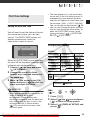
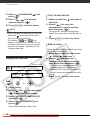
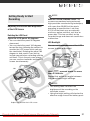
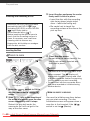
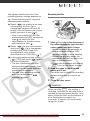
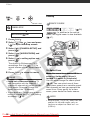
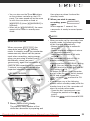
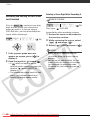
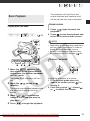
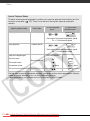
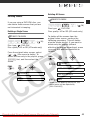
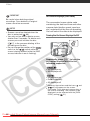
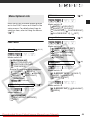
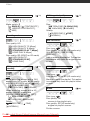
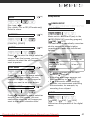
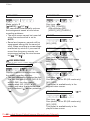
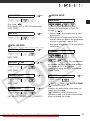
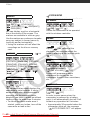
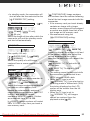
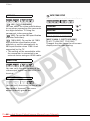
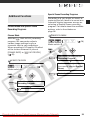
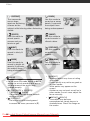
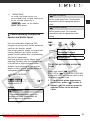
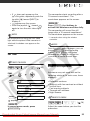
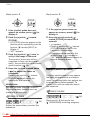
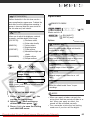
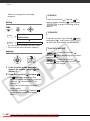
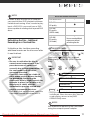
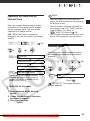
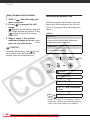
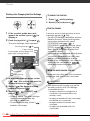
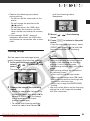
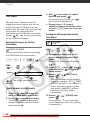
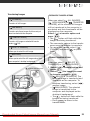
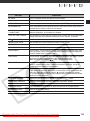
[ SOFT SKIN DETAIL] Digital Effects Softens the details in the skin tone area for a more complimentary appearance. To obtain the best effect, use this setting when recording a person in close-up. Note that areas similar to the skin color may lack in detail. [ CUSTOM] Allows you to adjust the brightness, contrast, sharpness, and color depth of the image. [COL.DEPTH]: (–) Shallower colors, (+) Richer color tonality [BRIGHTN.]: (–) Darker picture, (+) Brighter picture [CONTRAST]: (–) Flatter picture, (+) More defined light and shade [SHARPNESS]: (–) Vaguer outlines, (+) Sharper outlines POINTS TO CHECK ( Mode switch: P :[ BLK&WHT], [ SEPIA] only. Options [ Select this setting when you do not intend to use the digital effects. [ FADE-T] (fade trigger), [ WIPE] Select one of the faders to begin or end a scene with a fade from or to a black screen. FUNC. [ Records images in black and white. FUNC. FUNC. Icon of the currently selected Image Effect Default value D.EFFECT OFF] ( 27) 26) [ BLK&WHT] SEPIA] Records images in sepia tones for an “old” look. Desired option* * When you select [ CUSTOM], do not press FUNC. and continue instead with the following procedure. TO SET THE CUSTOM IMAGE EFFECT 1 Press ( ) and select ( ) the custom setting options. 2 Adjust ( ) each setting as desired and then press ( ). 3 Press FUNC. to save the setting and close the menu. [ ART] Select this effect to add “flavor” to your recordings. NOTES • When you apply a fader, not only the picture but also the sound will fade in or out. When you apply an effect, the sound will be recorded normally. • The camcorder retains the last setting used even if you turn off the digital Downloaded From VideoCamera-Manual.com Manuals 63