1
CONFIGURING AND COMMUNICATING WITH YOUR DEVICE
3.
4.
5.
AT!STATUS
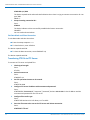
Configure socket parameters
Enter:
AT#SCFG=1,1,300,240,600,50
Activate context one
Enter:
AT#SGACT=1,1
Create UDP connection to Server port
Enter:
AT#SD=1,1,####,"###.##.###.##" where #### is the server port and ###.##.###.## is the IP number.
The device responds with OK, which indicates a successful connection. You can send and receive data through the
socket connection.
Exit Data Mode and Close Connection
To exit data mode and close the socket:
■ Enter the escape sequence: +++
■ To close Socket 1, enter: AT#SH=1
The device responds with OK.
■ To close the data connection, enter:AT#SGACT=1,0
The device responds with OK.
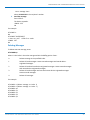
Configuring Device as UDP Listener to Accept UDP Client Connections
To configure the device as a UDP client:
1.
2.
3.
4.
5.
6.
Check signal strength.
Enter:
AT+CSQ
Verify device is registered on the cellular network.
Enter:
AT!STATUS
Configure socket parameters
Enter:
AT#SCFG=1,1,300,240,600,50
Activate context one
Enter:
AT#SGACT=1,1
Set firewall rule to accept connections:
AT#FRWL=1,"###.##.###.#","###.##.###.#" where ###.##.###.# represents the IP range. For example:
AT#FRWL=1,"204.26.122.1","204.26.122.255"
Set connection ID 1 for UDP listening mode on port 7000.
Enter:
MultiConnect® Cell 100 Series MTC-EV3 User Guide
21