1
1. Setting Up the Printer Driver
and Canceling a Print Job
Accessing the Printer Properties
Windows 95/98/Me - Accessing the Printer Properties
Changing the default machine settings
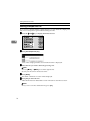
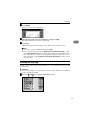
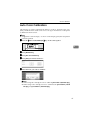
A Click [Start] on the taskbar, point to [Settings], and then click [Printers].
The [Printers] window appears.
B Click the icon of the machine whose default settings you want to change.
C On the [File] menu, click [Properties].
The [Printer Properties] dialog box appears.
D Make any settings you require, and then click [OK].
Note
❒ With some applications, the printer driver's settings are not used, and the
application's own default settings are applied.
Making machine settings from an application
To make the machine settings for a specific application, open the [Printer Properties] dialog box from that application. The following example describes how to
make settings for the WordPad application that comes with Windows 95/98/Me.
Note
❒ The actual procedures you should follow to open the [Printer Properties] dialog
box may vary depending on the application. For more information, see the
documentation that comes with the application you are using.
❒ Any settings you make in the following procedure are valid for the current
application only.
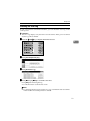
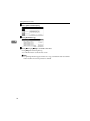
A On the [File] menu, click [Print].
The [Print] dialog box appears.
B Select the machine you want to use in the [Name] list box, and then click
[Properties].
The [Printer Properties] dialog box appears.
C Make any settings you require, and then click [OK].
D Click [OK] to start printing.
3