1
29
4
5
6
7
8
Partial, scrolling or
incorrectly
displayed image
(for notebooks)
The screen of the
notebook
computer is not
displaying your
presentation
Image is unstable
or flickering
Image has vertical
flickering bar
Image is out of
focus
Image is stretched
when displaying a
"widescreen" DVD
title
•
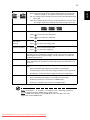
Press "RESYNC" on the remote control or control
panel.
•
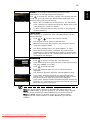
For an incorrectly displayed image:
•
Follow the steps for item 2 (above) to adjust
the resolution of your computer.
•
Press the toggle output settings. Example:
[Fn]+[F4], Compaq [Fn]+[F4], Dell [Fn]+[F8],
Gateway [Fn]+[F4], IBM [Fn]+[F7], HP
[Fn]+[F4], NEC [Fn]+[F3], Toshiba [Fn]+[F5 ]
•
If you experience difficulty changing resolutions or
your monitor freezes, restart all equipment
including the projector.
•
If you are using a Microsoft® Windows® based
notebook: Some notebook PCs may deactivate their
own screens when a second display device is in use.
Each has a different way to be reactivated. Refer to
your computer's manual for detailed information.
•
If you are using an Apple® Mac® OS based
notebook: In System Preferences, open Display and
select Video Mirroring "On".
•
Adjust the "Tracking" to correct it. Refer to the
"Image" section for more information.
•
Change the display color depth settings on your
computer.
•
Use "Frequency" to make an adjustment. Refer to
the "Image" section for more information.
•
Check and reconfigure the display mode of your
graphics card to make it compatible with the
projector.
•
•
•
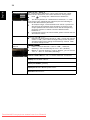
Make sure the lens cap is removed.
Adjusts the focus ring on the projector lens.
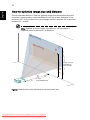
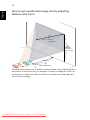
Make sure the projection screen is within the
required distance of 5.9 to 19.7 feet (1.8 to 6.0
meters) from the projector. Refer to the "How to
Get a Preferred Image Size by Adjusting Distance
and Zoom" section for more information.
When you play a DVD encoded in anamorphic or 16:9
aspect ratio you may need to adjust the following
settings:
•
If you play a 4:3 format DVD title, please change the
format to 4:3 in the projector OSD.
•
If the image is still stretched, you will also need to
adjust the aspect ratio. Set up the display format to
16:9 (wide) aspect ratio on your DVD player.
Downloaded From projector-manual.com Acer Manuals
English
3