1
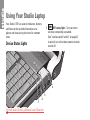
Using Your Studio Laptop
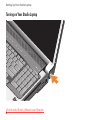
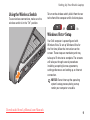
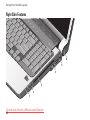
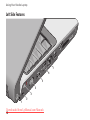
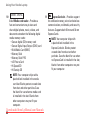
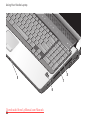
1 Dell Wi-Fi Catcher™ Network Locator
button
Turn on the wireless switch and press
this button for a few seconds to scan for
wireless networks in your vicinity.
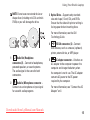
NOTE: The Wi-Fi Catcher Network
Locator light appears only when
the computer is turned off and the
wireless switch is configured in the
system setup program (BIOS) to
control Wi-Fi network connections.
NOTE: The Wi-Fi Catcher Network
Locator is enabled and configured for
use when your computer is shipped
to you.
Downloaded from LpManual.com Manuals
If the computer is turned off, the light in
the center of this button indicates the
searching state:
•Flashing white: Searching for network
•Solid white for 10 seconds then turns
off: Network found
•Flashing white turns off after 10 blinks:
No signal found
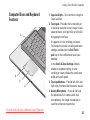
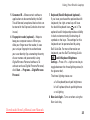
2 Security cable slot – Attaches a
commercially available antitheft device to
the computer.
NOTE: Before you buy an antitheft
device, ensure that it works with the
security cable slot on your computer.
19