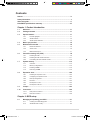
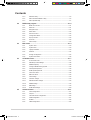
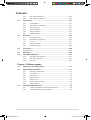
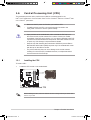
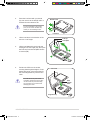
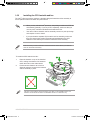
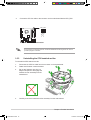
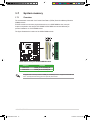
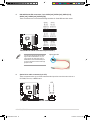
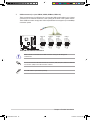
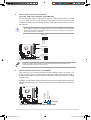
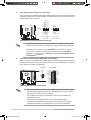
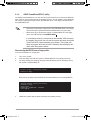
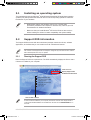
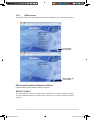
1
Motherboard P5Q-EM DO P5Q-EM DO.indb 1 12/9/08 12:32:26 PM E4365 Second Edition V2 December 2008 Copyright © 2008 ASUSTeK Computer Inc. All Rights Reserved. No part of this manual, including the products and software described in it, may be reproduced, transmitted, transcribed, stored in a retrieval system, or translated into any language in any form or by any means, except documentation kept by the purchaser for backup purposes, without the express written permission of ASUSTeK Computer Inc. (“ASUS”). Product warranty or service will not be extended if: (1) the product is repaired, modified or altered, unless such repair, modification of alteration is authorized in writing by ASUS; or (2) the serial number of the product is defaced or missing. ASUS PROVIDES THIS MANUAL “AS IS” WITHOUT WARRANTY OF ANY KIND, EITHER EXPRESS OR IMPLIED, INCLUDING BUT NOT LIMITED TO THE IMPLIED WARRANTIES OR CONDITIONS OF MERCHANTABILITY OR FITNESS FOR A PARTICULAR PURPOSE. IN NO EVENT SHALL ASUS, ITS DIRECTORS, OFFICERS, EMPLOYEES OR AGENTS BE LIABLE FOR ANY INDIRECT, SPECIAL, INCIDENTAL, OR CONSEQUENTIAL DAMAGES (INCLUDING DAMAGES FOR LOSS OF PROFITS, LOSS OF BUSINESS, LOSS OF USE OR DATA, INTERRUPTION OF BUSINESS AND THE LIKE), EVEN IF ASUS HAS BEEN ADVISED OF THE POSSIBILITY OF SUCH DAMAGES ARISING FROM ANY DEFECT OR ERROR IN THIS MANUAL OR PRODUCT. SPECIFICATIONS AND INFORMATION CONTAINED IN THIS MANUAL ARE FURNISHED FOR INFORMATIONAL USE ONLY, AND ARE SUBJECT TO CHANGE AT ANY TIME WITHOUT NOTICE, AND SHOULD NOT BE CONSTRUED AS A COMMITMENT BY ASUS. ASUS ASSUMES NO RESPONSIBILITY OR LIABILITY FOR ANY ERRORS OR INACCURACIES THAT MAY APPEAR IN THIS MANUAL, INCLUDING THE PRODUCTS AND SOFTWARE DESCRIBED IN IT. Products and corporate names appearing in this manual may or may not be registered trademarks or copyrights of their respective companies, and are used only for identification or explanation and to the owners’ benefit, without intent to infringe. P5Q-EM DO.indb 2 12/9/08 12:32:26 PM Contents Notices........................................................................................................................ iv Safety information........................................................................................................ v About this guide.......................................................................................................... vi P5Q-EM DO specifications summary...................................................................... viii Chapter 1: Product introduction 1.1 1.2 1.3 Welcome!..................................................................................................... 1-1 Package contents....................................................................................... 1-1 Special features.......................................................................................... 1-1 1.3.1 Product highlights....................................................................................... 1-1 1.3.3 ASUS Special Features.............................................................................. 1-4 1.3.2 1.4 1.5 Before you proceed.................................................................................... 1-5 Motherboard overview................................................................................ 1-6 1.5.1 Placement direction.................................................................................... 1-6 1.5.3 Motherboard layout..................................................................................... 1-7 1.5.2 1.6 1.6.1 Installing the CPU....................................................................................... 1-8 1.6.3 Uninstalling the CPU heatsink and fan..................................................... 1-12 1.7.1 Overview................................................................................................... 1-13 1.7.3 Installing a DIMM...................................................................................... 1-19 1.7.4 Removing a DIMM.................................................................................... 1-19 1.8.1 Installing an expansion card..................................................................... 1-20 1.8.3 Interrupt assignments............................................................................... 1-21 1.8.4 1.8.5 1.10 Memory configurations.............................................................................. 1-14 Expansion slots........................................................................................ 1-20 1.8.2 1.9 Installing the CPU heatsink and fan...........................................................1-11 System memory........................................................................................ 1-13 1.7.2 1.8 Screw holes................................................................................................ 1-6 Central Processing Unit (CPU).................................................................. 1-8 1.6.2 1.7 ASUS Features .......................................................................................... 1-3 1.8.6 Configuring an expansion card................................................................. 1-20 PCI slots.................................................................................................... 1-23 PCI Express x1 slot................................................................................... 1-23 PCI Express x16 slot................................................................................. 1-23 Jumper....................................................................................................... 1-24 Connectors................................................................................................ 1-26 1.10.1 1.10.2 Rear panel connectors.............................................................................. 1-26 Internal connectors................................................................................... 1-28 Chapter 2: BIOS setup 2.1 Managing and updating your BIOS........................................................... 2-1 2.1.1 2.1.2 Creating a bootable floppy disk................................................................... 2-1 ASUS EZ Flash 2 utility............................................................................... 2-2 P5Q-EM DO.indb 1 12/9/08 12:32:28 PM Contents 2.1.3 AFUDOS utility............................................................................................ 2-3 2.1.5 ASUS Update utility.................................................................................... 2-7 2.1.4 2.2 BIOS setup program................................................................................. 2-10 2.2.1 BIOS menu screen.....................................................................................2-11 2.2.3 Navigation keys..........................................................................................2-11 2.2.2 2.2.4 2.2.5 2.2.6 2.2.7 2.2.8 2.3 2.2.9 Menu items............................................................................................... 2-12 Sub-menu items........................................................................................ 2-12 Configuration fields................................................................................... 2-12 Pop-up window......................................................................................... 2-12 Scroll bar................................................................................................... 2-12 General help............................................................................................. 2-12 2.3.1 System Time............................................................................................. 2-13 2.3.3 Legacy Diskette A..................................................................................... 2-13 2.3.4 2.3.5 2.3.6 System Date ............................................................................................ 2-13 SATA1-6.................................................................................................... 2-14 Storage Configuration............................................................................... 2-15 System Information................................................................................... 2-16 Ai Tweaker menu....................................................................................... 2-17 2.4.1 Ai Overclock Tuner .................................................................................. 2-17 2.4.3 DRAM Frequency .................................................................................... 2-18 2.4.2 2.4.4 2.4.5 2.4.6 2.4.7 2.4.8 FSB Strap to North Bridge ....................................................................... 2-18 Configure DRAM Timing by SPD ............................................................. 2-18 CPU Spread Spectrum ............................................................................ 2-18 PCIE Spread Spectrum ........................................................................... 2-18 CPU Clock Skew . .................................................................................... 2-18 NB Clock Skew ........................................................................................ 2-19 2.4.9 CPU Voltage ........................................................................................... 2-19 2.4.11 FSB Termination Voltage ......................................................................... 2-19 2.4.10 2.4.12 2.4.13 2.5 Menu bar....................................................................................................2-11 Main menu................................................................................................. 2-13 2.3.2 2.4 ASUS CrashFree BIOS 3 utility.................................................................. 2-5 2.4.14 CPU PLL Voltage ..................................................................................... 2-19 DRAM Voltage ......................................................................................... 2-19 NB Voltage ............................................................................................... 2-19 PCIE SATA Voltage .................................................................................. 2-20 Advanced menu........................................................................................ 2-21 2.5.1 CPU Configuration.................................................................................... 2-21 2.5.3 Onboard Device Configuration.................................................................. 2-26 2.5.2 2.5.4 2.5.5 2.5.6 Chipset...................................................................................................... 2-23 USB Configuration.................................................................................... 2-27 PCIPnP..................................................................................................... 2-28 TPM Configuration.................................................................................... 2-29 ii P5Q-EM DO.indb 2 12/9/08 12:32:29 PM Contents 2.5.7 2.6 2.5.8 Power menu............................................................................................... 2-31 Suspend Mode . ....................................................................................... 2-31 2.6.3 ACPI 2.0 Support ..................................................................................... 2-31 2.6.4 2.6.5 2.6.6 2.10 ACPI APIC Support . ................................................................................ 2-31 APM Configuration.................................................................................... 2-32 Hardware Monitor..................................................................................... 2-34 Boot menu................................................................................................. 2-35 Boot Device Priority.................................................................................. 2-35 2.7.3 Security..................................................................................................... 2-37 4.6.1 2.9 Repost Video on S3 Resume . ................................................................. 2-31 2.7.1 2.7.2 2.8 Intel® TXT(LT) Configuration..................................................................... 2-30 2.6.1 2.6.2 2.7 Intel® VT-d Configuration........................................................................... 2-29 4.6.1 Boot Settings Configuration...................................................................... 2-36 Boot Device Priority.................................................................................. 2-37 Boot Device Priority.................................................................................. 2-38 Tools menu................................................................................................ 2-39 ASUS EZ Flash 2......................................................................................................... 2-39 Exit menu................................................................................................... 2-40 Intel® ME configuration............................................................................. 2-41 2.10.1 Change Intel® ME password..................................................................... 2-41 2.10.3 Exit menu.................................................................................................. 2-44 2.10.2 Intel® ME Configuration............................................................................. 2-42 Chapter 3: Software support 3.1 3.2 Installing an operating system.................................................................. 3-1 Support DVD information........................................................................... 3-1 3.2.1 Running the Support DVD.......................................................................... 3-1 3.2.3 Utilities menu.............................................................................................. 3-3 3.2.2 3.2.4 3.2.5 3.2.6 3.3 3.2.7 Drivers menu............................................................................................... 3-2 Make Disk menu......................................................................................... 3-5 Manual menu.............................................................................................. 3-6 ASUS Contact information.......................................................................... 3-6 Other information........................................................................................ 3-7 Creating a RAID driver disk....................................................................... 3-9 3.3.1 3.3.2 Creating a RAID driver disk without entering the OS.................................. 3-9 Creating a RAID driver disk in Windows® .................................................. 3-9 iii P5Q-EM DO.indb 3 12/9/08 12:32:30 PM Notices Federal Communications Commission Statement This device complies with Part 15 of the FCC Rules. Operation is subject to the following two conditions: • • This device may not cause harmful interference, and This device must accept any interference received including interference that may cause undesired operation. This equipment has been tested and found to comply with the limits for a Class B digital device, pursuant to Part 15 of the FCC Rules. These limits are designed to provide reasonable protection against harmful interference in a residential installation. This equipment generates, uses and can radiate radio frequency energy and, if not installed and used in accordance with manufacturer’s instructions, may cause harmful interference to radio communications. However, there is no guarantee that interference will not occur in a particular installation. If this equipment does cause harmful interference to radio or television reception, which can be determined by turning the equipment off and on, the user is encouraged to try to correct the interference by one or more of the following measures: • Reorient or relocate the receiving antenna. • Connect the equipment to an outlet on a circuit different from that to which the receiver is connected. • • Increase the separation between the equipment and receiver. Consult the dealer or an experienced radio/TV technician for help. The use of shielded cables for connection of the monitor to the graphics card is required to assure compliance with FCC regulations. Changes or modifications to this unit not expressly approved by the party responsible for compliance could void the user’s authority to operate this equipment. Canadian Department of Communications Statement This digital apparatus does not exceed the Class B limits for radio noise emissions from digital apparatus set out in the Radio Interference Regulations of the Canadian Department of Communications. This class B digital apparatus complies with Canadian ICES-003. iv P5Q-EM DO.indb 4 12/9/08 12:32:36 PM Safety information Electrical safety • • • • • • To prevent electrical shock hazard, disconnect the power cable from the electrical outlet before relocating the system. When adding or removing devices to or from the system, ensure that the power cables for the devices are unplugged before the signal cables are connected. If possible, disconnect all power cables from the existing system before you add a device. Before connecting or removing signal cables from the motherboard, ensure that all power cables are unplugged. Seek professional assistance before using an adpater or extension cord. These devices could interrupt the grounding circuit. Make sure that your power supply is set to the correct voltage in your area. If you are not sure about the voltage of the electrical outlet you are using, contact your local power company. If the power supply is broken, do not try to fix it by yourself. Contact a qualified service technician or your retailer. Operation safety • • • • • • Before installing the motherboard and adding devices on it, carefully read all the manuals that came with the package. Before using the product, make sure all cables are correctly connected and the power cables are not damaged. If you detect any damage, contact your dealer immediately. To avoid short circuits, keep paper clips, screws, and staples away from connectors, slots, sockets and circuitry. Avoid dust, humidity, and temperature extremes. Do not place the product in any area where it may become wet. Place the product on a stable surface. If you encounter technical problems with the product, contact a qualified service technician or your retailer. DO NOT throw the motherboard in municipal waste. This product has been designed to enable proper reuse of pats and recycling. This symbol of the crossed out wheeled bin indicates that the product (electrical and electronic equipment) should not be placed in municipal waste. Check local regulations for disposal of electronic products. DO NOT throw the mercury-containing button cell battery in municipal waste. This symbol of the crossed out wheeled bin iindicates that the battery should not be placed in municipal waste. P5Q-EM DO.indb 5 12/9/08 12:32:37 PM About this guide This user guide contains the information you need when installing and configuring the motherboard. How this guide is organized This manual contains the following parts: • • • Chapter 1: Product introduction This chapter describes the motherboard features and the new technologies it supports. It also lists the hardware setup procedures that you have to perform when installing system components. It includes description of the jumpers and connectors on the motherboard. Chapter 2: BIOS setup This chapter tells how to change system settings through the BIOS Setup menus. Detailed descriptions of the BIOS parameters are also provided. Chapter 3: Software support This chapter describes the contents of the support DVD that comes with the motherboard package. Where to find more information Refer to the following sources for additional information and for product and software updates. 1. 2. ASUS websites The ASUS website provides updated information on ASUS hardware and software products. Refer to the ASUS contact information. Optional documentation Your product package may include optional documentation, such as warranty flyers, that may have been added by your dealer. These documents are not part of the standard package. vi P5Q-EM DO.indb 6 12/9/08 12:32:37 PM Conventions used in this guide To make sure that you perform certain tasks properly, take note of the following symbols used throughout this manual. DANGER/WARNING: Information to prevent injury to yourself when trying to complete a task. CAUTION: Information to prevent damage to the components when trying to complete a task. IMPORTANT: Instructions that you MUST follow to complete a task. NOTE: Tips and additional information to help you complete a task. Typography Bold text Indicates a menu or an item to select. Italics Used to emphasize a word or a phrase. <Key> Keys enclosed in the less-than and greater-than sign means that you must press the enclosed key. Example: <Enter> means that you must press the Enter or Return key. <Key1>+<Key2>+<Key3> If you must press two or more keys simultaneously, the key names are linked with a plus sign (+). Example: <Ctrl+Alt+D> Command Means that you must type the command exactly as shown, then supply the required item or value enclosed in brackets. Example: At the DOS prompt, type the command line: afudos /i[filename] afudos /iP5QEMDO.ROM vii P5Q-EM DO.indb 7 12/9/08 12:32:40 PM P5Q-EM DO specifications summary CPU LGA775 socket for Intel® Core™2 Extreme / Core™2 Quad / Core™2 Duo / Pentium® dual-core / Celeron® dual-core / Celeron® processor* Compatible with Intel® 05B/05A/06 processors Support Intel® 45nm Multi-core CPU. * Refer to www.asus.com for Intel CPU support list Chipset Intel® Q45 / ICH10DO with Intel® Active Management Technology System Bus 1333 /1066 / 800 MHz Memory 4 x DIMM, max. 16GB, DDR2 800/667 MHz, non-ECC, un-buffered memory Dual channel memory architecture * Due to the memory address limitation on 32-bit Windows OS, when you install 4GB or more memory on the motherboard, the actual usable memory for the OS can be about 3GB or less. For effective use of memory, we recommend that you install a 64-bit Windows OS when having 4GB or more memory installed on the motherboard.. Expansion Slots 1 x PCIe x16 slot 2 x PCIe x1 slots 1 x PCI slot VGA Intel® 4500 integrated High Definition Video Processing with D-SUB Max resolution to 2048 x 1536 (@75Hz); DVI Max resolution to 1920 x 1080 (@60HZ); HDMI Max resolution to 1920 x 1080 (@60HZ)* Max. UMA shared memory of 1894MB** * The VGA card that supports HDMI is purchased separately. ** The HDMI Max resolution is supported only when installed 1G memory. Storage Southbridge - 6 x SATA 3.0 Gb/s ports - Support RAID 0, 1, 5, and 10 Mavell® 6102 PATA controller - 1 x UltraDMA 133/100/66 for up to 2 PATA devices LAN Intel® 882567LM PCIe Gigabit LAN Controller Audio Realtek® ALC1200 8-channel High Definition Audio CODEC -Support Jack-detection, Enumeration, Multi-streaming IEEE 1394 LSI® L-FW3227 1394 controller supports 2 x IEEE 1394a ports (one at midboard; one at back panel) TPM Intel® integrated TPM support (continued on the next page) viii P5Q-EM DO.indb 8 12/9/08 12:32:41 PM P5Q-EM DO specifications summary ASUS Features ASUS Quiet Thermal Solution: - ASUS AI Gear 2 - ASUS Advanced Q-Fan ASUS Crystal Sound - Noise Filter ASUS EZ DIY: - ASUS Q-Connector - ASUS CrashFree BIOS 3 - ASUS EZ Flash 2 ASUS Exclusive Overclocking Features Precision Tweaker: - vCore: Adjustable CPU voltage at 0.00625 increment - vDIMM: 4-step DRAM voltage control SFS (Stepless Frequency Selection): - FSB tuning from 200 MHz up to 800 MHz at 1MHz increment - Memory tuning from 667 MHz up to 1066 MHz - PCI Express frequency tuning from 100 MHz up to 180 MHz at 1 MHz increment Overclocking Protection: - ���������������������������������� ASUS C.P.R. (CPU Parameter Recall) Other Features ASUS MyLogo 2 BIOS Features 2 x 16Mb Flash ROM, AMI BIOS, PnP, DMI2.0, WfM2.0, SM BIOS 2.3, ACPI 2.0a. Manageability WfM 2.0, DMI 2.0, WOL by PME, WOR by PME, PXE Support Intel® AMT technology Back Panel I/O Ports 1 x PS/2 keyboard port 1 x PS/2 mouse port 1 x DVI port 1 x VGA port 1 x IEEE 1394a connector 1 x RJ45 port 4 x USB 2.0/1.1 ports 1 x ME Switch 8-channel Audio I/O ports Internal Connectors 4 x USB 2.0 connectors support additional 8 USB ports 1 x Floppy disk drive connector 1 x IDE connector 6 x Serial ATA connectors 1 x COM connector 1 x CPU Fan connector 1 x Chassis Fan connector 1 x Power Fan connector 1 x IEEE1394a connector 1 x Front panel audio connector 1 x S/PDIF Out Header 1 x Chassis intrusion connector 1 x CD audio in connector 1 x 24-pin ATX Power connector 1 x 4-pin ATX 12 V Power connector 1 x System panel connector (Q-Connector) (continued on the next page) ix P5Q-EM DO.indb 9 12/9/08 12:32:42 PM P5Q-EM DO specifications summary Support DVD Contents Drivers ASUS PC Probe II ASUS Update Intel® System Defense Utility Anti-virus software (OEM version) Intel® IT Director Form Factor microATX form factor: 9.6” x 9.6” (24.4 cm x 24.4 cm) *Specifications are subject to change without notice. P5Q-EM DO.indb 10 12/9/08 12:32:42 PM This chapter describes the motherboard features and the new technologies it supports. It also lists the hardware setup procedures that you have to perform when installing system components. It includes description of the jumpers and connectors on the motherboard. 1 Chapter1: Product introduction P5Q-EM DO.indb 1 12/9/08 12:32:43 PM Chapter summary 1 1.1 Welcome!..................................................................................................... 1-1 1.3 Special features.......................................................................................... 1-1 1.2 1.4 1.5 1.6 1.7 1.8 1.9 1.10 Package contents....................................................................................... 1-1 Before you proceed.................................................................................... 1-5 Motherboard overview................................................................................ 1-6 Central Processing Unit (CPU).................................................................. 1-8 System memory........................................................................................ 1-13 Expansion slots........................................................................................ 1-20 Jumper....................................................................................................... 1-24 Connectors................................................................................................ 1-26 ASUS P5Q-EM DO P5Q-EM DO.indb 2 12/9/08 12:32:44 PM 1.1 Welcome! Thank you for buying an ASUS® P5Q-EM DO motherboard! The motherboard delivers a host of new features and latest technologies, making it another standout in the long line of ASUS quality motherboards! Before you start installing the motherboard, and hardware devices on it, check the items in your package with the list below. 1.2 Package contents Check your motherboard package for the following items. Motherboard ASUS P5Q-EM DO Accessories I/O shield 1 x ASUS 3 in 1 Q-Connector Kit (USB, 1394, system panel; Retail version only) Documentation User guide Cables Application DVD Serial ATA power and signal cables for 2 devices 1 x Ultra DMA 133/100/66 cable ASUS motherboard support DVD If any of the above items is damaged or missing, contact your retailer. 1.3 Special features 1.3.1 Product highlights Green ASUS This motherboard and its packaging comply with the European Union’s Restriction on the use of Hazardous Substances (RoHS). This is in line with the ASUS vision of creating environment-friendly and recyclable products/packaging to safeguard consumers’ health while minimizing the impact on the environment. ASUS P5Q-EM DO P5Q-EM DO.indb 1 1-1 12/9/08 12:32:47 PM Intel® Core™2 Extreme / Core™ 2 Quad / Core™2 Duo Processor Support This motherboard supports the latest Intel® Core™ 2 Extreme / Core™ 2 Quad / Core™ 2 Duo processors in the LGA775 package. It is excellent for multi-tasking, multi-media and enthusiastic gamers with 1333 / 1066 / 800 MHz FSB. The Intel® Core™ 2 series processor is one of the most powerful CPUs in the world. This motherboard also supports Intel® CPUs in the new 45nm manufacturing process. Intel® Q45 Express Chipset The Intel® Q45 Express Chipset is the latest chipset designed to support Intel® new 45nm CPU, 16GB of dual-channel DDR2 800/667 architecture, 1333/1066/800 FSB (Front Side Bus), PCI Express 1.0/2.0 graphics and multi-core CPU. Intel® vPro™ Technology The Intel �����® vPro™ Technology allows IT organizations to remotely manage corporate PCs, even when they are powered off or with non-functional operating systems. It features the Intel® Active Management Technology and offers IT organizations a lighter-weight form of virtualization to audit all Intel® AMT-based platforms in a network environment. PCs with Intel ® vPro™ Technology allow IT departments to remotely retrieve assets and hardware/software inventories, contain security threats, resolve system problems, and increase the uptime of desktops with lower maintenance costs. To enable the Intel® vPro™ Technology, first enable the related vPro™ Technology settings. DDR2 mem������������� ory support The motherboard supports DDR2 memory that features data transfer rates of 800/667 MHz to meet the higher bandwidth requirements of the latest 3D graphics, multimedia, and Internet applications. The dual-channel DDR2 architecture doubles the bandwidth of your system memory to boost system performance, eliminating bottlenecks with peak bandwidths of up to 12.8 GB/s. Furthermore, this motherboard does not restrict the memory size across two channels. Users may install different memory size DIMMs into the two channels and enjoy dual-channel and single-channel functions at the same time. This new feature optimizes the use of available memory size. See page 1‑13 for details. Serial ATA 3.0 Gb/s technology This motherboard supports the hard drives based on the Serial ATA (SATA) 3Gb/s storage specification, delivering enhanced scalability and doubling the bus bandwidth for high-speed data retrieval and saves. Easily backup photos, videos and other entertainment contents to external devices. See page 1-31 for details. 1-2 P5Q-EM DO.indb 2 Chapter 1: Product introduction 12/9/08 12:32:58 PM Trusted Platform Module (TPM) The Trusted Platform Module (TPM) provides enhanced data performance via high-level encryption/decryption, and ensures platform integrity. See page 2-29 for details. Some third-party softwares may be requirred when running some functions of TPM. IEEE 1394a support The IEEE 1394a interface provides high speed digital interface for audio/video appliances such as digital television, digital video camcorders, storage peripherals & other PC portable devices. See page 1-29 for details. S/PDIF digital sound ready The motherboard supports the S/PDIF-out (SONY-PHILIPS Digtal Interface) function through the S/PDIF interface at mid-board. It allows to transfer digital audio without converting to analog format and keeps the best signal quality. See pages 1-28 for details. High Definition Audio Enjoy high-end sound quality on your PC! The onboard 8-channel High Definition Audio CODEC enables high-quality 192KHz/24-bit audio output, jack-sensing feature, and multistreaming technology that simultaneously sends different audio streams to different destinations. You can now talk to your partners on the headphone while playing multi-channel network games See page 1-34 for details. 1.3.2 ASUS Features ASUS Quiet Thermal Solution ASUS Quiet Thermal solution makes system more stable and enhances the overclocking capability. ASUS Advanced Q-Fan technology The ASUS Advanced Q-Fan technology is powered by Intel Quiet System Technology; it makes the change of fan speed more smoothly. It is better in fan use, and efficiently reduce the noise caused by fans’s abruptly speeding up. Moreover, Advanced Q-Fan has a better control over a constant temperature system environment. ASUS P5Q-EM DO P5Q-EM DO.indb 3 1-3 12/9/08 12:33:04 PM ASUS Crystal Sound This feature can enhance speech-centric applications like Skype, online game, video conference and recording. Noise Filter This feature detects repetitive and stationary noises (non-voice signals) like computer fans, air conditioners, and other background noises then eliminates it in the incoming audio stream while recording. ASUS EZ DIY ASUS EZ DIY feature collection provides you easy ways to install computer components, update the BIOS or back up your favorite settings. ASUS Q-Connector ASUS Q-Connector allows you to easily connect or disconnect the chassis front panel cables to the motherboard. This unique module eliminates the trouble of connecting the system panel cables one at a time and avoiding wrong cable connections. See page 1-36 for details. ASUS CrashFree BIOS 3 The ASUS CrashFree BIOS 3 allows users to restore corrupted BIOS data from a USB flash disk containing the BIOS file. See page 2-5 for details. ASUS EZ Flash 2 EZ Flash 2 is a user-friendly BIOS update utility. Simply press the predefined hotkey to launch the utility and update the BIOS without entering the OS. Update your BIOS easily without preparing a bootable diskette or using an OS-based flash utility. See page 2-22 and 2-36 for details. 1.3.3 ASUS Special Features ASUS MyLogo2™ This feature allows you to convert your favorite photo into a 256-color boot logo for a more colorful and vivid image on your screen. See page 2-39 for details. AI Gear 2 AI Gear 2 allows users to choose from profiles to adjust CPU frequency and vCore voltage to minimize system noise and power consumption. For example, users can change the mode in real time in the operating system to max power saving mode and save CPU power when using word processing applicaions. 1-4 P5Q-EM DO.indb 4 Chapter 1: Product introduction 12/9/08 12:33:09 PM 1.4 Before you proceed Take note of the following precautions before you install motherboard components or change any motherboard settings. • Unplug the power cord from the wall socket before touching any component. • Use a grounded wrist strap or touch a safely grounded object or a metal object, such as the power supply case, before handling components to avoid damaging them due to static electricity. • Hold components by the edges to avoid touching the ICs on them. • Whenever you uninstall any component, place it on a grounded antistatic pad or in the bag that came with the component. • Before you install or remove any component, ensure that the ATX power supply is switched off or the power cord is detached from the power supply. Failure to do so may cause severe damage to the motherboard, peripherals, and/or components. Onboard LED The motherboard comes with a standby power LED that lights up to indicate that the system is ON, in sleep mode, or in soft-off mode. This is a reminder that you should shut down the system and unplug the power cable before removing or plugging in any motherboard component. The illustration below shows the location of the onboard LED. SB_PWR P5Q-EM DO ON Standby Power OFF Powered Off P5Q-EM DO Onboard LED ASUS P5Q-EM DO P5Q-EM DO.indb 5 1-5 12/9/08 12:33:11 PM 1.5 Motherboard overview Before you install the motherboard, study the configuration of your chassis to ensure that the motherboard fits into it. Make sure to unplug the power cord before installing or removing the motherboard. Failure to do so can cause you physical injury and damage motherboard components. 1.5.1 Placement direction When installing the motherboard, make sure that you place it into the chassis in the correct orientation. The edge with external ports goes to the rear part of the chassis as indicated in the image below. 1.5.2 Screw holes Place eight (8) screws into the holes indicated by circles to secure the motherboard to the chassis. Do not overtighten the screws! Doing so can damage the motherboard. Place this side towards the rear of the chassis P5Q-EM DO 1-6 P5Q-EM DO.indb 6 Chapter 1: Product introduction 12/9/08 12:33:14 PM 1.5.3 Motherboard layout 24.4cm(9.6in) CPU_FAN KBMS ATX12V Super I/O SPDIF_O2 SERVICE_MODE COM1 PWR_FAN 24.4cm(9.6in) FLOPPY EATXPWR PRI_IDE CHA_FAN1 AUDIO Intel® Q45 DDR2 DIMM_B2 (64bit, 240-pin module) USBPW1-4 LAN1_USB12 DDR2 DIMM_B1 (64bit, 240-pin module) DVI_VGA LGA775 DDR2 DIMM_A2 (64bit, 240-pin module) DDR2 DIMM_A1 (64bit, 240-pin module) F_USB34 PCIEX1_1 Single Lan PCIEX16 SB_PWR PCIEX1_2 ICS 9LPRS 918JKLF Intel ICH10DO ® Lithium Cell CMOS Power P5Q-EM DO ALC 1200 AAFP USBPW5-8 USBPW9-12 CHASSIS CLRTC SATA1 SATA3 SATA5 PANEL PCI2 SPDIF_OUT CD SATA2 SATA4 SATA6 IE1394_2 USB1112 USB910 USB56 USB78 8Mb BIOS 8Mb BIOS Refer to section 1.10 Connectors for more information about rear panel connectors and internal connectors. ASUS P5Q-EM DO P5Q-EM DO.indb 7 1-7 12/9/08 12:33:16 PM 1.6 Central Processing Unit (CPU) The motherboard comes with a surface mount LGA775 socket designed for the Intel® Core™2 Extreme / Core™2 Quad / Core™2 Duo / Pentium® dual-core / Celeron® dualcore / Celeron® processors. • Make sure the AC power is off before you install the CPU. • If installing a dual-core CPU, connect the chassis fan cable to the CHA_FAN1 connector to ensure system stability. • • • 1.6.1 Upon purchase of the motherboard, make sure that the PnP cap is on the socket and the socket contacts are not bent. Contact your retailer immediately if the PnP cap is missing, or if you see any damage to the PnP cap/socket contacts/motherboard components. ASUS will shoulder the cost of repair only if the damage is shipment/transit-related. Keep the cap after installing the motherboard. ASUS will process Return Merchandise Authorization (RMA) requests only if the motherboard comes with the cap on the LGA775 socket. The product warranty does not cover damage to the socket contacts resulting from incorrect CPU installation/removal, or misplacement/loss/ incorrect removal of the PnP cap. Installing the CPU To install a CPU: 1. Locate the CPU socket on the motherboard. P5Q-EM DO P5Q-EM DO CPU socket 775 Before installing the CPU, make sure that the cam box is facing towards you and the load lever is on your left. 1-8 P5Q-EM DO.indb 8 Chapter 1: Product introduction 12/9/08 12:33:18 PM 2. Press the load lever with your thumb (A), then move it to the left (B) until it is released from the retention tab. To prevent damage to the socket pins, do not remove the PnP cap unless you are installing a CPU. Retention tab A B Load lever 3. 4. Lift the load lever in the direction of the arrow to a 135º angle. PnP cap Load plate 4B Lift the load plate with your thumb and forefinger to a 100º angle (4A), then push the PnP cap from the load plate window to remove (4B). 4A 3 5. Position the CPU over the socket, ensuring that the gold triangle is on the bottom‑left corner of the socket then fit the socket alignment key into the CPU notch. CPU notch The CPU fits in only one correct orientation. DO NOT force the CPU into the socket to prevent bending the connectors on the socket and damaging the CPU! Gold triangle mark Alignment key ASUS P5Q-EM DO P5Q-EM DO.indb 9 1-9 12/9/08 12:33:22 PM 6. Apply several drops of Thermal Interface Material to the exposed area of the CPU that the heatsink will be in contact with, ensuring that it is spread in an even thin layer. Some heatsinks come with pre-applied thermal paste. If so, skip this step. DO NOT eat the Thermal Interface Material. If it gets into your eyes or touches your skin, ensure that you wash it off immediately, and seek professional medical help. To prevent contaminating the paste, DO NOT spread the paste with your finger directly. 7. Close the load plate (A), then push the load lever (B) until it snaps into the retention tab. A B The motherboard supports Intel® LGA775 processors with the Intel® Enhanced Memory 64 Technology (EM64T), Enhanced Intel SpeedStep® Technology (EIST), and HyperThreading Technology. 1-10 P5Q-EM DO.indb 10 Chapter 1: Product introduction 12/9/08 12:33:27 PM 1.6.2 Installing the CPU heatsink and fan The Intel LGA775 processor requires a specially designed heatsink and fan assembly to ensure optimum thermal condition and performance. ® • When you buy a boxed Intel® processor, the package includes the CPU fan and heatsink assembly. If you buy a CPU separately, make sure that you use only Intel®‑certified multi‑directional heatsink and fan. • Your Intel® LGA775 heatsink and fan assembly comes in a push-pin design and requires no tool to install. • If you purchased a separate CPU heatsink and fan assembly, make sure that you have properly applied Thermal Interface Material to the CPU heatsink or CPU before you install the heatsink and fan assembly. Make sure that you have installed the motherboard to the chassis before you install the CPU fan and heatsink assembly. To install the CPU heatsink and fan: 1. 2. Place the heatsink on top of the installed CPU, making sure that the four fasteners match the holes on the motherboard. A B B Push down two fasteners at a time in a diagonal sequence to secure the heatsink and fan assembly in place. A A B 1 B A 1 The type of CPU heatsink and fan assembly may differ, but the installation steps and fucntions should remain the same. The illustration above is for reference only. ASUS P5Q-EM DO P5Q-EM DO.indb 11 1-11 12/9/08 12:33:29 PM 3. Connect the CPU fan cable to the connector on the motherboard labeled CPU_FAN. CPU FAN PWM CPU FAN IN CPU FAN PWR GND CPU_FAN P5Q-EM DO P5Q-EM DO CPU fan connector Do not forget to connect the CPU fan connector! Hardware monitoring errors can occur if you fail to plug this connector. 1.6.3 Uninstalling the CPU heatsink and fan To uninstall the CPU heatsink and fan 1. Disconnect the CPU fan cable from the connector on the motherboard. 3. Pull up two fasteners at a time in a diagonal sequence to disengage the heatsink and fan assembly from the motherboard. 2. A Rotate each fastener counterclockwise. B B A 4. A B B A Carefully remove the heatsink and fan assembly from the motherboard. 1-12 P5Q-EM DO.indb 12 Chapter 1: Product introduction 12/9/08 12:33:33 PM 1.7 System memory 1.7.1 Overview The motherboard comes with four Double Data Rate 2 (DDR2) Dual Inline Memory Modules (DIMM) sockets. A DDR2 module has the same physical dimensions as a DDR DIMM but has a 240-pin footprint compared to the 184-pin DDR DIMM. DDR2 DIMMs are notched differently to prevent installation on a DDR DIMM socket. R P5E-VM DO The figure illustrates the location of the DDR2 DIMM sockets: P5E-VM DO 240-pin DDR2 DIMM Sockets Channel Channel A Channel B Sockets DIMM_A1 and DIMM_A2 DIMM_B1 and DIMM_B2 Install at least a memory module in DIMM_A1 or DIMM_A2 slot to support the Intel® ME and Intel® Quiet System Technology and for optimum performance. ASUS P5Q-EM DO P5Q-EM DO.indb 13 1-13 12/9/08 12:33:40 PM 1.7.2 Memory configurations You may install 512 MB, 1 GB, 2GB, and 4 GB unbuffered non‑ECC DDR2 DIMMs into the DIMM sockets. • You may install varying memory sizes in Channel A and Channel B. The system maps the total size of the lower-sized channel for the dual-channel configuration. Any excess memory from the higher-sized channel is then mapped for single-channel operation. • Always install DIMMs with the same CAS latency. For optimum compatibility, it is recommended that you obtain memory modules from the same vendor. • Due to the memory address limitation on 32-bit Windows OS, when you install 4GB or more memory on the motherboard, the actual usable memory for the OS can be about 3GB or less. For effective use of memory, we recommend that you install a 64-bit Windows OS when having 4GB or more memory installed on the motherboard�. • This motherboard does not support memory modules made up of 256 megabit (Mb) chips or less. • This motherboard supports Intel® ME technology. Your system may detects less memory size than that you installed when Intel® ME function is enabled. Refer to the following table for details. Memory reserved by Intel® ME DIMM A1 Installed Memory slots DIMM A2 DIMM B1 Installed Installed Installed Installed Installed Installed Installed Installed 1-14 P5Q-EM DO.indb 14 Installed Installed Installed Installed Installed Installed Installed Installed Installed Installed Installed Installed Installed Installed Installed DIMM B2 Installed Installed Installed Installed Installed Installed Installed Installed Total memory occupied by Intel® ME 1GB / slot 2GB / slot 16MB 16MB 16MB 0MB 0MB 16MB 32MB 32MB 32MB 0MB 32MB 32MB 32MB 32MB 32MB 64MB 16MB 0MB 0MB 64MB 64MB 64MB 64MB 0MB 64MB 64MB 64MB 64MB 64MB 64MB Chapter 1: Product introduction 12/9/08 12:33:42 PM Notes on memory limitations • Due to chipset limitation, this motherboard can only support up to 16 GB on the operating systems listed below. You may install a maximum of 4 GB DIMMs on each slot. 64-bit Windows XP Professional x64 Edition Windows Vista Professional x64 Edition • The memory operation frequency depends on its Serial Presence Detect (SPD). By default, some memory modules for overclocking may run at lower frequency than the vendor-marked value. If you want to manually adjust the memory frequency, refer to section 2.4 AI Tweaker menu. • To stabilize the memory modules, use an efficient memory cooling system that can support the work load and overclocking conditions. • The total memory may has 16MB reduction under Single Channel mode, and 64MB reduction under Dual Channel mode because the address space is reserved for the Intel® vPro™ Technology and the Intel® Quiet System Technology. ASUS P5Q-EM DO P5Q-EM DO.indb 15 1-15 12/9/08 12:33:43 PM P5Q-EM DO Motherboard Qualified Vendors Lists (QVL) DDR2-800MHz capability DIMM Support CL Chip Brand A* B* C* AD20908A8A-25EG N/A A-DATA • • • SS AM4B5808CQJS8E N/A APACER • • • 2048MB DS AM4B5808CQJS8E 5 APACER • • • “BoxP/N:TWIN2X4096-6400C4DHX (CM2X2048-6400C4DHX)” 4096MB(Kit of 2) DS Heat-Sink Package 4-4-4-12 N/A • 4096MB(Kit of 2) “BoxP/N:TWIN2X40966400C5DHX(CM2X2048-6400C5DHX)” DS Heat-Sink Package N/A N/A • CM2X1024-6400C4 BL12864AA804.16FD3 1024MB DS DS Heat-Sink Package 4 N/A • • • Crucial BL12864AA804.16FD 1024MB DS Heat-Sink Package 4 N/A • • • ELPIDA EBE10EE8ABFA-8E-E 1024MB SS E1108AB-8E-E(ECC) 5 ELPIDA • • • Vendor Part No. Size A-DATA M2OAD6H3J4171Q1E52 2048MB DS Apacer 78.01GA0.9K5 1024MB Apacer 78.A1GA0.9K4 Apacer CORSAIR CORSAIR CORSAIR CORSAIR Crucial Crucial G.SKILL G.SKILL G.SKILL G.SKILL G.SKILL G.SKILL G.SKILL G.SKILL GEIL GEIL GEIL GEIL GEIL GEIL GEIL GEIL GEIL GEIL GEIL GEIL GEIL GEIL GEIL GEIL GEIL GEIL GEIL GEIL GEIL Hynix Hynix 78.91G9I.9K5 “Box P/N:TWIN2X4096-6400C5 (CM2X2048-6400C5)” BL12864AL804.16FD3 F2-6400CL5D-1GBNQ F2-6400CL4D-2GBHK F2-6400CL4D-2GBPK F2-6400CL4D-4GBPK F2-6400CL5D-2GBNQ F2-6400CL5D-4GBPQ F2-6400CL6D-8GBNQ F2-6400PHU2-2GBNR GB22GB6400C4DC GB22GB6400C5DC GB24GB6400C4DC GB24GB6400C4QC GB24GB6400C5DC GB24GB6400C5QC GB28GB6400C4QC GB28GB6400C5QC GE22GB800C4DC GE22GB800C5DC GE24GB800C4DC GE24GB800C4QC GE24GB800C5DC GE24GB800C5QC GE28GB800C4QC GE28GB800C5QC GX22GB6400C4USC GX22GB6400DC GX22GB6400LX GX22GB6400UDC GX24GB6400DC HYMP564U64CP8-S5 HYMP 512U64CP8-S5 512MB 4096MB(Kit of 2) 1024MB 1024MB 1024MB(Kit of 2) SS/DS Chip No. SS DS DS SS 1024MB DS 4096MB(Kit of 2) DS 1024MB 1024MB 4096MB(Kit of 2) 8192MB(Kit of 2) 1024MB 2048MB(Kit of 2) 2048MB(Kit of 2) 4096MB(Kit of 2) 4096MB(Kit of 4) 4096MB(Kit of 2) 4096MB(Kit of 2) 8192MB(Kit of 4) 8192MB(Kit of 4) 2048MB(Kit of 2) 2048MB(Kit of 2) 2048MB 4096MB(Kit of 4) 2048MB 4096MB(Kit of 4) 2048MB 2048MB 2048MB 2048MB(Kit of 2) 2048MB 2048MB(Kit of 2) 4096MB(Kit of 2) 512MB 1024MB DS DS DS DS DS DS DS DS DS DS DS DS DS DS DS DS DS DS DS DS DS DS DS DS DS DS SS DS AM4B5708JQJS8E Heat-Sink Package Heat-Sink Package Heat-Sink Package Heat-Sink Package Heat-Sink Package Heat-Sink Package Heat-Sink Package Heat-Sink Package Heat-Sink Package Heat-Sink Package Heat-Sink Package GL2L64M088BA30EB GL2L64M088BA30EB GL2L128M88BA25AB GL2L64M088BA30EB GL2L128M88BA25AB GL2L64M088BA30EB GL2L128M88BA25AB GL2L128M88BA25AB Heat-Sink Package Heat-Sink Package Heat-Sink Package Heat-Sink Package Heat-Sink Package Heat-Sink Package Heat-Sink Package Heat-Sink Package Heat-Sink Package Heat-Sink Package Heat-Sink Package Heat-Sink Package Heat-Sink Package HY5PS12821CFP-S5 HY5PS12821CFP-S5 N/A N/A 4 4 5-5-5-15 N/A N/A 4 N/A 5 6-6-6-18 N/A N/A 5-5-5-15 4-4-4-12 N/A 5-5-5-15 N/A N/A N/A 4-4-4-12 5-5-5-15 4-4-4-12 N/A 5-5-5-15 5-5-5-15 4-4-4-12 5-5-5-15 4-4-4-12 5-5-5-15 5-5-5-15 4-4-4-12 5-5-5-15 5-5-5 5-5-5 APACER N/A N/A N/A N/A • • • N/A • N/A • N/A N/A N/A N/A N/A N/A GEIL GEIL N/A GEIL N/A N/A N/A N/A N/A N/A • • • • • • • • • • • • • • • • Hynix Hynix • • N/A N/A • • • N/A N/A • • • • • N/A • • N/A N/A • • • • N/A • • • • N/A N/A • • • • • • • • • • • • • • • • • • • • • • • • • • • • • • • • • • • • • • • • • • • • • • • continued on the next page 1-16 P5Q-EM DO.indb 16 Chapter 1: Product introduction 12/9/08 12:33:47 PM DDR2-800MHz capability Vendor Part No. Size KINGMAX KLDC28F-A8KI5 512MB KINGMAX KLDE88F-B8KB5 2048MB KINGMAX KINGSTON KINGSTON KINGSTON KINGSTON KINGSTON KINGSTON KINGSTON KINGSTON KINGSTON KINGSTON NANYA NANYA NANYA OCZ OCZ OCZ KLDD48F-ABKI5 KHX6400D2/ 512 KVR800D2N5/ 512 KVR800D2N6/ 512 KHX6400D2LL/1G KVR800D2N5/1G NT2GT64U8HC0BY-AC OCZ2G8001G 1024MB DS DS DS DS DS SS 1024MB DS 1024MB DS DS 1024MB OCZ2T8002GK KINGMAX DS 2048MB OCZ2FX800C32GK KKB8FFBXF-CFA-25A N/A 2048MB 512MB NT1GT64U8HCOBY-25D DS SS 1024MB NT 512T64U880BY-25C KINGMAX SS 2048MB KVR800D2N6/1G N/A SS 1024MB KVR800D2N5/2G KKA8FEIBF-HJK-25A SS 1024MB KVR800D2N5/1G SS 512MB 512MB KHX6400D2/2G Chip Brand DS 1024MB KVR800D2N5/1G CL 1024MB 512MB DS 1024MB DIMM Support Chip No. SS/DS DS KKA8FEIBF-HJK-25A N/A Heat-Sink Package N/A HY5PS1GB31CFP-S5 N/A E5108AJBG-8E-E E5108AJBG-8E-E Heat-Sink Package Heat-Sink Package E5108AJBG-8E-E V59C1 512804QBF25 E1108ACBG-8E-E E5108AJBG-8E-E NT5TU64M8BE-25C NT5TU64M8CE-25D NT5TU128M8CE-AC Heat-Sink Package Heat-Sink Package Heat-Sink Package A* KINGMAX • 4-4-4-12 N/A N/A • N/A • • ELPIDA • N/A • ELPIDA 1.8 NANYA N/A • • • • • • • • • • • • • ELPIDA 5 • • N/A N/A • Hynix ELPIDA N/A • • ELPIDA 1.8 C* • • N/A N/A B* • • NANYA 5 • NANYA N/A N/A 5 • N/A N/A • • • N/A • DDR2-667MHz capability DIMM Support Vendor Part No. Size SS/ DS Chip No. CL Chip Brand Apacer 78.01G9O.9K5 1024MB SS AM4B5808CQJS7E N/A APACER Apacer 78.91G92.9K5 512MB SS AM4B5708JQJS7E N/A APACER Apacer 78.A1G9O.9K4 2048MB DS AM4B5808CQJS7E N/A APACER CORSAIR VS 512MB667D2 512MB SS 64M8CFEG N/A N/A CORSAIR VS1GB667D2 1024MB DS 64M8CFEG N/A N/A crucial BL6464AA663.8FD 512MB SS Heat-Sink Package 3 N/A crucial BL12864AA663.16FD2 1024MB DS Heat-Sink Package 3 N/A • crucial BL12864AA663.16FD 1024MB DS Heat-Sink Package 3 N/A • crucial BL12864AL664.16FD 1024MB DS Heat-Sink Package 3 N/A • ELPIDA EBE51UD8AEFA-6E-E 512MB SS E5108AE-6E-E 5 ELPIDA • • G.SKILL F2-5300CL5D-4GBMQ 4096MB(Kit of 2) DS Heat-Sink Package 5-5-5-15 N/A • • • G.SKILL F2-5400PHU2-2GBNT 2048MB(Kit of 2) DS D264M8GCF 5-5-5-15 G.SKILL • • • GEIL GX21GB5300SX 1024MB DS Heat-Sink Package 3-4-4-8 N/A • GEIL GX22GB5300LX 2048MB DS Heat-Sink Package 5-5-5-15 N/A • • • GEIL GX24GB5300LDC 4096MB(Kit of 2) DS Heat-Sink Package 5-5-5-15 N/A • • • Hynix HYMP112U64CP8-Y5 1024MB SS HY5PS1G831CFP-Y5 5 Hynix • • • Hynix HYMP 512U64CP8-Y5 1024MB DS HY5PS12821CFP-Y5 5 Hynix • • • KINGSTON KVR667D2N5/ 512 512MB SS D6408TEBGGL3U 5 KINGSTON KINGSTON KVR667D2E5/1G 1024MB DS E5108AGBG-6E-E(ECC) N/A ELPIDA • • • KINGSTON KVR667D2E5/2G 2048MB DS D9HNL(ECC) N/A MICRON • • • KINGSTON KVR667D2N5/1G 1024MB DS E5108AGBG-6E-E N/A KINGSTON • • • KINGSTON KVR667D2N5/1G 1024MB DS E5108AJBG-8E-E N/A ELPIDA • • • KINGSTON KVR667D2N5/1G 1024MB DS HY5PS12821CFP-Y5 N/A Hynix • • • KINGSTON KVR667D2N5/2G 2048MB DS E1108AB-6E-E N/A ELPIDA • • • A* B* C* • • • • • • • • • • • • • • continued on the next page ASUS P5Q-EM DO P5Q-EM DO.indb 17 1-17 12/9/08 12:33:51 PM DDR2-667MHz capability DIMM Support Vendor Part No. Size SS/ DS Chip No. CL Chip Brand KINGSTON KVR667D2N5/2G 2048MB DS HY5PS1G831CFP-Y5 N/A Hynix NANYA NT 512T64U88B0BY-3C 512MB SS NT5TU64M8BE-3C 5 NANYA NANYA NT2GT64U8HB0JY-3C 2048MB DS NT5TU128M8BJ-3C 5 NANYA • Qimonda HYS64T256020EU-3S-C2 2048MB DS HYB18T1GB00C2F-3S 555-12 Qimonda • K4T51083QE 5 PSC SAMSUNG SAMSUNG SAMSUNG Super Talent Super Talent Transcend Transcend TwinMOS Aeneon Aeneon Asint Asint CENTURY CENTURY Kingbox Kingbox MDT Patriot Patriot UMAX UMAX AL7E8E63J-6E1 1024MB M378T6553EZS-CE6 512MB M378T5263AZ3-CE6 4096MB M378T2953EZ3-CE6 T6UA 512C5 T6UB1GC5 JM667QLU-1G JM667QLU-2G 8D-23JK5M2ETP AET660UD00-30DB97X AET860UD00-30DB08X SLX264M8-J6E SLY2128M8-J6E 26V2H8 26VOH8 N/A N/A M 512-667-8 PSD2 51266781 PSD21G6672 U2S12D30TP-6E U2S24D30TP-6E DS SS 1024MB DS 512MB SS DS 1024MB DS 2048MB DS 1024MB 512MB 512MB SS SS SS 2048MB DS 1024MB SS 512MB 512MB SS SS 1024MB DS 1024MB DS 512MB SS 1024MB 512MB SS SS 1024MB DS 2048MB DS 1024MB DS A3R12E3JFF719A9T02 5 K4T51083QE K4T2G084QA-HCE6 Heat-Sink Package Heat-Sink Package TQ243ECF8 TQ243ECF8 TMM6208G8M30C AET93R300B AET03F30DB DDRII6408-6E DDRII1208-6E HY5PS12821CFP-Y5 HY5PS12821CFP-Y5 EPD2128082200E-4 EPD264082200E-4 18D 51280D-30648 PM64M8D2BU-3KC PM64M8D2BU-3PAC D46701GP3-63BJU D46702GP0-73BCU 5 5 5 5 5 5 5 5 5 N/A N/A 5 5 N/A N/A 4 N/A 5 N/A N/A PSC SAMSUNG SAMSUNG SAMSUNG N/A A* B* C* • • • • • • • • • • • • • • N/A • Transcend • Transcend TwinMOS AENEON • AENEON • Asint • Hynix • N/A • Asint Hynix N/A MDT N/A • Patriot • UMAX • UMAX • • • • • • • • • • • • • • • • • • • • • • • • • • • • • • • • • • • • • • • SS - Single-sided / DS - Double - sided DIMM support: • A*: Supports one module inserted in any slot as Single-channel memory configuration. • B*: Supports one pair of modules inserted into either the yellow slots or the black slots as one pair of Dual-channel memory configuration. • C*: Supports four modules inserted into both the yellow and black slots as two pairs of Dual-channel memory configuration. Visit the ASUS website for the latest DDR2-���������������� 800/667��������� MHz QVL. 1-18 P5Q-EM DO.indb 18 Chapter 1: Product introduction 12/9/08 12:33:55 PM 1.7.3 Installing a DIMM Unplug the power supply before adding or removing DIMMs or other system components. Failure to do so can cause severe damage to both the motherboard and the components. 1. 2. 2 Press the retaining clips outward to unlock a DDR2 DIMM socket. DDR2 DIMM notch Align a DIMM on the socket such that the notch on the DIMM matches the break on the socket. 1 1 Unlocked retaining clip A DDR2 DIMM is keyed with a notch so that it fits in only one direction. DO NOT force a DIMM into a socket to avoid damaging the DIMM. 3. Firmly insert the DIMM into the socket until the retaining clips snap back in place and the DIMM is properly seated. 3 Locked retaining clip 1.7.4 Removing a DIMM To remove a DIMM: 1. Simultaneously press the retaining clips outward to unlock the DIMM. Support the DIMM lightly with your fingers when pressing the retaining clips. The DIMM might get damaged when it flips out with extra force. 2. 2 1 1 DDR2 DIMM notch Remove the DIMM from the socket. ASUS P5Q-EM DO P5Q-EM DO.indb 19 1-19 12/9/08 12:34:00 PM 1.8 Expansion slots In the future, you may need to install expansion cards. The following sub‑sections describe the slots and the expansion cards that they support. Make sure to unplug the power cord before adding or removing expansion cards. Failure to do so may cause you physical injury and damage motherboard components. 1.8.1 Installing an expansion card To install an expansion card: 1. 2. 3. 4. 5. 6. Before installing the expansion card, read the documentation that came with it and make the necessary hardware settings for the card. Remove the system unit cover (if your motherboard is already installed in a chassis). Remove the bracket opposite the slot that you intend to use. Keep the screw for later use. Align the card connector with the slot and press firmly until the card is completely seated on the slot. Secure the card to the chassis with the screw you removed earlier. Replace the system cover. 1.8.2 Configuring an expansion card After installing the expansion card, configure it by adjusting the software settings. 1. 2. 3. Turn on the system and change the necessary BIOS settings, if any. See Chapter 2 for information on BIOS setup. Assign an IRQ to the card. Refer to the tables on the next page. Install the software drivers for the expansion card. When using PCI cards on shared slots, ensure that the drivers support “Share IRQ” or that the cards do not need IRQ assignments. Otherwise, conflicts will arise between the two PCI groups, making the system unstable and the card inoperable. Refer to the table on the next page for details. 1-20 P5Q-EM DO.indb 20 Chapter 1: Product introduction 12/9/08 12:34:00 PM 1.8.3 Interrupt assignments Standard interrupt assignments IRQ 0 1 2 3 4 5 6 7 Priority 1 2 – 11 12 13 14 15 9 10 11 12 13 14 15 4 5 6 7 8 9 10 8 3 Standard function System timer Keyboard controller Re-direct to IRQ#9 IRQ holder for PCI steering* Communications port (COM1)* IRQ holder for PCI steering* Floppy disk controller IRQ holder for PCI steering* System CMOS/Real Time Clock IRQ holder for PCI steering* IRQ holder for PCI steering* IRQ holder for PCI steering* PS/2 compatible mouse port* Numeric data processor IRQ holder for PCI steering* IRQ holder for PCI steering* * These IRQs are usually available for ISA or PCI devices. ASUS P5Q-EM DO P5Q-EM DO.indb 21 1-21 12/9/08 12:34:01 PM IRQ assignments for this motherboard HECI Host#1 IDE-R Controller KT Controller Thermal Controller VE AHCI Controller GbEthernet Controller 1394 (FW3227) LAN (8111C) Marvell 6102 PCIEX16_1 PCIEX1_1 PCIEX1_2 PCI1 USB controller 1 USB controller 2 USB controller 3 USB controller 4 USB controller 5 USB controller 6 USB 2.0 controller 1 USB 2.0 controller 2 SATA controller 1 SATA controller 2 1-22 P5Q-EM DO.indb 22 A B C D E shared – – – – – – shared – – – shared – – – – shared – – – – shared – – – – – – shared – – – shared – – shared – – – shared – – – – shared – – – – shared – – – – – shared – – – shared – – – – – – – – – – – – shared – – – shared – – shared – – – – shared – – – – – – – – – – – – – – – shared – – – – shared – – – – – shared – F – – – – – – – – – – – – – – – – – – used – – – – G – – – – – – – – – – – – – – – – – – – – – – – H – – – – – – – – – – – – – used – – – – – shared – – – Chapter 1: Product introduction 12/9/08 12:34:04 PM 1.8.4 PCI slots The PCI slots support cards such as a LAN card, SCSI card, USB card, and other cards that comply with PCI specifications. The figure shows a LAN card installed on a PCI slot. 1.8.5 PCI Express x1 slot This motherboard supports PCI Express x1 network cards, SCSI cards and other cards that comply with the PCI Express specifications. The following figure shows a network card installed on the PCI Express x1 slot. 1.8.6 PCI Express x16 slot This motherboard supports PCI Express x16 graphic cards that comply with the PCI Express specifications. The figure shows a graphics card installed on the PCI Express x16 slot. PCI slot PCIe x1 slot PCIe 2.0 x16 slot PCIe x1 slot ASUS P5Q-EM DO P5Q-EM DO.indb 23 1-23 12/9/08 12:34:08 PM 1.9 1. Jumper Clear RTC RAM (3-pin CLRTC) This jumper allows you to clear the Real Time Clock (RTC) RAM in CMOS. You can clear the CMOS memory of date, time, and system setup parameters by erasing the CMOS RTC RAM data. The onboard button cell battery powers the RAM data in CMOS, which include system setup information such as system passwords. CLRTC 1 P5Q-EM DO 2 2 3 Normal (Default) Clear RTC P5Q-EM DO Clear RTC RAM To erase the RTC RAM 1. Turn OFF the computer and unplug the power cord. 3. Plug the power cord and turn ON the computer. 2. 4. Move the jumper cap from pins 1-2 (default) to pins 2-3. Keep the cap on pins 2-3 for about 5–10 seconds, then move the cap back to pins 1-2. Hold down the <Del> key during the boot process and enter BIOS setup to reenter data. Except when clearing the RTC RAM, never remove the cap on CLRTC jumper default position. Removing the cap will cause system boot failure! 1-24 P5Q-EM DO.indb 24 • If the steps above do not help, remove the onboard battery and move the jumper again to clear the CMOS RTC RAM data. After the CMOS clearance, reinstall the battery. • You do not need to clear the RTC when the system hangs due to overclocking. For system failure due to overclocking, use the C.P.R. (CPU Parameter Recall) feature. Shut down and reboot the system so the BIOS can automatically reset parameter settings to default values. • Due to the chipset behavior, AC power off is required to enable C.P.R. function. You must turn off and on the power supply or unplug and plug the power cord before rebooting the system. Chapter 1: Product introduction 12/9/08 12:34:11 PM 2. USB device wake-up (3-pin USBPW1-4, USBPW5-8, USBPW9-12) Set these jumpers to +5V to wake up the computer from S1 sleep mode (CPU stopped, DRAM refreshed, system running in low power mode) using the connected USB devices. Set to +5VSB to wake up from S3 and S4 sleep modes (no power to CPU, DRAM in slow refresh, power supply in reduced power mode). 1 2 2 3 USBPW1-4 +5VSB (Default) +5V USBPW9-12 1 2 +5V (Default) P5Q-EM DO 2 3 +5VSB USBPW5-8 1 2 +5V (Default) 2 3 +5VSB P5Q-EM DO USB Device Wake Up • • The USB device wake-up feature requires a power supply that can provide 500mA on the +5VSB lead for each USB port; otherwise, the system would not power up. The total current consumed must NOT exceed the power supply capability (+5VSB) whether under normal condition or in sleep mode. ASUS P5Q-EM DO P5Q-EM DO.indb 25 1-25 12/9/08 12:34:13 PM 1.10 Connectors 1.10.1 1 Rear panel connectors 3 2 16 1. 2. 3. 4 5 6 15 14 13 7 8 9 10 12 11 PS/2 mouse port (green). This port is for a PS/2 mouse. Optical S/PDIF Out port. This port connects an external audio output device via an optical S/PDIF cable. ME Switch. Allows you to enable or disable the Intel® ME function. Push the switch to ON/OFF labelled on the I/O Shield to enable/disable this function. Disable the Intel® ME function before updating BIOS. 4. 5. 6. IEEE 1394a port. This 6-pin IEEE 1394a port provides high-speed connectivity for audio/video devices, storage peripherals, PCs, or portable devices. VGA port. This port is for a VGA monitor or other VGA-compatible devices. LAN (RJ-45) port. Supported by Intel® 882567 LM Gigabit LAN controller, this port allows Gigabit connection to a Local Area Network (LAN) through a network hub. Refer to the table below for the LAN port LED indications. LAN port LED indications Activity/Link LED ACT/LINK LED Speed LED Status Description Status Description ORANGE Linked ORANGE 100 Mbps connection OFF BLINKING 7. 8. 9. 1-26 P5Q-EM DO.indb 26 No link Data activity OFF GREEN SPEED LED 10 Mbps connection 1 Gbps connection LAN port Center/Subwoofer port (orange). This port connects the center/subwoofer speakers. Rear Speaker Out port (black). This port connects the rear speakers in a 4-channel, 6-channel, or 8-channel audio configuration. Line In port (light blue). This port connects the tape, CD, DVD player, or other audio sources. Chapter 1: Product introduction 12/9/08 12:34:18 PM 10. Line Out port (lime). This port connects a headphone or a speaker. In 4-channel, 6channel, and 8-channel configuration, the function of this port becomes Front Speaker Out. 11. Microphone port (pink). This port connects a microphone. 12. Side Speaker Out port (gray). This port connects the side speakers in an 8-channel audio configuration. Refer to the audio configuration table below for the function of the audio ports in 2, 4, 6, or 8-channel configuration. Audio 2, 4, 6, or 8-channel configuration Headset 2-channel 4-channel 6-channel 8-channel Lime Line Out Line In Front Speaker Out Line In Front Speaker Out Line In Front Speaker Out Orange – – Center/Subwoofer Center/Subwoofer – – Side Speaker Out Port Light Blue Pink Black Gray Line In Mic In – – Mic In Rear Speaker Out Mic In Rear Speaker Out Mic In Rear Speaker Out 13. USB 2.0 ports 1 and 2. These two 4-pin Universal Serial Bus (USB) ports are available for connecting USB 2.0 devices. 14. DVI port. This port is for any DVI-D compatible device. DVI-D can’t be converted to output RGB Signal to CRT and isn’t compatible with DVI-I. 15. USB 2.0 ports 3 and 4. These two 4-pin Universal Serial Bus (USB) ports are available for connecting USB 2.0 devices. 16. PS/2 keyboard port (purple). This port is for a PS/2 keyboard. ASUS P5Q-EM DO P5Q-EM DO.indb 27 1-27 12/9/08 12:34:20 PM 1.10.2 1. Internal connectors Floppy disk drive connector (34-1 pin FLOPPY) This connector is for the floppy disk drive (FDD) signal cable. Insert one end of the cable to this connector, then connect the other end to the signal connector at the back of the floppy disk drive. • Pin 5 on the connector is removed to prevent incorrect cable connection when using a FDD cable with a covered Pin 5. • The floppy disk drive singal cable is purchased separately. PIN1 FLOPPY P5Q-EM DO NOTE:Orient the red markings on the floppy ribbon cable to PIN 1. P5Q-EM DO Floppy disk drive connector Digital Audio connector (4-1 pin SPDIF_OUT) P5Q-EM DO SPDIFOUT GND This connector is for the S/PDIF audio module to allow digital sound output. Connect one end of the S/PDIF audio cable to this connector and the other end to the S/PDIF module. +5V 2. SPDIF_OUT P5Q-EM DO Digital audio connector The S/PDIF out module is purchased separately. 1-28 P5Q-EM DO.indb 28 Chapter 1: Product introduction 12/9/08 12:34:23 PM 3. IEEE 1394a port connector (10-1 pin IE1394_2) TPA2GND TPB2+12V GND This connector is for a IEEE 1394a port. Connect the IEEE 1394a module cable to this connector, then install the module to a slot opening at the back of the system chassis. IE1394_2 P5Q-EM DO TPA2+ GND TPB2+ +12V PIN 1 P5Q-EM DO IEEE 1394 connector The IEEE 1394a module is purchased separately. ASUS P5Q-EM DO P5Q-EM DO.indb 29 1-29 12/9/08 12:34:31 PM 4. IDE connector (40-1 pin PRI_EIDE) The onboard IDE connector is for the Ultra DMA 133/100/66 signal cable. There are three connectors on each Ultra DMA 133/100/66 signal cable: blue, black, and gray. Connect the blue connector to the motherboard’s IDE connector, then select one of the following modes to configure your device. Drive jumper setting Single device Two devices Cable-Select or Master Cable-Select Master Mode of device(s) - Black Black Slave Gray Master Master Slave Cable connector Slave Black or gray • Pin 20 on the IDE connector is removed to match the covered hole on the Ultra DMA cable connector. This prevents incorrect insertion when you connect the IDE cable. • Use the 80-conductor IDE cable for Ultra DMA 133/100/66 IDE devices. If any device jumper is set as “Cable-Select,” make sure all other device jumpers have the same setting. PIN1 PRI_EIDE P5Q-EM DO NOTE:Orient the red markings on the IDE ribbon cable to PIN 1. P5Q-EM DO IDE connector 1-30 P5Q-EM DO.indb 30 Chapter 1: Product introduction 12/9/08 12:34:33 PM 5. ICH10DO Serial ATA connectors (7-pin SATA1[red], SATA2 [red], SATA3 [red], SATA4 [red], SATA5 [red], SATA6 [red]) These connectors are for the Serial ATA signal cables for Serial ATA hard disk drives. GND RSATA_RXN1 RSATA_RXP1 GND RSATA_TXN1 RSATA_TXP1 GND SATA3 GND RSATA_RXN3 RSATA_RXP3 GND RSATA_TXN3 RSATA_TXP3 GND SATA6 SATA5 GND RSATA_RXN5 RSATA_RXP5 GND RSATA_TXN5 RSATA_TXP5 GND SATA4 GND RSATA_RXN6 RSATA_RXP6 GND RSATA_TXN6 RSATA_TXP6 GND GND RSATA_RXN2 RSATA_RXP2 GND RSATA_TXN2 RSATA_TXP2 GND SATA1 GND RSATA_RXN4 RSATA_RXP4 GND RSATA_TXN4 RSATA_TXP4 GND SATA2 P5Q-EM DO P5Q-EM DO SATA connectors(ICH10DO®) Connect the right-angle side of SATA signal cable to SATA device. Or you may connect the right-angle side of SATA cable to the onboard SATA port to avoid mechanical conflict with huge graphics cards. 6. right angle side Optical drive audio connector (4-pin CD) These connectors allow you to receive stereo audio input from sound sources such as a CD-ROM, TV tuner, or MPEG card. Left Audio Channel GND GND Right Audio Channel CD P5Q-EM DO P5Q-EM DO Internal audio connector ASUS P5Q-EM DO P5Q-EM DO.indb 31 1-31 12/9/08 12:34:37 PM USB connectors (10-1 pin USB56, USB78, USB910, USB1112) These connectors are for USB 2.0 ports. Connect the USB module cable to any of these connectors, then install the module to a slot opening at the back of the system chassis. These USB connectors comply with USB 2.0 specification that supports up to 480 Mbps connection speed. USB+5V USB_P8USB_P8+ GND NC USB+5V USB_P6USB_P6+ GND NC PIN 1 USB78 PIN 1 USB+5V USB_P7USB_P7+ GND PIN 1 USB56 USB+5V USB_P5USB_P5+ GND USB+5V USB_P11USB_P11+ GND PIN 1 P5Q-EM DO USB+5V USB_P10USB_P10+ GND NC USB910 USB+5V USB_P12USB_P12+ GND NC USB1112 USB+5V USB_P9USB_P9+ GND 7. P5Q-EM DO USB2.0 connectors Never connect a 1394 cable to the USB connectors. Doing so will damage the motherboard! You can connect the USB cable to ASUS Q-Connector (USB, blue) first, and then install the Q-Connector (USB) to the USB connector onboard. The USB module is purchased separately. 1-32 P5Q-EM DO.indb 32 Chapter 1: Product introduction 12/9/08 12:34:45 PM 8. CPU, chassis, and power fan connectors (4-pin CPU_FAN, 3-pin CHA_FAN1, 3-pin PWR_FAN) The fan connectors support cooling fans of 350 mA ~ 2000 mA (24 W max.) or a total of 1 A ~ 7 A (84 W max.) at +12V. Connect the fan cables to the fan connectors on the motherboard, making sure that the black wire of each cable matches the ground pin of the connector. Do not forget to connect the fan cables to the fan connectors. Insufficient air flow inside the system may damage the motherboard components. These are not jumpers! Do not place jumper caps on the fan connectors! CPU FAN PWM CPU FAN IN CPU FAN PWR GND CPU_FAN PWR_FAN Rotation +12V GND CHA_FAN1 P5Q-EM DO Rotation +12V GND P5Q-EM DO fan connectors Only the 4-pin CPU_FAN connectors support the ASUS Advanced Q-Fan feature. This motherboard does not support 3-pin CPU fan. 9. Chassis intrusion connector (4-1 pin CHASSIS) This connector is for a chassis-mounted intrusion detection sensor or switch. The chassis intrusion sensor or switch sends a high-level signal to this connector when a chassis component is removed or replaced. The signal is then generated as a chassis intrusion event. P5Q-EM DO Chassis Signal GND +5VSB_MB By default , the pin labeled “Chassis Signal” and “ Ground” are shorted with a jumper cap. Remove the jumper caps only when you intend to use the chassis intrusion detection feature. CHASSIS P5Q-EM DO Chassis intrusion connector ASUS P5Q-EM DO P5Q-EM DO.indb 33 1-33 12/9/08 12:34:48 PM 10. Front panel audio connector (10-1 pin AAFP) NC AGND NC NC SENSE2_RETUR GND PRESENCE# SENSE1_RETUR This connector is for a chassis-mounted front panel audio I/O module that supports either HD Audio or legacy AC`97 audio standard. Connect one end of the front panel audio I/O module cable to this connector. AAFP PIN 1 PORT1 L PORT1 R PORT2 R SENSE_SEND PORT1 L MIC2 MICPWR Line out_R NC Line out_L PIN 1 P5Q-EM DO HD-audio-compliant pin definition Legacy AC’97 compliant definition P5Q-EM DO Analog front panel connector 11. • We recommend that you connect a high-definition front panel audio module to this connector to avail of the motherboard’s high-definition audio capability. • By default, this connector is set to [HD Audio]. If you want to connect a AC’ 97 front panel audio module to this connector, set the Front Panel Type item in the BIOS setup to [AC97]. See section 2.5.3 Onboard Device Configuration for details. ATX power connectors (24-pin EATXPWR, 4-pin ATX12V) These connectors are for ATX power supply plugs. The power supply plugs are designed to fit these connectors in only one orientation. Find the proper orientation and push down firmly until the connectors completely fit. GND GND +12V DC +12V DC ATX12V P5Q-EM DO EATXPWR +3 Volts +12 Volts +12 Volts +5V Standby Power OK GND PIN 1 +5 Volts GND +5 Volts GND +3 Volts +3 Volts GND +5 Volts +5 Volts +5 Volts -5 Volts GND GND GND PSON# GND -12 Volts +3 Volts PIN 1 P5Q-EM DO ATX power connectors • • • 1-34 P5Q-EM DO.indb 34 For a fully configured system, we recommend that you use a power supply unit (PSU) that complies with ATX 12 V Specification 2.0 (or later version) and provides a minimum power of 400 W. Do not forget to connect the 4-pin ATX12V power plug; otherwise, the system will not boot. Use of a PSU with a higher power output is recommended when configuring a system with more power-consuming devices. The system may become unstable or may not boot up if the power is inadequate. Chapter 1: Product introduction 12/9/08 12:34:51 PM 12. System panel connector (20-8 pin PANEL) This connector supports several chassis-mounted functions. +5V Ground Ground Speaker SPEAKER PLED- PLED+ PLED PANEL IDE_LED PWRSW Reset Ground IDE_LED+ IDE_LED- PWR Ground PIN 1 RESET P5Q-EM DO * Requires an ATX power supply P5Q-EM DO System panel connector • System power LED (2-pin PLED) • Hard disk drive activity LED (2-pin +IDE_LED) • System warning speaker (4-pin SPEAKER) • ATX power button/soft-off button (2-pin PWRSW) • Reset button (2-pin RESET) This 2-pin connector is for the system power LED. Connect the chassis power LED cable to this connector. The system power LED lights up when you turn on the system power, and blinks when the system is in sleep mode. This 2-pin connector is for the HDD Activity LED. Connect the HDD Activity LED cable to this connector. The IDE LED lights up or flashes when data is read from or written to the HDD. This 4-pin connector is for the chassis-mounted system warning speaker. The speaker allows you to hear system beeps and warnings. This connector is for the system power button. Pressing the power button turns the system on or puts the system in sleep or soft-off mode depending on the BIOS settings. Pressing the power switch for more than four seconds while the system is ON turns the system OFF. This 2-pin connector is for the chassis-mounted reset button for system reboot without turning off the system power. ASUS P5Q-EM DO P5Q-EM DO.indb 35 1-35 12/9/08 12:34:52 PM ASUS Q-Connector (system panel) You can use the ASUS Q-Connector to connect/disconnect chassis front panel cables in a few steps. Refer to the following instructions to install the ASUS Q-Connector. 1. Connect the front panel cables to the ASUS Q-Connector. Refer to the labels on the Q-Connector to know the detailed pin definitions, and then match them to the respective front panel cable labels. The labels on the front panel cables may vary depending on chassis model. 2. Install the ASUS Q-Connector to the system panel connector, making sure the orientation matches the labels on the motherboard. 3. The front panel functions are now enabled. The figure shows the Q-Connector properly installed on the motherboard. 1-36 P5Q-EM DO.indb 36 Chapter 1: Product introduction 12/9/08 12:34:57 PM This chapter tells how to change the system settings through the BIOS Setup menus. Detailed descriptions of the BIOS parameters are also provided. 2 Chapter 2: BIOS setup P5Q-EM DO.indb 1 12/9/08 12:35:00 PM Chapter summary 2 2.1 Managing and updating your BIOS........................................................... 2-1 2.3 Main menu................................................................................................. 2-13 2.2 2.4 2.5 2.6 2.7 2.8 2.9 2.10 BIOS setup program................................................................................. 2-10 Ai Tweaker menu....................................................................................... 2-17 Advanced menu........................................................................................ 2-21 Power menu............................................................................................... 2-31 Boot menu................................................................................................. 2-35 Tools menu................................................................................................ 2-39 Exit menu................................................................................................... 2-40 Intel® ME configuration............................................................................. 2-41 ASUS P5Q-EM DO P5Q-EM DO.indb 2 12/9/08 12:35:01 PM 2.1 Managing and updating your BIOS The following utilities allow you to manage and update the motherboard Basic Input/Output System (BIOS) setup. Disable the ME function before updating the BIOS. Refer to page 1-26 for details on how to enable/disable the ME function. 1. ASUS EZ Flash 2 (Updates the BIOS using a floppy disk or USB flash disk.) 3. ASUS CrashFree BIOS 3 (Updates the BIOS using a floppy disk, USB flash disk, or the motherboard support DVD when the BIOS file fails or gets corrupted.) 2. 4. ASUS AFUDOS (Updates the BIOS in DOS mode using a bootable floppy disk.) ASUS Update (Updates the BIOS in Windows® environment.) Refer to the corresponding sections for details on these utilities. Save a copy of the original motherboard BIOS file to a bootable floppy disk or a USB flash disk in case you need to restore the BIOS in the future. Copy the original motherboard BIOS using the ASUS Update or AFUDOS utilities. 2.1.1 1. Creating a bootable floppy disk Do either one of the following to create a bootable floppy disk. DOS environment a. Insert a 1.44MB floppy disk into the drive. b. At the DOS prompt, type format A:/S then press <Enter>. Windows® XP environment a. Insert a 1.44 MB floppy disk to the floppy disk drive. b. Click Start from the Windows® desktop, then select My Computer. c. Select the 3 1/2 Floppy Drive icon. d. Click File from the menu, then select Format. A Format 3 1/2 Floppy Disk window appears. e. Select Create an MS-DOS startup disk from the format options field, then click Start. Windows® Vista environment a. Insert a formatted, high density 1.44 MB floppy disk to the floppy disk drive. b. Click from the Windows® desktop, then select Computer. c. Right-click Floppy Disk Drive then click Format to display the Format 3 1/2 Floppy dialog box. d. Select the Create an MS-DOS startup disk check box. e. Click Start. 2. Copy the original or the latest motherboard BIOS file to the bootable floppy disk. ASUS P5Q-EM DO P5Q-EM DO.indb 1 2-1 12/9/08 12:35:04 PM 2.1.2 ASUS EZ Flash 2 utility The ASUS EZ Flash 2 feature allows you to update the BIOS without having to go through the long process of booting from a floppy disk and using a DOS‑based utility. The EZ Flash 2 utility is built-in the BIOS chip so it is accessible by pressing <Alt> + <F2> during the PowerOn Self-Test (POST). To update the BIOS using EZ Flash 2: 1. 2. 3. Visit the ASUS website (www.asus.com) to download the latest BIOS file for the motherboard. Save the BIOS file to a floppy disk or a USB flash disk, then restart the system. You can launch the EZ Flash 2 by two methods. (1) Insert the floppy disk / USB flash disk that contains the BIOS file to the floppy disk drive or the USB port. Press <Alt> + <F2> during POST to display the following. ASUSTek EZ Flash 2 BIOS ROM Utility V3.25 FLASH TYPE: MXIC 25L1605A Current ROM BOARD: P5Q-EM-DO VER: 0211(H:00 B:00) DATE: 08/26/08 PATH: A:\ Update ROM BOARD: Unknown VER: Unknown DATE: Unknown A: Note [Enter] Select or Load [Tab] Switch [Up/Down/Home/End] Move [B] Backup [ V ] D r i v e I n f o [ESC] Exit (2) Enter BIOS setup program. Go to the Tools menu to select EZ Flash2 and press <Enter> to enable it. 4. You can switch between drives by pressing <Tab> before the correct file is found. Then press <Enter>. When the correct BIOS file is found, EZ Flash 2 performs the BIOS update process and automatically reboots the system when done. • • 2-2 P5Q-EM DO.indb 2 This function can support devices such as USB flash disk, or floppy disk with FAT 32/16 format only. Do not shut down or reset the system while updating the BIOS to prevent system boot failure! Chapter 2: BIOS setup 12/9/08 12:35:06 PM 2.1.3 AFUDOS utility The AFUDOS utility allows you to update the BIOS file in DOS environment using a bootable floppy disk with the updated BIOS file. This utility also allows you to copy the current BIOS file that you can use as backup when the BIOS fails or gets corrupted during the updating process. Copying the current BIOS To copy the current BIOS file using the AFUDOS utility: 1. 2. • Make sure that the floppy disk is not write-protected and has at least 1024KB free space to save the file. • The succeeding BIOS screens are for reference only. The actual BIOS screen displays may not be same as shown. Copy the AFUDOS utility (afudos.exe) from the motherboard support DVD to the bootable floppy disk you created earlier. Boot the system in DOS mode, then at the prompt type: afudos /o[filename] where the [filename] is any user-assigned filename not more than eight alphanumeric characters for the main filename and three alphanumeric characters for the extension name. A:\>afudos /oOLDBIOS1.rom Main filename 3. Extension name Press <Enter>. The utility copies the current BIOS file to the floppy disk. A:\>afudos /oOLDBIOS1.rom AMI Firmware Update Utility - Version 1.19(ASUS V2.26(06.08.28BB)) Copyright (C) 2003 American Megatrends, Inc. All rights reserved. Reading flash ..... done Write to file...... ok A:\> The utility returns to the DOS prompt after copying the current BIOS file. ASUS P5Q-EM DO P5Q-EM DO.indb 3 2-3 12/9/08 12:35:08 PM Updating the BIOS file To update the BIOS file using the AFUDOS utility: 1. Visit the ASUS website (www.asus.com) and download the latest BIOS file for the motherboard. Save the BIOS file to a bootable floppy disk. Write the BIOS filename on a piece of paper. You need to type the exact BIOS filename at the DOS prompt. 2. 3. Copy the AFUDOS utility (afudos.exe) from the motherboard support DVD to the bootable floppy disk you created earlier. Boot the system in DOS mode, then at the prompt type: afudos /i[filename] where [filename] is the latest or the original BIOS file on the bootable floppy disk. A:\>afudos /iP5QEMDO.ROM 4. The utility verifies the file and starts updating the BIOS. A:\>afudos /iP5QEMDO.ROM AMI Firmware Update Utility - Version 1.19(ASUS V2.26(06.08.28BB)) Copyright (C) 2003 American Megatrends, Inc. All rights reserved. WARNING!! Do not turn off power during flash BIOS Reading file ....... done Reading flash ...... done Advance Check ...... Erasing flash ...... done Writing flash ...... 0x0008CC00 (9%) Do not shut down or reset the system while updating the BIOS to prevent system boot failure! 5. The utility returns to the DOS prompt after the BIOS update process is completed. Reboot the system from the hard disk drive. A:\>afudos /iP5QEMDO.ROM AMI Firmware Update Utility - Version 1.19(ASUS V2.26(06.08.28BB)) Copyright (C) 2003 American Megatrends, Inc. All rights reserved. WARNING!! Do not turn off power during flash BIOS Reading file ....... done Reading flash ...... done Advance Check ...... Erasing flash ...... done Writing flash ...... done Verifying flash .... done Please restart your computer A:\> 2-4 P5Q-EM DO.indb 4 Chapter 2: BIOS setup 12/9/08 12:35:09 PM 2.1.4 ASUS CrashFree BIOS 3 utility The ASUS CrashFree BIOS 3 is an auto recovery tool that allows you to restore the BIOS file when it fails or gets corrupted during the updating process. You can update a corrupted BIOS file using the motherboard support DVD, the USB flash disk, or the floppy disk that contains the updated BIOS file. • Prepare the motherboard support DVD, the USB flash disk, or the floppy disk containing the updated motherboard BIOS before using this utility. • Make sure that you rename the original or updated BIOS file in the floppy disk or the USB flash disk to P5QEMDO.ROM. If your display monitor is connected to the onboard VGA connector, the display monitor will turn-off and the system will beep once while CrashFree BIOS 3 starts updating your system. The system will beep once again while the process is finished, and the display will return after the system restarts. Recovering the BIOS from a floppy disk To recover the BIOS from a floppy disk: 1. Turn on the system. 3. The utility displays the following message and automatically checks the floppy disk for the original or updated BIOS file. 2. Insert the floppy disk with the original or updated BIOS file to the floppy disk drive. Bad BIOS checksum. Starting BIOS recovery... Checking for floppy... When found, the utility reads the BIOS file and starts flashing the corrupted BIOS file. Bad BIOS checksum. Starting BIOS recovery... Checking for floppy... Floppy found! Reading file “P5QEMDO.ROM”. Completed. Start flashing... 4. Restart the system after the utility completes the updating process. ASUS P5Q-EM DO P5Q-EM DO.indb 5 2-5 12/9/08 12:35:09 PM Recovering the BIOS from the support DVD To recover the BIOS from the support DVD: 1. Remove any floppy disk from the floppy disk drive, then turn on the system. 3. The utility displays the following message and automatically checks the floppy disk for the original or updated BIOS file. 2. Insert the support DVD to the optical drive. Bad BIOS checksum. Starting BIOS recovery... Checking for floppy... When no floppy disk is found, the utility automatically checks the optical drive for the original or updated BIOS file. The utility then updates the corrupted BIOS file. Bad BIOS checksum. Starting BIOS recovery... Checking for floppy... Floppy not found! Checking for CD-ROM... CD-ROM found! Reading file “P5QEMDO.ROM”. Completed. Start flashing... 4. Restart the system after the utility completes the updating process. Recovering the BIOS from the USB flash disk To recover the BIOS from the USB flash disk: 1. Insert the USB flash disk that contains BIOS file to the USB port. 3. The utility will automatically checks the devices for the BIOS file when found, the utility reads the BIOS file and starts flashing the corrupted BIOS file. 2. 4. Turn on the system. Restart the system after the utility completes the updating process. The recovered BIOS may not be the latest BIOS version for this motherboard. Visit the ASUS website (www.asus.com) to download the latest BIOS file. 2-6 P5Q-EM DO.indb 6 • Only the USB flash disk with FAT 32/16 format and single partition can support ASUS CrashFree BIOS 3. The device size should be smaller than 8GB. • DO NOT shut down or reset the system while updating the BIOS! Doing so can cause system boot failure! Chapter 2: BIOS setup 12/9/08 12:35:10 PM 2.1.5 ASUS Update utility The ASUS Update is a utility that allows you to manage, save, and update the motherboard BIOS in Windows® environment. The ASUS Update utility allows you to: • Save the current BIOS file • Update the BIOS from an updated BIOS file • • • Download the latest BIOS file from the Internet Update the BIOS directly from the Internet, and View the BIOS version information. This utility is available in the support DVD that comes with the motherboard package. ASUS Update requires an Internet connection either through a network or an Internet Service Provider (ISP). Installing ASUS Update To install ASUS Update: 1. 2. Place the support DVD in the optical drive. The Drivers menu appears. Click the Utilities tab, then click Install ASUS Update. See page 3-3 for the Utilities screen menu. The ASUS Update utility is copied to your system. Quit all Windows® applications before you update the BIOS using this utility. Updating the BIOS through the Internet To update the BIOS through the Internet: 1. Launch the ASUS Update utility from the Windows® desktop by clicking Start > Programs > ASUS > ASUSUpdate > ASUSUpdate. The ASUS Update main window appears. ASUS P5Q-EM DO P5Q-EM DO.indb 7 2-7 12/9/08 12:35:13 PM 2. Select Update BIOS from the Internet option from the drop‑down menu, then click Next. 4. From the FTP site, select the BIOS version that you wish to download. Click Next. 5. 3. Select the ASUS FTP site nearest you to avoid network traffic, or click Auto Select. Click Next. Follow the screen instructions to complete the update process. The ASUS Update utility is capable of updating itself through the Internet. Always update the utility to avail all its features. 2-8 P5Q-EM DO.indb 8 Chapter 2: BIOS setup 12/9/08 12:35:17 PM Updating the BIOS through a BIOS file To update the BIOS through a BIOS file: 1. 2. 3. 4. Launch the ASUS Update utility from the Windows® desktop by clicking Start > Programs > ASUS > ASUSUpdate > ASUSUpdate. The ASUS Update main window appears. Select Update BIOS from a file option from the drop‑down menu, then click Next. Locate the BIOS file from the Open window, then click Open. Follow the screen instructions to complete the update process. P5QEMDO.rom P5QEMDO ASUS P5Q-EM DO P5Q-EM DO.indb 9 2-9 12/9/08 12:35:20 PM 2.2 BIOS setup program This motherboard supports a programmable Serial Peripheral Interface (SPI) chip that you can update using the provided utility described in section “2.1 Managing and updating your BIOS.” Use the BIOS Setup program when you are installing a motherboard, reconfiguring your system, or prompted to “Run Setup.” This section explains how to configure your system using this utility. Even if you are not prompted to use the Setup program, you can change the configuration of your computer in the future. For example, you can enable the security password feature or change the power management settings. This requires you to reconfigure your system using the BIOS Setup program so that the computer can recognize these changes and record them in the CMOS RAM of the SPI chip. The SPI chip on the motherboard stores the Setup utility. When you start up the computer, the system provides you with the opportunity to run this program. Press <Del> during the Power-On Self-Test (POST) to enter the Setup utility; otherwise, POST continues with its test routines. If you wish to enter Setup after POST, reboot the system by doing any of the following procedures: • Restart using the OS standard shut-down procedure. • Press <Ctrl>+<Alt>+<Del> simultaneously. • Press the reset button on the system chassis. • Press the power button to turn the system off then back on. Using the power button, reset button, or the <Ctrl>+<Alt>+<Del> keys to force reset from a running operating system can cause damage to your data or system. We recommend to always shut-down the system properly from the operating system. The Setup program is designed to make it as easy to use as possible. Being a menu-driven program, it lets you scroll through the various sub-menus and make your selections from the available options using the navigation keys. 2-10 P5Q-EM DO.indb 10 • The default BIOS settings for this motherboard apply for most conditions to ensure optimum performance. If the system becomes unstable after changing any BIOS settings, load the default settings to ensure system compatibility and stability. Select the Load Setup Defaults item under the Exit Menu. See section “2.9 Exit Menu.” • The BIOS setup screens shown in this section are for reference purposes only, and may not exactly match what you see on your screen. • Visit the ASUS website (www.asus.com) to download the latest BIOS file for this motherboard. Chapter 2: BIOS setup 12/9/08 12:35:22 PM 2.2.1 BIOS menu screen Menu items Main Menu bar Ai Tweaker BIOS SETUP UTILITY Advanced Power Boot System Time System Date Legacy Diskette A SATA SATA SATA SATA SATA SATA Configuration fields 1 2 3 4 5 6 General help Tools [00:36:36] [Fri 08/15/2008] [1.44M, 3.5 in] [WDC [Not [Not [Not [Not [Not WD800JD-00LSA0] Detected] Detected] Detected] Detected] Detected] Exit Use [ENTER], [TAB] or [SHIFT-TAB] to select a field. Use [+] or [-] to configure system Time. Storage Coniguration System Information Select Screen Select Item +- Change Field Tab Select Field F1 General Help F10 Save and Exit ESC Exit v02.61 (C)Copyright 1985-2008, American Megatrends, Inc. Sub-menu items 2.2.2 Navigation keys Menu bar The menu bar on top of the screen has the following main items: Main For changing the basic system configuration Ai Tweaker For changing system performance settings Power For changing the advanced power management (APM) configuration Tools For configuring options for special functions Advanced For changing the advanced system settings Boot For changing the system boot configuration Exit For selecting the exit options and loading default settings To select an item on the menu bar, press the right or left arrow key on the keyboard until the desired item is highlighted. 2.2.3 Navigation keys At the bottom right corner of a menu screen are the navigation keys for that particular menu. Use the navigation keys to select items in the menu and change the settings. Some of the navigation keys differ from one screen to another. ASUS P5Q-EM DO P5Q-EM DO.indb 11 2-11 12/9/08 12:35:25 PM 2.2.4 Menu items The highlighted item on the menu bar displays the specific items for that menu. For example, selecting Main shows the Main menu items. The other items (Advanced, Power, Boot, Tool, and Exit) on the menu bar have their respective menu items. 2.2.5 Main Ai Tweaker BIOS SETUP UTILITY Advanced Power Boot System Time System Date Legacy Diskette A SATA SATA SATA SATA SATA SATA 1 2 3 4 5 6 Tools [WDC [Not [Not [Not [Not [Not Use [+] or [-] to configure system Time. WD800JD-00LSA0] Detected] Detected] Detected] Detected] Detected] Select Screen Select Item +- Change Field Tab Select Field F1 General Help F10 Save and Exit ESC Exit Storage Coniguration System Information Sub-menu items Exit Use [ENTER], [TAB] or [SHIFT-TAB] to select a field. [00:36:36] [Fri 08/15/2008] [1.44M, 3.5 in] v02.61 (C)Copyright 1985-2008, American Megatrends, Inc. Main menu items A solid triangle before each item on any menu screen means that the iteam has a sub-menu. To display the sub-menu, select the item and press <Enter>. 2.2.6 Configuration fields These fields show the values for the menu items. If an item is user- configurable, you can change the value of the field opposite the item. You cannot select an item that is not userconfigurable. A configurable field is enclosed in brackets, and is highlighted when selected. To change the value of a field, select it then press <Enter> to display a list of options. Refer to “2.2.7 Pop-up window.” 2.2.7 Pop-up window Select a menu item then press <Enter> to display a pop-up window with the configuration options for that item. 2.2.8 Scroll bar A scroll bar appears on the right side of a menu screen when there are items that do not fit on the screen. Press the Up/Down arrow keys or <Page Up> / <Page Down> keys to display the other items on the screen. 2.2.9 General help At the top right corner of the menu screen is a brief description of the selected item. Pop-up window Scroll bar 2-12 P5Q-EM DO.indb 12 Chapter 2: BIOS setup 12/9/08 12:35:28 PM 2.3 Main menu When you enter the BIOS Setup program, the Main menu screen appears, giving you an overview of the basic system information. Refer to section “2.2.1 BIOS menu screen” for information on the menu screen items and how to navigate through them. Main Ai Tweaker BIOS SETUP UTILITY Advanced Power Boot System Time System Date Legacy Diskette A SATA SATA SATA SATA SATA SATA 1 2 3 4 5 6 Tools [00:36:36] [Fri 08/15/2008] [1.44M, 3.5 in] [WDC [Not [Not [Not [Not [Not WD800JD-00LSA0] Detected] Detected] Detected] Detected] Detected] Storage Coniguration System Information Exit Use [ENTER], [TAB] or [SHIFT-TAB] to select a field. Use [+] or [-] to configure system Time. Select Screen Select Item +- Change Field Tab Select Field F1 General Help F10 Save and Exit ESC Exit v02.61 (C)Copyright 1985-2008, American Megatrends, Inc. 2.3.1 System Time [xx:xx:xx] Allows you to set the system time. 2.3.2 System Date [Day xx/xx/xxxx] Allows you to set the system date. 2.3.3 Legacy Diskette A [1.44M, 3.5 in.] Sets the type of floppy drive installed. Configuration options: [Disabled] [720K, 3.5 in.] [1.44M, 3.5 in.] ASUS P5Q-EM DO P5Q-EM DO.indb 13 2-13 12/9/08 12:35:30 PM 2.3.4 SATA1-6 While entering Setup, the BIOS automatically detects the presence of SATA devices. There is a separate sub-menu for each IDE device. Select a device item then press <Enter> to display the SATA device information. BIOS SETUP UTILITY Main SATA 1 Device : Hard Disk Vendor : WDC WD800JD-00LSA0 Size : 80.0GB LBA Mode : Supported Block Mode : 16 Sectors PIO Mode : 4 Async DMA : MultiWord DMA-2 Ultra DMA : Ultra DMA-5 SMART Monitoring: Supported Type [Auto] LBA/Large Mode [Auto] Block(Multi-Sector Transfer)M [Auto] PIO Mode [Auto] DMA Mode [Auto] SMART Monitoring [Auto] 32Bit Data Transfer [Enabled] Select the type of device connected to the system. +- F1 F10 ESC Select Screen Select Item Change Option General Help Save and Exit Exit v02.61 (C)Copyright 1985-2008, American Megatrends, Inc. The BIOS automatically detects the values opposite the dimmed items (Device, Vendor, Size, LBA Mode, Block Mode, PIO Mode, Async DMA, Ultra DMA, and SMART monitoring). These values are not user-configurable. These items show N/A if no IDE device is installed in the system. Type [Auto] Selects the type of IDE drive. Setting to [Auto] allows automatic selection of the appropriate IDE device type. Select [CDROM] if you are specifically configuring a CD-ROM drive. Select [ARMD] (ATAPI Removable Media Device) if your device is either a ZIP, LS-120, or MO drive. Configuration options: [Not Installed] [Auto] [CDROM] [ARMD] LBA/Large Mode [Auto] Enables or disables the LBA mode. Setting to [Auto] enables the LBA mode if the device supports this mode, and if the device was not previously formatted with LBA mode disabled. Configuration options: [Disabled] [Auto] Block (Multi-Sector Transfer) M [Auto] Enables or disables data multi-sectors transfers. When set to [Auto], the data transfer from and to the device occurs multiple sectors at a time if the device supports multi-sector transfer feature. When set to [Disabled], the data transfer from and to the device occurs one sector at a time. Configuration options: [Disabled] [Auto] PIO Mode [Auto] Selects the PIO mode. Configuration options: [Auto] [0] [1] [2] [3] [4] 2-14 P5Q-EM DO.indb 14 Chapter 2: BIOS setup 12/9/08 12:35:32 PM DMA Mode [Auto] Selects the DMA mode. Configuration options: [Auto] SMART Monitoring [Auto] Sets the Smart Monitoring, Analysis, and Reporting Technology. Configuration options: [Auto] [Disabled] [Enabled] 32Bit Data Transfer [Enabled] Enables or disables 32-bit data transfer. Configuration options: [Disabled] [Enabled] 2.3.5 Storage Configuration The items in this menu allow you to set or change the configurations for the storage devices installed in the system. Select an item then press <Enter> if you want to configure the item. Storage Configuration SATA#1 Configuration Configure SATA#1 as Options [Compatible] [IDE] Hard Disk Write Protect [Disabled] IDE Detect Time Out (Sec)[35] Disabled Compatiable Enhanced SATA#1 Configuration [Compatible] Allows you to enable or disable SATA configuration. Configuration options: [Disabled] [Compatible] [Enhanced] Configure SATA#1 as [IDE] Sets the configuration for the Serial ATA connectors supported by the Southbridge chip. Configuration options: [IDE] [RAID] [AHCI] The AHCI allows the onboard storage driver to enable advanced Serial ATA features that increases storage performance on random workloads by allowing the drive to internally optimize the order of commands. If you want to create a RAID 0, RAID 1, RAID 5, RAID 10, or the Intel® Matrix Storage Technology configuration from the Serial ATA hard disk drives, set this item to [RAID]. Hard Disk Write Protect [Disabled] Disables or enables device write protection. This will be effective only if device is accessed throuh BIOS. Confiuration option: [Disabled] [Enabled] IDE Detect Time Out (Sec) [35] Selects the time out value for detecting ATA/ATAPI devices. Configuration options: [0] [5] [10] [15] [20] [25] [30] [35] ASUS P5Q-EM DO P5Q-EM DO.indb 15 2-15 12/9/08 12:35:33 PM 2.3.6 System Information This menu gives you an overview of the general system specifications. The BIOS automatically detects the items in this menu. AMIBIOS Version : 0211 Build Date: 08/24/08 Processor Type Speed Count : Intel(R) Core(TM)2 CPU 6300 @ 1.86GHz : 1866 MHz : 1 System Memory Usable Size: 990MB AMI BIOS Displays the auto-detected BIOS information Processor Displays the auto-detected CPU specification System Memory Displays the auto-detected system memory 2-16 P5Q-EM DO.indb 16 Chapter 2: BIOS setup 12/9/08 12:35:34 PM 2.4 Ai Tweaker menu The Ai Tweaker menu items allow you to change the settings for system performance. Main Ai Tweaker BIOS SETUP UTILITY Advanced Power Boot Tools Configure System Performance Settings Ai Overclock Tuner Ratio CMOS Setting FSB Strap to North Bridge DRAM Frequency Configure DRAM Timing by SPD [Auto] [Auto] [Auto] [Auto] [Enabled] CPU Spread Sepctrum PCIE Spread Sprectrum CPU Clock Skew NB Clock Skew [Auto] [Auto] [Auto] [Auto] CPU Voltage CPU PLL Voltage FSB Termination voltage DRAM Voltage NB Voltage PCIE SATA Voltage [Auto] [Auto] [Auto] [Auto] [Auto] [Auto] Exit Options MANUAL Auto Select Screen Select Item Change Field Tab Select Field F1 General Help F10 Save and Exit ESC Exit +- ********************************* v02.61 (C)Copyright 1985-2008, American Megatrends, Inc. 2.4.1 Ai Overclock Tuner [Auto] Allows selection of CPU overclocking options to achieve desired CPU internal frequency. Select either one of the preset overclocking configuration options: Manual - Allows you to individually set overclocking parameters. Auto - Loads the optimal settings for the system. The following two items appear only when you set the Ai Overclock Tuner item to [Manual]. FSB Frequency [XXX] Displays the frequency sent by the clock generator to the system bus and PCI bus. The value of this item is auto-detected by the BIOS. Input the desired CPU frequency using the numeric keypad. The values range from 200 to 800. Refer to the table below for the correct Front Side Bus and CPU External Frequency settings. FSB/CPU External Frequency Synchronization Front Side Bus CPU External Frequency FSB 1600 400 MHz FSB 1333 333 MHz FSB 1066 266 MHz FSB 800 200 MHz ASUS P5Q-EM DO P5Q-EM DO.indb 17 2-17 12/9/08 12:35:37 PM PCIE Frequency [Auto] Allows you to set the PCI Express frequency. Use the <+> and <-> keys to adjust the PCIE frequency. The values range from 100 to 180. 2.4.2 FSB Strap to North Bridge [Auto] When set to [Auto], the FSB Strap will be adjusted automatically by FSB Frequency and DRAM Frequency. Configuration options: [Auto] [200MHz] [266MHz] [333MHz] 2.4.3 DRAM Frequency [Auto] Allows you to set the DDR2 operating frequency. Configuration options: [Auto] [DDR2-533 MHz] [DDR2-639 MHz] [DDR2-667 MHz] [DDR2800 MHz] [DDR2-887 MHz] [DDR2-1064 MHz] The DRAM Frequency configuration options vary with the FSB Frequency item settings. Selecting a very high DRAM frequency may cause the system to become unstable! If this happens, revert to the default setting. 2.4.4 Configure DRAM Timing by SPD [Enabled] Allows you to set the DRAM timing control. Configuration options: [Enabled] [Disabled] 2.4.5 CPU Spread Spectrum [Auto] Set to [Disabled] to enhance FSB overclocking ability or [Auto] for EMI control. Configuration options: [Auto] [Disabled] 2.4.6 PCIE Spread Spectrum [Auto] Set to [Disabled] to enhance PCIE overclocking ability or [Auto] for EMI control.Configuration options: [Auto] [Disabled] 2.4.7 CPU Clock Skew [Auto] Allows you to set the CPU clock skew. Configuration options: [Auto] [Normal] [Delay 100ps] [Delay 200ps] [Delay 300ps] [Delay 400ps] [Delay 500ps] [Delay 600ps] [Delay 700ps] [Delay 800ps] [Delay 900ps] [Delay 1000ps] [Delay 1100ps] [Delay 1200ps] [Delay 1300ps] [Delay 1400ps] [Delay 1500ps] 2-18 P5Q-EM DO.indb 18 Chapter 2: BIOS setup 12/9/08 12:35:38 PM 2.4.8 NB Clock Skew [Auto] Allows you to set the Northbridge chipset clock skew. Configuration options: [Auto] [Normal] [Delay 100ps] [Delay 200ps] [Delay 300ps] [Delay 400ps] [Delay 500ps] [Delay 600ps] [Delay 700ps] [Delay 800ps] [Delay 900ps] [Delay 1000ps] [Delay 1100ps] [Delay 1200ps] [Delay 1300ps] [Delay 1400ps] [Delay 1500ps] 2.4.9 CPU Voltage [Auto] Allows you to set the CPU VCore voltage. The values range from 0.85000V to 1.60000V* with a 0.00625V interval. Press +/- to adjust the value. Refer to the CPU documentation before setting the CPU Vcore voltage. Setting a high VCore voltage may damage the CPU permanently, and setting a low VCore voltage may make the system unstable. 2.4.10 CPU PLL Voltage [Auto] Allows you to set the CPU PLL voltage. The values range from 1.50V to 1.60V with a 0.10V interval. Press +/- to adjust the value. 2.4.11 FSB Termination Voltage [Auto] Allows you to set the front side bus termination voltage. The values range from 1.10V* to 1.20V with a 0.10V interval. Press +/- to adjust the value. 2.4.12 DRAM Voltage [Auto] Allows you to set the DRAM voltage. The values range from 1.80V to 2.15V with a 0.05V interval. Press +/- to adjust the value. 2.4.13 NB Voltage [Auto] Allows you to set the North Bridge voltage. The values range from 1.10V to 1.40V with a 0.10V interval. Press +/- to adjust the value. • Setting the CPU PLL Voltage, FSB Termination Voltage, DRAM Voltage and NB Voltage items to a high level may damage the chipset, memory module and CPU permanently. Proceed with caution. • Some values of the CPU PLL Voltage, FSB Termination Voltage, DRAM Voltage and NB Voltage items are labeled in different color, indicating the risk levels of high voltage settings. Refer to the table below for details. • The system may need better cooling system to work stably under high voltage settings. ASUS P5Q-EM DO P5Q-EM DO.indb 19 2-19 12/9/08 12:35:39 PM Blue Yellow Purple Red CPU PLL Voltage 1.5V~1.6V N/A N/A N/A FSB Termination Voltage 1.2V~1.3V N/A N/A N/A DRAM Voltage 1.80V~1.95V 2.00V~2.05V 2.10V~2.15V N/A NB Voltage 1.1V~1.4V N/A N/A N/A 2.4.14 PCIE SATA Voltage [Auto] Allows you to set the PCI Express SATA voltage. The values range from 1.50V to 1.80V with a 0.10V interval. Press +/- to adjust the value. 2-20 P5Q-EM DO.indb 20 Chapter 2: BIOS setup 12/9/08 12:35:40 PM 2.5 Advanced menu The Advanced menu items allow you to change the settings for the CPU and other system devices. Take caution when changing the settings of the Advanced menu items. Incorrect field values can cause the system to malfunction. Main Ai Tweaker BIOS SETUP UTILITY Advanced Power Boot CPU Configuration Chipset Onboard Devices Configuration USB Configuration PCIPnP TPM Configuration Intel VT-d Configuration Intel TXT(LT) Configuration Tools Exit Configure CPU. Select Screen Select Item Enter Go to Sub Screen F1 General Help F10 Save and Exit ESC Exit v02.61 (C)Copyright 1985-2008, American Megatrends, Inc. 2.5.1 CPU Configuration The items in this menu show the CPU-related information that the BIOS automatically detects. The items shown in this screen may be different due to the CPU you installed. BIOS SETUP UTILITY Advanced Configure advanced CPU settings Manufacturer:Intel Brand String:Intel(R) Core(TM)2 Duo CPU @ 3.00GHz Frequency :3.01GHz FSB Speed :1340 MHz Cache L1 :64 KB Cache L2 :4096 KB Ratio Status: Unlocked (Min:06, Max:09) Ratio Actual Value:9 CPUID :6F9 CPU Ratio Setting [Auto] C1E Support [Enabled] Max CPUID Value Limit [Disabled] Intel(R) Virtualization Tech[Enabled] CPU TM function [Enabled] Execute Disable Bit [Enabled] Intel(R) SpeedStep(TM) Tech [Enabled] Intel(R) C-STATE Tech [Disabled] Sets the ratio between CPU Core Clock and the FSB Frequency. NOTE: If an invalid ratio is set in CMOS then actual and setpoint values may differ. Select Screen Select Item Change Option F1 General Help F10 Save and Exit ESC Exit +- v02.61 (C)Copyright 1985-2008, American Megatrends, Inc. ASUS P5Q-EM DO P5Q-EM DO.indb 21 2-21 12/9/08 12:35:44 PM CPU Ratio Setting [Auto] Allows you to adjust the ratio between CPU Core Clock and FSB Frequency. Use the <+> and <-> keys to adjust the value. Configuration options: [Auto] [06.0] [07.0] [08.0] [09.0] C1E Support [Enabled] Allows you to enable or disable Enhanced Halt State support. Configuration options: [Disabled] [Enabled] Max CPUID Value Limit [Disabled] Setting this item to [Enabled] allows legacy operating systems to boot even without support for CPUs with extended CPUID functions. Configuration options: [Disabled] [Enabled] Intel(R) Virtualization Tech [Enabled] The Intel® Virtualization Technology allows a hardware platform to run multiple operating systems separately and simultaneously, enabling one system to virtually function as several systems. Configuration options: [Disabled] [Enabled] CPU TM function [Enabled] This function enables the overheated CPU to throttle the clock speed to cool down. Configuration options: [Disabled] [Enabled] Execute Disable Bit [Enabled] Allows you to enable or disable the No-Execution Page Protection Technology. Setting this item to [Disabled] forces the XD feature flag to always return to zero (0). Configuration options: [Disabled] [Enabled] The following items appear only when you set the CPU Ratio Control item to [Auto]. Intel(R) SpeedStep (TM) Tech [Enabled] When set to [Disabled], the CPU runs at its default speed. When set to [Enabled], the CPU speed is controlled by the operating system. Configuration options: [Disabled] [Enabled] Intel(R) C-STATE Tech [Disabled] Allows you enable or disable the Intel® C-STATE Technology. When enabled, the CPU idle is set to C2/C3/C4. Configuration options: [Disabled] [Enabled] 2-22 P5Q-EM DO.indb 22 Chapter 2: BIOS setup 12/9/08 12:35:46 PM 2.5.2 Chipset The Chipset menu allows you to change the advanced chipset settings. Select an item then press <Enter> to display the sub-menu. BIOS SETUP UTILITY Advanced Advanced Chipset Settings WARMING: Setting wrong values in below sections may cause system to malfunction. Configure North Bridge features. North Bridge Configuration ME Subsystem Configuration VE Subsystem Configuration North Bridge Chipset Configuration BIOS SETUP UTILITY Advanced North Bridge Chipset Configuration Memory Remap Feature [Enabled] Initiate Graphic Adapter [PEG/PCI] IGD Graphics Mode Select [Enabled, 32GB] GTT Graphics Memory Size [No VT mode, 2MB] PAVP Function [Diabled] DVMT Memory [256MB] ENABLE: Allow remapping of overlapped PCI memory above the total physical memory. DISABLE: Do not allow remapping of memory. Memory Remap Feature [Enabled] Allows you to enable or disable the remapping of the overlapped PCI memory above the total physical memory. Enable this option only when you install 64-bit operating system. Configuration options: [Disabled] [Enabled] Initiate Graphic Adapter [PEG/PCI] Allows you to decide which graphics controller to use as the primary boot device. Configuration options: [IGD] [PCI/IGD] [PCI/PEG] [PEG/IGD] [PEG/PCI] IGD Graphics Mode Select [Enabled, XXMB] Allows you to select the size of system memory used by the internal graphics device. Configuration options: [Disabled] [Enabled, 32MB] [Enabled, 48MB] [Enabled, 64MB] [Enabled, 128MB] [Enabled, 256MB] GTT Graphics Memory Size [No VT mode, 2MB] This item is not available. PAVP Function [Disabled] Allows you to set the GMCH Protected Audio Video Path (PAVP) BIOS support. Configuration options: [Disabled] [Lite Mode] [Paranoid] DVMT Memory [256MB] Configuration options: [128MB] [256MB] [Maximum DVMT] ASUS P5Q-EM DO P5Q-EM DO.indb 23 2-23 12/9/08 12:35:48 PM The [Maximum DVMT] option appears only when you install DIMM modules more than 1 GB. This motherboard supports Intel® DVMT 5.0 Technology whose maximum graphics memory size in total varies with the system memory size in total and the operating system. Refer to the following table for details. System Memory 1GB to < 1.5GB 1GB to < 2GB 2GB to < 3GB 3GB to < 4GB 4GB and above Maximum Total Graphics Memory Windows® XP Windows® Vista™ 512MB 552MB 768MB 1024MB — — 808MB 1320MB 1832MB 1849MB ME Subsystem Configuration BIOS SETUP UTILITY Advanced ME Subsystem Configuration ASF Support ME HECI Configuration ME-HECI ME-EDER ME-KT Options [Enabled] [Enabled] [Disabled] [Disabled] Disabled Enabled Configure Intel AMT Parameters ME BIOS Extension [Enabled] ASF Support [Disabled] Allows you to enable or disable the Alert Standard Format (ASF). Configuration options: [Disabled] [Enabled]. ME HECI Configuration ME-Device [Enabled] When set to [Enabled], Host Embedded Communication Interface (HECI) provides an interface for the exchange of message between the host software and the ME firmware. Configuration options: [Disabled] [Enabled]. ME-IDER [Disabled] Allows you to enable or disable the IDE Redirection interface by which the remote management console is able to direct the client PC to boot. Configuration options: [Disabled] [Enabled]. 2-24 P5Q-EM DO.indb 24 Chapter 2: BIOS setup 12/9/08 12:35:50 PM ME-KT [Disabled] When set to [Enabled], the KT function helps redirect keyboard and POST message to the remote management console and thus facilitates the control of the client machine through the network. Configuration options: [Disabled] [Enabled]. Configure Intel AMT Parameters ME BIOS Extension [Enabled] Allows you to enable or disable ME BIOS Extension. Configuration options: [Enabled] [Disabled]. The Intel® Active Management Technology requires the Intel® AMT-enabled software. Also, the platform must be connected to a power source and an active LAN port. VE Subsystem Configuration BIOS SETUP UTILITY Advanced VE Subsystem Configuration VE-VECI [Disabled] Unhide All Physical HC [Enabled] Enable/Disable VECI Messaging VE-VECI [Disabled] Allows you to enable or disable the Virtualization Embedded Controller Interface (VECI). Configuration options: [Disabled] [Enabled] Unhide All Physical HC [Enabled] Allows you to choose hide or not hide all physical Host Controllers. Configuration options: [Disabled] [Enabled] ASUS P5Q-EM DO P5Q-EM DO.indb 25 2-25 12/9/08 12:35:51 PM 2.5.3 Onboard Device Configuration BIOS SETUP UTILITY Advanced Onboard Device Configuration High Definition Audio [Enabled] SPDIF Mode Setting [HDMI Output] Front Panel Type [HD Audio] LSI 1394 Controller [Enabled] Marvell IDE Controller [Enabled] Intel Onboard LAN Controller[Enabled] Intel LAN Boot ROM [Disabled] Serial Port1 Address Enable or Disable High Definition Audio Controller [3F8/IRQ4] +- F1 F10 ESC Select Screen Select Item Change Option General Help Save and Exit Exit v02.61 (C)Copyright 1985-2008, American Megatrends, Inc. High Definition Audio [Enabled] Allows you to enable or disable the High Definition Audio Controller. Configuration options: [Enabled] [Disabled] The following items appear only when you set the High Definition Audio item to [Enabled]. SPDIF Mode Setting [HDMI Output] Allows you to set the SPDIF mode. Configuration options: [HDMI Output] [SPDIF Output] Front Panel Type [HD Audio] Allows you to set the front panel audio connector (AAFP) mode to legacy AC’97 or high-definition audio depending on the audio standard that the front panel audio module supports. Configuration options: [AC97] [HD Audio] LSI 1394 Controller [Enabled] Allows you to enable or disable the onboard 1394 controller. Configuration options: [Enabled] [Disabled] Marvell IDE [Enabled] Allows you to enable or disable the onboard Marvell IDE controller. Configuration options: [Enabled] [Disabled] Intel Onboard LAN Controller [Enabled] Allows you to enable or disable the onboard LAN controller. Configuration options: [Enabled] [Disabled] Intel LAN Boot ROM [Disabled] This item appears only when the Intel Onboard LAN Controller is enabled. Configuration options: [Enabled] [Disabled] 2-26 P5Q-EM DO.indb 26 Chapter 2: BIOS setup 12/9/08 12:35:52 PM Serial Port1 Address [3F8/IRQ4] Allows you to select the Serial Port1 base address. Configuration options: [Disabled] [3F8/IRQ4] [2F8/IRQ3] [3E8/IRQ4] [2E8/IRQ3] 2.5.4 USB Configuration The items in this menu allows you to change the USB-related features. Select an item then press <Enter> to display the configuration options. BIOS SETUP UTILITY Advanced USB Configuration Module Version - 2.24.3-13.4 USB Devices Enabled: 1 Mouse USB Functions USB 2.0 Controller USB 2.0 Controller Mode BIOS EHCI Hand-off Legacy USB Support Options Disabled Enabled [Enabled] [Enabled] [HiSpeed] [Enabled] [Auto] Select Screen Select Item Change Option F1 General Help F10 Save and Exit ESC Exit v02.61 (C)Copyright 1985-2008, American Megatrends, Inc. +- The USB Devices Enabled item shows the auto-detected values. If no USB device is detected, the item shows None. USB Functions [Enabled] Allows you to enable or disable the USB Host Controllers. Configuration options: [Disabled] [Enabled] The following items appear only when you set USB Functions to [Enabled]. USB 2.0 Controller [Enabled] Allows you to enable or disable the USB 2.0 controller. Configuration options: [Enabled] [Disabled] The following item appears only when you enable the USB 2.0 Controller. USB 2.0 Controller Mode [HiSpeed] Allows you to set the USB 2.0 controller mode to HiSpeed (480 Mbps) or FullSpeed (12 Mbps). Configuration options: [FullSpeed] [HiSpeed] ASUS P5Q-EM DO P5Q-EM DO.indb 27 2-27 12/9/08 12:35:54 PM Legacy USB Support [Auto] Allows you to enable or disable the support for legacy USB devices. Setting to [Auto] allows the system to detect the presence of USB devices at startup. If detected, the USB controller legacy mode is enabled. If no USB device is detected, the legacy USB support is disabled. Configuration options: [Disabled] [Enabled] [Auto] USB 2.0 Controller Mode [HiSpeed] Allows you to set the USB 2.0 controller mode to HiSpeed (480 Mbps) or FullSpeed (12 Mbps). Configuration options: [FullSpeed] [HiSpeed] BIOS EHCI Hand-off [Enabled] Allows you to enable the support for operating systems without an EHCI hand‑off feature. Configuration options: [Disabled] [Enabled] 2.5.5 PCIPnP The PCIPnP menu items allow you to change the advanced settings for PCI/PnP devices. BIOS SETUP UTILITY Advanced Advanced PCI/PnP Settings WARNING: Setting wrong values in below sections may cause system to malfunction. Plug And Play O/S [No] NO: lets the BIOS configure all the devices in the system. YES: lets the operating system configure Plug and Play (PnP) devices not required for boot if Plug And Play O/S [No] When set to [NO], BIOS configures all the devices in the system. When set to [YES] and if you install a Plug and Play operating system, the operating system configures the Plug and Play devices not required for boot. Configuration options: [No] [Yes] 2-28 P5Q-EM DO.indb 28 Chapter 2: BIOS setup 12/9/08 12:35:56 PM 2.5.6 TPM Configuration The items in this menu allow you to set the TPM (Trusted Platform Module) features. Select an item then press <Enter> to display the configuration options. The TPM Configuration item appears only when a TPM module is installed in this motherboard. BIOS SETUP UTILITY Advanced TPM Configuration TCG/TPM SUPPORT [NO] Enable/Disable TPM TCG (TPM 1.1/1.2) supp in BIOS TCG/TPM SUPPORT [YES] Allows you to enable or disable TCG/TPM setting. Configuration options: [YES] [NO] The following items appear only when you set the TCG/TPM SUPPORT item to [YES]. TPM Enable / Disable Status [Disabled] The item is not configurable. TPM Owner Status [Unowned] The item is not configurable 2.5.7 Intel® VT-d Configuration The items in this menu allow you to enable or disable the Intel® Virtualization Technology for Directed I/O (Intel® VT-d) feature. Select an item then press <Enter> to display the configuration options. BIOS SETUP UTILITY Advanced Intel VT-d Configuration Intel VT-d Options [Disabled] Disabled Enabled Intel VT-d [Disabled] Allows you to enable or disable the Intel® VT-d function. Configuration options: [Disabled] [Enabled] ASUS P5Q-EM DO P5Q-EM DO.indb 29 2-29 12/9/08 12:35:58 PM 2.5.8 Intel® TXT(LT) Configuration The items in this menu allow you to enable or disable the Intel® Trust Execution Technology (Intel® TXT) feature. Select an item then press <Enter> to display the configuration options. BIOS SETUP UTILITY Advanced ConfigurE Intel TXT(LT) Parameters Intel TXT Initialization [Disabled] Options Disabled Enabled Intel TXT Initialization [Disabled] Allows you to enable or disable the Intel® TXT Initialization. Configuration options: [Disabled] [Enabled]. The following items show when you set Intel TXT Initialization option to [Enabled]. Configure Intel TXT(LT) Parameters Intel TXT Initialization [Enabled] BIOS AC [SCLEAN] [Enabled] BIOS AC [SCHECK] [Enabled] Lock DPR [Enabled] Reset TPM Establishement Flag [Enabled] Options Disabled Enabled When you set ���������������������������������������������������������������������������� Intel TXT Initialization option to [Enabled], all of these items are set to [Enabled] automatically. 2-30 P5Q-EM DO.indb 30 Chapter 2: BIOS setup 12/9/08 12:35:59 PM 2.6 Power menu The Power menu items allow you to change the settings for the Advanced Power Management (APM). Select an item then press <Enter> to display the configuration options. Main Ai Tweaker BIOS SETUP UTILITY Advanced Power Boot Suspend Mode [Auto] Repost Video on S3 Resume[No] ACPI 2.0 Support [Disabled] ACPI APIC Support [Enabled] Tools Exit Select the ACPI state used for System Suspend. APM Configuration Hardware Monitor 2.6.1 Suspend Mode [Auto] Allows you to select the Advanced Configuration and Power Interface (ACPI) state to be used for system suspend. Configuration options: [S1 (POS) Only] [S3 Only] [Auto] 2.6.2 Repost Video on S3 Resume [No] Determines whether to invoke VGA BIOS POST on S3/STR resume. Configuration options: [No] [Yes] 2.6.3 ACPI 2.0 Support [Disabled] Add additional tables as per ACPI 2.0 specifications. Configuration options: [Disabled] [Enabled] 2.6.4 ACPI APIC Support [Enabled] Allows you to enable or disable the Advanced Configuration and Power Interface (ACPI) support in the Advanced Programmable Interrupt Controller (APIC). When set to [Enabled], the ACPI APIC table pointer is included in the RSDT pointer list. Configuration options: [Disabled] [Enabled] ASUS P5Q-EM DO P5Q-EM DO.indb 31 2-31 12/9/08 12:36:01 PM 2.6.5 APM Configuration BIOS SETUP UTILITY Power APM Configuration Restore on AC Power Loss [Power Off] Power On By RTC Alarm [Disabled] Power On By External Modems����������� [Disabled] Power On By PCI Devices������������ [Disabled] Power On By PCIE Devices [Disabled] Power On By�������������������������� PS/2 Keyboard [Disabled] Power On By����������������������� PS/2 Mouse [Disabled] GBE Lan Power [Enabled] <Enter> to select whether or not to restart the system after AC power loss. Restore on AC Power Loss [Power Off] When set to [Power Off], the system goes into off state after an AC power loss. When set to [Power On], the system goes on after an AC power loss. When set to [Last State], the system goes into either off or on state, whatever the system state was before the AC power loss. Configuration options: [Power Off] [Power On] [Last State]. Power On By RTC Alarm [Disabled] Allows you to enable or disable RTC to generate a wake event. When this item is set to [Enabled], the items RTC Alarm Date / RTC Alarm Hour / RTC Alarm Minute / RTC Alarm Second will become user-configurable with set values. Configuration options: [Disabled] [Enabled]. Power On By External Modems [Disabled] This allows either settings of [Enabled] or [Disabled] for powering up the computer when the external modem receives a call while the computer is in Soft-off mode. Configuration options: [Disabled] [Enabled]. The computer cannot receive or transmit data until the computer and applications are fully running. Thus, connection cannot be made on the first try. Turning an external modem off and then back on while the computer is off causes an initialization string that turns the system power on. Power On By PCI Devices [Disabled] Allows you to enable or disable the PME to wake up from S5 by PCI devices. Configuration options: [Disabled] [Enabled]. Power On By PCIe Devices [Disabled] Allows you to enable or disable the PCIe devices to generate a wake event. Configuration options: [Disabled] [Enabled]. 2-32 P5Q-EM DO.indb 32 Chapter 2: BIOS setup 12/9/08 12:36:02 PM Power On By PS/2 Keyboard [Disabled] Allows you to use specific keys on the keyboard to turn on the system. This feature requires an ATX power supply that provides at least 1A on the +5VSB lead. Configuration options: [Disabled] [Space Bar] [Ctrl-Esc] [Power Key]. Power On By PS/2 Mouse [Disabled] When set to [Enabled], this parameter allows you to use the PS/2 mouse to turn on the system. This feature requires an ATX power supply that provides at least 1A on the +5VSB lead. Configuration options: [Disabled] [Enabled]. GBE Lan Power [Enabled] Allows you to enable or disable the Gigabit LAN Power. Configuration options: [Enabled] [Disabled] ASUS P5Q-EM DO P5Q-EM DO.indb 33 2-33 12/9/08 12:36:02 PM 2.6.6 Hardware Monitor BIOS SETUP UTILITY Power Hardware Monitor CPU Temperature MB Temperature [47ºC/116.5ºF] [32ºC/89.5ºF] CPU Fan Speed Chassis Fan Speed Power Fan Speed [2373RPM] [N/A] [N/A] VCORE 3.3V 5V 12V [1.296V] [ 3.248V] [ 5.112V] [12.096V] Voltage Voltage Voltage Voltage CPU Temperature Select Screen Select Item Change Field F1 General Help F10 Save and Exit ESC Exit v02.61 (C)Copyright 1985-2008, American Megatrends, Inc. ASUS Adavanced Q-Fan Control Fan Profile [Silent] +- CPU Temperature [xxxºC/xxxºF] MB Temperature [xxxºC/xxxºF] The onboard hardware monitor automatically detects and displays the motherboard and CPU temperatures. Select [Ignored] if you do not wish to display the detected temperatures. CPU Fan Speed [xxxxRPM] or [Ignored] / [N/A] The onboard hardware monitor automatically detects and displays the CPU fan speed in rotations per minute (RPM). If the fan is not connected to the motherboard, the field shows N/A. Chassis Fan Speed [xxxxRPM] or [Ignored] / [N/A] The onboard hardware monitor automatically detects and displays the chassis fan speed in rotations per minute (RPM). If the fan is not connected to the motherboard, the field shows N/A. Power Fan Speed [xxxxRPM] or [Ignored] / [N/A] The onboard hardware monitor automatically detects and displays the power fan speed in rotations per minute (RPM). If the fan is not connected to the motherboard, the field shows N/A. VCORE Voltage, 3.3V Voltage, 5V Voltage, 12V Voltage The onboard hardware monitor automatically detects the voltage output through the onboard voltage regulators. Select [Ignored] if you do not wish to display these items. ASUS Advanced Q-Fan Control Fan Profile Allows you to select the fan profile. Configuration options: [Disabled] [Performance] [Optimal] [Silent] [Ultra Silent]. The option of “Ultra Silent” is for Intel® Core™2 processors only. 2-34 P5Q-EM DO.indb 34 Chapter 2: BIOS setup 12/9/08 12:36:04 PM 2.7 Boot menu The Boot menu items allow you to change the system boot options. Select an item then press <Enter> to display the sub-menu. Main Ai Tweaker BIOS SETUP UTILITY Advanced Power Boot Tools Exit Specifies the Boot Device Priority sequence. Boot Settings Boot Device Priority A virtual floppy disk drive (Floppy Drive B:) may appear when you set the CD-ROM drive as the first boot device. Boot Settings Configuration Security Enter F1 F10 ESC Select Screen Select Item Go to Sub Screen General Help Save and Exit Exit v02.61 (C)Copyright 1985-2008, American Megatrends, Inc. 2.7.1 Boot Device Priority BIOS SETUP UTILITY Boot Boot Device Priority 1st Boot Device [1st FLOPPY DRIVE] 2nd Boot Device [Hard Drive] 3rd Boot Device [ATAPI CD-ROM] Specifies the boot sequence from the availabe devices. A device enclosed in parenthesis has been disabled in the corresponding menu. 1st ~ xxth Boot Device [xxx Drive] These items specify the boot device priority sequence from the available devices. The number of device items that appears on the screen depends on the number of devices installed in the system. Configuration options: [xxx Drive] [Disabled] ASUS P5Q-EM DO P5Q-EM DO.indb 35 2-35 12/9/08 12:36:06 PM 2.7.2 Boot Settings Configuration BIOS SETUP UTILITY Boot Boot Settings Configuration Quick Boot [Enabled] Full Screen Logo [Enabled] AddOn ROM Display Mode [Force BIOS] Bootup Num-Lock [On] Wait For ‘F1’ If Error [Enabled] Hit ‘DEL’ Message Display[Enabled] Allows BIOS to skip certain tests while booting. This will decrease the time needed to boot the system. Quick Boot [Enabled] Enabling this item allows the BIOS to skip some power on self tests (POST) while booting to decrease the time needed to boot the system. When set to [Disabled], BIOS performs all the POST items. Configuration options: [Disabled] [Enabled] Full Screen Logo [Enabled] This allows you to enable or disable the full screen logo display feature. Configuration options: [Disabled] [Enabled]. Set this item to [Enabled] to use the ASUS MyLogo2™ feature. Add On ROM Display Mode [Force BIOS] Sets the display mode for option ROM. Configuration options: [Force BIOS] [Keep Current]. Bootup Num-Lock [On] Allows you to select the power-on state for the NumLock. Configuration options: [Off] [On]. Wait for ‘F1’ If Error [Enabled] When set to Enabled, the system waits for the F1 key to be pressed when error occurs. Configuration options: [Disabled] [Enabled]. Hit ‘DEL’ Message Display [Enabled] When set to Enabled, the system displays the message “Press DEL to run Setup” during POST. Configuration options: [Disabled] [Enabled]. 2-36 P5Q-EM DO.indb 36 Chapter 2: BIOS setup 12/9/08 12:36:07 PM 2.7.3 Security The Security menu items allow you to change the system security settings. Select an item then press <Enter> to display the configuration options. 4.6.1 BIOS SETUP UTILITY Boot Boot Device Priority Security Settings Supervisor Password User Password : Not Installed : Not Installed <Enter> to change password. <Enter> again to disabled password. Change Supervisor Password Change User Password Change Supervisor Password Select this item to set or change the supervisor password. The Supervisor Password item on top of the screen shows the default Not Installed. After you set a password, this item shows Installed. To set a Supervisor Password: 1. 2. 3. Select the Change Supervisor Password item and press <Enter>. From the password box, type a password composed of at least six letters and/or numbers, then press <Enter>. Confirm the password when prompted. The message “Password Installed” appears after you successfully set your password. To change the supervisor password, follow the same steps as in setting a user password. To clear the supervisor password, select the Change Supervisor Password then press <Enter>. The message “Password Uninstalled” appears. If you forget your BIOS password, you can clear clear it by erasing the CMOS Real Time Clock (RTC) RAM. See section “1.9 Jumpers” for information on how to erase the RTC RAM. ASUS P5Q-EM DO P5Q-EM DO.indb 37 2-37 12/9/08 12:36:08 PM After you have set a supervisor password, the other items appear to allow you to change other security settings. 4.6.1 BIOS SETUP UTILITY Boot Boot Device Priority Security Settings Supervisor Password User Password : Not Installed : Not Installed <Enter> to change password. <Enter> again to disabled password. Change Supervisor Password User Access Level [Full Access] Change User Password Clear User Password Password Check [Setup] User Access Level [Full Access] This item allows you to select the access restriction to the Setup items. Configuration options: [No Access] [View Only] [Limited] [Full Access] No Access prevents user access to the Setup utility. View Only allows access but does not allow change to any field. Limited allows changes only to selected fields, such as Date and Time. Full Access allows viewing and changing all the fields in the Setup utility. Change User Password Select this item to set or change the user password. The User Password item on top of the screen shows the default Not Installed. After you set a password, this item shows Installed. To set a User Password: 1. 2. 3. Select the Change User Password item and press <Enter>. On the password box that appears, type a password composed of at least six letters and/or numbers, then press <Enter>. Confirm the password when prompted. The message “Password Installed” appears after you set your password successfully. To change the user password, follow the same steps as in setting a user password. Clear User Password Select this item to clear the user password. Password Check [Setup] When set to [Setup], BIOS checks for user password when accessing the Setup utility. When set to [Always], BIOS checks for user password both when accessing Setup and booting the system. Configuration options: [Setup] [Always] 2-38 P5Q-EM DO.indb 38 Chapter 2: BIOS setup 12/9/08 12:36:09 PM 2.8 Tools menu The Tools menu items allow you to configure options for special functions. Select an item then press <Enter> to display the sub-menu. ASUS EZ Flash 2 Press ENTER to run the utility to select and update BIOS. This utility doesn't support : 1.NTFS format v02.61 (C)Copyright 1985-2008, American Megatrends, Inc. ASUS EZ Flash 2 Allows you to run ASUS EZ Flash 2. When you press <Enter>, a confirmation message appears. Use the left/right arrow key to select between [Yes] or [No], then press <Enter> to confirm your choice. Please see page 2-2, section 2.1.2 for details. ASUSTek EZ Flash 2 BIOS ROM Utility V3.25 FLASH TYPE: MXIC 25L1605A Current ROM BOARD: P5Q-EM-DO VER: 0211(H:00 B:00) DATE: 08/26/08 PATH: A:\ Update ROM BOARD: Unknown VER: Unknown DATE: Unknown A: Note [Enter] Select or Load [Tab] Switch [Up/Down/Home/End] Move [B] Backup ASUS P5Q-EM DO P5Q-EM DO.indb 39 [ V ] D r i v e I n f o [ESC] Exit 2-39 12/9/08 12:36:11 PM 2.9 Exit menu The Exit menu items allow you to load the optimal or failsafe default values for the BIOS items, and save or discard your changes to the BIOS items. Main Advanced Power Exit Options Exit & Save Changes Exit & Discard Changes Discard Changes Load Setup Defaults BIOS SETUP UTILITY Boot Tools Exit Exit system setup after saving the changes. F10 key can be used for this operation. Pressing <Esc> does not immediately exit this menu. Select one of the options from this menu or <F10> from the legend bar to exit. Exit & Save Changes Once you are finished making your selections, choose this option from the Exit menu to ensure the values you selected are saved to the CMOS RAM. An onboard backup battery sustains the CMOS RAM so it stays on even when the PC is turned off. When you select this option, a confirmation window appears. Select OK to save changes and exit. If you attempt to exit the Setup program without saving your changes, the program prompts you with a message asking if you want to save your changes before exiting. Press <Enter> to save the changes while exiting. Exit & Discard Changes Select this option only if you do not want to save the changes that you made to the Setup program. If you made changes to fields other than System Date, System Time, and Password, the BIOS asks for a confirmation before exiting. Discard Changes This option allows you to discard the selections you made and restore the previously saved values. After selecting this option, a confirmation appears. Select OK to discard any changes and load the previously saved values. Load Setup Defaults This option allows you to load the default values for each of the parameters on the Setup menus. When you select this option or if you press <F5>, a confirmation window appears. Select OK to load default values. Select Exit & Save Changes or make other changes before saving the values to the non-volatile RAM. 2-40 P5Q-EM DO.indb 40 Chapter 2: BIOS setup 12/9/08 12:36:12 PM 2.10 Intel® ME configuration This function allows you to configure the Intel® Management Engine (ME) settings. Ensure that the ME function is enabled before configuring the settings. To enable the ME function, refer to pages 1-26 and 2-24 for details. To open the Intel® ME Setup The following screen appears after the Power-On-Self-Test (POST). Press <Ctrl> + P to launch the Intel® ME Setup screen. Intel(R) Management Engine BIOS Extension v5.0.5.0001 Copyright(C) 2003-08 Intel Coporation. All Rights Reserved. Intel(R) ME Firmware version 5.0.0.1098 Press <CTRL-P> to enter Intel(R) ME Setup. 2.10.1 Change Intel® ME password You are required to change the password when entering the setup for the first time. By default , the password is admin. To change the password: 1. Key in admin in the Intel(R) ME Password area, then press <Enter>. 3. Key in the password again in the Verify Password area and press <Enter>. 2. Key in a new password in the Intel(R) ME New Password area and press <Enter>. A valid password must include uppercase and lowercase letters, special characters (such as ~,%,*,#), and numbers. Intel(R) Management Engine BIOS Extension v5.0.5.0001 Copyright(C) 2003-08 Intel Coporation. All Rights Reserved. [ MAIN MENU ] Intel(R) ME Configuration Change Intel(R) ME Password Exit [ESC]=Exit ASUS P5Q-EM DO P5Q-EM DO.indb 41 [Enter]=Access Intel(R) ME Password 2-41 12/9/08 12:36:13 PM 2.10.2 Intel® ME Configuration Select Intel(R) ME Configuration and press <Enter>. The following message appears to remind you that the system resets after the configuration changes. Press <Y> to continue or <N> to cancel. [Caution] System resets after configuration changes Continue: (Y/N) Intel® ME State Control Allows you to enable or disable the Intel® ME State Control function. Select Intel(R) ME State Control and press <Enter> to display the configuration options. Press < > or < > to select and press <Enter> to confirm the selection. Intel(R) Management Engine BIOS Extension v5.0.5.0001 Copyright(C) 2003-08 Intel Coporation. All Rights Reserved. [ Intel(R) ME PLATFORM CONFIGURATION ] Intel(R) ME State Control Return to Previous Menu [ESC]=Exit [ ]=Select [Enter]=Access [*] DISABLED [ ] ENABLED The following items appear only when the Intel® ME State Control item is set to [ENABLED]. When the setting is changed from [DISABLED] to [ENABLED], your computer resets automatically to apply the change. Intel® ME Firmware Local Update Allows you to enable or disable the Intel® ME Firmware Local Update function. Configuration options: [DISABLED] [ENABLED] Intel® ME Features Control Allows you to configure the Intel® ME Features Control function. Select Intel® ME Features Control and press <Enter> to display the submenu. 2-42 P5Q-EM DO.indb 42 Chapter 2: BIOS setup 12/9/08 12:36:15 PM Intel(R) Management Engine BIOS Extension v5.0.5.0001 Copyright(C) 2003-08 Intel Coporation. All Rights Reserved. [ Intel(R) ME FEATURES CONTROL ] Manageability Feature Selection Intel(R) Quiet System Technology Return to Previous Menu [ESC]=Exit [ ]=Select [Enter]=Access [*] None [ ] Intel(R) Standard Manageability [ ] ASF Manageability Feature Select [NONE] Allows you to select the Intel® Manageability feature. Configuration options: [NONE] [Intel(R) Standard Manageability] [ASF] Intel® Quiety System Technology Allows you to enable or disable the Intel® Quiet System Technology. Configuration options: [DISABLED] [ENABLED] Intel® ME Power Control Allows you to configure the Intel® ME Power Control function. Select Intel® ME Power Control and press <Enter> to display the submenu. Intel(R) Management Engine BIOS Extension v5.0.5.0001 Copyright(C) 2003-08 Intel Coporation. All Rights Reserved. [ Intel(R) ME FEATURES CONTROL ] Intel(R) ME ON in Host Sleep States Return to Previous Menu [ESC]=Exit [*] [ ] [ ] [ ] [ ] [ ] [ ] Desktop: Desktop: Desktop: Desktop: Desktop: Desktop: Desktop: [ ON ON ON ON ON ON ON in in in in in in in S0 S0, S0, S0, S0, S0, S0, ]=Select [Enter]=Access S3 S3, S4-5 ME Wake in S3 ME Wake in S3, S4-5 S3, S4-5, OFF After Power Loss ME Wake in S3, S4-5, OFF After Power Loss Intel® ME ON in Host Sleep States Allows you to select the sleep modes for Intel® ME function to turn on/off or wake up. ASUS P5Q-EM DO P5Q-EM DO.indb 43 2-43 12/9/08 12:36:16 PM Return to the previous menu Allows you to return to the previous screen. Select Return to the previous menu and press <Enter>. You can also press <Esc> to return to the previous screen. 2.10.3 Exit menu To exit the Intel® ME setup, select Exit from the Main menu and press <Enter>. When the confirmation message appears, press <Y> to exit or press <N> to cancel. EXIT ] [ CONFIRM Are you sure you want to exit? (Y/N) 2-44 P5Q-EM DO.indb 44 Chapter 2: BIOS setup 12/9/08 12:36:16 PM This chapter describes the contents of the Support DVD that comes with the motherboard package. 3 Chapter 3: Software support P5Q-EM DO.indb 1 12/9/08 12:36:19 PM Chapter summary 3 3.1 Installing an operating system.................................................................. 3-1 3.3 Creating a RAID driver disk....................................................................... 3-9 3.2 Support DVD information........................................................................... 3-1 ASUS P5Q-EM DO P5Q-EM DO.indb 2 12/9/08 12:36:20 PM 3.1 Installing an operating system This motherboard supports Windows® 32-bit XP/32-bit Vista/64-bit XP/64-bit Vista operating systems (OS). Always install the latest OS version and corresponding updates to maximize the features of your hardware. 3.2 • Motherboard settings and hardware options vary. Use the setup procedures presented in this chapter for reference only. Refer to your OS documentation for detailed information. • Make sure that you install Windows® XP Service Pack2 or later versions before installing the drivers for better compatibility and system stability. Support DVD information The Support DVD that came with the motherboard package contains the drivers, software applications, and utilities that you can install to avail all motherboard features. The contents of the Support DVD are subject to change at any time without notice. Visit the ASUS website(www.asus.com) for updates. 3.2.1 Running the Support DVD Place the Support DVD to the optical drive. The DVD automatically displays the Drivers menu if Autorun is enabled in your computer. Click an icon to display Support DVD/ motherboard information Click an item to install If Autorun is NOT enabled in your computer, browse the contents of the Support DVD to locate the file ASSETUP.EXE from the BIN folder. Double-click the ASSETUP.EXE to run the DVD. ASUS P5Q-EM DO P5Q-EM DO.indb 1 3-1 12/9/08 12:36:22 PM 3.2.2 Drivers menu The drivers menu shows the available device drivers if the system detects installed devices. Install the necessary drivers to activate the devices. ASUS InstAll-Installation Wizard for Anti-Virus and Drivers Utility Installs the ASUS InstAll installation wizard. Norton Internet Security 2008 Installs the Norton Internet Security 2008 to protect your PC from the latest online threads. Intel Chipset Inf Update Program Installs the Intel® chipset inf update program. Realtek Audio Driver Installs the Realtek Audio driver. Intel Graphics Accelerator Driver Instals the Intel® Graphics Accelerator Driver. Intel(R) LAN Driver Installs the Intel® LAN driver. USB 2.0 Driver Installs the USB 2.0 driver. 3-2 P5Q-EM DO.indb 2 Chapter 3: Software support 12/9/08 12:36:23 PM 3.2.3 Utilities menu The Utilities menu shows the applications and other software that the motherboard supports. Click to display the next page Click to display the previous page ASUS InstAll-Installation Wizard for Utilities Install the ASUS InstAll-Installation Wizard for Utilities. ASUS PC Probe II This smart utility monitors the fan speed, CPU temperature, and system voltages, and alerts you of any detected problems. This utility helps you keep your computer in healthy operating condition. ASUS P5Q-EM DO P5Q-EM DO.indb 3 3-3 12/9/08 12:36:24 PM ASUS AI Suite The ASUS AI Suite is an innovative application to do overclocking, fan control, power saving and quiet thermal control. ASUS Update The ASUS Update utility allows you to update the motherboard BIOS in Windows® environment. This utility requires an Internet connection either through a network or an Internet Service Provider (ISP). Intel IT Director Intel® IT Director is a software that monitors security, data protection, and network concerns. It includes a centrally monitored dashboard for overseeing a network of wired or wireless clients within a Local Area Network (LAN). Intel System Defense Utility Intel® System Defense Utility enables you to remotely control and manage Intel® Active Management Technology (Intel® AMT) processor-based PCs in your corporate network environment. Refer to Intel® website for the latest update information. ADOBE Acrobat Reader 8 Installs the Adobe® Acrobat® Reader that allows you to open, view, and print documents in Portable Document Format (PDF). Microsoft DirectX 9.0c Installs the Microsoft® DirectX 9.0c driver. The Microsoft DirectX® 9.0c is a multimedia technology that enhances computer graphics and sound. DirectX® improves the multimedia features of you computer so you can enjoy watching TV and movies, capturing videos, or playing games in your computer. Visit the Microsoft® website (www.microsoft.com) for updates. Ulead Burn.Now Installs the Ulead Burn.Now application for Audio DVD, CD and data disc creation. Corel MediaOne Starter Installs the Corel MediaOne Starter applicationn too easily manage, edit, share and protect your multimedia data. CyberLink PowerBackup Installs the CyberLink PowerBackup to back up and restore your data easily. 3-4 P5Q-EM DO.indb 4 Chapter 3: Software support 12/9/08 12:36:25 PM Ulead PhotoImpact 12 SE Installs the PhotoImpact image editing software. WinZip 11 Installs the Winzip utility for easy file-compressiong and protection. 3.2.4 Make Disk menu The Make Disk menu contains items to create Intel® ICH10R RAID/AHCI driver disk. Intel ICH10R 32 bit RAID/AHCI Driver Allows you to create an Intel ICH10R 32 bit RAID/AHCI driver. Intel ICH10R 64 bit RAID/AHCI Driver Allows you to create an Intel ICH10R 64 bit RAID/AHCI driver. ASUS P5Q-EM DO P5Q-EM DO.indb 5 3-5 12/9/08 12:36:26 PM 3.2.5 Manual menu The Manual menu contains a list of supplementary user manuals. Click an item to open the folder of the user manual. Most user manual files are in Portable Document Format (PDF). Install the Adobe Acrobat Reader application from the Utilities tab before opening a user manual file. 3.2.6 ASUS Contact information Click the Contact tab to display the ASUS contact information. You can also find this information on the inside front cover of this user guide. 3-6 P5Q-EM DO.indb 6 Chapter 3: Software support 12/9/08 12:36:27 PM 3.2.7 Other information The icons on the top right corner of the screen give additional information on the motherboard and the contents of the Support DVD. Click an icon to display the specified information. Motherboard Info Displays the general specifications of the motherboard. Browse this DVD Displays the Support DVD contents in graphical format. ASUS P5Q-EM DO P5Q-EM DO.indb 7 3-7 12/9/08 12:36:29 PM Technical support form Displays the ASUS Technical Support Request Form that you have to fill out when requesting technical support. Filelist Displays the contents of the Support DVD and a brief description of each in text format. 3-8 P5Q-EM DO.indb 8 Chapter 3: Software support 12/9/08 12:36:31 PM 3.3 Creating a RAID driver disk A floppy disk with the RAID driver is required when installing Windows® XP/Vista and later operating system on a hard disk drive that is included in a RAID set. For Windows Vista user, you can create a RAID driver disk with a floppy disk drive or a USB flash disk drive. 3.3.1 Creating a RAID driver disk without entering the OS To create a RAID driver disk without entering the OS: 1. Boot your computer. 3. Set the optical drive as the primary boot device. 2. 4. 5. 6. 7. 8. 9. Press <Del> during POST to enter the BIOS setup utility. Insert the support DVD into the optical drive. Save changes and exit BIOS. Press any key when the system prompts “Press any key to boot from the optical drive.” When the menu appears, press <1> to create a RAID driver disk. Insert a formatted floppy disk into the floppy drive then press <Enter>. Follow succeeding screen instructions to complete the process. 3.3.2 Creating a RAID driver disk in Windows® To create a RAID driver disk in Windows®: 1. Start Windows®. 3. Go to the Make disk menu, and then click Intel ICH10R 32/64 bit RAID Driver Disk to create an Intel® ICH10R RAID driver disk. 4. Insert a floppy disk into the floppy disk drive or connect a USB flash disk if you are using Windows Vista OS. Follow succeeding screen instructions to complete the process. 2. 5. Place the motherboard support DVD into the optical drive. Write-protect the floppy disk to avoid computer virus infection. To install the RAID driver in Windows XP: 1. 2. 3. 4. During the OS installation, the system prompts you to press the <F6> key to install third-party SCSI or RAID driver. Press <F6> then insert the floppy disk with RAID driver into the floppy disk drive. When prompted to select the SCSI adapter to install, make sure you select Intel(R) SATA RAID Controller (Desktop ICH10R). Follow the succeeding screen instructions to complete the installation. To install the RAID driver in Windows® Vista: 1. Insert the floppy disk/USB device with RAID driver into the floppy disk drive/USB port. 3. Follow the succeeding screen instructions to complete the installation. 2. During the OS installation, select Intel(R) SATA RAID Controller (Desktop ICH10R). ASUS P5Q-EM DO P5Q-EM DO.indb 9 3-9 12/9/08 12:36:32 PM 3-10 P5Q-EM DO.indb 10 Chapter 3: Software support 12/9/08 12:36:33 PM