1
English
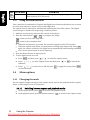
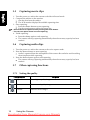
Sets the exposure value manually to compensate for unusual lighting conditions such as
indirect indoor lighting, dark backgrounds, and strong backlighting.
3.7.6 Setting the AEB
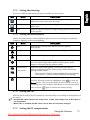
Sets the auto exposure bracketing (AEB) to shoot 3 continuous images, each with a different
exposure setting: correctly exposed, underexposed, and overexposed.
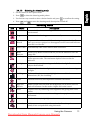
3.7.7 Setting the highlight
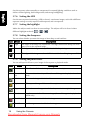
Makes the subject stand out from its surroundings. The subject will be in focus in three
different highlight methods:
/
/
.
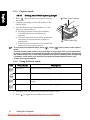
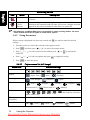
3.7.8 Setting the sharpness
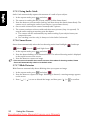
You can select whether you want the image to have sharp or soft outlines.
Icon
Mode
High
Description
The edges of the image are emphasized. The edges will become sharp, but noise
may occur in the captured image.
Normal The edges of the image are sharp. This is suitable for printing.
Low
The edges of the image are softened. This is suitable for editing images on PC.
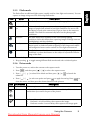
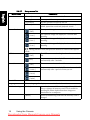
3.7.9 Setting the photo effect
You can add special effects to your images in the capture or playback mode.
Icon
N/A
N/A
18
Mode
Description
Normal
No effect is added to the image. (capture mode only)
Remove Red
Eye
Tries to reduce the red eye effect. (for a still image in the playback mode
only)
B&W
Convert the image to black & white.
Sepia
The captured image will be stored in a sepia tone.
Negative
Colors become the opposite of what they were in the original image.
Mosaic
Applies a mosaic tile effect to an image. (for a still image in the playback
mode only)
Vivid Red
A vibrant red tone is added to the image.
Vivid Green
A vibrant green tone is added to the image.
Using the Camera
Downloaded from ManualsCamera.com Manuals