1
Connect & transfer
Connect & transfer
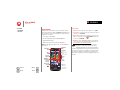
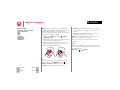
Quick start: Connect & transfer
Bluetooth® wireless
Wi-Fi Networks
USB cables
Memory card & file management
Share your data connection
Data use
NFC
Your cloud
Phone & tablet
DLNA™ media devices
Virtual Private Networks (VPN)
Mobile network
Airplane mode
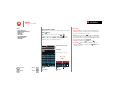
Wi-Fi Networks
Manage networks
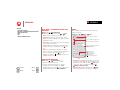
Turn Wi-Fi power on/off
To remove a network, touch it in the list, then touch
Forget.
Find it: Apps
>
Settings, then touch the Wi-Fi
switch to turn it ON .
Note: To extend battery life, turn Wi-Fi
not using it.
OFF
when you’re
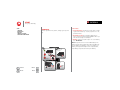
Wi-Fi hotspot
Connect to networks
Your can make your phone a Wi-Fi hotspot to provide
portable, convenient internet access to other Wi-Fi
enabled devices.
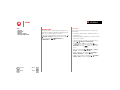
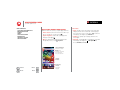
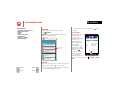
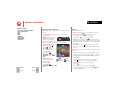
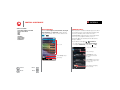
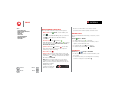
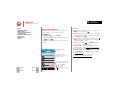
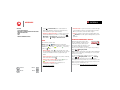
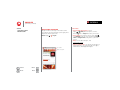
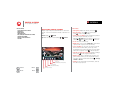
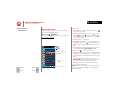
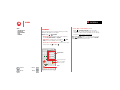
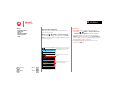
To find networks in your range:
1 Touch Apps
>
Settings > Wi-Fi.
Tip: To see your phone’s MAC address and Wi-Fi
settings, touch Menu
> Advanced.
2 Make sure the switch at the top is
SCAN.
ON
, then touch
3 Touch a found network to connect it (if necessary,
enter Network SSID, Security, and Wireless password,
and touch Connect).
When your phone connects, the Wi-Fi status
indicator
appears in the status bar.
Note: If you see a question mark in the Wi-Fi status
indicator
, pull down the status bar, touch the
network, and enter the network’s password.
Tip: When Wi-Fi power is on, your phone automatically
reconnects to available networks it has used before
Menu
More
Back
Next
Settings
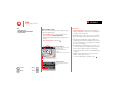
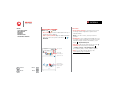
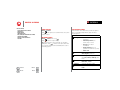
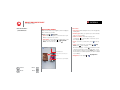
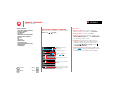
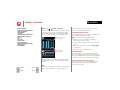
To manage your networks, touch Apps
>
> Wi-Fi, turn Wi-Fi power on, then touch Menu
> Manage Networks.
Note: Keep it secure. To protect your phone and hotspot
from unauthorized access, it is strongly recommended
that you set up hotspot security (WPA2 is the most
secure), including password.
Settings > Tethering & Mobile
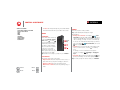
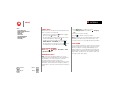
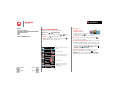
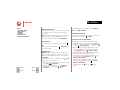
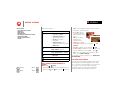
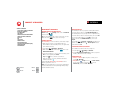
Find it: Apps
>
Hotspot and check Mobile Hotspot.
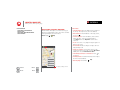
1 Your phone turns off Wi-Fi power and uses the mobile
network for Internet access. Touch Mobile Hotspot
Settings > Configure Mobile Hotspot to set up security:
• SSID—Enter a unique name for your hotspot.
• Security—Select the type of security you want:
Open or WPA2. For WPA2, enter a unique password
that others will need to access your Wi-Fi hotspot.
Note: WPA2 is recommended by IEEE.