1
Activating and Deactivating Multi Window
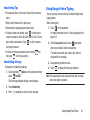
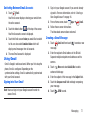
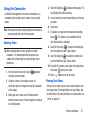
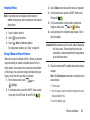
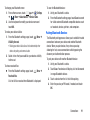
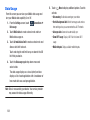
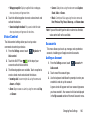
To activate Multi window:
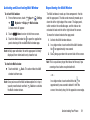
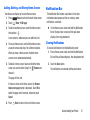
1. From a Home screen, touch
Apps ➔
Settings
My device ➔ Display ➔ Multi window.
➔
My device
A check mark will appear.
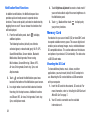
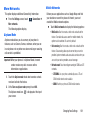
2. Touch
Home to return to the Home screen.
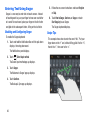
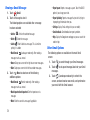
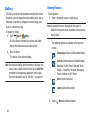
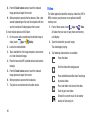
3. Touch the Multi window tab to open the application
panel showing all the available Multi window apps.
Note: Initially upon activation, the entire apps panel is briefly
displayed, then minimized to only show the tab.
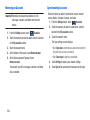
To deactivate Multi window:
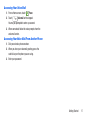
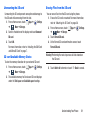
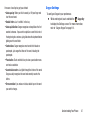
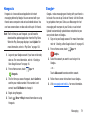
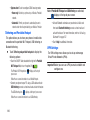
Touch and hold
Back. This action hides the Multi
window tab from view.
Note: Once you have set the Multi window option On in step 1,
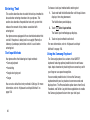
you only need to touch and hold
Back to re-activate
the Multi window feature.
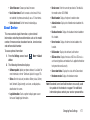
Repositioning the Multi Window
The Multi window is made up of two components: the tab
and the apps panel. The tab can be manually moved up or
down the left or right edge of the screen. The Apps panel,
which contains the scrollable apps, and the tab can be
relocated to lock onto the left or right side of the screen.
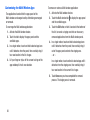
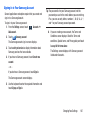
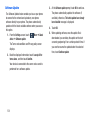
To move the tab and relocate the apps panel:
1. Activate the Multi window feature.
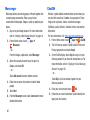
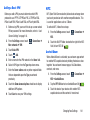
2. In a single motion, touch and hold the Multi window
tab for approximately one-second.
3. Slowly drag up or down the current side of the screen.
Note: This is a quick way to get the tab out of the way if you
cannot get to a button or option behind it.
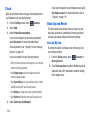
– or –
In a single motion, touch and hold the tab for
approximately one-second to detach it from the
screen, then slowly drag it to the opposite screen edge.
Understanding Your Phone
29