1
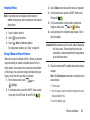
• Default notifications sound: Set the ringtone that will sound
for notifications and alarms. Touch a ringtone and touch OK.
• Vibrate when ringing: Enable your phone to vibrate whenever
it rings. Touch Vibrate when ringing to create a check mark
and enable the feature.
System Tone Settings
Touch any of the following options to create a check mark
and activate the feature:
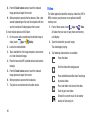
• Dialing keypad tone: Makes a sound when you touch a key on
the keyboard.
• Touch sounds: Makes a sound when you touch the screen.
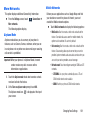
More Settings
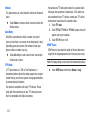
• Adapt Sound: The Adapt sound feature allows you to
customize your call sounds. Touch Adapt Sound, read the
instructions, and touch Start.
Follow the on-screen instructions to set up your personal call
sound.
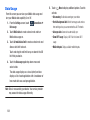
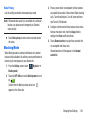
Home Screen Mode
Home screen mode allows you to set your display to the
conventional layout of Standard mode or provide an easier
user experience for the first-time smartphone users using
Easy mode.
My device ➔
1. From the Settings screen, touch
Home screen mode.
My device
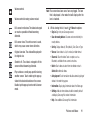
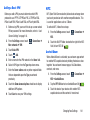
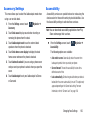
• Screen lock sound: Makes a sound when your screen is
locked or unlocked.
• Haptic feedback: Makes a vibration when you touch soft keys
and on certain UI interactions.
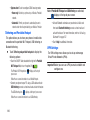
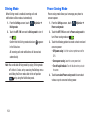
2. Select one of the following options:
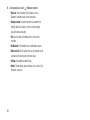
• Standard mode: Provides conventional layout for the apps and
widgets on your home screens.
• Emergency tone: You can set your phone to play an alert tone
or vibrate during an emergency call (for example, calls to 911).
• Easy mode: Provides easier user experience for first-time
smartphone users on the home screens.
3. Touch Apply.
148