1
Evolution eKeys 49 Keyboard User Manual
Evolution eKeys 49 Keyboard User Manual
Installing Drivers For Windows 98/ME
Useful MIDI data
1.
2.
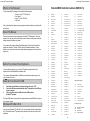
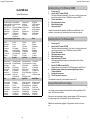
General MIDI Instruments
Piano
Bass
Reed
Synth Effects
32 Acoustic Bass
33 Electric Fingered
Bass
34 Electric Picked Bass
35 Fretless Bass
36 Slap Bass 1
37 Slap Bass 2
38 Syn Bass 1
39 Syn Bass 2
Chromatic Percussion Strings/Orchestra
64 Soprano Sax
65 Alto Sax
66 Tenor Sax
67 Baritone Sax
68 Oboe
69 English Horn
70 Bassoon
71 Clarinet
96 SFX Rain
97 SFX Soundtrack
98 SFX Crystal
99 SFX Atmosphere
100 SFX Brightness
101 SFX Goblins
102 SFX Echoes
103 SFX Sci-Fi
Pipe
Ethnic
8 Celesta
9 Glockenspiel
10 Music Box
11 Vibraphone
12 Marimba
13 Xylophone
14 Tubular bells
15 Dulcimer
Organ
40 Violin
41 Viola
42 Cello
43 Contrabass
44 Tremolo Strings
45 Pizzicato Strings
46 Orchestral Harp
47 Timpani
Ensemble
72 Piccolo
73 Flute
74 Recorder
75 Pan Flute
76 Bottle Blow
77 Shakuhachi
78 Whistle
79 Ocarina
Synth Lead
104 Sitar
105 Banjo
106 Shamisen
107 Koto
108 Kalimba
109 Bag Pipe
110 Fiddle
111 Shanai
Percussive
16 Drawbar Organ
17 Percussive Organ
18 Rock Organ
19 Church Organ
20 Reed Organ
21 Accordion
22 Harmonica
23 Tango Accordion
48 String Ensemble 1
49 String Ensemble 2
(Slow)
50 Syn Strings 1
51 Syn Strings 2
52 Choir Aahs
53 Voice Oohs
54 Syn Choir
55 Orchestral Hit
80 Syn Square Wave
81 Syn Sawtooth Wave
82 Syn Calliope
83 Syn Chiff
84 Syn Charang
85 Syn Voice
86 Syn Fifths Sawtooth
Wave
87 Syn Brass & Lead
112 Tinkle Bell
113 Agogo
114 Steel Drums
115 Woodblock
116 Taiko Drum
117 Melodic Tom
118 Syn Drum
119 Reverse Cymbal
Guitar
Brass
Synth Pad
Sound Effects
24 Nylon Acoustic
25 Steel Acoustic
26 Jazz Electric
27 Clean Electric
28 Muted Electric
29 Overdrive
30 Distorted
31 Harmonics
56 Trumpet
57 Trombone
58 Tuba
59 Muted Trumpet
60 French Horn
61 Brass Section
61 Syn Brass 1
62 Syn Brass 2
88 New Age Syn Pad
89 Warm Syn Pad
90 Polysynth Syn Pad
91 Choir Syn Pad
92 Bowed Syn Pad
93 Metal Syn Pad
94 Halo Syn Pad
95 Sweep Syn Pad
120 Guitar Fret Noise
121 Breath Noise
122 Seashore
123 Bird Tweet
124 Telephone Ring
125 Helicopter
126 Applause
127 Gun Shot
0 Acoustic Grand Piano
1 Bright Acoustic Piano
2 Electric grand Piano
3 Honky Tonk Piano
4 Electric Piano 1
5 Electric Piano 2
6 Harpsichord
7 Clavinet
3.
4.
5.
6.
Power up your PC.
Insert the eKeys 49 Installer CD-ROM.
The installer should open automatically. If not, select run from the start menu and
type d:\setup.exe where 'd' is your CD-ROM drive, then press ENTER.
Click on 'install drivers'.
Follow instructions on screen.
When finished exit setup.
Switch on the eKeys 49 .
Windows will proceed with the installation of a USB driver and a MIDI driver. Once
completed, you are ready to go. Windows will ask you to restart your computer.
Installing Drivers For Windows 2000
1.
2.
3.
4.
5.
6.
7.
8.
Power up your PC.
Insert the eKeys 49 Installer CD-ROM.
The installer should open automatically. If not, select run from the start menu and
type d:\setup.exe where 'd' is your CD-ROM drive, then press ENTER.
Click on 'Driver Installer'.
Follow instructions on screen.
When finished exit setup.
Switch on the eKeys 49 keyboard.
Windows will automatically recognise the keyboard and ask for the E-Keys
Installer CD-ROM.
Select the CD-ROM drive and click OK.
Windows will then ask you to select the CD-ROM drive again for the MIDI driver.
If Windows reports the drivers have not been digitally signed, click on
'Continue Installation'.
Select the drive once more.
Click OK and you are ready to go.
9.
10.
11.
Once installation is complete, you will be asked to re-start your PC.
Using An External Power Supply
You can also use a mains adapter (not included) with the following specification: 9V DC
output, 250-300mA, centre positive.
Make sure you are not powering the eKeys 49 keyboard already via USB, then simply plug
in the power supply to the socket labelled DC 9V and switch the power on.
Note: Do not leave the adapter plugged in for long periods of time if the unit is not in
use.
20
5