1
Video
/
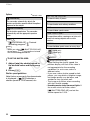
POINTS TO CHECK
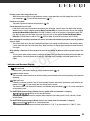
Selecting scenes by recording date is
available only from the original movies
index screen.
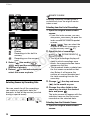
Selecting from the List of Recordings
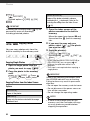
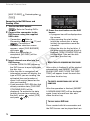
1
Movies
Photos
Recordings in the built-in
memory
Recordings on the memory
card
2 Select (
) the media (
/
only) and the recording type
(scenes or photos).
3 Return (
) to the index screen to
select the scene or photo.
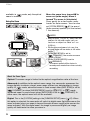
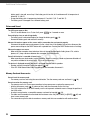
Open the original movies index
screen.
• From this index screen, you can
also press VIDEO SNAP to open the
index screen for Video Snapshot
scenes.
/
You can select the
•
scenes in the built-in memory or
on the memory card (
37).
Y
P
O
C
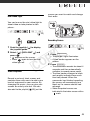
Selecting Scenes by Recording Date
You can search for all the recordings
you made on a particular date (for
example, to find all the movies you shot
during a special event).
(
24)
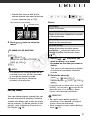
2
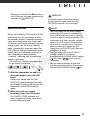
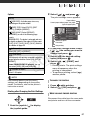
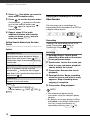
Open the list of recordings.
FUNC.
[
SCENE SEARCH]
[SELECT DATE]
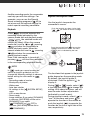
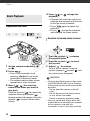
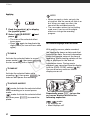
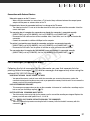
• The list of recordings displays all
dates in which recordings were
made. An orange selection frame
appears on the day.
• The thumbnail shows a photo from
the first scene recorded on that
day. Below it will appear the
number of scenes recorded and
the total recording time for the
same day.
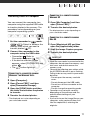
3
Change (
) the day and move
(
) to the month or year.
4
Change the other fields in the
same way to select the desired
date and press
.
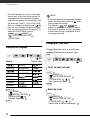
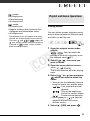
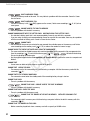
The index screen will appear with the
selection frame on the first scene
recorded on the selected date.
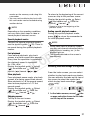
Selecting from the Calendar Screen
1
38
Open the original movies index
screen.