1
COPYRIGHT © 2008 MERIT ENTERTAINMENT
Games Menu
Game Setup
The game list and prices, as well as game
options, are programmed using these
screens. The first screen shows the various game categories and allows access to
the following general settings for all games.
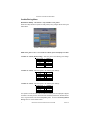
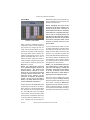
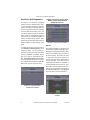
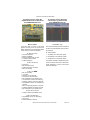
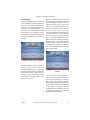
To Enter This Screen, Touch “Game
Setup” on the Games Menu and
Select a Category
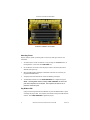
FIGURE 7 - GAMES MENU: GAME SETUP
Enable All Games Into Menu: Turns on
all games (certain games which were previously displayed in the Game Setup have
been turned off in this software) and defaults the price settings.
Factory Default Games Into Menu: Returns the Game Setup to its default settings.
Games that were not originally enabled will
be turned off and all price settings will be
reset.
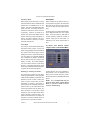
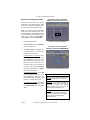
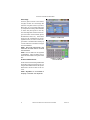
When you touch a category name, the next
Game Setup Screen shows the game positions available for that category and the price
for each game, with the list at the bottom
showing all games available for the selected
category. In categories with Merit-thon
games, players who choose Merit-thon play
one round of three different games in that
category for one combined score.
9
The Game Setup Screen also allows you to
make these general changes:
Default Games: Resets the selected category menu to its default game and price
settings.
Clear One: Clears a selected item from the
player’s game menu.
Clear All: Clears all games from the player’s
game menu.
Enable All Games: Turns on all games
within the selected category and defaults
the price settings.
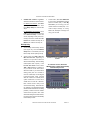
To customize a particular game list, first select a category on the first Game Setup
Screen. On the second screen, touch Clear
All to clear the game list. Choose the menu
position you want a particular game to occupy by touching that position, then touch
the desired game name from the game list
on the bottom of the screen. Repeat until all
desired games appear in the menu (a game
cannot appear in the list more than once).
Games already in the menu will be red in the
game list at the bottom of the screen.
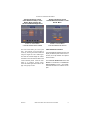
To adjust the price, touch the credit or currency value next to each game.
Some games support a continue function.
In the cost to continue column, games without this function will display N/A. Games
that support continuation will show a credit
value. The cost to continue is adjustable
on a game by game basis. Touch the credit
value button to change the amount. Hit NEXT
to return to the Games Category page.
NOTE: The default Cost to Continue
price is the same as the default cost to
play the game; however, the Cost to
Continue does not need to be the same
amount as the original price.
MEGATOUCH FORCE 2008.5 AND ION 2008.5 SOFTWARE
PM0355-18