1
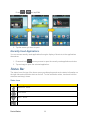
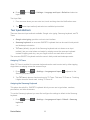
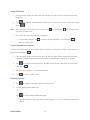
1. Press > and tap Settings > Application manager. 2. Tap Running, select an onscreen process entry, and tap Stop. 3. Read the Stop system service? dialog and tap OK. These stopped processes restart once the phone is restarted (power cycled). Third-party Task Manager applications are also available from the Google Play Store app. Note: You can also access the last six accessed applications by pressing and holding For more information, refer to Recently Used Applications. . Memory Use View storage used by currently running applications. > and tap Settings > Application manager. The bottom of the ► Press screen displays the amount of RAM used by all running services. Accounts and Sync Settings Your phone provides the ability to synchronize data from a variety of different sources or sites. These accounts can range from Google, a Corporate Microsoft Exchange Email Server, and other social sites. Corporate and Google Accounts provide the ability to synchronize Calendar events and Contacts. Set Up a New Account Manage Existing Accounts Set Up a New Account You can set up a new account using the following procedures. 1. Press > and tap Settings > Accounts and sync. 2. Tap Add account and tap an account type. Samsung account, Email, Facebook (for syncing), Google, LDAP, and Microsoft Exchange ActiveSync. 3. Enter your account information and tap Next. Settings Depending on the account type, you may need to enter an email address or user address, password, domain name, or other information. For Corporate Exchange Email Server accounts, contact your server administrator to determine what information you will need. 73