Download SIIG CyberSerial ExpressCard Installation guide
Transcript
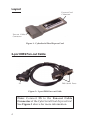
CyberSerial Dual ExpressCard Quick Installation Guide Introducing the CyberSerial ExpressCard The CyberSerial Dual ExpressCard adds two high-speed serial ports to an ExpressCard equipped computer. Features and Benefits • • • • Compatible with hi-speed modems, monitoring equipment, serial networking and other serial devices Two DB9 RS232 ports with 16550 UART Supports data rate of up to 115 Kbps Built-in 16-byte FIFO buffers dramatically increase data transmit/receive speed, especially under Windows multitasking environment System Requirements • • Notebook or desktop computer with an available ExpressCard slot Windows 2000/XP/Server 2003 Package Contents • • • • CyberSerial Dual ExpressCard 2-port DB9 Fan-out Cable Driver CD Quick Installation Guide 04-0414A 1 Layout ExpressCard Connector Fan-out Cable Connector Figure 1: CyberSerial Dual ExpressCard 2-port DB9 Fan-out Cable DB9 Serial Ports 2S Figure 2: 2-port DB9 Fan-out Cable Note: Connect 2S to the Fan-out Cable Connector of the CyberSerial Dual ExpressCard. See Figure 1 above for more information. 2 Hardware Installation General instructions for installing the ExpressCard are provided below. Since the design of notebook computers vary, refer to your system’s reference manual for further information, if needed. 1. Insert the CyberSerial Dual ExpressCard into the ExpressCard slot of the computer with it's Express Card Connector facing the slot. Push the card into the slot gently, yet firmly for a solid connection. Note: Some ExpressCard slots will click when the ExpressCard is fully inserted into the slot. 2. Connect 2S of the fan-out cable to the Fan-out Cable Connector of the CyberSerial Dual ExpressCard. See Figure 1 and 2 on page 2 for more information. Note: Make sure that the CyberSerial Dual ExpressCard does not move side to side when connecting the fanout cable, otherwise the ExpressCard may accidentally eject from the slot. 3. If your system was powered off when you plugged in the ExpressCard, turn it on and go to Driver Installation on page 4. Otherwise, go directly to Driver Installation on page 4. 3 Driver Installation This section provides information on how to install the CyberSerial Dual ExpressCard drivers. Windows 2000 1. 2. 3. 4. 5. 6. 7. At the Found New Hardware Wizard, click Next. Select Search for a suitable driver for my device (recommended), and click Next. Check Specify a location, uncheck the other boxes, then click Next. Insert the driver CD, type in D:\2000, then click OK. (Change D: to match your CD-ROM drive letter) Click Next and Finish. Repeat steps 1-5. Restart Windows to complete the installation. Windows XP 1. 2. 3. 4. 5. 6. 4 At the Found New Hardware Wizard, select No, not this time, then click Next. Select Install from a list or specific location (Advanced), then click Next. Insert the driver CD, check Include this location in the search, uncheck the other box, type in D:\XP, and click Next. (Change D: to match your CD-ROM drive letter) If the Hardware Installation window pops up, click Continue Anyway, then Finish. Our driver has been thoroughly tested for stability and compatibility. Repeat steps 1-4 two times. Restart Windows to complete the installation. Windows Server 2003 1. 2. 3. 4. 5. 6. At the Found New Hardware Wizard, select No, not this time, then click Next. Select Install from a list or specific location (Advanced), then click Next. Insert the driver CD, check Include this location in the search, uncheck the other box, type in D:\2003, and click Next. (Change D: to match your CD-ROM drive letter) If the Hardware Installation window pops up, click Continue Anyway, then Finish. Our driver has been thoroughly tested for stability and compatibility. Repeat steps 1-4 two times. Restart Windows to complete the installation. To Verify Windows 2000/XP/2003 Installation 1. 2. Right click My Computer, click Manage, then click Device Manager. Click on the + (plus sign) in front of Ports (COM & LPT), USB-to-Serial Port... should be displayed two times. Changing COM Port Number Some serial devices need a specific COM port in order to work. If your serial device works properly, do not change this setting. 1. 2. From the Device Manager window double click Ports (COM & LPT), then double click the serial port you want to change. Click Features tab. 5 3. 4. Click the down arrow that is next to the COM Port Number box, select a COM port that is not in use, then click OK. Close Device Manager to save the changes. Removing the ExpressCard Before ejecting the CyberSerial Dual ExpressCard from the ExpressCard slot, first use the Safely Remove Hardware utility to stop it. Not following the steps below could lead to system crashes, data corruption or data loss. Follow the steps below for your version of Windows. For Windows 2000 1. Click the Unplug or Eject Hardware icon located in the taskbar by the system clock. 2. Click Stop USB Compound Device. 3. At the Safe To Remove Hardware box, click OK. The CyberSerial Dual ExpressCard can be ejected. For Windows XP/Server 2003 1. Click the Safely Remove Hardware icon located in the taskbar by the system clock. 2. Click Safely remove USB Compound Device. 3. When the Safe to Remove Hardware box pops up, the CyberSerial Dual ExpressCard can be ejected. 6 Technical Support and Warranty QUESTIONS? SIIG’s Online Support has answers! Simply visit our website at www.siig.com and click on Support. Our online support database is updated daily with new drivers and solutions. Answers to your questions could be just a few clicks away. You can also submit questions online and one of our technical support analysts will promptly respond. A 5-year manufacturer warranty supplied with this product is offered by SIIG, Inc. Please see SIIG website for more warranty details. If you should happen to encounter any problems with this product, please follow the procedures below. If it is within the store's return policy period, please return the product to the store where you purchased from. If your purchase has passed the store's return policy period, please follow these steps to have the product repaired or replaced. Step 1: Submit your RMA request. Go to www.siig.com, click Support, then RMA to submit a request to SIIG RMA. If the product is determined to be defective, an RMA number will be issued. SIIG RMA department can also be reached at (510)413-5333. Step 2: After obtaining an RMA number, ship the product. • Properly pack the product for shipping. All software, cable(s) • • and any other accessories that came with the original package must be included. Clearly write your RMA number on the top of the returned package. SIIG will refuse to accept any shipping package, and will not be responsible for a product returned without an RMA number posted on the outside of the shipping carton. You are responsible for the cost of shipping the product to SIIG at the following address: SIIG, Inc. 6078 Stewart Avenue Fremont, CA 94538 RMA #: • SIIG will ship the repaired or replaced product via Ground in the U.S. and International Economy outside of the U.S. at no cost to the customer. 7 About SIIG, Inc. Founded in 1985, SIIG, Inc. is a leading computer upgrade manufacturer of I/O connectivity products, including PCI & ISA serial and parallel ports, USB, Serial ATA & UltraATA controllers, FireWire (1394a/b), Networking, Sound Cards, and other accessories. SIIG is the premier one-stop source of upgrades. SIIG products offer comprehensive user manuals, many user-friendly features, and are backed by an extensive manufacturer warranty. High-quality control standards are evident by the overall ease of installation and compatibility of our products, as well as one of the lowest defective return rates in the industry. SIIG products can be found in computer retail stores, mail order catalogs, and e-commerce sites in the Americas and the UK, as well as through major distributors, system integrators, and VARs. PRODUCT NAME CyberSerial Dual ExpressCard FCC RULES: TESTED TO COMPLY WITH FCC PART 15, CLASS B OPERATING ENVIRONMENT: FOR HOME OR OFFICE USE FCC COMPLIANCE STATEMENT: This device complies with part 15 of the FCC Rules. Operation is subject to the following two conditions: (1) This device may not cause harmful interference, and (2) this device must accept any interference received, including interference that may cause undesired operation. THE PARTY RESPONSIBLE FOR PRODUCT COMPLIANCE SIIG, Inc. 6078 Stewart Ave. Fremont, CA 94538-3152 CyberSerial Dual ExpressCard is a trademark of SIIG, Inc. SIIG and SIIG logo are registered trademarks of SIIG, Inc. Microsoft and Windows are registered trademarks of Microsoft Corporation. Other names used in publication are for identification only and may be trademarks of their respective companies. January, 2006 Copyright ©2006 by SIIG, Inc. All rights reserved.