1
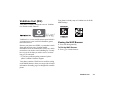
Vodafone live! (M 2)
Your phone is already configured to access Vodafone
live! and the mobile internet*.
Vodafone live! is a new mobile internet portal which is
your gateway to a new world of information, games,
music and services.
Because your phone uses GPRS, a system that is much
faster than previous ways of getting mobile
information. Also, the connection is ‘always on’ which
means there is no need to wait for dialling up. You only
have to pay for the data you send or receive, not how
long you’re connected.
* If you have problems getting connected, please
phone Vodafone Customer Support.
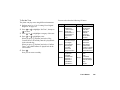
Your phone is already setup to Vodafone site for WAP/
MMS Settings.
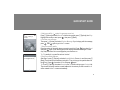
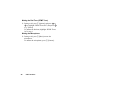
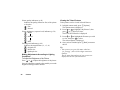
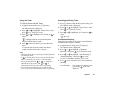
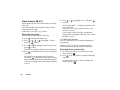
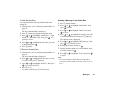
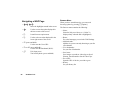
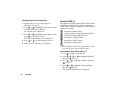
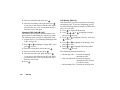
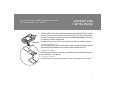
Viewing the WAP Browser
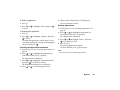
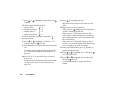
1. Press E during stand-by.
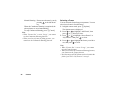
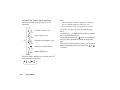
To Exit the WAP Browser
1. Press F to exit the browser.
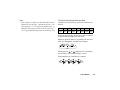
Your phone contains a WAP browser used for surfing
on the Mobile Internet, where you can get a lot of useful
information. Normally, pages are designed for a mobile
phone.
Vodafone live!
79