1
Crestron
Touch Screens with RoomView Scheduling for Crestron Fusion
Start the Reservation
If configured to do so, the Start Now button on the pull-up toolbar must be touched
to prevent the reservation from being automatically declined in the event that the
reservation organizer is late.
NOTE: If the touch screen is configured to do so, the Start Now button can also be
used to start a reservation early if the previous block of time is available. If the
reservation is started early, the schedule view remains green as if the room is
available, but the words “In Use” are displayed.
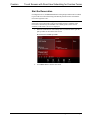
1.
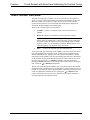
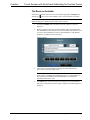
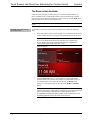
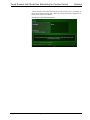
When the room has been successfully reserved, touch the tab to open the
pull-up toolbar at the bottom of the screen.
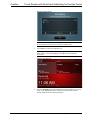
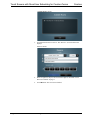
Reserved Screen with Pull-up Toolbar
2.
User Guide – DOC. 7553C
Touch Start Now to start the reservation.
Touch Screens with RoomView Scheduling for Crestron Fusion • 13