1
2.
3.
4.
Use an HDMI cable to connect the HDMI source (such as a game
console, Blu-ray player and Digital TV Decoder) to the HDMI port
marked "HDMI Input".
Use an HDMI cable to connect the screens (TVs or projectors) to HDMI
ports marked "HDMI output".
Preferably, connect to the screen with the highest resolution (e.g.
UltraHD or Full HD) to "output 1" and the lower resolution screen to
"output 2".
Connect the power adapter to the "DC 5V" and insert the plug into the
socket.
5. EDID SETTINGS
EDID stands for Extended Display Identification Data and is used for
communication between HDMI sources and screens, enabling you to
determine the supported display resolutions and audio formats. The HDMI
source requests this information from the screen and determines the best
resolution or audio format. When using multiple screens (TVs or projectors),
the best resolution and audio format that is supported by all connected
screens is determined.
This may cause problems in some situations, for example, when one of the
connected sources or screens does not fully support EDID.
Use the EDID button to choose the following options:
x
AUTO: automatically detects the highest possible common image
resolution and audio format that is supported by both screens. Sound
and image will be displayed on both screens.
x
COPY: only detects the resolution and audio format of the display
connected to "HDMI output 1". This prevents problems with playing, for
example, 3D or UltraHD (4k).
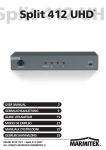
Split 412 UHD™
5
ENGLISH
1.