1
Troubleshooting and Routine Maintenance
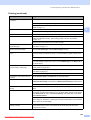
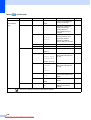
Receiving Faxes
Difficulty
Suggestions
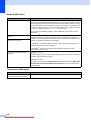
Cannot receive a fax.
Check all line cord connections.
Make sure the machine is in the correct receiving mode for your setup. (See
Receive mode settings on page 46.)
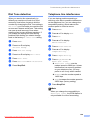
If you often have interference on the telephone line, try changing the menu setting
of Compatibility to Basic(for VoIP). (See Telephone line interference
on page 149.)
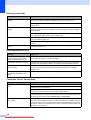
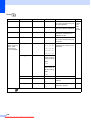
Sending Faxes
Difficulty
Suggestions
Cannot send a fax.
Check all line cord connections.
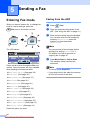
Make sure that the Fax
key is illuminated. (See Entering Fax mode
on page 34.)
Ask the other party to check that the receiving machine has paper.
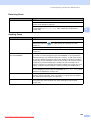
Print the Transmission Verification Report and check for an error. (See Reports
on page 84.)
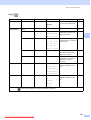
Transmission Verification Report
says ‘Result:ERROR’.
There is probably temporary noise or static on the line. Try sending the fax again.
If you send a PC FAX message and get ‘Result:ERROR’ on the Transmission
Verification Report, your machine may be out of memory. To gain extra memory,
you can turn off Memory Receive (see Turning off Memory Receive Operations
on page 50), print fax messages in memory (see Printing a fax from the memory
on page 54) or cancel a Delayed Fax or Polling Job (see Cancelling a fax in
progress on page 36 or Checking and cancelling waiting jobs on page 40). If the
problem continues, ask the telephone company to check your telephone line.
If you often get transmission errors due to possible interference on the telephone
line, try changing the menu setting of Compatibility to Basic(for VoIP). (See
Telephone line interference on page 149.)
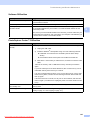
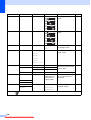
Poor fax send quality.
Try changing your resolution to Fine or S.Fine. Make a copy to check your
machine's scanner operation. If the copy quality is not good, clean the scanner.
(See Cleaning the scanner glass on page 164.)
Vertical black lines when sending.
Black vertical lines on faxes you send are typically caused by dirt or correction fluid
on the glass strip. Clean the glass strip. (See Cleaning the scanner glass
on page 164.)
145
Downloaded from ManualsPrinter.com Manuals
B