1
EasyMP Operation Guide
37
Sending a Scenario
4
5
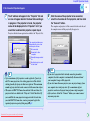
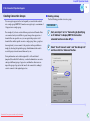
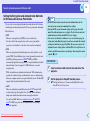
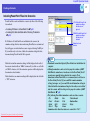
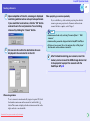
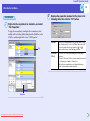
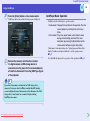
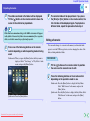
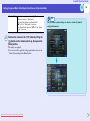
Upon completion of transfer, a message is displayed
confirming whether autorun setup is to be performed.
If you would like to set autorun, click the "OK" button
and continue to the next procedure. To set nothing,
close out by clicking the "Cancel" button.
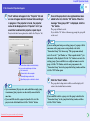
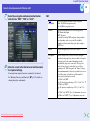
All scenario files within the destination drive are
displayed in the scenario list on the left.
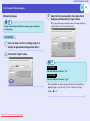
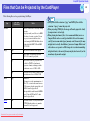
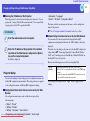
When projecting a scenario repeatedly
If you would like to go back and start projecting from the first
scenario again once projection of all scenarios in the autorun
scenario file list is complete, select "Repeat".
TIP
• Autorun can also be set by selecting"Scenario Option" - "Edit
Autorun".
• Autorun setting cannot be designated in the EasyMP CardPlayer.
• If there are two or more files set for autorun, they will be played
back in order on the autorun scenario list.
6
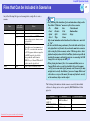
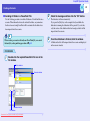
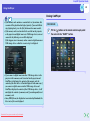
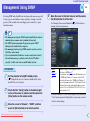
When using autorun
To set a scenario to run automatically at projector power ON, click
the desired scenario name in the scenario list, and click the " "
button. The scenario is displayed in the autorun scenario list on the
right, and is set as an autorun file.
Downloaded From projector-manual.com Epson Manuals
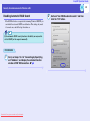
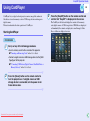
After finished transferring your scenario, insert the
memory card or connect the USB storage device into/
to the projector to project the scenario with the
CardPlayer. sp.50