1
12-1245_RF-WFD301_MAN_V1_EN.fm Page 11 Tuesday, June 4, 2013 10:36 AM
Disconnecting a Miracast mobile device
There are a number of options to disconnect a Miracast mobile
device.
To disconnect a Miracast mobile device:
• Turn off your Miracast mobile device.
• Disconnect the Rocketfish Miracast receiver USB cable from the
TV.
• Move your Miracast mobile device 50 ft. or further from the
Rocketfish Miracast receiver.
Updating the firmware
You can update the firmware on your Rocketfish Miracast Video
Receiver using a computer.
To update the firmware:
1 Go to www.rocketfishproducts.com, then click Support &
Service. Enter your model number in the box under Manual,
Firmware, Drivers & Product Information, then click Search.
2 If a firmware update is available, click on the link to download the
firmware to a local directory on your computer.
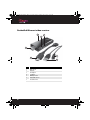
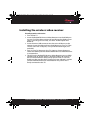
3 Connect the Rocketfish Miracast Video Receiver (see “Installing
the wireless video receiver” on page 7) to the TV, then
immediately press and hold the RESET button on the receiver
until the firmware update screen is displayed.
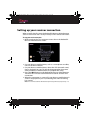
The LED on the Rocketfish Miracast Video Receiver starts to blink
and within 30 seconds the firmware update screen is displayed. If
the LED doesn't blink or the firmware update screen is not seen,
check to make sure that the TV input you have selected is correct
and that the Rocketfish Miracast Video Receiver is powered on
and is firmly connected.
Rocketfish Miracast Video Receiver | RF-WFD301
11