1
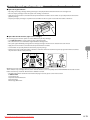
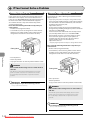
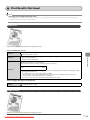
Quick View- Perform Useful Tasks Copy Print Scan There are a variety of scan functions that are explained in later pages of this manual as well as in the e-Manual. You can easily send scanned documents to your computer. Below is a quick overview of highlighted scan features that you can utilize in your everyday use. Saving in a Computer There are two methods for saving scanned documents in a computer. Saving the Documents Using the Operation Panel of the Machine You can easily save scanned documents in a computer only by operating the operation panel of the machine. Various scanning settings have been prepared for your purposes. Therefore, you can create a "Searchable PDF*" file, which can be used for text retrieval or as text data, without specifying special settings. For details, see "Using the Scan Functions" from p. 7-1. 1 Documents 2 * If you are using Macintosh, you may not create "Searchable PDF." Data Saving the Documents Using Operations from a Computer For details, see "Scan" in the Scanning with the MF Toolbox* 1 Documents Scanning is performed by operating the software supplied with the machine. * MF Toolbox for Macintosh and MF Toolbox for Windows may be different in some features. For details, see the Scanner Driver Guide. 2 Data 3 Scanning from an Application Scanning with the WIA Driver (Windows XP/Vista/7 Only) Scanning is performed using your application. This allows you to open the scanned data as is in your application. Scanning is performed using the driver system supplied with Windows operating systems. There are various scanning methods. Scanning from the [Scanner and Camera Wizard] dialog box Scanning from the [Windows Fax and Scan] dialog box Scanning from Windows Photo Gallery Scanning from an Application Downloaded from ManualsPrinter.com Manuals 3 e-Manual.