1
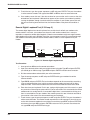
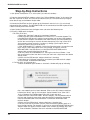
Model MT5634MU
Portable USB Modem
User Guide
User Guide
S0000001 Revision F
MultiMobileUSB (Model MT5634MU)
This publication may not be reproduced, in whole or in part, without prior expressed written permission from
Multi-Tech Systems, Inc. All rights reserved.
Copyright © 2007, by Multi-Tech Systems, Inc.
Multi-Tech Systems, Inc. makes no representations or warranties with respect to the contents hereof and specifically disclaims
any implied warranties of merchantability or fitness for any particular purpose. Furthermore, Multi-Tech Systems, Inc. reserves
the right to revise this publication and to make changes from time-to-time in the content hereof without obligation of Multi-Tech
Systems, Inc. to notify any person or organization of such revisions or changes. Check Multi-Tech’s web site for current
versions of our product documentation.
Record of Revisions
Revision
Date
Description
A
B
(4/30/99)
(3/3/00)
C
D
(5/13/01)
(4/02/03)
E
F
04/06/04
05/03/07
Manual released.
Added installation procedure for Windows 2000; %A1, &C2, &En Result
codes and S-18 S-Register.
Added info on Windows ME, Flash Wizard, & Global Wizard.
Added info on PhoneTools. Added installation of Windows XP drivers.
Removed the chapter about remote configuration. Removed list of related
manuals which included old voice command document.
Added installation for Multi-Tech Systems Modem Scripts for Mac OS.
Revised tech support listing an d warranty.
Patents
This Product is covered by one or more of the following U.S. Patent Numbers: 5.301.274; 5.309.562; 5.355.365; 5.355.653;
5.452.289; 5.453.986. Other Patents Pending.
Trademarks
MultiMobileUSB is a trademark and Multi-Tech and the Multi-Tech logo are registered trademarks of Multi-Tech Systems, Inc.
IBM is a trademark of International Business Machines Corporation. MNP and Microcom Network Protocol are trademarks of
Microcom, Inc.
K56flex and V.90 are trademarks of Rockwell International Corporation and Lucent Technologies Corporation. Microsoft,
Windows, Windows 98, Windows 95, and Windows 2000 are either registered trademarks or trademarks of Microsoft
Corporation in the United States and/or other countries.
Notice
Though these modems are capable of 56 Kbps download performance, line impairments, public telephone
infrastructure and other external technological factors currently prevent maximum 56 Kbps connections.
World Headquarters:
Technical Support Contacts
Country
France:
Europe, Asia, Africa:
U.S., Canada, all others:
Multi-Tech Systems, Inc.
2205 Woodale Drive
Mounds View, MN 55112 U.S.A
(763) 785-3500 or (800) 328-9717
US Fax (763) 785-9874
By Email
[email protected]
[email protected]
[email protected]
By Phone
+(33) 1-64 61 09 81
+(44) 118 959 7774
800-972-2439 or 763-717-5863
Internet Address http://www.multitech.com
Contents
Chapter 1 - Introduction and Description .................................................................... 5
Introduction ................................................................................................................................................ 6
Product Description ................................................................................................................................... 6
Universal Serial Bus (USB) ....................................................................................................................... 6
What Can You Do with Your Modem? ......................................................................................................... 7
Features ..................................................................................................................................................... 8
Data ..................................................................................................................................................... 8
Fax ....................................................................................................................................................... 8
Required Equipment ............................................................................................................................ 8
Connections .............................................................................................................................................. 9
Connecting to the Computer (“USB”) .................................................................................................. 9
Connecting to the Telephone Line (“LINE”) ......................................................................................... 9
Surge Protectors and Lightning ........................................................................................................... 9
Front Panel ................................................................................................................................................. 9
Technical Specifications .......................................................................................................................... 10
Chapter 2 - Installation ................................................................................................ 13
Unpacking ................................................................................................................................................
Safety Warning Telecom ...........................................................................................................................
Step 1: Connect the Modem to Your System ...........................................................................................
USB Connection ................................................................................................................................
Line Connection .................................................................................................................................
Step 2: Installing the Modem ...................................................................................................................
Installation in Windows XP ................................................................................................................
Installation in Windows 2000 .............................................................................................................
Installation in Windows ME ...............................................................................................................
Installation in Windows 98 .................................................................................................................
Installation in Windows 95 .................................................................................................................
Removing Your Old Modem from Windows .......................................................................................
Step 3: Configuring the Modem for Your Country ....................................................................................
Using the Global Wizard Utility .........................................................................................................
Using AT Commands .........................................................................................................................
Step 4: Installing Data Communications Software ..................................................................................
14
14
15
15
15
16
16
16
20
25
28
28
29
29
29
30
Chapter 3 - AT Commands, S-Registers & Result Codes ......................................... 31
AT Commands .............................................................................................................. 32
AT Command Summary ........................................................................................................................... 33
S-Registers .............................................................................................................................................. 42
Result Codes ........................................................................................................................................... 44
Chapter 4 - Troubleshooting ........................................................................................ 47
Introduction ..............................................................................................................................................
None of the Indicators Light ..............................................................................................................
The Modem Does Not Respond to Commands .................................................................................
The Modem Dials But Cannot Connect .............................................................................................
The Modem Disconnects While Online .............................................................................................
The Modem Cannot Connect When Answering .................................................................................
The Modem Doesn’t Work with Caller ID ..........................................................................................
Fax and Data Software Can’t Run at the Same Time .......................................................................
48
48
48
49
50
50
50
50
Appendices ................................................................................................................... 51
Appendix A: Regulatory Agency Compliance ..........................................................................................
Class B Statement ............................................................................................................................
FCC Part 15 .......................................................................................................................................
Industry Canada ................................................................................................................................
FCC Part 68 Telecom ........................................................................................................................
FAX Branding Statement ...................................................................................................................
Canadian Limitations Notice: ............................................................................................................
EMC, Safety and R&TTE Directive Compliance ...............................................................................
New Zealand Telecom Warning Notice ..............................................................................................
International Modem Restrictions .....................................................................................................
Appendix B - V.90 Support .......................................................................................................................
Introduction ........................................................................................................................................
V.90 Troubleshooting .........................................................................................................................
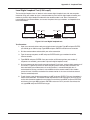
Appendix C: Loopback Tests ...................................................................................................................
Introduction ........................................................................................................................................
Local Analog Loopback Test (V.54 Loop 3) .......................................................................................
Appendix D: Warranty, Service, and Technical Support ..........................................................................
Multi-Tech Warranty Statement .........................................................................................................
Technical Support Contacts ..............................................................................................................
About the Internet ..............................................................................................................................
About Ordering Accessories .............................................................................................................
Software User License Agreement ...................................................................................................
Appendix E: Dial-Up Networking .............................................................................................................
Windows 95/98/ME Dial-Up Networking ...........................................................................................
Windows 2000 Dial-Up Networking ...................................................................................................
Appendix F: Upgrading the Modem .........................................................................................................
Introduction ........................................................................................................................................
Upgrade Overview ............................................................................................................................
Appendix G - Multi-Tech Systems Modem Scripts for ............................................................................
Mac OS ....................................................................................................................................................
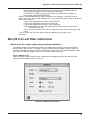
Mac OS X Instructions ............................................................................................................................
Mac OS 9.2.2 and Older Instructions ......................................................................................................
Where to put the modem scripts (drag and drop installation) ..........................................................
52
52
52
52
52
53
54
54
55
55
56
56
56
57
57
57
60
60
61
62
62
62
64
64
67
72
72
72
75
75
76
79
79
Index .............................................................................................................. 81
Chapter 1 - Introduction and Description
MultMobileUSB User Guide
Introduction
Welcome to the world of data communications. You have acquired one of the finest intelligent data and
fax modems available today from one of America’s oldest and most respected modem manufacturers:
Multi-Tech Systems, Inc. This user’s guide will help you install, configure, test and use your modem.
Product Description
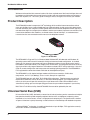
The MT5634MU modem incorporates V.90™ technology, which enables Internet connections at data
rates up to 56 Kbps* over standard telephone lines. V.90 technology is able to send data downstream
from the Internet to your computer at these speeds because data on the telephone network typically is
converted from digital to analog only once before it reaches your modem. Upstream transmissions, and
transmissions between client modems, are limited to data rates of 33.6 Kbps, as are downstream
transmissions that are converted more than once on the telephone network.
Figure 1-1: MT5634MU
The MT5634MU is Plug-and-Play in Windows 2000, Windows ME, Windows 98, and Windows 95
operating systems with interactive automatic dialing and command mode configuration. In standard
mode, you can store up to two command lines or telephone numbers of up to 40 characters each in
the modems’ nonvolatile memory. The modem pulse- or tone-dials, and recognizes dial tones and busy
signals for reliable call-progress detection. The modem can detect AT&T calling card tones. It also has
Caller ID, remote configuration and incorporates self-resetting lightning protection. The MT5634MU is
FCC-registered for connection without notification to the telephone company.
The MT5634MU is a full-duplex intelligent modem with V.42 error correction, V.42bis data
compression, and V.17 (14,400 bps), Class 1 and 2, Group 3 fax capabilities.
The MT5634MU operates with Multi-Tech’s Global Wizard program. Telephone company technical
requirements differ from country to country. In the Global Wizard program, you simply specify the
country in which you will operate, selecting from a pull-down menu. Global Wizard does the rest,
automatically setting up the correct operating parameters for your modem to operate in your country.
Multi-Tech’s Flash Wizard utility allows MT5634MU firmware to be updated by the user.
Universal Serial Bus (USB)
Universal Serial Bus (USB), defined by a consortium of industry leaders, permits connection of multiple
low-speed and medium speed computer peripheral devices such as telephones, modems, printers,
keyboards, mice, and scanners; all from a single personal computer port. The specification, based on
an open architecture is quickly becoming a standard feature in new desktop and notebook computers.
* Although K56flex™ technology is capable of downloads of up to 56 Kbps, FCC regulations currently
restrict ISP modems to downloads of 53 Kbps.
6
Chapter 1 - Introduction and Description
What Can You Do with Your Modem?
Your Multi-Tech MultiMobile MT5634MU is the gateway to the exciting world of telecommunications.
You can use it to access commercial on-line information services such as America Online, Genie, and
Prodigy. These services provide access to databases, encyclopedias, stock reports, news, weather,
and shopping. They provide electronic mail (e-mail) links to subscribers of the same and other
services. Public message areas called forums allow subscribers to trade information and opinions on a
vast array of topics from A to Z, while vendor forums provide hardware and software support from MultiTech and other manufacturers. Online services also allow you to upload and download computer
programs, data files, and updated software such as video and printer drivers.
Your modem can also connect you to the Internet, an international computer network of universities,
libraries, businesses, and government agencies. Like the commercial online services, the Internet
provides e-mail services, public message areas, and access to information and software, much of it
easily accessed through the World Wide Web.
Other uses include direct links to colleagues with modems, to banks, and to service bureaus. You can
also telecommute with your fax modem—work at home while communicating with the office by modem
or fax.
And of course, you can use your modem to exchange faxes with any fax machine in the world,
enabling you to communicate quickly with businesses and organizations that do not have direct
modem communications.
7
MultMobileUSB User Guide
Features
•
Compliance with major ITU-T, TIA, and EIA international standards to ensure compatibility with
other modems.
•
Caller ID capability can identify a caller’s phone number (available only on U.S. products).
•
Limited warranty:
Ten years
Data
•
•
•
•
•
•
•
•
•
•
Supports the V.90 standard for data transmission speeds up to 56 Kbps while maintaining
compatibility with lower-speed modems.
Supports the enhanced ITU-T V.34 standard, with data transmission speeds to 33.6 Kbps.
Supports asynchronous data rates at 56K, 33.6K, 31.2K, 28.8K, 26.4K, 24K, 21.6K, 19.2K,
16.8K, 14.4K, 12K, 9600, 4800, 2400, 1200, and 300 bps.
Supports automatic fallback to slower speeds in noisy line conditions, and fall-forward to faster
speeds as conditions improve.
ITU-T V.42 LAP-M and MNP Class 3 and 4 error correction.
ITU-T V.42bis (4-to-1) and MNP 5 (2-to-1) data compression.
Automatically disables data compression when transferring already-compressed files.
Autodial, redial, pulse (rotary) and touch-tone dial.
Dial tone and busy signal detection for reliable call-progress reporting.
Compatible with the standard AT command set used by most communication programs.
Fax
•
•
•
Supports V.17, Group 3 fax communication standards, allowing it to communicate with other
fax modems as well as with fax machines.
Responds to EIA/TIA Class 1 and 2 fax commands, enabling it to exchange editable and
encrypted faxes with Windows 95 computers.
Sends and receives faxes from your computer at 14,400 bps, 9600 bps, 7200 bps, 4800 bps,
2400 bps, or 300 bps.
Required Equipment
In addition to the contents of your modem package, you need the following equipment.
•
Computer: Your modem can only be connected to a computer with a USB port.
•
Telephone Line: You must have a telephone line with jack (connector) that accepts the cable
that comes with the modem. If you do not have a telephone jack near your computer, you
should install one before proceeding.
Do-it-yourself telephone extension kits and accessories are available wherever telephones are
sold. You may also hire an independent contractor or your local telephone company to install
an extension. If you want a separate line for your fax modem, you must contact your telephone
company.
•
8
Communications Software: To operate your modem, you must have data communications
and fax communications software (included with the modem). Data communications software
simplifies control of the modem by guiding you through the process of selecting your serial
port, your port speed, and other variables, and then storing your settings, including frequently
called phone numbers, so they can be recalled with the stroke of a key or the click of a
mouse. Data communications software must be set up, or configured, before you can use it.
Chapter 1 - Introduction and Description
Connections
To use your modem, you must connect the MT5634MU’s USB cable connector to your computer
(“USB”) and to a telephone line (“LINE”).
PC
USB Connector
RJ-11 Connector
Figure 1-2: USB and communications connectors.
Connecting to the Computer (“USB”)
Connect the USB connector on the MT5634MU to a USB connector on the back of your computer.
Connecting to the Telephone Line (“LINE”)
Plug one end of the cable provided with the modem into the telephone jack in your home or office. Plug
the other end into the LINE jack on the modem.
Note: The Federal Communications Commission (FCC), Industry Canada, and other regulatory
agencies impose certain restrictions on equipment connected to public telephone systems. See
Appendix A for more information.
Surge Protectors and Lightning
Your modem has self-resetting lightning protection to protect it from electrical spikes on the telephone
line. During an electrical storm, your safest course is to unplug your computer equipment from both the
power outlet and the telephone line.
Front Panel
The MT5634MU has 4 LEDs on the front panel indicating status, configuration, and activity:
Figure 1-3: Front panel
•
Data. The Data LED flashes when the modem is transmitting/receiving data to/from another
modem.
•
Carrier Detect. The CD LED lights when the modem detects a valid carrier signal from another
modem. It is on when the modem is communicating with the other modem and off when the link is
broken.
•
Off-Hook. The OH LED lights when the modem is off-hook, which occurs when the modem is
dialing, online, or answering a call. The LED flashes when the modem pulse-dials.
•
Terminal Ready. The TR LED lights when Windows detects and initializes the modem.
9
MultMobileUSB User Guide
Technical Specifications
Your MultiMobileUSB fax modem meets the following specifications:
Trade Name
MultiMobileUSB™
Model Number
MT5634MU
Client-to-Server
Data Rates
V.90 or K56flex speeds when accessing an ISP type V.90 or
K56flex server
(actual speed depends on server capabilities/line conditions) *
Client-to-Client
Data Rates
33,600, 31,200, 28,800, 26,400, 24,000, 21,600, 19,200,
16,800, 14,400, 12,000, 9600, 7200, 4800, 2400, 1200, 0-300 bps
Fax Data Rates
14,400, 12,000, 9600, 7200, 4800, 2400, 300 bps
Data Format
Serial, binary, asynchronous
Modem Compatibility
ITU V.90, K56flex; ITU-T V.34 enhanced, V.34, V.32terbo, V.32bis,
V.32, V.22bis, V.22; Bell 212A and 103/113; ITU-T V.29, V.42, V.42bis;
ITU-T V.21 & V.23 in international versions
Fax Compatibility
ITU-T Group 3, Class 1 and 2, T.4, T.30, V.21, V.27ter, V.29, V.17, and
TIA/EIA TR29.2
Error Correction
ITU-T V.42 (LAP-M or MNP 3–4)
Data Compression
ITU-T V.42bis (4:1 throughput), MNP 5 (2:1 throughput)
Flow Control
XON/XOFF (software), RTS/CTS (hardware)
Intelligent Features
Plug and play; fully AT command compatible; autodial, redial, repeat
dial; pulse or tone dial; dial pauses; auto answer; caller ID; EIA
extended automode; adaptive line probing; automatic symbol and
carrier frequency during start-up, retrain, and rate renegotiation; call
status display, auto-parity and data rate selections; keyboardcontrolled modem options; non-volatile memory; on-screen displays
for modem option parameters; command lines of up to 40 characters
each; help menus; remote configuration;
Command Buffer
40 characters
Data Modulation
FSK at 300 bps, PSK at 1200 bps, QAM at 2400, 4800, and 9600 bps
(non-trellis), QAM with trellis-coded modulation (TCM) at 9600,
12,000, 14,400, 16,800, 19,200, 21,600, 24,000, 26,400, 28,800,
31,200, 33,600, and 56,000 bps
Fax Modulation
V.21 CH2 FSK at 300 bps (half duplex)
V.27ter DPSK at 4800 and 2400 bps
V.29 QAM at 9600 and 7200 bps
V.17TCM at 14400, 12000, 9600, and 7200 bps
Carrier Frequencies
ITU-T V.34
1600, 1646, 1680, 1800, 1829, 1867, 1920,
1959, 2000 Hz
Carrier Frequencies
ITU-T V.32bis/V.32
1800 Hz
Carrier Frequencies
V.22bis/V.22 or
Transmit originate:
Transmit answer:
1200 Hz
2400 Hz
Bell 212A Standard
(2400 & 1200 bps)
Receive originate:
Receive answer:
2400 Hz
1200 Hz
Carrier Frequencies
ITU-T V.23
(1200 bps)
Transmit originate:
390 Hz mark
450 Hz space
1300 Hz mark
2100 Hz space
1300 Hz mark
2100 Hz space
390 Hz mark
450 Hz space
Receive originate:
Transmit answer:
Receive answer:
10
Chapter 1 - Introduction and Description
Carrier Frequencies
ITU-T V.21
(0–300 bps)
Transmit originate:
Receive originate:
Transmit answer:
Receive answer:
Carrier Frequencies
Bell 103/113
(0–300 bps)
Transmit originate:
Receive originate:
Transmit answer:
Receive answer:
980 Hz mark
1180 Hz space
1650 Hz mark
1850 Hz space
1650 Hz mark
1850 Hz space
980 Hz mark
1180 Hz space
1270
1070
2225
2025
2225
2025
1270
1070
Hz
Hz
Hz
Hz
Hz
Hz
Hz
Hz
mark
space
mark
space
mark
space
mark
space
1850
1850
1800
1800
1800
HZ space for transmit originate
Hz space for transmit answer
Hz originate/answer
Hz originate/answer
Hz originate/answer
Fax Carrier
Frequencies
V.21 Ch2 (half duplex):
1650 Hz mark,
1650 HZ mark,
V.27ter:
V.29 QAM:
V.17 TCM:
Transmit Level
-11 dBm (dial-up)
Frequency Stability
±0.01%
Receiver Sensitivity
-43 dBm under worst-case conditions
AGC Dynamic Range
43 dB
Connectors
USB connector; one RJ-11 phone jack
Cables
One RJ-11 phone cable
Note: Any cables connected to the computer should be shielded to
reduce interference.
Diagnostics
Power-on self test, local analog loop, local digital loop, remote digital
loop.
Indicators
LEDs for Data, Carrier Detect, Off Hook, Terminal Ready
Environmental
Temperature range 0°–50°C (32°–120°F); humidity range 20–90%
(non-condensing)
Dimensions
3 cm wide x 8 cm long x 2.5 cm high (1.25" x 3.13" x 1.0")
Weight
62 g (2.2 oz)
Limited Warranty
10 years
11
MultMobileUSB User Guide
12
Chapter 2 - Installation
MultiMobileUSB User Guide
Unpacking
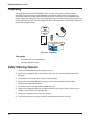
The shipping box contains the MT5634MU, one RJ-11 cable, your Quick Start Guide, and one
Installation CD (which contains the MT5634MU driver software, Global Wizard, Flash Wizard, the
PhoneTools software package and documentation materials, including this on-line MT5634MU User
Guide). Inspect the contents for signs of any shipping damage. If damage is observed, do not power up
the unit; contact Multi-Tech’s Technical Support for advice (see Appendix D). If no damage is observed,
perform the cabling procedure.
Installation CD
Four USB V.90 Modems
Quick Start Guide
MADE
IN U.S
.A
MADE IN
U.S.A
Figure 2-1: Unpacking
You supply
•
A computer with an unused USB port
•
A nearby telephone line jack
Safety Warning Telecom
1. Never install telephone wiring during a lightning storm.
2. Never install a telephone jack in wet locations unless the jack is specifically designed for wet
locations.
3. This product is to be used with UL and cUL listed computers.
4. Never touch uninsulated telephone wires or terminals unless the telephone line has been
disconnected at the network interface.
5. Use caution when installing or modifying telephone lines.
6. Avoid using a telephone (other than a cordless type) during an electrical storm. There may be a
remote risk of electrical shock from lightning.
7. Do not use a telephone in the vicinity of a gas leak.
8. To reduce the risk of fire, use only 26 AWG or larger telecommunication line cord.
14
Chapter 2 - Installation
Step 1: Connect the Modem to Your System
Connect the MT5634MU to your computer’s USB port and connect the telephone line to your
MT5634MU and a telephone wall jack.
Figure 2-2: Modem connections
USB Connection
Plug the USB cable connector on the modem into a USB port connector on your computer.
Line Connection
Plug one end of the phone cable into the modem’s LINE jack, and the other end into a phone line wall
jack.
Note: The Federal Communications Commission (FCC), and Industry Canada impose certain
restrictions on equipment connected to public telephone systems. See Appendix A for more
information.
15
MultiMobileUSB User Guide
Step 2: Installing the Modem
The MT5634MU is compatible with Windows XP/ 2000/ME/ 98 and some versions of Windows 95.
Installation in Windows XP
1. Power up your Windows XP system.
2. If you have not already done so, make all the necessary connections, including connecting the
modem to an available USB port.
3. Insert the MultiModem USB CD into your CD drive.
4. Windows will detect that the new modem is present and launch the Update Device Driver Wizard
dialog box.
5. Choose Install from a list or specifice location (Advanced), and click Next.
6. Select Don’t Search. I will choose the driver to install, and click Next.
7. Click the Have disk button. Browse to x:\Drivers\WinXP. Select the file there and click OK. (x
denotes your CD drive letter).
8. When the pop-up window comes up explaining that the driver is not digitally signed, click
Continue anyway to finish the installation.
NOTE: This Microsoft operating system searches for a digital signature when you install any new
hardware. If a "Digital Signature Not Found" screen appears, simply click the YES button to continue
installation. Although Multi-Tech submits all eligible products to Microsoft for certification, the turnaround time is subject to many factors. Not having a digital signature does not affect product
performance in any way.
Installation in Windows 2000
1. Power up your Windows 2000 system.
2. If you have not already done so, connect the MT5634MU to your computer’s USB port and connect
the telephone line to your MT5634MU and a telephone wall jack.
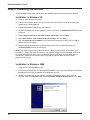
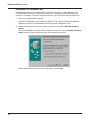
3. Windows will detect that the new modem is present and indicate that it's in the process of
installing. Then the Welcome screen of the Found New Hardware Wizard appears. Click Next
.
16
Chapter 2 - Installation
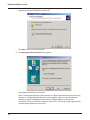
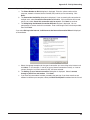
4. The Install Hardware Device Drivers screen appears indicating that it will install the hardware
device drivers.
Verify that the "Search for a suitable driver for my device (recommended)" is selected and then
click Next.
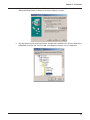
5. The Locate Driver Files screen appears asking where you want Windows to search for the driver
files.
Verify that the “Specify a location” option is the only box selected, place the MT5634MU
Installation CD into your CD drive, and click Next .
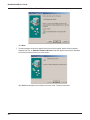
6. The next screen will say “Insert the manufacturer’s installation disk into the drive selected and then
click OK.”
Click on the Browse button (when prompted to insert a disk into drive A:\, click Cancel). Navigate
to your computer’s CD-ROM drive. Select the folder DRIVERS\WIN 2000. Select the file
MDMMTUSB.INFand click Open.
17
MultiMobileUSB User Guide
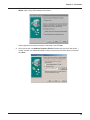
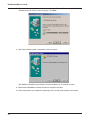
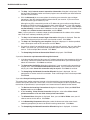
7. Then the Driver Files Search Results screen appears indicating that Windows has found the
proper driver from the MT5634MU Installation CD.
Click Next > to install the selected driver.
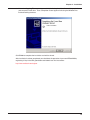
8. The Digital Signature Not Found screen appears.
Click Yes to continue with the installation.
NOTE: This Microsoft operating system searches for a digital signature when you install any new
hardware. If a "Digital Signature Not Found" screen appears, simply click the YES button to
continue installation. Although Multi-Tech submits all eligible products to Microsoft for
certification, the turn-around time is subject to many factors. Not having a digital signature does
not affect product performance in any way.
18
Chapter 2 - Installation
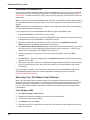
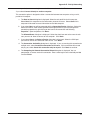
9. A transient Copying Files screen appears briefly indicating that driver files are being copied to
your computer’s hard drive. Then a completion screen appears indicating that Windows has
finished installing the driver.
Click Finish to complete the installation and exit the wizard.
After installation has been completed, you should test the operation of your new MT5634MU by
registering it. Key in the URL given below and follow the on-line instructions:
http://www.multitech.com/register
19
MultiMobileUSB User Guide
Installation in Windows ME
The MT5634MU driver files for Windows ME are installed in two groups, as described below. The
installation wizard begins by installing certain driver files. At that point, Windows ME detects the
modem as a new device. Then the installation wizard runs again to install the remaining driver files.
1. Power up your Windows ME computer.
2. Connect the MT5634MU to your computer’s USB port. Then connect one end of the provided
telephone line cord to your MT5634MU and the other end to a telephone wall jack.
3. Windows ME will detect that the new modem is present and launch the Add New Hardware
Wizard.
Place the MT5634MU Installation CD into the CD drive of your PC. The first Add New Hardware
Wizard screen will appear with the message “What would you like to do?”
Choose “Specify the location of the driver (Advanced)” and click Next.
20
Chapter 2 - Installation
4. At the Add New Hardware Wizard “Windows will search for new drivers... ” screen, uncheck the
“Removable Media” button (if necessary) and check “Specify a location.”
5. Click the “Browse” button and navigate to the “Windows ME” subfolder of the “Drivers” folder on the
MT5634MU Installation CD. Then click OK. Click Cancel if it prompts you for a floppy disk.
21
MultiMobileUSB User Guide
6. The Add New Hardware Wizard “Windows driver file search ...” screen appears.
Click Next.
7. Transient progress screens will appear while files are being copied. After the files have been
copied to your PC, an Add New Hardware Wizard screen will appear indicating that Windows
has finished installing this the first of two drivers.
Click Finish to complete the installation of this first driver. The wizard will close.
22
Chapter 2 - Installation
8. Windows ME will now detect an “Unknown Device” and begin another Add New Hardware
Wizard, again asking “What would you like to do?”
Choose “Specify the location of the driver (Advanced)” and click Next.
9. At the next screen, (the Add New Hardware Wizard “Windows will search for new drivers...”
screen), uncheck the “Removable Media” button (if necessary) and check “Specify a location.”
Click Next.
23
MultiMobileUSB User Guide
10. Transient screens will appear while files are being copied. The Add New Hardware Wizard
“Windows driver file search” screen will appear. Click Next.
11. After files have been copied, a completion screen will appear.
Click Finish to complete the installation of this the second driver. The wizard will close.
12. Remove the MT5634MU Installation CD from the computer’s CD drive.
13. Test the operation of your modem by registering it online at http://www.multitech.com/register.
24
Chapter 2 - Installation
Installation in Windows 98
1. Power up your Windows 98 system.
2. If you have not already done so, connect the MT5634MU to your computer’s USB port and connect
the telephone line to your MT5634MU and a telephone wall jack.
3. Windows will detect that the new modem is present and launch the Add New Hardware Wizard
dialog box.
4. Place the MT5634MU CD into your CD drive and click Next to proceed with the installation.
5. The Add New Hardware Wizard dialog box is displayed with the message “What do you want
Windows to do?” Verify that the “Search for the best driver for your device (Recommended).”
option is selected and click Next.
25
MultiMobileUSB User Guide
6. The Add New Hardware Wizard dialog box is displayed with the message “Windows will search
for a new driver . . .” Verify that the “CD-ROM drive” option is selected and click Next.
7. The Add New Hardware Wizard dialog box is displayed indicating that Windows has found an
updated driver for this device, and also some other drivers that should work with this device. Verify
that the “Updated driver (Recommended)” option is selected and click Next.
26
Chapter 2 - Installation
8. The Add New Hardware Wizard dialog box is displayed indicating that Windows will select the
proper driver from the MT5634MU Installation CD and will display the information for verification.
Click Next to install the selected driver.
8. Once the files have been copied to your PC, the Add New Hardware Wizard dialog box is
displayed indicating that Windows has finished installing the driver.
Click Finish to complete the installation and exit the wizard. The TR LED on your modem will light
when the installation is complete. Remove the CD from the computer.
Once installation is complete, you should test the operation of your new MT5634MU by registering
your MT5634MU product now. Key in the URL given below and follow the on-line instructions:
http://www.multitech.com/register
27
MultiMobileUSB User Guide
Installation in Windows 95
Only Certain versions of Windows 95 offer support for USB peripherals. If you are unsure if your Win95
system supports USB, a free USB evaluation utility is available from the Shopping Bag page at http://
www.usb.org. Just download the utility (287K) and run the .exe application. It will determine if you have
USB support.
Note 1: If you are currently running Windows 95 on a PC with an OHCI USB controller, you will need to
upgrade to Windows 98 to install your modem. If you have any questions, contact Multi-Tech Technical
Support.
Note 2: Dialog boxes for the Windows 95 installation are not shown because they may vary depending
on the version of Windows 95 being used.
If you would like to install your MT5634MU in Windows 95, perform the following steps.
1. Insert the MT5634MU Installation CD into your CD drive.
2. If you have not already done so, connect the MT5634MU to your computer’s USB port and connect
the telephone line to your MT5634MU and a telephone wall jack.
3. Windows will detect that the new modem is present and launch the Update Device Driver
Wizard dialog box. Click Next to proceed with the installation.
4. The Update Device Driver Wizard dialog box is displayed indicating that Windows has searched
for the driver on D:\ and, when identified, displays the driver name for verification. Verify that the
correct name is displayed and click Finish to install the driver.
5. Windows prompts you to insert the CD. You have already inserted the CD, so click OK to
continue.
6. The Copy Files ... dialog box is displayed. In the Copy files from field, choose D:\ from the dropdown list and click OK.
7. When driver installation is finished, a completion message will appear, the TR LED on your modem
will light, and the wizard will exit. At this time your installation is complete. Remove the CDfrom
the computer.
Once installation is complete, you should test the operation of your new MT5634MU by registering
your MT5634MU product now. Key in the URL given below and follow the on-line instructions:
http://www.multitech.com/register
Removing Your Old Modem from Windows
When your new modem replaces another modem, the old modem installation remains in Windows
even after you install the new modem. The old modem will still be selected in HyperTerminal and other
Windows applications. Although you can change the application connection descriptions one at a
time, it is easier to force Windows applications to use the new modem by removing the old modem
from Windows.
From Windows 2000
1. Click Start | Settings | Control Panel.
2. Double-click the Phone and Modems icon and click on the Modems tab.
3. In the list box, select the old modem.
4. Click Remove, then click Close.
5. The next time you dial a HyperTerminal connection, it will select your new modem and ask you to
confirm the selection.
28
Chapter 2 - Installation
From Windows ME
1. Go to Start | Settings | Control Panel
2. Double-click the Modems icon to open the Modems Properties screen.
3. In the General tab a list of modems appears. In this list, highlight the old modem.
4. Click Remove, and then click Close.
5. The next time you dial a HyperTerminal connection, it will select your new modem and ask you to
confirm the selection.
From Windows 98/95
1. Click Start | Settings | Control Panel.
2. Double-click the Modems icon to open the Modems Properties sheet.
3. In the list box, select the old modem.
4. Click Remove, then click Close.
5. The next time you dial a HyperTerminal connection, it will select your new modem and ask you to
confirm the selection.
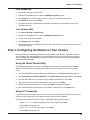
Step 3: Configuring the Modem for Your Country
Different countries have different requirements for how modems must function. Therefore, before you
use the modem, you must configure it to match the defaults of the country in which you are using it.
You can configure the MT5634MU either manually using AT commands or with the Global Wizard. Both
methods are described below.
Using the Global Wizard Utility
The Global Wizard configuration utility is recommended for computers running Windows 95/98/ME/
2000. The Global Wizard can configure your modem for a specific country with just a few mouse
clicks.
1. Insert the MT5634MU Installation CD into the CD-ROM drive. The Autorun dialog box appears.
2. Click Initial Setup and Country Selection. The Global Wizard dialog box appears. Click Next.
3. View the Global Wizard as it searches for your modem and identifies it. Click Next.
4. Select the country in which the modem will be used, and then click Next.
5. Review your choice of country. If it is correct, click Next to configure the modem.
6. When Global Wizard announces that the parameters have been set, click Finish to exit.
Using AT Commands
If you are comfortable using AT commands, you can configure your modem using AT commands. You
must enter these commands in your communication program’s terminal window.
To configure the modem for a specific country, execute the following AT commands:
1. Type AT%T19,0,nn (where nn represents the country code). Press Enter.
2. The modem will respond “OK.”
3. Type AT & F & W (this saves changes). Press Enter.
4. The modem will respond “OK.”
29
MultiMobileUSB User Guide
5. Type ATI9 (this verifies that country code has been chosen). Press Enter.
6. The modem will display the country code in decimal format followed by an “OK.”
7. Check to be sure the code for your country is displayed.
If not, repeat procedure to correct.
Here are two examples of country, command, and result codes.
Country
Euro/NAM*
Japan
AT Command
(Hexidecimal)
AT%T19,0,34 (default)
AT%T19,0,10
ATI9 Result Code
(Decimal)
52
16
Because the list of country codes is continually being updated, we present the complete list on our
Web site: http://www.multitech.com/GlobalModem/config
Step 4: Installing Data Communications Software
Data communications software is designed to send and receive messages about the operation of your
modem. Multi-Tech includes PhoneTools communications software with your modem. However, the
modem will work with most data communications software packages. To install PhoneTools, insert the
Installation CD into the CD-ROM drive; click on the PhoneTools icon. You will be asked to choose
your language. The software will be loaded automatically onto your PC.
30
Chapter 3 - AT Commands, S-Registers & Result Codes
MultiMobileUSB User Guide
AT Commands
AT commands are used to control the operation of your modem. They are so called because each
command must be preceded by the characters AT to get the ATtention of the modem.
AT commands can be issued only when the modem is in command mode or online command mode.
The modem is in command mode whenever it is not connected to another modem. The modem is in
data mode whenever it is connected to another modem and ready to exchange data. Online command
mode is a temporary state in which you can issue commands to the modem while connected to
another modem. To put the modem into online command mode from data mode, you must issue an
escape sequence (+++) followed immediately by the AT characters and the command, e.g., +++ATH
to hang up the modem. To return to data mode from online command mode, you must issue the
command ATO.
To send AT commands to the modem you must use a communications program, such as the
HyperTerminal applet in Windows 95 and NT 4.0, or the communications program included with your
modem. You can issue commands to the modem either directly, by typing them in the terminal window
of the communications program, or indirectly, by configuring the operating system or communications
program to send the commands automatically. Fortunately, communications programs make daily
operation of modems effortless by hiding the commands from the user. Most users, therefore, need to
use AT commands only when reconfiguring the modem, e.g., to turn autoanswer on or off.
The format for entering an AT command is ATXn, where X is the command and n is the specific value
for the command, sometimes called the command parameter. The value is always a number. If the
value is zero, you can omit it from the command; thus, AT&W is equivalent to AT&W0. Most
commands have a default value, which is the value that is set at the factory. The default values are
shown in the “AT Command Summary,” which begins on the next page.
You must press ENTER to send the command to the modem. Any time the modem receives a
command, it sends a response known as a result code. The most common result codes are OK,
ERROR, and the CONNECT messages that the modem sends to the computer when it is connecting
to another modem. For a table of valid result codes, see “Result Codes” at the end of this chapter.
You can issue several commands in one line, in what is called a command string. The command string
begins with AT and ends when you press ENTER. Spaces to separate the commands are optional;
they are ignored by the command interpreter. The most familiar command string is the initialization
string, which is used to configure the modem when it is turned on or reset, or when your
communications software calls another modem.
32
Chapter 3 - AT Commands, S-Registers and Result Codes
AT Command Summary
Command: AT
Values:
Description:
Attention Code
n/a
The attention code precedes all command lines except A/, A:, and escape sequences.
Command: ENTER Key
Values:
n/a
Description:
Press the ENTER (RETURN) key to execute most commands.
Command: A
Values:
Description:
Answer
n/a
Answer call before final ring.
Command: A/
Values:
Description:
Repeat Last Command
n/a
Repeat the last command string. Do not precede this command with AT. Do not press ENTER to
execute.
Command: Bn
Values:
Default:
Description: B0
B1
B2
B3
B15
B16
Communication Standard Setting
n = 0–3, 15, 16
1 and 16
Select ITU-T V.22 mode when modem is at 1200 bps.
Select Bell 212A when modem is at 1200 bps.
Deselect V.23 reverse channel (same as B3).
Deselect V.23 reverse channel (same as B2).
Select V.21 when the modem is at 300 bps.
Select Bell 103J when the modem is at 300 bps.
Command: Cn
Values:
Default:
Description: C0
C1
Carrier Control
n=1
1
Transmit carrier always off. (Not supported.)
Normal transmit carrier switching (included for backward compatibility with some software).
Command: Ds
Values:
Default:
Description:
Dial
s = dial string (phone number and dial modifiers)
none
Dial telephone number s, where s may up to 40 characters long and include the 0–9, *, #, A, B,
C, and D characters, and the L, P, T, V, W, S, comma (,), semicolon (;), !, @, ^ and $ dial
string modifiers.
Dial string modifiers:
L Redial last number. (Must be placed immediately after ATD.)
P Pulse-dial following numbers in command.
T Tone-dial following numbers in command (default).
V Switch to speakerphone mode and dial the following number. Use ATH command to hang up.
W Wait for a new dial tone before continuing to dial. (X2, X4, X5, X6, or X7 must be selected.)
, Pause during dialing for time set in register S8.
; Return to command mode after dialing. (Place at end of dial string.)
! Hook flash. Causes the modem to go on-hook for one-half second, then off-hook again.
@ Wait for quiet answer. Causes modem to wait for a ringback, then 5 seconds of silence, before processing next part of command. If silence is not detected, the modem returns a NO
33
MultiMobileUSB User Guide
ANSWER code.
^ Disable data calling tone transmission.
$ Detect AT&T call card “bong” tone. The character should follow the phone number and precede the user’s call card number: ATDT1028807637853500$123456789
Command: DS= y Dial Stored Telephone Number
Values:
n = 0–1
Default:
none
Description:
Dial a number previously stored in directory number y by the &Zy=x command.
Example: ATDS=1
Command: En
Values:
Default:
Description: E0
E1
Echo Command Mode Characters
n = 0 or 1
1
Do not echo keyboard input to the terminal.
Do echo keyboard input to the terminal.
Command: Fn
Values:
Default:
Description: F0
F1
Echo Online Data Characters
n=1
1
Enable online data character echo. (Not supported.)
Disable online data character echo (included for backward compatibility with some software).
Command: Hn
Values:
Default:
Description: H0
H1
Hook Control
n = 0 or 1
0
Go on-hook (hang up).
Go off-hook (make the phone line busy).
Command: In
Values:
Default:
Description: I0
I1
I2
I3
I4
I5
I9
I11
Information Request
n = 0–5, 9, 11
None
Display default speed and controller firmware version.
Calculate and display ROM checksum (e.g., 12AB).
Check ROM and verify the checksum, displaying OK or ERROR.
Display default speed and controller firmware version.
Display firmware version for data pump (e.g., 94).
Display the board ID: software version, hardware version, and country ID
Display the country code (e.g., NA Ver. 1).
Display diagnostic information for the last modem connection, such as DSP and firmware version, link type, line speed, serial speed, type of error correction/data compression, number of
past retrains, etc.
Command: Mn
Values:
Default:
Description: M0
M1
M2
M3
Monitor Speaker Mode
n = 0, 1, 2, or 3
1
Speaker always off.
Speaker on until carrier signal detected.
Speaker always on when modem is off-hook.
Speaker on until carrier is detected, except while dialing.
34
Chapter 3 - AT Commands, S-Registers and Result Codes
Command: Nn
Values:
Default:
Description: N0
N1
Modulation Handshake
n = 0 or 1
1
Modem performs handshake only at communication standard specified by S37 and the B command.
Modem begins handshake at communication standard specified by S37 and the B command.
During handshake, fallback to a lower speed can occur.
Command: On
Values:
Default:
Description: O0
O1
O3
Return Online to Data Mode
0, 1, 3
None
Exit online command mode and return to data mode (see +++AT<CR> escape sequence ).
Issue a retrain and return to online data mode.
Issue a rate renegotiation and return to data mode.
Command: P
Values:
Default:
Description:
Pulse Dialing
P, T
T
Configures the modem for pulse (non-touch-tone) dialing. Dialed digits are pulsed until a T command or dial modifier is received.
Command: Qn
Values:
Default:
Description: Q0
Q1
Q2
Result Codes Enable/Disable
n = 0 or 1
0
Enable result codes.
Disable result codes.
Returns an OK for backward compatibility with some software.
Command: Sr=n
Values:
Default:
Description:
Set Register Value
r = S-register number; n varies
None
Set value of register Sr to value of n, where n is entered in decimal format. E.g., S0=1.
Command: Sr?
Values:
Default:
Description:
Read Register Value
r = S-register number
None
Read value of register Sr and display it in 3-digit decimal form. E.g., S2? gives the response 043.
Command: T
Values:
Default:
Description:
Tone Dialing
P, T
T
Configures the modem for DTMF (touch-tone) dialing. Dialed digits are tone dialed until a P command or dial modifier is received.
Command: Vn
Values:
Default:
Description: V0
V1
Result Code Format
n = 0 or 1
1
Displays result codes as digits (terse response).
Displays result codes as words (verbose response).
35
MultiMobileUSB User Guide
Command: Wn
Values:
Default:
Description: W0
W1
W2
Result Code Options
n = 0, 1, or 2
2
CONNECT result code reports serial port speed, disables protocol result codes.
CONNECT result code reports serial port speed, enables protocol result codes.
CONNECT result code reports line speed, enables protocol result codes.
Command: Xn
Values:
Default:
Description: X0
X1
Result Code Selection
n = 0–7
4
Basic result codes (e.g., CONNECT); does not look for dial tone or busy signal.
Extended result codes (e.g., CONNECT 46000 V42bis); does not look for dial tone or busy signal.
Extended result codes with NO DIALTONE; does not look for busy signal.
Extended result codes with BUSY; does not look for dial tone.
Extended result codes with NO DIALTONE and BUSY.
Extended result codes with NO DIALTONE and BUSY.
Extended result codes with NO DIALTONE and BUSY.
Basic result codes with NO DIALTONE and BUSY.
X2
X3
X4
X5
X6
X7
Command: Yn
Values:
Default:
Description: Y0
Y1
Long Space Disconnect
n=0
0
Disable sending or responding to long space break signal on disconnect.
Enable sending or responding to long space break signal on disconnect. (Not supported.)
Command: Zn
Values:
Default:
Description: Z0
Z1
Modem Reset
n = 0 or 1
None
Reset modem to profile saved by the last &W command.
Same as Z0.
Command: &Bn
Values:
Default:
Description: &B0
&B1
V.32 Auto Retrain
n=1
1
Disable V.32 auto retrain. (Not supported.)
Enable V.32 auto retrain.
Command: &Cn
Values:
Default:
Description: &C0
&C1
Data Carrier Detect (DCD) Control
n = 0 or 1
1
Forces the DCD circuit to be always high.
DCD goes high when the remote modem’s carrier signal is detected, and goes low when the carrier signal is not detected.
&C2 DCD drops briefly following disconnect, then goes high again. Register S18 defines how long
DCD signal remains low after disconnect.
36
Chapter 3 - AT Commands, S-Registers and Result Codes
&En XON/XOFF Pacing Control
Command:
Values:
n = 12 or 13
Default:
12
Description: &E12 Disables XON/XOFF pacing.
&E13 Enables XON/XOFF pacing. (&K4 must also be set)
Note: &E13 has no effect if hardware control (&K3) is selected.
Caution: Do not enable pacing unless you need it. Some applications may not work if pacing is enabled.
Command: &Fn
Values:
Default:
Description: &F0
Load Factory Settings
n=0
None
Load factory settings as active configuration.
Note: See also the Z command.
Command: &Gn
Values:
Default:
Description: &G0
&G1
&G2
V.22bis Guard Tone Control
n = 0, 1, or 2
0
Disable guard tone.
Set guard tone to 550 Hz.
Set guard tone to 1800 Hz.
Note: The &G command is not used in North America.
Command: &Kn
Values:
Defaults:
Description: &K0
&K3
&K4
Flow Control Selection
n = 0, 3, or 4
3
Disable flow control.
Enable CTS/RTS hardware flow control.
Enable XON/XOFF software flow control.
Command: &Qn
Values:
Default:
Description: &Q0
&Q5
&Q6
&Q8
Asynchronous Communications Mode
n = 0, 5, 6, 8, or 9
5
Asynchronous with data buffering. Same as \N0.
Error control with data buffering. Same as \N3.
Asynchronous with data buffering. Same as \N0.
MNP error control mode. If MNP error control is not established, the modem falls back according
to the setting in S36.
&Q9 V.42 or MNP error control mode. If neither error control is established, the modem falls back according to the setting in S36.
Command: &Sn
Values:
Default:
Description: &S0
&S1
Data Set Ready (DSR) Control
n = 0 or 1
0
Force DSR always high (on).
Let DSR go high only during a connection.
37
MultiMobileUSB User Guide
Command: &Tn
Values:
Default:
Description: &T0
&T1
&T3
&T6
V.54 Test Commands
n = 0, 1, 3 or 6
None
Abort. Stop any test in progress.
Local analog loopback test.
Local digital loopback test.
Remote digital loopback test.
Note: To stop a test, you must use the escape sequence (+++AT) before typing AT&T0.
Command: &V
Values:
Description:
Display Current Settings
n/a
Displays the active modem settings, including the callback security settings if callback security
is enabled. If the setup password has been entered, it also displays the callback security passwords.
Command: &Wn
Values:
Default:
Description: &W0
Store Current Configuration
n=0
None
Stores current modem settings in nonvolatile memory and causes them to be loaded at power-on
or following the ATZ command instead of the factory defaults. See also the &F command.
&W1 Clears user default settings from nonvolatile memory and causes the factory defaults to be
loaded at power-on or following the ATZ command.
Command: &Yn
Values:
Default:
Description: &Y0
&Y1
Select Stored Configuration for Hard Reset
n=0
0
Select stored configuration 0 on power-up. (For backward compatibility with some software.)
Not supported—responds ERROR.
Command: &Zy=x Store Dialing Command
y = 0–1
Values:
x = Dialing command
Default:
None
Description:
Stores dialing command x in memory location y. Dial the stored number using the command
ATDS=y.
Command: \An
Values:
Default:
Description: \A0
\A1
\A2
\A3
Select Maximum MNP Block Size
n = 0, 1, 2, or 3
3
64-character maximum.
128-character maximum.
192-character maximum.
256-character maximum.
Command: \Bn
Values:
Default:
Description:
Transmit Break
n = 0–9 in 100 ms units
3
In non-error-correction mode only, sends a break signal of the specified length to a remote modem. Works in conjunction with the \K command.
38
Chapter 3 - AT Commands, S-Registers and Result Codes
Command: \Gn
Values:
Default:
Description: \G0
\G1
Modem Port Flow Control
n=0
0
Returns an OK for backward compatibility with some software.
Not supported—responds ERROR.
Command: \Jn
Values:
Default:
Description: \J0
\J1
Data Buffer Control
n=0
0
Enable data buffer—serial port speed is independent of connect speed.
Disable data buffer—serial port speed is forced to the line speed.
Command: \Kn
Values:
Default:
Description:
Break Control
n = 0–5
5
Controls the response of the modem to a break received from the computer, the remote modem,
or the \B command. The response is different for each of three different states.
\K0
\K1
\K2
\K3
\K4
\K5
Data mode. The modem receives the break from the computer:
Enter online command mode, no break sent to the remote modem.
Clear data buffers and send break to the remote modem.
Same as \K0.
Send break immediately to the remote modem .
Same as \K0.
Send break to the remote modem in sequence with the transmitted data.
\K0
\K1
\K2
\K3
\K4
\K5
Data mode. The modem receives the break from the remote modem:
Clear data buffers and send break to the computer.
Same as \K0.
Send break immediately to the computer.
Same as \K2.
Send break to the computer in sequence with the received data.
Same as \K4.
\K0
\K1
\K2
\K3
\K4
\K5
Online command mode. The modem receives a \Bn command from the computer:
Clear data buffers and send break to the remote modem.
Same as \K0.
Send break immediately to the remote modem.
Same as \K2.
Send break to the remote modem in sequence with the transmitted data.
Same as \K4.
Command: \Nn
Values:
Default:
Description: \N0
\N1
\N2
\N3
\N4
\N5
\N7
Error Correction Mode Selection
n = 0–5, or 7
3
Non-error correction mode with data buffering (buffer mode; same as &Q6).
Direct mode.
MNP reliable mode. If the modem cannot make an MNP connection, it disconnects.
V.42/MNP auto-reliable mode. The modem attempts first to connect in V.42 error correction
mode, then in MNP mode, and finally in non-error-correction (buffer) mode with continued operation.
V.42 reliable mode. If the modem cannot make a V.42 connection, it disconnects.
V.42, MNP, or non-error correction (same as \N3).
V.42, MNP, or non-error correction (same as \N3).
39
MultiMobileUSB User Guide
Command: \Qn
Values:
Default:
Description: \Q0
\Q1
\Q2
\Q3
Flow Control Selection
n = 0, 1, or 3
3
Disable flow control (same as &K0).
XON/XOFF software flow control (same as &K4).
CTS-only flow control. Not supported.
RTS/CTS hardware flow control (same as &K3).
Command: \Tn
Values:
Default:
Description: \Tn
Inactivity Timer
n = 0, 1–255
0
Sets the time (in minutes) after the last character is sent or received that the modem waits before disconnecting. A value of zero disables the timer. Applies only in buffer mode.
Note: You can also set the inactivity timer by changing the value of S30.
Command: \Vn
Values:
Default:
Description: \V0
\V1
\V2
Protocol Result Code
n = 0, 1, or 2
1
Disable the appending of the protocol result code to the DCE speed.
Enable the appending of the protocol result code to the DCE speed.
Same as \V1.
Command: \Xn
Values:
Defaults:
Description: \X0
\X1
XON/XOFF Pass-Through
n = 0 or 1
0
Modem responds to and discards XON/XOFF characters.
Modem responds to and passes XON/XOFF characters.
Command: -Cn
Values:
Defaults:
Description: -C0
-C1
Data Calling Tone
n = 0 or 1
0
Disable V.25 data calling tone to deny remote data/fax/voice discrimination.
Enable V.25 data calling tone to allow remote data/fax/voice discrimination.
Command: %A
Values:
Defaults:
Description:
Adaptive Answer Result Code Enable
n = 0 or 1
0
The %A command controls whether the DATA and FAX result codes will be sent by the modem.
The modem must be in fax mode for this command to work. Also, the modem must be set to
+FAA=1 which enables the modem to distinguish between a fax and a data call. When these
commands are enabled, the modem sends DATA to the computer when it detects data tones
and FAX when it detects fax tones. These strings are used by some servers to select the appropriate communication program.
%A0 Disables adaptive answer result codes.
%A1 Enables adaptive answer result codes.
Command: %B
Values:
Description:
40
View Numbers in Blacklist
n/a
If blacklisting is in effect, AT%B displays the numbers for which the last call attempted in the
previous two hours failed. In countries that do not require blacklisting, the ERROR result code
appears.
Chapter 3 - AT Commands, S-Registers and Result Codes
Command: %Cn
Values:
Default:
Description: %C0
%C1
Data Compression Control
n = 0 or 1
1
Disable V.42bis/MNP 5 data compression.
Enable V.42bis/MNP 5 data compression.
Command: %En
Values:
Default:
Description: %E0
%E1
%E2
Fallback and Fall Forward Control
n = 0, 1, or 2
2
Disable fallback and fall forward.
Enable fallback, disable fall forward.
Enable fallback and fall forward.
Command: #Sx
Values:
Default:
Description:
Enter Setup Password
x= password (1–8 characters, case sensitive)
MTSMODEM
Enters the remote configuration setup password.
Command: #S=x
Values:
Default:
Description:
Store Setup Password
x= password (1–8 characters, case sensitive)
MTSMODEM
Stores a new remote configuration setup password.
Command:+++AT<CR> Escape Sequence
Values:
n/a
Description:
Puts the modem in command mode (and optionally issues a command) while remaining online.
Type +++AT and up to ten command characters, then press ENTER. Used mostly to issue the
hang-up command: +++ATH<CR>.
Command: %%%AT<CR>Remote Configuration Escape Sequence
Values:
n/a
Description:
Initiates remote configuration mode while online with remote modem. The remote configuration
escape character (%) is defined in register S13.
41
MultiMobileUSB User Guide
S-Registers
Certain modem values, or parameters, are stored in memory locations called S-registers. Use the S
command to read or to alter the contents of S-registers (see previous section).
Register
Unit
Range
Default
S0
1 ring
0, 1–255 1
Sets the number of rings until the modem
answers. ATS0=0 disables autoanswer completely.
S1
1 ring
0–255
Counts the rings that have occurred.
S2
decimal
0–127
43 (+)
128–255
S3
decimal
0–127
13 (^M) Sets the ASCII code for the carriage return
character.
S4
decimal
0–127
10 (^J)
Sets the ASCII code for the line feed
character.
S5
decimal
0–32
33–127
8 (^H)
Sets the ASCII code for the backspace
character. Values greater than 32 disable
backspace.
S6
seconds 2–65*
2*
Sets the time the modem waits after it goes
off-hook before it begins to dial the telephone
number.
S7
seconds 1–255*
50*
Sets the time the modem waits for a carrier
signal before aborting a call. Also sets the wait
for silence time for the @ dial modifier.
S8
seconds 0–65
2
Sets the length of a pause caused by a
comma character in a dialing command.
S9
decimal
0, 1–127 37 (%)
Sets ASCII code for remote configuration
escape character. S9=0 disables remote
configuration.
S10
100 ms
1–254
Sets how long a carrier signal must be lost
before the modem disconnects.
S11
1 ms
50–150* 95*
Sets spacing and duration of dialing tones.
S18
1 ms
0–255
Sets duration of time from the time the carrier
signal goes low and then goes high again as
set up by the &C2 command.
S28
decimal
0, 1–255 1
S30
1 minute 0, 1–255 0
S35
decimal
0
20
20
42
Sets ASCII code for the escape sequence
character. Values greater than 127 disable
escape.
0 disables, 1–255 enables V.34 modulation.
Sets the length of time that the modem waits
before disconnecting when no data is sent or
received. A value of zero disables the timer.
See also the \T command.
0–1
0
d
S36
Description
decimal
0–7
7
0 disables, 1 enables the V.25 data calling
tone, which allows remote data/fax/voice
iscrimination.
Specifies the action to take in the event of a
negotiation failure when error control is
selected. (See S48.)
Chapter 3 - AT Commands, S-Registers and Result Codes
Register
Unit
Range
Default
Description
S37
decimal
0–19
0
Sets the maximum V.34 “upstream” speed at
which the modem attempts to connect.
0 = maximum modem speed
1 = reserved
2 = 1200/75 bps
3 = 300 bps
4 = reserved
5 = 1200 bps
6 = 2400 bps
7 = 4800 bps
8 = 7200 bps
9 = 9600 bps
10 = 12000 bps
11 = 14400 bps
12 = 16800 bps
13 = 19200 bps
14 = 21600 bps
15 = 24000 bps
16 = 26400 bps
17 = 28800 bps
18 = 31200 bps
19 = 33600 bps
S38
decimal
0–23
1
Sets “downstream” data rate where K56flex
provides rates of 32,000 to 56,000 in 2,000
bps increments, V.90 provides rates of 28,000
to 56,000 bps in increments of 1,333 bps.
0 = V.90 disabled
1 = V.90 autorate
K56flex rates
2 = 28,000 bps
2 = 32,000 bps
3 = 29,333 bps
3 = 34,000 bps
4 = 30,666 bps
4 = 36,000 bps
5 = 32,000 bps
5 = 38,000 bps
6 = 33,333 bps
6 = 40,000 bps
7 = 34,666 bps
7 = 42,000 bps
8 = 36,000 bps
8 = 44,000 bps
9 = 37,333 bps
9 = 46,000 bps
10 = 38,666 bps
10 = 48,000 bps
11 = 40,000 bps
11 = 50,000 bps
12 = 41,333 bps
12 = 52,000 bps
13 = 42,666 bps
13 = 54,000 bps
14 = 44,000 bps
14 = 56,000 bps
15 = 45,333 bps
16 = 46,666 bps
17 = 48,000 bps
18 = 49,333 bps
19 = 50,666 bps
20 = 52,000 bps
21 = 53,333 bps
22 = 54,666 bps
23 = 56,000 bps
Upstream data rates
The upstream V.90 data rate are 4800 to
33,600 bps in 2400 bps increments.
43
MultiMobileUSB User Guide
Register
Unit
Range
Default
Description
S42
decimal
0–1
1
Enables/disables the 56K auto rate. When
56K auto is disabled, fallback to V.34 is also
disabled. 0 = disable; 1 = enable.
S43
decimal
0–1
1
For testing and debugging only. Enables/
disables V.32bis start-up auto mode operation.
0 = disable; 1 = enable.
S48
decimal
7 or 128 7
Enables (7) or disables (128) LAPM
negotiation. The following table lists the S36
and S48 configuration settings for certain
types of connections.
S48=7
S89
seconds 0, 5–255 10
S109
decimal
S48=128
S36=0, 2
LAPM or hangup
Do not use
S36=1, 3
LAPM or async
Async
S36=4, 6
LAPM, MNP, or hangup
MNP or hangup
S36=5, 7
LAPM, MNP, or aysnc
MNP or async
Sets the length of time in the off-line command
mode before the modem goes into standby
mode. A value of zero prevents standby mode;
a value of 1–4 sets the value to 5.
0--2
1
Sets one of three 56K operating modes:
K56flex mode, V.90 mode, or Auto-mode.
S109=2 forces V.90 connections for testing
purposes, etc. S109 sets the 56K operating
mode as shown below:
0 = V.90 disabled
1 = K56flex or V.90 (Dual mode enabled)
2 = V.90 only (K56flex disabled).
Result Codes
In command mode your modem can send responses called result codes to your computer. Result
codes are used by communications programs and can also appear on your monitor.
Terse
0
1
2
3
4
5*
6
7
8
10*
11*
12*
13*
14*
24*
25*
26*
40*
44
Verbose
OK
CONNECT
RING
NO CARRIER
ERROR
CONNECT 1200
NO DIALTONE
BUSY
NO ANSWER
CONNECT 2400
CONNECT 4800
CONNECT 9600
CONNECT 14400
CONNECT 19200
CONNECT 7200
CONNECT 12000
CONNECT 16800
CONNECT 300
Description
Command executed
Modem connected to line
Ring signal detected
Carrier signal lost or not detected
Invalid command
Connected at 1200 bps
No dial tone detected
Busy signal detected
No answer at remote end
Connected at 2400 bps
Connected at 4800 bps
Connected at 9600 bps
Connected at 14400 bps
Connected at 19200 bps
Connected at 7200 bps
Connected at 12000 bps
Connected at 16800 bps
Connected at 300 bps
Chapter 3 - AT Commands, S-Registers and Result Codes
55*
56*
57*
58*
59*
60*
70*
71*
72*
73*
74*
75*
76*
77*
78*
79*
80*
81*
82*
88
89
90
100
101
102
103
104
105
106
107
108
109
110
111
112
113
114
CONNECT 21600
CONNECT 24000
CONNECT 26400
CONNECT 28800
CONNECT 31200
CONNECT 33600
CONNECT 32000
CONNECT 34000
CONNECT 36000
CONNECT 38000
CONNECT 40000
CONNECT 42000
CONNECT 44000
CONNECT 46000
CONNECT 48000
CONNECT 50000
CONNECT 52000
CONNECT 54000
CONNECT 56000
DELAYED
BLACKLISTED
BLACKLIST FULL
CONNECT 28000
CONNECT 29333
CONNECT 30666
CONNECT 33333
CONNECT 34666
CONNECT 37333
CONNECT 38666
CONNECT 41333
CONNECT 42666
CONNECT 45333
CONNECT 46666
CONNECT 49333
CONNECT 50666
CONNECT 53333
CONNECT 54666
Connected at 21600 bps
Connected at 24000 bps
Connected at 26400 bps
Connected at 28800 bps
Connected at 31200 bps
Connected at 33600 bps
Connected at 32000 bps, 56K rate
Connected at 34000 bps, 56K rate
Connected at 36000 bps, 56K rate
Connected at 38000 bps, 56K rate
Connected at 40000 bps, 56K rate
Connected at 42000 bps, 56K rate
Connected at 44000 bps, 56K rate
Connected at 46000 bps, 56K rate
Connected at 48000 bps, 56K rate
Connected at 50000 bps, 56K rate
Connected at 52000 bps, 56K rate
Connected at 54000 bps, 56K rate
Connected at 56000 bps, 56K rate
Delay is in effect for the dialed number
Dialed number is blacklisted
Blacklist is full
Connected at 28000 bps, V.90 rate
Connected at 29333 bps, V.90 rate
Connected at 30666 bps, V.90 rate
Connected at 33333 bps, V.90 rate
Connected at 34666 bps, V.90 rate
Connected at 37333 bps, V.90 rate
Connected at 38666 bps, V.90 rate
Connected at 41333 bps, V.90 rate
Connected at 42666 bps, V.90 rate
Connected at 45333 bps, V.90 rate
Connected at 46666 bps, V.90 rate
Connected at 49333 bps, V.90 rate
Connected at 50666 bps, V.90 rate
Connected at 53333 bps, V.90 rate
Connected at 54666 bps, V.90 rate
* EC is added to these result codes when the extended result codes configuration option is enabled. EC is replaced by one of the following
codes, depending on the type of error control connection:
V42bis —V.42 error control (LAP-M) and V.42bis data compression
V42 —V.42 error control (LAP-M) only
MNP5 —MNP 4 error control and MNP 5 data compression
MNP4 —MNP 4 error control only
NoEC —No error control protocol).
45
MultiMobileUSB User Guide
46
Chapter 4 - Troubleshooting
MultiMobileUSB User Guide
Introduction
Your modem was thoroughly tested at the factory before it was shipped. If you are unable to make a
successful connection, or if you experience data loss or garbled characters during your connection, it
is possible that the modem is defective. However, it is more likely that the source of your problem lies
elsewhere. The following symptoms are typical of problems you might encounter:
•
None of the LEDs light when the modem is on.
•
The modem does not respond to commands.
•
The modem dials but is unable to make a connection.
•
The modem disconnects while online.
•
The modem cannot connect when answering.
•
The modem doesn’t work with Caller ID.
•
Fax and data software can’t run at the same time.
If you experience problems, please check the following possibilities before calling Technical Support
(see Appendix D).
None of the Indicators Light
When you plug in the modem, the operating system detects and configures the modem, and the TR
LED should come on.
If the TR LED does not come on, check to see that the software from the MT5634MU Installation CD
has been installed (see Chapter 2, Step 2: Installing the Modem).
The Modem Does Not Respond to Commands
48
•
Make sure you are issuing the modem commands from the data communications software,
either manually in terminal mode or automatically by configuring the software. (You cannot
send commands to the modem from the DOS prompt.)
•
Make sure you are in terminal mode in your data communications program, then type AT and
press ENTER. If you get an OK response, your connections are good and the problem likely is
in the connection setup in your communications software.
•
Try resetting your modem by unplugging the USB cable from the modem, and then plugging it
back in.
•
Try rebooting the computer.
•
The modem might be defective. If you have another Multi-Tech modem, try swapping modems.
If the problem goes away, the first modem is possibly defective. Call Tech Support for
assistance (see Appendix D).
Chapter 4 - Troubleshooting
The Modem Dials But Cannot Connect
There can be several reasons the ZBA fails to make a connection. Possibilities include
•
lack of a physical connection to the telephone line.
•
incompatibility between modems.
•
a busy signal.
•
a wrong number.
•
no modem at the other end.
•
a faulty modem, computer, or software at the other end.
You can narrow the list of possibilities by using extended result codes. Extended result codes are
enabled by default. If they have been disabled, enter ATV1X4 and press ENTER while in terminal
mode, or include V1X4 in the modem’s initialization string. When you dial again, the modem will report
the call’s progress.
•
If the modem reports NO DIALTONE, check that the modem’s telephone line cable is
connected to both the modem’s LINE jack (not the PHONE jack) and the telephone wall jack.
If the cable looks secure, try replacing it. If that doesn’t work, the problem might be in your
building’s telephone installation. To test the building installation, plug a telephone into your
modem’s telephone wall jack and listen for a dial tone. If you hear a dial tone, your modem
might be installed behind a company phone system (PBX) with an internal dial tone that
sounds different from the normal dial tone. In that case, the modem might not recognize the
dial tone and might treat it as an error. Check your PBX manual to see if you can change the
internal dial tone; if you can’t, change your modem’s initialization string to replace X4 with X3,
which will cause the modem to ignore dial tones (note, however, that X3 is not allowed in some
countries, such as France and Spain).
•
If the modem reports BUSY, the other number might be busy, in which case you should try
again later, or it might indicate that you have failed to add a 9, prefix to the phone number if
you must dial 9 for an outside line.
If you must dial 9 to get an outside line, the easiest way to dial it automatically is to include it
in the modem’s dial prefix, e.g., ATDT9,. Note the comma, which inserts a pause before the
number is dialed. By inserting 9, into the dial prefix, you do not have to include it in each
directory entry.
To change the dial prefix in Windows 98 HyperTerminal, select Call from the Call menu, click
Dialing Properties, and type 9 in the local and long distance boxes in How I dial from this
location.
•
If the modem reports NO ANSWER, the other system has failed to go off-hook, or you might
have dialed a wrong number. Check the number.
•
If the modem reports NO CARRIER, the phone was answered at the other end, but no
connection was made. You might have dialed a wrong number, and a person answered instead
of a computer, or you might have dialed the correct number but the other computer or software
was turned off or faulty. Check the number and try again, or try calling another system to make
sure your modem is working. Also, try calling the number on your telephone. If you hear harsh
sounds, then another modem is answering the call, and the modems might be having
problems negotiating because of modem incompatibilities or line noise. Try connecting at a
lower speed.
49
MultiMobileUSB User Guide
The Modem Disconnects While Online
•
If you have Call Waiting on the same phone line as your modem, it can interrupt your
connection when someone tries to call you. If you have Call Waiting, disable it before each
call. In most telephone areas in North America, you can disable Call Waiting by preceding the
telephone number with *70 (check with your local telephone company).
You can automatically disable Call Waiting by including the disabling code in the modem’s dial
prefix (e.g., ATDT*70,—note the comma, which inserts a pause before the number is dialed).
To change the dial prefix in Windows 98 HyperTerminal, select Call from the Call menu, click
Dialing Properties, check This location has Call Waiting, and select the correct code for
your phone service.
•
If you have extension phones on the same line as your modem, you or someone else can
interrupt the connection by picking up another phone. If this is a frequent problem, disconnect
the extension phones before using the modem, or install another phone line especially for the
modem.
•
Check for loose connections between the modem and the computer and the telephone jack.
•
You might have had a poor connection because of line conditions or the problem might have
originated on the other end of the line. Try again.
•
If you were online with an online service, it might have hung up on you because of lack of
activity on your part or because you exceeded your time limit for the day. Try again.
The Modem Cannot Connect When Answering
•
Autoanswer might be disabled. Turn on autoanswer in your data communications program or
send the command ATS0=1 (ATS0=2 if you have Caller ID service) to make sure your modem
in terminal mode.
The Modem Doesn’t Work with Caller ID
•
Caller ID information is transmitted between the first and second rings, so if autoanswer is
turned off (S0=0) or if the modem is set to answer after only one ring (S0=1), the modem will
not receive Caller ID information. Check your initialization string, and if necessary change it to
set the modem to answer after the second ring (S0=2).
•
Make sure that you have Caller ID service from your telephone company.
Fax and Data Software Can’t Run at the Same Time
Communications devices can be accessed by only one application at a time. In Windows 98, you can
have data and fax communication applications open at the same time, but they cannot use the same
modem at the same time.Chapter 6 - Warranty, Service and Tech Support
50
Appendices
MultiMobileUSB User Guide
Appendix A: Regulatory Agency Compliance
Class B Statement
FCC Part 15
This equipment has been tested and found to comply with the limits for a Class B digital device,
pursuant to Part 15 of the FCC Rules. These limits are designed to provide reasonable protection
against harmful interference in a residential installation. This equipment generates, uses and can
radiate radio frequency energy and, if not installed and used in accordance with the instructions, may
cause harmful interference to radio communications. However, there is no guarantee that interference
will not occur in a particular installation. If this equipment does cause harmful interference to radio or
television reception, which can be determined by turning the equipment off and on, the user is
encourgaed to try to correct the interference by one or more of the following measures:
•
Reorient or relocate the receiving antenna.
•
Increase the separation between the equipment and receiver.
•
Connect the equipment into an outlet on a circuit different from that to which the receiver is
connected.
•
Consult the dealer or an experienced radio/TV technician for help.
This device complies with Part 15 of the FCC rules.
Operation is subject to the following two conditions:
(1) This device may not cause harmful interference.
(2) This device must accept any interference that may cause undesired operation.
Warning: Changes or modifications to this unit not expressly approved by the party responsible for
compliance could void the user’s authoriyt to operate the equipment.
Industry Canada
This Class B digital apparatus meets all requirements of the Canadian Interference-Causing Equipment
Regulations.
Cet appareil numerique de la classe B respecte toutes les exigences du Reglement sur le material
brouilleur du Canada.
FCC Part 68 Telecom
1. This equipment complies with part 68 of the Federal Communications Commission Rules. On the
outside surface of this equipment is a label that contains, among other information, the FCC
registration number. This information must be provided to the telephone company.
2. As indicated below, the suitable jack (Universal Service Order Code connecting arrangement) for
this equipment is shown. If applicable, the facility interface codes (FIC) and service order codes
(SOC) are shown.
3. A FCC-compliant telephone cord and modular plug is provided with this equipment. This
equipment is designed to be connected to the telephone network or premises wiring using a
compatible modular jack which is Part 68 compliant. See installation instructions for details.
52
Appendix A - Regulatory Compliance
4. The ringer equivalence number (REN) is used to determine the quabtity of devices which may be
connected to the telephone line. Excessive RENs on the telephone line may result in the device
not ringing in response to an incoming call. In most, but not all areas, the sum of the RENs should
not exceed (5.0). To be certain of the number of devices that may be connected to the line, as
determined by the total RENs, contact the local telephone company.
5. If this equipment causes harm to the telephone network, the telephone company will notify you in
advance that temporary discontinuance of service may be required. But if advance notice is not
practical, the telephone company will notify the customer as soon as possible. Also, you will be
advised of your right to file a complaint with the FCC if you believe it is necessary.
6. The telephone company may make changes in its facilities, equipment, operations, or procedures
that could affect the operation of the equipment. If this happens, the telephone company will
provide advance notice in order for you to make necessary modifications in order to maintain
uninterrupted service.
7. If trouble is experienced with this equipment (the model of which is indicated below) please contact
MultiTech Systems, Inc. at the address shown below for details of how to have repairs made. If the
equipment is causing harm to the network, the telephone company may request you to remove the
equipment from the network until the problem is resolved.
8. No repairs are to be made by you. Repairs are to be made only by MultiTech Systems or its
licensees. Unauthorized repairs void registration and warranty.
9. This equipment should not be used on party lines or coin lines.
10. If so required, this equipment is hearing-aid compatible.
Manufacturer:
Trade Name:
Model Number:
FCC Registration Number:
Ren:
Modular Jack (USOC):
Service Center in USA:
MultiTech Systems, Inc.
MultiMobileUSB
MT5634MU
AU7USA-27400-M5-E
0.2A
RJllC or RJ11W (single line)
MultiTech Systems, Inc.
2205 Woodale Drive
Mounds View, MN 55112
(763) 785-3500 Fax (763) 785-9874
FAX Branding Statement
The Telephone Consumer Protection Act of 1991 makes it unlawful for any person to use a computer or
other electronic device, including fax machines, to send any message unless such message clearly
contains the following information:
•
Date and time the message is sent
•
Identification of the business or other entity, or other individual sending the message
•
Telephone number of the sending machine or such business, other entity, or individual
This information is to appear in a margin at the top or bottom of each transmitted page or on the first
page of the transmission. (Adding this information in the margin is referred to as fax branding.)
Since any number of Fax software packages can be used with this product, the user must refer to the
53
MultiMobileUSB User Guide
Fax software manual for setup details. Typically the Fax branding information must be entered via
the configuration menu of the software.
Canadian Limitations Notice:
RINGER EQUIVALENCE NUMBER
NOTICE: The ringer equivalence number (REN) assigned to each terminal device provides an
indication of the maximum number of terminals allowed to be connected to a telephone interface, The
termination on an interface may consist of any combination of devices subject only to the requirement
that the sum of the ringer equivalence numbers of all the devices does not exceed 5.
NOTICE: The Industry Canada label identifies certified equipment. This certification means that the
equipment meets certain telecommunications network protective, operational and safety requirements.
The Department does not guarantee the equipment will operate to the user’s satisfaction.
Before installing this equipment, users should ensure that it is permissible to be connected to the
facilities of the local telecommunications company. The equipment must also be installed using an
acceptable method of connection. The customer should be aware that compliance with the above
conditions may not prevent degradation of service in some situations. Repairs to certified equipment
should be made by an authorized Canadian maintenance facility designated by the supplier. Any
repairs or alterations made by the user to this equipment, or equipment malfunctions may give the
telecommunications company cause to request the user to disconnect the equipment.
Users should ensure for their own protection that the electrical ground connections of the power utility,
telephone lines and internal metallic water pipe system, if present, are connected together. This
precaution may be particularly important in rural areas.
Caution: Users should not attempt to make such connections themselves, but should contact the
appropriate electric inspection authority, or electrician, as appropriate.
EMC, Safety and R&TTE Directive Compliance
The CE mark is affixed to this product to confirm compliance with the following European Community
Directives:
Council Directive 89/336/EEC of 3 May 1989 on the approximation of the laws of Member States
relating to electromagnetic compatibility.
and
Council Directive 73/23/EEC of 19 February 1973 on the harmonization of the laws of Member States
relating to electrical equipment designed for use within certain voltage limits:
and
Council Directive 1999/5/EC of 9 March on radio equipment and telecommunications terminal
equipment and the mutual recognition of their conformity.
54
Appendix A - Regulatory Compliance
New Zealand Telecom Warning Notice
The grant of a Telepermit for any item of terminal equipment indicates only that Telecom has
accepted that the item complies with minimum conditions for connection to its network. It indicates
no endorsement of the product by Telecom, nor does it provide any sort of warranty. Above all, it
provides no assurance that any item will work correctly in all respects with another item of
Telepermitted equipment of a different make or model, nor does it imply that any product is
compatible with all of Telecom’s network services.
This device is equipped with pulse dialing, while the Telecom standard is DTMF tone dialing.
There is no guarantee that Telecom lines will always continue to support pulse dialing.
Use of pulse dialing, when this equipment is connected to the same line as other equipment, may give
rise to ‘bell tinkle’ or noise and may also cause a false answer condition. Should such problems occur,
the user should NOT contact the Telecom Faults Service.
The preferred method of dialing is to use DTMF tones, as this is faster than pulse (decadic) dialing and
is readily available on almost all New Zealand telephone exchanges.
Warning Notice: No ‘111’ or other calls can be made from this device during a mains power failure.
This equipment may not provide for the effective hand-over of a call to another device connected to the
same line.
Some parameters required for compliance with Telecom’s Telepermit requirements are dependent on
the equipment (PC) associated with this device. In order to operate within the limits for compliance with
Telecom’s Specifications, the associated equipment shall be set to ensure that calls are answered
between 3 and 30 seconds of receipt of ringing.
International Modem Restrictions
Some dialing and answering defaults and restrictions may vary for international modems. Changing
settings may cause a modem to become non-compliant with national telecom requirements in specific
countries. Also note that some software packages may have features or lack restrictions that may
cause the modem to become non-compliant.
55
MultiMobileUSB User Guide
Appendix B - V.90 Support
Introduction
V.90 is the ITU designation for what had formerly been called V.pcm. The ITU recommendation V.90
was determined at a meeting in Geneva ending February 6, 1998.
V.90 will replace K56flex and other proprietary solutions for PCM connections. Dual-mode client
modem code will be important until all central-site digital modems are upgraded to V.90 and all
interoperability problems have been resolved. Until that time, the Dual-mode client code will provide
reliable connections in K56flex mode to the central-site modems currently deployed.
Your V.90 dual-mode (V.90/K56flex) modem now includes:
· New AT commands,
· New Result Codes in V.90 mode, and
· A-law/μ-law selection and various changes to the AT command documentation.
V.90 Troubleshooting
1. Check if the modem firmware is the latest. If not, download the latest from www.multitech.com.
2. Try adding one or more comma (,) characters to the dialed number in the dialing string.
3. Try limiting the speed with the S37 (sets the maximum upstream speed) and S38 (sets the
maximum “downstream speed) commands.
4. Perform basic modem/line troubleshooting (check the phone line for noise, try a different line, try
another device on the same line, etc.
56
Appendix C - Loopback Tests
Appendix C: Loopback Tests
Introduction
Each time you turn on your modem, it performs an automatic self-test to ensure proper operation.
Your modem also has three diagnostic tests: local analog loopback, remote digital loopback, and
local digital loopback. These ITU-T V.54 loopback tests isolate telephone circuit and transmission
problems.
In a loopback test, data from your computer loops through the circuits of your modem and/or a
remote modem before it appears on your monitor. When the loop has been completed, the data on
your PC’s monitor should match the original data.
The local analog loopback test allows you to verify that the modem’s transmitter and receiver
circuits are functioning properly.
The local digital loopback allows you to verify that the local computer or terminal, the two modems,
and the transmission line between them are functioning properly.
The remote digital loopback test allows you to verify that the remote computer or terminal, the remote
modem, the serial ports, the telephone line, and the local modem are functioning properly.
Note: All loopback tests operate at all speeds except 300 bps.
Local Analog Loopback Test (V.54 Loop 3)
In this test, data from your computer or terminal is sent to your modem’s transmitter, converted into
analog form, looped back to the modem’s receiver, converted into digital form, and then sent to your
monitor for verification. No connection to the phone line is required.
AT&T1
CONNECT
UUUUUUUUU
UUU
Digital
Computer or Terminal
Analog
Local MultiModem
Figure C-1. Local analog loopback test.
Test Procedure
1. Connect the modem to your computer. Using your communication program, set the desired
baud rate and go into terminal mode.
2. Type AT&T1 and press ENTER. This places your modem in analog loopback mode in the
originate mode. A CONNECT message should appear on your display. The modem is now out
of command mode and in a pseudo-online mode.
3. Note that the CD LED is on. If you are set for 14,400 bps or higher, a speed LED should be on.
If the CD LED is not on, there is a defect in your modem.
4. Enter characters from your keyboard. For this test, typing multiple uppercase U characters is
a good way to send an alternating test pattern of binary ones and zeros. The characters
entered should be displayed on your monitor. The TD and RD LEDs should flash when a
57
MultiMobileUSB User Guide
character is entered.
5. To exit the test, type the escape sequence +++AT and press ENTER. This puts the modem
in online command mode. Then type either AT&T or ATH to return to command mode.
6. Your modem passes this test if the data received on your monitor are the same as the data
entered from your keyboard. If different data appear on your monitor, your modem is probably
causing the problem, though it could also be your computer. If your modem passes this test,
but you are receiving errors while on line, the remote modem or the phone line could be at
fault.
Remote Digital Loopback Test (V.54 Loop 2)
The remote digital loopback test tests the phone lines and the circuits of both your modem and a
remote modem. In this test, your modem must be on line with another modem that is set up to
respond to a request for remote digital loopback. (Note that some modems might not support remote
digital loopback or might have it disabled.) Data from your computer or terminal is transmitted through
your modem and over the phone line to the remote modem, where it is then looped back to your
modem.
AT&T6
OK
UUUUUUUUU
UUUUU
AT&T6
OK
Digital
Computer or Terminal
Analog
Local MultiModem
Analog
Digital
Remote MultiModem Computer or Terminal
Figure C-2. Remote digital loopback test.
Test Procedure
1. Arrange to have &T6 set on the remote test modem.
2. Open your communications software and go into terminal mode. Type AT and press ENTER;
you should get an OK message. Type AT\N and press ENTER to disable error correction.
3. Dial the remote modem and establish your online connection.
4. Type the escape sequence +++AT and press ENTER to bring your modem into online
command mode.
5. Type AT&T6 and press ENTER. The local modem responds to this command by transmitting
an unscrambled marking signal, which causes the remote modem to place itself in digital
loopback mode. Then the local modem exits online command mode and enters data mode.
6. Enter data from your keyboard. For this test, typing multiple uppercase U characters is a good
way to send an alternating test pattern of binary ones and zeroes. Data received by the remote
modem enters its analog receiver, is converted to digital data, is reconverted into analog, and
then is transmitted back to your modem. Your modem passes this test if the data received on
your monitor is the same as the data entered from your keyboard.
7. To exit the test, type the escape sequence +++AT and press ENTER. This puts the modem in
online command mode. The modem should respond with an OK message. If you wish to stay
on line with the remote modem for normal data transmission, type AT&T and press ENTER to
exit the test, then type ATO and press ENTER to return on line. If you wish to terminate the
call, type ATH and press ENTER to hang up.
58
Appendix C - Loopback Tests
Local Digital Loopback Test (V.54 Loop 2)
The local digital loopback test is identical to the remote digital loopback test with one exception.
Instead of using your modem to signal a remote modem to place itself in digital loopback mode, your
modem is placed in digital loopback mode while the remote modem is not. Data is entered and
transmitted from the remote modem, sent across the phone line to your modem, and looped back to
the remote modem.
AT&T3
OK
UUUUUUUUU
UUUUU
Digital
Computer or Terminal
Analog
Local MultiModem
Analog
Digital
Remote MultiModem Computer or Terminal
Figure C-3. Local digital loopback test
Test Procedure
1. Open your communications software and go into terminal mode. Type AT and press ENTER;
you should get an OK message. Type AT\N and press ENTER to disable error correction.
2. Dial the remote modem and establish your online connection.
3. Type the escape sequence +++AT and press ENTER to bring your modem into online
command mode.
4. Type AT&T3 and press ENTER. Once you receive an OK message from your modem (if
responses are enabled), your modem is placed in digital loopback mode.
5. Have someone enter data from the remote keyboard. For this test, typing multiple uppercase U
characters is a good way to send an alternating test pattern of binary ones and zeros. The
data received by your modem enters its analog receiver, is converted to digital data, is
reconverted into analog, and then is transmitted back to the remote modem. Your modem
passes this test if the data received on the remote monitor is the same as the data entered
from the remote keyboard.
6. To exit the test, type the escape sequence +++AT and press ENTER. This puts the modem in
online command mode. The modem should respond with an OK message. If you wish to stay
on line with the remote modem for normal data transmission, type AT&T and press ENTER to
exit the test, then type ATO and press ENTER to return on line. If you wish to terminate the
call, type ATH and press ENTER to hang up.
59
MultiMobileUSB User Guide
Appendix D: Warranty, Service, and Technical Support
Multi-Tech Warranty Statement
Multi-Tech Systems, Inc., (hereafter “MTS”) warrants that its product will be free from defects in
material or workmanship for a period of two, five, or ten years (depending on model) from the date
of purchase, or, if proof of purchase is not provided, two, five, or ten years (depending on model)
from date of shipment.
MTS MAKES NO OTHER WARRANTY, EXPRESSED OR IMPLIED, AND ALL IMPLIED
WARRANTIES OF MERCHANTABILITY AND FITNESS FOR A PARTICULAR PURPOSE ARE
HEREBY DISCLAIMED.
This warranty does not apply to any products that have been damaged by lightning storms, water,
or power surges, or which have been neglected, altered, abused, used for a purpose other than the
one for which they were manufactured, repaired by Customer or any party without MTS’s written
authorization, or used in any manner inconsistent with MTS’s instructions.
MTS’s entire obligation under this warranty shall be limited (at MTS’s option) to repair or replacement
of any products that prove to be defective within the warranty period, or, at MTS’s option, issuance of a
refund of the purchase price. Defective products must be returned by Customer to MTS’s factory -transportation prepaid.
MTS WILL NOT BE LIABLE FOR CONSEQUENTIAL DAMAGES, AND UNDER NO
CIRCUMSTANCES WILL ITS LIABILITY EXCEED THE PRICE FOR DEFECTIVE PRODUCTS.
Repair Procedures for U.S. and Canadian Customers
In the event that service is required, products may be shipped, freight prepaid, to our Mounds View,
Minnesota factory:
Multi-Tech Systems, Inc.
2205 Woodale Drive
Mounds View, MN 55112 U.S.A.
Attn: Repairs, Serial # ____________
A Returned Materials Authorization (RMA) is not required. Return shipping charges (surface) will be
paid by MTS to destinations in U.S. and Canada.
Please include, inside the shipping box, a description of the problem, a return shipping address
(must have street address, not P.O. Box), and your telephone number. If the product is out of
warranty, a payment in advance is required. Acceptable means of payment include credit card, wire
transfer or a check in U.S. dollars drawn on a U.S. Bank.
For out of warranty repair charges, go to www.multitech.com/COMPANY/Policies/warranty/
Extended two-year overnight replacement service agreements are available for selected products.
Please call MTS customer service at (888) 288-5470 or visit our web site at www.multitech.com/
PARTNERS/Programs/overnight_replacement/ for details on rates and coverages.
Please direct your questions regarding technical matters, product configuration, verification that
the product is defective, etc., to our Technical Support department at (800) 972-2439 or email
[email protected]. Please direct your questions regarding repair expediting, receiving,
shipping, billing, etc., to our Repair Accounting department at (800) 328-9717 or (763) 717-5631, or
email [email protected].
Repairs for damages caused by lightning storms, water, power surges, incorrect installation,
physicalabuse, or user-caused damages are billed on a time-plus-materials basis.
60
Appendix D - Warranty, Service, and Technical Support
Repair Procedures for International Customers (Outside U.S.A. and Canada)
(Outside U.S.A. and Canada)
Your original point-of-purchase Reseller may offer the quickest and most economical repair option
for your Multi-Tech product. You may also contact any Multi-Tech sales office for information about
the nearest distributor or other repair service for your Multi-Tech product. The Multi-Tech sales
office directory is available at www.multitech.com/PARTNERS/Channels/offices/
In the event that factory service is required, products may be shipped, freight prepaid to our
Mounds View, Minnesota factory. Recommended international shipment methods are via Federal
Express, UPS or DHL courier services, or by airmail parcel post; shipments made by any other
method will be refused. Please include, inside the shipping box, a description of the problem, a
return shipping address (must have street address, not P.O. Box), and your telephone number. If
the product is out of warranty, a payment in advance is required. Acceptable means of payment
include credit card, wire transfer or a check in U.S. dollars drawn on a U.S. Bank. Repaired units
shall be shipped freight collect, unless otherarrangements are made in advance.
Please direct your questions regarding technical matters, product configuration, verification that
the product is defective, etc., to our Technical Support department nearest you or email
[email protected]. When calling the U.S., please direct your questions regarding repair
expediting, receiving, shipping, billing, etc., to our Repair Accounting department at +(763) 7175631 in the U.S.A., or email [email protected].
Repairs for damages caused by lightning storms, water, power surges, incorrect installation,
physical abuse, or user-caused damages are billed on a time-plus-materials basis.
Repair Procedures for International Distributors
International distributors should contact their MTS International sales representative for information
about the repair of Multi-Tech product(s).
Please direct your questions regarding technical matters, product configuration, verification that
the product is defective, etc., to our International Technical Support department at +(763)717-5863.
When calling the U.S., please direct your questions regarding repair expediting, receiving, shipping,
billing, etc., to our Repair Accounting department at +(763) 717-5631 in the U.S.A. or email
[email protected].
Repairs for damages caused by lightning storms, water, power surges, incorrect installation,
physical abuse, or user-caused damages are billed on a time-plus-materials basis.
Online Warranty Registration
If you have access to the World Wide Web, you can register your Multi-Tech product online at the
following URL: http://www.multitech.com/register
Technical Support Contacts
Country
By Email
By Phone
France:
[email protected]
+(33) 1-64 61 09 81
Europe, Asia, Africa:
[email protected]
+(44) 118 959 7774
U.S., Canada, all others:
[email protected]
800-972-2439 or 763-717-5863
Please have modem information available.
61
MultiMobileUSB User Guide
About the Internet
Multi-Tech's presence includes a Web site at: http://www.multitech.com
and an ftp site at: ftp://ftp.multitech.com
About Ordering Accessories
SupplyNet, Inc. supplies replacement transformers, cables and connectors for select Multi-Tech
products. You can place an order with SupplyNet via mail, phone, fax or the Internet at:
Mail:
SupplyNet, Inc.
614 Corporate Way
Valley Cottage, NY 10989
Phone: 800 826-0279
Fax:
914 267-2420
Email: [email protected]
Internet:
http://www.thesupplynet.com
SupplyNet Online Ordering Instructions
1. Browse to http://www.thesupplynet.com. In the Browse by Manufacturer drop-down list,
select Multi-Tech and click
2. To order, type in quantity, and click
3. Click
4.
to change your order
After you have selected all of your items click
to finalize the order. The
SupplyNet site uses Verisign’s Secure Socket Layer (SSL) technology to ensure your
complete shopping security.
Software User License Agreement
SoftGSM software is licensed by Multi-Tech Systems, Inc. to the original end-user purchaser of the
product, hereafter referred to as “Licensee.” The License includes the distribution diskette, other
accompanying programs, and the documentation.
The SoftGSM software, hereafter referred to as “Software,” consists of the computer program files
included on the original distribution diskette.
Licensee agrees that by purchase and/or use of the Software, he hereby accepts and agrees to the
terms of this License Agreement. In consideration of mutual covenants contained herein, and other
good and valuable considerations, the receipt and sufficiency of which is acknowledged, Multi-Tech
Systems, Inc. does hereby grant to the Licensee a non-transferable and non-exclusive license to use
the Software and accompanying documentation on the following conditions and terms:
The software is furnished to the Licensee for execution and use on a single computer system only and
may be copied (with the inclusion of the Multi-Tech Systems, Inc. copyright notice) only for use on that
computer system. The Licensee hereby agrees not to provide or otherwise make available any
portion of this software in any form to any third party without the prior express written approval of
Multi-Tech Systems, Inc.
Licensee is hereby informed that this Software contains confidential proprietary and valuable trade
secrets developed by or licensed to Multi-Tech Systems, Inc. and agrees that sole ownership shall
remain with Multi-Tech Systems, Inc.
62
Appendix D - Warranty, Service, and Technical Support
The Software is copyrighted. Except as provided herein, the Software and documentation supplied
under this agreement may not be copied, reproduced, published, licensed, sublicensed, distributed,
transferred, or made available in any form, in whole or in part, to others, without expressed written
permission of Multi-Tech Systems, Inc. Copies of the Software may be made to replace worn or
deteriorated copies for archival or backup procedures.
Licensee agrees to implement sufficient security measures to protect Multi-Tech Systems, Inc.
proprietary interests and not to allow the use, copying or transfer by any means, other than in
accordance with this agreement. Licensee agrees that any breach of this agreement will be damaging
to Multi-Tech Systems, Inc.
Licensee agrees that all warranties, implied or otherwise, with regard to this Software, including all
warranties of merchantability and fitness for any particular purpose are expressly waived, and no
liability shall extend to any damages, including consequential damages, whether known to Multi-Tech
Systems, Inc. It is hereby expressly agreed that Licensee’s remedy is limited to replacement or
refund of the license fee, at the option of Multi-Tech Systems, Inc., for defective distribution media.
There is no warranty for misused materials.
This package contains 3.5-inch disks and/or CD-ROM discs. Neither this software nor the
accompanying documentation may be modified or translated without the written permission of MultiTech Systems, Inc.
This agreement shall be governed by the laws of the State of Minnesota. The terms and conditions of
this agreement shall prevail regardless of the terms of any other submitted by the Licensee. This
agreement supersedes any proposal or prior agreement. Licensee further agrees that this License
Agreement is the complete and exclusive statement of Agreement, oral, written, or any other
communications between Multi-Tech Systems, Inc. and Licensee relating to the subject matter of this
agreement. This agreement is not assignable without written permission of an authorized agent of
Multi-Tech Systems, Inc.
63
MultiMobileUSB User Guide
Appendix E: Dial-Up Networking
Microsoft’s Dial-Up Networking (DUN) is a system component of Windows 95, 98, and 2000 that
enables you to connect your computer to a variety of computer systems and networks, including
the Internet.
Dial-Up Networking has been integrated into Windows 2000. If you are using Windows 95, 98, you
may need to install the Dial-Up Networking code from the full-release Windows CD, a companion CD
from your Original Equipment Manufacturer (OEM), or from a complete set of installation (*.CAB) files
on your hard drive. If you are connecting to the Internet, the TCP/IP protocol suite must also be
installed on your computer.
If you are making a Dial-Up connection to the Internet, you’ll need to set up an account with an Internet
Service Provider (ISP). Your ISP should give you the following information:
·
Your access account userid and password
·
The access phone number(s) for dialing into your Internet Service Provider
·
The protocol used to connect to your ISP (PPP or SLIP)
·
Your ISP may or may not provide a static IP address for your computer. If your ISP provides
an IP address for your computer or for their Domain Name Server (DNS), you’ll need to
enter these addresses when you configure the Dial-Up connection. Many ISPs use
dynamic IP addresses which means they issue your computer a new IP address each time
you log into their system. If your ISP uses dynamic IP addresses, you do not need to
configure an IP address when you create your Dial-Up Connection.
The following instructions will guide you through setting up a basic Dial-Up Networking connection
to the Internet. Many features and settings beyond those shown here are available for use when
creating a Dial-Up connection.
Windows 95/98/ME Dial-Up Networking
Note: Before beginning, make certain Dial-Up Networking and TCP/IP are installed on your
computer.
1.
To begin your set up:
a. In Windows 95, go to Start | Programs | Accessories | Dial-Up Networking.
b. In Windows 98/ME, go to Start | Programs | Accessories | Communications | Dial-Up
Networking.
2. If this is the first time you have set up a connection with Dial-Up Networking, the Welcome to
Dial-Up Networking Wizard dialog box is displayed. If the Wizard does not display, double-click
the Make New Connection icon to display the Make New Connection dialog box.
64
Appendix E - Dial-Up Networking
3.
The Make New Connection dialog box is displayed. Enter a descriptive name for this
connection. In the Select a device: list box, select your Multi-Tech System modem from the
list.
Click Next>.
4.
The Make New Connection dialog box is displayed. Enter the Area Code, Telephone number
and Country Code for the computer you will be calling with this connection (your ISP’s access
phone number).
Click Next>.
65
MultiMobileUSB User Guide
5.
The Make New Connection dialog box is displayed indicating you have successfully created a
new Dial-Up connection.
Click Finish.
6.
From the Dial-Up Networking folder, right click on the Dial-Up Connection just created and
select Properties to open the Modem Properties dialog box.
7.
The Modem Properties dialog box is displayed. For Windows 95/98, click the Server Types tab
to display the server property screen. Select the appropriate Server Type, Log on options, and
protocol selections for the device to which you are connecting (e.g., your ISP).
For Windows ME, go to the Networking tab to choose these same server-related options.
Click OK.
8.
66
If your ISP requires you to enter IP addresses for their server or DNS (Domain Name Server),
click the TCP/IP Settings button. (In Win 95/98, the TCP/IP Settings button is on the Server
Types screen; in Win ME, the TCP/IP Settings button is on the Networking screen.)
Appendix E - Dial-Up Networking
9.
The TCP/IP Settings dialog box is displayed.
If your ISP provided you with an IP address for your computer, select Specify an IP address
and enter the static address in the box provided. If your ISP requires you to enter an IP
address for their name server (DNS), select Specify name server addresses and enter the IP
addresses given to you by your ISP. Click OK to save the TCP/IP values and return to the
Server Types tab.
When you have completed customizing the modem properties for this connection, click OK.
To use this connection, double-click the Dial-Up Connection icon within the Dial-Up Networking
folder. If prompted, enter your Internet account User Name and Password and click Connect.
Windows 2000 Dial-Up Networking
The following instructions describe all Dial-Up Networking connection options under Windows 2000
as well as guide you through setting up a Dial-up Networking connection to an Internet Service
Provider (ISP).
Note: If you are connecting to the Internet, make sure TCP/IP is installed on your computer and
that you’ve set up an access account with an Internet Service Provider.
1.
To set up a Dial-Up Networking connection within Windows 2000, select
Start | Settings | Network and Dial-up Connections.
67
MultiMobileUSB User Guide
2.
In the Network and Dial-up Connections dialog box, double-click the Make New Connection
icon. The Network Connection Wizard dialog box is displayed indicating the Wizard will help in
creating a connection to other computers and networks enabling applications such as e-mail, web
browsing, file sharing and printing.
Click Next>.
3.
The Network Connection Type dialog box is displayed offering several connection options.
Select the option which best describes the type of connection you are creating with this definition.
Click Next>.
The process for completing your Dial-Up Networking connection will vary based on the connection
type selected in the previous step.
68
Appendix E - Dial-Up Networking
If you select Dial-up to private network and have only one modem installed:
a.
The Phone Number to Dial dialog box is displayed. Enter the phone number of the
computer, network or Internet Service Provider (ISP) to which you are connecting. Click
Next>.
b. The Connection Availability dialog box is displayed. If you are creating this connection for
multiple users, select Create this connection for all users. If this connection will be used
only by you, select Create this connection only for myself. Click Next> to continue.
c. The Completing the Network Connection Wizard dialog box is displayed. You are
prompted for a name to use for this connection. Enter a meaningful name in the box provided,
then click Finish.
If you select Dial-up to the Internet, the Welcome to the Internet Connection Wizard is displayed
as shown below.
a.
Select the appropriate option for the type of connection you are making to the Internet and
click Next>. In this example, “I want to set up my Internet connection manually, or I want to
connect through a local area network (LAN)” has been selected.
b.
The Setting up your Internet connection dialog box is displayed. Select I connect
through a phone line and modem. Click Next>.
c. If you have only one modem installed, proceed to the next step. If you have more than one
modem installed on your computer, select your Multi-Tech System’s modem from the list and
69
MultiMobileUSB User Guide
click Next>.
d.
The Step 1 of 3: Internet account connection information dialog box is displayed. Enter
the Area code, Telephone number and Country/region name and code for your Internet Service
Provider’s access number.
e. Click the Advanced tab to access options for selecting your connection type and logon
procedures. Your ISP should provide this information for your account. If you are not sure
which connection type to choose, try PPP.
Although many ISPs automatically provide an IP address for your machine and their Domain
Name Server (DNS) each time you connect to them, some ISPs do not. If your ISP provided
IP addresses to you, click the Addresses tab. In the IP Address section, select Always
use the following:, and enter the IP addresses into the appropriate boxes. Click OK to return
to Step 1 of 3: Internet account connection, and click Next>.
Note: If your machine has a network adapter installed, do not enter this address in the address
box. Enter the IP address provided by your ISP.
f.
The Step 2 of 3: Internet account logon information dialog box is displayed. Enter the
user name and password you will use for your Internet account. Click Next>.
g. The Step 3 of 3: Configuring your computer dialog box is displayed. In the box provided,
enter a descriptive name for this connection and click Next >.
h. You are then asked if you would like to set up an Internet mail account. You may select Yes
or No. If you select yes, you will be asked to provide specific information about your mail
service. In this example, No is selected. Click Next>.
i.
The Completing the Internet Connection Wizard is displayed. Click Finish.
If you select Connect to a private network through the Internet:
a. In the box provided, enter the Host name or IP address belonging to the computer to which you
are calling. Contact the network administrator for the device to which you are connecting to
obtain this information. Click Next> to continue.
b. The Connection Availability dialog box is displayed. If you are creating this connection for
multiple users, select Create this connection for all users. If this connection will be used
only by you, select Create this connection only for myself. Click Next> to continue.
c. The Completing the Network Connection Wizard dialog box is displayed. You are
prompted for a name to use for this connection. Enter a meaningful name in the box provided.
Click Finish.
If you select Accept incoming connections:
This option allows another computer to create a virtual connection to your computer through the
Internet, other public network or a direct cable. Virtual Private connections to your computer through
the Internet are possible only if your computer has a known name or IP address on the Internet.
a. The Devices for Incoming Connections dialog box is displayed. Select your Multi-Tech
System modem and click Next>.
b.
At the Incoming Virtual Private Connection dialog box, select either Allow virtual
private connection or Do not allow virtual private connection.
c.
The Allowed Users dialog box is displayed. Next, you can Add or Delete users you will
allow to connect to this device. Click Next>.
d. In the Networking Components dialog box, select the boxes next to the name of each
networking component you want to enable for incoming connections. Click Next>.
e. The Completing the Network Connection Wizard dialog box is displayed. In the box
70
Appendix E - Dial-Up Networking
provided, enter a meaningful name for this connection and click Finish.
If you select Connect directly to another computer:
This connection option is designed to allow a connection between two computers using a serial,
parallel or infrared port.
a. The Host or Guest dialog box is displayed. Select the role you’d like for this computer.
Select Host if this computer has the information you want to access. Select Guest if this
computer will be used to access information on the Host computer.
b. If you select Host, you will be presented with the Connection Device dialog box. Select the
device from the list. After installing the device through the Wizard, you may configure the
connection properties by right clicking on the icon for this connection and selecting
Properties. Upon completion, click Next>.
The Allowed Users dialog box is displayed. Select the check box next to the name of each
user you want to allow to connect to this computer. Click Next>.
c.
If you select Guest, the Select a Device dialog box is displayed. Select the COM port
you’d like to use for this connection from the list. Click Next>.
d.
The Connection Availability dialog box is displayed. If you are creating this connection for
multiple users, select Create this connection for all users. If this connection will be used
only by you, select Create this connection only for myself. Click Next> to continue.
e. The Competing the Network Connection Wizard dialog box is displayed. You are
prompted for a name to use for this connection. Enter a meaningful name in the field provided
and click Finish.
71
MultiMobileUSB User Guide
Appendix F: Upgrading the Modem
Introduction
Your modem is controlled by semi-permanent software, called firmware, which is stored in flash
memory. Firmware is nonvolatile; that is, it remains stored in memory when the modem is turned off.
However, it can be changed by either the manufacturer or the user as bugs are fixed or new features
are added.
Since the firmware in your modem is stored in flash memory, you can upgrade it yourself in a few
minutes by using the following procedures and Multi-Tech’s Flash Wizard program.
Upgrade Overview
The upgrade procedure consists of the following steps, which are described in greater detail in the
following sections.
1. Identify the model number and firmware version of your modem.
2. Identify the current version of the firmware at the Multi-Tech Web site. If your modem
already has the current firmware, there is no need to update it.
3. Download the upgrade file for your modem.
4. Extract the firmware .HEX file and the appropriate flash upgrade program from the file
you downloaded.
5. Document and clear your stored parameters.
6. Upgrade the modem’s firmware using the .HEX file and the flash upgrade program.
7. Restore your parameters.
Step 1: Identify the Modem Firmware
You must know the model number and firmware version of your Multi-Tech modem to know whether
or not you should update it.
1. Run your favorite terminal program. You can use HyperTerminal for Windows 95, 98,
ME, 2000 or Windows NT.
2. In the program’s terminal window, type AT&F. Even if you cannot see the AT&F
command on your screen, be sure to type it completely, and then press ENTER. If the
modem does not respond with OK, repeat the AT&F command.
3. Now type ATI3 and record your results. The firmware version should appear first in the
response, which should look similar to the following:
V2.300G-V90_2M_DLS
Step 2: Identify the Current Firmware Version
Identify the current version of the firmware at the Multi-Tech Web site. If your modem already has the
current firmware, there is no need to update it.
1. Using your favorite Web browser, go to http://www.multitech.com/support/MultiMobileUSB/
firmware.asp.
2. Scroll down the table to your modem model number.
3. Look at the firmware version number for your modem.
4. If the firmware version number matches the number found in “Step 1: Identify the Modem
Firmware,” your modem has the current firmware version, and does not need to be
updated.
72
Appendix F - Upgrading the Modem
5. If the firmware version number is greater than the firmware version number found in
“Step 1: Identify the Modem Firmware,” your modem has an older firmware version.
Continue with “Step 3: Download the Upgrade File.”
Warning: The first digit of the new firmware must match the first digit of the old
firmware, or the modem may not work properly; e.g., if your current firmware version is
4.16, replace it only with 4.xx firmware, not 6.xx firmware.
Step 3: Download the Upgrade File
1. If you are not already at the MultiMobileUSB firmware page of the Multi-Tech Web site,
follow the procedure in “Step 2: Identify the Current Firmware.”
2. Download the upgrade file for your modem by clicking its name, and save the file in a
temporary folder on your hard disk.
3. In the same section of the Web page, download the Flash Wizard utility for your operating
system by clicking it, and save it in the same folder.
Step 4: Extract the Upgrade Files
1. Install the Flash Wizard utility by double-clicking the file name in Windows Explorer.
2. Extract the upgrade files by double-clicking the file name. The extracted files include a
.HEX file, which contains the upgrade data, and a Readme file.
3. Copy the upgrade .HEX file into the Flash Wizard folder, which, in a default installation, is
at C:\Program Files\MultiTech Systems\Flash Wizard\.
Step 5: Clear Your Stored Parameters
Before you flash your modem, you should record the parameters that are currently stored in it, so you
can reprogram it after flashing. After you have recorded them, send the AT&F command to the the
modem to clear the stored parameters.
1. Run your favorite terminal program. If you are using Windows 95, 98, 2000, or Windows
NT, you can use HyperTerminal.
2. In the program’s terminal window, type AT&V and press ENTER to list your modem’s
current parameters.
3. Record your parameters by saving the screens and sending them to your printer.
4. Type AT&F and press ENTER to clear your stored parameters and reset your modem to
factory default.
5. Close the terminal program.
Step 6: Upgrade the Modem’s Firmware
Before you begin the following procedure, read the README.TXT file extracted from the upgrade archive
file. Note the file name for the new firmware (e.g., BkQg300G.hex).
Warning: Never install an older version of firmware over a newer version. Doing so will destroy the
Flash PROM! If the Flash PROM is destroyed, the modem must be sent in for repair.
1. Run Flash Wizard by double-clicking its icon or file name, or by selecting it from the
Start menu. The Identifying Devices dialog box is displayed as Flash Wizard locates and
identifies the devices connected to your system.
Note: If the message ERROR: No valid devices detected is displayed, verify that the
device is powered on and that all cables are correctly and securely attached.
73
MultiMobileUSB User Guide
2. Click the modem to be upgraded, and then click Next to proceed.
3. Select the port to be upgraded from the Port list, select the appropriate .HEX file from
the Hex File list, and then click Next to continue.
Note: Do not use FLASHLDR.HEX. This file is used internally by Flash Wizard.
4. The Progress dialog box appears, showing a status bar that indicates the progress of
the upgrade.
Caution: Any disruption of the program during this stage of the upgrade can cause
your modem to become inoperable. Wait for the Next button to become active before
proceeding.
8. When the flash upgrade is complete, the message Programming Complete appears. Click
Next to continue.
9. The Results dialog box appears next. Click Finish to exit Flash Wizard.
Step 7: Restore Your Parameters
Your modem has been updated. You can now open your terminal program to reprogram your modem
parameters or to confirm the update by typing ATI3 in the terminal window and pressing ENTER.
74
Appendix G - Multi-Tech Systems Scripts for the Mac OS
Appendix G - Multi-Tech Systems Modem Scripts for
Mac OS
This document discusses the various MultiTech Systems modem scripts available for the Mac OS and where
they should be put in order to use them.
Models Supported By These Scripts
MTA128ST-USB, MTA128ST-USB-RC (Some models are identified with MTA128ST-USB-RC where
the RC indicates there is no support for V.110 via hardware and so the V.110 scripts will not work. The
ATI2 command will indicate the model name).
The above models will be referred to from here on as MTA128ST-USB.
Script Names and Descriptions
MTS MTA128ST-USB V.110 1200
Sets up the MTA128ST-USB in V.110 mode (&F1), disables command echoing (E0), ignores DTR (&D0),
disables auto-answer (S0=0), sets V.110 network rate control to use the $MB/S76 speed (S77=2), and sets
the V.110 network rate to 1200 (S76=2). The default serial baud rate is 1200.
MTS MTA128ST-USB V.110 2400
Sets up the MTA128ST-USB in V.110 mode (&F1), disables command echoing (E0), ignores DTR (&D0),
disables auto-answer (S0=0), sets V.110 network rate control to use the $MB/S76 speed (S77=2), and sets
the V.110 network rate to 2400 (S76=3). The default serial baud rate is 2400.
MTS MTA128ST-USB V.110 4800
Sets up the MTA128ST-USB in V.110 mode (&F1), disables command echoing (E0), ignores DTR (&D0),
disables auto-answer (S0=0), sets V.110 network rate control to use the $MB/S76 speed (S77=2), and sets
the V.110 network rate to 4800 (S76=4). The default serial baud rate is 4800.
MTS MTA128ST-USB V.110 9600
Sets up the MTA128ST-USB in V.110 mode (&F1), disables command echoing (E0), ignores DTR (&D0),
disables auto-answer (S0=0), sets V.110 network rate control to use the $MB/S76 speed (S77=2), and sets
the V.110 network rate to 9600 (S76=5). The default serial baud rate is 9600.
MTS MTA128ST-USB V.110 19200
Sets up the MTA128ST-USB in V.110 mode (&F1), disables command echoing (E0), ignores DTR (&D0),
disables auto-answer (S0=0), sets V.110 network rate control to use the $MB/S76 speed (S77=2), and sets
the V.110 network rate to 19200 (S76=6). The default serial baud rate is 19200.
MTS MTA128ST-USB V.110 38400
Sets up the MTA128ST-USB in V.110 mode (&F1), disables command echoing (E0), ignores DTR (&D0),
disables auto-answer (S0=0), sets V.110 network rate control to use the $MB/S76 speed (S77=2), and sets
the V.110 network rate to 38400 (S76=7). The default serial baud rate is 38400.
MTS MTA128ST-USB V.120
Sets up the MTA128ST-USB in V.120 mode (&F2), disables command echoing (E0), ignores DTR (&D0),and
disables auto-answer (S0=0). The default serial baud rate is 230400.
MTS MTA128ST-USB X.75
Sets up the MTA128ST-USB in X.75 mode (&F3), disables command echoing (E0), ignores DTR (&D0),
and disables auto-answer (S0=0). The default serial baud rate is 230400.
MTS MTA128ST-USB PPP
Sets up the MTA128ST-USB in PPP mode (&F4 &J0), disables command echoing (E0), ignores DTR
(&D0), and disables auto-answer (S0=0). In order to do Multi-Link PPP with this modem script, you must
dial two phone numbers separated by the ampersand symbol (&). For example, 5551000 sets up a single
channel PPP connection and 5551000&5553000 sets up the MTA128ST for a Multi-Link PPP data session.
The default serial baud rate is 230400.
MTS MTA128ST-USB ML-PPP
Sets up the MTA128ST-USB in ML-PPP mode (&F4 &J1), disables Dynamic Bandwidth Allocation
(S59=0), disables command echoing (E0), ignores DTR (&D0), and disables auto-answer (S0=0). The
default serial baud rate is 230400.
MTS MTA128ST-USB ML-PPP w/DBA
Sets up the MTA128ST-USB in ML-PPP mode (&F4 &J1), enables Dynamic Bandwidth Allocation
(S59=1), disables command echoing (E0), ignores DTR (&D0), and disables auto-answer (S0=0). The
default serial baud rate is 230400.
75
MultiMobileUSB User Guide
MTS MTA128ST-USB Generic
This modem script makes no changes to the parameters of the terminal adapter except to disable command
echoing (E0) and disable auto-answer (S0=0). Use a terminal program such as Z-Term, Black Night, or CKermit
to make changes to parameters and then save the changes with &W0. When the script is run it will
not set the terminal adapter to any factory default as most other scripts do, thus you can have a lot of control
over the terminal adapter’s abilities. The default serial baud rate is 230400.
MTS MTA128ST-USB Auto Answer
This modem script makes no changes to the parameters of the terminal adapter except to disable command
echoing (E0), ignore DTR (&D0), enable auto-protocol detection (S52=1), and disable auto-answer (S0=0).
This is similar to the Generic script except this script sets S52=1 (auto-protocol detection). Use this script
for answering calls. The default serial baud rate is 230400.
Mac OS X Instructions
Where to put the modem scripts (drag and drop installation)
The desired modem scripts should be placed in the Modem Scripts folder. The path to the Modem
Scripts folder in Mac OS X is as follows: “/Library/Modem Scripts” in the root of the Mac OS X
installation partition or drive. You must be the administrator (or have administrator privileges) to be
able to copy to the Modem Scripts folder. Make sure you quit the System Preferences application
(don’t just close the window) before installing the modem scripts, otherwise the “Modem:” pop-up list
in the Modem tab of the Network pane will not show the new modem scripts. If the System
Preferences application was open during installation of the modem scripts, then quit System
Preferences and open it again.
Using a Modem Script
After the desired modem script has been installed, open System Preferences from the Apple menu andor
USB terminal adapters connected to the USB. Normally you could double-click select the Network pane.
Make sure you have a dial-up device or port selected in the “Configure:” (Mac OS X 10.0) or “Show:” (Mac
OS X 10.1 through 10.3) pop-up list and then select the Modem tab. Select the desired MultiTech modem
script from the “Modem:” pop-up list. Finally, click on the “Save” (Mac OS X 10.0) or “Apply Now” (Mac OS
X 10.1 through 10.3) button. You are now ready to use your MultiTech terminal adapter.
Mac OS x10.1 Network Pane
76
Appendix G - Multi-Tech Systems Scripts for the Mac OS
Mac OS X 10.2 Network
Mac OS X 10.3 Network Pane
77
MultiMobileUSB User Guide
Step-by-Step Instructions
1. Quit System Preferences if it is active (don’t just close the window).
2. Copy the desired MultiTech modem script(s) into “/Library/Modem Scripts” in the root of the
Mac OS X partition or drive. You must be the administrator (or have administrator privileges)
to be able to copy to the Modem Scripts folder.
3. Connect the MultiTech terminal adapter to the Macintosh and turn it on if it is not already
connected and/or turned on. The MTA128ST-USB can be connected to the USB keyboard since
it does not draw power from the USB.
4. Open System Preferences from the Apple menu and select the Network pane.
5. Installing a USB terminal adapter:
i. For Mac OS X 10.0:
a. Select the “Configure:” pop-up list and select Advanced.
b. Select the item called “USB ModemYYY” where YYY is a number like 062. This
is the MultiTech USB terminal adapter assuming there are no other USB modems
or USB terminal adapters connected to the USB. Normally you could double-click
on this item and change its name to be more descriptive, but a bug in Mac OS X
10.0.x prevents proper renaming, so steps (c) through (d) will explain how to
rename this item if you wish to rename it.
c. With “USB ModemYYY” selected, click on the Duplicate button, change the name
of the item to a more descriptive name. For example, change the name to
MTA128ST-USB if the USB device is a MultiTech MTA128ST-USB terminal
adapter. After renaming the item click on OK.
d. You may select the “USB ModemYYY” item again and click on Delete... if you
wish to remove that item from the list since you now have a duplicate of that device
already made.
e. Make sure the USB terminal adapter check box is checked.
f. Now select the “Configure:” pop-up list and choose your USB terminal adapter
(in this example, choose MTA128ST-USB).
ii. For Mac OS X 10.1 through 10.3:
a. When the Network pane window is actiavted, a window will pop up indicating
that a new network port has been detected. Click on the “OK” button to continue.
b. Select the “Show:” pop-up list and select “Active Network Ports” (Mac OS X
10.1) or “Network Port Configurations” (Mac OS X 10.2 and 10.3).
c. Select the item called “MTA 128ST Terminal Adapter”. You may double-click on
this item and change its name to be more descriptive. For example, change the
name to MTA128ST-USB if the USB device is a MultiTech MTA128ST-USB
terminal adapter.
d. Make sure the USB terminal adapter check box is checked (on).
e. You may also want to uncheck (turn off) some of the other network ports or at
least change priorities. For example, if you wish to use the MTA128ST-USB terminal
adapter rather than Apple’s internal modem, then uncheck the “Modem Port” and/
or “Internal Modem” checkbox. Now click and hold on the MTA128ST-USB
78
Appendix G - Multi-Tech Systems Scripts for the Mac OS
network port and drag it to the top of the list so that a dark bar appears above all of the
other network ports. Now release the mouse button and the MTA128ST-USB will
be the primary network port when attempting a connection.
f. Now select the “Show:” pop-up list and choose your USB terminal adapter (in
this example, choose MTA128ST-USB).
6. With the desired USB terminal adapter selected in the “Configure:” (Mac OS X 10.0) or
“Show:” (Mac OS X 10.1 through 10.3) pop-up list, you are ready to finish setting up the dial-up
connection information:
a. Set up the appropriate information in the TCP/IP tab.
b. Set up the appropriate information in the PPP tab.
c. Set up the appropriate information in the Proxies tab.
d. Select the Modem tab and select the desired MultiTech modem script from the
“Modem:” pop-up list.
e. Click on the “Save” (Mac OS X 10.0) or “Apply Now” (Mac OS X 10.1 through 10.3)
button.
7.You are now ready to use the Internet Connect application to test your dial-up
connection.
Mac OS 9.2.2 and Older Instructions
Where to put the modem scripts (drag and drop installation)
The desired modem scripts should be placed in the Modem Scripts folder. The path to the Modem
Scripts folder in Mac OS 9.x is as follows: “System Folder:Extensions:Modem Scripts”. Make sure
you close the Modem control panel before installing the modem scripts, otherwise the Modem control
panel won’t see the new modem scripts until it is closed and opened again.
Using a Modem Script
After the desired modem script has been installed, open the Modem control panel and select the
desired MultiTech modem script for your use.
Mac OS 9.x Modem Control Panel
79
MultiMobileUSB User Guide
Using System Extensions in Mac OS 8.5.1 and Mac OS 8.6
The MTA128ST-USB does not support Mac OS 8.5.1 nor Mac OS 8.6. Mac OS 9 or newer is
required.
Setting the Correct Port (Connect via:)
Select the appropriate terminal adapter in “Connect via:” of the Modem control panel. The “Connect
via:” name will be “USB Modem “ and then a USB port number. For example, if the USB terminal
adapter is plugged into USB port 2 of the computer, then the “Connect via:” name will be “USB
Modem 2.” If there is a USB hub between the terminal adapter and the computer and the USB hub is
plugged into USB port 2 of the computer and the terminal adapter is plugged into USB port 4 of the
USB hub, then the “Connect via:” name will be “USB Modem 24.”
80
Index
Index
Symbols
56K operation
disabling the auto rate ................................ 44
Connecting the modem ............................. 9, 15
country configuration ..................................... 29
A
D
Abort timer ..................................................... 42
AGC dynamic range ....................................... 11
Analog loopback test ..................................... 57
Answer command .......................................... 33
Asynch comm mode command ..................... 37
AT commands ........................................... 8, 32
definition ..................................................... 32
descriptions ................................................ 33
format ......................................................... 32
Attention code ................................................ 33
Autoanswer .......................................32, 42, 50
Data Buffer Control command ....................... 39
Data buffering ................................................. 37
Data calling tone ............................................ 42
Data Calling Tone command .......................... 40
Data Carrier Detect command ....................... 36
data communications software, installing ..... 30
Data compression ............................................ 8
Data Compression Control command ........... 41
Data LED ......................................................... 9
Data mode .........................................32, 35, 58
Data rates ........................................................ 8
Data Set Ready Control command ................ 37
DCD Control command .................................. 36
Default settings .............................................. 37
Determining if your system supports USB .... 28
Diagnostic information, displaying ................. 34
Dial command ................................................ 33
Dial Stored Telephone Number command ..... 34
Dial string modifiers ....................................... 33
Dial-up networking
Windows 2000 ............................................ 67
Windows ME/98/95 .................................... 64
Dial-up networking, overview ........................ 64
Dialing tones .................................................. 42
Digital loopback tests .................................... 58
Dimensions. physical ..................................... 11
Disconnect delay ........................................... 42
Display Current Settings command ............... 38
DSR Control command .................................. 37
B
Back panel, description .................................
Backspace character, setting ........................
Bell 212A mode ..............................................
Blacklisting ....................................................
Break Control command ................................
Break signal ...................................................
10
42
33
40
39
39
C
Call Waiting .................................................... 50
Callback security
Displaying settings ..................................... 38
Setup password .......................................... 41
Caller ID ......................................................... 50
Carriage return character .............................. 42
Carrier Control command .............................. 33
Carrier detect LED ........................................... 9
Carrier frequencies ........................................ 10
Carrier loss disconnect time, setting ............ 42
CD indicator ................................................... 57
Client-to-client data rates .............................. 10
Client-to-server data rates ............................ 10
Comma, setting pause time ........................... 42
Command mode ............................................. 32
Command string ............................................. 32
Communication Standard command ............. 33
Communications programs ................ 8, 32, 48
Compression, data ........................................... 8
Computer, connecting to .................................. 9
Configuration
Selecting reset configuration ..................... 38
Storing ........................................................ 38
configure the modem for your country .......... 29
Connect messages ........................................ 44
E
Echo Command Mode Characters command 34
Echo Online Data Characters command ....... 34
ENTER key .................................................... 33
Enter Setup Password command ................... 41
Equipment, required ......................................... 8
Error control, setting ............................... 42, 44
Error correction ................................................ 8
Disabling .............................................. 58, 59
Error Correction Mode Selection command .. 39
Escape character ........................................... 42
Escape sequence ................................... 32, 41
F
Fall-forward ...................................................... 8
Fallback ..................................................... 8, 35
81
MultiMobileUSB User Guide
Fallback and Fall Forward command ............. 41
Fax carrier frequencies .................................. 11
Fax communications ........................................ 8
Fax compatibility ............................................ 10
Fax data rates ................................................ 10
Features ........................................................... 8
firmware upgrade
downloading new version from web ........... 73
extracting upgrade files .............................. 73
flashing operation ....................................... 73
recording, clearing old values .................... 73
restoring recorded parameters .................. 74
firmware upgrading ........................................ 72
Firmware version, displaying ......................... 34
firmware version, identifying ......................... 72
flash memory ................................................. 72
Flash PROM .................................................. 73
Flash Wizard ........................................... 72, 73
Flash Wizard program ................................... 72
Flash Wizard upgrade utility .......................... 73
Flow control ......................................37, 39, 40
Flow Control Selection command ........... 37, 40
Frequency stability ........................................ 11
Front panel ....................................................... 9
G
Global Wizard ................................................ 29
Guard Tone Control command ....................... 37
H
Handshake .....................................................
Hangup command ..........................................
Hangup delay .................................................
Hook Control command .................................
35
34
42
34
I
Inactivity timer ...............................................
Inactivity timer command ..............................
Information Request command ......................
Initialization strings ................................. 32,
Installation, driver software
Windows 2000 ............................................
Windows 95 ................................................
Windows 98 ......................................... 16,
installing data communications software ......
ISP, setting up ................................................
M
Messages ...................................................... 44
MNP 5 data compression ......................... 8, 41
MNP error correction ................................ 8, 39
Modem compatibility ...................................... 10
Modem Port Flow Control command ............. 39
Modem Reset command ................................ 36
Modulation Handshake command .................. 35
Monitor Speaker Volume command ............... 34
MT5634MU
AT commands ............................................. 33
Connecting the modem ......................... 9, 15
Features ....................................................... 8
Front panel .................................................... 9
Installing driver software ............................ 16
Overview ...................................................... 7
Product description ...................................... 6
Technical specifications ............................. 10
Troubleshooting .......................................... 48
Unpacking .................................................. 14
O
Off-Hook LED .................................................. 9
On-hook/off-hook ........................................... 34
Online command mode .................................. 32
P
42
40
34
49
16
28
25
30
64
K
K56flex protocol ............................................... 6
L
LED indicators ................................................. 9
Lightning protection ......................................... 9
Line connection .............................................. 15
82
Line feed character ........................................ 42
LINE jack ......................................................... 9
Load Factory Settings command ................... 37
Long Space Disconnect command ................ 36
Loopback tests
Local analog loopback ................................ 57
Local digital loopback ................................. 59
Remote digital loopback ............................. 58
parts
online ordering ............................................ 62
parts, replacement
ordering ...................................................... 62
Pause time for comma, setting ...................... 42
PhoneTools data communications software .. 30
Plug and Play ................................................... 6
Protocol Result Code command .................... 40
Pulse Dialing command ................................. 35
R
Rate, maximum data .....................................
Read Register Value command .....................
Receiver sensitivity .......................................
Registering your product ...............................
Regulatory compliance ..................................
Remote configuration
Escape character .......................................
43
35
11
61
52
42
Index
Escape sequence ....................................... 41
Removing a modem from Windows ............... 28
Repeat command ........................................... 33
replacement parts
ordering ...................................................... 62
Required equipment .................................. 8, 14
Resetting the modem .............................. 36, 37
Result Code Format command ...................... 35
Result Code Options command ..................... 36
Result Code Selection command .................. 36
Result codes .............................. 32, 40, 44, 49
Result Codes Enable/Disable command ....... 35
Retrain ........................................................... 36
Return Online to Data Mode command ......... 35
Rings, setting number of ............................... 42
ROM checksum ............................................. 34
RS-232 connection .......................................... 9
S
S-registers ..................................................... 42
reading ........................................................ 35
S0 ............................................................... 42
S1 ............................................................... 42
S10 ............................................................. 42
S11 ............................................................. 42
S2 ............................................................... 42
S28 ............................................................. 42
S3 ............................................................... 42
S30 ............................................................. 42
S35 ............................................................. 42
S36 ............................................................. 42
S37 ............................................................. 43
S38 ............................................................. 43
S4 ............................................................... 42
S42 ............................................................. 44
S43 ............................................................. 44
S48 ............................................................. 44
S5 ............................................................... 42
S6 ............................................................... 42
S7 ............................................................... 42
S8 ............................................................... 42
S89 ............................................................. 44
S9 ............................................................... 42
setting ......................................................... 35
Safety Warning Telecom ................................. 14
Select Maximum MNP Block Size command 38
Select Stored Configuration command .......... 38
Set Register Value command ........................ 35
software license ............................................. 62
Solving problems ........................................... 48
Specifications, technical ................................ 10
Speed
Data transmission ........................................ 8
Fax transmission .......................................... 8
Maximum .................................................... 43
Speed conversion (data buffer) .............. 37, 39
Standby mode delay time .............................. 44
Store Current Configuration command .......... 38
Store Setup Password command ................... 41
Surge protectors .............................................. 9
T
Technical specifications ................................. 10
Technical support ...................................... 2, 61
Telephone line ...................................... 8, 9, 49
Terminal mode ......................................... 48, 58
Terminal ready LED ......................................... 9
Testing the modem .................................. 38, 49
Loopback tests ........................................... 57
Tone Dialing command .................................. 35
Tones, dialing ................................................. 42
Transmit Break command .............................. 38
Transmit level ................................................. 11
Troubleshooting
Fax/data software can't run at same time .. 50
LEDs don't light .......................................... 48
Modem cannot connect when answering ... 50
Modem dials but cannot connect ............... 49
Modem disconnects while on line .............. 50
Modem does not respond to commands .... 48
Modem doesn't work with caller ID ............ 50
V.90 ............................................................. 56
U
Uninstalling a modem from Windows ............ 28
Universal Serial Bus (USB), overview ............ 6
Unpacking the MT5634MU ............................ 14
upgrading firmware ................................. 72, 73
upgrading the modem .................................... 72
USB connection ............................................. 15
USB evaluation utility ..................................... 28
V
V.22 mode ...................................................... 33
V.22bis Guard Tone Control command .......... 37
V.25 data calling tone .............................. 40, 42
V.32 Auto Retrain command .......................... 36
V.32bis start-up auto mode, disabling ........... 44
V.34 modulation, enabling .............................. 42
V.42 error correction ................................. 8, 39
V.42bis data compression ......................... 8, 41
V.54 tests ................................................ 38, 57
V.90 support ................................................... 56
V.90 technology, described .............................. 6
V.90 troubleshooting ...................................... 56
View Numbers in Blacklist command ............ 40
W
Wait time for dial tone .................................... 42
Warranty ................................................... 8, 60
83
MultiMobileUSB User Guide
Windows
Windows
Windows
Windows
2000, uninstalling a modem ...........
95, uninstalling a modem ...............
98, uninstalling a modem ...............
ME, uninstalling a modem ...... 28,
28
28
28
29
X
XON/XOFF Pass-Through command ............ 40
84