1
AXIS 223M - Video and Image Settings
Overlay/Mask Settings
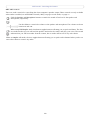
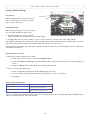
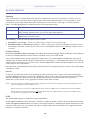
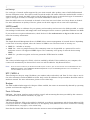
Text Overlay
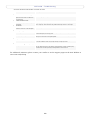
These settings enable you to place text at
the top or bottom of an image, e.g. date,
time or some other text.
Text, date and
time overlays
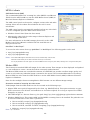
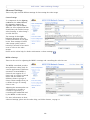
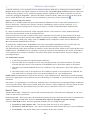
Overlay image
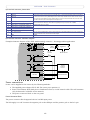
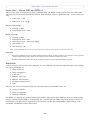
Overlay/Mask Type
When using an image overlay, select from
the following options the type to use:
• Uploaded image as overlay - usually
used to provide extra information in the video image.
• Configurable areas as privacy masks - up to 3 areas are used to conceal parts of the video image.
The difference between an overlay and a privacy mask is that a privacy mask cannot be bypassed by accessing
the video stream with the help of the AXIS VAPIX API, whereas an overlay can.
Selecting the overlay/mask type will display further settings available for the selected type. See the online help
for further information.
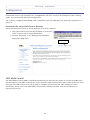
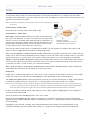
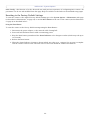
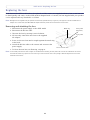
Upload and use an overlay
To upload an overlay image to the camera:
1. Select the type of overlay to use in Overlay/Mask Type.
2. In the field Upload own image, click the Browse button and locate the image file on your computer or
server.
3. Click the Upload button and follow the on-screen instructions.
To use an already uploaded image:
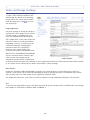
1. Select an uploaded image from the Use image drop-down list.
2. Place the image at the required location by entering the x and y coordinates.
3. Click Save.
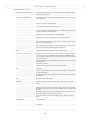
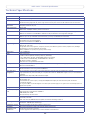
Overlay image requirements
Image Formats
Image Size
•
Windows 24-bit BMP (full color)
The height and width of the overlay image in
pixels must be exactly divisible by 4.
•
Windows 4-bit BMP (16 colors)
The height and width of the overlay image in
pixels must be exactly divisible by 16.
There are a number of limitations when using overlay images, such as the size and positioning of images. Please
refer to the online help for more information.
15