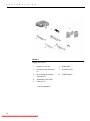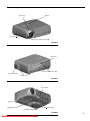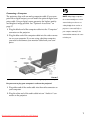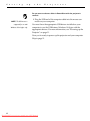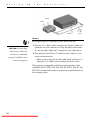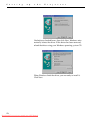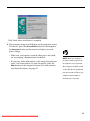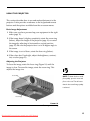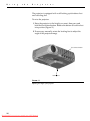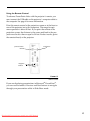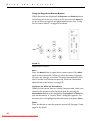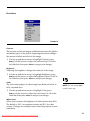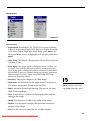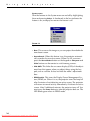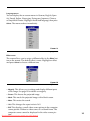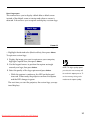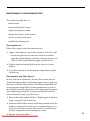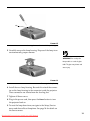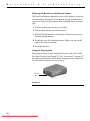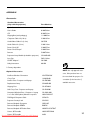
1
>>>>>>> User’s Guide Downloaded From projector-manual.com ASK Manuals FCC Warning This equipment has been tested and found to comply with the limits for a Class A digital device, pursuant to part 15 of the FCC Rules. These limits are designed to provide reasonable protection against harmful interference when the equipment is operated in a commercial environment. This equipment generates, uses, and can radiate radio frequency energy and, if not installed and used in accordance with the instruction manual, may cause harmful interference to radio communications. Operation of this equipment in a residential area is likely to cause harmful interference in which case the user will be required to correct the interference at his own expense. Canada This Class A digital apparatus complies with Canadian ICES-003. Cet appareil numérique de la classe A est conforme à la norme NMB-003 du Canada. Safety Certifications UL, CUL, TUV, GOST Other specific Country Approvals may apply, please see product certification label. EN 55022 Warning This is a Class A product. In a domestic environment it may cause radio interference, in which case the user may be required to take adequate measures. InFocus reserves the right to alter product offerings and specifications at any time. Downloaded From projector-manual.com ASK Manuals Declaration of Conformity Manufacturer: InFocus Corporation 27700B SW Parkway Ave. Wilsonville, Oregon 97070 USA European Office: Strawinskylaan 585, 1077 XX Amsterdam, The Netherlands We declare under our sole responsibility that the projector conforms to the following directives and norms: Directive 89/336/EEC, Amended by 93/68/EEC EMC: EN 55022 EN 55024 EN 61000-3-2 EN 61000-3-3 Directive 73/23/EEC, Amended by 93/68/EEC Safety: EN 60950: 1992 + A1 + A2 + A3 + A4: 1997 January, 2004 Trademarks Apple, Macintosh, and PowerBook are trademarks or registered trademarks of Apple Computer, Inc. IBM and PS/2 are trademarks or registered trademarks of International Business Machines, Inc. Microsoft, PowerPoint, and Windows are trademarks or registered trademarks of Microsoft Corporation. InFocus, ASK Proxima, and LP are trademarks or registered trademarks of InFocus Corporation. Downloaded From projector-manual.com ASK Manuals TABLE OF CONTENTS Safety Instructions iii Introduction Image Resolution Compatibility Unpacking the Projector Usage Guidelines If You Need Assistance Warranty 1 1 1 1 4 4 4 Setting up the Projector Connecting a Computer Connecting a Video Player Powering up the Projector Turning Off the Projector 5 7 9 11 14 Using the Projector Basic Image Adjustment Adjusting the Projector Using the Remote Control Using the Keypad and Remote Buttons Using the On-Screen Menus Basic Menu Setup menu 15 15 15 17 18 20 21 23 Maintenance & Troubleshooting Cleaning the Lens Cleaning the Lamp Filter Screens Replacing the Projection Lamp Replacing the Batteries in the Remote Control Using the Security Lock Troubleshooting 29 29 29 30 32 32 33 Appendix Accessories Projected Image Size 37 37 38 Index 39 i Downloaded From projector-manual.com ASK Manuals t a b l e o f c o n t ii Downloaded From projector-manual.com ASK Manuals e n t s SAFETY INSTRUCTIONS Please read and follow all safety instructions provided BEFORE using your new projector. Failure to comply with safety instructions may result in fire, electrical shock, or personal injury and may damage or impair protection provided by equipment. Please save all safety instructions. Safety Definitions: • Warning: Statements identify conditions or practices that could result in personal injury. • Caution: Statements identify conditions or practices that could result in damage to your equipment. Safety Symbols: Attention: For information about usage of a feature, please refer to the User’s Guide. Warning: Hot surface. Do not touch. An arrow pointing to the lamp door on the projector. Warning: Turn the projector off, disconnect the power cord, and wait 60 minutes before opening the lamp housing. Safety Terms: • Warning: Don’t look directly into the lens when the projector is turned on. •Warning: To replace the lamp, turn the projector off and unplug the power cord. To avoid burns, wait 60 minutes before opening the lamp door. Follow all instructions provided in this User’s Guide. •Warning: Please use the power cord provided. Connect the power cord to a receptacle with a protective safety (earth) ground terminal. • Warning: Refer all service to qualified service personnel. Ser- vicing your own projector will void the warranty. • Caution: Don’t block ventilation openings. iii Downloaded From projector-manual.com ASK Manuals S a f e t y I n s t r u c t i o n s • Caution: Don’t set liquids on the projector. Spilled liquids may damage your projector. • Caution: Don’t place the projector on a hot surface or in direct sunlight. • Caution: Do not drop the projector. Transport the projector in an approved case; see page 37 for a list of cases. Important Operating Considerations for Safety • Place the projector in a horizontal position no greater than 15 degrees off axis. • Locate the projector in a well-ventilated area without any obstructions to intake or exhaust vents. Do not place the projector on a tablecloth or other soft covering that may block the vents. • Locate the projector at least 4' (1.2 m) away from any heating or cooling vents. • Refer to this manual for proper startup and shutdown proce- dures. • In the unlikely event of the lamp rupturing, discard any edible items placed in the surrounding area and thoroughly clean the area along all sides of the projector. Wash hands after cleaning the area and handling the ruptured lamp. This product has a lamp which contains a very small amount of mercury. Dispose of it as required by local, state or federal ordinances and regulations. For more information see www.eiae.org. Follow these instructions to help ensure image quality and lamp life over the life of the projector. Failure to follow these instructions may affect the warranty. For complete details of the warranty, see the Warranty section at the end of this user's guide. 2f 6m t (. ) Do not place objects in this area on the back of the projector iv Downloaded From projector-manual.com ASK Manuals INTRODUCTION The ASK Proxima M2+™ is a projector specifically designed for portability, connectivity, and collaboration. It is easy to connect, easy to use, easy to transport, and easy to maintain. Image Resolution The XGA resolution of the projected image is 1024x768. The projector is compatible with screen resolutions up to 1280x1024. If your computer’s screen resolution is higher than 1280x1024, reset it to a lower resolution before you connect the projector. Compatibility The projector is compatible with a wide variety of computers and video devices, including: NOTE: The projector automati- • IBM-compatible computers, including laptops, up to 1280x1024 800x600 images to 1024x768. cally expands 640x480 and resolution. • Apple® Macintosh® and PowerBook® computers up to 1280x1024 resolution. • Most standard VCRs, DVD players, camcorders, digital cam- eras, and laser disc players. Unpacking the Projector The projector comes with the items shown in Figure 1. Check to make sure all are included. Contact your dealer immediately if anything is missing. If you are experienced in setting up presentation systems, use the Quick Start card that was included in the shipping box. For complete details on connecting and operating the projector, refer to this User’s Guide. Electronic versions of this user’s guide in multiple languages are available on the included CD and on our website at www.askproxima.com. 1 Downloaded From projector-manual.com ASK Manuals I n t r o d u c t i o n 1 3 2 4 5 8 6 7 FIGURE 1 Shipping box contents 1. Projector + lens cap 6. Audio cable 2. Remote control with batteries 7. Computer cable 3. User’s Guide, Quick Start card, and CD 8. SCART adapter * 4. Audio/Video (A/V) cable 5. Power cord * * country-dependent 2 Downloaded From projector-manual.com ASK Manuals zoom ring keypad focus ring remote control sensor (IR) FIGURE 2 Front view of projector connectors remote control sensor (IR) power connector security lock FIGURE 3 Rear view of projector foot release speaker lamp housing adjustable foot leveling foot FIGURE 4 Downloaded From projector-manual.com ASK Manuals Bottom view of projector 3 I n t r o d u c t i o n Usage Guidelines • Do not look directly into the projection lens when the projector is turned on. The bright light may harm your eyes. • Do not block the grills on the projector. Restricting the air flow can cause it to overheat and turn off. If this happens, you must wait a minute before attempting to turn it back on. • Handle the projector as you would any product with glass components. Be especially careful not to drop it. • Avoid leaving the projector in direct sunlight or extreme cold for extended periods of time. If this happens, allow it to reach room temperature before use. • Transport the projector in a vendor-approved hard or soft case. Part numbers for these cases are listed on page 37. If You Need Assistance The first place to look for help is in this manual. Be sure to check the guidelines in “Troubleshooting” on page 33. Or, check the Service and Support section of our website at http://www.askproxima.com/service. Warranty This product is backed by a limited warranty. The details of the warranty are printed at the back of this manual. An extended warranty plan may be purchased from your dealer. When sending your projector in for repair, we recommend shipping the unit in its original packing material, or having a professional packaging company pack the unit for shipping. Please insure your shipment for its full value. 4 Downloaded From projector-manual.com ASK Manuals SETTING UP THE PROJECTOR 1 Place the projector on a flat surface. • The projector must be within 6 feet (1.8 m) of your power source and your computer. • If you want to project from behind a translucent screen, set up the projector behind your screen. See “Rear” on page 24 to reverse the image. 2 Position the projector the desired distance from the screen. • If the image is too big or too small, use the zoom ring to NOTE: The projector must be at least 4.9 feet (1.5 m) from the projection screen. ft. / 9.9 ft./ 3m 3. 3 33 ft./ 10m 1m 6. 7 2 m f t/ 22 .2 6. ft./ 8m adjust the size or move the projector forward or backward. Figure 5 shows three projected image sizes. For more information about image size, see “Projected Image Size” on page 38. 4.9 ft./ 1.5m FIGURE 5 Projected image size 3 Make sure the projector and the computer are turned off. 5 Downloaded From projector-manual.com ASK Manuals S e t t i n g u p t h e NOTE: Before you continue, P r o j e c t o r Computer S-video make sure the projector and all other equipment is turned off. If you’re connecting a computer, make sure the distance between it Audio in Composite video and the projector is 6 feet or less. FIGURE 6 Connector panel Wireless Projection You can use the projector’s Computer connector along with the I nFocus LiteShow wireless adapter and software for cable-free digital projection. Contact an authorized InFocus dealer or visit our website at www.infocus.com for more information. 6 Downloaded From projector-manual.com ASK Manuals Connecting a Computer The projector ships with an analog computer cable. If your computer has a digital output, you can order the optional digital computer cable. Using a digital source generates the highest quality and brightest image possible. See “Optional Accessories” on page 37. 1 Plug the black end of the computer cable into the “Computer” connector on the projector. 2 Plug the blue end of the computer cable into the video connector on your computer. If you are using a desktop computer, you need to disconnect your monitor cable from your computer. NOTE: Many laptop computers do not automatically turn on their external video port when a secondary display device such as a projector is connected. Refer to your computer manual for the command that activates the external video port. computer audio FIGURE 7 Connecting the projector to a computer Do you want to play your computer’s audio on the projector? 1 Plug either end of the audio cable into the audio connector on your computer. 2 Plug the other end of the audio cable into an “Audio in” connector on the projector. 7 Downloaded From projector-manual.com ASK Manuals S e t t i n g u p t h e P r o j e c t o r Do you want to advance slides in PowerPoint with the projector’s remote? NOTE: The USB mouse is supported for use with Windows 98 or higher only. 1 Plug the USB end of the computer cable into the mouse connector on your computer. You must have the appropriate USB drivers installed on your computer to use the USB feature. Windows 98 ships with the appropriate drivers. For more information, see “Powering up the Projector” on page 11. Now you’re ready to power up the projector and your computer. Skip to page 11. 8 Downloaded From projector-manual.com ASK Manuals Connecting a Video Player If your video device (VCR, DVD player, video camera) uses a round, one-prong composite video connector, use the composite audio/video (A/V) cable. • If your video device uses a round, four-prong S-video con- nector, use an S-video cable, ordered separately. S-video generates a higher quality image. 1 Plug the A/V cable’s round yellow connector into the “videoout” connector on your video device (Figure 8). This connector may be labeled “To Monitor.” • If you’re using an S-video cable, connect the round black connector to the “S-video out” connector on the video device. 2 Plug the other yellow connector into the “Video” connector on the projector. • If you’re using S-video, plug the other end of the cable into the “S-video” connector on the projector. video audio video L R audio FIGURE 8 Connecting the projector to a VCR using the A/V cable 9 Downloaded From projector-manual.com ASK Manuals S e t t i n g u p t h e P r o j e c t o r S-video audio S-video L R audio FIGURE 9 Connecting the projector to a VCR using the S-video cable and A/V cable CAUTION: Your video player may also have a “Video Out” connector for a coaxial cable connection. DO NOT use this to connect to the projector. 3 Plug the A/V cable’s white connector into the left “audio out” connector on your video device. Plug the cable’s red connector into the right “audio out” connector on the video device. 4 Plug the blue end of the A/V cable into the “Audio in” connector on the projector. • When you are using the S-video cable along with the A/V cable, the A/V cable’s yellow connectors are not used. The projector is compatible with these major broadcast video standards: NTSC, NTSC 4.43, PAL, PAL-M, PAL-N, PAL-60, and SECAM. It automatically adjusts to optimize its performance for the incoming video. 10 Downloaded From projector-manual.com ASK Manuals Powering up the Projector 1 Remove the lens cap. 2 Plug the power cord into the side of the projector, then plug it into your electrical outlet. A surge-protected power strip is recommended. NOTE: Always use the power cord that shipped with the projector. • The LED turns orange (Figure 6 on page 6). 3 Press the Power button on the top of the projector. • The fans start to run, the LED on the top of the projector (Figure 6 on page 6) lights solid green if the projector is connected to a valid source, and the startup screen appears. It takes about one minute for the image to achieve full brightness. 4 If you connected to a video player, turn it on. NOTE: The first time you connect your computer to the projector, the computer may display a message stating that new hardware was found. The Add New Hardware • The video image should display on the projection screen. If it doesn’t, press the Source/Select button on the keypad or the Video button on the remote to display your video image. 5 If you connected to a computer, turn it on. Wizard may appear. Use the Wizard to load the correct driver (the computer considers the projector a Plug and Play Monitor). The first time you connect a particular computer to the projector, the computer recognizes the projector as “new hardware” and the Add New Hardware Wizard appears. Follow these instructions to use the Wizard to load the correct driver (which was installed with your Windows operating system). Click Next. Make sure “Search for the best driver” is selected, then click Next. 11 Downloaded From projector-manual.com ASK Manuals S e t t i n g u p t h e P r o j e c t o r Uncheck any checked boxes, then click Next. Windows automatically locates the driver. If this driver has been removed, reload the driver using your Windows operating system CD. When Windows finds the driver, you are ready to install it. Click Next. 12 Downloaded From projector-manual.com ASK Manuals Click Finish when installation is complete. 6 The computer image should display on the projection screen. If it doesn’t, press the Source/Select button on the keypad or the Computer button on the remote to display your computer’s image. • Make sure your laptop’s external video port is activated; see your laptop’s documentation for details. NOTE: With some computers, • If necessary, make adjustments to the image using the pro- the order in which you power up jector’s on-screen menus. To open the menus, press the Menu button on the keypad or remote. For more information about the menus, see page 21. the equipment is very important. Most computers should be turned on last, after all other peripherals have been turned on. Refer to your computer’s documentation to determine the correct order. 13 Downloaded From projector-manual.com ASK Manuals S e t t i n g u p t h e P r o j e c t o r Turning Off the Projector To turn off the projector, press the Power button. A dialog box appears, asking for confirmation. Press Power again to turn the lamp off. The fans continue to run and the LED blinks orange for about 90 seconds, then the projector shuts off. The LED then stays on solid orange until the power cord is removed from the projector. If you want to turn the lamp back on, you must allow 90 seconds for the lamp to cool. The lamp won’t light if it’s too hot. NOTE: To maximize lamp life, allow the projector to run for at You can also use the Display Power Management System (DPMS) to automatically turn the projector off if no active source is found. See page 24 for details. least five minutes before turning it off. 14 Downloaded From projector-manual.com ASK Manuals USING THE PROJECTOR This section describes how to use and make adjustments to the projector. It also provides a reference to the keypad and remote buttons and the options available from the on-screen menus. Basic Image Adjustment 1 Make sure you have powered up your equipment in the right order (page 11). 2 If the image doesn’t display completely, rotate the zoom ring (below), adjust the height of the projector (page 16) or center the image by adjusting its horizontal or vertical position (page 23). Be sure the projector lens is at a 90 degree angle to the screen. 3 If the image is out of focus, rotate the focus ring (below). 4 If the colors don’t look right, adjust the brightness, contrast, tint, or color (page 21). Adjusting the Projector To focus the image, rotate the focus ring (Figure 10) until the image is clear. To zoom the image, rotate the zoom ring. This adjusts the image size. zoom ring NOTE: To obtain the best overall focus quality, open the menu and focus on the text. This will ensure that the best overall image quality is achieved. focus ring FIGURE 10 Focus ring and zoom ring 15 Downloaded From projector-manual.com ASK Manuals U s i n g t h e P r o j e c t o r The projector is equipped with a self-locking, quick-release foot and a leveling foot. To raise the projector: 1 Raise the projector to the height you want, then press and hold the foot release button. Release the button to lock the foot into position (Figure 11). 2 If necessary, manually rotate the leveling foot to adjust the angle of the projected image. foot release button leveling foot FIGURE 11 Adjusting the height of the projector 16 Downloaded From projector-manual.com ASK Manuals Using the Remote Control To advance PowerPoint slides with the projector’s remote, you must connect the USB cable on the projector’s computer cable to the computer. See page 8 for more information. Point the remote control at the projection screen or at the front or rear of the projector (not at the computer). The range for optimum operation is about 30 feet. If you point the remote at the projection screen, the distance to the screen and back to the projector must be less than or equal to 30 feet. For best results, point the remote directly at the projector. previous button next button navigation buttons FIGURE 12 Remote control If you are displaying presentations in Microsoft® PowerPoint®, you can use the remote’s Previous and Next buttons to navigate through your presentation while in Slide Show mode. 17 Downloaded From projector-manual.com ASK Manuals U s i n g t h e P r o j e c t o r Using the Keypad and Remote Buttons While the menus are displayed, the Keystone and Volume buttons on the keypad and the arrow buttons on the remote and the Select button act as menu navigation and adjustment buttons. See “Using the On-Screen Menus” on page 20 for details. LED FIGURE 13 Keypad and remote buttons Menu Press the Menu button to open the on-screen menus. Press Menu again to close the menus. When you close the menus, the projector saves any changes you made. The menu automatically closes after 1 minute if no buttons are pressed. For more information about the on-screen menus, see page 20. Computer and Video and Source/Select When you have more than one source (computer and video) connected to the projector, select between them by pressing the Source/Select button on the keypad or the Computer or Video buttons on the remote. A “Source/Select” dialog box appears. Use the arrow keys to highlight the desired source, then press Select. Power Press this button to turn the projector on and off. See page 11 and page 14 for details. 18 Downloaded From projector-manual.com ASK Manuals Volume, Mute Press the Volume buttons to adjust the volume and the Mute but- ton to silence the sound. Arrow buttons Use these to navigate through and make adjustments to the on-screen menus. See “Using the On-Screen Menus” on page 20 for details. Keystone (keypad only) Use this feature to adjust the image vertically and make a squarer image. 1 Press the Keystone up arrow to reduce the upper part of the image, and press the Keystone down arrow to reduce the lower part. You can adjust this from -15 degrees to +40 degrees. You can also adjust keystone from the Basic menu (see page 22 for details on the menu). increasing keystone decreasing keystone FIGURE 14 Adjusting the keystone Effect (remote only) Press this button to invoke the presentation effect. The default effect is mute. You can select among PiP, magnify, freeze, mask, 16:9, and mute. See page 25 for details. To use the magnify effect, select it in the Effect menu, press Effect, then use the up and down arrows on the keypad to increase or decrease the magnification. If you press Effect again, you can use the arrows to pan the image, displaying different parts of it (only if the image is magnified). To return to the original size from pan mode, press the Effect button. 19 Downloaded From projector-manual.com ASK Manuals U s i n g t h e P r o j e c t o r Blank Press this button to display a blank screen instead of the current image. Using the On-Screen Menus The projector has menus that allow you to make image adjustments and change a variety of settings. NOTE: Some menu items may be grayed out (dimmed) at certain times. This indicates the item is not applicable to your setup or the To open the on-screen menus, press the Menu button on the keypad or remote. This displays the Basic menu and changes the Keystone and Volume buttons on the keypad to menu navigation buttons. Press the down arrow button to move the cursor down and press the up arrow button to move the cursor up. The selected menu is highlighted. item is not enabled until another selection is made. FIGURE 15 On-screen menu To change a menu setting, use the up and down arrow buttons to move the cursor up and down to the item you want to change (the selected item is highlighted), then press the Select button. Use the arrows to adjust the setting or to turn a setting on or off. Press Select when you are done. To access a sub-menu, highlight it and press Select. To navigate back to the previous menu, highlight the arrow at the top of the menu and press Select. Use the up and down arrows to move to another setting. When you have completed your adjustments, press Menu to close the menus. 20 Downloaded From projector-manual.com ASK Manuals Basic Menu FIGURE 16 Basic menu Contrast The contrast controls the degree of difference between the lightest and darkest parts of the picture. Adjusting the contrast changes the amount of black and white in the image. 1 Use the up and down arrows to highlight Contrast, press Select, use the arrows to adjust the contrast from 0 to 100 in the slider bar, then press Select to accept your changes. Brightness Adjusting the brightness changes the intensity of the image. 1 Use the up and down arrows to highlight Brightness, press Select, use the arrows to adjust the brightness from 0 to 100 in the slider bar, then press Select to accept your changes. Color The color setting adjusts a video image from black and white to fully saturated color. NOTE: The color setting applies to video sources only. 1 Use the up and down arrows to highlight Color, press Select, use the arrows to adjust the color from 0 to 100 in the slider bar, then press Select to accept your changes. White Level White Level increases the brightness of whites that are near 100%. The default is 100% for computer sources and 20% for video sources. Changes are saved per source when the projector is powered down. 21 Downloaded From projector-manual.com ASK Manuals U s i n g t h e P r o j e c t o r Keystone This option helps to keep the image square as the angle of projection is changed. Use this feature to adjust the image vertically and make a squarer image. See page 19 for details on keystone adjustments. 1 Press the down button to highlight Keystone, then press Select. Use the arrows to adjust the keystone setting from -63 to +64 in the slider bar. Press Select to accept your changes. Setup See the following pages for details on this menu. Reset This re-synchronizes the projector to the active computer or video source. About This read-only menu provides information about the source, such as resolution and horizontal and vertical frequencies. 22 Downloaded From projector-manual.com ASK Manuals Setup menu FIGURE 17 Setup and Picture menus Picture menu • Aspect Ratio: The default is 4:3. Click 16:9 if you are watching videos in widescreen format. Click Native to display the image in its native format. Highlight Aspect Ratio, press Select, use the up and down arrows to highlight your selection, then press Select. • Color Temp: The default is Presentation. Choose Film if you are watching a film. • Color Space: This option applies to computer sources. It allows you to select a color space that has been specifically tuned for the video input. When Auto is selected, the projector automatically determines the standard. To choose a different setting, turn off Auto, then choose RGB for computer sources, choose either SMPTE240, REC709 or REC601 for component sources. • Sharpness: Adjusts the sharpness of video images. • Application: Sets the mode for the application of the projector. The options are Normal, Presentation, and Film. • ARLS: Automatic Room Light Sensing. The choices are Auto- NOTE: Sharpness and Tint are only available with a video source. matic, Dark, and Bright. • Tune: Use the arrows to adjust the horizontal phase and fine tuning of the image. • Width: Use the arrows to adjust the width of the image. • Position: Use the arrows to adjust the horizontal or vertical position of the image. • Tint: Use the arrows to adjust the tint of video images. 23 Downloaded From projector-manual.com ASK Manuals U s i n g t h e P r o j e c t o r System menu Turn the features in the System menu on and off by highlighting them and pressing Select. A checkmark in the box indicates the feature is on; an empty box means the feature is off. FIGURE 18 System menu • Rear: This reverses the image so you can project from behind a translucent screen. • SourceSearch: When this feature is on, the projector automati- cally searches for an active source. When it is off, you must press the Source/Select button on the keypad or Computer and Video buttons on the remote to switch among sources. • Hide OSD: This hides the on-screen display (OSD) of the adjust- ment bars that appear when you adjust things using the keypad, such as volume. It does not hide the menu’s adjustment bars. • DPMS enable: This turns the Display Power Management Sys- tem (DPMS) on. When it is on, the projector turns the lamp off after 3 minutes of not detecting an active source. The projector will return to normal activity immediately if it detects an active source. After 5 additional minutes, the projector turns off. You must press the Power button to turn the projector back on. The LED blinks green when in DPMS mode. 24 Downloaded From projector-manual.com ASK Manuals Language menu You can display the on-screen menus in German, English, Spanish, French, Italian, Norwegian, Portuguese, Japanese, Chinese, or Simplified Chinese. Highlight the desired language, then press Select. The menus redraw immediately. FIGURE 19 Language menu Effect menu This menu allows you to assign a different effect to the Effect button on the remote. The default effect is mute. Highlight an effect and press Select to choose a different one. FIGURE 20 Effect menu • Magnify: This allows you to enlarge and display different parts of the image. See page 19 for details on magnify. • Freeze: This freezes the projected image. • Mask: This masks the projected image with a black screen. • Mute: This mutes the sound. • 16:9: This changes the aspect ratio to 16:9. • PiP: This displays a small video source picture in the computer source picture. Without a video source it is a blank frame. The computer source cannot be displayed in the video source picture. Downloaded From projector-manual.com ASK Manuals 25 U s i n g t h e P r o j e c t o r Service menu FIGURE 21 Service menu • Factory reset: This resets all options (except rear, language, and lamp time) to the original factory settings. Highlight it, then press Select. A confirmation dialog box appears. Press Select to reset, or press the right arrow button to highlight No, then press Select if you don’t want a reset. • Info: This read-only window provides information on the pro- jector’s software, the number of hours the current lamp has been in use, and selected image settings. Press Select to close this window. • Reset lamptimer: This resets the lamp hour timer to zero. After replacing the lamp (page 30), highlight Reset lamptimer, press Select, then press it again to confirm your selection. The timer in the Info window resets to zero. • Service Code: This window can only be accessed by service per- sonnel by entering a code. 26 Downloaded From projector-manual.com ASK Manuals User’s logo menu This menu allows you to display a blank blue or black screen instead of the default screen at startup and when no source is detected. It also allows you to capture and display a custom logo. FIGURE 22 User’s logo menu • Highlight the desired color (black or blue), then press Select. To capture a custom logo: 1 Display the image you want to capture on your computer, highlight Capture New, then press Select. 2 Use the keypad arrows to position the capture rectangle around your logo, then press Select. NOTE: The higher quality capture 3 Select the quality of the logo capture and press Select. you select, the more memory will • While the capture is underway, the LED on the keypad turns red. When ready, the projector confirms the capture and the LED changes to green. be used in the capture process. To use less memory, select good or medium as the capture quality. The next time you start the projector, the custom logo you captured displays. 27 Downloaded From projector-manual.com ASK Manuals U s i n g t h e P r o j e c t o r PiP PiP (Picture in Picture) allows you to overlay a smaller window showing the video source on top of the larger computer source window. You must have both a computer and video source connected to use PIP. You can’t show a computer image in the smaller PiP window, only a video image. You can select a small, medium, or large window. You can also move the PiP window on the screen using the PiP Position X and Y options in the menu. Press the up and down arrows to change the position. FIGURE 23 PiP menu 28 Downloaded From projector-manual.com ASK Manuals MAINTENANCE & TROUBLESHOOTING This section describes how to: •clean the lens •clean the lamp filter screens •replace the projection lamp •replace the batteries in the remote •use the security lock feature •troubleshoot the projector Cleaning the Lens Follow these steps to clean the projection lens: 1 Apply a non-abrasive camera lens cleaner to a soft, dry cloth. • Avoid using an excessive amount of cleaner, and don’t apply the cleaner directly to the lens. Abrasive cleaners, solvents or other harsh chemicals might scratch the lens. 2 Lightly wipe the cleaning cloth over the lens in a circular motion. 3 If you don’t intend to use the projector immediately, replace the lens cap. Cleaning the Lamp Filter Screens In dirty or dusty environments, the dust filter screens on and around the lamp module can become clogged, causing high temperatures inside the lamp module. These high temperatures can cause premature lamp failure. Routine maintenance to remove dust and dirt from the screens lowers the lamp operating temperature and prolongs lamp life. To maximize lamp life you may want to clean the screen every 250 hours. 1 Remove the lamp module. Refer to “Replacing the Projection Lamp” on page 30 for instructions. 2 Examine the dust filter screens on the lamp module and in the lamp housing area. If necessary, use a vacuum cleaner set on low power to clean the screens. Be careful not to disturb any internal components when cleaning the screens. 3 Replace the lamp module.ASK Manuals Downloaded From projector-manual.com 29 M a i n t e n a n c e & T r o u b l e s h o o t i n g Replacing the Projection Lamp WARNING: To avoid burns, allow the projector to cool for at least 60 minutes before you replace the lamp. Never extract The lamp hour timer in the Service Info menu counts the number of hours the lamp has been in use. When the timer reaches 2900 hours, the Lamp LED lights red, indicating that it is time to change the lamp. You can order new lamp housings from your dealer. See “Accessories” on page 37 for information. Follow these steps to replace the projection lamp: the lamp housing while the projector is operating. 1 Turn off the projector and unplug the power cord. 2 Wait 60 minutes to allow the projector to cool thoroughly. 3 Turn the projector upside down and loosen the captive screw on the lamp door. The lamp door is part of the lamp housing. WARNING: Be extremely careful when removing the lamp housing. In the unlikely event that the bulb ruptures, small glass fragments may be generated. The lamp module is designed to contain these fragments, but use caution when removing the lamp module. Before replacing the lamp, clean the lamp compartment and dispose of cleaning materials. Wash hands after lamp replacement. This product has a lamp which contains a very small FIGURE 24 Removing the screws on the lamp door 4 Insert the screwdriver in the tab on the lamp door and pry the door up. amount of mercury. Dispose of it as required by local, state or federal ordinances and regulations. For more information see www.eiae.org. 30 Downloaded From projector-manual.com ASK Manuals tab FIGURE 25 Inserting the screwdriver into the lamp housing tab 5 Carefully remove the lamp housing. Dispose of the lamp in an environmentally proper manner. WARNING: Do not drop the lamp module or touch the glass bulb! The glass may shatter and cause injury. FIGURE 26 Removing the lamp housing 6 Install the new lamp housing. Be careful to attach the connector on the lamp housing to the connector inside the projector. These connectors are located near the leveling foot. 7 Tighten all three screws. 8 Plug in the power cord, then press the Power button to turn the projector back on. 9 To reset the lamp hour timer, navigate to the Setup/Service menu and choose Reset lamptimer. See page 26 for details on the Service menu. 31 Downloaded From projector-manual.com ASK Manuals M a i n t e n a n c e & T r o u b l e s h o o t i n g Replacing the Batteries in the Remote Control The life of the batteries depends on how often and how long you use the remote. Symptoms of low battery charge include erratic responses when using the remote and a reduced range of operation. 1 Turn the remote face down in your hand. 2 Slide the door off the end of the remote. 3 Remove the old batteries and dispose of them in an environmentally proper manner. 4 Install two new AA alkaline batteries. Make sure you install each in the correct direction. 5 Re-install the door. Using the Security Lock The projector has a security connector for use with a PC Guardian Cable Lock System (Figure 27). See “Accessories” on page 37 for ordering information. Refer to the information that came with the lock for instructions on how to use it. Security lock FIGURE 27 The security lock 32 Downloaded From projector-manual.com ASK Manuals Troubleshooting LEDs The Lamp LED on top of the projector (Figure 13 on page 18) will alert you to certain problems. • A solid red Lamp LED means it is time to change the lamp. See page 30. • A blinking red Lamp LED means the projector is overheat- ing. Turn off the projector and allow it to cool. The other LED on top of the projector indicates the normal operating state of the projector. • A solid green LED means the projector is on. • A blinking green LED means the projector does not recog- nize an active source or is in DPMS mode. See page 24. • A blinking orange LED means the projector is going into standby mode; a solid orange LED means the projector is in standby mode. See page 24 for details. Problem: The projector is not running •Make sure that the power cord is properly connected to a functional AC electrical outlet. Make sure that the power cord is also properly connected to the projector. •If the projector is plugged into a power strip, make sure the power strip is turned on. •Make sure the projector is turned on. Verify that the LED is solid green. Problem: Projector is running, but nothing appears on projection screen •Make sure you have removed the lens cap on the projection lens at the front of the projector. •Make sure Mask is not active in the Effect menu. See page 25. •Check the projector’s lamp housing to ensure that it is securely connected to the bottom case. See “Replacing the Projection Lamp” on page 30. 33 Downloaded From projector-manual.com ASK Manuals M a i n t e n a n c e & T r o u b l e s h o o t i n g Problem: Only the start-up screen displays •Verify that the cables are connected correctly. See page 7 for connection procedures. •Make sure that the cables do not have any bent pins. •Verify that the proper input source is connected. See “Com- puter and Video and Source/Select” on page 18. •Try resetting the projector. See page 22. •You might need to turn everything off and power up the equipment again in the proper order. Refer to your computer’s documentation to determine the correct order. •Make sure your laptop’s external video port is turned on. See your computer’s manual for details. •Make sure your computer’s video board is installed and con- figured correctly. •Make sure your computer has a compatible video board. The projector isn’t CGA or EGA compatible. If you’re using Windows 98: 1 Open “My Computer” icon, the Control Panel folder and then the Display icon. 2 Click the Settings tab. 3 Verify that the Desktop area is set to 1280x1024 or less. Problem: Color or text not being projected •You might need to adjust the brightness up or down until the text is visible. Refer to “Brightness” on page 21 for more information. Problem: The screen resolution is not right •Make sure the computer’s video card is set for a resolution of no greater than 1280x1024. Problem: Image isn’t centered on the screen •Move the projector to reposition the image. •Reposition the image using the menu. Refer to page 23. •Be sure the projector lens is at a 90 degree angle to the screen. 34 Downloaded From projector-manual.com ASK Manuals Problem: Image is too wide or narrow for screen •Adjust the zoom or projector placement. •Adjust the width of the image. See page 23. Problem: Image is out of focus •Turn the projection lens to focus the image. •Make sure the projection screen is at least 4.9 feet (1.5 m) from the projector, and that the projector is at a 90 degree angle to the screen. •Check the projection lens to see if it needs cleaning. Problem: Projector does not respond to remote control •Check to see if the batteries in the remote control are viable. •Check to see if the batteries are inserted properly. Problem: No sound •Check the audio input connections. •Adjust the projector’s or audio source’s volume. •Verify that the projector’s internal speaker is not set to mute. Problem: Image and menus are reversed left to right •Rear projection mode is probably turned on. Turn Rear off in the System menu. The image should immediately return to forward projection. See page 24. Problem: Projected image is distorted •Try resetting the projector. See page 22. •Adjust the tuning of the image. See page 23. Problem: Projected colors don’t match the computer or video player’s colors •Just as there are differences in the displays of different monitors, there are often differences between the computer image and the projected image. Adjust the brightness, color and/or contrast in the Main menu. See page 23. Problem: Lamp seems to be getting dimmer •The lamp begins to lose brightness when it has been in use for a long time. Replace the lamp as described in “Replacing the Projection Lamp” on page 30. 35 Downloaded From projector-manual.com ASK Manuals M a i n t e n a n c e & T r o u b l e s h o o t i n g Problem: Lamp shuts off •A minor power surge may cause the lamp to shut off. Turn off the projector, wait at least a minute, then turn it back on. •Make sure the vents on the projector are not blocked. The most current troubleshooting information can be found in the Service and Support section of our website at http://www.askproxima.com/service. 36 Downloaded From projector-manual.com ASK Manuals APPENDIX Accessories Standard Accessories (ship with the projector) Part Number Quick Start card 009-0640-xx User’s Guide 010-0538-xx CD 010-0539-xx Shipping Box (with packaging) 111-0005-xx Computer Cable 6 ft (1.8 m) 210-0185-xx Audio/Video Cable 6 ft (1.8 m) 301379B Audio Cable 6 ft (1.8 m) 210-0118-xx Power Cord, US* 210-0255-xx Power Cord, Europe* 210-0254-xx Remote 590-0728-xx Projection Lamp Module (included in projector) SP-LAMP-003 Lens Cap 505-1120-xx SCART Adapter * 301130B Safety Instruction 801454 * Country-dependent NOTE: Use only approved acces- Optional Accessories LiteShow Wireless Connection LP-LITESHOW Carry Case 110-0342-00 Leather Case - Projector and Laptop CA-EXE-002 Replacement Lamp SP-LAMP-003 Shipping Case CA-ATA-010 Soft Carry Case - Projector and Laptop CA-DLX-001 Samsonite Wheeled Case - Projector + Laptop CA-WHL-002 1 in 2 Out VGA Splitter (Monitor Loop-thru HW-VGA2OUT DVI-Digital Computer Cable SP-DVI-D Projector Security Lock SP-LOCK Remote, Mindpath Gyropoint GYRO-RF Remote, Mindpath IR50F/x IR50F/X Remote, Mindpath RF Pocket Point HW-RF-POCKTPNT Screen, 40" Portable HW-PORTSCR40 Screen, 50" Portable Downloaded From projector-manual.com ASK Manuals A650 sories. Other products have not been tested with the projector. See our website for the latest list of available accessories. 37 A p p e n d i x Projected Image Size Use the table to help you determine projected image sizes. Table 1: Image Size, Width and Height for Lens at Maximum Image Size Distance to Screen (feet/m) 4.9/1.5 7.4/2.3 9.9/3.0 12.3/3.8 18.5/5.6 32.8/10.0 Diagonal (inches/m) 40/1 60/1.5 80/2 100/2.5 150/3.8 266/6.8 Width (inches/m) 32/.8 48/1.2 64/1.6 80/2 120/3 213/5.4 Height (inches/m) 24/.6 36/.9 48/1.2 60/1.5 90/2.3 160/4.1 Table 2: Image Size, Width and Height for Lens at Minimum Image Size Distance to Screen (feet/m) 4.9/1.5 7.4/2.3 9.9/3.0 12.3/3.8 18.5/5.6 32.8/10.0 38 Downloaded From projector-manual.com ASK Manuals Diagonal (inches/m) 31/.8 47/1.2 63/1.6 79/2 118/3 209/5.3 Width (inches/m) 25/.64 38/1 50/1.3 63/1.6 94/2.4 167/4.2 Height (inches/m) 19/.48 28/.7 38/.8 47/1.2 71/1.4 125/3.3 IBM-compatible 1 INDEX Macintosh 1 computer cable 2, 6, 7 computers A About 22 compatible 1 accessories, ordering 37 adjusting connecting 6, 7 connecting brightness 21 computer 6, 7 color 21 power cord 11 contrast 21 video player 9–10 height of projector 15 Connector panel 6 image position 23 contrast, adjusting 21 image width 23 custom logo keystone 22 startup screen 27 adjusting the image 23 Application 23 D ARLS 23 displaying on-screen menus 18 Aspect Ratio 23 DPMS mode 24 assistance. See Technical Support audio/video (A/V) cable connecting to video source 9 E Effect remote 19 B Effect button 19 Basic menu 21 Effect menu 25 brightness, adjusting 21 F C Factory reset 26 cables focusing the image 15 A/V cable 2 Freeze 25 audio 7 computer cable 7 G ordering 37 Guidelines how to handle the projector 4 video 9 cleaning the lamp filter screens 29 cleaning the projection lens 29 Color temperature 23 H Hide OSD 24 color, adjusting 21 colors don’t match monitor colors 35 not displayed 34 compatibility 39 Downloaded From projector-manual.com ASK Manuals I n d e x I M IBM-compatible computers Macintosh computers compatibility 1 compatibility 1 connecting 6, 7 image connecting 6 Magnify 25 adjusting 11, 15 magnifying the image 19 colors don’t match computer’s 35 maintenance 29 focusing 15 menus. See on-screen menus freezing 25 monitor, projected colors don’t match has lines or spots 35 not centered 34 35 Mute 25 not displayed 33 out of focus 35 O quality 34–35 on-screen menus displaying 20 resolution 1 reversed 35 size 5, 38 too wide or too narrow 35 zooming 15 Info 26 P Picture menu 23 PiP 25 position, adjusting 23 Power 18 power cord K connecting 11 keypad 18 keystone adjustment 19, 22 power saving mode 24 power up sequence 13, 34 L lamp cleaning filter screens 29 Q Quick Start card 1 ordering 37 replacing 30 turns off unexpectedly 36 lamp hour timer 26 Language menu 25 laptop computers compatibility 6, 7 connecting 7 LED 11, 18, 33 lens cap 37 cleaning 29 R Rear projection 24 Remote Control does not control projector 35 remote control replacing the batteries 32 using 17, 18 replacing projection lamp module 30 Reset 22 resetting the lamp timer 26 resetting the projector 22, 26 resolution 1 40 Downloaded From projector-manual.com ASK Manuals S U safety guidelines iii User’s logo menu 27 security lock 32 Service Code 26 V Service menu 26 vertical lines displayed 35 Setup menu 21, 22 video cable connecting 9 Sharpness 23 Shipping box contents 2 Volume remote 19 shutting off the projector 14 sound no sound 35 Source/Select button 18 SourceSearch 24 starting up the projector 11 startup screen W wireless projection 6 Z zooming the image 15 custom logo 27 S-video, connecting 9 System menu 24 T text not visible 34 Tint 23 troubleshooting 33 Tune 23 turning off the projector 14 turning on the projector 11 41 Downloaded From projector-manual.com ASK Manuals I n d e x 42 Downloaded From projector-manual.com ASK Manuals Limited Warranty Subject to the Limitations, Exclusions and Disclaimers hereof, InFocus Corporation (“InFocus”) warrants that the Projector, Lamps and Accessories (hereinafter collectively or individually referred to as “Product” as appropriate) purchased from InFocus, an InFocus distributor, or an InFocus reseller will conform to InFocus’ specifications and be free from defects in material or workmanship for the respective Limited Warranty period provided below. InFocus does not warrant that the Product will meet the specific requirements of the end-user customer. If the Product while subject to this Limited Warranty, is defective in material or workmanship during the warranty period, then InFocus, at its option, will REPAIR or REPLACE the Product. All exchanged parts and Products replaced under this Limited Warranty will become property of InFocus. InFocus’ sole obligation is to supply (or pay for) all labor necessary to repair the Product found to be defective within the Limited Warranty period and to repair or replace defective parts with new parts or, at the option of InFocus, serviceable used parts that are equivalent or superior to new parts performance. Limited Warranty periods are as follows: • Projector Product Limited Warranty Period (Excluding Lamps): Two (2) years from date of purchase. • Lamp Product Limited Warranty Periods: From the date of Projector Product purchase, the original installed lamp shall have a 90-day or 500 hours usage Limited Warranty Period, whichever comes first, and replacement Lamps purchased at the time of Projector Product purchase will have a 500 hours usage Limited Warranty period. • Accessory Product Limited Warranty Period: one (1) year from date of purchase. WARRANTY LIMITATION AND EXCLUSION THIS WARRANTY SETS FORTH INFOCUS’ MAXIMUM LIABILITY FOR ITS PRODUCT. THIS WARRANTY EXTENDS ONLY TO PRODUCTS PURCHASED FROM INFOCUS OR AN INFOCUS AUTHORIZED RESELLER. InFocus shall have no further obligation under the foregoing Limited Warranty if the Product has been damaged due to abuse, misuse, neglect, smoke exposure (cigarette or otherwise), accident, unusual physical or electrical stress, unauthorized modifications (including use of an unauthorized mount), tampering, alterations, or service other than by InFocus or its authorized agents, causes other than from ordinary use or failure to properly use the Product in the application for which said Product was intended. This Limited Warranty excludes Product cleaning, repair, or replacement of plastics due to cosmetic damage and damage as a result of normal wear. Product repair outside of the terms of the Limited Warranty will be on a time and materials basis. Prolonged Product “demonstration” causes unusual Product wear and is not considered normal use under the terms of this Limited Warranty. The Accessory Product Limited Warranty covers the accessory item only and excludes normal wear. The Lamp Product Limited Warranty excludes expected lamp degradation. Remanufactured Products and Software Products are exempt from the foregoing Limited Warranty. Please refer to the appropriate Remanufactured Product Limited Warranty or Software Product Limited Warranty for applicable Warranty information. DISCLAIMER OF UNSTATED WARRANTIES THE WARRANTY PRINTED ABOVE IS THE ONLY WARRANTY APPLICABLE TO THIS PRODUCT. ALL OTHER WARRANTIES, EXPRESS OR IMPLIED, INCLUDING, BUT NOT LIMITED TO, THE IMPLIED WARRANTIES OF MERCHANTABILITY AND FITNESS FOR PARTICULAR PURPOSE ARE DISCLAIMED. THERE ARE NO WARRANTIES THAT EXTEND BEYOND THE DISCRITPTION ON THE FACE HEREOF AND THE FOREGOING WARRANTY SHALL NOT BE EXTENDED, ALTERED OR VARIED EXCEPT BY WRITTEN INSTRUMENT SIGNED BY INFOCUS. SOME JURISDICTIONS DO NOT ALLOW LIMITATIONS ON HOW LONG AN IMPLIED WARRANTY MAY LAST, SO SUCH LIMITATIONS MAY NOT APPLY TO YOU. Downloaded From projector-manual.com ASK Manuals Limited Warranty Period The Limited Warranty periods hereof commence on the date of purchase by the end-user customer. These Limited Warranty provisions shall apply only to the end-user purchaser (first person or entity that purchased a new Product for personal or business use and not for the purpose of distribution or resale). SOME JURISDICTIONS MAY GRANT YOU CONSUMER RIGHTS WITH MINIMUM WARRANTY DURATION THAT DIFFER FROM THE DURATIONS PROVIDED HEREIN, AND INFOCUS WILL HONOR ALL SUCH CONSUMER RIGHTS. To Be Eligible For Limited Warranty Coverage Any person exercising a claim under this Limited Warranty must establish to the satisfaction of InFocus both the date of purchase and that the Product was purchased new. The sales receipt or invoice, showing the date of purchase of the Product is the proof of the date of purchase. To Obtain Warranty Service During the Limited Warranty period, to exercise this Limited Warranty, the purchaser must first contact 1) InFocus, 2) a service facility authorized by InFocus or 3) the place of original purchase. InFocus Customer Service – 1-800-799-9911 or [email protected] For Warranty service, the purchaser will be advised to return or deliver the defective Product freight and all fees prepaid, to an InFocus Service Center or to a service facility authorized by InFocus. When returning Product to InFocus, a Return Material Authorization Number (RMA ); is required and must be clearly displayed on the outside of the shipping carton or a similar package affording an equal degree of protection. InFocus or the service facility authorized by InFocus will return the repaired/replaced Product freight prepaid to the purchaser. Products returned for Warranty service must be accompanied by a written letter that: (i) explains the problem; (ii) provides proof of date of purchase; (II) provides the dealer’s name; and (I) provides the model and serial number of the Product. Upon request of InFocus Corporation or an authorized repair center for InFocus, proof of legal import must accompany the warranty repair Product, otherwise the Product must be returned to the place of original purchase, to the manufacturer (Purchaser must bear all tax, duty and freight), or the Purchaser must bear charges for the warranty repair. No repair or replacement of Product or part thereof shall extend the Limited Warranty period as to the entire Product. Warranty on the repair part and workmanship shall only be effective for a period of ninety (90) days following the repair or replacement of that part or the remaining period of the Product Limited Warranty whichever is greater. LIMITATION OF LIABILITY IT IS UNDERSTOOD AND AGREED THAT INFOCUS’ LIABILITY WHETHER IN CONTRACT, IN TORT, UNDER ANY WARRANTY, IN NEGLIGENCE OR OTHERWISE SHALL NOT EXCEED THE RETURN OF THE AMOUNT OF THE PURCHASE PRICE PAID BY PURCHASER AND UNDER NO CIRCUMSTANCES SHALL INFOCUS BE LIABLE FOR SPECIAL, INDIRECT, INCIDENTAL OR CONSEQUENTIAL DAMAGES OR LOST PROFITS, LOST REVENUES OR LOST SAVINGS. THE PRICE STATED FOR THE PRODUCTS IS A CONSIDERATION IN LIMITING INFOCUS’ LIABILITY. Limitation on Bringing Action - No action, regardless of form, arising out of the agreement to purchase the Product may be brought by purchaser more than one year after the cause of action has accrued. Governing Law - Any action, regardless of form, arising out of the agreement to purchase the Product is governed by Oregon law. Mandatory Arbitration – Any action, regardless of form, arising out of the agreement to purchase the Product is subject to mandatory arbitration. SOME JURISDICTIONS DO NOT ALLOW THE EXCLUSION OR LIMITATION OF INCIDENTAL OR CONSEQUENTIAL DAMAGES SO THE ABOVE LIMITATION OR EXCLUSION MAY NOT APPLY TO YOU. THIS Downloaded From projector-manual.com Manuals LIMITED WARRANTY GIVES YOUASK SPECIFIC LEGAL RIGHTS, AND YOU MAY ALSO HAVE OTHER RIGHTS, DEPENDING ON JURISDICTION.