1
USER’S MANUAL
© VTECH
Printed in China
91-01310-009
Dear Parent:
At VTech® we know that a child has the ability to do great
things. That’s why all of our electronic learning products
are uniquely designed to develop a child’s mind and allow
children to learn to the best of their ability. Whether it’s
learning about letters, numbers, geography or algebra, all
VTech® learning products incorporate advanced technologies
and extensive curriculum to encourage children of all ages
to reach their potential.
When it comes to providing interactive products that
enlighten, entertain, and develop minds, at VTech® we see
the potential in every child.
14
CONTENTS
INTRODUCTION .................................................................
BATTERY INSTALLATION ..................................................
MOUSE DESCRIPTION .......................................................
KEYBOARD DESCRIPTION AND FUNCTIONS ...................
TO BEGIN PLAY .................................................................
DESCRIPTION OF ACTIVITIES ..........................................
1
2
3
3
5
5
MOUSE SKILLS ..................................................................... 5
CHEESE PARTY .................................................................... 6
CHEESE CATCH .................................................................... 6
ALPHABET ORDER ............................................................... 6
FUN TO FOLLOW .................................................................. 7
BEGINNING LETTERS ........................................................... 7
COUNTING CHALLENGE ...................................................... 8
ADDITION .............................................................................. 8
SUBTRACTION ...................................................................... 9
MUSIC BOX ........................................................................... 9
DIRECTION MATCH ............................................................. 10
PAIR UP ............................................................................... 11
MATCHBOOK MODE......................................................... 11
GAME PLAY ......................................................................... 11
EXAMPLE ............................................................................ 12
GAME STATISTICS ........................................................... 13
CARE AND MAINTENANCE .............................................. 13
15
INTRODUCTION
Thank you for purchasing the VTech® SMART START Mouse Play™ Deluxe learning
toy! We at VTech® are committed to providing the best possible products to entertain
and educate your child. Should you have any questions or concerns, please call our
Consumer Services Department at 1-800-521-2010 in the U.S., 1-800-267-7377 in
Canada or 01235-546810 in the U.K.
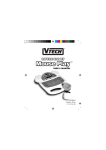
The VTech® SMART START Mouse Play™ Deluxe learning toy invites your child to
learn about computers with a fun, child-friendly mouse design. Basic curriculum includes letters, mathematics, mouse skills, logic games, music and more! A real rollerball mouse and exciting animations enhance computer skills in a fun and nonthreatening way. Prepare your child today for tomorrow’s technology!
LETTER keys
Volume
control
LCD screen
Carry
handle
OFF key
ON key
Contrast
control
DEMO key
Hard-key
keyboard
ANSWER
key
REPEAT key
Roller-ball mouse
with retractable cord
LED
light
PARENT’S
MODE key
CHEESE
key
LEVEL
key
Activity
Selector
keys
1
MATCHBOOK
key
ERASE
key
BATTERY INSTALLATION
1. Make sure the unit is OFF.
2. Locate the battery cover on the back of the unit and
remove, using coin or screwdriver to loosen the screw.
3. Insert 3 “AA”(UM-3/LR6) batteries as illustrated. (The
use of new, alkaline batteries is recommended for
maximum performance.)
4. Replace the battery cover and tighten the screw to
secure the battery cover.
BATTERY NOTICES
• Install batteries correctly observing the polarity ( +, - ) signs to avoid leakage.
• Do not use rechargeable batteries.
• Do not mix old and new batteries.
• Do not use batteries of different types.
• Remove the batteries from the learning aid when it will not be used for an extended
period of time.
• Do not dispose of batteries in fire.
• Do not attempt to recharge ordinary batteries.
• The supply terminals are not to be short-circuited.
NOTE: If for some reason the program/activity stops working, please follow these steps:
1. Please turn the unit off.
2. Interrupt the power supply by removing the batteries.
3. Let the unit stand for a few minutes, then replace the batteries.
4. Turn the unit on. The unit will now be ready to play again.
If the problem persists, please call our Consumer Services Department at 1-800-5212010 in the U.S., 1-800-267-7377 in Canada or 01235-546810 in the U.K.
AUTO POWER OFF
The VTech® SMART START Mouse Play™ Deluxe learning toy will turn off automatically
if the player does not press any key for 2 minutes.
2
MOUSE DESCRIPTION
Removing Mouse from Main Unit.
Follow these steps in removing the mouse from the main unit (Please note the mouse
should not detach completely from the unit. It is tethered by a retractable cord, and is
intended to be used while attached to the unit.):
1. Push the mouse near the back end.
2. Lift it up starting from its back end.
3. Remove it from the small hinge.
Mouse Buttons
For all activities, the 2 buttons on the mouse have the same function. Push either the
right or left button to select an item on the LCD screen.
KEYBOARD DESCRIPTION AND FUNCTIONS
Press this key to turn the unit on.
Press this key to turn the unit off.
Press these keys when selecting answers for word-related activities.
These keys can be used as music keys in Music Box’s Parent’s Mode.
3
Press this key to learn the answers to questions in selected activities.
Press this key to activate the Matchbook mode.
These keys serve as number keys in the Matchbook mode.
These keys serve as answer selection keys in the Matchbook mode.
Press this key to have a question repeated for you.
Press this key to select the level of difficulty. There are three skill levels for most
activities. The default is Level 1 for all games. Each time you press this key, the
level of difficulty will increase: Level 1 --> Level 2--> Level 3--> Level 1 --> Level 2 --> ......
ACTIVITY SELECTOR KEYS
To choose an activity, press one of the 12 activity keys located at the top of the keyboard.
TO BEGIN PLAY
1. To begin play, press the ON key located at the upper right-hand corner of the keyboard.
2. Select the activity you wish to play by pressing one of the 12 activity keys.
3. To adjust the volume, slide the Volume Control Switch down for lower volume or
slide it up for higher volume.
4
DESCRIPTION OF ACTIVITIES
Mouse Skills
Our mouse friend has been studying very hard and now
he’s seeing stars! Can you help our starry-eyed friend by
moving the arrow around the screen with your computer
mouse? When you touch a star with the arrow and click
the mouse button, the star will disappear. The mouse’s eyes
will follow your arrow and reward you with funny animations.
Move the cursor mouse as fast as you can and watch the
mouse get dazzled!
Parent’s Mode
Parents can challenge their child’s reaction skills by pressing
the Cheese key to control the occurrence of the flies.
Cheese Party
Look out! Cheese is falling from the sky! Help the mouse
keep the cheese from falling on the ground by moving the
position of the tray to catch the cheese. Use the mouse
buttons to switch which hand holds the tray.
Parent’s Mode
Parents can challenge their child’s reaction skills by pressing the Cheese key to control the occurrence of the falling
cheese.
Cheese Catch
Cheese is flying out of a truck. Your challenge is to catch
the cheese in the cart by rolling your mouse left and right
to move the cart into place. Think you can do it? I bet you
can!
Parent’s Mode
Parents can challenge their child’s reaction skills by pressing the Cheese key to control the occurrence of the flying
cheese.
5
Alphabet Order
Choo! Choo! Here comes the train! Uh, oh. What’s wrong?
Our train is carrying four ABC letters, but they were mixed
up when the train stopped. Can you help fix the problem
by using your mouse to put the letters back in their correct
order? Once you get it right, our train will be on its way!
Change from uppercase to lowercase and vice versa by
pressing the Cheese key.
Parent’s Mode
Parents can personalize play by replacing the sequential
letters with simple words. Use the keyboard to input an
original word to be seen on the train and press the Cheese
key to confirm the input.
Fun to Follow
Our mouse wants to play Hide and Seek. Can you find him
by clicking on the letter that he is hiding behind? He will
hide again once you find him, so keep your eye on that
mouse!
Change from uppercase to lowercase and vice versa by
pressing the Cheese key.
Parent’s Mode
Parents can personalize play by replacing the letters with
letters that they choose. Simply input your own letters
and press the Cheese key to confirm the input.
6
Beginning Letters
Our mouse loves to spell! Can you help him out by watching the animation and then finding the missing beginning
letter when the word appears on the screen? Use your
keyboard to type in your answer. If you need a hint, all you
have to do is move the cursor arrow over the rectangle at
the beginning of the word to see what letter you need to
press. Let’s see what you can do!
Change from uppercase to lowercase and vice versa by
pressing the Cheese key.
Parent’s Mode
Parents can introduce new words and personalize play
by inputting their own simple words (e.g., the child’s
name). Type an original word and press the Cheese key
to confirm the input.
Counting
Here’s a fun new way to count and practice your mouse
skills at the same time. Use your mouse to click on each of
the objects on the screen that looks like the object on the
bottom left corner. When you do this, the object will disappear and the number will change to tell you how many
objects you have clicked on so far. Ready? Go!
Parent’s mode
Parents can challenge their child by determining the
number of objects on the screen to be counted. The number
of times the Cheese key is pressed corresponds to the
number of objects on the screen. The game will start five
seconds after the last click of the Cheese key.
Addition
How about some addition? An equation will appear on the screen and an animation will
start as 4 possible answers appear one at a time. When you see the right answer, click
on your mouse button before it disappears! You don’t need to worry about moving your
mouse in this activity.
7
Change the positioning of the equation from horizontal to vertical by pressing the Cheese
key and enjoy addition in its many forms!
Parent’s Mode
In this activity, Parent’s Mode is an explanatory mode. Parents can interrupt the game to
explain addition to the child. Pressing the Cheese key changes the numbers into visual
representations. Move at a pace that is comfortable for your child by pressing the Cheese
key when you are ready to proceed to the next screen. After the animation is finished, it
returns to the game.
Subtraction
Time to subtract! An equation will appear on the screen and an animation will start as 4
possible answers appear one at a time. When you see the right answer, click on your
mouse button before it disappears! You don’t need to worry about moving your mouse
in this activity. Good luck!
Change the positioning of the equation from horizontal to vertical by pressing the Cheese
key and enjoy subtraction in its many forms!
Parent’s Mode
In this activity, Parent’s Mode is an explanatory mode. Parents can interrupt the game to
explain subtraction to the child. Pressing the Cheese key changes the numbers into
visual representations. Move at a pace that is comfortable for your child by pressing the
Cheese key when you are ready to proceed to the next screen. After the animation is
finished, it returns to the game.
8
Music Box
Would you like to hear a song? As the balloons float
upwards on the screen, use the mouse to click on one
and burst the balloon to release its song. Otherwise,
you can press the number key or letter key that matches
your chosen song. Pick your favorite songs off of the
following list and enjoy some tunes!
1
Name
The Alphabet Song
Alphabet keys
A, K, U
2
Head and Shoulders
B, L, V
3
Old MacDonald Had a Farm
C, M, W
4
Skip to My Lou
D, N, X
5
Bingo
E, O, Y
6
Shoo Fly, Don’t Bother Me
F, P, Z
7
Are You Sleeping? (Frere Jacques)
G, Q
8
Hickory, Dickory Dock
H, R
9
Three Blind Mice
I, S
10
I’ve Been Working on the Railroad
J, T
Parent’s Mode
In this mode, parents can input a song especially for their
child. Press the music notes to compose a song or use it
as a free-play mode and teach your child how to play a
song. The music notes are printed below the letters K
through R on the keyboard.
9
Direction Match
Uh, oh! The objects were all facing the same direction
when they first appeared on the screen, but then they
started to turn. Now they are all mixed up! Can you help
put them all back in the right direction by using your mouse
to click on the objects and rotate them back to their original
positions? The final picture should look just like the original. Come on. You can do it!
Parent’s Mode
Parents can use this activity to teach their child about direction. Use the Cheese key to call
up screens that pictorially describe “Up”, “Down”, “Left” and “Right.”
Pair Up
Help find the pairs. Several objects will appear on the
screen, but only 2 are the same. Find these matching objects and click on them with your mouse. When you click
on the first object, it will flash. When you find the correct
matching object, the incorrect objects will disappear and
the correct pair will flash. You will be rewarded with fun
sound effects and bright flashing lights!
Parent’s Mode
Parents can personalize play by replacing the objects with letters. The first letter typed
in will be recognized twice as the object pair to be found. For example, if you input A, B
and C and then press the Cheese key to confirm, cards will appear with A, A, B and C.
10
MATCHBOOK MODE
This product belongs to the Smart Start series, which can be expanded with Matchbooks.
These special workbooks are sold separately and can be activated on Mouse Play™
Deluxe by pressing the Matchbook key. After inputting the special Matchbook code and
a page number, use the unit to answer the questions from the workbook. Mouse Play™
Deluxe will respond with the correct answers.
Game Play
The Matchbook is usually divided into six separate sections. All questions in the book
are multiple choice and should be answered with the four color book keys located on the
Mouse Play™ Deluxe keyboard.
1. Press the Matchbook key on the keyboard.
2. Input the Matchbook and section numbers for your particular Matchbook. For example, inputting 012 would
mean that you are working on Matchbook 01, section
2. Press the Cheese key to confirm and then start the
game.
3. Once the section code is entered, the number of the
first question in the section will appear on the screen.
Each question has four possible answers. Answer the
questions by pressing the color keys that correspond
to the correct answers. The four color keys are U, V, W
and X on the keyboard and are represented by color
book icons underneath these letter keys.
4. As you go through each section, you must answer the
questions in the order that they appear. When you
finish a section, a score will automatically be displayed
on the screen. Each section is divided into 30 questions.
Example:
Things around the house: “Can you pick the correct word to go with these pictures?”
Select the correct answer by choosing the letter key (U, V, W or X) that has the same
color book icon under it as the answer color.
11
GAME STATISTICS
Each activity has its own special features to give you the most fun and the most learning
possible! If you want to know your time limit, the number of lives you have, whether or
not there is scoring or what kind of interaction Parent’s Mode provides, check the chart
below:
Time Limit
Mouse Operation Mouse Skills
Word Game
60 sec
Lives
Unlimited
Scoring
Parent’s Mode
√
Competitive
Cheese Party
50 sec
5
√
Competitive
Cheese Catch
50 sec
5
√
Competitive
Alphabet Order
60 sec
Level 1 2 3
√
Questioning
√
Questioning
Lives 1 2 3
Fun to Follow
Beginning Letters
Mathematics
Counting
60 sec
3
60 sec
3
√
Questioning
Unlimited
Unlimited
N/A
Questioning
3
√
Explanatory
Challenge
Addition
60 sec
3
√
Explanatory
90 sec*
Unlimited
N/A
Explanatory
Direction Match
60 sec
Unlimited
√
Explanatory
Pair Up
60 sec
3
√
Questioning
Matchbook
60 sec
3
√
Subtraction
Creativity and Fun Music Box
Matchbook
60 sec
12
N/A
• In Music Box, the screen will automatically return to the main menu if there is no
input for 90 seconds.
CARE AND MAINTENANCE
1. Keep the unit clean by wiping it with a slightly damp cloth.
2. Keep the unit out of direct sunlight and away from direct sources of heat.
3. Remove batteries when the unit will not be in use for an extended period of time.
4. Do not drop the until on hard surfaces.
5. Do not try to dismantle the unit.
6. Do not expose the unit to moisture or water.
IMPORTANT NOTE:
Creating and developing Preschool products is accompanied by a responsibility
that we at VTECH® take very seriously. We make every effort to ensure the accuracy
of the information, which forms the value of our products. However, errors sometimes
can occur. It is important for you to know that we stand behind our products and
encourage you to call our Consumer Services Department at 1-800-521-2010 in the
U.S. or 1-800-267-7377 in Canada with any problems and/or suggestions that you
might have. A service representative will be happy to help you.
NOTE:
This equipment generates and uses radio frequency energy and if not installed and
used properly, that is, in strict accordance with the manufacturer’s instructions, it may
cause interference to radio and television reception. It has been type tested and found
to comply within the limits for a Class B computing device in accordance with the
specifications in Subpart J of Part 15 FCC Rules, which are designed to provide
reasonable protection against such interference in a residential installation. However,
there is no guarantee that interference will not occur in a particular installation. If this
equipment does cause interference to radio or television reception, which can be
determined by turning the equipment off and on, the user is encouraged to try to correct
the interference by one or more of the following measures:
•
reorient the receiving antenna
•
relocate this product with respect to the receiver
•
move this product away from the receiver
13