1
 | KTS 570 | Bluetooth Installation
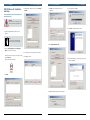
13.Click Next to start the Bluetooth® Stack installation.
16.Click Yes to restart the computer.
KTS 570 | Firmware Update | 20.Click Yes to install the Bluetooth® link.
23.The KTS 570 Bluetooth® activation process will now be
completed.
Note
Note
Leave the Bluetooth® dongle plugged into the
USB Port
14.Click Yes to start the Install process.
Confirm that the USB cable is still plugged into
the KTS 570.
17.After the system reboots you should have the
Bluetooth® Manager Icon displayed on your desktop.
24.Click Accept and then OK to complete the installation.
Note
This icon will only be displayed when the
Bluetooth® dongle is plugged in.
15.Plug The KTS Bluetooth® Dongle into the USB port at
this time. Click OK to continue.
18.Go to the Control Panel and double click the Bosch
DDC Control Panel Icon.
21.The Bluetooth® device will now assign a Bluetooth®
address to the KTS 570 through the USB cable.
19.Click the New button to add the new Bluetooth®
connection.
Congratulations, you have successfully set up the wireless
Bluetooth® installation.
Firmware Update
22.Remove the USB cable from the KTS 570 Module. Click
OK.
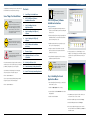
If your KTS 570 was not connected to the PC during
software and firmware installation you will need to do a
Firmware Update as described below.
1. Connect the KTS 570 with the PC via USB and supply
external power to the KTS. Verify power with blinking
green light on end of unit. Firmware Update will not
work wirelessly – unit must be connected via USB.
Robert Bosch LLC
KTS 570 Quick Start Guide | F00E900073 | Version 1 | August 2007
KTS 570 Quick Start Guide | F00E900073 | Version 1 | August 2007
Robert Bosch LLC