1
S
Monogram
Embroidery
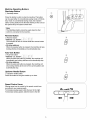
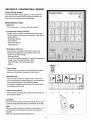
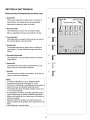
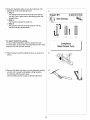
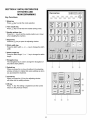
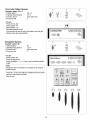
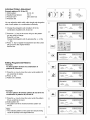
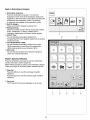
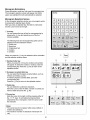
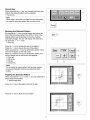
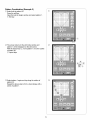
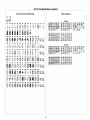
Press embroidery mode key, and press the monogram key.
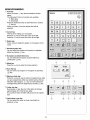
The monogram selection screen will appear and Gothic
upper case alphabet font will automatically be selected.
Monogram
Selection
Screen
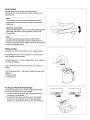
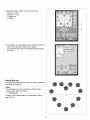
In the monogram selection window, you can program words
by pressing the alphabet keys directly.
After you press an alphabet key, the letter is memorized
and the cursor moves to the right.
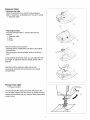
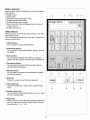
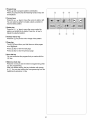
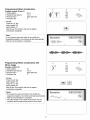
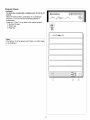
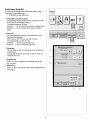
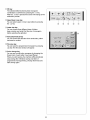
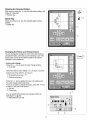
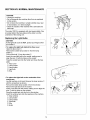
Font key
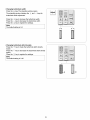
You can change the type of font for monogramming
pressing the [_,,_key and selecting one of the five
choices available.
The following fonts and monogramming
selected in the font selection window.
Gothic font
Script font
Cheltenham font
3-letters
2-letters
by
sytles can be
When you press the
key, the selection will be cancelled
and the selection window closes.
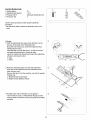
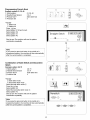
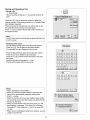
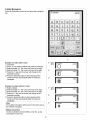
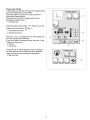
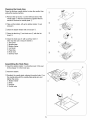
NumberlLetter key
When you press the ,,--z key, the number and symbols
will appear. To select the number or symbol, press the
corresponding key. Press the _! key to return to the
alphabet window.
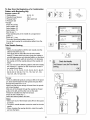
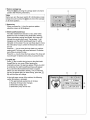
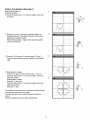
European accented letter key
You can select the European accented letters, such as
Umlaut, by pressing
key.
To select European accented letter, press the
corresponding key.
Press the _.._ key to return to the alphabet window.
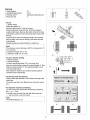
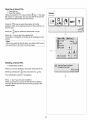
Delete key
You can delete the underlined characters.
Move the cursor under the letter, number or symbol you
want to delete and press the _key.
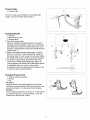
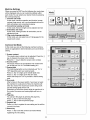
Cursor key
Slide the cursor to the right or left by pressing either of
the
keys.To add letters/numbers/symbols
(characters) into a monogram, move the cursor under
the character.
Notes:
• The cursor keys do not appear while using 2-letters or
3-letters font selections.
• The maximum number of characters memorized will
vary.
J
65