1
INA
KS1
QSZZ
Pegasus-E_Fax_Sec.book
1 ページ
2004年9月24日 金曜日 午後2時51分
MODEL
AR-FX11
FACSIMILE EXPANSION KIT
OPERATION MANUAL
Page
• BEFORE USING
9
THE FAX FUNCTION
19
• BASIC OPERATIONS
• ADVANCED TRANSMISSION
34
METHODS
• TRANSMISSION USING
50
F-CODES
• CONVENIENT METHODS
62
OF USE
64
• PROGRAMMING
88
• TROUBLESHOOTING
• KEY OPERATOR
94
PROGRAMS
110
• APPENDIX
Be sure to become thoroughly familiar with this manual to gain
the maximum benefit from the product.
Before installing this product, be sure to read the installation
requirements and cautions sections of the "Operation manual
(for general information and copier)".
Be sure to keep all operation manuals handy for reference
including this manual, the "Operation manual (for general
information and copier)" and operation manuals for any
optional equipment which has been installed.
Pegasus-E_Fax_Sec.book
2 ページ
2004年9月24日 金曜日 午後2時51分
■ CAUTION:
To reduce the risk of fire, use only UL-Listed No.26 AWG or larger telecommunication line cord.
■ WARNING:
FCC Regulations state that any unauthorized changes or modifications to this equipment not
expressly approved by the manufacturer could void the user's authority to operate this equipment.
■ FAX interface cable and Line cable:
These special accessories must be used with the device.
WARNING:
FCC Regulations state that any unauthorized changes or modifications to this equipment not
expressly approved by the manufacturer could void the user's authority to operate this equipment.
Note:
This equipment has been tested and found to comply with the limits for a Class A digital device,
pursuant to Part 15 of the FCC Rules. These limits are designed to provide reasonable protection
against harmful interference when the equipment is operated in a commercial environment. This
equipment generates, uses, and can radiate radio frequency energy and, if not installed and used
in accordance with the operation manual, may cause harmful interference to radio
communications.
Operation of this equipment in a residential area is likely to cause harmful interference in which
case the user will be required to correct the interference at his own expense.
Pegasus-E_Fax_Sec.book
1 ページ
2004年9月24日 金曜日 午後2時51分
INTRODUCTION
Thank you for purchasing this product. This manual only explains the facsimile functions of the product. For safety
precautions and general information on using the machine such as loading paper, clearing misfeeds, and handling
peripheral units, see the "Operation manual (for general information and copier)".
For other functions, see the following manuals as appropriate:
Copier function: See the "Operation manual (for general information and copier)".
Printer function: See the "Operation manual (for printer and scanner)".
Network scanner function: See the "Operation manual (for network scanner)" (if the network scanner option is
installed).
The explanations in this manual assume that certain optional peripheral units are installed.
This manual refers to the Reversing single pass feeder as the "RSPF" and the single pass feeder as the "SPF".
Unless specific mention is made, both the RSPF and the SPF are referred to simply as "SPF".
CONNECTING AN EXTENSION PHONE
You can connect a telephone to the machine and use it as an extension phone to place and receive calls like any
normal phone. Fax reception can also be activated from an extension phone connected to the machine. (remote
operation)
Note
• If you connect a combination telephone/answering machine to the machine, you will not be able to use the
answering machine function.
• You can place calls from the phone even during a power failure.
CONNECTING AN EXTENSION PHONE
1
Insert the end of the extension phone
cord into the extension phone jack on
the left side of the machine.
Extension
phone jack
Make sure you hear a "click"
sound indicating that the cord is
securely connected.
1
Pegasus-E_Fax_Sec.book
2 ページ
2004年9月24日 金曜日 午後2時51分
CONTENTS
INTRODUCTION ........................................................................................................................................ 1
CONNECTING AN EXTENSION PHONE.................................................................................................. 1
TO USE THIS PRODUCT CORRECTLY AS A FACSIMILE..................................................................... 4
1
BEFORE USING THE FAX FUNCTION
POINTS TO CHECK AND PROGRAM AFTER
INSTALLATION ................................................. 9
3
ADVANCED TRANSMISSION METHODS
PART NAMES AND FUNCTIONS ................... 10
SENDING THE SAME DOCUMENT TO MULTIPLE
DESTINATIONS IN A SINGLE OPERATION
(BROADCAST TRANSMISSION) ...................... 34
● OPERATION PANEL ......................................10
● FAX MODE (BASE SCREEN) ........................12
● AUDITING MODE ...........................................13
AUTOMATIC TRANSMISSION AT A SPECIFIED
TIME (TIMER TRANSMISSION) ..................... 36
ORIGINALS...................................................... 14
● SETTING UP A TIMER TRANSMISSION...... 36
● ORIGINALS THAT CAN BE FAXED...............14
TRANSMISSION AND RECEPTION USING THE
POLLING FUNCTION...................................... 38
PLACING THE ORIGINAL............................... 15
● USING BROADCAST TRANSMISSION ........ 35
● USING THE SPF ............................................15
● USING THE DOCUMENT GLASS..................15
● USING THE POLLING FUNCTION ............... 39
● USING POLLING MEMORY .......................... 41
CHECKING THE SIZE OF A PLACED
ORIGINAL ........................................................ 16
INCLUDING SENDER INFORMATION ON
FAXES ............................................................. 44
● MANUALLY SETTING THE SCANNING SIZE ......16
FAXING A DIVIDED ORIGINAL (DUAL PAGE
SCAN) .............................................................. 45
SELECTING RESOLUTION AND EXPOSURE
SETTINGS........................................................ 17
CONVENIENT DIALING METHODS
(AUTO-DIALING) ............................................. 18
ADDING A COVER SHEET/MESSAGE TO A
FAX TRANSMISSION...................................... 46
USING SETTINGS STORED AS A PROGRAM .... 47
● USING A PROGRAM..................................... 47
2
BASIC OPERATIONS
SENDING A FAX ............................................. 20
● BASIC PROCEDURE FOR SENDING FAXES ......20
● TRANSMISSION BY AUTO-DIALING (RAPID
DIALING AND GROUP DIALING) ..................22
● SENDING A FAX BY SPEED DIALING..........22
● SEARCHING FOR A PROGRAMMED DESTINATION
(USING THE [ADDRESS] KEY) ...........................23
● FAXING A TWO-SIDED ORIGINAL ...............24
● CANCELING A FAX TRANSMISSION ...........28
RECEIVING FAXES......................................... 30
● RECEIVING A FAX.........................................30
● FAX PRINT HOLD FUNCTION.......................32
FORWARDING RECEIVED FAXES TO
ANOTHER MACHINE WHEN PRINTING IS NOT
POSSIBLE (FORWARDING FUNCTION) ....... 48
● USING THE FORWARDING FUNCTION ...... 48
4
TRANSMISSION USING F-CODES
COMMUNICATION BETWEEN MACHINES
SUPPORTING F-CODES ................................ 50
● BOXES AND SUB-ADDRESSES/PASSCODES
REQUIRED FOR F-CODE TRANSMISSION ....... 50
● CREATING A BOX FOR F-CODE
TRANSMISSION............................................ 51
F-CODE POLLING MEMORY ......................... 52
● HOW F-CODE POLLING MEMORY WORKS ...... 52
● USING F-CODE POLLING MEMORY ........... 53
● PROCEDURE FOR F-CODE POLLING ........ 55
F-CODE CONFIDENTIAL TRANSMISSION ... 57
● F-CODE TRANSMISSION (F-CODE
CONFIDENTIAL TRANSMISSION) ............... 57
● PRINTING A DOCUMENT RECEIVED TO AN
F-CODE CONFIDENTIAL MEMORY BOX .... 59
2
Pegasus-E_Fax_Sec.book
3 ページ
2004年9月24日 金曜日 午後2時51分
CONTENTS
F-CODE RELAY BROADCAST
TRANSMISSION .............................................. 60
● USING THE F-CODE RELAY BROADCAST
FUNCTION (your machine is the relay machine) ......61
● USING THE F-CODE RELAY REQUEST FUNCTION
(your machine requests a relay broadcast) ...........61
5
CONVENIENT METHODS OF USE
CONNECTING AN EXTENSION PHONE........ 62
● USING AN EXTENSION PHONE ...................62
● SETTING THE RECEPTION MODE ..............63
6
PROGRAMMING
8
KEY OPERATOR PROGRAMS
● KEY OPERATOR PROGRAM LIST............... 94
● KEY OPERATOR PROGRAM MENU............ 95
PROCEDURE FOR USING THE KEY
OPERATOR PROGRAMS............................... 96
● INITIAL PROCEDURE ................................... 96
KEY OPERATOR PROGRAMS FOR THE FAX
FUNCTION....................................................... 97
●
●
●
●
●
LIST PRINT/SET............................................ 97
INITIAL SETTING .......................................... 98
SENDING FUNCTION ................................. 102
RCV. FUNCTION ......................................... 105
POLLING SECURITY .................................. 109
PROGRAMMING ............................................. 64
STORING, EDITING, AND DELETING AUTO DIAL
NUMBERS AND PROGRAMS .......................... 64
● STORING, EDITING, AND DELETING
AUTO-DIAL NUMBERS (RAPID KEYS, SPEED
DIAL NUMBERS, AND GROUP KEYS) .........64
● STORING, EDITING AND DELETING
PROGRAMS ...................................................74
9
APPENDIX
SPECIFICATIONS ......................................... 110
INDEX ............................................................ 111
PROGRAMMING, EDITING, AND DELETING
F-CODE MEMORY BOXES ............................. 76
● PROGRAMMING AN F-CODE MEMORY BOX .....76
PRINTING LISTS OF PROGRAMMED
INFORMATION, SETTINGS, AND
COMMUNICATION ACTIVITY......................... 83
ENTERING CHARACTERS............................. 84
●
●
●
●
7
CHARACTERS THAT CAN BE ENTERED ....84
CHANGING TO ENTRY MODE......................84
CHARACTER ENTRY KEYS..........................85
INITIAL PROCEDURE FOR ENTERING
CHARACTERS ...............................................86
TROUBLESHOOTING
WHEN A TRANSACTION REPORT IS PRINTED....... 88
● INFORMATION APPEARING IN THE
TYPE/NOTE COLUMN ...................................88
VIEWING THE COMMUNICATION ACTIVITY REPORT
AT REGULAR INTERVALS (Communication activity
report) ............................................................... 90
WHEN AN ALARM SOUNDS AND A WARNING
MESSAGE IS DISPLAYED.............................. 90
● SELF-DIAGNOSTIC FUNCTION....................91
● MESSAGES DURING NORMAL OPERATION .....91
PROBLEMS AND SOLUTIONS ...................... 92
3
Pegasus-E_Fax_Sec.book
4 ページ
2004年9月24日 金曜日 午後2時51分
TO USE THIS PRODUCT CORRECTLY AS
A FACSIMILE
Several points must be kept in mind when using this product as a facsimile.
Please note the following.
Line connection
Be sure to use the provided telephone line cord to connect
the machine to a telephone line jack. Insert one end of the
telephone line cord into the LINE jack on the left side of the
machine as shown. Insert the other end of the telephone
line cord into a telephone line jack.
LINE jack
Insert the plug firmly until you hear a "click".
Power switch
Keep the machine power switch turned on at all times. Do
not turn off the power. If the power is turned off, the fax
function cannot be used.
When the power is off, the machine cannot receive faxes.
Before turning off the power, make sure the machine is idle.
If the power is turned off while the machine is in operation, a
paper jam may occur. If settings are being configured, the
settings will be canceled.
Power switch
Setting the date and time and programming your sender's name
and number
Before using the fax function, you must set the date and time and program your sender's name and number in the
machine. This procedure is explained in "POINTS TO CHECK AND PROGRAM AFTER INSTALLATION" on page 9
of this manual.
4
Pegasus-E_Fax_Sec.book
5 ページ
2004年9月24日 金曜日 午後2時51分
TO USE THIS PRODUCT CORRECTLY AS A FACSIMILE
Lithium battery
A lithium battery in the machine is used to retain settings and programmed information such as auto-dial numbers
(page 64).
• When the battery dies, settings and programmed information will be lost, so please keep a record of this
information. (See "PRINTING LISTS OF PROGRAMMED INFORMATION, SETTINGS, AND COMMUNICATION
ACTIVITY" on page 83.)
• The life of the battery is approximately 5 years when the power switch is kept continuously off.
• When the battery dies, please consult your dealer or your nearest Sharp customer assistance center. The
machine will not operate once the battery dies.
Please note
In the event of a thunderstorm, remove the power cord from the power outlet to ensure safety. Information will be
retained in memory even if the power cord is unplugged.
5
Pegasus-E_Fax_Sec.book
6 ページ
2004年9月24日 金曜日 午後2時51分
TO USE THIS PRODUCT CORRECTLY AS A FACSIMILE
FCC NOTICE TO USERS
This equipment complies with Part 68 of the FCC rules and the requirements adopted by the ACTA.
On this equipment is a label that contains, among other information, a product identifier in the format
US:AAAEQ##TXXXX.
If requested, this information must be provided to the telephone company.
A plug and jack used to connect this equipment to the premises wiring and telephone network must comply with the
applicable FCC Part 68 rules and requirements adopted by the ACTA.
A compliant telephone cord and modular plug is provided with this product.
It is designed to be connected to a compatible modular jack that is also compliant. See installation instructions for
details.
This equipment connects to the telephone network through a standard USOC RJ-11C network interface jack.
The REN is used to determine the number of devices that may be connected to a telephone line.
Excessive RENs on a telephone line may result in the devices not ringing in response to an incoming call.
In most but not all areas, the sum of the RENs should not exceed five (5.0).
To be certain of the number of devices that may be connected to your line, as determined by the total RENs, contact
your local telephone company.
For products approved after July 23, 2001, the REN for this product is part of the product identifier that has the
format US:AAAEQ##TXXXX.
The digits represented by ## are the REN without a decimal point (e.g., 03 is a REN of 0.3).
For earlier products, the REN is separately shown on the label.
If this equipment causes harm to the telephone network, your telephone company may disconnect your service
temporarily.
If possible, They will notify you in advance.
If advance notice is not practical, you will be notified as soon as possible.
You will also be advised of your right to file a complaint with the FCC.
Your telephone company may make changes in its facilities, equipment, operations, or procedures that could affect
the operation of your equipment.
If this happens, the telephone company will provide advance notice in order for you to make necessary modifications
to maintain uninterrupted service.
If the equipment is causing harm to the telephone network, your telephone company may ask you to disconnect the
equipment until the problem resolved.
If you have any questions or problems which cannot be solved by reading this manual, please contact
Sharp Electronics Corporation
P.O. Box 650
Mahwah, NJ 07430-1163
Telephone: 1-800-BE-SHARP
This equipment may not be used on coin service provided by the telephone company.
Connection to party lines service is subject to state tariffs.
Contact your state's public utility commission, public service commission or corporation commission for more
information.
If your home has specially wired alarm equipment connected to the telephone line, ensure the installation of this
equipment does not disable your alarm equipment.
If you have questions about what will disable alarm equipment, consult your telephone company or a qualified
installer.
6
Pegasus-E_Fax_Sec.book
7 ページ
2004年9月24日 金曜日 午後2時51分
TO USE THIS PRODUCT CORRECTLY AS A FACSIMILE
ABOUT THE TELEPHONE CONSUMER PROTECTION ACT OF 1991
The Telephone Consumer Protection Act of 1991 makes it unlawful for any person to use a computer or other
electronic device, including FAX machines, to send any message unless such message clearly contains in a margin
at the top or bottom of each transmitted page or on the first page of the transmission, the date and time it is sent and
an identification of the business or other entity, or other individual sending the message and the telephone number
of the sending machine or such business, other entity, or individual.
(The telephone number provided may not be a 900 number or any other number for which charges exceed local or
long-distance transmission charges.)
In order to program this information into your FAX machine, you should complete the following steps:
See CHAPTER 8 of this instruction manual.
IMPORTANT SAFETY INFORMATION
• If any of your telephone equipment is not operating properly, you should immediately remove it from your
telephone line, as it may cause harm to the telephone network.
• The AC power outlet should be installed near the equipment and should be easily accessible.
• Never install telephone wiring during a lightning storm.
• Never install telephone jacks in wet locations unless the jack is specifically designed for wet locations.
• Never touch uninsulated telephone wires or terminals unless the telephone line has been disconnected at the
network interface.
• Use caution when installing or modifying telephone lines.
• Avoid using a telephone (other than a cordless type) during an electrical storm. There may be a remote risk of
electric shock from lightning.
• Do not use a telephone to report a gas leak in the vicinity of the leak.
• Do not install or use the machine near water, or when you are wet.
Take care not to spill any liquids on the machine.
7
Pegasus-E_Fax_Sec.book
8 ページ
2004年9月24日 金曜日 午後2時51分
TO USE THIS PRODUCT CORRECTLY AS A FACSIMILE
NOTICE FOR USERS IN CANADA
NOTICE : This product meets the applicable Industry
Canada technical specifications.
NOTICE : The Ringer Equivalence Number is an
indication of the maximum number of devices allowed
to be connected to a telephone interface. The
termination on an interface may consist of any
combination of devices subject only to the requirement
that the sum of the RENs of all the devices does not
exceed five.
The REN of this equipment is indicated on the
copying machine.
The registration number is indicated on the fax
printed circuit board and on the copying machine.
This Class A digital apparatus complies with Canadian
ICES-003.
AVIS POUR NOS UTILISATEURS AU
CANADA
AVIS : Le présent matériel est conforme aux
spécifications techniques applicables d'Industrie
Canada.
Remarque : L'indice d'équivalence de la sonnerie
(IES) sert à indiquer le nombre maximal de terminaux
qui peuvent être raccordés à une interface
téléphonique. La terminaison d'une interface peut
consister en une combinaison quelconque de
dispositifs, à la seule condition que la somme d'indices
d'équivalence de la sonnerie de tous les dispositifs
n'excède pas 5.
L'indice d'équivalence de la sonnerie (IES) de cet
équipement est indiqué sur le copieur.
Le numéro d'enregistrement est indiqué sur la carte
à circuit imprimé du télécopieur et sur le copieur.
Cet appareil numérique de la classe A est conforme à
la norme NMB-003 du Canada.
Sharp Electronics of Canada Ltd.
335 Britannia Road East,
Mississauga, Ontario, L4Z 1W9
Canada
8
Pegasus-E_Fax_Sec.book
1
9 ページ
2004年9月24日 金曜日 午後2時51分
BEFORE USING THE FAX
FUNCTION
This chapter contains basic information about using the fax function of the machine. Please read this chapter before
using the fax function.
POINTS TO CHECK AND PROGRAM
AFTER INSTALLATION
After installing the machine and before using it as a fax machine, check the following points and program the
required information.
Set the date and time
The machine has an internal clock. It is important to set the correct date and time because they are used for such
features as Timer Transmission (page 36).
The date and time are set in the key operator programs. (Page 101)
The date and time appear in the display. Make sure the correct date and time appear. If the date and time are wrong,
please correct them.
Program the sender's name and sender's number
The name and fax number of the user of the machine is programmed in "OWN PASSCODE SET" (page 99) in the
key operator programs. (Only one name and number can be programmed.)
The programmed name and number are printed at the top of each transmitted fax page. The sender's number is also
used as an identification number when you use the Polling function to request transmission from another fax
machine (see "USING THE POLLING FUNCTION" on page 39).
Note
You can check your programmed name and number by printing out the "Key Operator List" in the key operator
programs. (See "LIST PRINT" on page 97.)
Paper sizes that can be used for fax mode
The machine can use 11" x 17", 8-1/2" x 14", 8-1/2" x 11", 8-1/2" x 11"R, 5-1/2" x 8-1/2", A3, B4, A4, A4R, B5, B5R,
and A5* size paper; however, A3, B4, B5, B5R, and A5 size paper cannot be used in fax mode. (Among AB sizes,
only A4 and A4R can be used.) For this reason, if only paper sizes that can be used in other modes but not in fax
mode are loaded in the machine, received faxes cannot be printed. (For other points regarding fax reception, see
"RECEIVING FAXES" page 30.)
* 8-1/2" x 5-1/2" (A5) size paper can only be loaded in tray 1, regardless of the mode. A5 paper cannot be loaded in tray 2 or in
the optional 250-sheet paper feed unit or 2 x 250-sheet paper feed unit.
Note
For the procedures for loading paper in the trays, see the "Operation manual (for general information and
copier)".
9
Pegasus-E_Fax_Sec.book
10 ページ
2004年9月24日 金曜日 午後2時51分
PART NAMES AND FUNCTIONS
OPERATION PANEL
(1)
26
27
28
29
41
30
42
43
44
45
COPY
A
31
B
32
F
36
G
37
K
C
33
H
38
L
D
34
I
39
M
E
Q
47
J
40
N
P
46
35
U
R
48
V
W
SPEAKER REDIAL/PAUSE
O
SHIFT
S
49
T
50
XYZ
SP
SPEED
COMM. SETTING
SYMBOL
SPACE/–
ON LINE DATA
PRINT
SCAN
LINE
DATA
FAX
(9)
(1)
Page pallet (page 84)
(2)
Display (page 12)
This key displays the base screen and the
function setting screen.
(3)
[BACK] key
In a setting or programming screen, this key is
used to move back to the previous screen.
(4)
[FAX STATUS] key (page 28)
This is used to cancel a fax transmission or a
stored fax transmission.
(5)
[OK] key
This key is used to enter a setting that has been
selected with the arrow or other keys (
).
(6)
(7)
10
Numeric keys
These are used to enter fax numbers,
sub-addresses, passcodes, and numerical
settings. (See "BOXES AND
SUB-ADDRESSES/PASSCODES REQUIRED
FOR F-CODE TRANSMISSION" on page 50.)
[C] key
This is used to clear a mistake when entering fax
numbers, sub-addresses, passcodes, and
numerical settings. One digit is cleared each time
the key is pressed.
When an original is being scanned, this key can
also be used to cancel scanning.
(10) (11) (12)
(13)
(14) (15)
(8)
[CA] key
This is used to cancel a transmission or
programming operation. When pressed during an
operation, the operation is canceled and the display
returns to the base screen described on page 12.
This key is also used to cancel a resolution,
paper size, or special function setting that was
selected when sending a fax.
(9)
[SPEAKER/SHIFT] key (pages 18, 84)
This is used to dial without lifting an extension
phone connected to the machine and to shift
between upper and lower case when entering
characters.
(10) [REDIAL/PAUSE] key (pages 18, 20)
This is used to redial the last number dialed, and
enter a pause when entering a fax number.
(11) [SPEED/SYMBOL] key (pages 18, 86)
This is used to dial by Speed dialing and to enter
a symbol when entering characters.
(12) [COMM. SETTING/SPACE/-] key (page 25)
This is used to switch between memory
transmission and direct transmission, and to
switch between automatic reception and manual
reception. It is also used to enter a space or "-"
when entering characters.
(13) LINE STATUS indicator
This blinks to alert you when a fax is received.
"FAX RECEPTION LIGHT" (page 105) in the key
operator programs can be used to set the blinking
timing to one of two patterns, or to turn blinking off.
Pegasus-E_Fax_Sec.book
11 ページ
2004年9月24日 金曜日 午後2時51分
BEFORE USING THE FAX FUNCTION
(2)
(3) (4)
(5)
(6)
(7) (8)
FAX STATUS
BACK
COPY EXPOSURE
PAPER
ZOOM
OK
ABC
DEF
GHI
JKL
MNO
PQRS
TUV
WXYZ
AUTO % OUTPUT DUPLEX
@.-_
SPECIAL FUNCTION
SCAN COLOR MODE RESOLUTION ADDRESS FORMAT ORIGINAL SIZE DUPLEX SCAN
FAX PROGRAM RESOLUTION ADDRESS BROADCAST ORIGINAL SIZE DUPLEX SCAN
(16) (17) (18) (19) (20) (21)
ACC. #-C
(22)
(15) [FAX] key/FAX indicator/LINE indicator/DATA
indicator
Press to switch to fax mode. The base screen of
fax mode will appear in the display.
The LINE indicator lights up during transmission
or reception of a fax. When a fax has been
received, the DATA indicator blinks. (When there
is fax transmission data in memory, the DATA
indicator lights up.)
(16) [PROGRAM] key (page 47)
Press this key to use a program.
(17) [RESOLUTION] key (page 17)
This key is used to select resolution and
exposure settings.
(18) [ADDRESS] key (page 23)
This key is used to search for a fax destination
that has been stored as an auto-dial number in
the address book.
(19) [BROADCAST] key (page 34)
This is used to perform a broadcast transmission.
(20) [ORIGINAL SIZE] key (page 16)
This is used to set the size of the original to be
faxed.
READ-END
(23)
(14) [MODE SELECT] keys (step 1 on page 20)
These are used these keys to change modes.
1
(24)
(21) [DUPLEX SCAN] key (page 24)
Press this key to use the duplex scan function.
(Only on models with a RSPF installed.)
(22) [SPECIAL FUNCTION] key
This key is used to select a special transmission
or reception function, configure function settings,
and to store auto-dial numbers.
(23) Arrow keys (
)
These are used to select items and move through
pages.
(24) [START] key ( )
This is used at the following times:
(1) When starting transmission
(2) When scanning an original
(3) When starting manual reception
(4) When configuring and storing settings
Note
• When the auto power shut-off function is
activated, All lights except the mode key
lights go off. For the information on the
auto power shut-off function, see the
"Operation manual (for general
information and copier)."
• For information on the keys and lights
which are used for the copy function and
other functions, see "Operation Panel" in
the manual for each function.
11
Pegasus-E_Fax_Sec.book
12 ページ
2004年9月24日 金曜日 午後2時51分
BEFORE USING THE FAX FUNCTION
FAX MODE (BASE SCREEN)
The base screen of fax mode is displayed by pressing the [FAX] key when the print mode, copy mode, or scan mode
screen appears.
The base screen of fax mode
(1)
(2)
(3)
(4)
(5)
(1)
Stand-by.
96%
MAY 10 MON 10:25 AM
MEMORY
AUTO
CONT AUTO
812 x11R
STANDARD
Message display
Messages appear here to indicate the current
status of the machine.
An icon ( ) appears to the right side when a
confidential fax has been received.
(2)
Date and time display
This shows the date and time.
(3)
Transmission mode display (page 25)
There are three transmission modes: memory
transmission, direct transmission, and manual
transmission. This shows the currently selected
transmission mode.
(4)
Exposure display (page 17)
This shows the exposure for scanning the original
that has been selected with the [RESOLUTION]
key.
(5)
Resolution display (page 17)
This shows the resolution for scanning the
original that has been selected with the
[RESOLUTION] key.
Note
12
(6)
(7)
(8)
(6)
Free memory display
This shows the percentage of fax memory that is
free.
(7)
Reception mode display (page 63)
There are two modes for receiving faxes:
automatic reception and manual reception. This
shows the currently selected reception mode.
(8)
Original display (page 16)
This displays an icon to indicate the original
scanning mode when an original has been
placed.
: One-sided original scanning in the SPF.
: Document glass
: Two-sided original scanning in the RSPF.
This also shows the size of the placed original.
The following functions operate even when copy mode is selected:
• Automatic reception (including F-code confidential reception)
• Timer Transmission
• Memory polled function
• Transmission of stored memory transmission jobs
• Voice calls (voice calls can be answered but not placed).
• Remote reception
• Manual reception
• Relay station function for F-code relay broadcast transmission
Pegasus-E_Fax_Sec.book
13 ページ
2004年9月24日 金曜日 午後2時51分
BEFORE USING THE FAX FUNCTION
AUDITING MODE
Accounts that can transmit faxes (up to 50) can be established and transmission time and other information can be
tracked for each account. The Acc. Usage List (page 97) can be printed out which shows the time used for
transmission and pages transmitted by each account.
• This function is enabled using "ACCOUNT CONTROL" and "ACCOUNT # SET" in the key operator programs.
(Page 100)
Using auditing mode
When auditing mode is turned on, the account number entry screen is displayed. Enter your account number
(five-digit identification number) as explained below before performing a fax operation.
1
Enter your account
number.
ACCOUNT #:-----
1
Enter your account number (five
digits) with the numeric keys.
OK
ABC
DEF
GHI
JKL
MNO
PQRS
TUV
WXYZ
Enter your account
number.
ACCOUNT #: ---
@.-_
FUNCTION
ACC. #-C
2
When you have completed the fax
operation, press the [ACC.#-C] key
( ).
@.-_
FUNCTION
ACC. #-C
READ-E
READ-END
• As the account number is entered, the hyphens "-"
change to asterisks " ". If you enter an incorrect
digit, press the [C] key and re-enter the correct digit.
• After you enter your account number, the base
screen of fax mode appears. (Page 12)
Note
• If you enter an account number for copy
mode has also been programmed for fax
mode, you can change to fax mode after
completing the copy operation and
continue with the fax operation without
re-entering your account number.
If you enter an account number for copy
mode that has not been programmed for
fax mode, enter your account number for
fax mode after you press the [FAX] key to
change to fax mode.
• When "ACC. # SECURITY" in the key
operator programs (see the "Key
operator's guide") is enabled, the
message "Please see your key operator
for assistance." will appear for one minute
in the event that you enter an incorrect or
invalid account number three times in a
row. During that time operation of the
machine will not be possible.
13
Pegasus-E_Fax_Sec.book
14 ページ
2004年9月24日 金曜日 午後2時51分
ORIGINALS
ORIGINALS THAT CAN BE FAXED
Original sizes
Minimum original size
Using the SPF
8-1/2" (width) x 5-1/2" (length)
5-1/2" (width) x 8-1/2" (length)
Using the document glass
Note
Maximum original size
11" (width) x 31-1/2"* (length)
* Long documents can be
transmitted
11" (width) x 17" (length)
• Originals that are not a standard size (5-1/2" x 8-1/2", 5-1/2" x 8-1/2"R, 8-1/2" x 11", 8-1/2" x 11"R, 8-1/2" x 14",
11" x 17", A4, A4R) can also be faxed.
• There are restrictions on originals that can be scanned using the SPF. For more information, see "NORMAL
COPYING" in the "Operation manual (for general information and copier)".
* Long originals
Depending on the resolution setting and the width of the original, there may not be sufficient space in memory to
hold a long original. When a long original cannot be entirely scanned, select a lower resolution setting and/or
shorten the original.
Scanning area of original
When faxing an original, note that the edges of the
original cannot be scanned.
5 mm
Width of edges that cannot be scanned:
5 mm from top and bottom edges, 6 mm (or less) from left
and right edges
5 mm
Total of 6 mm or
less
Automatic reduction of faxed document
If the size (width) of the faxed document is greater than the receiving machine's paper size, the size will be
automatically reduced.
Faxed document width
Receiving machine's
paper width
Size after reduction
Ratio
11"x17" (A3)
8-1/2" x 14" (B4)
8-1/2" x 14" (B4)
1 : 0.64 (1 : 0.78)
11"x17" (A3)
8-1/2"x11" (A4)
8-1/2" x 11"R (A4R)
1 : 0.5 (1 : 0.5)
8-1/2" x 14" (B4)
8-1/2"x11" (A4)
8-1/2" x 11"R (A4R)
1 : 0.78 (1 : 0.64)
You can turn off automatic reduction. In this case, the left and right edges will not be transmitted. (See "AUTO
REDUCE TX" on page 102.)
14
Pegasus-E_Fax_Sec.book
15 ページ
2004年9月24日 金曜日 午後2時51分
PLACING THE ORIGINAL
An original can be placed in the SPF or on the document glass. Use the SPF when faxing a large number of sheet
originals. Use the document glass to fax originals that cannot be scanned using the SPF such as thick or thin sheet
originals, or books or other bound originals.
USING THE SPF
1
2
Open the SPF, make sure that an
original has not been left on the
document glass, and then gently
close the SPF.
Adjust the original guides on the
document feeder tray to the width of
the document.
3
Align the edges of the document pages
and then insert the stack in the document
feeder tray so that the first page is face up.
• Insert the originals all the way
into the document feeder tray.
• Make sure the stack does not
exceed the indicator line
(maximum of 40 sheets, or 30
sheets of 24 lbs. (90 g/m2)
paper, thickness 5/32" (4 mm)
or less).
Note
• Do not load originals that are different
sizes even if the widths are the same.
This may cause misfeeds.
• Use the SPF for long originals. The
document glass cannot be used.
• When inserting a long original, the original
should be in contact with the surface of
the document feeder tray. If the original is
not in contact with the surface of the
document feeder tray, an incorrect original
size may be detected.
USING THE DOCUMENT GLASS
1
Open the SPF, place the original face
down on the document glass, and
then gently close the SPF.
• If auto power shut-off has
activated, press the [FAX] key,
wait until the machine has
returned to normal operation,
and then place the original.
• When transmitting a small
original such as a postcard, be
sure to press the [ORIGINAL
SIZE] key and set the original
size. (Page 16)
Regardless of the size of the original, place the original
in the far left corner of the document glass. (Align the
upper left-hand corner of the original with the tip of
the mark.) Place the original in the appropriate
position for its size as shown below.
Document glass scale
5-1/2"x8-1/2"
8-1/2"x11"
Document glass scale
8-1/2"x11"R
8-1/2"x14"
R
11"x17"
The difference between 8-1/2" x 11" (A4) and 8-1/2" x 11"R (A4R)
This manual uses both 8-1/2" x 11" (A4) and 8-1/2" x 11"R (A4R) to indicate paper and original sizes. The "R" is
used to distinguish the orientation of originals and paper. ("R" is used for this purpose for other sizes as well.)
[Example] Difference between the orientations of 8-1/2" x 11" (A4) size and 8-1/2" x 11"R (A4R) size
Horizontally oriented
Top
Vertically oriented
Top
Top
8-1/2" x 11"R (A4R) indicates an original placed as
follows:
Document feeder tray
Document glass
Document feeder tray
Top
8-1/2" x 11" (A4) indicates an original placed as
follows:
Document glass
15
1
Pegasus-E_Fax_Sec.book
16 ページ
2004年9月24日 金曜日 午後2時51分
CHECKING THE SIZE OF A PLACED ORIGINAL
When a standard-size* original is placed, the original size is automatically detected
(automatic original detection function) and displayed in the original display. Make sure
that the size has been detected correctly.
(1) When an original is placed, an icon appears to indicate the original scanning mode.
: One-sided scanning in the SPF.
: Scanning on the document glass
: Two-sided scanning in the RSPF.
(2) Displays the original size.
If a non-standard size original is placed or if you wish to change the scanning size,
follow the steps below to manually set the original scanning size.
Note
Stand-by.
100%
MAY 10 MON 10:25 AM
MEMORY
AUTO
AUTO
CONT
812 x11R
STANDARD
(1)
(2)
*Standard sizes
The following sizes are standard sizes: 11" x 17", 8-1/2" x 14", 8-1/2" x 11", 8-1/2" x 11"R, 5-1/2" x 8-1/2". If a
non-standard size original is loaded (including special sizes), the closest standard size may be displayed, or the
original size may not appear at all.
MANUALLY SETTING THE SCANNING SIZE
If you load an original that is not a standard size (such as a long original), or if the size is not detected correctly, be
sure to press the [ORIGINAL SIZE] key and set the original size manually.
Perform the following steps after placing the original in the document feeder tray or on the document glass (page 15).
Note
1
OM
If a size is specified that is different from the actual original size when scanning a two-sided original in the RSPF,
a scanning error or a cut-off image may result.
Press the [ORIGINAL SIZE] key.
AUTO % OUTPUT DUPLEX
SPEC
ESS FORMAT ORIGINAL SIZE DUPLEX SCAN
ESS BROADCAST ORIGINAL SIZE DUPLEX SCAN
The original size
selection screen appears.
2
PQR
DUPLEX
SPECIAL FUNCTION
DUPLEX SCAN
The selected original size
is highlighted.
To select an AB size, press the [
When the [ ] key is
pressed, the original size
selection screen for AB
sizes appears.
Press the [OK] key.
BACK
OK
GHI
You will return to the base
screen and the selected original
size will appear in the original
display.
Selecting an AB original size
Select the original size with the [ ] or
[ ] key.
GH
16
ORIGINAL SIZE
INCH
AUTO
11x17
812 x14
3
4
Select the original size with the [ ] or
[ ] key.
ORIGINAL SIZE
AB
AUTO
A4
A4R
ORIGINAL SIZE
INCH
AUTO
11x17
812 x14
] key and go to step 4.
ORIGINAL SIZE
AB
AUTO
A4
A4R
To return to selection of INCH original sizes, press the
[ ] key and return to step 2.
5
Press the [OK] key.
OK
Note
You will return to the base screen
and the selected original size will
appear in the original display.
To cancel a manual original scanning size
setting, press the [CA] key.
If it is not possible to select the actual original
size, select a size that is larger than the actual
original size. If a smaller size is selected, part
of the original will not be transmitted.
Pegasus-E_Fax_Sec.book
17 ページ
2004年9月24日 金曜日 午後2時51分
SELECTING RESOLUTION AND EXPOSURE SETTINGS
The resolution and exposure can be adjusted to match the size and darkness of text on the original, or for an original such
as a photograph. To change the settings, follow the steps below after selecting fax mode and placing the original. (Page 15)
1
COPY EXPOSURE
PAPER
ZOOM
AUTO
SCAN COLOR MODE RESOLUTION ADDRESS FORM
FAX PROGRAM RESOLUTION ADDRESS BROADC
RESOLUTION
STANDARD
FINE
SUPER FINE
BACK
PQR
DUPLEX
SPECIAL FUNCTION
SUPER FINE
ULTRA FINE
You will return to the base
screen and the selected
resolution will appear in the
resolution display.
Select the desired exposure with the
[ ] or [ ] key.
RESOLUTION
STANDARD
FINE
SUPER FINE
AUTO
The selected resolution is
highlighted.
FINE
4
RESOLUTION
STANDARD
FINE
SUPER FINE
DUPLEX SCAN
STANDARD
OK
GHI
Select the resolution with the [ ] or
[ ] key.
GH
Press the [OK] key.
AUTO
The resolution selection
screen will appear.
2
3
Press the [RESOLUTION] key.
Use this setting for originals with
normal-size text (like the text in
this manual).
Use this setting for originals with
small letters or detailed drawings.
The original will be scanned at
twice the resolution of Standard.
Use this setting for originals with
intricate drawings or diagrams. A
higher-quality image will be
produced than with the Fine setting.
Use this setting for originals with
intricate drawings or diagrams.
This setting gives the best image
quality. However, transmission
will take longer than with the
other settings.
Use halftone if your original is a
(FINE/HALF photograph or has gradations of
color (such as a color original). This
TONE)
(S-FINE/HALF setting will produce a clearer image
than "FINE", "SUPER FINE", or
TONE)
(U-FINE/HALF "ULTRA FINE" used alone.
When halftone is selected,
TONE)
transmission will take longer.
To set the exposure next, press the [
and go to step 4.
] or [
] key
RESOLUTION
STANDARD
FINE
SUPER FINE
• To select a light setting for a dark original such as a
newspaper, press the [ ] key to move the setting
toward ( ).
• To select a dark setting for a light original such as
writing in pencil or faint color text, press the [ ] key
to move the setting toward ( ) .
• When the exposure setting reaches the left side or
the right side, pressing the [ ] or [ ] key changes
the exposure display from the 5-step display to
"AUTO".
5
Press the [OK] key.
OK
Note
You will return to the base
screen and the selected
exposure will appear in the
exposure display.
• The default resolution setting is
"STANDARD" and the default exposure
setting is "AUTO". The default settings for
the resolution and exposure can be
changed in the key operator programs.
(See "RES. CON. SET" on page 102.)
When using the document glass to scan
multiple original pages, the exposure
setting can be changed each time you
change pages. When using the SPF, the
resolution and exposure settings cannot
be changed once scanning has begun.
• Even if you send a fax using a high
resolution setting such as "FINE",
"SUPER FINE", or "ULTRA FINE", some
receiving fax machines may print the fax
at a lower resolution.
• To cancel a resolution or exposure
selection, press the [CA] key.
When the [ ] or [ ] key is pressed, the exposure
display changes from "AUTO" to a 5-step display.
17
1
Pegasus-E_Fax_Sec.book
18 ページ
2004年9月24日 金曜日 午後2時51分
CONVENIENT DIALING METHODS (AUTO-DIALING)
The fax function includes a convenient auto dial feature (Rapid dialing, speed dialing and group dialing). By
programming frequently dialed numbers, you can call and send faxes to these locations by means of a simple dialing
operation (page 22). There are three types of auto-dialing: Rapid dialing, speed dialing, and group dialing. To
program auto-dial numbers, see page 64.
• Rapid dialing
A stored destination can be dialed by simply pressing
a Rapid key ([01] to [50]). A name up to 36 characters
in length can be programmed for the location (a
maximum of 12 characters are displayed).
When using F-code transmission, a sub-address and
passcode (page 50) can also be programmed .
• Speed dialing (300 stations)
A stored destination can be dialed by pressing the
[SPEED] key, entering a 3-digit number (000 to 299),
and pressing the [START] key ( ). A name
(maximum 36 characters) can be stored for each
destination.
When using F-code transmission, a sub-address and
passcode (page 50) can also be programmed.
• Group dialing
Multiple Rapid dial and/or Speed dial destinations can
be stored in a Rapid key for Group dialing.
Destinations can also be stored for Group dialing by
entering fax numbers with the numeric keys. This is
convenient for communicating with a group of other
fax machines.
• REDIALING
The machine retains the last fax or phone number
dialed. This number can be redialed by simply pressing
the [REDIAL] key and then the [START] key ( ).
• If you pressed a numeric key during the previous call,
the [REDIAL] key may not dial the correct number.
• Redialing is not possible to broadcast transmission
(page 34), serial polling (page 40), timer
transmission (page 36), group dialing (page 22), or
F-code transmission (page 57) destinations.
• ON-HOOK DIALING
This feature allows you to dial without lifting an
extension phone connected to the machine. Press the
[SPEAKER] key, listen for the dial tone through the
speaker, and then dial.
• If a person answers, lift the extension phone to
answer. (You can only speak to the other party if an
extension phone is connected to the machine.)
• Faxes must be sent manually when using on-hook
dialing. (Page 26)
• On-hook dialing is not possible using a Rapid key
that includes a sub-address and passcode, or a
group dial key.
Note
18
26
27
A
28
B
31
32
F
K
34
H
37
E
35
I
38
L
XXXXXX
30
D
33
G
36
29
C
J
39
M
40
N
O
The programmed user
names appear.
47
48
V
49
50
W
XYZ
REDIAL/PAUSE
SP
SPEED
COMM. SETTING
SYMBOL
SPACE/–
The Speed number entry
screen appears.
26
27
A
28
B
31
32
F
33
G
36
34
38
L
30
D
H
37
K
29
C
E
35
I
J
39
M
40
N
O
The programmed group
names appear.
46
47
U
48
V
49
W
SPEAKER REDIAL/PAUSE
50
XYZ
SPEED
COMM
SP
SYMBOL
SHIFT
The last number dialed is
displayed.
46
47
U
48
V
W
SPEAKER REDIAL/PAUSE
SHIFT
S
SY
1234567890
MEMORY
AUTO
CONT AUTO
812 x11R
STANDARD
Enter SPEED #.
SPEED: ___ (000-299)
MEMORY
AUTO
CONT AUTO
812 x11R
STANDARD
XXXXXX
:0123456789
BROADCAST
CONT AUTO
8 12 x11R
STANDARD
Redialing.
100%
:0123456789
MANUAL
AUTO
AUTO
CONT
812 x11R
STANDARD
ENTER DIAL #
:
MANUAL
AUTO
CONT AUTO
STANDARD
• A combined total of 50 Rapid dial and group dial keys can be stored, and 300 speed dial destinations can be
stored.
• Stored Rapid keys, group keys, and Speed dial destinations can be called up using a search name entered
when the key or destination was stored. (Page 23)
• To prevent dialing a wrong number and sending a fax to an incorrect destination, check the message display
carefully when you store the number. You can also check stored numbers by printing out the programmed
information after storing the number (page 83).
Pegasus-E_Fax_Sec.book
2
19 ページ
2004年9月24日 金曜日 午後2時51分
BASIC OPERATIONS
This chapter explains the basic procedures for sending and receiving faxes.
There are three basic methods for fax transmission: memory transmission, direct transmission, and manual
transmission. When memory transmission is used, the document is temporarily stored in memory before being
transmitted. When direct transmission or manual transmission is used, the document is transmitted without being
stored in memory, The default transmission setting can be set to "MEMORY TX" or "DIRECT TX" using "SEND
MODE" (page 103) in the key operator programs. To manually switch between "MEMORY TX" and "DIRECT TX",
use the [COMM. SETTING] key. (See "Faxing by direct transmission" on page 25.)
The following explanations generally assume that memory transmission is being used.
19
Pegasus-E_Fax_Sec.book
20 ページ
2004年9月24日 金曜日 午後2時51分
SENDING A FAX
BASIC PROCEDURE FOR SENDING FAXES
1
Make sure that the machine is in fax
mode.
SCAN
The FAX indicator is lit when the
machine is in fax mode. If the
LINE DATA COPY EXP
indicator is not lit, press the
FAX
SCAN COL
[FAX] key. If auditing mode has
FAX PR
been enabled for the fax function
in the key operator programs, a
message will appear prompting you to enter your
account number when you switch to fax mode. Enter
your account number (5 digits) with the numeric keys.
(See "ACCOUNT CONTROL" on page 100.)
2
Place the original(s) in the document
feeder tray or on the document glass.
• Using the SPF: page 15
• Using the document glass: page 15
If you are using the document glass to send
multiple pages, place the first page first.
Note
3
OM
You cannot place originals both in the SPF
and on the document glass and send them
in a single fax transmission.
Check the original size. If the original
is not a standard size or the size was
not detected correctly, press the
[ORIGINAL SIZE] key.
AUTO % OUTPUT DUPLEX
SPEC
ESS FORMAT ORIGINAL SIZE DUPLEX SCAN
ESS BROADCAST ORIGINAL SIZE DUPLEX SCAN
ORIGINAL SIZE
INCH
AUTO
11x17
812 x14
When the [ORIGINAL SIZE] key is pressed, the size
selection screen appears. See "MANUALLY SETTING
THE SCANNING SIZE" (page 16) to set the original
size.
4
If needed, adjust the resolution and
exposure settings. (Page 17)
COPY EXPOSURE
PAPER
ZOOM
AUTO
SCAN COLOR MODE RESOLUTION ADDRESS FORM
FAX PROGRAM RESOLUTION ADDRESS BROADC
RESOLUTION
STANDARD
FINE
SUPER FINE
AUTO
To adjust the resolution and exposure settings, press
the [RESOLUTION] key. (See "SELECTING
RESOLUTION AND EXPOSURE SETTINGS" on
page 17.)
20
5
Dial the fax number.
OK
ABC
DEF
GHI
JKL
MNO
PQRS
TUV
WXYZ
Stand-by.
100%
:0123456789
MEMORY
AUTO
CONT AUTO
812 x11R
STANDARD
@.-_
FUNCTION
ACC. #-C
READ-END
• The entered number appears in the message
display. Up to 50 digits can be entered. If you make
a mistake, press the [C] key and then enter the
correct number.
• Redialing and automatic dialing can also be used
(pages 18, 22).
Entering a pause
If a pause is necessary when
dialing out from a PBX or when
U
V
W
XYZ
SPEAKER REDIAL/PAUSE SPEED COMM dialing an international number,
SYMBOL
SP press the [REDIAL] key. (This
SHIFT
key functions as a pause key
when entering a number.)
If you press the [PAUSE] key once, a hyphen ("-")
appears and a 2-second pause* is inserted.
After entering a number, you can also press the
[PAUSE] key to enter a hyphen and then enter another
number using the numeric keys or a Rapid key. (This
connects the numbers together, and is called Chain
dialing.)
* The duration of each pause can be changed in the
key operator programs. (See "PAUSE TIME" on
page 98.)
46
47
Note
48
49
50
Group keys cannot be used for chain
dialing.
Pegasus-E_Fax_Sec.book
21 ページ
2004年9月24日 金曜日 午後2時51分
BASIC OPERATIONS
Using the SPF
6
Press the [START] key (
WXYZ
Using the document glass
READING
No.001
MEMORY
CONT AUTO
STANDARD
@.-_
READ-END
6
).
XX%
P-XXX
AUTO
812 x11R
Press the [START] key (
WXYZ
).
READING
No.001
MEMORY
CONT AUTO
STANDARD
@.-_
READ-END
XX%
P-XXX
AUTO
812 x11R
• Scanning begins.
• If the line is free, the machine will dial the receiving
machine and begin transmission as soon as the first
page is scanned. (Quick online transmission: page
27)
• If there is a previously stored job or a job is in
progress, or if the line is being used, all pages of the
original are scanned into memory and stored as a
transmission job. (This is called memory
transmission: the destination is automatically called
and the document transmitted after previously stored
jobs are completed.)
Scanning begins.
If scanning is completed
normally, the following
screen is appears briefly
and then the display
returns to the base
screen.
• Repeat this sequence until all pages have been
scanned.
• You can change the resolution and exposure
settings as needed for each page 17.
• If no action is taken for one minute (the [START] key
( ) is not pressed), scanning automatically ends
and the transmission job is stored. (This function can
be disabled in the key operator programs.)
READ END
No.001
MEMORY
CONT AUTO
STANDARD
XX%
P-XXX
AUTO
812 x11R
7
If you have another page to scan,
change pages and then press the
[START] key ( ).
2
[START]:CONTINUE
[#]:READ-END
MEMORY
AUTO
CONT AUTO
812 x11R
STANDARD
8
After the last page is scanned, press
the [READ-END] key ( ).
@.-_
. #-C
READ-END
READ END
No.001
MEMORY
CONT AUTO
STANDARD
XX%
P-XXX
AUTO
812 x11R
Open the SPF and remove the original. When the
original is removed or any key operation is performed,
the display returns to the base screen. (The
destination is automatically called and the document
transmitted after any previously stored jobs are
completed.)
Note
• To cancel transmission
To cancel transmission while "READING" appears or before the
key is pressed, press the [C] or [CA] key.
To cancel a transmission job that is already stored, press the [FAX STATUS] key and cancel the job as
explained on page 28.
• A job number (3 digits) appears in the display with "READ END" when memory transmission is performed. If
you make a note of this number after performing a broadcast transmission, you can use the number to check
the results of the transmission in the transaction report or activity report.
• If the power is turned off or a power failure occurs while an original is being scanned in the SPF, the machine
will stop and an original misfeed will occur. After power is restored, remove the original as explained in
"ORIGINAL MISFEED IN THE SPF" in the "Operation manual (for general information and copier)".
21
Pegasus-E_Fax_Sec.book
22 ページ
2004年9月24日 金曜日 午後2時51分
BASIC OPERATIONS
TRANSMISSION BY AUTO-DIALING (RAPID DIALING
AND GROUP DIALING)
Fax numbers can be dialed by automatic dialing (Rapid dialing and group dialing) instead of pressing the numeric
keys. Follow the steps below to send a fax using an auto dial number. To use an auto dial number, the name and fax
number of the destination must first be stored. See page 18 for information on auto-dialing and page 64 for
information on programming auto-dial destinations.
1
2
26
Perform steps 1 to 4 of "BASIC
PROCEDURE FOR SENDING FAXES"
(page 20).
27
28
B
32
F
36
27
A
31
37
34
H
E
35
I
38
L
30
D
33
G
K
29
C
39
M
J
40
N
O
XXXXXX
: 1234567890
MEMORY
AUTO
AUTO
CONT
812 x11R
STANDARD
28
B
32
F
36
29
C
33
G
37
K
Press the Rapid key or group key for
the desired destination.
A
31
26
34
E
35
H
38
L
30
D
I
39
M
J
40
N
O
XXXXXX
:0123456789
BROADCAST
CONT AUTO
812 x11R
STANDARD
The name programmed for the group can be displayed
by pressing the group key.
3
Continue from step 6 of "BASIC
PROCEDURE FOR SENDING FAXES"
(page 21).
If an original has been placed, scanning of the
original will begin automatically without the need
to press the [START] key in step 6 on page 21.
The name programmed for the destination can be
displayed by pressing the Rapid key.
SENDING A FAX BY SPEED DIALING
In addition to Rapid dialing and group dialing, you can also send a fax by pressing the [SPEED] key and entering a
3-digit Speed Dial number. Follow the steps below to send a fax by Speed Dialing. The 3-digit Speed Dial number is
entered with the numeric keys when programmed. (See "STORING, EDITING, AND DELETING AUTO DIAL
NUMBERS AND PROGRAMS" on page 64.)
.
1
2
Perform steps 1 to 4 of "BASIC
PROCEDURE FOR SENDING FAXES"
(page 20).
Press the [SPEED] key.
3
OK
• Enter the 3-digit Speed Dial
number entered when the
Speed Dial number was
programmed. (See step 7 of
"Storing Rapid keys and
ACC. #-C
READ-END
Speed Dial numbers" on page
65.)
• If you make a mistake, press the [C] key and then
enter the correct number. If you enter a 3-digit
number that is not programmed in the machine,
press the [C] key and then enter the correct number.
If you do not know the Speed Dial number, print out
the "SPEED # LIST". (See "PRINTING LISTS OF
PROGRAMMED INFORMATION, SETTINGS, AND
COMMUNICATION ACTIVITY" on page 83.)
FUNCTION
47
48
V
49
W
REDIAL/PAUSE
50
XYZ
SP
SPEED
COMM. SETTING
SYMBOL
SPACE/–
The Speed Dial number
entry screen appears.
Enter SPEED #.
SPEED: ___ (000-299)
MEMORY
AUTO
CONT AUTO
812 x11R
STANDARD
4
Note
22
Enter the 3-digit Speed Dial number
with numeric keys.
ABC
DEF
GHI
JKL
MNO
PQRS
TUV
WXYZ
@.-_
Continue from step 6 of "BASIC
PROCEDURE FOR SENDING FAXES"
(page 21).
• To cancel transmission
To cancel transmission while "READING" appears or before the
key is pressed, press the [C] or [CA] key.
To cancel a transmission job that is already stored, press the [FAX STATUS] key and cancel the job as
explained on (page 28) .
• A job number (3 digits) appears in the display with "READ END" when transmission is performed. If you make
a note of this number after performing a broadcast transmission, you can use the number to check the results
of the transmission in the transaction report or activity report.
Pegasus-E_Fax_Sec.book
23 ページ
2004年9月24日 金曜日 午後2時51分
BASIC OPERATIONS
SEARCHING FOR A PROGRAMMED DESTINATION
(USING THE [ADDRESS] KEY)
At the time of dialing, you can enter letters to search for a destination stored in a Rapid key, Speed Dial number, or
Group key.
1
2
Perform steps 1 to 4 of "BASIC
PROCEDURE FOR SENDING FAXES"
(page 20).
5
Select the desired destination with the
[ ] or [ ] key.
GH
Press the [ADDRESS] key.
PQR
DUPLEX
SPECIAL FUNCTION
KEY WORDS
OSURE
PAPER
ZOOM
DUPLEX SCAN
AUTO % OUTP
R MODE RESOLUTION ADDRESS FORMAT ORIGINA
GRAM RESOLUTION ADDRESS BROADCAST ORIGINA
ABC
The search letter entry
screen appears.
3
26
Enter the search letters with the letter
entry keys (page palette) (you can
also skip entry of search letters and
go directly to the next step to display
the first destination in the address
list).
27
A
31
28
B
32
F
36
33
37
K
29
C
G
L
30
D
34
H
38
E
35
I
39
M
KEY WORDS
A
N
ABC
O
[OK]:SEARCH
Press the [OK] key.
BACK
OK
GHI
The address list appears.
ADDRESS
Johnson
Parker
Stevens
[#]:LIST DETAIL
• The search results appear in the following order:
upper case letters, lower case letters, special
characters, and numbers.
• If not all letters of the destination name appear,
press the
key to display the full name. Press the
key once again to return to the original screen.
6
Press the [OK] key.
OK
7
J
40
Up to 10 of the following types of characters can be
entered.
Upper case letters, lower case letters, numbers,
special characters (See "ENTERING CHARACTERS"
on page 84.)
Enter numbers with the numeric keys.
4
ADDRESS
Johnson
Parker
Stevens
[#]:LIST DETAIL
The selected destination is
entered.
Continue from step 6 of "BASIC
PROCEDURE FOR SENDING FAXES"
(page 21) .
Note
• To cancel transmission
To cancel transmission while "READING"
appears or before the
key is pressed,
press the [C] or [CA] key. To cancel a
transmission job that is already stored,
press the [FAX STATUS] key and cancel
the job as explained on page 28.
• A job number (3 digits) appears in the
display with "READ END" when
transmission is performed. If you make a
note of this number after performing a
broadcast transmission, you can use the
number to check the results of the
transmission in the transaction report or
activity report.
23
2
Pegasus-E_Fax_Sec.book
24 ページ
2004年9月24日 金曜日 午後2時51分
BASIC OPERATIONS
FAXING A TWO-SIDED ORIGINAL
Follow the steps below to automatically transmit both sides of a two-sided original. (This is only possible on models
that have an RSPF installed.)
Note
1
Do not use an original that is not a standard size (11" x 17", 8-1/2" x 14", 8-1/2" x 11", 8-1/2" x 11"R, A4, A4R).
Otherwise a scanning error or cut-off image may result.
Make sure that the machine is in fax
mode.
5
Select "2-SIDED" with the [ ] or [ ]
key.
SCAN
When the machine is in fax
mode, the [FAX] key indicator is
LINE DATA COPY EXP
lit. If the indicator is not on, press
FAX
SCAN COL
the [FAX] key. If auditing mode
FAX PR
has been enabled for the fax
function in the key operator
programs, a message will appear prompting you to enter
your account number when you switch to fax mode.
Enter your account number (five digits) with the numeric
keys. (See "ACCOUNT CONTROL" on page 100.)
2
3
OM
Place the original(s) in the document
feeder tray. (See "USING THE SPF" on
page 15.)
PQR
DUPLEX SCAN
1-SIDED
2-SIDED
DUPLEX
SPECIAL FUNCTION
DUPLEX SCAN
6
Press the [OK] key.
BACK
The duplex original type
selection screen appears.
OK
GHI
Check the original size.
AUTO % OUTPUT DUPLEX
SPEC
ESS FORMAT ORIGINAL SIZE DUPLEX SCAN
ESS BROADCAST ORIGINAL SIZE DUPLEX SCAN
ORIGINAL SIZE
INCH
AUTO
11x17
812 x14
When the [ORIGINAL SIZE] key is pressed, the size selection
screen appears. If the original size was not correctly
detected, see "MANUALLY SETTING THE SCANNING
SIZE" (page 16) and set the correct original size.
4
GH
7
DUPLEX SCAN
BOOKLET
8
Press the [DUPLEX] key.
O % OUTPUT DUPLEX
SPECIAL FUNCTI
MAT ORIGINAL SIZE DUPLEX SCAN
CAST ORIGINAL SIZE DUPLEX SCAN
DUPLEX SCAN
1-SIDED
2-SIDED
Select book or tablet for the duplex
original type with the [ ] or [ ] key.
Press the [OK] key.
You will return to the base screen and the duplex
scanning mode icon will appear.
9
Continue from step 4 of "BASIC
PROCEDURE FOR SENDING FAXES"
(page 20) .
The duplex mode
selection screen appears.
Note
24
• Booklets and tablets
Booklet
Two-sided originals that are bound at the side are booklets, and two-sided
originals that are bound at the top are tablets.
• Duplex scanning is canceled when the transmission is completed, or when the
[CA] key is pressed.
• Duplex scanning of two-sided originals is only possible when an RSPF is used. Automatic
scanning of both sides of an original is not possible when the document glass is used.
• Automatic scanning of both sides of an original longer than 11" x 17" (A3) is not possible.
• The image of the back side of the original is rotated 180 degrees if needed at the time of
transmission, and thus there is no need to change the orientation at the receiving machine.
• To cancel duplex scanning, select "1-SIDED" in step 5 and then press the [OK] key.
• When duplex scanning is enabled, dual page scan (page 45) cannot be enabled.
Tablet
Pegasus-E_Fax_Sec.book
25 ページ
2004年9月24日 金曜日 午後2時51分
BASIC OPERATIONS
Transmission settings (memory transmission mode and direct
transmission mode)
Transmission modes include memory transmission, where the original is temporarily scanned into memory before
transmission, and direct transmission, where the original is transmitted directly without being scanned into memory.
There are two types of memory transmission: "Storing a transmission" (page 26), where all pages of the original are
scanned into memory before transmission begins, and "Quick online transmission" (page 27), where the destination
is dialed after the first page is scanned and the remaining pages are transmitted as they are scanned.
During a memory transmission, it may happen that the memory becomes full while the originals are being scanned.
(See "If the memory becomes full during transmission of a stored transmission job" on page 26 and "If the memory
becomes full during a quick online transmission" on page 27.) The number of pages that can be stored in memory
varies depending on the content of the pages, the transmission settings, and whether memory has been added.
If there are too many pages and memory transmission is not possible, you can press the [COMM. SETTING] key to
switch from memory transmission to direct transmission. When direct transmission is used, transmission begins after
the current job is completed, allowing you to give priority to a transmission job. As such, direct transmission is a
convenient means of performing an interrupt transmission when there are a large number of stored transmission jobs.
To switch between memory transmission and direct transmission, see the following "Faxing by direct transmission".
When transmission is performed manually using an extension phone connected to the machine or using on-hook
dialing, direct transmission is automatically selected. (Memory transmission is not possible.)
Note
Faxing by direct transmission
1
Perform steps 1 to 4 of "BASIC
PROCEDURE FOR SENDING FAXES"
(page 20).
2
Press the [COMM.SETTING] key
4
Press the [OK] key.
BACK
OK
GHI
49
W
SE
The communication settings
screen appears.
50
XYZ
SP
SPEED
COMM. SETTING
SYMBOL
SPACE/–
Note
5
SELECT SENDING
MEMORY TX
DIRECT TX
The communication settings screen can
also be displayed from the function selection
screen.
Press the [SPECIAL FUNCTION] key to
display the special function selection
screen, select "COMM. SETTING" with the
[ ] or [ ] key, and press the [OK] key.
6
3
Select "DIRECT TX" with the [ ] or
[ ] key.
Press the [OK] key.
Select "TX" with the [ ] or [ ] key.
OK
GH
PQR
COMM. SETTING
TX
RX
7
Dial the fax number.
DUPLEX
SPECIAL FUNCTION
DUPLEX SCAN
OK
ABC
DEF
GHI
JKL
MNO
PQRS
TUV
WXYZ
Group dialing cannot be used.
@.-_
FUNCTION
ACC. #-C
READ-END
25
2
Chapter02.fm 26 ページ
2004年10月5日 火曜日 午後7時34分
BASIC OPERATIONS
8
Press the [START] key.
WXYZ
Note
When using the document
glass, multiple original pages
cannot be transmitted in a
single transmission.
@.-_
READ-END
• To change from "Direct Transmission"
back to "Memory Transmission", select
"MEMORY TX" in step 5.
• To cancel a direct transmission, press the
[C] key.
Faxing by manual transmission (using the [SPEAKER] key)
1
Perform steps 1 to 4 of "BASIC
PROCEDURE FOR SENDING FAXES"
(page 20).
3
Perform steps 7 and 8 of "Faxing by
direct transmission" (page 25 to 26).
Note
2
Press the [SPEAKER] key
46
47
U
48
V
W
SPEAKER REDIAL/PAUSE
SHIFT
S
SY
ENTER DIAL #
:
MANUAL
AUTO
CONT AUTO
STANDARD
When this key is pressed, a message regarding
volume adjustment will appear briefly followed by the
dial entry screen. You can adjust the speaker volume
(high, middle, or low) by pressing the [ ] or [ ] key.
Note that this will not change the volume setting in the
key operator programs. Ringing will be heard from the
speaker on the left side of the machine (toward the
back) when the [SPEAKER] key is used for dialing.
• To cancel dialing using the [SPEAKER]
key when you need to redial the number
or because transmission was interrupted,
press the [SPEAKER] key once again.
• As the original is not stored in memory
when direct transmission and manual
transmission are used, the following
functions cannot be used.
Broadcast transmission (page 34), timer
transmission (page 36), F-code relay
broadcast transmission (page 61), redial*
(page 104), image rotation (page 102),
duplex scanning, dual pages, and others.
* When sending a fax by direct
transmission, redial can be used.
• When a fax is sent by direct transmission
or manual transmission, the fax is sent
after the connection with the receiving
machine is established.
Storing transmission jobs (memory transmission)
When the line is in use, the transmission job is temporarily stored in memory. When the current job and any
previously stored jobs are completed, transmission begins automatically. (This is called memory transmission.) This
means that transmission jobs can be stored in memory by performing a transmission operation while the machine is
occupied with another transmission/reception operation. Up to 50 jobs can be stored in memory at once. After
transmission, the scanned document data is cleared from memory. You can check transmission jobs stored in
memory in the fax job status screen. (Page 29) Note that depending on the number of pages stored in memory and
the transmission settings, it may not be possible to store 50 jobs in memory.
• The procedure for storing a transmission job is the same as the procedure in "BASIC PROCEDURE FOR
SENDING FAXES" on page 20.
• If you have not yet pressed the [START] key ( ), you can cancel a transmission job by pressing the [C] key.
• If you have already pressed the [START] key ( ), see "Canceling a stored transmission job" (page 29). If the
original is still being scanned after the [START] key ( ) is pressed, you can press the [C] key to cancel the
transmission.
• If you store a transmission job in direct transmission mode, you will not be able to store any further transmission jobs.
After transmission, the scanned document data is cleared from memory. You can check transmission jobs stored in
memory in the fax job status screen. (Page 29)
If the memory becomes full during transmission of a stored transmission job
If the memory becomes full while scanning the first page of a document, the transmission job is automatically canceled.
If the memory becomes full while scanning the second page or a following page, scanning stops. In this case, you
can either press the [C] key to cancel the transmission, or press the [OK] key to transmit only those pages which
were completely scanned.
26
Pegasus-E_Fax_Sec.book
27 ページ
2004年9月24日 金曜日 午後2時51分
BASIC OPERATIONS
Quick On-line
When you use the SPF to send a multi-page document and there are no previously stored jobs waiting or in
progress (and the line is not being used), the machine dials the destination after the first page is scanned and begins
transmitting scanned pages while the remaining pages are being scanned. This transmission method is called Quick
On-line. When a quick online transmission is being performed, the message display shows "READING" - "DIALING"
- "COMM." - "SENDING" in that order until scanning of the remaining pages is completed. When all pages have
been scanned, "READ END" appears before the above messages appear.
If the receiving party is busy, the quick online transmission will change into a stored transmission job (memory
transmission). (See "Storing transmission jobs (memory transmission)" on page 26.)
If the memory becomes full during a quick online transmission
If the memory becomes full while scanning the first page of a document, the transmission job is automatically
canceled. If the memory becomes full while scanning the second page or a following page, those pages which were
completely scanned will be transmitted.
Note
The machine is initially set (factory setting) to perform Quick On-line transmission. If desired, you can disable this
function in the key operator programs. (See "QUICK ON LINE TX" on page 103.) When an original is transmitted
using the following methods, the job will be stored in memory. (Quick On-line transmission will not be performed.)
• Sending a fax from the document glass.
• Broadcast transmission (page 34)
• Timer transmission (page 36)
• F-code transmission (page 50 in Chapter 4)
If the receiving party is busy
If the receiving party is busy, the transmission is temporarily canceled and then automatically re-attempted after a
brief interval. (Two attempts are made at an interval of 3 minutes.*1)
If you do not want the machine to re-attempt the transmission, press the [FAX STATUS] key and cancel the job.
(Page 29)
*1 The settings can be changed in the key operator programs. (See "RECALL SETTING (BUSY)" on page 104.)
If a transmission error occurs
If an error occurs that prevents transmission or the receiving machine does not answer the call within 45 seconds*2,
the transmission is stopped and then automatically re-attempted later. One attempt is made at an interval of 1
minute.*2) If you do not want the machine to re-attempt the transmission, press the [FAX STATUS] key and cancel
the job. (Page 29) This machine also supports error correction mode (ECM) and is set to automatically resend any
part of a fax that is distorted due to noise on the line.
*2 The settings can be changed in the key operator programs. (See "RING TIMEOUT IN AUTO TX" (page 105) and
"RECALL SET (ERR)" (page 104).)
Image rotation
The machine is initially set to rotate a vertically-placed ( ) document 90° so that it is oriented horizontally ( )
before transmission (8-1/2" x 11" (A4) originals are rotated to 8-1/2" x 11"R (A4R). 8-1/2" x 11"R (A4R) originals are
not rotated. If desired, you can disable the rotation function in the key operator programs as explained on "ROTATE
TX" (page 102).
27
2
Pegasus-E_Fax_Sec.book
28 ページ
2004年9月24日 金曜日 午後2時51分
BASIC OPERATIONS
CANCELING A FAX TRANSMISSION
To cancel a transmission that is in progress or a stored transmission job, follow the steps below. A transmission in
progress or a stored transmission job is canceled from the fax status screen. (Printing of a received fax cannot be
canceled.)
Note
To cancel a transmission while the original is being scanned ("READING" appears in the message display) or
before the
key is pressed ([READ-END] key ( ) when scanning the original from the document glass), the
[C] or [CA] key can be pressed.
Canceling a fax transmission
1
3
Press the [FAX STATUS] key.
BACK
The transmission is canceled.
COMM.
0123456789
MEMORY TX
FAX STATUS
OK
BACK
When a transmission is not in progress, the
following fax status selection screen
appears.
FAX STATUS
TX/RX JOBS
TX/RX RESERVE
TX/RX COMPLETED
2
Press the [C] key.
DEF
MNO
A screen asking you to
confirm cancelation of the
transmission appears.
28
OK
GHI
No.XXX
• When a transmission is in progress, the job being
transmitted is displayed.
• If the displayed job is not the job that you wish to
cancel, it is likely that the job to be canceled is a
stored job waiting for transmission. Press the
[BACK] key to display the fax status selection screen
and then follow the procedure in "Canceling a stored
transmission job" on page 29 to cancel the job.
Note
Press the [OK] key.
Job canceled.
YES
NO
Note
• If you do not wish to cancel the
transmission, press the [ ] key in the
screen of step 2, select "NO", and press
the [OK] key.
• You can check canceled operations in the
Activity Report. "CANCEL" will appear in
the "TYPE/NOTE" column of the report.
Additional information on the display
during transmission
(A)
(B)
(C)
COMM.
0123456789
MEMORY TX
P-XXX
No.XXX
(D)
(A) Destination name
The name of the destination appears if
programmed.
(B) Transmission method name
In the case of a timer transmission, the
timer icon " " appears at the beginning
of the transmission method name.
(C) Number of pages currently transmitted
Appears during sending.
(D) Document number
The document number assigned at the
time of scanning in memory
transmission mode appears.
Pegasus-E_Fax_Sec.book
29 ページ
2004年9月24日 金曜日 午後2時51分
BASIC OPERATIONS
Canceling a stored transmission job
If you do not wish to cancel a stored transmission job and only wish to check its status, press the [BACK] key instead
of the [C] key in step 4 to exit.
1
Press the [FAX STATUS] key.
Select "YES" with the [ ] or [ ] key.
FAX STATUS
TX/RX JOBS
TX/RX RESERVE
TX/RX COMPLETED
FAX STATUS
BACK
5
OK
Job canceled.
YES
NO
The fax job status screen
is displayed.
Note
When a transmission is in progress, the job
being transmitted is displayed. Press the [BACK]
key to display the fax status selection screen.
COMM.
0123456789
SERIAL POLL MODE
/XXX
6
Press the [OK] key.
If you wish to cancel another transmission job, repeat
steps 1 through 6.
Note
2
Select "TX/RX RESERVE" with the [ ]
or [ ] key.
GH
PQR
DUPLEX
SPECIAL FUNCTION
FAX STATUS
TX/RX JOBS
TX/RX RESERVE
TX/RX COMPLETED
DUPLEX SCAN
The selected transmission job is
canceled.
OK
You can check canceled recall mode jobs in
the Activity Report. "CANCEL" will appear in
the "TYPE/NOTE" column of the report.
Contents of the stored job screen (screen of
step 3)
(A)
(B)
(C)
(D)
(F)
3
Press the [OK] key.
BACK
OK
GHI
The first stored
transmission job appears.
WAITING XXX/XXX
SBC Co.
TX/RX RESERVE
P-XXX
No.XX
09:55
Press the [ ] or [ ] key until the transmission job that
you wish to cancel appears.
4
Press the [C] key.
DEF
MNO
The transmission cancel
confirmation screen
appears.
Job canceled.
YES
NO
WAITING
01234
TX
P-XXX
XX:XX
XXX/XXX
No.XX
(E)
(A) Current status
"WAITING" will appear next to stored
transmission jobs and timer transmission
jobs. "RECALL" will appear next to recall
mode jobs.
(B) Destination
The name of the destination appears if
programmed.
(C) Transmission method name
In the case of a timer transmission, the
timer icon " " appears at the beginning
of the transmission method name.
(D) Number of pages stored
In the case of a stored transmission job,
the document number assigned at the
time of scanning appears.
(E) In the case of a timer transmission, the
timer job number appears.
(F) In the case of a timer transmission, the
timer job number appears. "Prepared"
will appear for a stored transmission job.
Status of completed jobs
To check the status of completed jobs,
select "TX/RX COMPLETED" in step 2 and
press the [OK] key in step 3.
29
2
Pegasus-E_Fax_Sec.book
30 ページ
2004年9月24日 金曜日 午後2時51分
RECEIVING FAXES
When another fax machine sends a fax to your machine, your machine will ring*, automatically receive the fax, and
begin printing. (This is called automatic reception.)
If you do not wish to have received faxes printed immediately, use the print hold function to hold received faxes in
memory for printing at your convenience (all received faxes will be printed at once). To enable this function and print
received faxes, see "FAX PRINT HOLD FUNCTION" on page 32.
Note
• You can store a transmission job while fax reception is in progress. (See "Storing transmission jobs (memory
transmission)" on page 26.)
• To print received fax pages on both sides of the paper, enable "DUPLEX RECEPTION" (page 107) in the key
operator programs.
• If a extension phone is not connected to the machine, use automatic reception.
• In order to receive faxes, paper must be loaded in the paper tray. See "LOADING PAPER" in the "Operation
manual (for general information and copier)" to load appropriate paper. Incoming faxes will be automatically
adjusted to the orientation of the printing paper, so there is no need to load both horizontally ( ) and vertically
( ) oriented paper. However, when a fax smaller than 8-1/2" x 11" (A4) is received, the size of paper used to
print the fax will differ depending on the orientation (horizontal or vertical) of the original in the sending
machine.
RECEIVING A FAX
1
The machine will ring* and reception
will automatically begin.
2
Reception ends.
The LINE indicator lights up.
• When reception ends, the
machine sounds a beep.
• When the optional job
separator tray kit is installed,
received faxes are output to
the job separator.
*Number of rings
The machine has been set to ring twice before
beginning automatic reception. You can change the
number of rings to any number from 0 to 9 in the key
operator programs. (See "#OF RINGS AT. RX" on
page 106.)
If the number of rings is set to 0, the machine will
receive faxes without ringing.
Note
The job separator has a sensor that detects
when a tray is full. When approximately 100
sheets accumulate in a tray, a message
appears in the display and fax printing
stops. If this happens, remove the sheets.
Printing will resume momentarily.
Earlier output of received data
If a fax cannot be printed because the machine is out of the appropriate paper and another fax is subsequently
received that can be printed, the subsequently received fax will be printed before the fax that cannot be printed.
This also happens when there are several faxes in memory that cannot be printed.
This function can be disabled in the key operator programs. (See "EARLIER OUTPUT" on page 108.)
LINE STATUS indicator
After a received fax is printed, the LINE STATUS indicator will blink while the printed fax
remains on the job separator tray. When the fax is removed from the tray, the indicator
stops blinking. If the job separator tray kit is not installed, the LINE STATUS indicator will
turn off when printing of the received fax is finished. The conditions under which the
indicator blinks and stops blinking vary depending on the settings in the key operator
programs. (See "FAX RECEPTION LIGHT" on page 105.)
Note
30
If a removed fax is returned to the job separator tray, the LINE STATUS indicator
will not resume blinking.
SCAN
LINE
DATA
COPY EXP
FAX
SCAN COL
FAX PR
Pegasus-E_Fax_Sec.book
31 ページ
2004年9月24日 金曜日 午後2時51分
BASIC OPERATIONS
F-code confidential fax reception
When a fax has been received by F-code confidential fax reception, an icon ( ) will appear in the base screen of
fax mode (message display (1) on page 12). The icon also appears in front of the box in the F-code confidential box
name screen in the display. (Step 6 on page 59) Print the received fax as explained in "PRINTING A DOCUMENT
RECEIVED TO AN F-CODE CONFIDENTIAL MEMORY BOX" (page 59).
If received data cannot be printed
If the machine runs out of paper or toner, or a paper misfeed occurs, or if the machine is printing a print or copy job,
received faxes will be held in memory until printing becomes possible. The received faxes are automatically printed
when printing is possible. When received faxes are held in memory, the DATA indicator at the upper right of the
[FAX] key blinks. You can also use the forwarding function to have another fax machine print the received faxes.
(See "FORWARDING FUNCTION" on page 48.)
Note
In order to receive faxes, paper must be loaded in the paper tray. Load appropriate paper as explained in
"LOADING PAPER" in the "Operation manual (for general information and copier)". The difference between
vertically and horizontally oriented 8-1/2" x 11" and 8-1/2" x 11"R paper (A4 and A4R paper), is automatically
adjusted at the time of reception, so there is no need to load paper in both orientations. However, when a fax
smaller than 8-1/2" x 11" is received, the size of paper used to print the fax will differ depending on the orientation
(horizontal or vertical) of the original in the sending machine.
• If you wish to use 5-1/2" x 8-1/2" paper to receive faxes, load 5-1/2" x 8-1/2" paper in tray 1 of the machine and
set the paper size to 5-1/2" x 8-1/2". Only tray 1 can be set to 5-1/2" x 8-1/2" size.
• If you receive a fax that is larger than the loaded paper, the fax will be automatically reduced before printing, or
it will be divided and printed on two sheets of paper. (See "RECEIVED DATA PRINT CONDITION" on page
106.) Note that if the loaded paper is B5 or smaller, the width and length of the image may not allow the fax to
be printed.
• In fax mode, printing is not possible on A3, B4, B5, B5R, A5 sizes. (Among AB sizes, only A4 and A4R can be
used for printing.)
• If the paper runs out while a fax is being printed, printing will automatically continue using the closest size of
paper in another tray.
• If you change the size of paper loaded in a tray, change the tray's paper size setting.
• Faxes cannot be printed correctly if the actual paper size is different from the paper size setting. Be sure to set
the tray's paper size setting to the same paper size as the paper loaded in the tray. For example, if you receive
an 11" x 17" (A3) size fax when 8-1/2" x 14" (B4) paper is loaded in the tray and the tray's paper size setting is
11" x 17" (A3), the fax will be printed on 8-1/2" x 14" (B4) paper and part of the image may be cut off If the
paper loaded in the tray is larger than the paper size setting, paper larger than the recognized fax size will be
used. (A message prompting you to check the tray's paper size setting will appear.)
• Received faxes cannot be printed on paper inserted in the bypass tray.
31
2
Pegasus-E_Fax_Sec.book
32 ページ
2004年9月24日 金曜日 午後2時51分
BASIC OPERATIONS
FAX PRINT HOLD FUNCTION
Faxes are normally printed as soon as they are received.
This function is used to hold received faxes in memory rather than printing them as they are received. Faxes held in
memory are printed manually all at once.
Settings required for fax print hold
If a fax is received when auto power shut-off mode has activated ("TURNING THE POWER ON AND OFF" in the
"Operation manual (for general information and copier)"), the machine returns to normal operation in order to print
the fax. For this reason, if faxes are received at regular intervals, auto power shut-off will repeatedly activate and
deactivate and less power will be conserved.
If you wish to maximize the benefit of auto power shut-off at night and other times when printing of received faxes is
not immediately necessary, enable fax print hold. When fax print hold is enabled, receiving faxes when auto power
shut-off has activated will not cause auto power shut-off to deactivate.
It is recommended that you enable and disable fax print hold as needed for your conditions of use; for example,
enable fax print hold during the night and disable it during the day.
Note
• When fax print hold is enabled and received faxes are held in memory, the DATA indicator above the [FAX]
key on the operation panel blinks and a message appears in the display. (When the received faxes are printed,
the indicator stops blinking and the message no longer appears.)
• If the remaining free memory reaches 0%, fax reception will no longer be possible. For this reason, it is
important to constantly make sure that sufficient free memory remains and frequently print received faxes.
The percentage of free memory remaining appears in the base screen of fax mode. (Page 12)
Enabling fax print hold
Note
1
If fax print hold is prohibited using "DISABLE FAX PRINT HOLD" (page 102) in the key operator programs, it will
not be possible to enable it.
In Fax mode, press the [SPECIAL
FUNCTION] key.
Begin the following procedure from the base screen of
Fax mode.
Press the [SPECIAL
DUPLEX
FUNCTION] key to display the
SPECIAL FUNCTION
special function menu.
DUPLEX SCAN
DUPLEX SCAN
ACC. (To select fax mode, see step 1
on page 20.)
3
BACK
Select "FAX PRINT HOLD" with the
[ ] or [ ] key.
GH
PQR
DUPLEX
SPECIAL FUNCTION
OK
GHI
4
2
Press the [OK] key.
Select "SETTING" with the [ ] or [ ]
key.
FAX PRINT HOLD
PRINT HOLD DATA
SETTING
SPECIAL FUNCTION
FAX PRINT HOLD
TIMER MODE
POLLING/SUB ADD
DUPLEX SCAN
5
Press the [OK] key.
OK
32
Pegasus-E_Fax_Sec.book
33 ページ
2004年9月24日 金曜日 午後2時51分
BASIC OPERATIONS
6
Select "ON" with the [ ] or [ ] key.
7
Press the [OK] key.
OK
FAX PRINT HOLD
ON
OFF
To disable fax print hold, select "OFF".
Printing received faxes held in memory
To print received faxes that are held in memory when fax print hold is enabled, follow the steps below.
1
In Fax mode, press the [SPECIAL
FUNCTION] key.
4
Select "PRINT HOLD DATA" with the
[ ] or [ ] key.
Begin the following procedure from the base screen of
Fax mode.
Press the [SPECIAL
DUPLEX
FUNCTION] key to display the
SPECIAL FUNCTION
special function menu.
DUPLEX SCAN
DUPLEX SCAN
ACC. (To select fax mode, see step 1
on page 20.)
FAX PRINT HOLD
PRINT HOLD DATA
SETTING
5
2
Select "FAX PRINT HOLD" with the
[ ] or [ ] key.
GH
PQR
DUPLEX
SPECIAL FUNCTION
SPECIAL FUNCTION
FAX PRINT HOLD
TIMER MODE
POLLING/SUB ADD
Press the [OK] key.
OK
6
Select "PRINT" with the [ ] or [ ]
key.
DUPLEX SCAN
3
FAX PRINT HOLD
PRINT
CANCEL
Press the [OK] key.
BACK
OK
GHI
7
Press the [OK] key.
OK
33
2
Pegasus-E_Fax_Sec.book
3
34 ページ
2004年9月24日 金曜日 午後2時51分
ADVANCED TRANSMISSION
METHODS
This chapter explains advanced features that are designed for specific purposes and circumstances. Please read
those sections that are of interest to you.
SENDING THE SAME DOCUMENT TO
MULTIPLE DESTINATIONS IN A SINGLE
(BROADCAST TRANSMISSION)
OPERATION
This feature is used to send a fax to multiple destinations in a single operation. The original to be transmitted is
scanned into memory and then successively transmitted to the selected destinations. This feature is convenient for
such purposes as distributing a report to company branches. Up to 200 destinations can be selected. When
transmission to all destinations has been completed, the document is automatically cleared from memory.
Note
• If you frequently use broadcasting to send faxes to the same group of destinations, it is convenient to program
those destinations into a group key. Group key dialing is an automatic dialing function whereby multiple
destinations (Rapid keys, Speed Dial numbers, and full fax numbers entered with the numeric keys) are
programmed into a Rapid key. The procedure for programming group keys is explained on page 64.
• When a group key is used to send a fax, the fax is broadcast (transmitted) to the destinations programmed in
the group key. For example, if five destinations are programmed in a group key and the key is pressed for a
broadcast transmission, the broadcast transmission will have five destinations.
Beep
Destination A
(recipient)
Sender
Reception
E
PAPER
ZOOM
AUTO % OUTPUT DUPLEX
Successive
transmission
E RESOLUTION ADDRESS FORMAT ORIGINAL SIZE DUPLEX SCAN
M RESOLUTION ADDRESS BROADCAST ORIGINAL SIZE DUPLEX SCAN
Select the broadcast
transmission function.
Beep
Destination B
(recipient)
The document is scanned
into memory
Reception
Beep
Destination C
(recipient)
Reception
34
Pegasus-E_Fax_Sec.book
35 ページ
2004年9月24日 金曜日 午後2時51分
ADVANCED TRANSMISSION METHODS
USING BROADCAST TRANSMISSION
1
2
Perform steps 1 to 4 of "BASIC
PROCEDURE FOR SENDING FAXES"
(page 20).
Press the [BROADCAST] key.
ENTER RX STATION
PER
ZOOM
AUTO % OUTPUT DUPL
OLUTION ADDRESS FORMAT ORIGINAL SIZE DUPLEX
OLUTION ADDRESS BROADCAST ORIGINAL SIZE DUPLEX
:
4
After entering a full number with
the numeric keys, press the
BACK
OK
[OK] key to complete the entry.
If you pressed an auto-dial key
GHI
in step 3, it is not necessary to
press the [OK] key. You can
immediately press another auto-dial key for the next
destination. Repeat steps 3 and 4 to select the
remaining destinations.
The destination selection
screen appears.
3
Press the [OK] key and then select the
next destination by entering a full fax
number or pressing an auto-dial key.
Note
Enter a full fax number with the
numeric keys or press an auto-dial
key (Rapid key, Speed Dial number, or
group key) to select the first
destination. (Page 22)
To clear a mistake when
entering a full number with the
numeric keys, press the [C] key
29
to clear one digit at a time.
WXYZ
26
27
A
31
28
B
32
F
C
33
G
34
H
A destination selected with a Rapid key, Speed Dial
number, or group key is indicated by an icon and a
number. To clear an entry, press the [C] key.
5
• If you need to delete a number for which
entry has already been completed by
pressing the [OK] key, use the [ ] or [ ]
key to select the number and then press
the [C] key.
• If the selected destinations exceed the
display range of the message screen,
press the [ ] or [ ] key to scroll through
and check the destinations.
• Destinations can also be selected using
the address directory and the [REDIAL]
key. Note, however, that the [REDIAL] key
can only be used to select the first
destination (it must be used before any
other destinations are selected).
• If you use two group keys that have 50
stations each, the total number of
destinations entered will be 100.
Continue from step 6 of "BASIC
PROCEDURE FOR SENDING FAXES"
on page 21.
Note
To cancel a broadcast transmission
To cancel a broadcast transmission when
selecting destinations, press the [CA] key.
To cancel transmission after the
transmission procedure has been
completed, follow the procedure in
"CANCELING A FAX TRANSMISSION"
(page 28).
35
3
Pegasus-E_Fax_Sec.book
36 ページ
2004年9月24日 金曜日 午後2時51分
AUTOMATIC TRANSMISSION AT A
(TIMER TRANSMISSION)
SPECIFIED TIME
This feature enables you to set up a transmission or polling operation to be performed automatically at a specified
time up to a week in advance. This is convenient when you will be out of the office or for transmission at off-peak
nighttime rates. A combined total of 50 timer transmission and memory transmission jobs can be stored.
Note
• After a timer transmission is performed, the information (image, destination, etc.) is automatically cleared from
memory.
• To perform a timer transmission, the original must be scanned into memory. It is not possible to leave the
original in the SPF or on the document glass and have it scanned at the specified time of transmission.
• The date and time is set in the machine using the key operator programs. (See "DATE & TIME SET" on page 101.)
• Only one polling timer operation can be set up at a time. If you wish to set up multiple timer polling operations,
combine the machines to be polled into one serial polling operation with a timer setting (see "Serial polling" on
page 40).
SETTING UP A TIMER TRANSMISSION
1
In Fax mode, press the [SPECIAL
FUNCTION] key.
DUPLEX
SPECIAL FUNCTION
DUPLEX SCAN
DUPLEX SCAN
ACC.
When the [SPECIAL
FUNCTION] key is pressed, the
special function menu appears.
(To select fax mode, see step 1
on page 20.)
4
Use the numeric keys to select the
time at which you want the operation
to take place.
OK
ABC
DEF
GHI
JKL
MNO
PQRS
TUV
WXYZ
@.-_
FUNCTION
ACC. #-C
2
Select "TIMER MODE" with the [ ] or
[ ] key.
GH
PQR
DUPLEX
SPECIAL FUNCTION
SPECIAL FUNCTION
FAX PRINT HOLD
TIMER MODE
POLLING/SUB ADD
Select the time in 12-hour
format.
Example: For 13:25, enter
01:25
READ-END
If you need to correct the entered time, use the [
key to move back.
5
]
Press the [OK] key.
OK
The specified time is set.
DUPLEX SCAN
If a time has been specified, a checkmark appears in
front of "TIMER MODE". To cancel a specified time,
press the [ ] key in the above display with "TIMER
MODE" highlighted.
3
6
Select "AM" or "PM" with the [ ] or
[ ] key and then press the [OK] key.
TIME SETTING
AM
PM
Press the [OK] key.
TIME SETTING
BACK
OK
GHI
09:25
(01-12)
TIME NOW: 09:25 PM
The current time appears in the screen. If the current
time is not correct, press the [CA] key to cancel the
operation and see "DATE & TIME SET" (page 101) to
correct the time setting.
7
Select the day of the week with the [ ]
or [ ] key.
SELECT DAY
NO SELECT DAYS
MONDAY
TUESDAY
WEDNESDAY
The selected day is highlighted. If you select "NO
SELECT DAYS", the transmission will be performed
as soon as the specified time arrives. To return to the
[TIME SETTING] display, press the [BACK] key.
36
Pegasus-E_Fax_Sec.book
37 ページ
2004年9月24日 金曜日 午後2時51分
ADVANCED TRANSMISSION METHODS
8
Press the [OK] key.
OK
Note
The selected day is set.
9
Perform the desired fax operation.
The steps that follow will depend on the type of
operation.
The following operations can be performed as a
timer operation:
• Normal transmission (page 20)
• Broadcast transmission (page 34)
• Polling (page 38)
• Serial polling (page 40)
• F-code polling (page 55)
• F-code confidential transmission (page 57)
• F-code relay request transmission (page 61)
• To cancel a timer operation after the above procedure has been completed, follow the procedure in
"CANCELING A FAX TRANSMISSION" (page 28).
• A timer job number is automatically assigned to the operation. This number can be used to cancel a stored job.
(See the note "Contents of the stored job screen (screen of step 3)" on page 29.)
• Other operations can be performed after a timer operation is set up. If another operation is in progress when
the specified time arrives, the timer transmission will begin when the job in progress is completed.
37
3
Pegasus-E_Fax_Sec.book
38 ページ
2004年9月24日 金曜日 午後2時51分
TRANSMISSION AND RECEPTION USING THE POLLING FUNCTION
The polling function allows your machine to call a fax machine that has a document ready for transmission and
initiate reception of the document. You can also perform the reverse operation: scan a document into the memory of
your machine so that another machine can call your machine and initiate reception of the document.
Calling the sending machine and asking the sending machine to fax a document is called "polling". Scanning a document into
memory and automatically sending it when the receiving machine calls and "polls" your machine is called "polling memory".
This function can only be used if the other machine is a Super G3 or G3 machine and supports the polling function.
For information on polling and polling memory using F-codes, see "HOW F-CODE POLLING MEMORY
WORKS" (page 52). Normal polling and memory polling are explained in this chapter.
Note
Polling
This function allows your machine to call another fax machine and initiate reception of a document in that machine. A timer setting can
also be specified to have the operation take place at night or at another specified time. (See "TIMER TRANSMISSION" on page 36.)
Your machine
The other machine
2) Permits polling of.
1) Polling (ask other machine
to send document)
4) Document data is automatically
sent to your machine
3) Document data previously
scanned into memory
Group keys and the broadcast transmission function (page 34) can be used to successively poll multiple fax
machines in a single operation (this is called "serial polling"). Up to 200 machines can be polled.
In this case, the sequence of operations in the above diagram is successively repeated for each sending machine selected.
Note
The receiving machine bears the expense (phone charges) of polling transmission.
Polling memory
This feature allows your machine to automatically send a document previously scanned into memory when another
machine calls and polls your machine.
Your machine
The other machine
2) Permits polling of.
1) Polling
(request transmission)
3) Document data previously
scanned into memory
Note
38
4) Document data is
automatically sent to
other machine
The machine that requests transmission bears the expense (phone charges) of the call.
Pegasus-E_Fax_Sec.book
39 ページ
2004年9月24日 金曜日 午後2時51分
ADVANCED TRANSMISSION METHODS
USING THE POLLING FUNCTION
When used in conjunction with the timer transmission function (page 36), only one polling job can be stored.
Note
1
If the other machine is using polling security (see "Restricting polling access (polling security)" on page 43), your
fax number (sender's number) must be programmed in the key operator programs (see "OWN PASSCODE SET"
on page 99) and your number must also be programmed in the other machine.
In Fax mode, press the [SPECIAL
FUNCTION] key.
DUPLEX
SPECIAL FUNCTION
DUPLEX SCAN
DUPLEX SCAN
2
ACC.
When the [SPECIAL
FUNCTION] key is pressed, the
special function menu appears.
(To select fax mode, see step 1
on page 20.)
5
OK
6
Select "POLLING/SUB ADD" with the
[ ] or [ ] key.
GH
PQR
DUPLEX
SPECIAL FUNCTION
Press the [OK] key.
Enter the fax number of the other
machine with the numeric keys, press
a Rapid key, or specify a Speed Dial
number (a group key cannot be used).
To clear a mistake when
entering a full number with the
numeric keys, press the [C] key
29
to clear one digit at a time.
WXYZ
SPECIAL FUNCTION
FAX PRINT HOLD
TIMER MODE
POLLING/SUB ADD
26
27
A
31
28
B
32
F
C
33
G
34
H
DUPLEX SCAN
3
Press the [OK] key.
A destination selected with a Rapid key or Speed Dial
number is indicated by an icon and a number. To clear
an entry, press the [C] key.
7
BACK
Press the [OK] key.
OK
OK
GHI
4
Select "POLLING" with the [ ] or [ ]
key.
POLLING/SUB ADD
POLLING
SERIAL POLLING
SUB ADDRESS TX
Note
8
Press the [START] key.
WXYZ
@.-_
READ-END
"Polling reservation has been
set." appears in the screen.
After communicating with the
other machine, your machine
prints the received fax.
To cancel the operation
During communication: Cancel as explained in "Canceling a fax transmission" on page 28.
While the job is stored: Cancel as explained in "Canceling a stored transmission job" on page 29.
39
3
Pegasus-E_Fax_Sec.book
40 ページ
2004年9月24日 金曜日 午後2時51分
ADVANCED TRANSMISSION METHODS
Serial polling
When performing serial polling, an auto-dial key that includes a sub-address or passcode (page 50) cannot be
selected.
1
Perform steps 1 to 3 of the polling
procedure (page 39).
2
Select "SERIAL POLLING" with the
[ ] or [ ] key.
GH
PQR
DUPLEX
SPECIAL FUNCTION
POLLING/SUB ADD
POLLING
SERIAL POLLING
SUB ADDRESS TX
DUPLEX SCAN
About the steps that follow
See steps 5 to 8 of the polling procedure (page 39).
Before pressing the [START] key in step 8, repeat
steps 6 and 7 for each machine that you wish to poll.
When performing serial polling, a group key can also
be used in step 6 on page 39.
40
Pegasus-E_Fax_Sec.book
41 ページ
2004年9月24日 金曜日 午後2時51分
ADVANCED TRANSMISSION METHODS
USING POLLING MEMORY
This function sends a document previously scanned into memory to a receiving machine when the receiving
machine calls and polls your machine. (If desired, you can restrict polling to fax machines whose fax number you
have programmed in your machine. See "Restricting polling access (polling security)" on page 43.) The machine has
"memory boxes", which are memory used for the regular polling memory function, F-code polling memory, F-code
confidential transmission, and F-code relay transmission (see "BOXES AND SUB-ADDRESSES/PASSCODES
REQUIRED FOR F-CODE TRANSMISSION" on page 50) The polling memory function explained here uses a
memory box called the "PUBLIC BOX".
Note
When using the polling memory function, do not set the reception mode to MANUAL. (See "SETTING THE
RECEPTION MODE" on page 63.)
Scanning a document into polling memory (the Public Box)
This section explains how to scan a document into the Public Box. If other documents have already been stored in
the Public Box, the new document will be appended to those documents. If the previous documents are no longer
needed, they can be replaced.
1
2
Follow steps 1 to 4 of "BASIC
PROCEDURE FOR SENDING FAXES"
(page 20) and then follow the steps
below.
5
Select "MEMORY POLLING" with the
[ ] or [ ] key.
SELECT READING
MEMORY POLLING
S.A.M-POLL ORIG
Press the [SPECIAL FUNCTION] key.
Press the [SPECIAL
FUNCTION] key to display the
special function menu.
DUPLEX
SPECIAL FUNCTION
DUPLEX SCAN
DUPLEX SCAN
ACC.
6
Press the [OK] key.
OK
3
Select "ORIGINAL STORE" with the
[ ] or [ ] key.
GH
PQR
DUPLEX
SPECIAL FUNCTION
SPECIAL FUNCTION
COMM. SETTING
ORIGINAL STORE
PRINT
DUPLEX SCAN
4
Press the [OK] key.
BACK
OK
GHI
SPECIAL FUNCTION
ORIGINAL STORE
PRINT
ENTRY
SELECT SENDING
1 TIME
REPEAT
• If there are no previously stored documents in the
Public Box, the above screen appears. If the above
screen appears, go to step 7.
• If there are previously
stored documents in the
Public Box, a screen will
appear to let you select
what action to take.
ORIGINAL
ADD
CHANGE
DELETE
PRINT
(1) If you wish to append the new document, select
"ADD" with the [ ] or [ ] key, press the [OK] key,
and then go to step 7.
(2) If you wish to replace the previous document with
the new document, select "CHANGE" with the [ ]
or [ ] key, press the [OK] key, and then go to step
7.
41
3
Pegasus-E_Fax_Sec.book
42 ページ
2004年9月24日 金曜日 午後2時51分
ADVANCED TRANSMISSION METHODS
7
Select "1 TIME" or "REPEAT" with the
[ ] or [ ] key.
SELECT SENDING
1 TIME
REPEAT
9
Press the [START] key (
WXYZ
• Scanning begins.
• If you are scanning from the
document glass and have
another page to scan, change
pages and press the [START]
key ( ). Repeat until all
pages have been scanned
and then press the
key.
@.-_
READ-END
If you select "1 TIME", the document data is
automatically cleared from memory after your machine
is polled once. If you select "REPEAT", the document
data in memory can be used repeatedly.
If you selected "ADD" or "CHANGE" in step 6, the
transmission settings selected when the previous
document was scanned into the Public Box will be
replaced by the settings that you will select this time.
8
10
).
Make sure that the reception mode is
set to auto reception.
Transmission begins when the other machine
calls and polls your machine.
Note
Press the [OK] key.
OK
To cancel scanning
To cancel scanning of a document while
scanning is in progress, press the [C] key.
To erase the documents in the Public Box,
follow the procedure in "Deleting documents
from the Public Box" (page 43).
Printing documents in the Public Box
To check the document that is stored in the public box, follow these steps to print it out.
1
2
Follow steps 2 to 6 of "Scanning a
document into polling memory (the
Public Box)" (page 41) and then follow
the steps below.
Select "PRINT" with the [ ] or [ ]
key.
GH
PQR
DUPLEX
SPECIAL FUNCTION
DUPLEX SCAN
42
ORIGINAL
ADD
CHANGE
DELETE
PRINT
3
Press the [OK] key.
Printing begins automatically.
BACK
OK
GHI
Chapter03.fm
43 ページ
2004年9月30日 木曜日 午前9時7分
ADVANCED TRANSMISSION METHODS
Deleting documents from the Public Box
This procedure is used to delete documents from the Public Box when they are no longer needed.
1
2
Follow steps 2 to 6 of "Scanning a
document into polling memory (the
Public Box)" (page 41) and then follow
the steps below.
4
Select "YES" with the [ ] or [ ] key.
DELETE
YES
NO
Select "DELETE" with the [ ] or [ ]
key.
GH
PQR
DUPLEX
SPECIAL FUNCTION
DUPLEX SCAN
ORIGINAL
ADD
CHANGE
DELETE
PRINT
To cancel the deletion, select "NO".
5
Press the [OK] key.
The documents are deleted
from the Public Box.
OK
3
Press the [OK] key.
BACK
DELETE
YES
NO
OK
Note
Deletion is not possible while the Public Box
is being used.
GHI
A screen appears asking you to confirm the deletion.
Restricting polling access (polling security)
If you wish to prevent unauthorized fax machines from polling your machine, enable the polling security function.
When this function is enabled, polling permission will only be granted if the fax number of the polling machine
(programmed in that machine as the sender's number) matches one of the fax numbers you have programmed in
your machine as passcode numbers. Up to 10 fax numbers can be programmed as passcode numbers.
To enable the polling security function and program passcode numbers, see "POLLING PASSCODE # MODE"
(page 109) in the key operator programs.
Note
• If you do not use the polling security function, the document will be sent to any fax machine that polls you.
• To use polling memory with polling security enabled, the sender's number of the polling machine must be
programmed in that machine and in your machine.
43
3
Pegasus-E_Fax_Sec.book
44 ページ
2004年9月24日 金曜日 午後2時51分
INCLUDING SENDER INFORMATION ON
FAXES
This function prints the date, time, your programmed name, your programmed fax number, and the transmitted page
number at the top center of each page that you fax. All pages that you fax include this information.
Example of fax page printed out by the receiving machine
OCT-22-2004-FRI 03:00 PM
(1)
SHARP PLANNING DIV.
(2)
FAX No. 0666211221
(3)
P. 001/001
(4)
(1) Date and time Date and time: programmed in the key operator programs (see "DATE & TIME SET" on page
101).
(2) Sender's name: programmed in the key operator programs (see "OWN PASSCODE SET" on page 99).
When Auditing mode (page 13) is being used for the fax function and "ACC. NAME PRINT" (page 103) is
enabled, the account name* of the account used to perform the transmission is used for the sender's name.
* The account name entered in step 6 of "ACCOUNT # SET" (page 100) in the key operator programs.
(3) Sender' number: programmed in the key operator programs (see "OWN PASSCODE SET" on page 99).
(4) Transmitted page number: 3-digit number appearing in the format, "page number/total pages". (Only the page
number appears if you use manual transmission, direct transmission, or quick on-line transmission.) Printing of
the transmitted page number can be disabled in the key operator programs (see "PAGE COUNTER SET" on
page 103).
Position of sender information
You can select whether the sender information is added outside the document data or inside the document data in
the key operator programs (see "PRINT STATION # IN RCVD DATA" on page 103). The factory default setting is
outside the document data.
44
Direction of
transmission
Inside the scanned data
(document data)
The top edge of the
scanned image will be cut
off by the sender's
information; however, when
both the sender and the
receiver use the same size
of paper, the printed fax will neither be reduced nor
split up and printed on two pages.
Length of
transmitted data
Length of
transmitted data
Length of
scanned data
Outside the scanned data
(document data)
None of the transmitted
image is cut off; however,
the transmitted image is
longer than the scanned
image, and thus when both
the sender and the receiver
use the same size of paper, the printed fax may either
be reduced or split up and printed on two pages.
Length of
scanned data
Direction of
transmission
Pegasus-E_Fax_Sec.book
45 ページ
2004年9月24日 金曜日 午後2時51分
FAXING A DIVIDED ORIGINAL (DUAL PAGE SCAN)
When faxing a book or other bound document, you can use this function to divide the two open pages of the book
into two separate fax pages.
This function can only be used when the original is scanned using the document glass.
Your machine
The other machine
Book or sheet original
Printed out as
two separate pages
Transmission to
other machine
When dual page scan is set,
[Example]
Scanned original size Transmitted document
Two 8-1/2" x 11" pages
11" x 17"
8-1/2" x 11"R
Two 5-1/2" x 8-1/2" pages
the original is divided
into two pages when
scanned into memory
3
Selecting Dual Page Scan
Follow the steps below and then send the fax.
1
Make sure that the machine is in fax
mode
SCAN
LINE
DATA
COPY
FAX
SCAN
FAX
2
When the machine is in fax
mode, the FAX indicator is lit. If
EXP
the light is not on, press the
COL [FAX] key.
PR
Press the [SPECIAL FUNCTION] key.
When the [SPECIAL
FUNCTION] key is pressed, the
special function menu appears.
DUPLEX
SPECIAL FUNCTION
DUPLEX SCAN
DUPLEX SCAN
3
ACC.
Press the [OK] key.
BACK
OK
GHI
5
Place the original on the document
glass (page 15) and perform the
transmission operation.
If you have more originals to scan after pressing the
[START] key ( ) and scanning the first original,
change originals and press the [START] key ( ).
Repeat until all originals have been scanned. Press
the
key. (See steps 6 to 8 of "Using the document
glass" on page 21.)
Select "DUAL PAGES" with the [ ] or
[ ] key.
GH
PQR
DUPLEX
SPECIAL FUNCTION
DUPLEX SCAN
4
SPECIAL FUNCTION
POLLING/SUB ADD
COVER SHEET/MSG
DUAL PAGES
[OK]:OFF ON
Dual Page Scan is selected when a checkmark
appears in the "DUAL PAGES" checkbox. To cancel
the selection when a checkmark appears, press the
[OK] key in the next step so that a checkmark does not
appear.
45
Pegasus-E_Fax_Sec.book
46 ページ
2004年9月24日 金曜日 午後2時51分
ADDING A COVER SHEET/MESSAGE TO
A FAX TRANSMISSION
This function automatically attaches an 8-1/2" x 11" (A4) cover sheet to your fax transmissions. The cover sheet
shows the date and time, the destination name, the sender's name and fax number, and the number of pages in the
transmission. A message can also be added to a transmission. One of the following messages can be selected:
"CONFIDENTIAL", "PLEASE DISTRIBUTE", "URGENT", "PLEASE CALL BACK", "IMPORTANT".
Your machine
The receiving machine
Cover sheet / no message
Cover sheet / message
AUTOMATIC COVER SHEET
No cover sheet / message
AUTOMATIC COVER SHEET
IMPORTANT
IMPORTANT
Select a cover sheet /
message and
transmit the fax.
Note
DATE
: MAY-11-2004 TUE 07:30 PM
DATE
: MAY-11-2004 TUE 07:30 PM
T
: SERVICE CENTER
T
: SERVICE CENTER
O
O
FROM : SBC CO.
FROM : SBC CO.
FAX # : 0666211221
FAX # : 0666211221
PAGES : 02PAGES WERE SENT
(INCLUDING THIS PAGE)
PAGES : 02PAGES WERE SENT
(INCLUDING THIS PAGE)
A cover is automatically
added and the fax is printed.
The selected message is
printed at the top of the cover
sheet.
The selected message is
printed at the top of the
first sheet.
• Select this function before each transmission. The selection is only effective for one transmission. After one
transmission, the function automatically turns off.
• Before adding a cover sheet, make sure that your sender's name and number have been programmed. (See
"OWN PASSCODE SET" on page 99.)
• This function cannot be used when performing a manual transmission, or when using memory polling (page
41), F-code memory polling (page 52), F-code confidential transmission (page 57), or F-code relay request
transmission (page 61).
• You can also enable a setting in the key operator programs to always add a cover sheet to transmissions (see
"AUTO COVER SHEET" on page 105).
Selecting a cover sheet / message
1
In Fax mode, press the [SPECIAL
FUNCTION] key.
DUPLEX
SPECIAL FUNCTION
DUPLEX SCAN
DUPLEX SCAN
2
ACC.
When the [SPECIAL
FUNCTION] key is pressed, the
special function menu appears.
(To select fax mode, see step 1
on page 20.)
OK
GHI
PQRS
SPECIAL FUNCTION
TIMER MODE
POLLING/SUB ADD
COVER SHEET/MSG
T DUPLEX
If you do not wish to add a cover sheet, select "NO
CVR. SHEET".
If you do not wish to add a message, select "NO
MESSAGE".
5
Press the [OK] key.
Press the [OK] key.
Note
46
To add a cover sheet, select "COVER
SHEET" with the [ ] or [ ] key. To
add a message, select the desired
message with the [ ] or [ ] key.
COVER SHEET/MSG
NO MESSAGE
CONFIDENTIAL
PLEASE DISTRIBUTE
COVER SHEET
Select "COVER SHEET/MSG" with the
[ ] or [ ] key.
BACK
3
4
To cancel the cover sheet selection, press the
key instead of the [OK] key in step 3.
Pegasus-E_Fax_Sec.book
47 ページ
2004年9月24日 金曜日 午後2時51分
USING SETTINGS STORED AS A PROGRAM
This function allows you to store the steps of an operation, including the destination and scanning settings, into a
program. This function is convenient when you frequently send documents, such as a daily report, to the same
destination. Up to nine programs can be stored.
When storing a program, a name (maximum 36 letters) can be assigned to the program.
For information on storing, editing, and deleting programs, see "STORING, EDITING AND DELETING PROGRAMS" on page 74.
The following settings can be stored in a program:
(1) Transmission method
Normal transmission (page 20), broadcast transmission (page 34), polling (page 38), serial polling (page 40),
F-code transmission (page 57), F-code polling (page 55)
(2) Cover sheet / message (page 46)
(3) Resolution and exposure (page 17)
(4) Dual page scan (page 45)
(5) Transmission settings (page 25)
When storing a broadcast transmission or serial polling operation in a program, up to 200 destination fax numbers can be stored.
• A program differs from a timer transmission (page 36) in that it is not cleared from memory after transmission
takes place. A program thus allows you to repeatedly perform the same type of transmission. Note, however,
that programs do not allow you to establish a timer setting for transmission.
• A setting that can be stored in a program cannot be changed at the time that a program is used for a
transmission even if the setting is not stored in the program.
• The only settings that can be selected when using a program are the original size, duplex scanning, and a timer setting.
Note
USING A PROGRAM
1
In fax mode, place the original. (Page
15)
4
Press the [OK] key.
5
If needed, select the original size and
other settings, and then press the
[START] key ( ).
SCAN
Skip this step if polling, serial
polling, or F-code polling is being
LINE DATA COPY EXP
performed. If you are going to use
FAX
SCAN COL
Dual Page Scan (page 45), place
FAX PR
the document on the Document
glass.
(To select fax mode, see step 1 on page 20.)
2
DATA
Press the [PROGRAM] key.
COPY EXPOSURE
PAPER
ZOO
SCAN COLOR MODE RESOLUTION ADDR
FAX PROGRAM RESOLUTION ADDR
The program selection
screen appears.
3
Select the program that you wish to
use with the [ ] or [ ] key.
BACK
OK
GHI
PQRS
T DUPLEX
PROGRAM
A CORP.
B CORP.
- - - - - [#]:LIST DETAIL
WXYZ
@.-_
READ-END
Transmission takes place according to the program.
Note
Select settings that cannot be stored in a
program before you press the [START] key
(
) in step 5. These settings include the
original size (see "MANUALLY SETTING
THE SCANNING SIZE" on page 16), duplex
scanning (see "FAXING A TWO-SIDED
ORIGINAL" on page 24), and a timer setting
(see "AUTOMATIC TRANSMISSION AT A
SPECIFIED TIME (TIMER
TRANSMISSION)" on page 36).
PROGRAM
A CORP.
B CORP.
- - - - - [#]:LIST DETAIL
If not all letters of the program name appear, press the
key to display all letters. Press the
key once
again to return to the original screen.
47
3
Pegasus-E_Fax_Sec.book
48 ページ
2004年9月24日 金曜日 午後2時51分
FORWARDING RECEIVED FAXES TO
ANOTHER MACHINE WHEN PRINTING IS
(FORWARDING FUNCTION)
NOT POSSIBLE
When printing is not possible because of a paper, toner, or other problem, you can forward received faxes to another
fax machine if that machine has been appropriately programmed in your machine. This function can be conveniently
used in an office or other workplace where there is another fax machine connected to a different phone line. When a
fax has been received to memory, the DATA indicator above the [FAX] key (see "If received data cannot be printed"
on page 31) to blinks.
Other machine
Your machine
2) Printing not possible because of
paper or toner problem
1) Fax transmission
to your machine
Transfer destination
3) "Transfer" instruction
4) Automatic dialing and
transmission to programmed
transfer destination
5) Printing
Note
• All received faxes are forwarded; a particular fax cannot be selected for forwarding. A fax received to a
confidential box (see "F-CODE CONFIDENTIAL TRANSMISSION" on page 57) cannot be forwarded.
• Faxes that have been received to memory by the fax print hold function (page 32) are also forwarded.
• The result of forwarding is indicated in the activity report (see "VIEWING THE COMMUNICATION ACTIVITY
REPORT AT REGULAR INTERVALS (Communication activity report)" on page 90).
USING THE FORWARDING FUNCTION
Programming the fax number of the forwarding destination
The number of the forwarding destination is programmed in the key operator programs (see "RECEIVED DATA FW.
STATION SET" on page 107). Only one fax number can be programmed. The forwarding function cannot be used
unless a number is programmed.
Forwarding received faxes
1
Make sure that the machine is in fax
mode.
When the machine is in fax mode, the FAX indicator is
lit. If the light is not on, press the [FAX] key.
2
Press the [SPECIAL
FUNCTION] key to display the
special function menu.
DUPLEX
SPECIAL FUNCTION
DUPLEX SCAN
DUPLEX SCAN
48
Press the [SPECIAL FUNCTION] key.
ACC.
Pegasus-E_Fax_Sec.book
49 ページ
2004年9月24日 金曜日 午後2時51分
ADVANCED TRANSMISSION METHODS
3
Select "RX DATA TRANSFER" with
the [ ] or [ ] key.
GH
PQR
DUPLEX
SPECIAL FUNCTION
SPECIAL FUNCTION
PRINT
ENTRY
RX DATA TRANSFER
DUPLEX SCAN
4
Press the [OK] key.
BACK
OK
GHI
5
Select "TRANSFER" with the [ ] or
[ ] key.
3
RX DATA TRANSFER
:12345678901234
12345678901234
123456789012
TRANSFER
To cancel forwarding, select "NO TRANSFER".
6
Press the [OK] key.
The machine automatically dials
the forwarding number
programmed in the key operator
programs and begins forwarding the fax or faxes.
OK
Note
• To cancel a forwarding operation
Press the [FAX STATUS] key, and then
cancel forwarding in the same way as a
regular fax transmission. (See
"CANCELING A FAX TRANSMISSION"
on page 28.) The fax(es) that was going to
be forwarded will return to print standby
status in your machine.
• If forwarding is not possible because the
other machine is busy or a transmission
error occurs, recall attempts will be made
according to the recall times setting. If
forwarding is still not successful after the
set number of recall attempts are made,
the fax(es) will return to print standby
status in your machine.
• When forwarding is performed, all faxes
that have been received in memory to that
point are forwarded. The page that was
being printed when the problem occurred
and all following pages will be forwarded.
• After a fax is forwarded, the fax data is
automatically cleared from memory.
49
Pegasus-E_Fax_Sec.book
4
50 ページ
2004年9月24日 金曜日 午後2時51分
TRANSMISSION USING
F-CODES
This chapter explains F-code transmission, which gives you a convenient means of performing advanced operations
such as relay broadcast transmission and confidential transmission. Please read those sections that are of interest
to you.
COMMUNICATION BETWEEN MACHINES
SUPPORTING F-CODES
This machine supports the "F-code" standard as established by the ITU-T*.
Operations such as relay broadcast transmission and confidential transmission previously could only be performed
with another Sharp fax machine; however, F-Code communication makes it possible to perform these operations
with fax machines of other manufacturers that support F-Code communication.
Before using the functions explained in this chapter, make sure that the other fax machine supports F-Code
communication and has the same functions as your machine. (Note that the other machine may use different names
for some functions.)
* The ITU-T is a United Nations organization that establishes communications standards. It is a department of the International
Telecommunication Union (ITU), which coordinates global telecommunications networks and services.
BOXES AND SUB-ADDRESSES/PASSCODES
REQUIRED FOR F-CODE TRANSMISSION
"Boxes" can be created in the memory of fax machines that support F-Code communication. These boxes are used
to store faxes received from other machines and documents to be transmitted when a polling request is received. Up
to 30 boxes can be created for a variety of purposes, and a name can be assigned to each box. A "sub-address"
that indicates the box's location in memory must be programmed, and if desired, a passcode can also be
programmed to control access to the box. (A sub-address must be programmed, however, a passcode can be
omitted.)
MEMORY
0001
11245
SBC CORP. Document
Group 1
3333
Department
Manager
Sub-address (location in memory)
Select any number up to 20 digits.
Product
Planning
Dept.
Box name (used to manage
boxes in your machine)
Select a name of up to 36
characters.
7732123
Product Planning
Dept.
1115
7732123
Product Planning
Dept.
4444
010
1115
Reports
Section
Manager
11111111
123456
3321
7732123
Passcode (key)
Select any number up to 20
digits. (Not required)
1115
Public Box*
*The public box is used for normal memory polling. (See "USING POLLING MEMORY" on page 41.)
50
Pegasus-E_Fax_Sec.book
51 ページ
2004年9月24日 金曜日 午後2時51分
TRANSMISSION USING F-CODES
When communication occurs involving a box, the communication will only take place if the sub-address and
passcode that the other machine sends match the sub-address and passcode programmed in your machine for that
box. Therefore, to allow communication, you must inform the other party of the sub-address and passcode of the
box. Likewise, to send a fax to a box in another machine or use polling to retrieve a document from a box, you must
know the sub-address and passcode of that box. (Note that assigning names simply makes it easier to manage
boxes; you do not need to inform the other party of a box name.) However, you must inform the other party of the
sub-address and passcode for a box.
This machine uses the term "sub-address" for the location of the memory box and the term "passcode" for the
password that allows communication; however, other fax machines of other manufacturers may use different terms.
When asking the other party for a sub-address and passcode, you may find it useful to refer to the 3-character
alphabetical terminology used by the ITU-T.
Your machine
ITU-T
F-code polling memory box
F-code confidential box
F-code relay broadcast function
Sub-address
SEP
SUB
SUB
Passcode
PWD
SID
SID
CREATING A BOX FOR F-CODE TRANSMISSION
F-code operations that use boxes include F-code polling memory (page 52), F-code confidential transmission (page
57), and F-code relay broadcast transmission (page 60).
A box is created by programming a name for the box, and up to 10 boxes for each operation type can be created.
The information programmed in each box varies slightly depending on the type of operation. For
information on programming, editing, and deleting boxes, see "PROGRAMMING, EDITING, AND DELETING
F-CODE MEMORY BOXES" on page 76.
After you have programmed a box, inform the other party of the box's sub-address and passcode.
Note
If you attempt to create a box when 10 boxes have already been created for that operation type, a
message will appear and you will not be able to create the box. Delete any unused boxes and then
create the new box. (See "PROGRAMMING, EDITING, AND DELETING F-CODE MEMORY BOXES" on
page 76.)
51
4
Pegasus-E_Fax_Sec.book
52 ページ
2004年9月24日 金曜日 午後2時51分
F-CODE POLLING MEMORY
F-code polling memory allows one fax machine to call another fax machine and initiate reception of a document that
has been scanned into the other machine's F-code polling memory box. Calling another machine and initiating
reception is called F-code polling, and scanning a document into a memory box for another machine to retrieve by
polling is called F-code polling memory. This function is approximately the same as regular polling (page 38);
however, it uses an F-code polling memory box and is always protected by means of the sub-address and
passcode.
HOW F-CODE POLLING MEMORY WORKS
Your machine
1) F-code polling
Subaddress
(transmission request)
Sub-address and passcode
are transmitted to your machine
2) Check sub-address
and passcode
Passcode
Do not match
Match
The other machine
3) Polling memory
box opens
Product Planning
4) Automatic transmission
of document data
to other machine
F-code polling (page 55) is when your machine calls another machine and retrieves a document that was scanned
into the polling memory box of that machine (the reverse of the above diagram).
Note
52
• To perform polling or polling memory transmission without using an F-code, see page 38.
• To create an F-code polling memory box, see "PROGRAMMING F-CODE PUBLIC (POLLING MEMORY)
BOXES" (page 79) and "Scanning a document into polling memory (the Public Box)" (page 41).
• Unlike regular polling, the other machine's fax number is not used as a passcode for F-code polling memory.
The sub-address and passcode of the polling memory box are always used for polling security.
• The receiving machine bears the expense (phone charges) of the transmission.
Pegasus-E_Fax_Sec.book
53 ページ
2004年9月24日 金曜日 午後2時51分
TRANSMISSION USING F-CODES
USING F-CODE POLLING MEMORY
In order for another machine to retrieve a document from your machine, you must first scan the document into the
F-code polling memory box.
You can check the document in the memory polling box by printing it out.
(See "Checking and clearing document data in a box" on page 54.)
Note
When using F-code polling memory, do not set the reception mode to manual reception.
Scanning a document into an F-code polling memory box
The procedure for scanning a document into an F-code polling memory box (page 79) is in general the same as
"Scanning a document into polling memory (the Public Box)" on page 41.
1
Perform steps 1 through 4 of
"Scanning a document into polling
memory (the Public Box)" (page 41).
2
Select "S.A.M-POLL ORIG" with the
[ ] or [ ] key.
GH
PQR
SELECT READING
MEMORY POLLING
S.A.M-POLL ORIG
4
DUPLEX
SPECIAL FUNCTION
DUPLEX SCAN
3
Press the [OK] key.
BACK
OK
GHI
4
Select the name of the polling memory
box with the [ ] or [ ] key.
SEL S.A. POLL BX
Document Plan
Document Tech
- - - - - [#]:LIST DETAIL
If not all letters of the programmed name appear,
press the
key to display all letters. Press the
key
again to return to the previous display.
About the steps that follow
See steps 6 through 10 in "Scanning a document
into polling memory (the Public Box)" (pages 41 to
42). Where "public box" (page 41) appears in the
procedure, substitute "F-code polling memory box".
53
Chapter04.fm
54 ページ
2004年9月30日 木曜日 午前9時11分
TRANSMISSION USING F-CODES
Checking and clearing document data in a box
The procedures for checking document data in an F-code polling memory box by printing the data and for clearing
the data are generally the same as in "Printing documents in the Public Box" (page 42) and "Deleting documents
from the Public Box" (page 43).
1
2
Perform steps 2 through 4 of
"Scanning a document into polling
memory (the Public Box)" on page 41.
Select "PRINT" or "DELETE" with the
[ ] or [ ] key.
ORIGINAL
ADD
CHANGE
DELETE
PRINT
Select "S.A.M-POLL ORIG" with the
[ ] or [ ] key.
GH
PQR
SELECT READING
MEMORY POLLING
S.A.M-POLL ORIG
DUPLEX
SPECIAL FUNCTION
DUPLEX SCAN
3
6
Press the [OK] key.
If you selected "PRINT", press the [OK] key to begin
printing.
If you selected "DELETE", go to step 7.
7
Press the [OK] key.
OK
BACK
OK
DELETE
YES
NO
GHI
A screen appears asking you to confirm the deletion.
4
Select the name of the F-code memory
polling box with the [ ] or [ ] key.
8
Select "YES" with the [ ] or [ ] key.
SEL S.A. POLL BX
Document Plan
Document Tech
- - - - - [#]:LIST DETAIL
A checkmark appears next to the box name of boxes
that have document data.
If not all letters of the programmed name appear,
press the
key to display all letters. Press the
key
again to return to the previous display.
5
Press the [OK] key.
DELETE
YES
NO
To cancel the deletion, select "NO".
9
Press the [OK] key.
OK
The documents are deleted
from the F-code polling memory
box.
OK
Note
54
Deletion is not possible while the box is
being used.
Pegasus-E_Fax_Sec.book
55 ページ
2004年9月24日 金曜日 午後2時51分
TRANSMISSION USING F-CODES
PROCEDURE FOR F-CODE POLLING
Make sure that a document has not been placed in the document feeder tray or on the document glass, and then
follow the steps below.
Note
1
• You must know the sub-address (SEP) and passcode (PWD) of the other machine's F-code polling memory
box.
• Serial polling (selecting multiple fax machines to be polled using a group key, Rapid keys, and Speed Dial
numbers) is not possible when using F-code polling.
In Fax mode, press the [SPECIAL
FUNCTION] key.
DUPLEX
SPECIAL FUNCTION
DUPLEX SCAN
DUPLEX SCAN
ACC.
6
When the [SPECIAL
FUNCTION] key is pressed, the
special function selection
screen appears.
(To select fax mode, see step 1
on page 20.)
Enter the fax number of the other
machine with the numeric keys, or
press a Rapid key, or dial a Speed Dial
number (a group key cannot be used).
26
27
A
31
Select "POLLING/SUB ADD" with the
[ ] or [ ] key.
GH
PQR
DUPLEX
SPECIAL FUNCTION
SPECIAL FUNCTION
FAX PRINT HOLD
TIMER MODE
POLLING/SUB ADD
28
B
32
F
2
To clear a mistake when
entering a number with the
numeric keys, press the [C] key
29
to clear one digit at a time.
WXYZ
C
33
G
34
H
A destination selected with a Rapid key or Speed Dial
number is indicated by an icon and a number. To clear
an entry, press the [C] key.
7
Press the [OK] key.
4
OK
DUPLEX SCAN
3
Press the [OK] key.
8
BACK
Enter the sub-address (up to 20 digits)
with the numeric keys.
WXYZ
OK
GHI
4
Select "SUB ADD POLLING" with the
[ ] or [ ] key.
POLLING/SUB ADD
SERIAL POLLING
SUB ADDRESS TX
SUB ADD POLLING
• Characters that can be entered are numbers, "#",
and spaces. However, the initial character cannot be
a space.
• If you make a mistake, press the [C] key and re-enter
the correct digit(s).
• If you specified a Rapid key or Speed Dial number in
step 6 that has a sub-address programmed, the
sub-address will appear. Go to the next step without
entering a sub-address.
9
5
Press the [OK] key.
Press the [OK] key.
OK
OK
55
Pegasus-E_Fax_Sec.book
56 ページ
2004年9月24日 金曜日 午後2時51分
TRANSMISSION USING F-CODES
10
Enter a passcode (maximum 20 digits)
with the numeric keys.
11
Press the [OK] key.
OK
WXYZ
• Characters that can be entered are numbers, "#",
and spaces. However, the initial character cannot be
a space.
• If you make a mistake, press the [C] key and re-enter
the correct digit(s).
• If the other machine has not programmed a
passcode, omit the passcode and go to the next
step.
• If you specified a Rapid key or Speed Dial number in
step 6 that has a passcode programmed, the
passcode will appear. Go to the next step without
entering the passcode.
Note
56
12
Press the [START] key (
WXYZ
@.-_
).
After communicating with the
other machine, your machine
will print the received document.
READ-END
• To cancel the operation
During communication: Cancel as explained in "Canceling a fax transmission" on page 28.
While the job is stored: Cancel as explained in "Canceling a stored transmission job" on page 29.
• Only one F-code polling operation with a timer setting (page 36) can be stored.
Pegasus-E_Fax_Sec.book
57 ページ
2004年9月24日 金曜日 午後2時51分
F-CODE CONFIDENTIAL TRANSMISSION
F-Code confidential transmission provides a secure means of faxing confidential documents. The sub-address and
passcode programmed in the box restrict the recipients of the fax, and once received in the box, the fax can only be
printed by someone who knows the print passcode.
This function is convenient when sending important documents that you only want a specific person to see, or when
multiple departments share a single fax machine.
The other machine
Your machine
1) Document data, together
with a sub-address and passcode,
are sent to your machine.
When data is printed
4-1)
Enter print passcode.
(4-digit number)
Sub-address
Match
Passcode
Do not match
2) Check sub-address
and passcode
SUZUKI
3) The fax is received to the F-code
confidential box (reception is permitted)
4-2)
Data is only
printed if correct
passcode is entered.
SUZUKI
As the above diagram shows, receiving faxes to the machine's F-code confidential memory box is called F-code
confidential reception, and sending faxes to another machine's F-code confidential memory box is called F-code
confidential transmission.
Note
• This machine does not support Sharp's previous confidential transmission function, which uses the
programmed sender's fax number and ID code.
• See pages 76 through 80 for the procedures for creating, editing, and deleting F-code confidential memory
boxes.
• Take care not to forget the print passcode that is programmed in the F-code confidential box. If you forget the
passcode, consult your Sharp dealer.
F-CODE TRANSMISSION (F-CODE CONFIDENTIAL
TRANSMISSION)
To perform F-code confidential transmission, you must enter the sub-address (SUB) and passcode (SID) after the
fax number of the receiving machine. (Omit the passcode if the other machine does not use a passcode.
To receive a fax sent by F-code confidential transmission (this is called F-code confidential reception), you must
inform the sending party of the sub-address (SUB) and passcode (SID) of your confidential box. (Omit the passcode
if a passcode is not programmed in the box.)
Note
An F-code confidential transmission can be used in combination with the broadcast transmission function (page
34) or the timer transmission function (page 36), and can be stored as a program (page 74).
57
4
Pegasus-E_Fax_Sec.book
58 ページ
2004年9月24日 金曜日 午後2時51分
TRANSMISSION USING F-CODES
F-code confidential transmission
1
2
Follow steps 1 to 4 of "BASIC
PROCEDURE FOR SENDING FAXES"
(page 20) and then follow the steps
below.
Press the [OK] key.
9
Enter the sub-address (maximum 20
digits) with the numeric keys.
WXYZ
Press the [SPECIAL FUNCTION] key.
DUPLEX
SPECIAL FUNCTION
DUPLEX SCAN
DUPLEX SCAN
3
8
ACC.
When the [SPECIAL
FUNCTION] key is pressed, the
special function selection
screen appears.
Select "POLLING/SUB ADD" with the
[ ] or [ ] key.
GH
PQR
DUPLEX
SPECIAL FUNCTION
SPECIAL FUNCTION
FAX PRINT HOLD
TIMER MODE
POLLING/SUB ADD
DUPLEX SCAN
• Characters that can be entered are numbers, "#",
and spaces. However, the initial character cannot be
a space.
• If you make a mistake, press the [C] key and re-enter
the correct digit(s).
• If you specified a Rapid key or Speed Dial number in
step 7 that has a sub-address programmed, the
sub-address will appear. Go to the next step without
entering a sub-address.
10
Press the [OK] key.
11
Enter the passcode (maximum 20
digits) with the numeric keys.
WXYZ
4
Press the [OK] key.
5
Select "SUB ADDRESS TX" with the
[ ] or [ ] key.
POLLING/SUB ADD
SERIAL POLLING
SUB ADDRESS TX
SUB ADD POLLING
6
Press the [OK] key.
7
Enter the fax number of the other
machine with the numeric keys, or
press a Rapid key, or dial a Speed Dial
number (a group key cannot be used).
To clear a mistake when
entering a number with the
numeric keys, press the [C] key
29
to clear one digit at a time.
WXYZ
26
27
A
31
28
B
32
F
C
33
G
34
H
A destination selected with a Rapid key or Speed Dial
number is indicated by an icon and a number. To clear
an entry, press the [C] key.
58
• Characters that can be entered are numbers, "#",
and spaces. However, the initial character cannot be
a space.
• If you make a mistake, press the [C] key and re-enter
the correct digit(s).
• If you specified a Rapid key or Speed Dial number in
step 7 that has a passcode programmed, the
passcode will appear. Go to the next step without
entering the passcode.
12
Press the [OK] key.
13
Press the [START] key (
).
WXYZ
@.-_
READ-END
• Scanning begins.
• If you are scanning from the document glass and
have another page to scan, change pages and press
the [START] key ( ). Repeat until all pages have
been scanned and then press the
key.
Chapter04.fm
59 ページ
2004年9月30日 木曜日 午前9時16分
TRANSMISSION USING F-CODES
PRINTING A DOCUMENT RECEIVED TO AN F-CODE
CONFIDENTIAL MEMORY BOX
Faxes received in an F-code confidential memory box are printed out by entering the 4-digit print passcode (0000 to
9999) that was programmed when the box was created.
Note
1
• Make sure that a Transaction Report is set to print out in the key operator programs so that you will be
informed when a confidential document is received. (See "PRINT SELECTION (CONF. RECEPTION)" in
"LIST SETTING" on page 97.)
• Faxes received to an F-code confidential memory box are automatically cleared after printing.
• When a new fax is received to an F-code confidential box while a previously received fax is still stored in the
box, the new fax is appended after the previous fax.
In fax mode, press the [SPECIAL
FUNCTION] key.
DUPLEX
SPECIAL FUNCTION
DUPLEX SCAN
DUPLEX SCAN
2
ACC.
When the [SPECIAL
FUNCTION] key is pressed, the
special function selection
screen appears.
(To select fax mode, see step 1
on page 20.)
5
OK
6
Select "PRINT" with the [ ] or [ ]
key.
GH
PQR
DUPLEX
SPECIAL FUNCTION
Press the [OK] key.
Select the name of the F-code
confidential box with the [ ] or [ ]
key.
SUB
A
B
C
D
SPECIAL FUNCTION
COMM. SETTING
ORIGINAL STORE
PRINT
4
ADD CONF BOX
CORP.
CORP.
CORP.
CORP.
DUPLEX SCAN
3
Press the [OK] key.
An icon ( ) appears next to each box that is holding a
received fax.
7
BACK
Press the [OK] key.
OK
If no faxes have been received
to the F-code confidential box,
"No confidential receiving data."
will appear briefly.
OK
GHI
4
Select "CONF. RX DATA" with the [ ]
or [ ] key.
PRINT
REPORT
CONF. RX DATA
8
Enter the 4-digit passcode with the
numeric keys.
OK
ABC
DEF
GHI
JKL
MNO
PQRS
TUV
WXYZ
@.-_
FUNCTION
ACC. #-C
Note
READ-END
• If you make a mistake, press
the [C] key and re-enter the
correct digit(s).
• When the 4-digit passcode is
correctly entered, printing
begins.
If received faxes remain in an F-code confidential memory box, the box cannot be deleted.
59
Pegasus-E_Fax_Sec.book
60 ページ
2004年9月24日 金曜日 午後2時51分
F-CODE RELAY BROADCAST
TRANSMISSION
The F-Code relay broadcast function allows the machine to act as a relay machine for a broadcast transmission. The
end receiving machines are stored in the machine's F-Code relay memory box, and when the machine receives a
relay request from another F-Code machine, it will relay the fax to all of the stored end receiving machines.
The relay machine and the originating machine that requests the relay transmission must both support F-codes; however,
the end receiving machines programmed in the F-code relay broadcast memory box do not need to support F-codes.
2) Check sub-address
and passcode
Sub-address
Match
1) Document is sent from
machine requesting
relay transmission
Relay machine (your machine)
Passcode
S.F.
Does not match
Relay request machine (sends document)
3) Document data is
read into relay broadcast
memory box
(reception is permitted).
4) Document is automatically transmitted
to end receiving machines programmed
in the relay broadcast memory box.
Receiving machine A
Receiving machine B
Receiving machine C
The machine that originally sends the document is called the relay request machine, and the machine that has a
memory box containing the end receiving machines and which relays the received document to those machines is
called the relay machine.
The relay machine also prints the document sent by the relay request machine.
For example, corporate headquarters in Seattle wants to send the same document to branch offices in San Francisco,
Oakland, Berkeley, and San Jose. If the San Francisco office creates a relay broadcast memory box and programs the
Oakland, Berkeley, and San Jose offices as end receiving destinations, the overall phone charges will be lower than if
the Seattle office uses the regular broadcast transmission function (page 34). If used together with a timer setting
(page 36) to take advantage of off-peak rates, the cost of transmission can be further reduced.
Transmission by the relay machine is called "F-code relay broadcast transmission", and transmission from the relay
request machine to the relay machine is called "relay request transmission".
Note
60
• This machine does not support Sharp's previous relay broadcast function, which uses the programmed
sender's number and relay ID code.
• Up to 10 F-code relay groups (boxes) can be programmed. A name (up to 36 characters long) and the end
receiving machines are programmed in each box. A combined total of 120 end receiving machines can be
programmed in all F-code relay groups (boxes). (If 120 end receiving machines are programmed in one
F-code relay group, no end receiving machines can be programmed in other F-code relay groups.)
• End receiving machines can be stored using the numeric keys, Rapid keys, Speed Dial numbers, and group
keys. Auto-dial destinations that already have a sub-address and passcode programmed cannot be used.
• Only one relay group can be specified when making a relay request. Multiple relay groups cannot be
simultaneously selected.
• To create an F-code relay group (box) and store, edit, and delete end receiving machines, see pages 76, 78
and 81. When creating a box, a passcode (SID) can be omitted.
• The relay request machine only bears the expense of sending the document to the relay machine. The relay
machine bears the expense of sending the document to each of the end receiving machines.
Pegasus-E_Fax_Sec.book
61 ページ
2004年9月24日 金曜日 午後2時51分
TRANSMISSION USING F-CODES
USING THE F-CODE RELAY BROADCAST FUNCTION
(your machine is the relay machine)
When a document is received from a relay request machine, the F-code relay broadcast function transmits the
document to the end receiving machines using a memory box only if the sub-address and passcode sent by the
relay request machine are correct.
To create, edit, or delete an F-code relay group (box), see pages 76, 78 and 81.
A document received from a relay request machine is initially stored in the box of your machine. Your machine (the
relay machine) also prints the document, thus the document is first stored as a print job and then as transmission
jobs to each of the programmed end receiving machines. The document data is automatically cleared after
transmission to all end receiving machines is completed.
Transmission to the end receiving machines cannot be stopped or canceled.
USING THE F-CODE RELAY REQUEST FUNCTION
(your machine requests a relay broadcast)
Ask the operator of the other F-code machine (the relay machine) to create an F-code relay group (box) that
contains the end receiving machines to which you wish to send a fax, and ask for the sub-address (SUB) and
passcode (SID) of that box.
When you dial the relay machine to send the fax, enter the sub-address and passcode after the fax number. The fax
will be stored in the relay machine's memory box, and the relay machine will call each of the programmed end
receiving machines and relay the fax to those machines. (If a passcode (SID) is not programmed in the box , enter
only the sub-address when dialing.)
To dial the relay machine, use the same procedure as in "F-CODE TRANSMISSION (F-CODE CONFIDENTIAL
TRANSMISSION)" (page 57).
61
4
Pegasus-E_Fax_Sec.book
5
62 ページ
2004年9月24日 金曜日 午後2時51分
CONVENIENT METHODS OF
USE
This chapter explains convenient functions that can be used when sending a fax, connecting an extension phone,
and other features that expand the scope of use of the fax machine. Please read those sections that are of interest
to you.
CONNECTING AN EXTENSION PHONE
You can connect a telephone to the machine and use it as an extension phone to make and receive calls like any
normal phone. Fax reception can also be activated from an extension phone connected to the machine. (Remote
operation)
Note
If you connect a combination telephone/answering machine to the machine, you will not be able to use the
answering machine function.
USING AN EXTENSION PHONE
Using an extension phone for voice calls
An extension phone connected to the machine can be used to place and receive voice calls just like a normal phone.
Note
• If the fax reception mode is set to auto reception, you must lift the phone to answer a call before the machine
automatically begins reception. The machine is initially set to answer calls on two rings. The number of rings
can be changed to any number from 0 to 9 in the key operator programs. (See "#OF RINGS AT. RX" on page
106.)
• If you cannot hear a dial tone when you pick up the extension phone, the machine is sending or receiving a fax.
Replace the phone.
Activating fax transmission
Place the original on document glass or in the SPF, adjust the original size, resolution, and exposure settings as
needed, and then follow the steps below.
1
Lift the extension phone and call the
receiving party.
3
Select "TX" with the [ ] or [ ] key
and then press the [OK] key.
2
Press the [START] key (
4
Replace the phone.
62
).
Pegasus-E_Fax_Sec.book
63 ページ
2004年9月24日 金曜日 午後2時51分
CONVENIENT METHODS OF USE
SETTING THE RECEPTION MODE
The machine normally receives faxes automatically after ringing; however, when an extension phone is connected,
you can set the reception mode to MANUAL. This will allow you to talk to the other party first and then receive a fax.
This is convenient when you only have one telephone line and receive more voice calls than faxes. You must
answer all calls on the extension phone, and activate fax reception after you verify that a call is a fax transmission.
1
Press the [COMM. SETTING] key in
the initial state of Fax mode.
49
W
SE
Select "AUTO" or "MANUAL" with the
[ ] or [ ] key.
50
XYZ
RCV. SETTING
AUTO
MANUAL
SP
SPEED
COMM. SETTING
SYMBOL
SPACE/–
2
4
Select "RX" with the [ ] or [ ] key.
GH
PQR
5
COMM. SETTING
TX
RX
Press the [OK] key.
OK
DUPLEX
SPECIAL FUNCTION
DUPLEX SCAN
3
Press the [OK] key.
BACK
5
OK
GHI
Activating fax reception from an extension phone (remote reception)
After receiving a call on the extension phone, you can activate fax reception from the extension phone. This is called
"remote reception". After speaking, or when you hear a fax tone through the extension phone, perform the following
procedure with the extension phone still lifted. (If you made the call, remote reception will not be possible.)
Note
1
The following procedure is not possible if you are on a pulse dial line and your extension phone cannot produce
tone signals. To find out whether your extension phone can produce tone signals, refer to the manual for your
extension phone.
If you are on a pulse dial line, set your
phone to issue tone signals.
Refer to your phone's manual to set the phone to
issue tone signals.
If your phone is already set to issue tone signals,
proceed to the next step.
Note
2
Press the
key once and the
key twice on the extension phone.
Fax reception is activated.
3
Replace the extension phone.
The one-digit number that is used to activate fax reception from an extension phone (initially set to "5") is called
the "remote reception number". You can change this number to any number from 0 to 9 in the key operator
programs. (See "REMOTE RECEPTION" on page 100.)
63
Pegasus-E_Fax_Sec.book
6
64 ページ
2004年9月24日 金曜日 午後2時51分
PROGRAMMING
This chapter explains the procedures for programming auto dial keys (Rapid keys, Speed Dial numbers, and group
keys), programs, and F-code operations, and how to print out lists of programmed information.
PROGRAMMING
Auto dial numbers (Rapid keys, Speed Dial numbers, and group keys), programs, and F-code operations are stored
and edited at the operation panel of the machine. This chapter explains how to use the operation panel for these
procedures.
STORING, EDITING, AND DELETING
AUTO DIAL NUMBERS AND PROGRAMS
This section explains the procedures for storing, editing, and deleting auto-dial numbers (Rapid keys, Speed Dial
numbers, and group keys) and programs, which simplify the transmission procedure. To use Rapid keys, Speed Dial
numbers, and group keys, see "TRANSMISSION BY AUTO-DIALING (RAPID DIALING AND GROUP DIALING)" on
page 22. To use a program, see "USING A PROGRAM" on page 47.
A combined total of 50 Rapid keys and group keys can be stored, 300 Speed Dial numbers, and 9 programs can be
stored. If you attempt to store more than this, a warning message will appear. In this case, delete any auto-dial
numbers or programs that are no longer needed (see page 71 to delete Rapid keys and Speed Dial numbers, page
73 to delete group keys, and page 75 to delete programs), and then store the new auto-dial number or program.
Note
To cancel a storing, editing, or deleting operation, press the [CA] key. You will return to the base screen.
STORING, EDITING, AND DELETING AUTO-DIAL
NUMBERS (RAPID KEYS, SPEED DIAL NUMBERS, AND
GROUP KEYS)
Auto dial numbers are stored in the auto dial storing screen. Follow the steps below to display the auto dial storing
screen, and then store an auto dial number.
1
In Fax mode, press the [SPECIAL
FUNCTION] key.
Begin the following procedure from the base screen of
Fax mode.
When the [SPECIAL
DUPLEX
FUNCTION] key is pressed, the
SPECIAL FUNCTION
function selection menu
DUPLEX SCAN
DUPLEX SCAN
ACC. appears.
(To select fax mode, see step 1
on page 20.)
64
2
Select "ENTRY" with the [ ] or [ ]
key.
GH
PQR
DUPLEX
SPECIAL FUNCTION
DUPLEX SCAN
SPECIAL FUNCTION
ORIGINAL STORE
PRINT
ENTRY
Pegasus-E_Fax_Sec.book
65 ページ
2004年9月24日 金曜日 午後2時51分
PROGRAMMING
3
Press the [OK] key.
BACK
OK
[Storing Rapid keys and Speed Dial numbers]
To store a Rapid key or Speed Dial number, follow
steps 1 through 6 on pages 64 to 65 and then follow
the steps below.
7
GHI
4
Select "DIAL" with the [ ] or [ ] key.
ENTRY
DIAL
PROGRAM
SUB ADD SETTING
• If you are storing a Rapid key, press the Rapid key
that you wish to use ([01] to [50]).
If you press a Rapid key that
26
27
28
29
30
has already been programmed,
A
B
C
D
E
a warning message will appear.
31
32
33
34
35
F
36
Press the [OK] key.
G
H
37
K
I
38
L
39
M
J
40
N
O
• If you are storing a Speed Dial number, press the
[SPEED] key and then enter the desired Speed Dial
number (000 to 299) with the numeric keys.
47
5
Press a Rapid key ([01] to [50]) or
press the [SPEED] key.
48
V
49
W
50
XYZ
REDIAL/PAUSE
SP
SPEED
COMM. SETTING
SYMBOL
SPACE/–
OK
8
6
Select "RAPID/SPEED", "GROUP", or
"CHANGE/DELETE" with the [ ] or
[ ] key.
• To store an Rapid key or
Speed Dial number,
select "RAPID/SPEED"
and press the [OK] key.
Next, follow the steps in
"Storing a Rapid keys
and Speed Dial
numbers" at right.
DIAL
RAPID/SPEED
GROUP
CHANGE/DELETE
• To store a group key,
select "GROUP" and
press the [OK] key. Next,
follow the steps in
"Storing a group key" on
page 69.
DIAL
RAPID/SPEED
GROUP
CHANGE/DELETE
• To edit or delete a Rapid
key, Speed Dial number,
or group key, select
"CHANGE/DELETE"
and press the [OK] key.
Next, follow the steps in
"Editing and deleting
auto-dial numbers" on
page 70.
DIAL
RAPID/SPEED
GROUP
CHANGE/DELETE
Enter the fax number of the
destination with the numeric keys.
Example of a Rapid key
OK
ABC
DEF
GHI
JKL
MNO
PQRS
TUV
WXYZ
ENTER DIAL #
07
:
@.-_
FUNCTION
ACC. #-C
READ-END
Up to 50 digits can be entered for the fax number. If you need
to insert a pause between any of the digits, press the
[REDIAL/PAUSE] key. The pause appears as a hyphen (-). To
set the duration of the pause, see "PAUSE TIME" (page 98).
9
Press the [OK] key.
OK
10
26
Enter the name of the destination (see
"ENTERING CHARACTERS" on page 84.
27
A
31
28
B
32
F
36
33
G
37
K
29
C
34
H
38
L
30
D
35
I
39
M
E
J
40
N
ENTER NAME
ABCDE
ABC
O
Up to 36 characters can be entered for the name. If you press
the [OK] key without entering a name, go directly to step 13. In
this case, a destination name will be assigned automatically.
65
6
Chapter06.fm 66 ページ
2004年11月11日 木曜日 午前11時1分
PROGRAMMING
11
13
Press the [OK] key.
OK
12
26
27
31
28
B
32
F
36
29
C
33
G
37
K
• If you pressed the [START] key ( ), you will
return to step 7. If you wish to store another
Rapid key or Speed Dial number, repeat steps
7 to 13. If you have finished storing auto-dial
numbers, press the [BACK] key.
• If you pressed the [OK] key, go to the
appropriate page for the option that you wish to
program.
Enter search characters (see
"ENTERING CHARACTERS" on page
84).
A
34
H
38
L
E
35
I
39
M
KEY WORDS
ABCDE
30
D
J
40
N
To finish the storing procedure, press
the [START] key ( ). If you wish to
program an option such as an F-code,
chain dialing, transmission speed, or
international transmission mode,
press the [OK] key.
ABC
O
To program F-code settings, see "F-code
settings" which follows.
To select "CHAIN DIALING", go to "Chain
Dialing" on page 67.
To set the "TRANSMISSION SPEED", go to
"Transmission speed setting" on page 68.
To set the "INTERNATIONAL TRANSMISSION
MODE", go to "International transmission mode
setting" on page 68.
[START]:ENTER
Up to 10 search characters can be entered.
Only "Uppercase" characters should be used in "KEY
WORD" to arrange the addresses in alphabetical
order.
The search characters function as a keyword if you
need to search for the destination when sending a fax.
(Page 23)
Note
About the setting options
When storing and editing Rapid keys and Speed Dial numbers, you can also select the setting options below.
Chain dialing cannot be combined with any of the other setting options.
When you select a setting option, a checkmark appears in the setting option screen.
• F-code. . . . . . . . . . . . . . . . . . . . . . .A sub-address and passcode can be stored for F-code communication.
(See below.)
• Chain Dialing. . . . . . . . . . . . . . . . . .You can enable or disable Chain Dialing for a Rapid key or Speed Dial
number. (Page 67)
• Transmission speed . . . . . . . . . . . .You can set the transmission speed to 33,600 bps (maximum speed),
14,400 bps (high speed), 9600 bps (middle speed), or 4800 bps (low
speed). The initial setting is 33,600 bps (maximum speed). (Page 68)
• International transmission mode . . .The international transmission mode can be set to "OFF" or one of modes
1 to 3. The initial setting is "OFF". (Page 68)
[F-code settings]
To program F-code settings, complete steps 1 through
13 on pages 64 to 66 and then follow the steps below.
1
Select "SUB ADDRESS" with the [ ]
or [ ] key.
GH
PQR
DUPLEX
SPECIAL FUNCTION
DUPLEX SCAN
66
OTHERS
SUB ADDRESS
CHAIN DIAL
[ ]:CANCEL
[START]:ENTER
2
Press the [OK] key.
BACK
OK
GHI
Pegasus-E_Fax_Sec.book
67 ページ
2004年9月24日 金曜日 午後2時51分
PROGRAMMING
3
Enter a sub-address (maximum 20
digits) with the numeric keys.
OK
ABC
DEF
GHI
JKL
MNO
PQRS
TUV
WXYZ
SUB ADDRESS
[Chain Dialing]
To set an auto-dial number as a Chain Dial number,
complete steps 1 through 13 on pages 64 to 66 and
then follow the steps below.
Note
:123
@.-_
FUNCTION
ACC. #-C
READ-END
Characters that can be entered are numbers, " ", "#",
and spaces. If you make a mistake, press [C] key and
then re-enter the correct number.
When this step is referred to in the following
procedures, " ", "#", and spaces cannot be entered.
• PROGRAMMING AN F-CODE CONFIDENTIAL
BOX (step 11 on page 77)
• Editing an F-code confidential box (step 17 on page 80)
• PROGRAMMING AN F-CODE RELAY GROUP
(step 11 on page 78)
• Editing an F-code relay group (step 15 on page 81)
• PROGRAMMING F-CODE PUBLIC (POLLING
MEMORY) BOXES (step 11 on page 79)
• Editing an F-code public box (step 15 on page 82)
1
Press the [OK] key.
5
Enter a passcode (maximum 20 digits)
with the numeric keys.
Select "CHAIN DIAL" with the [ ] or
[ ] key.
OTHERS
SUB ADDRESS
CHAIN DIAL
TX SPEED
[START]:ENTER
• If checkmark appears to the left of "CHAIN DIAL", it
is already selected.
• To exit, press the [START] key ( ).
2
4
When a number is set as a Chain Dial
number, the destination fax number entered
in step 8 on page 65 can be up to 48 digits
long.
Press the [OK] key.
OK
WXYZ
PASS CODE
:
3
Select "ON" or "OFF" with the [ ] or
[ ] key.
CHAIN DIAL
ON
OFF
• Characters that can be entered are numbers, " ",
"#", and spaces. If you make a mistake, press [C]
key and then re-enter the correct number.
• If desired, you can omit the passcode.
When this step is referred to in the following
procedures, spaces cannot be entered.
• PROGRAMMING AN F-CODE CONFIDENTIAL
BOX (step 12 on page 77)
• Editing an F-code confidential box (step 18 on page 80)
• PROGRAMMING AN F-CODE RELAY GROUP
(step 12 on page 78)
• Editing an F-code relay group (step 15 on page 81)
• PROGRAMMING F-CODE PUBLIC (POLLING
MEMORY) BOXES (step 12 on page 79)
• Editing an F-code public box (step 15 on page 82)
6
Press the [OK] key.
When you press the [OK] key, you return to the
option setting screen and a checkmark appears
to the left of "F-CODE".
To cancel the F-code setting, press the
key to
remove the checkmark.
7
6
If chain dialing was already selected in step 7 and you
wish to cancel the selection, select "OFF".
4
Press the [OK] key.
OK
After you select "ON" and press the [OK] key, you will return
to the option setting screen and a checkmark will appear to
the left of "CHAIN DIAL".
If you pressed the
key, the checkmark will be removed
and chain dialing canceled.
5
Return to step 13 on page 66.
Return to step 13 on page 66.
67
Chapter06.fm
68 ページ
2004年9月30日 木曜日 午前9時14分
PROGRAMMING
[Transmission speed setting]
[International transmission mode setting]
To set the transmission speed, complete steps 1
through 13 on pages 64 to 66 and then follow the steps
below.
To set the international transmission mode, complete
steps 1 through 13 on pages 64 to 66 and then follow
the steps below.
Note
1
Set the transmission speed only when you
know what speed is most suitable, such as
when you are sending a fax to a foreign
country and telephone line conditions are
bad. If you do not know the line conditions,
do not change this setting.
Select "TX SPEED" with the [ ] or [ ]
key.
Note
1
OTHERS
SUB ADDRESS
CHAIN DIAL
TX SPEED
[START]:ENTER
2
Press the [OK] key.
• When sending a fax to a foreign country,
telephone line conditions can sometimes
distort the fax or interrupt the transmission.
Selecting the right international transmission
mode can help alleviate these problems.
• If errors frequently occur when sending a
fax to a foreign country, try each of modes
1 to 3 and select the mode that enables
the best transmission.
Select "INTERNATIONAL TX" with the
[ ] or [ ] key.
OTHERS
CHAIN DIAL
TX SPEED
INTERNATIONAL TX
[START]:ENTER
2
Press the [OK] key.
OK
OK
3
Select the desired transmission speed
with the [ ] or [ ] key.
3
TX SPEED
33600bps
14400bps
9600bps
4800bps
4
Press the [OK] key.
Select the desired mode with the [ ]
or [ ] key.
INTERNATIONAL TX
OFF
MODE 1
MODE 2
MODE 3
4
Press the [OK] key.
OK
OK
Note
5
68
If you select a speed other than 33,600 bps
(maximum speed), a checkmark will appear
next to "TX SPEED" when you return to the
option setting screen. This setting is not
effective for polling transmission.
To remove the checkmark and return the
transmission speed setting to "33,600 bps
(maximum speed)", press the
key.
Return to step 13 on page 66.
Note
5
If you select a setting other than "OFF", a
checkmark will appear next to
"INTERNATIONAL TX" when you return to
the option setting screen.
To remove the checkmark and return the
international transmission mode to "OFF",
press the
key.
Return to step 13 on page 66.
Pegasus-E_Fax_Sec.book
69 ページ
2004年9月24日 金曜日 午後2時51分
PROGRAMMING
[Storing a group key]
5
To store a group key, follow steps 1 through 6 on
pages 64 to 65 and then follow the steps below.
1
• To store a Rapid key, press the Rapid key that you
wish to use ([01] to [50]).
Press a Rapid key ([01] to [50]).
Press the Rapid key ([01] to [50]) that you wish to
program as a group key.
If you press a Rapid key that
26
27
28
29
30
has already been programmed,
A
B
C
D
E
a warning message will appear.
31
32
33
34
35
F
36
G
37
K
H
38
I
39
L
M
O
Enter a group name (see "ENTERING
CHARACTERS" on page 84).
26
27
A
31
B
32
F
36
C
G
37
K
29
33
D
H
L
30
34
38
E
35
I
39
M
ENTER GROUP NAME
ABCDE
J
40
N
ABC
O
Up to 36 characters can be entered for the name. A
group name must be entered.
3
Press the [OK] key.
BACK
27
A
31
32
F
36
K
4
Enter search characters (see "ENTERING
CHARACTERS" on page 84).
26
27
31
28
32
F
36
33
G
37
K
29
C
L
30
D
34
H
38
E
35
I
39
M
33
34
H
38
L
E
35
I
39
M
ENTER RX STATION
30
D
J
: 50,
40
N
O
If you press an incorrect key, press the [C] key and
then press the correct key.
• To store a Speed Dial number, press the [SPEED]
key and then enter the desired Speed Dial number
(000 to 299) with the numeric keys.
47
48
49
50
If you press an incorrect key,
press the [C] key and then
V
W
XYZ
SP
REDIAL/PAUSE SPEED COMM. SETTING
press the correct key.
SYMBOL
Repeat step 5 for all of the
destinations that you wish to store in
the group key.
Up to 150 destinations can be stored in a group
key. (However, note that when multiple group
keys are programmed, the total number of
destinations that can be stored in all group keys
is 200.)
7
Press the [START] key (
).
J
40
N
KEY WORDS
ABCDE
SPACE/–
• You can also enter a destination fax number with the
numeric keys. However, in this case, F-code, chain
dialing, transmission speed, and international
transmission mode options cannot be selected. If
you need to select an option for the destination,
store the destination in a Rapid key or Speed Dial
number and then store the destination in the group
key. Up to 50 digits can be entered for the fax
number. If you need to insert a pause between any
of the digits, press the [REDIAL/PAUSE] key to enter
a pause. The pause appears as a hyphen (-). To set
the duration of the pause, see "PAUSE TIME" (page
98). When you have finished entering the fax
number, press the [OK] key.
6
OK
B
29
C
G
37
GHI
A
28
B
40
N
2
28
26
J
Group key dialing is an automatic dialing
function where by multiple destinations (Rapid
keys, Speed Dial numbers, and full fax numbers
entered with the numeric keys) are programmed
into a Rapid key. If you frequently send faxes to
the same group of destinations using broadcast
transmission, which is used to send the same
document to multiple destinations in a single
operation (page 34), it is convenient to program
those destinations into a group key.
Note
Store the destinations using Rapid
keys, Speed Dial numbers, and the
numeric keys.
ABC
WXYZ
The group key is stored.
O
@.-_
Up to 10 search characters can be entered.
The search characters function as a keyword if you
need to search for the destination when sending a fax
(page 23).
READ-END
69
6
Pegasus-E_Fax_Sec.book
70 ページ
2004年9月24日 金曜日 午後2時51分
PROGRAMMING
[Editing and deleting auto-dial numbers]
To edit or delete an auto-dial number, follow steps 1 through
6 on pages 64 and 65 and then follow the steps below.
• To edit a Speed Dial number, press the [SPEED] key
and then enter the Speed Dial number (000 to 299)
that you wish to edit with the numeric keys.
47
A Rapid key or Speed Dial number cannot be
edited or cleared in the following cases:
• The Rapid key or Speed Dial number is
being used in a transmission in progress
or in a stored transmission.
• The Rapid key or Speed Dial number is
stored in a group key, program, or F-code
relay group.
Note
● Editing a Rapid key or Speed Dial number
1
Select "RAPID/SPEED" with the [ ] or
[ ] key.
GH
PQR
CHANGE/DELETE
RAPID/SPEED
GROUP
DUPLEX
SPECIAL FUNCTION
DUPLEX SCAN
2
Press the [OK] key.
48
V
49
W
XYZ
REDIAL/PAUSE
6
50
SP
SPEED
COMM. SETTING
SYMBOL
SPACE/–
Edit the destination fax number with
the numeric keys.
OK
ABC
DEF
GHI
JKL
MNO
PQRS
TUV
WXYZ
ENTER DIAL #
07
:0612345678
@.-_
FUNCTION
ACC. #-C
READ-END
Move the cursor to the digit(s) that you wish to edit with the [ ] or
[ ] key, and then enter the correct digit(s) with the numeric keys.
To delete a digit, move the cursor to the digit that you wish to
delete with the [ ] or [ ] key and then press the [C] key.
7
Press the [OK] key.
OK
BACK
OK
GHI
3
Select "CHANGE" with the [ ] or [ ]
key.
8
Edit the name of the destination (see
"ENTERING CHARACTERS" on page 84).
26
27
A
31
RAPID/SPEED
CHANGE
DELETE
32
F
36
K
29
C
33
G
37
9
4
28
B
34
H
38
L
30
D
E
35
I
39
M
ENTER NAME
ABCDE
J
40
N
ABC
O
Press the [OK] key.
Press the [OK] key.
OK
OK
10
5
Press a Rapid key ([01] to [50]) or the
[SPEED] key.
• To edit a Rapid key, press the Rapid key that you
wish to edit ([01] to [50]).
26
27
A
31
28
B
32
F
36
70
C
33
G
37
K
29
H
38
L
D
M
I
J
40
N
31
28
B
32
F
36
29
C
33
G
37
34
H
38
L
30
D
35
I
39
M
E
KEY WORDS
ABCDE
J
40
N
ABC
O
[START]:ENTER
E
35
39
27
A
K
30
34
26
Edit the search characters (see
"ENTERING CHARACTERS" on page 84).
O
Characters added in step 8 will appear at the end of
the previously stored search characters. (Maximum of
10 characters altogether.)
Pegasus-E_Fax_Sec.book
71 ページ
2004年9月24日 金曜日 午後2時51分
PROGRAMMING
11
To finish the storing procedure, press
the [START] key ( ). If you wish to
program an option such as F-code,
chain dialing, transmission speed, or
international transmission mode,
press the [OK] key.
• If you pressed the [START] key ( ), go to step
5. If you wish to program another Rapid key or
Speed Dial number, repeat steps 5 to 11. To
exit, press the [BACK] key. Editing to that point
will be completed.
• If you pressed the [OK] key, go to the
appropriate page for the option that you wish to
edit. To program F-code settings, follow the
steps in "F-code settings" on pages 66 and 67.
To select "CHAIN DIALING", go to "Chain
Dialing" on page 67. To set the
"TRANSMISSION SPEED", go to
"Transmission speed setting" on page 68. To
set the "INTERNATIONAL TRANSMISSION
MODE", go to "International transmission mode
setting" on page 68.
3
Select "DELETE" with the [ ] or [ ]
key.
SBC CO.
DELETE
NO DELETE
[#]:DETAIL
Note
4
If you select "NO DELETE", you can press
the
key to check the destination name. If
you are deleting the destination, check the
destination name and then delete the
destination.
Press the [OK] key.
BACK
You will return to the screen of
step 2. If you wish to delete
another Rapid key or Speed
Dial number, repeat steps 2 to
4. To exit, press the [BACK]
key.
OK
GHI
● Deleting a Rapid key or Speed Dial number
1
In step 3 on page 70, select "DELETE"
with the [ ] or [ ] key.
GH
PQR
RAPID/SPEED
CHANGE
DELETE
[Editing and deleting group keys]
To edit or delete a group key, follow steps 1 through 6
on pages 64 to 65 and then follow the steps below.
Note
DUPLEX
SPECIAL FUNCTION
A group key cannot be edited or deleted in
the following cases.
• The group key is stored in a program or
F-code relay group.
DUPLEX SCAN
● Editing a group key
2
Press a Rapid key ([01] to [50]) or the
[SPEED] key.
1
• To delete a Rapid key, press the Rapid key that you
wish to delete ([01] to [50]).
26
27
A
31
28
B
32
F
36
37
34
H
L
39
M
PQR
E
35
I
38
40
N
48
49
SPECIAL FUNCTION
DUPLEX SCAN
O
2
Press the [OK] key.
50
BACK
V
W
REDIAL/PAUSE
CHANGE/DELETE
RAPID/SPEED
GROUP
DUPLEX
J
• To delete a Speed Dial number, press the [SPEED]
key and then enter the Speed Dial number (000 to
299) that you wish to delete with the numeric keys.
47
GH
30
D
33
G
K
29
C
Select "GROUP" with the [ ] or [ ]
key.
XYZ
OK
SP
SPEED
COMM. SETTING
SYMBOL
SPACE/–
GHI
71
6
Pegasus-E_Fax_Sec.book
72 ページ
2004年9月24日 金曜日 午後2時51分
PROGRAMMING
3
Select "CHANGE" with the [ ] or [ ]
key.
9
Edit the stored information.
• To add a Rapid key or Speed Dial number, enter the
Rapid key ([01] to [50]) or Speed Dial number that
you wish to add.
A key or number that is already
26
27
28
29
30
in the group cannot be added.
GROUP
CHANGE
DELETE
A
B
31
32
F
G
36
4
37
K
Press the [OK] key.
C
33
H
38
L
D
34
E
35
I
39
M
J
40
N
O
• To delete a Rapid key or Speed Dial number, select
it with the [ ] or [ ] key and press the [C] key.
OK
ENTER RX STATION
5
26
Press the group key (one of Rapid
keys [01] to [50]) that you wish to edit.
27
A
31
28
B
32
F
36
33
G
37
K
29
C
34
38
L
E
35
I
39
M
J
40
N
O
6
Edit the group name (see "ENTERING
CHARACTERS" on page 84).
26
27
A
31
28
B
32
F
36
33
G
37
K
29
C
H
L
30
D
34
38
E
35
I
39
M
[START]:SET
30
D
H
: 50,012345678
ENTER GROUP NAME
ABCDE
• To delete a number entered with the numeric keys,
select a digit of the number with the [ ] or [ ] key
and press the [C] key. The entire number including
the selected digit will be deleted. To add a number,
select the place where you wish to add the number
with the [ ] or [ ] key, and then enter the number.
When you have finished adding or deleting the
number, press the [OK] key.
ENTER RX STATION
: 50,98701234,
J
40
N
ABC
O
[OK]:ENTER
7
Press the [OK] key.
10
OK
When you have finished editing the
destinations, press the [START] key (
WXYZ
@.-_
READ-END
8
26
Edit the search characters (see
"ENTERING CHARACTERS" on page
84).
27
A
31
28
B
32
F
36
33
G
37
K
72
29
C
34
H
38
L
30
D
35
I
39
M
E
J
40
N
KEY WORDS
ABCDE
ABC
O
This completes the editing procedure.
).
Pegasus-E_Fax_Sec.book
73 ページ
2004年9月24日 金曜日 午後2時51分
PROGRAMMING
● Deleting a group key
1
In step 3 on page 72, select "DELETE"
with the [ ] or [ ] key.
GH
PQR
GROUP
CHANGE
DELETE
DUPLEX
SPECIAL FUNCTION
DUPLEX SCAN
2
Press the [OK] key.
BACK
OK
GHI
3
Press the group key (one of Rapid
keys [01] to [50]) that you wish to edit.
26
27
A
31
28
32
F
36
4
C
33
30
D
34
G
37
K
29
B
H
38
I
39
L
M
E
35
J
40
N
O
Select "DELETE" with the [ ] or [ ]
key.
SBC CO.
DELETE
NO DELETE
6
[#]:DETAIL
Note
5
If you select "NO DELETE", you can press
the
key to check the destination name. If
you are deleting the destination, check the
destination name and then delete the
destination.
Press the [OK] key.
OK
Return to step 3. If you wish to delete another group
key, repeat steps 3 through 5. To exit, press the
[BACK] key.
73
Pegasus-E_Fax_Sec.book
74 ページ
2004年9月24日 金曜日 午後2時51分
PROGRAMMING
STORING, EDITING AND DELETING PROGRAMS
You can store a transmission method*, cover sheet/message, transmission settings, dual pages, and/or
resolution/exposure settings in a program. This will allow you to use the settings for a transmission by means of a
simple operation (see "USING A PROGRAM" on page 47).
* Transmission methods: normal transmission, broadcast transmission, polling, serial polling, F-code transmission,
F-code polling
Note
An original size setting, screen setting, and timer transmission setting cannot be stored in a program.
To store a program, follow steps 1 through 6 on pages 64
to 65 and then follow the steps below.
1
Select "ENTRY" with the [ ] or [ ] key.
GH
PQR
DUPLEX
SPECIAL FUNCTION
SPECIAL FUNCTION
ORIGINAL STORE
PRINT
ENTRY
DUPLEX SCAN
2
[STORING A PROGRAM]
6
Select the program that you wish to
store with the [ ] or [ ] key.
PROGRAM
XXXXXX
— — — — — —
— — — — — —
Press the [OK] key.
BACK
OK
If you select a program that has already been stored, a
message appears. Select a program that has not been
stored, or clear the program (page 75) and then select
it.
GHI
3
• To edit a program, select "CHANGE" and press the
[OK] key. Next, follow the steps in "EDITING
PROGRAMS" on page 75.
• To delete a program, select "DELETE" and press the
[OK] key. Next, follow the steps in "DELETING
PROGRAMS" on page 75.
Select "PROGRAM" with the [ ] or
[ ] key.
ENTRY
DIAL
PROGRAM
SUB ADD SETTING
7
Press the [OK] key.
8
Enter a program name (see
"ENTERING CHARACTERS" on page
84).
26
27
A
4
Press the [OK] key.
31
32
F
36
Select "ENTER", "CHANGE", or
"DELETE" with the [ ] or [ ] key.
PROGRAM
ENTER
CHANGE
DELETE
• To store a program, select "ENTER" and press the
[OK] key. Continue from step 6 of "STORING A
PROGRAM".
74
29
C
33
G
37
K
5
28
B
34
H
38
L
30
D
35
I
39
M
E
PROGRAM NAME
ABCDE
J
40
N
ABC
O
Up to 36 characters can be stored for the name of the
program. A program name must be entered.
9
Press the [OK] key.
Pegasus-E_Fax_Sec.book
75 ページ
2004年9月24日 金曜日 午後2時51分
PROGRAMMING
10
Select the program that you wish to
store with the [ ] or [ ] key.
PROGRAM
TX TYPE
COVER SHEET/MSG
[ ]:CANCEL
[START]:ENTER
• A transmission method, cover sheet/message,
resolution/exposure settings, dual pages, sender's
name, and transmission settings can be stored. A
transmission method must be stored. The storing
procedure cannot be completed unless a
transmission method is stored.
• For the procedures for selecting each of the settings,
refer to the explanations of the settings.
• To cancel a setting selection, select the setting that
you wish to cancel and then press the
key.
• Some settings cannot be used in combination with
others. If you select a prohibited combination of
settings, a message will appear in the display.
11
To continue selecting another setting,
press the [OK] key.
When you have finished selecting settings, press the
[START] key ( ). You will return to step 8. If you wish
to store another program, repeat steps 8 to 11. To exit,
press the [BACK] key in step 8.
Note
You can check the contents of a program
(transmission type, destination) by printing
the "PROGRAM LIST" (page 83).
8
Edit the program name (see
"ENTERING CHARACTERS" on page
84).
• See step 8 of "STORING A PROGRAM".
• If you do not wish to edit the program name, go
to the next step.
9
Press the [OK] key.
10
Select the stored setting that you wish
to edit with the [ ] or [ ] key.
• See steps 10 and 11 of "STORING A
PROGRAM".
• If you do not wish to edit the stored settings,
press the [START] key ( ) and then press the
[BACK] key to exit.
[DELETING PROGRAMS]
Before deleting a program, print the "PROGRAM LIST"
to check the contents. (Page 83) To delete a
previously stored program, follow these steps:
6
Select the program that you wish to
delete with the [ ] or [ ] key.
GH
PQR
DUPLEX
SPECIAL FUNCTION
DUPLEX SCAN
PROGRAM
XXXXXX
— — — — — —
— — — — — —
[#]:LIST DETAIL
[EDITING PROGRAMS]
If you need to edit a previously stored program, follow
these steps.
6
Select the program that you wish to
edit with the [ ] or [ ] key.
GH
PQR
DUPLEX
SPECIAL FUNCTION
DUPLEX SCAN
PROGRAM
XXXXXX
— — — — — —
— — — — — —
[#]:LIST DETAIL
If not all letters of the program name appear, press the
key to display all letters. Press the
key once
again to return to the original screen.
7
Press the [OK] key.
BACK
If not all letters of the program name appear, press the
key to display all letters. Press the
key once
again to return to the original screen.
7
Press the [OK] key.
BACK
OK
GHI
8
Select "DELETE" with the [ ] or [ ]
key.
9
Press the [OK] key.
Return to step 6. To delete another program,
repeat steps 6 through 8. To exit, press the
[BACK] key.
OK
GHI
75
6
Pegasus-E_Fax_Sec.book
76 ページ
2004年9月24日 金曜日 午後2時51分
PROGRAMMING, EDITING, AND
DELETING F-CODE MEMORY BOXES
The procedure for programming a box for F-code transmission is explained here. There are three types of F-code
boxes: F-code public boxes (page 79), F-code confidential boxes (page 77), and F-code relay group boxes (page
78). F-code boxes are programmed, edited, and deleted as explained below.
PROGRAMMING AN F-CODE MEMORY BOX
A box name, sub-address, passcode, and the appropriate functions are programmed in an F-code box.
Note
1
• When programming a new F-code box, a sub-address that is already programmed in another box cannot be
used. However, the passcode can be the same as a passcode used in another box.
• A passcode can be omitted.
• Up to 10 F-code boxes of each type can be programmed. If 10 F-code boxes of one type have already been
programmed, a warning message will appear and you will not be able to program a new box. Delete any
unused F-code boxes (page 79) and then program the new box.
In Fax mode, press the [SPECIAL
FUNCTION] key.
Begin the following procedure from the base screen of
Fax mode.
When the [SPECIAL
DUPLEX
FUNCTION] key is pressed, the
SPECIAL FUNCTION
function menu screen appears.
DUPLEX SCAN
DUPLEX SCAN
ACC. (To select fax mode, see step 1
on page 20.)
2
Select "ENTRY" with the [ ] or [ ]
key.
GH
PQR
DUPLEX
SPECIAL FUNCTION
SPECIAL FUNCTION
ORIGINAL STORE
PRINT
ENTRY
DUPLEX SCAN
3
Press the [OK] key.
BACK
OK
GHI
4
Select "SUB ADD SETTING" with the
[ ] or [ ] key.
ENTRY
DIAL
PROGRAM
SUB ADD SETTING
76
5
Press the [OK] key.
OK
6
Select "S.A. CONF. BOX", "S.A. RELAY
GRP", "S.A. MEM POLLING", or
"CHANGE/DELETE" with the [ ] or [ ] key.
• To program an F-code
confidential box, select
"S.A. CONF. BOX" and
press the [OK] key. Next,
follow the steps in
"PROGRAMMING AN
F-CODE CONFIDENTIAL
BOX" on page 77.
• To program an F-code
relay group (box), select
"S.A. RELAY GRP" and
press the [OK] key. Next,
follow the steps in
"PROGRAMMING AN
F-CODE RELAY
GROUP" on page 78.
• To program an F-code
public (polling memory)
box, select "S.A. MEM
POLLING" and press the
[OK] key. Next, follow the
steps in "PROGRAMMING
F-CODE PUBLIC
(POLLING MEMORY)
BOXES" on page 79.
• To edit or delete an F-code
confidential box, F-code
relay group, or F-code
public box, select
"CHANGE/DELETE" and
then press the [OK] key.
Next, follow the steps in
"EDITING AND DELETING
F-CODE MEMORY
BOXES" on page 79.
SUB ADD SETTING
S.A. CONF. BOX
S.A. RELAY GRP
S.A. MEM POLLING
CHANGE/DELETE
SUB ADD SETTING
S.A. CONF. BOX
S.A. RELAY GRP
S.A. MEM POLLING
CHANGE/DELETE
SUB ADD SETTING
S.A. CONF. BOX
S.A. RELAY GRP
S.A. MEM POLLING
CHANGE/DELETE
SUB ADD SETTING
S.A. CONF. BOX
S.A. RELAY GRP
S.A. MEM POLLING
CHANGE/DELETE
Pegasus-E_Fax_Sec.book
77 ページ
2004年9月24日 金曜日 午後2時51分
PROGRAMMING
[PROGRAMMING AN F-CODE CONFIDENTIAL BOX]
Follow the steps below to program an F-code
confidential reception box. An F-code (sub-address
and passcode) for F-code confidential reception and a
print passcode to print out received faxes are
programmed in each box. Up to 10 boxes can be
programmed. To check the contents of a programmed
box, print the following list: "PRINT - REPORT - SUB
ADD SET LIST". (Page 83)
To program an F-code confidential box, follow steps 1
through 6 on page 76 and then follow the steps below.
12
Enter a passcode (maximum 20 digits)
with the numeric keys.
See steps 5 and 6 on page 67.
13
Enter the print passcode (4 digits)
with the numeric keys.
OK
ABC
DEF
GHI
JKL
MNO
PQRS
TUV
WXYZ
@.-_
FUNCTION
7
Select an unused box ("- - - - - -") with
the [ ] or [ ] key.
GH
PQR
DUPLEX
SPECIAL FUNCTION
DUPLEX SCAN
8
ACC. #-C
____
(0000-9999)
READ-END
The characters " " and "#" cannot be used. The print
passcode cannot be omitted. Take care not to forget
the programmed print passcode. If you forget the
passcode, consult your Sharp dealer.
S.A. CONF. BOX
SBC CO.
— — — — — —
— — — — — —
[OK]:STORE START
14
Press the [OK] key.
OK
Press the [OK] key.
BACK
ENTER CONF. CODE
OK
GHI
9
Enter a name for the F-code
confidential box (see "ENTERING
CHARACTERS" on page 84).
26
27
A
31
28
B
32
F
36
C
33
G
37
K
29
H
38
L
D
34
E
35
I
39
M
6
S.A.CONF.BX NAME
30
J
40
N
ABC
O
Up to 36 characters can be entered for the name. A
box name must be entered.
10
Press the [OK] key.
OK
11
Enter a sub-address (maximum 20
digits) with the numeric keys.
See steps 3 and 4 on page 67.
77
Pegasus-E_Fax_Sec.book
78 ページ
2004年9月24日 金曜日 午後2時51分
PROGRAMMING
[PROGRAMMING AN F-CODE RELAY GROUP]
This procedure is used to program an F-code relay
group box for relay broadcast of a received fax upon
receipt of an F-code relay request. Up to 10 boxes can
be programmed. An F-code (sub-address and
passcode) for reception of an F-code relay request
and the destinations to which the fax is to be relayed
are programmed in each box. To check the contents of
a programmed box, print the following list: "PRINT REPORT - SUB ADD SET LIST" (page 83).
To program an F-code relay group box, follow steps 1
through 6 on page 76 and then follow the steps below.
7
Enter a passcode (maximum 20 digits)
with the numeric keys.
See steps 5 and 6 on page 67.
13
Enter the relay destinations. Enter full
fax numbers with the numeric keys
and/or press auto-dial keys (Rapid
keys, Speed Dial numbers, and group
keys) to select the destinations (page
22).
PQR
DUPLEX
SPECIAL FUNCTION
DUPLEX SCAN
S.A. RELAY GRP
SBC CO.
— — — — — —
— — — — — —
[OK]:STORE START
26
27
A
31
28
B
32
F
29
33
G
14
OK
34
H
Press the [OK] key and then dial the
fax number of the next destination or
press an auto-dial key.
GHI
BACK
9
Enter a name for the F-code relay
group box (see "ENTERING
CHARACTERS" on page 84).
26
27
A
31
28
B
32
F
36
33
G
37
K
29
C
34
H
38
L
35
39
M
E
I
J
40
N
ABC
O
Up to 36 characters can be entered for the name. A
box name must be entered.
10
11
@.-_
Enter a sub-address (maximum 20
digits) with the numeric keys.
• After entering a full number
with the numeric keys, press
the [OK] key to complete the
entry. If you pressed an
auto-dial key in step 13, it is
not necessary to press the
[OK] key. You can
immediately press another
auto-dial key for the next
destination.
• Repeat steps 13 and 14 until
all destinations have been
entered.
Press the [START] key (
procedure.
WXYZ
See steps 3 and 4 on page 67.
78
15
Press the [OK] key.
OK
OK
GHI
ENTER GRP NAME
30
D
:
C
• To clear a mistake when entering a number with the
numeric keys, press the [C] key to clear one digit at a
time.
• A destination selected with a Rapid key, Speed Dial
number, or group key is indicated by an icon and a
number. To clear an entry, press the [C] key.
Press the [OK] key.
BACK
ENTER RX STATION
WXYZ
Select an unused box ("- - - - - -") with
the [ ] or [ ] key.
GH
8
12
READ-END
) to end the
Pegasus-E_Fax_Sec.book
79 ページ
2004年9月24日 金曜日 午後2時51分
PROGRAMMING
[PROGRAMMING F-CODE PUBLIC (POLLING
MEMORY) BOXES]
This setting is used to program a box to store
document data for remote transmission when polled by
a machine that supports F-Code communication. Up to
10 boxes can be programmed.
To check the contents of a programmed box, print the
following list: "PRINT - REPORT - SUB ADD SET
LIST" (page 83).
To program an F-code public box, follow steps 1
through 6 on page 76 and then follow the steps below.
7
To edit or delete an F-code box (F-code confidential
box, F-code relay group box, or F-code public box),
follow steps 1 through 6 on page 76 and then follow
the steps below.
Note that an F-code confidential box or F-code public box
cannot be edited or deleted if it contains document data.
7
Select "S.A. CONF. BOX", "S.A.
RELAY GRP", or "S.A. MEM
POLLING" with the [ ] or [ ] key.
GH
Select an unused box ("- - - - - -") with
the [ ] or [ ] key.
GH
PQR
DUPLEX
SPECIAL FUNCTION
DUPLEX SCAN
8
[EDITING AND DELETING F-CODE MEMORY BOXES]
PQR
DUPLEX
S.A. MEM POLLING
SBC CO.
— — — — — —
— — — — — —
[OK]:STORE START
SPECIAL FUNCTION
CHANGE/DELETE
S.A. CONF. BOX
S.A. RELAY GRP
S.A. MEM POLLING
DUPLEX SCAN
8
Press the [OK] key.
Press the [OK] key.
BACK
OK
GHI
BACK
OK
GHI
9
Enter a name for the F-code public
box (see "ENTERING CHARACTERS"
on page 84).
26
27
A
31
28
B
32
F
36
C
33
G
37
K
29
L
D
34
H
38
[EDITING/DELETING AN F-CODE CONFIDENTIAL BOX]
E
35
I
39
M
S.A. M-POLL NAME
30
9
J
40
N
• If you selected "S.A. CONF. BOX" in step 7, follow
the steps in "EDITING/DELETING AN F-CODE
CONFIDENTIAL BOX" below.
• If you selected "S.A. RELAY GRP" in step 7, follow
the steps in "EDITING AND DELETING F-CODE
RELAY GROUPS" on page 81.
• If you selected "S.A. MEM POLLING" in step 7,
follow the steps in "EDITING/DELETING F-CODE
PUBLIC BOXES" on page 82.
ABC
Select "CHANGE" or "DELETE" with
the [ ] or [ ] key.
O
GH
Up to 36 characters can be entered for the name. A
box name must be entered.
PQR
S.A. CONF. BOX
CHANGE
DELETE
DUPLEX
SPECIAL FUNCTION
10
Press the [OK] key.
11
Enter a sub-address (maximum 20
digits) with the numeric keys.
DUPLEX SCAN
10
Press the [OK] key.
See steps 3 and 4 on page 67.
BACK
12
Enter a passcode (maximum 20 digits)
with the numeric keys.
See steps 5 and 6 on page 67.
OK
GHI
• If you selected "CHANGE" in step 9, follow the steps
in "Editing an F-code confidential box" on page 80.
• If you selected "DELETE" in step 9, follow the steps
in "Deleting an F-code confidential box" on page 80.
79
6
Pegasus-E_Fax_Sec.book
80 ページ
2004年9月24日 金曜日 午後2時51分
PROGRAMMING
● Editing an F-code confidential box
11
Select the name of the F-code
confidential box that you wish to edit
with the [ ] or [ ] key.
GH
PQR
DUPLEX
SPECIAL FUNCTION
DUPLEX SCAN
S.A. CONF. BOX
SBC CO.
— — — — — —
— — — — — —
[#]:LIST DETAIL
If not all letters of the box name appear, press the
key to display all letters. Press the
key once again
to return to the original screen.
12
18
Edit the passcode (maximum 20
digits) with the numeric keys.
• See steps 5 and 6 on page 67.
• If you do not need to edit the passcode, press
the [OK] key and go to the next step.
19
Edit the print passcode (4 digits) with
the numeric keys.
• See steps 13 and 14 on page 77.
• If you do not need to edit the print passcode,
press the [OK] key.
● Deleting an F-code confidential box
11
Press the [OK] key.
Select the name of the F-code
confidential box that you wish to
delete with the [ ] or [ ] key.
GH
PQR
BACK
OK
DUPLEX
SPECIAL FUNCTION
GHI
13
DUPLEX SCAN
Enter the print passcode (4 digits)
with the numeric keys.
OK
ABC
DEF
GHI
JKL
MNO
PQRS
TUV
WXYZ
ENTER CONF. CODE
@.-_
FUNCTION
ACC. #-C
S.A. CONF. BOX
SBC CO.
— — — — — —
— — — — — —
[#]:LIST DETAIL
If not all letters of the box name appear, press the
key to display all letters. Press the
key once again
to return to the original screen.
12
____
(0000-9999)
Press the [OK] key.
BACK
OK
READ-END
GHI
Enter the correct print passcode that was programmed
when the confidential box was programmed.
14
15
Press the [OK] key.
Edit the name of the F-code
confidential box (see "ENTERING
CHARACTERS" on page 84).
• See step 9 on page 77.
• If you do not wish to edit the name, go to the
next step.
16
Press the [OK] key.
17
Edit the sub-address (maximum 20
digits) with the numeric keys.
• See steps 3 and 4 on page 67.
• If you do not need to edit the sub-address,
press the [OK] key and go to the next step.
80
13
Enter the print passcode (4 digits)
with the numeric keys.
OK
ABC
DEF
GHI
JKL
MNO
PQRS
TUV
WXYZ
ENTER CONF. CODE
@.-_
FUNCTION
ACC. #-C
____
(0000-9999)
READ-END
Enter the correct print passcode that was programmed
when the confidential box was programmed.
14
Press the [OK] key.
15
Select "DELETE" with the [ ] or [ ]
key.
16
Press the [OK] key.
You will return to the screen of step 11. If you
wish to delete another box, repeat steps 11
through 14. To exit, press the [BACK] key.
Pegasus-E_Fax_Sec.book
81 ページ
2004年9月24日 金曜日 午後2時51分
PROGRAMMING
[EDITING AND DELETING F-CODE RELAY
GROUPS]
9
14
OK
Select "CHANGE" or "DELETE" with
the [ ] or [ ] key.
GH
PQR
S.A. RELAY GRP
CHANGE
DELETE
15
DUPLEX
SPECIAL FUNCTION
Press the [OK] key.
16
BACK
Edit the sub-address and passcode
(maximum 20 digits) with the numeric
keys.
• See steps 3 to 6 on page 67.
• If you do not need to edit the sub-address and
passcode, press the [OK] key and go to the
next step.
DUPLEX SCAN
10
Press the [OK] key.
OK
Edit the relay destinations.
See steps 13 to 15 on page 78.
GHI
● Deleting an F-code relay group
• If you selected "CHANGE" in step 9, follow the steps
in "Editing an F-code relay group" which follows.
• If you selected "DELETE" in step 9, follow the steps
in "Deleting an F-code relay group" which follows.
11
Select the name of the F-code relay
group (box) that you wish to delete
with the [ ] or [ ] key.
GH
● Editing an F-code relay group
PQR
11
Select the name of the F-code relay
group (box) that you wish to edit with
the [ ] or [ ] key.
GH
PQR
DUPLEX
SPECIAL FUNCTION
DUPLEX SCAN
S.A. RELAY GRP
SBC CO.
— — — — — —
— — — — — —
[#]:LIST DETAIL
If not all letters of the box name appear, press the
key to display all letters. Press the
key once again
to return to the original screen.
DUPLEX
SPECIAL FUNCTION
DUPLEX SCAN
S.A. RELAY GRP
SBC CO.
— — — — — —
— — — — — —
[#]:LIST DETAIL
If not all letters of the box name appear, press the
key to display all letters. Press the
key once again
to return to the original screen.
12
Press the [OK] key.
BACK
OK
GHI
12
Press the [OK] key.
BACK
13
Select "DELETE" with the [ ] or [ ]
key.
14
Press the [OK] key.
OK
GHI
OK
13
Edit the name of the F-code relay
group (box) (see "ENTERING
CHARACTERS" on page 84).
• See step 9 on page 78.
• If you do not wish to edit the name, go to the
next step.
You will return to step 11. If you
wish to delete another relay
group, repeat steps 11 through
14. To exit, press the [BACK]
key.
81
6
Pegasus-E_Fax_Sec.book
82 ページ
2004年9月24日 金曜日 午後2時51分
PROGRAMMING
[EDITING/DELETING F-CODE PUBLIC BOXES]
9
14
Select "CHANGE" or "DELETE" with
the [ ] or [ ] key.
GH
PQR
S.A. MEM POLLING
CHANGE
DELETE
OK
15
DUPLEX
SPECIAL FUNCTION
DUPLEX SCAN
10
Press the [OK] key.
• See steps 3 to 6 on page 67.
• If you do not need to edit the sub-address and
passcode, press the [OK] key and go to the
next step.
Press the [OK] key.
BACK
16
OK
Edit the sub-address and passcode
(maximum 20 digits) with the numeric
keys.
Press the [OK] key and then press the
[BACK] key to exit.
GHI
● Deleting an F-code public box
• If you selected "CHANGE" in step 9, follow the steps
in "Editing an F-code public box" which follows.
• If you selected "DELETE" in step 9, follow the steps
in "Deleting an F-code public box" which follows.
11
Select the name of the F-code public
box that you wish to delete with the [ ]
or [ ] keys.
GH
● Editing an F-code public box
PQR
11
Select the name of the F-code public
box that you wish to edit with the [ ]
or [ ] key.
GH
PQR
DUPLEX
SPECIAL FUNCTION
DUPLEX SCAN
S.A. MEM POLLING
SBC CO.
— — — — — —
— — — — — —
[#]:LIST DETAIL
If not all letters of the box name appear, press the
key to display all letters. Press the
key once again
to return to the original screen.
DUPLEX
SPECIAL FUNCTION
DUPLEX SCAN
S.A. MEM POLLING
SBC CO.
— — — — — —
— — — — — —
[#]:LIST DETAIL
If not all letters of the box name appear, press the
key to display all letters. Press the
key once again
to return to the original screen.
12
Press the [OK] key.
BACK
OK
GHI
12
Press the [OK] key.
BACK
OK
GHI
13
Select "DELETE" with the [ ] or [ ]
key.
14
Press the [OK] key.
OK
Edit the name of the F-code public box
(see "ENTERING CHARACTERS" on
page 84).
• See step 9 of "PROGRAMMING F-CODE PUBLIC
(POLLING MEMORY) BOXES" (page 79).
• If you do not wish to edit the name, go to the
next step.
82
13
You will return to step 11. If you
wish to delete another public box,
repeat steps 11 through 14. To
exit, press the [BACK] key.
Pegasus-E_Fax_Sec.book
83 ページ
2004年9月24日 金曜日 午後2時51分
PRINTING LISTS OF PROGRAMMED
INFORMATION, SETTINGS, AND
COMMUNICATION ACTIVITY
You can print lists showing programmed information, settings, and communication activity.
The following lists can be printed.
• ACTIVITY REPORT: This report shows information on your most recent transmissions and receptions, including
communication time and the other party.
• TIMER LIST: This list shows timer transmissions and recall mode jobs.
• MEM. POLLING LIST: This list shows information on the documents and settings stored for memory polling and
F-code memory polling.
• RAPID # LIST: This list shows the information stored in each Rapid key that has been programmed.
• SPEED # LIST:This list shows the information stored in each Speed Dial number that has been programmed.
• GROUP LIST: This list shows the information stored in each group key that has been programmed.
• TELEPHONE # LIST:This list shows the destinations that have been stored in auto dial numbers in the order of
their search characters.
• PROGRAM LIST: This list shows the contents of each program that has been stored.
• SUB ADD SET LIST: This list shows the sub-addresses and passcodes that have been programmed for F-code
communication. (Note that print passcodes are not shown in the list.)
• CONF. RX LIST: This list shows the confidential box numbers that have received confidential faxes and the
number of pages received.
1
In Fax mode, press the [SPECIAL
FUNCTION] key.
Begin the following procedure from the base screen of
Fax mode.
When the [SPECIAL
DUPLEX
FUNCTION] key is pressed, the
SPECIAL FUNCTION
function selection menu
DUPLEX SCAN
DUPLEX SCAN
ACC. appears.
(To select fax mode, see step 1
on page 20).
2
Select "PRINT" with the [ ] or [ ] key.
4
Select "REPORT" with the [ ] or [ ]
key.
PRINT
REPORT
CONF. RX DATA
5
Press the [OK] key.
6
OK
GH
PQR
DUPLEX
SPECIAL FUNCTION
SPECIAL FUNCTION
COMM. SETTING
ORIGINAL STORE
PRINT
6
DUPLEX SCAN
3
Select the list that you wish to print
with the [ ] or [ ] key.
REPORT
ACTIVITY REPORT
TIMER LIST
MEM. POLLING LIST
RAPID # LIST
Press the [OK] key.
BACK
OK
GHI
See the explanation of the lists that can be printed
above.
7
Press the [OK] key.
OK
• The list is printed (or is
stored).
• If the list does not contain any
data, it will not be printed.
83
Pegasus-E_Fax_Sec.book
84 ページ
2004年9月24日 金曜日 午後2時51分
ENTERING CHARACTERS
This section explains how to enter and edit characters for names of rapid dial numbers, Speed Dial numbers, and
group keys, as well as account names, program names, and search characters for the address list.
CHARACTERS THAT CAN BE ENTERED
Characters that can be entered for names
The following characters can be entered:
• Up to 36 characters can be entered for a name.
However, up to 18 characters can be entered for a account name or sender's name.
• Upper case alphabet, lower case alphabet, numbers, special characters, symbols
Characters that can be used for search characters
The following characters can be used:
• Up to 10 characters can be entered for search characters.
• Upper case alphabet, lower case alphabet, numbers, special characters
Note
•
•
•
•
Search characters are normally the first 10 characters of the name entered for a destination.
Search characters are used when storing and using auto dial keys and numbers.
When a destination name includes a symbol, the symbol cannot be stored as a search character.
Search characters can be edited.
CHANGING TO ENTRY MODE
Open the Rapid key overlay to enter alphabetical characters.
When the Rapid key overlay is open
When the Rapid key overlay is open, characters can be entered. To toggle between upper case and lower case
letters, press the [SHIFT] key.
26
27
A
31
28
B
32
F
36
C
33
G
37
K
29
L
D
34
H
38
E
I
J
40
N
42
P
46
35
39
M
41
30
43
Q
47
U
44
R
48
V
SHIFT
S
49
W
SPEAKER REDIAL/PAUSE
O
45
T
50
XYZ
SP
SPEED
COMM. SETTING
SYMBOL
SPACE/–
When the Rapid key overlay is closed
Closing the Rapid key overlay stores characters that have been entered to that point.
84
Pegasus-E_Fax_Sec.book
85 ページ
2004年9月24日 金曜日 午後2時51分
PROGRAMMING
CHARACTER ENTRY KEYS
To enter characters, use the character entry keys on the operation panel. The characters entered by each key and
key functions are as follows.
Character
entry key
Character
entry key
Characters and function
A
B
A
B
[SP]
[SHIFT]
C
D
E
C
D
E
[SYMBOL]
[SPACE/-]
F
G
H
F
G
H
I
J
K
I
J
K
L
M
N
L
M
N
O
P
O
P
Q
Q
R
S
T
U
V
W
XYZ
Note
Numeric
[C] (CLEAR)
[
][
Characters and function
Use to enter special characters.
Use to toggle between upper case
and lower case letters.
Use to enter symbols.
Use to enter a space or a hyphen (-).
The display toggles between a space
and a hyphen each time you press the
key.
Use to enter numbers 1 through 0.
Clears the character selected with the
cursor.
] [ ] [ ] Use to move the cursor vertically and
horizontally. Also used to move
through screen pages.
If you press the [ ] key when a
character is not entered, a space will
be entered.
R
S
T
U
V
W
XYZ
When you wish to enter characters assigned to the same key in succession, press the [ ] key after entering the
first character to move the cursor and then enter the next character.
Example: Entering XY
Press the [XYZ] key once, press the [ ] key once to move the cursor, and then press the [XYZ] key twice.
85
6
Pegasus-E_Fax_Sec.book
86 ページ
2004年9月24日 金曜日 午後2時51分
PROGRAMMING
INITIAL PROCEDURE FOR ENTERING CHARACTERS
Entering alphabetical characters
(example: TPS)
1
Entering symbols
1
Open the Rapid key overlay.
47
Press the [SYMBOL] key.
48
49
V
ENTER NAME
W
REDIAL/PAUSE
50
XYZ
SYMBOL
! " # % & ' (
) + , - . / :
; < = > ? @ [ \
1/ 2
SP
SPEED
COMM. SETTING
SYMBOL
SPACE/–
ABC
To switch between upper case letters and lower case
letters, press the [SHIFT] key.
2
Select the symbol that you wish to
enter with the [ ][ ][ ][ ] keys.
GH
2
Enter "T", "P" and "S" with the letter
keys.
26
27
A
31
28
B
32
F
36
30
C
33
D
34
G
37
K
29
H
38
I
39
L
E
35
M
N
DUPLEX
ENTER NAME
TPS
SPECIAL FUNCTION
DUPLEX SCAN
J
40
ABC
O
The letters are stored and the cursor moves to the
space after the letters.
Note
PQR
To change a character, press the [C] key.
The character directly to the left of the
cursor is cleared.
If the cursor is over a character, that
character is cleared.
To move to the next page, move the cursor to the
bottom line and press the [ ] key. To move back to
the previous page, move the cursor to the top line and
press the [ ] key. You can also change pages by
pressing the [ ] key when the cursor is at the right
end of the bottom line, or the [ ] key when the cursor
is at the left end of the top line.
3
Press the [OK] key.
BACK
ABC
DEF
GHI
JKL
MNO
PQRS
TUV
WXYZ
@.-_
FUNCTION
ACC. #-C
Note
86
GHI
Enter "1", "2", and "3" with the
numeric keys.
OK
ENTER NAME
#
OK
Entering numbers (example: 123)
1
SYMBOL
! " # % & ' (
) + , - . / :
; < = > ? @ [ \
1/ 2
ABC
The symbol selected with the cursor is entered and
you return to the character entry screen.
ENTER NAME
123
Note
ABC
READ-END
• To change a character, press the [C]
key. The character directly to the left
of the cursor is cleared.
• If the cursor is over a character, that
character is cleared.
If the Rapid key overlay is opened or closed
while a symbol is being selected, the symbol
currently selected with the cursor is entered
and you return to entry mode.
Pegasus-E_Fax_Sec.book
87 ページ
2004年9月24日 金曜日 午後2時51分
PROGRAMMING
Entering special characters
Special characters are entered with the Rapid key
overlay opened.
1
Press the [SP] key.
44
45
R
S
49
W
E
SPEC. CHARACTER
T
50
XYZ
SP
SPEED
COMM. SETTING
SYMBOL
SPACE/–
2
1/ 2
Select the special character that you
wish to enter with the [ ][ ][ ][ ]
keys.
GH
SPEC. CHARACTER
PQR
DUPLEX
SPECIAL FUNCTION
1/ 2
DUPLEX SCAN
To move to the next page, move the cursor to the
bottom line and press the [ ] key. To move back to
the previous page, move the cursor to the top line and
press the [ ] key. You can also change pages by
pressing the [ ] key when the cursor is at the right
end of the bottom line, or the [ ] key when the cursor
is at the left end of the top line.
3
Press the [OK] key.
6
ENTER NAME
BACK
OK
GHI
ABC
The special character selected with the cursor is
entered and you return to the character entry screen.
Note
If the Rapid key overlay is closed while a
special character is being selected, the
special character currently selected with the
cursor is entered.
87
Pegasus-E_Fax_Sec.book
7
88 ページ
2004年9月24日 金曜日 午後2時51分
TROUBLESHOOTING
This chapter contains information to help you make efficient use of the fax features of the machine, including
solutions to common problems.
WHEN A TRANSACTION REPORT IS PRINTED
The machine has been set to automatically print a transaction report to notify you of the result when a transmission
is not successful or when the Broadcast transmission function is used.
When transmission is not successful and a transaction report similar to the following is printed,
"FOLLOWING DATA CANNOT BE SENT. PLEASE HAND THIS REPORT TO XXX.", read the report and take
appropriate action.
The transaction report is set at the factory to print at the times indicated in gray
below, however, the times at which
the report is printed can be changed in the key operator programs. (See "LIST SETTING - PRINT SELECTION" on page 97.)
• Normal transmission: ALWAYS PRINTS / ERROR ONLY /NEVER PRINTS
• Broadcast transmission: ALWAYS PRINTS /ERROR ONLY/NEVER PRINTS
• Original image print setting*: ALWAYS PRINTS / ERROR ONLY /NEVER PRINTS
• Reception: ALWAYS PRINTS /ERROR ONLY/ NEVER PRINTS
• Confidential reception: ALWAYS PRINTS /NEVER PRINTS
The Transaction Report shows the date of transmission, the time transmission began, the other party's name, the
duration of the operation, the number of pages, the type of transmission, the result, the department, and other
information.
* You can select whether or not part of the transmitted original is printed with transaction reports that are printed for normal
transmissions and broadcast transmissions.
Note
The list count appears in the "#" column of the Transaction Report and a serial number appears in the FILE
column. (These numbers are not related to the transaction.)
INFORMATION APPEARING IN THE TYPE/NOTE COLUMN
Information such as the type of transmission and type of error appears in the TYPE/NOTE column of the Transaction
Report or Activity Report (page 90). The following notes may appear.
Sending result
Explanation
OK
Transmission was completed successfully.
BUSY
Transmission was not successful because the line was busy.
CANCEL
A transmission was canceled while in progress or a stored transmission job was
canceled.
P. FAIL
The power was turned off or a power failure occurred.
NO RX POLL
A polling request was denied because the polling machine did not have its own fax
number programmed.
PASS CODE # ERR
A polling request was denied because the other machine's fax number had not been
stored as a polling passcode in your machine.
ORIG ERROR
When you attempted to send a fax from the SPF in direct transmission mode, a
misfeed occurred.
ERRORXXXXXX
Line conditions prevented the transmission from taking place normally.
First two digits of transmission error number: Indicates an error code from 00 to 31.
Last four digits of transmission error number: A code for use by service technicians.
88
Pegasus-E_Fax_Sec.book
89 ページ
2004年9月24日 金曜日 午後2時51分
TROUBLESHOOTING
Sending result
Explanation
XX-XX OK
When group dialing, broadcast transmission, or F-code relay request transmission
was performed,
xxx- : Indicates total number of transmissions.
xxx OK : Indicates completed transmissions.
NO S ADD FUNC
When an F-code transmission was attempted,
(1) The other machine did not have the F-code function.
(2) An F-code was not programmed in the other machine.
S ADD TX FAIL
When an F-code transmission was attempted,
(1) The sub-addresses did not match.
(2) The passcodes did not match.
(3) An F-code public box was set.
SA POLL ERR
When F-code public box transmission was attempted,
(1) The F-code public box specified by the sub-address did not exist.
(2) The sub-address specified a box other than an F-code public box.
PASSCODE# ERR
When F-code public box transmission was attempted,
(1) The passcodes did not match.
Reception result
Explanation
OK
Reception was completed successfully.
P. FAIL
The power was turned off or a power failure occurred.
MEMORY FULL
The image memory became full during substitute reception to memory.
LENGTH OVER
The transmitted document was over 1500 mm long and therefore could not be received.
NO RX ROLL
When polling was attempted,
(1) Your fax number (sender's number) was not programmed in your machine.
(2) Your fax number was not programmed as a polling passcode number in the other
machine.
RX NO POLL
When polling was attempted,
(1) The other machine did not have a polling function.
(2) The other machine did not have a document stored in polling memory.
ERRORxx xxxx
Line conditions prevented the reception from taking place normally.
First 2 digits of line error code: Error code from 00 to 31.
Last 4 digits of line error code: Code for use by service technicians.
XX-XX OK
When serial polling ended normally,
xxx- : Indicates total number of transmissions.
xxx OK : Indicates completed transmissions.
NO SA POLLING
When F-code polling was attempted,
(1) The other machine did not have an F-code polling memory function.
(2) An F-code was not programmed in the other machine.
(3) The other machine did not have a document stored in polling memory.
SA POL TX ERR
When F-code polling was attempted,
(1) The sub-addresses did not match.
(2) The passcodes did not match.
(3) The other machine's F-code memory boxes were for F-code relay request
transmission or for F-code confidential transmission.
S ADD RX FAIL
When F-code reception was attempted,
(1) The sub-addresses did not match or were not programmed.
(2) The passcodes did not match or were not programmed.
(3) An F-code polling memory box was programmed.
JUNK FAX ERR
Fax reception was denied by the reception denial function.
7
89
Chapter07.fm
90 ページ
2004年9月30日 木曜日 午前9時17分
VIEWING THE COMMUNICATION ACTIVITY
REPORT AT REGULAR INTERVALS
(Communication activity report)
Your machine keeps a record of the most recent 50 transactions (both transmissions and receptions) that were
performed. The record includes the date of the transaction, the other party's name, the duration, and result. You can
have the report automatically printed when the number of transactions exceeds 50, or at a specified time. This
allows you to check the machine's activity at regular intervals.
The machine is initially set (factory default setting) to not print the report. To have the report printed, change the
setting in the key operator programs. (See "LIST SETTING - AUTO LISTING" on page 97.)
Note
• Refer to the table on "WHEN A TRANSACTION REPORT IS PRINTED" (page 88) for the notes that appear in
the TYPE/NOTE column.
• The activity report can also be printed out on demand. (See "PRINTING LISTS OF PROGRAMMED
INFORMATION, SETTINGS, AND COMMUNICATION ACTIVITY" on page 83.)
WHEN AN ALARM SOUNDS AND A
WARNING MESSAGE IS DISPLAYED
When an error occurs during a transaction, an alarm will sound and a message will appear in the display. If one of
the following messages appears, follow the instructions in the table.
Message
(alarm sounds)
Meaning of message
Solution
XXXXXX
Line error.
An error prevented
completion of the
transaction.
Try the transaction again.
Maintenance required.
Call for service.
[OK]:RETURN
It is time for maintenance
and inspection.
Contact your dealer.
Please return X original(s). A misfeed occurred in the
[START]:CONTINUE
SPF.
Reload the indicated
number of originals.
Open TRAY xx and
add xxxx paper.
A fax has been received
but the paper tray does
not have suitable paper.
Add paper.
The paper tray is open.
Close the paper tray.
The upper part of the job
separator is full of paper.
Remove the paper.
A job separator error
occurred.
Press the [CA] key to clear
the error.
A paper misfeed occurred
in the output section.
Remove the misfed paper.
A machine cover is open.
Close the cover.
–
–
[OK]:RETURN
Remove paper from
the output tray and
press [OK].
Clear paper path.
Close the
cover.
90
Page
15
"LOADING PAPER" in the
"Operation manual (for
general information and
copier)"
–
–
–
"REMOVING MISFEEDS"
in the "Operation manual
(for general information
and copier)"
–
Pegasus-E_Fax_Sec.book
91 ページ
2004年9月24日 金曜日 午後2時51分
TROUBLESHOOTING
Message
(alarm sounds)
Toner is low.
Add toner.
Can not copy or print.
Meaning of message
Solution
Toner is low.
Replace the toner
cartridge.
"REPLACING THE
TONER CARTRIDGES" in
the "Operation manual (for
general information and
copier)"
There is no toner.
Replace the toner
cartridge.
"REPLACING THE
TONER CARTRIDGES" in
the "Operation manual (for
general information and
copier)"
The detected original size
is smaller than the actual
original size, or a smaller
size has been selected.
Place the originals again
and make sure that the
size indicated in the
display is the same as the
actual original size.
[OK]:RETURN
Unfold original and
return XX
original(s) to the
document feeder.
[START]:CONTINUE
Page
–
SELF-DIAGNOSTIC FUNCTION
The machine has a self-diagnostic function that automatically stops operation if a problem occurs in the machine. If
a problem occurs in fax mode, the following display appears.
Message display
Call for service.
code:xx xx.
Action
Turn off the power and then turn it back on. If the error is not cleared, note the 2-digit
main code and the 2-digit sub-code and then contact your dealer.
Main code Sub code
MESSAGES DURING NORMAL OPERATION
Message
Meaning of message
SENT
No.001
xx%
P-xxx
This appears when a direct transmission ends ("xx" indicates the number of pages).
READING
No.001
xx%
P-xxx
The original is being scanned into memory (during memory transmission).
Stand-by.
100%
AUG 22 FRI 10:25 AM
The machine is in the standby state.
ENTER DIAL #
This appears when the [SPEAKER] key has been pressed.
91
7
Pegasus-E_Fax_Sec.book
92 ページ
2004年9月24日 金曜日 午後2時51分
PROBLEMS AND SOLUTIONS
If you experience a problem with the fax function, first check the following table.
This section describes problems related to the fax function. For problems related to general operation of the
machine, see "TROUBLESHOOTING" in the "Operation manual (for general information and copier)".
Problem
The machine does not
operate.
Dialing is not possible.
Cannot send a fax.
Check
Solution
Page
Is the machine power
switch turned on?
Turn the power switch ON. "Power switch" on page 4
Does the display show an
error message?
Clear the error as
instructed by the
message.
"WHEN AN ALARM
SOUNDS AND A
WARNING MESSAGE IS
DISPLAYED" on page 90
Is the correct dial mode
set for your line?
Check your line and set
the correct dial mode.
"DIAL MODE" on page 98
Is the telephone line
properly connected?
Check the connections.
"Line connection" on page
4
Is the machine power
switch turned on?
Turn the power switch ON. "Power switch" on page 4
Is the machine in fax
mode?
Press the [FAX] key to set
the machine to fax mode.
Does the receiving fax
machine have paper?
Check with the operator of
the receiving machine.
"BASIC PROCEDURE
FOR SENDING FAXES"
on page 20
Does the receiving
machine support G3
transmission?
–
Are the sub-address and
passcode correct? (When
using F-code
transmission)
Is the receiving machine
ready to receive?
The transmitted image
prints out blank at the
receiving side.
92
Are you using a
transmittable original
size?
Check the transmittable
sizes.
"ORIGINALS THAT CAN
BE FAXED" on page 14
Was the original size
detected correctly?
Check size of the original.
"CHECKING THE SIZE
OF A PLACED
ORIGINAL" on page 16
The message "Reading
canceled. Please retry
sending operation."
appears.
If you attempt
transmission while the
message "Warming-up."
appears, the transmission
may not take place
correctly. Repeat the
transmission.
Was the original placed so
that the correct side is
scanned?
Make sure the original is
placed so that the correct
side is scanned.
If the receiving machine is
using thermal paper, was
the thermal paper loaded
with the wrong side out?
Check with the operator of
the receiving machine.
–
"PLACING THE
ORIGINAL" on page 15
–
Pegasus-E_Fax_Sec.book
93 ページ
2004年9月24日 金曜日 午後2時51分
TROUBLESHOOTING
Problem
Solution
Page
Were line conditions poor
due to thunder or another
reason?
Try the transmission
again.
Were the resolution and
exposure settings
suitable?
Check the resolution and
exposure settings.
"SELECTING
RESOLUTION AND
EXPOSURE SETTINGS"
on page 17
White or black lines
appear in the transmitted
image.
Is the document glass or
the scanning glass for the
SPF (the long, narrow
glass) dirty?
Clean the document glass
or the scanning glass for
the SPF.
"CLEANING THE
MACHINE" in the
"Operation manual (for
general information and
copier)"
Transmission does not
take place at the specified
time.
Is the machine's clock set
to the correct time?
Set the clock to the correct
time.
"DATE & TIME SET" on
page 101
Printing does not take
place after reception.
Does an error message
appear regarding adding
paper, replenishing toner,
or a misfeed? (This means
that printing is not
possible.)
Restore printing capability
as instructed by the
display message. Printing
will begin.
"WHEN AN ALARM
SOUNDS AND A
WARNING MESSAGE IS
DISPLAYED" on page 90
A received fax prints out
blank.
Was the wrong side of the
original scanned in the
transmitting machine?
Check with the operator of
the transmitting machine.
–
The received image is
faint.
Is the original faint?
Ask the other party to
re-send the fax using a
suitable exposure setting.
The received image is
distorted.
Were line conditions poor
due to thunder or another
reason?
Ask the other party to
send the fax again.
A dial tone is not heard
through the speaker.
Is the volume set to "low"?
Set the speaker volume to
"middle" or "high".
"SPEAKER VOLUME" on
page 99
The machine does not
ring.
Has the ringer volume
been turned off?
Set the ringer volume to
"low", "middle", or "high".
"SPEAKER VOLUME" on
page 99
Dialing is not possible.
Is the telephone line
properly connected?
Check the connections.
"Line connection" on page
4
If an extension phone is
connected to the machine,
has the "EXTENSION TEL"
program been enabled?
Enable this program.
"EXTENSION TEL" on
page 99
Telephone
The transmitted image is
distorted.
Check
–
–
–
93
7
Pegasus-E_Fax_Sec.book
8
94 ページ
2004年9月24日 金曜日 午後2時51分
KEY OPERATOR PROGRAMS
The key operator programs are used by the key operator (administrator of the machine) to customize certain
features of the machine to better meet the needs of users.
This section explains key operator programs for the fax features of the machine. For key operator programs that are
for the copy function, print function, and network scanner function, see the respective manuals for those functions.
For key operator programs for general use of the machine, see the "Key operator's guide".
To use the key operator programs, the key operator code must be entered.
For the initial key operator code set at the factory, see "PROGRAMMING A KEY OPERATOR CODE" in the "Key
operator's guide".
Note
The key operator programs that can be used depend on what peripheral devices have been installed.
KEY OPERATOR PROGRAM LIST
KEY OPERATOR PROGRAMS FOR THE FAX FUNCTION
Program name
LIST PRINT/SET
LIST PRINT
LIST SETTING
Page
97
97
INITIAL SETTING
DIAL MODE
PAUSE TIME
OWN PASSCODE SET
SPEAKER VOLUME
TX/RX END SOUND
TX/RX END SOUND LENGTH
EXTENSION TEL
DISTINCTIVE RING
REMOTE RECEPTION
ACCOUNT CONTROL
ACCOUNT # SET
DATE & TIME SET
DAYLIGHT SAVING TIME SETTING
DISABLE FAX PRINT HOLD
98
98
99
99
99
99
99
100
100
100
100
101
101
102
SENDING FUNCTION
RES. CON. SET
AUTO REDUCE TX
ROTATE TX
PAGE COUNTER SET
SEND MODE
QUICK ON LINE TX
PRINT STATION # IN RCVD DATA
ACC. NAME PRINT
102
102
102
103
103
103
103
103
94
Program name
RECALL SETTING (BUSY)
RECALL SET (ERR)
RING TIMEOUT IN AUTO TX
AUTO COVER SHEET
Page
104
104
105
105
RCV. FUNCTION
FAX RECEPTION LIGHT
#OF RINGS AT. RX
TRAY SELECTION
RECEIVED DATA PRINT CONDITION
AUTO RCV REDUCE TO REGULAR SIZE
DUPLEX RECEPTION
A3 RX REDUCE
FW. RX DATA
RECEIVED DATA FW. STATION SET
INDEX PRINT
EARLIER OUTPUT
ANTI JUNK FAX
ENTER JUNK FAX #
105
106
106
106
106
107
107
107
107
108
108
108
108
POLLING SECURITY
POLLING SECURITY
POLLING PASSCODE # MODE
109
109
Pegasus-E_Fax_Sec.book
95 ページ
2004年9月24日 金曜日 午後2時51分
KEY OPERATOR PROGRAMS
KEY OPERATOR PROGRAM MENU
The key operator programs are accessed via the following menu structure.
Refer to this menu when enabling or disabling the settings that are explained beginning on page 97.
Some programs contain an additional level of settings (a settings screen).
Key Operator Code
Level 1
FAX SETTINGS
Level 2
LIST PRINT/SET
Level 3
LIST PRINT
LIST SETTING
INITIAL SETTING
DIAL MODE
PAUSE TIME
OWN PASSCODE SET
SPEAKER VOLUME
TX/RX END SOUND
TX/RX END SOUND LENGTH
EXTENSION TEL
DISTINCTIVE RING
REMOTE RECEPTION
ACCOUNT CONTROL
ACCOUNT # SET
DATE & TIME SET
DAYLIGHT SAVING TIME SETTING
DISABLE FAX PRINT HOLD
SENDING FUNCTION
RES. CON. SET
AUTO REDUCE TX
ROTATE TX
PAGE COUNTER SET
SEND MODE
QUICK ON LINE TX
PRINT STATION # IN RCVD DATA
ACC. NAME PRINT
RECALL SETTING (BUSY)
RECALL SET (ERR)
RING TIMEOUT IN AUTO TX
AUTO COVER SHEET
RCV. FUNCTION
FAX RECEPTION LIGHT
#OF RINGS AT. RX
TRAY SELECTION
RECEIVED DATA PRINT CONDITION
AUTO RCV REDUCE TO REGULAR SIZE
DUPLEX RECEPTION
A3 RX REDUCE
FW. RX DATA
RECEIVED DATA FW. STATION SET
INDEX PRINT
EARLIER OUTPUT
ANTI JUNK FAX
ENTER JUNK FAX #
POLLING SECURITY
POLLING SECURITY
POLLING PASSCODE # MODE
95
8
Chapter08.fm
96 ページ
2004年9月30日 木曜日 午後1時9分
PROCEDURE FOR USING THE KEY
OPERATOR PROGRAMS
The key operator programs can be accessed from any mode (copy, fax, print, and scan mode). When the setting is
completed, you will return to the previous mode.
• Faxes cannot be sent or received while a key operator program is being used.
• A key operator program cannot be used while a fax is being sent or received, while a voice call is being made, or
while a received fax is being printed.
INITIAL PROCEDURE
1
Press the [SPECIAL FUNCTION] key.
5
Select "FAX" with the [ ] or [ ] key.
MODE SELECT
COPIER
PRINTER
SCANNER
FAX
DUPLEX
SPECIAL FUNCTION
DUPLEX SCAN
DUPLEX SCAN
2
ACC.
Select "KEY OPE. PRG." with the [ ]
or [ ] key.
GH
PQR
DUPLEX
SPECIAL FUNCTION
SPECIAL FUNCTION
DISPLAY CONTRAST
TOTAL COUNT
KEY OPE. PRG.
To use a key operator program for copy mode, select
"COPIER".
6
Press the [OK] key.
OK
DUPLEX SCAN
3
Press the [OK] key.
BACK
7
Programs for the following functions are
available:
LIST PRINT/SET (page 97)
INITIAL SETTING (page 98)
SENDING FUNCTION (page 102)
RCV. FUNCTION (page 105)
POLLING SECURITY (page 109)
OK
GHI
4
Enter the five-digit key operator code
with the numeric keys.
OK
ABC
DEF
GHI
JKL
MNO
PQRS
TUV
WXYZ
@.-_
FUNCTION
ACC. #-C
READ-END
Enter key operator
code.
8
Press the [CA] key to exit the
programs.
Note
KEY OPERATOR CODE:
-----
• As you enter each digit, "-" changes to " ".
• If make a mistake, press the [C] key and re-enter the
number.
• If this is the first time you are programming the key
operator code, enter the factory default code. (See
the "Key operator's guide".)
96
Select a setting for the desired
program as explained on the following
pages.
• To move back to the previous screen,
press the [BACK] key.
• To cancel a program before it is completed,
press the [CA] key.
• See "ENTERING CHARACTERS" (page
84) for the procedure for entering letters.
Chapter08.fm
97 ページ
2004年9月24日 金曜日 午後3時41分
KEY OPERATOR PROGRAMS FOR THE
FAX FUNCTION
LIST PRINT/SET
This program is used to print lists showing current key
operator program settings and other programmed information.
1
Follow steps 1 through 6 of "INITIAL
PROCEDURE" (page 96).
2
Select "LIST PRINT/SET" with the [ ] or
[ ] key and then press the [OK] key.
3
Select "LIST SETTING" with the [ ] or [
key and then press the [OK] key.
4
Select "PRINT SELECTION" with the [ ]
or [ ] key and then press the [OK] key.
5
Select the type of transmission with the [
or [ ] key and then press the [OK] key.
LIST PRINT
1
Follow steps 1 through 6 of "INITIAL
PROCEDURE" (page 96).
2
Select "LIST PRINT/SET" with the [ ] or
[ ] key and then press the [OK] key.
3
Select "LIST PRINT" with the [
and then press the [OK] key.
4
] or [
] key
Select the desired list with the [ ] or [
key and then press the [OK] key.
KEY OPE.
LIST
JUNK FAX #
LIST
ACC.
USAGE LIST
]
"TRANSMISSION", "BROADCAST", "ORIGINAL
IMAGE PRINT SETTING", "RECEPTION" or "CONF.
RECEPTION" can be selected.
]
• "KEY OPE. LIST", "JUNK FAX # LIST" or "ACC.
USAGE LIST" can be selected.
• Printing begins when you end the key operator program.
]
6
Select the desired print setting with the [
or [ ] key and then press the [OK] key.
]
• If you selected "TRANSMISSION", select "ALWAYS
PRINTS", "ERROR ONLY", or "NEVER PRINTS".
• If you selected "BROADCAST", select "ALWAYS
PRINTS", "ERROR ONLY", or "NEVER PRINTS".
• If you selected "ORIGINAL IMAGE PRINT SETTING",
select "ALWAYS PRINTS", "ERROR ONLY", or
"NEVER PRINTS".
• If you selected "RECEPTION", select "ALWAYS
PRINTS", "ERROR ONLY", or "NEVER PRINTS".
• If you selected "CONF. RECEPTION", select
"ALWAYS PRINTS" or "NEVER PRINTS".
This list shows the current key
operator program settings.
It also shows the programmed
sender's name, sender's fax number,
polling permission numbers, and the
fax forwarding number.
This shows the programmed fax
numbers from which fax reception is
to be blocked. (See "ENTER JUNK
FAX #" on page 108.)
This shows the activity
(communication time and number of
pages) of each account.
Note
LIST SETTING
"ORIGINAL IMAGE PRINT SETTING" is
used to have part of the first page of the
transmitted document printed on the
transaction report. This program is not
effective when the transaction report is set
to not print out.
PRINT SELECTION
This setting is used to select the conditions for printing
out transaction reports for normal transmission,
broadcast transmission, original print, reception, and
confidential reception.
TRANSMISSION
BROADCAST
ALWAYS PRINTS
ALWAYS PRINTS
ORIGINAL
IMAGE PRINT
SETTING
ALWAYS PRINTS
ERROR ONLY
ERROR ONLY
ERROR ONLY
NEVER PRINTS
NEVER PRINTS
NEVER PRINTS
RECEPTION
ALWAYS PRINTS
CONF. RECEPTION
ALWAYS PRINTS
ERROR ONLY
NEVER PRINTS
NEVER PRINTS
Normally the settings indicated by shading
above are selected.
AUTO LISTING
This program is used to have the activity report that is stored
in the machine's memory printed out at regular intervals.
You can choose to have the report automatically
printed each time the number of stored transactions
exceeds 50, or have the report printed at a specified
time every day (only once per day). You can also
enable both print methods.
The report is normally set to not print out. To have the
report automatically printed when the number of stored
transactions (the combined total of transmissions and
receptions) exceeds 50, select "AUTO PRINT REPT
AT LIMIT (50)".
To have the report printed at a specified time, enable
"PRINT DAILY AT DESIGNATED TIME" and enter the
desired time.
1
Follow steps 1 through 6 of "INITIAL
PROCEDURE" (page 96).
97
8
Pegasus-E_Fax_Sec.book
98 ページ
2004年9月24日 金曜日 午後2時51分
KEY OPERATOR PROGRAMS
2
Select "LIST PRINT/SET" with the [ ] or
[ ] key and then press the [OK] key.
3
Select "LIST SETTING" with the [
key and then press the [OK] key.
4
Select "AUTO LISTING" with the [ ] or
[ ] key and then press the [OK] key.
5
] or [
INITIAL SETTING
]
Select "AUTO PRINT REPT AT LIMIT (50)"
with the [ ] or [ ] key and then press the
[OK] key.
• The setting is enabled and a checkmark appears in
the checkbox.
• If this procedure is performed when the setting is
enabled, the checkmark will be cleared and the
setting disabled.
6
If you wish to have the activity report
printed at regular intervals, go to step 7. If
you have finished selecting settings for
this program, press the [BACK] key.
7
Select "PRINT DAILY AT DESIGNATED
TIME" with the [ ] or [ ] key and then
press the [OK] key.
8
Select "SETTING" with the [ ] or [
and then press the [OK] key.
9
] key
Enter the printout time with the numeric
keys and press the [OK] key.
If you make a mistake, move the cursor to the incorrect
digit with the [ ] or [ ] key (the cursor should be over
the digit), and then enter the correct digit.
Note
98
• After step 9 you will return to step 8. If you
need to change the set time, follow steps
8 and 9 to enter the new time.
• To cancel a "PRINT DAILY AT
DESIGNATED TIME" setting, follow these
steps:
(1) Select "CANCEL" in step 8 and then
press the [OK] key.
(2) Select "CANCEL" with the [ ] or [ ]
key and then press the [OK] key.
• If "AUTO PRINT REPT AT LIMIT (50)" is
not enabled and the number of recorded
transactions exceeds 50, each new
transaction will delete the oldest
transaction.
• The activity report can also be printed out
on demand. (See "PRINTING LISTS OF
PROGRAMMED INFORMATION,
SETTINGS, AND COMMUNICATION
ACTIVITY" on page 83.)
These programs are used to change the default
settings (initially set at the factory) for the various fax
functions to settings that better meet your needs.
DIAL MODE
This setting is used to set the appropriate dial mode for
the line connected to the machine. Select tone for a
tone dial line or pulse for a pulse dial line. Most lines
use tone dialing.
1
Follow steps 1 through 6 of "INITIAL
PROCEDURE" (page 96).
2
Select "INITIAL SETTING" with the [ ] or
[ ] key and then press the [OK] key.
3
Select "DIAL MODE" with the [ ] or [
key and then press the [OK] key.
4
Select "TONE" or "PULSE" with the [ ] or
[ ] key and then press the [OK] key.
]
Select the appropriate mode for your telephone
line type.
PAUSE TIME
This setting is used to select the duration of pauses
that are inserted in destination fax numbers.
Normally the setting is 2 seconds, which means that
each time the [PAUSE] key is pressed when dialing or
storing a fax number, a pause of 2 seconds is inserted.
The pause time can be set to any number of seconds
from 1 to 15.
1
Follow steps 1 through 6 of "INITIAL
PROCEDURE" (page 96).
2
Select "INITIAL SETTING" with the [ ] or
[ ] key and then press the [OK] key.
3
Select "PAUSE TIME" with the [ ] or [
key and then press the [OK] key.
4
Enter the pause time in seconds ("01" to
"15") with the numeric keys and then
press the [OK] key.
]
If you make a mistake, move the cursor to the
incorrect digit with the [ ] or [ ] key (the cursor
should be over the digit), and then enter the
correct digit.
Chapter08.fm
99 ページ
2004年9月30日 木曜日 午前9時19分
KEY OPERATOR PROGRAMS
5
OWN PASSCODE SET
Use this setting to program the fax number of the
machine and the name of the user. The programmed
name and number are printed at the top of each fax page
you send. The number is also used as a passcode when
performing polling reception "USING THE POLLING
FUNCTION" (page 39).
You can check your programmed name and number
by printing out the "KEY OPE. LIST". (Page 97)
• A maximum of 20 digits can be stored for the fax number.
• A maximum of 18 letters can be stored for the name.
1
2
3
4
5
Follow steps 1 through 6 of "INITIAL
PROCEDURE" (page 96).
Select "INITIAL SETTING" with the [ ] or
[ ] key and then press the [OK] key.
Select "OWN PASSCODE SET" with the [
[ ] key and then press the [OK] key.
Select "STORE" with the [ ] or [
and then press the [OK] key.
Enter your name and then press the
[START] key ( ).
See "ENTERING CHARACTERS" (page 84) for the
procedure for entering letters.
Note
TX/RX END SOUND
This program is used to select the beep pattern that
signals the end of transmission or reception. "PATTERN
1", "PATTERN 2" or "PATTERN 3" can be selected.
1
Follow steps 1 through 6 of "INITIAL
PROCEDURE" (page 96).
2
Select "INITIAL SETTING" with the [ ] or
[ ] key and then press the [OK] key.
3
Select "TX/RX END SOUND" with the [ ]
or [ ] key and then press the [OK] key.
4
Select "SEND" or "RECEIVE" with the [ ]
or [ ] key and then press the [OK] key.
5
Select "PATTERN 1", "PATTERN 2", or
"PATTERN 3" with the [ ] or [ ] key and
then press the [OK] key.
] key
• If you make a mistake, press the [C] key and re-enter
the number.
• To enter "+", press the
key.
6
• "HIGH", "MIDDLE" or "LOW" can be selected for the
on hook volume.
• "HIGH", "MIDDLE", "LOW" or "OFF" can be selected
for volumes other than the on hook volume.
] or
Enter your fax number with the numeric
keys and then press the [OK] key.
To clear the programmed fax number and
name, follow these steps:
(1) Select "DELETE" in step 4 and then
press the [OK] key.
(2) Select "DELETE" with the [ ] or [ ]
key and then press the [OK] key.
SPEAKER VOLUME
This setting is used to adjust the on-hook volume, the
ringing volume, the line monitor volume, the TX/RX
end sound volume, the original scanning end sound
volume, and the tone output volume. All volume
settings are initially set to "MIDDLE".
1
Follow steps 1 through 6 of "INITIAL
PROCEDURE" (page 96).
2
Select "INITIAL SETTING" with the [ ] or
[ ] key and then press the [OK] key.
3
Select "SPEAKER VOLUME" with the [ ]
or [ ] key and then press the [OK] key.
4
Select name of the volume that you wish
to adjust with the [ ] or [ ] key and then
press the [OK] key.
Select the desired volume level with the
[ ] or [ ] key and then press the [OK] key.
Before pressing the [OK] key to store your selection, you
can press the
key to listen to the selected pattern.
TX/RX END SOUND LENGTH
This setting is used to select the length of the end sound
in seconds. Selections are "2.0 sec", "2.5 sec", "3.0 sec",
"3.5 sec", and "4.0 sec". "3.0 sec" is normally selected.
1
Follow steps 1 through 6 of "INITIAL
PROCEDURE" (page 96).
2
Select "INITIAL SETTING" with the [ ] or
[ ] key and then press the [OK] key.
3
Select "TX/RX END SOUND LENGTH" with the
[ ] or [ ] key and then press the [OK] key.
4
Select the number of seconds with the [ ]
or [ ] key and then press the [OK] key.
EXTENSION TEL
Enable this setting when an extension telephone is
connected to the machine. An extension telephone
connected to the machine cannot be used until this
setting is enabled. The initial setting is enabled.
1
Follow steps 1 through 6 of "INITIAL
PROCEDURE" (page 96).
2
Select "INITIAL SETTING" with the [ ] or
[ ] key and then press the [OK] key.
99
8
Chapter08.fm
100 ページ
2004年10月5日 火曜日 午後5時14分
KEY OPERATOR PROGRAMS
3
Select "EXTENSION TEL" with the [
key and then press the [OK] key.
] or [
]
• The setting is enabled and a checkmark
appears in the checkbox.
• If this procedure is performed when the setting
is enabled, the checkmark will be cleared and
the setting disabled.
DISTINCTIVE RING
If multiple telephone numbers have been assigned to
your telephone line, the number called can be identified
by its ringing pattern. By using one number for voice
calls and another number for faxes, you can tell which
type of call you are receiving by the ringing pattern.
You can set your machine to automatically receive
faxes when your fax number is called by setting the
pattern that corresponds to your fax number. Six
selections are available. Normally "OFF" is selected.
1
3
Select "DISTINCTIVE RING" with the [ ]
or [ ] key and then press the [OK] key.
4
Select "STANDARD" or one of "PATTERN
1" to "PATTERN 5" with the [ ] or [ ]
key, and then press the [OK] key.
(Only when an extension phone is connected)
When a call is received on an extension phone
connected to the machine, fax reception can be
activated by entering a 1-digit number and pressing
twice on the phone's keypad. This 1-digit number is
called the remote reception number, and you can set it
to any number from "0" to "9". Normally the remote
reception number is set to "5".
4
Follow steps 1 through 6 of "INITIAL
PROCEDURE" (page 96).
2
Select "INITIAL SETTING" with the [ ] or
[ ] key and then press the [OK] key.
3
Select "ACCOUNT CONTROL" with the
[ ] or [ ] key and then press the [OK]
key.
ACCOUNT # SET
REMOTE RECEPTION
3
1
• The setting (auditing mode) is enabled and a
checkmark appears in the checkbox.
• If this procedure is performed when the setting is
enabled, the checkmark will be cleared and the
setting disabled.
Select "INITIAL SETTING" with the [ ] or
[ ] key and then press the [OK] key.
2
This setting is used to enable (or disable) auditing
mode. Auditing mode is initially disabled.
When this program is enabled, the operator must enter
a valid 5-digit account number in order to use the fax
function of the machine.
This function also tracks fax communication time and
fax pages for each account.
To enable auditing mode, program an account number
as explained in "ACCOUNT # SET".
Follow steps 1 through 6 of "INITIAL
PROCEDURE" (page 96).
2
1
ACCOUNT CONTROL
Programming a new account number
Follow steps 1 through 6 of "INITIAL
PROCEDURE" (page 96).
Select "INITIAL SETTING" with the [ ] or
[ ] key and then press the [OK] key.
Select "REMOTE RECEPTION" with the [
or [ ] key and then press the [OK] key.
If a remote number has been previously
stored, the newly entered remote number
overwrites the old number.
1
Follow steps 1 through 6 of "INITIAL
PROCEDURE" (page 96).
2
Select "INITIAL SETTING" with the [ ] or
[ ] key and then press the [OK] key.
3
Select "ACCOUNT # SET" with the [ ] or
[ ] key and then press the [OK] key.
4
Select "ENTER" with the [ ] or [
and then press the [OK] key.
5
Enter the new account number (00001 to
99999) with the numeric keys and then
press the [OK] key.
]
Enter a new remote number with the numeric
keys (0 to 9) and then press the [OK] key.
Note
This program is used to program, delete, and change
account numbers for fax mode. Up to 50 account
numbers can be programmed.
• Each account number has five digits. When you have
finished programming one account number, you can
continue programming other account numbers.
• Two methods are available for deleting account
numbers: deleting an individual account number and
deleting all account numbers.
• To change an account number, enter the account
number to be changed and then enter a new account
number. After an account number is changed,
another account number can be changed.
] key
If the number is not correct, press the [C] key and
re-enter the number.
100
Pegasus-E_Fax_Sec.book
101 ページ
2004年9月24日 金曜日 午後2時51分
KEY OPERATOR PROGRAMS
6
3
Enter an account name (up to 18
characters) and then press the [OK] key.
• See "ENTERING CHARACTERS" (page 84) for the
procedure for entering letters.
• Press the [OK] key to return to the screen of step 3.
To program another account number, repeat steps 5
and 6. To exit, press the [BACK] key in step 5.
• See "ENTERING CHARACTERS" (page 84) for the
procedure for entering letters.
• If you do not wish to change the account name, press
the [OK] key.
• Press the [OK] key. You will return to the screen of
step 2. To change another number, repeat steps 2 and
3. To exit, press the [BACK] key in step 2.
Deleting a single account number
1
In step 4 of "Programming a new account
number", select "DELETE" and then press
the [OK] key.
2
Select "DELETE 1 ACC." with the [
key and then press the [OK] key.
3
Enter the account number (5 digits) with
the numeric keys and then press the [OK]
key.
] or [
]
• If the number is not correct, press the [C] key and
re-enter the number.
• Enter a programmed account number. If you enter an
account number that has not been programmed, you
will not advance to step 4 when the [OK] key is
pressed. To cancel the deletion, press the [BACK]
key.
4
Select "YES" with the [ ] or [
then press the [OK] key.
1
In step 4 of "Programming a new account
number", select "DELETE" and then press
the [OK] key.
2
Select "DELETE ALL ACC." with the [ ] or
[ ] key and then press the [OK] key.
Select "YES" with the [ ] or [
then press the [OK] key.
] key and
To cancel the deletion, select "NO" and press the [OK] key.
Changing an account number
1
2
This setting is used to set the machine's internal clock
to the current date and time.
1
Follow steps 1 through 6 of "INITIAL
PROCEDURE" (page 96).
2
Select "INITIAL SETTING" with the [ ] or
[ ] key and then press the [OK] key.
3
Select "DATE & TIME SET" with the [
[ ] key and then press the [OK] key.
4
Enter the year (2004 to 2062), month (01 to
12), and day (01 to 31) with the numeric
keys, and then press the [OK] key.
In step 4 of "Programming a new account
number", select "CHANGE" and press the
[OK] key.
]or
• For the year, enter the last two digits of the year.
• The range of days that can be entered for the selected
month is displayed.
5
Enter the time in 12-hour format with the
numeric keys and press the [OK] key.
Enter a number from 01 to 12 for the hour and a number
from 00 to 59 for the minute.
6
Deleting all account numbers
3
DATE & TIME SET
] key and
• Check the account number that appears in the display
before deleting it.
• Press the [OK] key to return to the screen of step 3. To
delete another number, repeat steps 3 through 4. To
exit, press the [BACK] key in step 3.
Enter an account name (up to 18 characters
long) and press the [OK] key.
Select "AM" or "PM" with the [ ]or [
key and then press the [OK] key.
Note
]
If you make a mistake in step 4 or 5, move
the cursor to the mistake with the [ ] or
[ ] key and then enter the correct digit.
DAYLIGHT SAVING TIME SETTING
Turn on this setting to have the internal clock
automatically move forward and backward at the
beginning and end of Daylight Saving Time. The clock
will move forward and backward as follows:
The first Sunday in April: 2:00 A.M.
3:00 A.M.
The last Sunday in October: 2:00 A.M.
1:00 A.M.
1
Follow steps 1 through 6 of "INITIAL
PROCEDURE" (page 96).
2
Select "INITIAL SETTING" with the [ ] or
[ ] key and then press the [OK] key.
Enter the account number that you wish to
change and then the new account number,
and press the [OK] key.
• If you make a mistake, press the [C] key and then
enter the correct number.
• If you enter an account number that has not been
programmed, re-enter the correct account number.
101
8
Pegasus-E_Fax_Sec.book
102 ページ
2004年9月24日 金曜日 午後2時51分
KEY OPERATOR PROGRAMS
3
Select "DAYLIGHT SAVING TIME
SETTING" with the [ ] or [ ] key and
then press the [OK] key.
• The setting is turned on and a checkmark appears in
the checkbox.
• If this procedure is performed when the setting is
turned on, the checkmark is cleared and the setting
turned off.
DISABLE FAX PRINT HOLD
This program is used to disable the fax print hold
function, which holds received faxes in memory
instead of printing them as they are received. (Page
32)
Normally the fax print hold function is disabled.
1
Follow steps 1 through 6 of "INITIAL
PROCEDURE" (page 96).
2
Select "INITIAL SETTING" with the [
[ ] key and press the [OK] key.
3
Select "DISABLE FAX PRINT HOLD" with
the [ ] or [ ] key and press the [OK] key.
AUTO REDUCE TX
This setting is used to have transmitted faxes reduced to
match the size of the other machine's printing paper.
"AUTO REDUCE TX" is normally enabled. If the setting
is disabled, documents are faxed in their original size.
Because the size is not adjusted to match the size of the
printing paper, part of the received fax may be cut off.
1
Follow steps 1 through 6 of "INITIAL
PROCEDURE" (page 96).
2
Select "SENDING FUNCTION" with the [ ]
or [ ] key and then press the [OK] key.
3
Select "AUTO REDUCE TX" with the [ ] or
[ ] key and then press the [OK] key.
• "AUTO REDUCE TX" is enabled and a checkmark
appears in the checkbox.
• If this procedure is performed when the setting is
enabled, the checkmark will be cleared and the
setting disabled.
] or
• The setting (which disables fax print hold) is enabled
and a checkmark appears in the checkbox.
• If this procedure is performed when the setting is
enabled, the checkmark will be cleared and the
setting disabled (fax print hold is enabled).
SENDING FUNCTION
These programs are used to change the default
settings (initially set at the factory) for the various fax
transmission functions to settings that better meet your
needs.
ROTATE TX
This setting is used to select whether or not an 8-1/2" x
11" or A4 size original that is oriented vertically
will
be rotated to a horizontal orientation
before
transmission. Rotation is normally enabled, and
vertically oriented originals are rotated
counterclockwise. (8-1/2" x 11" and A4 size originals
that are oriented horizontally
are not rotated.)
Rotation transmission can be selected separately for
different original sizes. To disable a rotation setting,
clear the checkbox from the appropriate setting.
1
Follow steps 1 through 6 of "INITIAL
PROCEDURE" (page 96).
2
Select "SENDING FUNCTION" with the [ ]
or [ ] key and then press the [OK] key.
This program is used to adjust the exposure level when
scanning an original to be faxed. The initial setting is
standard resolution and auto exposure mode.
3
Select "ROTATE TX" with the [ ] or [
key and then press the [OK] key.
1
Follow steps 1 through 6 of "INITIAL
PROCEDURE" (page 96).
4
Select the desired original size and press
the [OK] key.
2
Select "SENDING FUNCTION" with the [ ]
or [ ] key and then press the [OK] key.
3
Select "RES. CON. SET" with the [
[ ] key and press the [OK] key.
4
Select the resolution setting with the [ ]
or [ ] key and the exposure mode with
the [ ] or [ ] key, and then press the
[OK] key.
RES. CON. SET
102
• Size selections are 8-1/2" x 11" and A4.
• When a checkmark appears in the checkbox of the
selected original size, rotation transmission is enabled
for that size.
• If the procedure is performed when the setting is
enabled, the checkmark will be cleared and the
setting disabled.
] or
See page 17 for information on selecting the resolution
and contrast settings.
]
5
To change the setting for another original
size, repeat step 4.
Pegasus-E_Fax_Sec.book
103 ページ
2004年9月24日 金曜日 午後2時51分
KEY OPERATOR PROGRAMS
PAGE COUNTER SET
2
This setting lets you select whether page numbers are
printed at the top of fax pages by the receiving machine.
The normal setting is to have page numbers printed.
Select "SENDING FUNCTION" with the [ ]
or [ ] key and then press the [OK] key.
3
Select "QUICK ON LINE TX" with the [ ]
or [ ] key and then press the [OK] key.
1
Follow steps 1 through 6 of "INITIAL
PROCEDURE" (page 96).
2
Select "SENDING FUNCTION" with the [
[ ] key and then press the [OK] key.
] or
3
Select "PAGE COUNTER SET" with the [
[ ] key and then press the [OK] key.
] or
• The setting is enabled (page numbers will be printed)
and a checkmark appears in the checkbox.
• If the procedure is performed when the setting is
enabled, the checkmark will be cleared and the
setting disabled.
Note
When a fax is sent by memory transmission,
the page number and total number of pages
appear at the top of each fax page. When a fax
is sent by Quick On-line transmission or direct
transmission, only the page number appears.
• Quick on-line is enabled and a checkmark appears in
the checkbox.
• If this procedure is performed when quick on-line is
enabled, the checkmark will be cleared and quick
on-line disabled.
PRINT STATION # IN RCVD DATA
This setting lets you select the position (inside or
outside the original image) of the date and sender's
information that are printed at the top of each fax page
you send. Normally outside the original image is
selected. To have your name and number printed
inside the original image, select "IN DATA".
For more detailed information on the position of each
setting, see "Position of sender information" (page 44).
1
Follow steps 1 through 6 of "INITIAL
PROCEDURE" (page 96).
SEND MODE
2
This setting is used to select whether the default mode
for sending faxes is memory transmission or direct
transmission. The initial setting is "MEMORY TX".
Select "SENDING FUNCTION" with the [ ]
or [ ] key and then press the [OK] key.
3
Select "PRINT STATION # IN RCVD DATA"
with the [ ] or [ ] key and then press the
[OK] key.
4
Press the [ ] or [ ] key to select "OUT"
or "IN DATA", and then press the [OK] key.
1
Follow steps 1 through 6 of "INITIAL
PROCEDURE" (page 96).
2
Select "SENDING FUNCTION" with the [ ]
or [ ] key and then press the [OK] key.
3
Select "SEND MODE" with the [ ] or [
key and then press the [OK] key.
4
Select "MEMORY TX" or "DIRECT TX" with
the [ ] or [ ] key and then press the [OK]
key.
]
QUICK ON LINE TX
This program is used to select whether or not quick
on-line transmission (transmission while original pages
are being scanned into memory) takes place when a
memory transmission is performed.
If quick on-line transmission is disabled, transmission
will not begin until all original pages have been
scanned into memory.
Normally quick on-line transmission is enabled.
When this function is disabled, transmission will not
begin until all pages of the document have been
scanned. Note that this setting does not apply to
manual transmission. (See "Storing transmission jobs
(memory transmission)" on page 26.)
1
ACC. NAME PRINT
When using auditing mode, this setting determines
whether or not the recipient is notified of the sender's
account name when a fax is sent. This setting is
initially disabled (the recipient is not notified).
1
Follow steps 1 through 6 of "INITIAL
PROCEDURE" (page 96).
2
Select "SENDING FUNCTION" with the [ ]
or [ ] key and then press the [OK] key.
3
Select "ACC. NAME PRINT" with the [
[ ] key and then press the [OK] key.
] or
• The setting is enabled and a checkmark appears in
the checkbox.
• This setting is only effective if auditing mode is
enabled.
• If this procedure is performed when the setting is
enabled, the checkmark will be cleared and the
setting disabled.
Follow steps 1 through 6 of "INITIAL
PROCEDURE" (page 96).
103
8
Pegasus-E_Fax_Sec.book
104 ページ
2004年9月24日 金曜日 午後2時51分
KEY OPERATOR PROGRAMS
RECALL SETTING (BUSY)
RECALL SET (ERR)
This program is used to set the number of recall
attempts and the interval between recall attempts
when a transmission is not successful due to the line
being busy or other reason.
Normally the machine is set to make 2 recall attempts
at intervals of 3 minutes.
If you do not wish to have recalling take place, set the
number of attempts to "0" (steps 6 and 7).
When sending a fax, this setting is used to select
whether or not the machine will automatically
re-attempt the call if the transmission fails due to a line
error. Normally the machine is set to make 1 recall
attempt at intervals of 1 minute.
If you do not wish to have recalling take place, set the
number of attempts to "0" (steps 6 and 7).
1
Follow steps 1 through 6 of "INITIAL
PROCEDURE" (page 96).
2
Select "SENDING FUNCTION" with the [ ]
or [ ] key and then press the [OK] key.
3
Select "RECALL SETTING (BUSY)" with
the [ ] or [ ] key and then press the [OK]
key.
1
Follow steps 1 through 6 of "INITIAL
PROCEDURE" (page 96).
2
Select "SENDING FUNCTION" with the [ ]
or [ ] key and then press the [OK] key.
3
Select "RECALL SET(ERR)" with the [ ]
or [ ] key and then press the [OK] key.
If you do not wish to change the recall interval setting,
go to step 6.
If you do not wish to change the recall interval setting,
go to step 6.
4
Select "RECALL INTERVAL" with the [ ]
or [ ] key and then press the [OK] key.
4
Select "RECALL INTERVAL" with the [ ]
or [ ] key and then press the [OK] key.
5
Enter the recall interval (00 to 15) with the
numeric keys and then press the [OK] key.
5
Enter the recall interval (01 to 15) with the
numeric keys and then press the [OK] key.
• The recall interval can be set from 1 to 15 minutes.
• After finishing step 5, if you do not wish to change the
number of recall attempts, press the [BACK] key to
exit.
6
Select "RECALL TIMES" with the [ ] or
[ ] key and then press the [OK] key.
7
Enter the number of recall attempts (00 to
14) with the numeric keys and then press
the [OK] key.
• The number of recall attempts can be set to any
number from 0 to 14.
• If you do not wish to have recalling take place, set the
number of attempts to "0".
Note
104
• If you made a mistake in step 5 or step 7,
move the cursor to the mistake with the
[ ] or [ ] key and enter the correct
number.
• Even if this setting is enabled, the
machine will not re-attempt the call when
a fax is sent by manual transmission.
• The recall interval can be set from 0 to 15 minutes.
• After finishing step 5, if you do not wish to change the
number of recall attempts, press the [BACK] key to
exit.
6
Select "RECALL TIMES" with the [ ] or
[ ] key and then press the [OK] key.
7
Enter the number of recall attempts (0 to 1)
with the numeric keys and then press the
[OK] key.
• The number of recall attempts can be set to any
number from 0 to 1.
• If you do not wish to have recalling take place, set the
number of attempts to "0".
Note
• If the recall interval is set to "0", the
machine will immediately call again after
the connection is broken due to the line
error.
• If you made a mistake in step 5, move the
cursor to the mistake with the [ ] or [ ]
keys and enter the correct number.
• Even if this setting is enabled, the
machine will not re-attempt the call when
a fax is sent by manual transmission.
Chapter08.fm
105 ページ
2004年9月30日 木曜日 午前9時19分
KEY OPERATOR PROGRAMS
RING TIMEOUT IN AUTO TX
RCV. FUNCTION
When sending a fax by automatic transmission (see
"Storing transmission jobs (memory transmission)" on
page 26), this setting lets you select the amount of
time that the machine waits before breaking the
connection when the other machine does not answer
your machine's call. If the other machine does not
respond within this set time, your machine will
automatically break the connection.
Time selections are "30 SEC.", "45 SEC." and "60
SEC.".
Normally "45 SEC." is selected.
These programs are used to change the default settings
(initially set at the factory) for the various fax reception
functions to settings that better meet your needs.
1
2
3
4
Follow steps 1 through 6 of "INITIAL
PROCEDURE" (page 96).
Select "SENDING FUNCTION" with the [ ]
or [ ] key and then press the [OK] key.
Select "RING TIMEOUT IN AUTO TX" with
the [ ] or [ ] key and then press the [OK]
key.
Select the time with the [
then press the [OK] key.
] or [
] key and
Selections for the call time are "30 SEC.", "45 SEC.",
"60 SEC.".
AUTO COVER SHEET
FAX RECEPTION LIGHT
The LINE STATUS indicator on the operation panel
informs you when a fax is received by blinking (page
30). This program lets you select one of the two
blinking/off patterns described below, or no blinking.
Normally "PATTERN 1" is selected.
Optional job separator tray kit installed (page 30)
Blinking start
and stop timing
PATTERN 1
PATTERN 2
Blinking starts
When fax is
received to
memory
When printing
of received fax
starts
Off
When printed fax is removed
(blinking continues until fax is
removed)
Job separator tray kit not installed
Blinking start
and stop timing
PATTERN 1
PATTERN 2
Blinking starts
When fax is
received to
memory
When printing
of received fax
starts
Off
Received fax
no longer in
memory
When printing
of received fax
is completed
When this setting is enabled, a cover page is
automatically generated and added to each fax
transmission. The cover page shows the date, time,
destination name, sender's name, sender's fax
number, number of pages, and a message if the
message function is selected. A cover sheet cannot be
added when scanning a document into the public box
or F-code public box (polling memory), or when
performing polling, F-code relay broadcast
transmission, or manual transmission.
Normally this setting is disabled (a cover sheet is not
added).
Blinking of the LINE STATUS indicator also applies to
the following cases:
• Printing documents in the Public Box (page 42)
• PRINTING LISTS OF PROGRAMMED
INFORMATION, SETTINGS, AND
COMMUNICATION ACTIVITY (page 83)
• When a list is printed using "LIST PRINT/SET" (page
97) in the key operator programs.
1
Follow steps 1 through 6 of "INITIAL
PROCEDURE" (page 96).
1
Follow steps 1 through 6 of "INITIAL
PROCEDURE" (page 96).
2
Select "SENDING FUNCTION" with the [ ]
or [ ] key and then press the [OK] key.
2
Select "RCV. FUNCTION" with the [ ] or
[ ] key and then press the [OK] key.
3
Select "AUTO COVER SHEET" with the
[ ] or [ ] key and then press the [OK]
key.
3
Select "FAX RECEPTION LIGHT" with the
[ ] or [ ] key and then press the [OK] key.
4
Select "YES" with the [ ] or [
then press the [OK] key.
4
Select "PATTERN 1", "PATTERN 2", or
"OFF" with the [ ] or [ ] key and then
press the [OK] key.
Note
] key and
If you do not wish cover sheets to be added
to transmissions, select "NO" in step 4 and
press the [OK] key.
If you do not wish the LINE STATUS indicator to blink,
select "OFF".
105
8
Pegasus-E_Fax_Sec.book
106 ページ
2004年9月24日 金曜日 午後2時51分
KEY OPERATOR PROGRAMS
#OF RINGS AT. RX
RECEIVED DATA PRINT CONDITION
When the reception mode is set to auto, this program
is used to select the number of rings on which the
machine automatically receives a call and begins fax
reception. (See "RECEIVING A FAX" on page 30.)
Any number of rings from 0 to 9 can be selected.
Normally "2" is selected.
This setting determines the selection condition for
paper when printing received documents. Select either
of the two conditions below. "REDUCTION" is normally
selected.
• "REDUCTION"
Each received image is printed at actual size when
possible. When not possible, the image is
automatically reduced before printing.
• "DIVISION"
Each received image is printed at actual size. If
necessary, the image is split onto multiple sheets of
paper.
1
Follow steps 1 through 6 of "INITIAL
PROCEDURE" (page 96).
2
Select "RCV. FUNCTION" with the [ ] or
[ ] key and then press the [OK] key.
3
Select "#OF RINGS AT. RX" with the [
[ ] key and then press the [OK] key.
4
Enter the number of rings (0 to 9) with the
numeric keys and then press the [OK] key.
] or
The number of rings can be set to any number from 0 to
9.
Note
If the number of rings is set to 0, the
machine will receive faxes without ringing.
1
Follow steps 1 through 6 of "INITIAL
PROCEDURE" (page 96).
2
Select "RCV. FUNCTION" with the [ ] or
[ ] key and then press the [OK] key.
3
Select "RECEIVED DATA PRINT
CONDITION" with the [ ] or [ ] key and
then press the [OK] key.
4
Select "REDUCTION" or "DIVISION" with
the [ ] or [ ] key and then press the [OK]
key.
TRAY SELECTION
This setting is used to select which output trays can be
used for received faxes. All output trays are initially
enabled.
1
Follow steps 1 through 6 of "INITIAL
PROCEDURE" (page 96).
2
Select "RCV. FUNCTION" with the [ ] or
[ ] key and then press the [OK] key.
3
Select "TRAY SELECTION" with the [ ] or
[ ] key and then press the [OK] key.
4
Select the tray that you wish to enable with
the [ ] or [ ] key and then press the [OK]
key.
• The selected tray is enabled and a checkmark
appears in the checkbox.
• If this procedure is performed when the tray is
enabled, the checkmark will be cleared and the tray
disabled.
5
To enable another tray, repeat step 4. To
exit, press the [BACK] key.
Note
106
• The trays that can be enabled will vary
depending on the options that are installed.
• The trays cannot all be disabled.
AUTO RCV REDUCE TO REGULAR SIZE
When you receive a fax that includes the sender's
name and number, the received image is slightly larger
than the standard size*. This setting lets you select
whether or not the received image is automatically
reduced before printing to fit the standard size.
Normally this setting is enabled.
* Standard sizes are sizes such as 8-1/2" x 11" and
8-1/2" x 5-1/2".
1
Follow steps 1 through 6 of "INITIAL
PROCEDURE" (page 96).
2
Select "RCV. FUNCTION" with the [ ] or
[ ] key and then press the [OK] key.
3
Select "AUTO RCV REDUCE TO REGULAR
SIZE" with the [ ] or [ ] key and then
press the [OK] key.
• The setting is enabled and a checkmark appears in
the checkbox.
• If this procedure is performed when the setting is
enabled, the checkmark will be cleared and the
setting disabled.
Note
• If this setting is disabled (no reduction)
and the received data print condition is set
to division, the image may be clipped.
• If auto receive reduce is disabled, an
image larger than the standard size will be
cut off. However, the image will be clearer
because it will be printed at the same size
as the original.
Pegasus-E_Fax_Sec.book
107 ページ
2004年9月24日 金曜日 午後2時51分
KEY OPERATOR PROGRAMS
DUPLEX RECEPTION
(Only on models with the two-sided printing
function)
This setting is used to select whether or not received
faxes are printed on both sides of the paper. When
two-sided printing is enabled and a fax that is two
pages or longer is received (the pages must be the
same size), the fax will be printed on both sides of the
paper.
1
Follow steps 1 through 6 of "INITIAL
PROCEDURE" (page 96).
2
Select "RCV. FUNCTION" with the [ ] or
[ ] key and then press the [OK] key.
3
Select "DUPLEX RECEPTION" with the [ ]
or [ ] key and then press the [OK] key.
• The setting is enabled (two-sided printing will take
place) and a checkmark appears in the checkbox.
• If the procedure is performed when the setting is
enabled, the checkmark will be cleared and the
setting disabled.
A3 RX REDUCE
This setting is used to select whether received A3-size
faxes are reduced. When an A3 fax is received, part of
the document is normally cut off. This setting can be
turned on to have A3 faxes reduced to fit on 11" x 17"
paper. The setting is initially turned off.
2
Select "RCV. FUNCTION" with the [ ] or
[ ] key and then press the [OK] key.
3
Select "FW. RX DATA" with the [ ] or [
key and then press the [OK] key.
]
• The setting is enabled and a checkmark appears in
the checkbox.
• If the procedure is performed when the setting is
enabled, the checkmark will be cleared and the
setting disabled.
Note
This program only operates when the fax
number of the machine that is to receive the
forwarded faxes is programmed.
RECEIVED DATA FW. STATION SET
When a problem prevents the machine from printing a
received fax, the fax forwarding function (page 48) can
be used to forward the received fax to another fax
machine. Use this setting to program the fax number of
the destination fax machine. Only one fax number can
be programmed (maximum of 50 digits).
To specify an F-code confidential box in the
destination fax machine, enter the sub-address and
passcode after the fax number in steps 6 and 7 below.
1
Follow steps 1 through 6 of "INITIAL
PROCEDURE" (page 96).
2
Select "RCV. FUNCTION" with the [ ] or
[ ] key and then press the [OK] key.
3
Select "RECEIVED DATA FW. STATION
SET" with the [ ] or [ ] key and then
press the [OK] key.
1
Follow steps 1 through 6 of "INITIAL
PROCEDURE" (page 96).
2
Select "RCV. FUNCTION" with the [ ] or
[ ] key and then press the [OK] key.
4
Select "STORE" with the [ ] or [
and then press the [OK] key.
3
Select "A3 RX REDUCE" with the [ ] or
[ ] key and then press the [OK] key.
5
Enter the forwarding fax number with the
numeric keys and then press the [OK] key.
6
Enter the sub-address with the numeric
keys and then press the [OK] key.
• The setting is turned on and a checkmark appears in
the checkbox.
• If this procedure is performed when the setting is
turned on, the checkmark is cleared and the setting
turned off.
• Reduction takes place when the setting is turned on,
and does not take place when the setting is turned off.
Note
If this setting is turned off, part of the image
may be cut off.
FW. RX DATA
This setting is used to select whether or not received
faxes are forwarded to a fax machine programmed as
explained in "RECEIVED DATA FW. STATION SET"
(page 107) in the event that the machine cannot print
the faxes. The setting is initially disabled.
1
] key
If you do not need to specify an F-code confidential box
in the destination fax machine, press the [OK] key
without entering anything.
7
Enter the passcode with the numeric keys
and then press the [OK] key.
If you do not need to specify an F-code confidential box
in the destination fax machine, press the [OK] key
without entering anything.
Note
To delete the number, follow these steps:
(1) Select "DELETE" in step 4 and then
press the [OK] key.
(2) Select "DELETE" with the [ ] or [ ]
key and then press the [OK] key.
Follow steps 1 through 6 of "INITIAL
PROCEDURE" (page 96).
107
8
Pegasus-E_Fax_Sec.book
108 ページ
2004年9月24日 金曜日 午後2時51分
KEY OPERATOR PROGRAMS
INDEX PRINT
ANTI JUNK FAX
This setting is used to have a black mark (index)
printed at the top of each received fax page.
The position of the mark is shifted with each fax
reception, allowing you to easily distinguish where one
fax reception ends and another begins.
• Enable this function before receiving faxes. The
function remains enabled until you disable it.
• When this function is used, less space is available
on the paper to print the fax image, and thus a
received fax is sometimes divided onto two pages.
• If the received fax is reduced before printing, the
black mark is also reduced.
• When the duplex reception function (page 107) is
enabled to print faxes on both sides of the paper, it is
not recommended that this function be enabled. If
this is done, the black mark will be printed on both
sides of the paper in the same relative position as
when one-sided printing is used.
When this setting is enabled, reception from fax
numbers programmed using the "ENTER JUNK FAX
#" program will be blocked.
This program is normally disabled.
1
Follow steps 1 through 6 of "INITIAL
PROCEDURE" (page 96).
2
Select "RCV. FUNCTION" with the [ ] or
[ ] key and then press the [OK] key.
3
Select "ANTI JUNK FAX" with the [ ] or
[ ] key and then press the [OK] key.
• The setting is enabled and a checkmark appears in
the checkbox.
• If this procedure is performed when the setting is enabled,
the checkmark will be cleared and the setting disabled.
ENTER JUNK FAX #
This program is used to program fax numbers from
which you wish to block reception. Up to 50 fax
numbers can be stored (maximum of 20 digits each).
To block reception from the programmed fax numbers,
the "ANTI JUNK FAX" setting must be enabled.
Prints black
mark
The setting is initially disabled (no index mark).
1
Follow steps 1 through 6 of "INITIAL
PROCEDURE" (page 96).
2
Select "RCV. FUNCTION" with the [ ] or
[ ] key and then press the [OK] key.
3
Select "INDEX PRINT" with the [ ] or [
key and then press the [OK] key.
]
• The setting is enabled (a black mark will be printed)
and a checkmark appears in the checkbox.
• If the procedure is performed when the setting is
enabled, the checkmark will be cleared and the
setting disabled.
1
Follow steps 1 through 6 of "INITIAL
PROCEDURE" (page 96).
2
Select "RCV. FUNCTION" with the [ ] or
[ ] key and then press the [OK] key.
3
Select "ENTER JUNK FAX #" with the [ ]
or [ ] key and then press the [OK] key.
4
Select "ENTER" with the [ ] or [
and then press the [OK] key.
5
Enter a 2-digit control number from 01 to
50 with the numeric keys to identify the fax
number that will be entered in the next
step, and then press the [OK] key.
6
Enter the fax number that you wish to
block with the numeric keys, and then
press the [OK] key.
EARLIER OUTPUT
When a received fax cannot be printed because the
machine is out of appropriate paper and a fax is
subsequently received that can be printed, this setting
determines whether the subsequent fax is printed before
the fax that cannot be printed. The setting is initially
enabled (the subsequent fax is printed first).
1
Follow steps 1 through 6 of "INITIAL
PROCEDURE" (page 96).
2
Select "RCV. FUNCTION" with the [ ] or
[ ] key and then press the [OK] key.
3
Select "EARLIER OUTPUT" with the [
[ ] key and then press the [OK] key.
] or
• The setting is enabled (the subsequent fax is printed
first) and a checkmark appears in the checkbox.
• If the procedure is performed when the setting is
enabled, the checkmark will be cleared and the
setting disabled.
108
Note
] key
To delete a number, follow these steps: Before
deleting a number, use the "LIST PRINT"
program on (page 97) to check the control
number that identifies the fax number (01 to
50) that you wish to delete. The control number
must be entered to delete the fax number. (The
fax number will not appear in the display. If the
wrong control number is accidentally entered, a
fax number other than the fax number that you
wish to delete will be deleted.)
(1) Select "DELETE" in step 4 and then
press the [OK] key.
(2) Select the 2-digit control number (01 to
50) that identifies the fax number that
you wish to delete with the [ ] or [ ]
key and then press the [OK] key.
(3) Select "DELETE" with the [ ] or [ ]
key and then press the [OK] key.
Pegasus-E_Fax_Sec.book
109 ページ
2004年9月24日 金曜日 午後2時51分
KEY OPERATOR PROGRAMS
6
POLLING SECURITY
These settings are used for the public box for regular
polling memory. Note that they do not apply to F-code
polling memory. (See "USING POLLING MEMORY"
page 41.)
POLLING SECURITY
When performing polling memory (see "Polling
security" on page 43), this setting is used to select
whether any machine will be allowed to poll your
machine, or only machines that have been
programmed in your machine. Normally this setting is
enabled.
1
Follow steps 1 through 6 of "INITIAL
PROCEDURE" (page 96).
2
Select "POLLING SECURITY" with the [ ]
or [ ] key and then press the [OK] key.
3
Select "POLLING SECURITY" with the [ ]
or [ ] key and then press the [OK] key.
Enter the passcode number (up to 20
digits) and then press the [OK] key.
If you make a mistake, press the [C] key and then
re-enter the correct number.
Note
To clear a passcode number, follow these
steps:
(1) Select "DELETE" in step 4 and then
press the [OK] key.
(2) Enter the control number that identifies
the number you wish to clear, and then
press the [OK] key.
(3) Select "DELETE" with the [ ] or [ ]
key and then press the [OK] key.
• The setting is enabled and a checkmark appears in
the checkbox.
• If this procedure is performed when the setting is
enabled, the checkmark will be cleared and the
setting disabled.
POLLING PASSCODE # MODE
When "POLLING SECURITY" is enabled, use this
setting to program (or delete) the fax numbers of the
machines that are allowed to poll your machine.
Programmed fax numbers are called passcodes. Up to
10 fax numbers can be programmed. To check the
programmed numbers, print the "KEY OPE. LIST"
(page 97).
1
Follow steps 1 through 6 of "INITIAL
PROCEDURE" (page 96).
2
Select "POLLING SECURITY" with the [ ]
or [ ] key and then press the [OK] key.
3
Select "POLLING PASSCODE # MODE"
with the [ ] or [ ] key and then press the
[OK] key.
4
Select "ENTER" with the [ ] or [
and then press the [OK] key.
5
Enter a 2-digit control number from 01 to 10
with the numeric keys to identify the
passcode that will be entered in the next
step, and then press the [OK] key.
8
] key
If you make a mistake, move the cursor to the mistake
with the [ ] or [ ] keys and enter the correct number.
109
Pegasus-E_Fax_Sec.book
9
110 ページ 2004年11月4日 木曜日 午後5時2分
APPENDIX
This chapter contains the specifications of the fax function and the index.
SPECIFICATIONS
For information on power requirements, power consumption, dimensions, weight, and other specifications that are common
to all features of the machine, see "SPECIFICATIONS" in the "Operation manual (for general information and copier)".
Applicable telephone line
Public switched telephone network
Compression method
MH, MR, MMR, JBIG
Transmission mode
Super G3, G3 (this machine can only communicate with fax machines that support
the G3 or Super G3 standard)
Scanning method
Flatbed CCD
Scanning resolution
(supports ITU-T
standards)
8 x 3.85 lines/mm (Standard)
8 x 7.7 lines/mm (Fine, Fine-Halftone)
8 x 15.4 lines/mm (Super Fine, Super Fine - Halftone)
16 x 15.4 lines/mm (Ultra Fine, Ultra Fine - Halftone)
Printing method
Electrophotography
Transmission speed
33.6 kbps down to 2.4 kbps Automatic fallback
Transmission time*1
2 seconds (Super G3 mode / 33.6 kbps, JBIG),
6 seconds (G3 ECM mode / 14.4 kbps, JBIG)
Paper size
11" x 17" to 5-1/2" x 8-1/2", A4
Effective recording width
11.5" max. (11" x 17" printing) or 293 mm max. (A3 printing)
Transmittable original size
11" x 17" to 5-1/2" x 8-1/2"
Effective scanning width
Maximum 11.7" (297 mm)
Halftone transmission
Yes (256 levels)
Contrast adjustment
Automatic (5 levels by manual adjustment)
Extension telephone
connection
Possible (1 telephone)
Auto-dialing
A combined total of 50 Rapid dial and group dial keys can be stored; 300 speed dial
destinations can be stored.
Timer Transmission
Yes
Program function
Yes (9 programs)
F-code support
Yes (can transmit and receive SUB/SEP (sub-address) and SID/PWD (passcode)
signals)
Auto document feeding
Yes (maximum of 40 sheets, 30 sheets of 24 lbs. (90 g/m2) paper, or total stack
thickness of 5/32" (4 mm) or less)
Image memory
2 MB*2
Error Correction Mode (ECM)
Yes
*1 Transmission speed is for an 8-1/2" x 11" or A4 document with approximately 700 characters at standard resolution (8 x 3.85
lines/mm) sent in high speed mode (33.6 kbps (JBIG) or 14.4 kbps (JBIG)). This is only the time required to transmit the image
information; the time required to send protocol signals is not included. Actual transmission times will vary depending on the
contents of the document, the receiving machine type, and telephone line conditions.
*2 Image memory can be expanded by installing the additional fax memory (8 MB).
Some discrepancies may exist in the illustrations and content due to improvements to the machine.
110
Pegasus-E_Fax_Sec.book
111 ページ
2004年9月24日 金曜日 午後2時51分
INDEX
Symbols
E
#of rings at. RX .......................................................106
Earlier output .................................................... 30, 108
ECM ......................................................................... 27
Editing/deleting
- F-code confidential boxes .................................. 79
- F-code public (polling memory) boxes ............... 82
- F-code relay groups ........................................... 81
- Group keys......................................................... 71
- Programs............................................................ 74
- Rapid keys ......................................................... 70
- Speed dial numbers ........................................... 70
End sound length ..................................................... 99
Enter junk fax # ...................................................... 108
Entering characters .................................................. 84
Exposure, selecting .................................................. 17
Extension phone connection .................................... 62
A
A3 RX reduce..........................................................107
Acc. name print .......................................................103
Account # set ..........................................................100
Account control .......................................................100
Account number ........................................................13
Advanced transmission methods
- Broadcast transmission.......................................34
- Cover sheet/message function ...........................46
- Dual page scan ...................................................45
- Forwarding function ............................................48
- Own number sending ..........................................44
- Timer transmission..............................................36
Alarm sounds ............................................................90
Anti junk fax.............................................................108
Auditing mode ...........................................................13
Auto cover sheet .....................................................105
Auto listing.................................................................97
Auto rcv reduce to regular size ...............................106
Auto reduce TX .......................................................102
Auto-dialing .........................................................18, 22
Automatic reduction function.....................................14
B
Base screen ..............................................................12
Boxes ........................................................................50
Broadcast transmission.............................................34
C
Canceling
- F-code polling .....................................................56
- Forwarding ..........................................................49
- Polling .................................................................39
- Transmission.......................................................28
Canceling a fax transmission ....................................28
Canceling a stored transmission job .........................29
Clearing document data
- F-code public (polling memory) boxes ................54
Communication activity .............................................90
Communication activity report...................................90
Connecting an extension phone................................62
Contents......................................................................2
D
Date & time set........................................................101
Date and time..............................................................9
Dial mode ..................................................................98
Direct transmission....................................................25
Disable fax print hold...............................................102
Document glass ........................................................15
Dual page scan .........................................................45
Duplex reception .....................................................107
F
Fax mode ................................................................. 12
Fax print hold ........................................................... 32
Fax reception light .................................................. 105
Fax transmission
- Direct transmission............................................. 25
- Rotate TX ......................................................... 102
- Speed dialing ..................................................... 22
- Storing transmission jobs (memory transmission) ..... 26
Faxing a two-sided original ...................................... 24
F-code confidential transmission
- F-code confidential reception ............................. 57
- F-code confidential transmission........................ 57
F-code polling memory
- F-code polling..................................................... 55
- F-code polling memory....................................... 52
F-code relay broadcast transmission
- F-code relay broadcast transmission ................. 61
- F-code relay request transmission ..................... 61
Forwarding destination ............................................. 48
Forwarding function.................................................. 48
Fw. RX data ........................................................... 107
Fw. station set ........................................................ 107
G
Group dialing ............................................................ 18
I
Image rotation .......................................................... 27
Index print .............................................................. 108
Initial setting ............................................................. 98
K
Key operator programs ............................................ 94
L
Line connection .......................................................... 4
LINE STATUS indicator ........................................... 30
Lithium battery............................................................ 5
Long originals ........................................................... 14
111
Pegasus-E_Fax_Sec.book
112 ページ
2004年9月24日 金曜日 午後2時51分
M
R
Memory transmission ................................................26
Rapid dialing ............................................................ 18
Rcv. function .......................................................... 105
Read-end ................................................................. 21
Recall set (err)........................................................ 104
Recall setting (busy)............................................... 104
Received data print condition ................................. 106
Receiving party is busy ............................................ 27
Reception ................................................................. 30
- Automatic reception ........................................... 30
- Remote reception............................................... 63
Redialing .................................................................. 18
Relay machine ......................................................... 60
Relay request machine ............................................ 60
Remote reception ............................................. 63, 100
Res. con. set .......................................................... 102
Resolution, selecting ................................................ 17
Ring timeout in auto TX.......................................... 105
Rotate TX ............................................................... 102
O
On-hook dialing .........................................................18
Operation panel.........................................................10
Original size ..............................................................16
Original sizes.............................................................14
Own number sending ................................................44
Own passcode set.....................................................99
P
Page counter set .....................................................103
Paper sizes .................................................................9
Passcode ..................................................................50
Pause ..................................................................20, 98
Placing the original....................................................15
Polling function..........................................................38
Polling memory ...................................................38, 41
Polling passcode numbers
- Deleting .............................................................109
- Programming ....................................................109
Polling security ..................................................43, 109
Power switch ...............................................................4
Print passcode ..........................................................77
Print selection............................................................97
Print station # in rcvd data.......................................103
Printing
- Acc. usage list .....................................................97
- Activity report ................................................83, 97
- Conf. RX list ........................................................83
- F-code confidential boxes ...................................59
- F-code public (polling memory) boxes ................54
- Junk fax # list ......................................................97
- Key ope. list ........................................................97
- Mem. polling list ..................................................83
- Public (polling memory) boxes ............................42
- Timer list .............................................................83
- Transaction report .........................................88, 97
Problems and solutions.............................................92
Programming
- F-code confidential boxes ...................................77
- F-code public (polling memory) boxes ................79
- F-code relay groups ............................................78
- F-code settings ...................................................66
- Group keys..........................................................69
- Programs ............................................................74
- Rapid keys ..........................................................65
- Speed dial numbers ............................................65
Programs...................................................................47
S
Scanning area of original ......................................... 14
Searching for a destination ...................................... 23
Self-diagnostic function ............................................ 91
Send mode ............................................................. 103
Sender information ................................................... 44
Sender's name ........................................................... 9
Sender's number ........................................................ 9
Sending a fax ........................................................... 20
Sending function .................................................... 102
Serial polling............................................................. 40
Speaker volume ....................................................... 99
Specifications ......................................................... 110
SPF .......................................................................... 15
Standard sizes ......................................................... 16
Storing transmission jobs ......................................... 26
Sub-address ............................................................. 50
T
Q
Timer transmission ................................................... 36
Transaction report .................................................... 88
Transmission
- Auto-dialing ........................................................ 22
- Canceling ........................................................... 28
- Image rotation .................................................... 27
- Quick on-line transmission ................................. 27
- Two-sided original .............................................. 24
Transmission error ................................................... 27
Transmission settings .............................................. 25
Tray selection ......................................................... 106
TX/RX end sound ..................................................... 99
Type/note column..................................................... 88
Quick on line TX......................................................103
Quick on-line transmission ........................................27
U
Using an extension phone for voice calls ................. 62
W
Warning messages .................................................. 90
112
Pegasus-E_Fax_Sec.book
113 ページ
2004年9月24日 金曜日 午後2時51分
INDEX BY PURPOSE
Advanced transmission methods
Programming/settings
Broadcast transmission.............................................34
Cover sheet/message function..................................46
Dual page scan .........................................................45
Forwarding function...................................................48
Own number sending ................................................44
Polling function
- Polling .................................................................39
- Polling memory ...................................................41
Programs...................................................................47
Timer Transmission...................................................36
Deleting
- F-code confidential boxes .................................. 80
- F-code public (polling memory) boxes ............... 82
- F-code relay groups ........................................... 81
- Group keys......................................................... 73
- Programs............................................................ 75
- Rapid keys ......................................................... 71
- Speed Dial numbers........................................... 71
Editing
- F-code confidential boxes .................................. 80
- F-code public (polling memory) boxes ............... 82
- F-code relay groups ........................................... 81
- Group keys......................................................... 71
- Programs............................................................ 75
- Rapid keys ......................................................... 70
- Speed Dial numbers........................................... 70
Exposure setting ...................................................... 17
Original scanning size .............................................. 16
Programming
- F-code confidential boxes .................................. 77
- F-code public (polling memory) boxes ............... 79
- F-code relay groups ........................................... 78
- F-code settings................................................... 66
- Group keys......................................................... 69
- Programs............................................................ 74
- Rapid key ........................................................... 65
- Speed Dial numbers........................................... 65
Resolution setting..................................................... 17
Entering characters
Alphabetical characters.............................................86
Numbers....................................................................86
Special characters.....................................................87
Symbols ....................................................................86
Faxes, sending and receiving
Canceling a fax transmission ....................................28
Dialing methods
- Group dialing.......................................................18
- On-hook dialing ...................................................18
- Rapid dialing .......................................................18
- Redialing .............................................................18
- Speed dialing ......................................................18
Receiving faxes
- Activating fax reception from an extension phone ......63
- Basic procedure for receiving faxes ....................30
Sending faxes
- Basic procedure for sending faxes......................20
- Faxing a two-sided original .................................24
- Placing the original..............................................15
Preparations
Connecting to the telephone line.................................4
Program the sender's name ......................................99
Program the sender's number...................................99
Set the date and time ..............................................101
Printing
List.............................................................................97
Programmed information/settings .............................83
Report .......................................................................83
Transmission using F-codes
F-code confidential transmission.............................. 57
F-code polling........................................................... 55
F-code polling memory............................................. 52
F-code relay broadcast transmission ....................... 60
Troubleshooting
Alarm sounds ........................................................... 90
Communication activity report, viewing .................... 90
Problems and solutions ............................................ 92
Receiving party is busy ............................................ 27
Transaction report is printed .................................... 88
Transmission error occurs........................................ 27
Warning message is displayed ................................ 90
113
Pegasus-E_Fax_Sec.book
1 ページ
2004年9月24日 金曜日 午後2時51分
Pegasus-E_Fax_Sec.book
2 ページ
2004年9月24日 金曜日 午後2時51分
Pegasus-E_Fax_Sec.book
3 ページ
2004年9月24日 金曜日 午後2時51分
Pegasus-E_Fax_Sec.book
1 ページ
2004年9月24日 金曜日 午後2時51分
Pegasus-E_Fax_Sec.book
2 ページ
2004年9月24日 金曜日 午後2時51分
AR-FX11
SHARP ELECTRONICS CORPORATION
Sharp Plaza, Mahwah, New Jersey 07430-1163.
www.sharpusa.com
SHARP ELECTRONICS OF CANADA LTD.
335 Britannia Road East, Mississauga, Ontario, L4Z 1W9
PRINTED IN CHINA
2004K
KS1
TINSE1363QSZZ


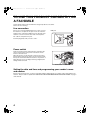

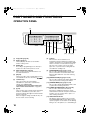

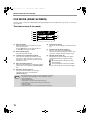
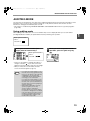
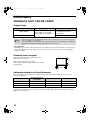
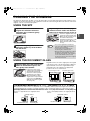
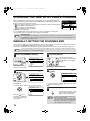
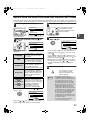
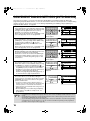
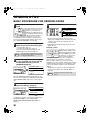
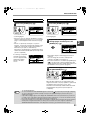

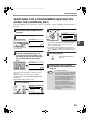

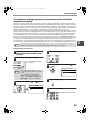
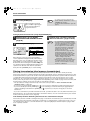


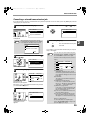

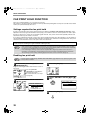
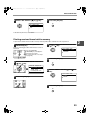

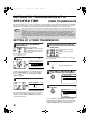

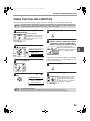
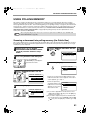
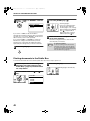
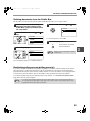


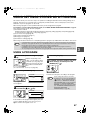
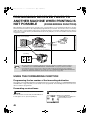
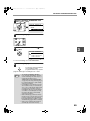
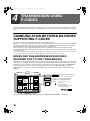
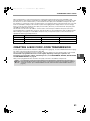
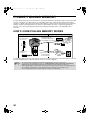
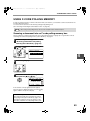
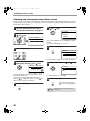

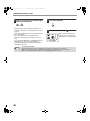

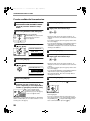
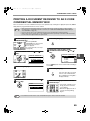
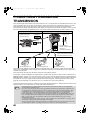

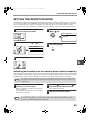
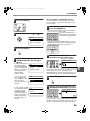
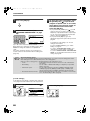

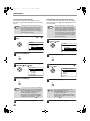
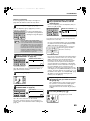
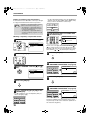
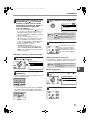
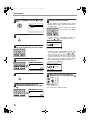
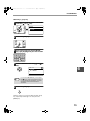

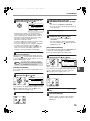

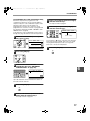
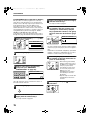

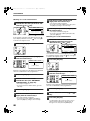
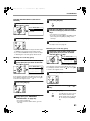

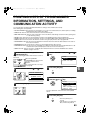





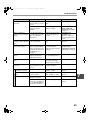

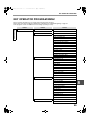

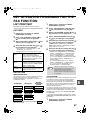
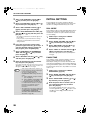
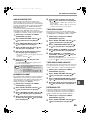
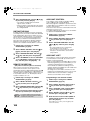
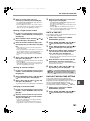


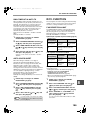
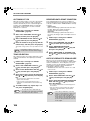


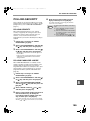
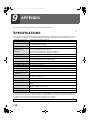





![3 Pulse la tecla [OK].](http://vs1.manualzilla.com/store/data/006242630_1-7a1c03e0b02b6620550bbf18f6c5e232-150x150.png)