1
Chapter 10 Performance Tuning for Virtual Machines
Improving Performance for Guest Operating Systems
The tips in this section help you make adjustments to improve performance for particular guest operating systems running inside a virtual machine.
The following sections describe tips to improve performance for various guest operating systems:
!
“Windows 2000, Windows XP and Windows Server 2003 Guest OS Performance Tips” on page 253
!
“Windows 95 and Windows 98 Guest Operating System Performance Tips” on page 254
!
“Linux Guest Operating System Performance Tips” on page 256
Windows 2000, Windows XP and Windows Server 2003 Guest
OS Performance Tips
This section offers advice for configuring a Windows 2000, Windows XP, or Windows Server 2003 guest operating system for better performance inside a virtual machine.
NOTE
This section pertains to the guest operating system that is running inside a VMware Server virtual machine. It does not describe actions that should be taken on Windows 2000 or Windows Server 2003 running on the host computer. Guest Operating System Selection
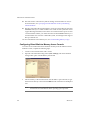
Make certain you have selected the correct guest operating system in the virtual machine settings editor. Choose VM > Settings > Options.
VMware Tools
Make certain VMware Tools is installed. VMware Tools provides an optimized SVGA driver and sets up the VMware Tools service to run automatically when the system starts. Among other things, VMware Tools allows you to synchronize the virtual machine’s clock with the host computer’s clock, which can improve performance for some functions. Install VMware Tools by choosing VM > Install VMware Tools.
Disconnect the Virtual CD-ROM Drive
Using the Removable Devices submenu, disconnect the virtual CD‐ROM drive if you do not need to use it. Disconnecting the CD‐ROM drive reduces processor usage.
VMware, Inc.
253