1
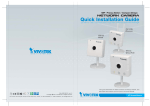
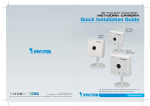
IP8130/8131
IP8130W/8131W
Cube
Network Camera
Quick Installation Guide
6F, No.192, Lien-Cheng Rd., Chung-Ho, New Taipei City, 235, Taiwan, R.O.C.
|T: +886-2-82455282| F: +886-2-82455532| E: [email protected]
繁中
Dansk
Indonesia
簡中
日本語
Français
Español
Deutsch
Português
Italiano
IP8130/8131: 1MP • Compact Size
IP8130W/8131W: 1MP • 802.11n WLAN • WPS
P/N:625021700G Rev. 1.0
All specifications are subject to change without notice.
Copyright c 2013 VIVOTEK INC. All rights reserved.
VIVOTEK INC.
English
VIVOTEK USA, INC.
2050 Ringwood Avenue, San Jose, CA 95131
|T: 408-773-8686| F: 408-773-8298| E: [email protected]
Türkçe
Polski
Русский
Česky
Svenska
Nederlands
English
Warning Before Installation
Power off the Network Camera as
soon as smoke or unusual odors are
detected.
Keep the Network Camera away
from water. If the Network Camera
becomes wet, power off immediately.
Do not place the Network Camera
around heat sources, such as a
television or oven.
Refer to your user’s manual for the
operating temperature.
Keep the Network Camera away from
direct sunlight.
Do not place the Network Camera in
high humidity environments.
Do not place the Network Camera on
unsteady surfaces.
Do not touch the Network Camera
during a lightning storm.
Do not disassemble the Network
Camera.
Do not drop the Network Camera.
Do not insert sharp or tiny objects
into the Network Camera.
1
Package Contents
IP8130 IP8131
Camera Stand
IP8130W
IP8131W
Antenna
Power Adaptor (+12V, 1A)
Software CD
Warranty Card
500024701G
Quick Installation Guide
Screws
EN - 1
Ethernet Cable
2
Physical Description
Front Panel
IP8130/8130W
Status LED
Lens
Microphone
IP8131/8131W
WPS button
Lens
Status LED
IR LEDs
Microphone
LED Definitions
Item
LED status
Description
1
Steady Red
Powered on, during system boot, or
indicating no network connection
Powered off
Searching for WPS
Network connected (wired or wireless)
Upgrading firmware
2
3
4
5
All LED off
Blinking Blue every 0.15 sec.
Blinking Green every 1 sec.
Blinking Green and RED
intermittently
Blinking Orange every 0.15 sec.
EN - 2
Restoring default
WPS
MicroSD/SDHC/
SDXC Card Slot
The back panels are identical for all models.
Antenna Connector
(for wireless models)
Reset Button
Power Cord
Socket
1
2
3
4
3
Ethernet 10/100
RJ45 Socket
DIDI+
Audio GND
Audio Out
General I/O
Terminal Block
Audio out cable is user-supplied.
Install Camera to Stand
Attach the camera to stand and orient the shooting angle. If preferred, use the included
screws to secure the the camera stand to a mounting surface.
EN - 3
English
Back Panel
4
Install the Antenna (wireless models)
An antenna comes with the camera. Install it by turning clockwise to attach to the
connector.
5
Network Deployment
LAN Connection
1. If you have external devices such as sensors and alarms, make connections from the
general I/O terminal block.
2. Connect the camera to a switch via Ethernet cable or directly to a computer. Ethernet
must be connected before power on.
3. Connect the supplied power cable from
the camera to a power outlet.
POWER
EN - 4
COLLISION
1
2
3
4
5
LINK
RECEIVE
PARTITION
English
6
Assigning an IP Address
The following is performed on a computer connected to the same domain via a wired or
wireless connection.
1.Install “Installation Wizard 2” from the Software Utility directory on the software CD.
2.The program will conduct an analysis of your network environment. After your network is
analyzed, please click on the “Next” button to continue the program.
Installation
Wizard 2
3. The program will search for VIVOTEK Video Receivers, Video Servers, and Network
Cameras on the same LAN.
4. After a brief search, the main installer window will pop up. Double-click on the MAC
address that matches the one printed on the camera label or the serial number on the
package box label to open a browser management session with the Network Camera.
IP8130W
MAC:0002D132C353
00-02-D1-32-C3-53
192.168.5.151
IP8130W
0002D132C353
This device complies with part 15 of the FCC rules. Operation is subject to the following two conditions:
(1)This device may not cause harmful interference, and
(2) this device must accept any interference received, including interference that may cause undesired operation.
Pat. 6,930,709
5.A browser session with the
Network Camera should prompt
as shown below.
6.You should be able to see live
video from your camera. You
may also install the 32-channel recording software from the
software CD in a deployment
consisting of multiple cameras. For its installation details,
please refer to its related documents.
2012/11/05 01:50:28
EN - 5
7
Wireless Connection: Using the WPS Button
1. Make sure your AP (Access Point) and Operating System support WPS (Wi-Fi Protected
Setup) functions. WPS enables easy setup with compatible APs.
2. Disconnect your LAN cable, and connect the power cord.
3. Wait for 1 minute for the camera to boot up. Press the WPS button for 1 second. The
front panel LED should blink blue.
4. Press and hold down the WPS button on your AP (some router/AP
will have a virtual button on their management software instead).
Refer to your AP's documentation for details using its WPS
functions.
Wireless AP
WPS
WPS
WPS Button
WPS Button
When WPS configuration is done, wireless connectivity will be established and the
security encryption, such as WEP or WPA-PSK, will be synchronized with the AP.
Use the IW2 utility to find the camera. As for IP setting, the camera's use of DHCP or
static IP is determined by your configuration on the network camera via the web-based
configuration of firmware. The camera's default is DHCP.
NOTE:
1.It is strongly recommended to apply WPA2/AES encryption for access security.
2. WPS may not work if your AP is configured with a "hidden" SSID.
3.If no WPS-enabled AP is detected, and if the camera still can not detect an AP after 2
minutes, the wireless setup will be cancelled. If WPS configuration should fail, wireless
configuration will be cleared. You can then re-try the process above or use a wired
connection to establish a web console and manually configure the wireless settings.
4.If a camera is assigned with a fixed IP outside the AP's network segment, wireless setup
will fail.
5.A wired connection always has a higher priority, and hence wireless setup will not take
effect when the RJ45 LAN port is connected.
EN - 6
English
8
Wireless Connection: Manual Configuration
1. In addition to the use of WPS function, you can also use a wired connection to manually
set up your wireless configuration.
2. Enter the Configuration > Wireless > WLAN page. Key in the same wireless settings
as those on your router/AP (SSID, Encryption type, and Pre-shared key).
3. When done, click the Save button, disconnect the Ethernet cable and then reboot the
camera (by disconnect and then connect the power cord). The camera should then be
connected over the wireless network. If successfully configured, the camera LED should
turn Green after 1 minute. If the camera LED does not turn Green within 2 minutes,
check your wireless configuration for errors.
EN - 7
IP8130/8131
IP8130W/8131W
Cube
Network Camera
Quick Installation Guide
6F, No.192, Lien-Cheng Rd., Chung-Ho, New Taipei City, 235, Taiwan, R.O.C.
|T: +886-2-82455282| F: +886-2-82455532| E: [email protected]
繁中
Dansk
Indonesia
簡中
日本語
Français
Español
Deutsch
Português
Italiano
IP8130/8131: 1MP • Compact Size
IP8130W/8131W: 1MP • 802.11n WLAN • WPS
P/N:625021700G Rev. 1.0
All specifications are subject to change without notice.
Copyright c 2013 VIVOTEK INC. All rights reserved.
VIVOTEK INC.
English
VIVOTEK USA, INC.
2050 Ringwood Avenue, San Jose, CA 95131
|T: 408-773-8686| F: 408-773-8298| E: [email protected]
Türkçe
Polski
Русский
Česky
Svenska
Nederlands