1
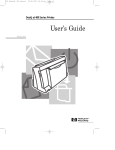
HP DeskJet 420 Series Printer
User’s Guide
English
Acknowledgments
Microsoft is a U.S. registered trademark of Microsoft
Corporation.
Windows is a trademark of Microsoft Corporation.
Notice
The information contained in this document is
subject to change without notice.
Table of Contents
1 Getting Started
Packing List . . . . . . . . . . . . . . . . . . . . . . . . . . . . . . . . . . . . . 1
Printer Features . . . . . . . . . . . . . . . . . . . . . . . . . . . . . . . . . 1
STEP 1: Connecting the Power Adapter . . . . . . . . . . . . 2
Hewlett-Packard makes no warranty of any kind with
regard to this material, including, but not limited to,
the implied warranties of merchantability and fitness
for a particular purpose.
STEP 2: Connecting the Parallel Cable . . . . . . . . . . . . 2
Hewlett-Packard shall not be liable for errors
contained herein or for incidental or consequential
damages in connection with the furnishing,
performance, or use of this material.
STEP 5: Installing the Printer Software . . . . . . . . . . 4–5
No part of this document may be photocopied,
reproduced, or translated to another language
without the prior written consent of Hewlett-Packard
Company.
Print History
Edition 1 – October 1998
STEP 3: Loading Paper . . . . . . . . . . . . . . . . . . . . . . . . . . . 3
STEP 4: Installing an Inkjet Print Cartridge . . . . . . 3–4
Finding the HP Printer Setup Box . . . . . . . . . . . . . . . . . 5
2 Getting the Most Out of Your Printer
Loading Other Size Paper. . . . . . . . . . . . . . . . . . . . . . . . 6
Loading Envelopes, Labels, and Thick Paper . . . . . . . 6
Changing Inkjet Print Cartridges . . . . . . . . . . . . . . . . . . 7
Using the Inkjet Print Cartridge Storage Container . . 7
Printing in Color and Grayscale . . . . . . . . . . . . . . . . . . 8
© Copyright 1998 by Hewlett-Packard Company
3 Solving Problems
Problem-Solving Guidelines . . . . . . . . . . . . . . . . . . . . . 8
Frequently Asked Questions . . . . . . . . . . . . . . . . . . . . . 8
When the Printer Does Not Print . . . . . . . . . . . . . . . . . . 9
When the Lights Blink . . . . . . . . . . . . . . . . . . . . . . . . . . 10
When Paper Is Jammed in the Printer . . . . . . . . . . . . . 11
When Paper Is Not Loading. . . . . . . . . . . . . . . . . . . . . . 12
When the Print Quality Is Not Satisfactory. . . . . . . 12–13
When the Ink Nozzles Are Clogged. . . . . . . . . . . . . . . 13
4 Appendices
HP Customer Care . . . . . . . . . . . . . . . . . . . . . . . . . . . . . 14
HP Supplies . . . . . . . . . . . . . . . . . . . . . . . . . . . . . . . . . . . 16
Printer Specifications . . . . . . . . . . . . . . . . . . . . . . . . 17–18
Printing from DOS . . . . . . . . . . . . . . . . . . . . . . . . . . . . . 19
Regulatory Notices . . . . . . . . . . . . . . . . . . . . . . . . . . . . 20
HP Limited Warranty Statement. . . . . . . . . . . . . . . . . . 21
Getting Started
Packing List
1. HP DeskJet 420 series printer
2. Packing tape
3. Color inkjet print cartridge
4. User’s guide
5. Power adapter
6. Printer software diskette
7. Print cartridge storage
2
4
1
7
3
container
6
5
2
3
Printer Features
1. Power button ( )
2. Paper Feed button ( )
3. Change Cartridge button ( )
4. Paper size selector (A4/LTR)
5. Paper width guide
6. Paper separator
7. Paper tray
8. Print cartridge holder
9. Envelope lever ( / )
10. Printer door
11. Power socket
12. Manual feed slot
13. Cable track
14. Parallel port
2642001
1
6
7
4
5
2642002
8
9
10
2642003
2642004
11
12
13
14
2642005
1
STEP 1: Connecting the Power Adapter
1. Plug the power adapter connector firmly into
the printer’s power socket.
2. Plug the other end of the power adapter cable
into a grounded electrical outlet.
STEP 2: Connecting the Parallel Cable
1. You must purchase separately a parallel
cable to connect your printer to your
computer. Use any high-quality parallel
printer cable, or order HP part no. C2950A or
C2951A from your local HP dealer.
2. Make sure the printer and the computer are
turned off.
3. Remove the parallel port cover from
the printer.
4. Connect the printer end of the parallel cable
firmly to the parallel port on the printer.
(Refer to the user’s guide for your computer
to find the parallel port on your computer.)
5. Snap both clips into the notches on the
connector.
2642006
3. If the electrical outlet is on the same side as
the parallel port on the printer, fit the power
cable into the cable track so that the power
cable is neatly housed in place.
2642008
6. Replace the parallel port cover and align the
cable in the notch.
2642007
2
7. Connect the computer end of the parallel cable
to the parallel port on your computer and
tighten the screws on the connector.
STEP 3: Loading Paper
STEP 4: Installing an Inkjet Print Cartridge
The HP DeskJet 420 series printer prints on plain
paper and other paper types. Most plain paper used
for photocopying yields good results. See page 17,
“Recommended Printable Weight,” for information on
other paper types you can use. See also page 6 for
information on loading other size paper, envelopes,
labels, and thick paper.
1. Remove the packing tape to release the
paper tray.
Note: Use one of the following inkjet print cartridges.
You can use only one of these at one time.
Tri-Color HP51625A (supplied with printer)
Large Black HP51626A (optional)
Black HP51626G (optional)
1. Press the Power button ( ) to turn the printer on.
2. Open the paper tray.
3. Extend the paper tray to the appropriate mark
(US Letter or A4) for the paper size you are
using.
2642011
4. Switch the paper size selector to match the
paper you are using (LTR or A4).
2. Open the printer door.
Sharp
edges
2642009
5. Insert a stack of paper squarely into the paper
tray, print side down, until it can go no farther.
Note: If you are loading letterheads or HP transparencies,
insert them print side down, with the top of the page
going into the printer first.
6. Move the paper width guide so that it presses
lightly against the paper stack.
2642012
CAUTION: The star wheels on the printer door have
sharp edges. Make sure your hand does not come in
contact with the star wheels.
3. Remove the inkjet print cartridge from its box.
4. Gently remove the
tape(s) covering the ink
nozzles. Be careful not
to touch the ink nozzles
or the copper contacts.
2642013
2642010
3
5. Insert the inkjet print cartridge into the holder at
an angle such that the green top is tilted
toward you.
The arrow on the top of the inkjet print
cartridge should be pointing toward the inside
of the printer.
STEP 5: Installing the Printer Software
In a Windows Environment
To install the printer software, first refer to page 17,
“Hardware Compatibility” for hardware requirements.
Note: The HP DeskJet 420 series printer is not supported
in network configuration.
Before you can use your printer, you must install the
printer software.
2642014
6. Push the green top in until the inkjet print
cartridge snaps into place.
1. Perform all procedures given earlier in this section.
2. Turn on the printer, then turn on the computer.
3. Close any screen saver or other software
programs that are open and running in the
background on your computer. To close
software programs, follow these steps:
• For Windows 95 or 98 – Right-click the
software program’s name or icon on the
taskbar. Select Close. Repeat these steps for
each open software program, except
Windows Explorer.
2642015
7. Close the printer door.
8. Press the Change Cartridge button ( ).
Note: If you did not install a recommended inkjet print
cartridge, the print cartridge holder will move back
to the loading position, and the Change Cartridge
light will continue to blink.
CAUTION: The ink in the inkjet print cartridge has
been carefully formulated by Hewlett-Packard to
ensure superior print quality and compatibility with
your printer. Damage to the printer or the inkjet print
cartridge resulting from modifying or refilling the
inkjet print cartridge is not the responsibility of
Hewlett-Packard.
• For Windows 3.1x – While holding down the
Alt key, press the Tab key to locate an open
software program. When you locate an open
software program, release both keys. In the
File menu, select Exit. Repeat these steps for
each open software program, except
Program Manager.
Windows 95 or 98:
To install the Windows 95 or 98 printer software, use
the following procedure:
1. Start Microsoft Windows 95 or 98.
2. Windows should recognize the attached
printer as a newly added piece of hardware
and walk you through the installation
instructions. If a screen with instructions does
not appear, do the following:
3. Click on the Start button.
4. Choose Settings in the Start menu.
5. Click Printers in the Settings menu.
6. Double-click Add Printer in the Printers
window.
4
7. Follow the Wizard instructions that appear on
the screen.
8. Choose Local Printer.
9. Click Have Disk.
10. Insert the HP DeskJet Printer Software disk 1
into the disk drive of your computer.
11. Select the disk drive and click OK.
12. Click on the appropriate HP DeskJet 400
Series language and click Next.
13. Select the port to which the printer is attached
and click Next.
14. Finish answering the install Wizard questions.
Note: You must restart Windows to initialize the printing
software. Until Windows is restarted, the printer will
not perform as expected.
Windows 3.1x:
To install the Windows 3.1x printer software, use the
following procedure:
1. Start Microsoft Windows and ensure no
Windows applications are running.
2. Double-click to open the Main program group
in the Program Manager window.
3. Double-click the Control Panel icon.
4. Double-click the Printers icon.
5. In the Printers dialog box, click Add.
6. Make sure that Install Unlisted or Updated
Printer is selected in the List of Printers area in
the Printers dialog box.
7. Click Install.
8. Insert the HP DeskJet Printer Software disk 1
into the disk drive of your computer.
9. In the Install Driver dialog box, type A:\ and
click OK.
10. In the Add Unlisted or Updated Printer dialog
box, click the appropriate HP DeskJet 400
Series language.
11. Click OK.
Note: You must restart Windows to initialize the printing
software. Until Windows 3.1x is restarted, the printer
will not perform as expected.
DOS Printing
Note: You do not need to install the DJPMenu software if
you are printing from your Windows applications.
Use the DJPMenu software to define or change the
settings on the DeskJet 420 series printer if your
DOS applications do not allow you to do so.
Note: The DJPMenu software requires that your printer is
connected directly to the parallel port of your
computer. Refer to page 17, “Hardware
Compatibility” for hardware requirements.
1. Insert disk 1 the HP DeskJet Printer Software
disk into drive A.
2. At the DOS prompt (C:\>), type A:\INSTALL
and press ENTER.
3. Follow the instructions on the screen.
4. To run the DJPMenu software, type
C:\DESKJET\DJPMENU at the DOS prompt.
5. For more updated information on the
DJPMenu software, please refer to the file
C:\DESKJET\DJPMENU.TXT that you have
just installed.
Selecting a printer software for the HP DeskJet 420
series printer in each DOS software program that you
use ensures the best support for your printer. If the
printer software for the HP DeskJet 420 series printer
is not available within your program, select the
printer software for the HP DeskJet 500C printer.
See page 19 for more information about printing
from DOS.
Finding the HP Printer Setup Box
You can control the printer through your software
program and the printer software you installed on
your computer. To find the HP Print Setup box:
From your software program, try this:
1. In the File menu, select Print.
2. Click Properties. (Clicking Options at this
point won’t get you there.)
3. If you still don’t see the box, click Setup or
Options.
Or try this:
1. If you don’t see a Print option in the File
menu, click Printer Setup or Print Setup.
2. Then click whichever button you see: Setup or
Options.
5
Loading Envelopes, Labels,
and Thick Paper
Getting the Most
Out of Your Printer
Loading Other Size Paper
Legal, Executive, and B5 size paper must be fed into
the printer manually, one by one, from the back of
the printer. See page 18, “Printable Paper Sizes” for
the paper sizes that you can print.
Note: If you are loading letterheads or HP transparencies
from the back of the printer, insert them print side up,
with the top of the page going into the printer first.
1. Ensure that you have selected Manual Feed
in the Printer Setup dialog box.
Envelopes, labels, and thick paper must be fed into
the printer manually, one by one and print side up,
from the back of the printer. See page 18, “Printable
Paper Sizes” for the envelope sizes that you can print.
1. Ensure that you have selected Manual Feed
in the Printer Setup dialog box. (See page 5,
“Finding the HP Printer Setup Box.”)
2. Open the paper tray.
3. Open the printer door and switch the envelope
lever ( / ) to Envelope ( ). Then close the
printer door.
2. Open the paper tray.
2642018
2642016
3. Align the paper against the molded line on the
manual feed slot (on the back of the printer).
Insert the paper until the printer pulls the paper in.
B5
4. Align the envelope, label, or thick paper
against the respective molded lines on the
manual feed slot. Insert the envelope, label,
or thick paper until the printer pulls it in.
LTR
A4
LTR
A4
B5
LTR
A4
B5
2642019
2642017
4. Select Print in the File menu and print your
document.
6
5. Select Print in the File menu and print your
document.
Note: Remember to switch the envelope lever to paper
( )after you have finished printing envelopes,
labels, or thick paper. For optimal print quality,
ensure that the envelope lever is adjusted
according to what you want to print.
Changing Inkjet Print Cartridges
The HP DeskJet 420 series printer takes any one of
the following inkjet print cartridges at a time:
Tri-Color HP51625A (supplied with printer)
Large Black HP51626A (optional)
Black HP51626G (optional)
See your local HP dealer or office supply store to
purchase replacement inkjet print cartridges.
1. Open the printer door.
Using the Inkjet Print Cartridge
Storage Container
You can use either the color inkjet print cartridge
supplied with the printer (HP51625A), or either of the
following black inkjet print cartridges, purchased
separately: large black (HP51626A) or black
(HP51626G). However, you can only use one of these
inkjet print cartridges in the printer at one time.
Always store the inkjet print cartridge that is not
currently being used in the storage container. The
storage container protects the ink nozzles from
damage and prevents the ink from drying out
while the inkjet print cartridge is not in use. This
prolongs the life of the inkjet print cartridge,
protecting your investment.
1. Determine which inkjet cartridge you are storing:
2642020
2. Press the Change Cartridge button ( ) to
move the print cartridge holder to the middle
position.
2642021
3. Remove the inkjet print cartridge by pulling it
by its green top.
• To store the black
inkjet print cartridge,
make sure the arrow on
the top of the black
inkjet print cartridge
points toward the
cartridge clip on the left
of the storage container.
• To store the color inkjet
print cartridge, make
sure the arrow on the
top of the color inkjet
print cartridge points
toward the cartridge clip
at the back of the
storage container.
2642035
2642023
2. When removing an inkjet print cartridge from
the storage container, be sure that the
cartridge clip is disengaged, then lift the print
cartridge out of the storage container.
2642022
4. To install another inkjet print cartridge, follow
steps 3 through 8 on page 3.
7
Printing in Color and Grayscale
Solving Problems
The HP DeskJet 420 series printer is designed to
print in color using the color inkjet print cartridge
supplied with the printer.
If you encounter a problem with your printer, you
can seek help from the following sources:
When printing with the color inkjet print cartridge, the
black that appears, called “composite black,” is a
mixture of the cyan, yellow, and magenta inks. The
darkness of the composite black depends on the
intensity settings and the print quality mode selected
through your printer software. (See page 5, “Finding
the HP Printer Setup Box.”) Use the darkest intensity
and the highest print quality available to produce the
“blackest” composite black.
Use the black inkjet print cartridge for better black
text, and faster, more economical printing. For
printing documents with the black inkjet cartridge,
remove the color cartridge from the printer, store it in
the storage container and insert the optional black
inkjet print cartridge in the printer. If you are not
using a bi-directional printer cable, select the black
inkjet print cartridge in the Setup tab of the printer
software. (See page 5, “Finding the HP Printer Setup
Box.”)
See your local HP dealer or office supply store to
purchase one of these black inkjet print cartridges:
Large Black HP51626A (optional)
Black HP51626G (optional)
You can print grayscale drafts of your color
documents with the black inkjet cartridge. Click Print
in Grayscale in the printer software. (See page 5,
“Finding the HP Printer Setup Box.”) Your color
documents will print in shades of gray until you
change the setting and the inkjet print cartridge.
■
Online Help
If you see an error message on your screen,
read the suggestions in the error message.
Click the Help button in this window. Or you
can also access online help in the following
ways:
Windows 95 and 98:
1. Click Start in the taskbar.
2. Select Programs, HP400 Series Utilities,
and finally HP400 Series Help.
Windows 3.1x:
1. Open the HP400 Series Utilities program
group.
2. Double-click the HP400 Series Help icon.
■
User’s Guide
Read the following tips to solve the problem.
■
HP Customer Care
If the problem cannot be solved by the help
suggestions in the User’s Guide, refer to
page 14, “HP Customer Care” for a listing of
resources available to you.
Frequently Asked Questions
What is the difference between LTR and A4
paper?
LTR paper is commonly used in North America.
The size is 8.5 inches x 11 inches (216 mm x 279 mm).
A4 paper is commonly used in Europe, Australia,
New Zealand, Asia, and South America. The size is
210 mm x 297 mm.
How should paper be loaded into the
printer?
First, switch the paper size lever on the left bottom
corner to the correct paper setting, either LTR or A4.
Then insert the paper into the paper tray until it can
go no further. Finally, move the paper width guide,
located on the tray, so that it presses lightly against
the paper stack.
8
Is the sound the printer makes when it
starts working normal?
Yes, when the printer functions properly, a sound
occurs when you turn the printer on and also when it
picks up paper.
Which print cartridges can I use with the
printer?
Use one of the following inkjet print cartridges:
Tri-Color HP51625A (supplied with printer)
Large Black HP51626A (optional)
Black HP51626G (optional)
How do I print in color using Microsoft
Windows software?
Use the HP color inkjet print cartridge (HP51625A) for
color printing and the HP large black (HP51626A) or
black (HP51626G) for black printing. If you print a
color document in black, remember to check the
Print in Grayscale setting in the Printer Setup
menu. (See page 5, “Finding the HP Printer Setup
Box.”)
What do I do if I get a paper jam?
To clear the paper jam:
1. Turn off the printer.
2. Remove the paper from the paper tray.
3. Remove the printer door by grasping it by
its sides, then pulling the door toward you.
4. Carefully pull the paper out of the printer.
See page 11, “When Paper is Jammed in the Printer” for
step-by-step illustrations. To avoid paper jams, be
sure to set the paper size lever to the correct setting
and to move the paper width guide so that it presses
lightly against the paper stack. Also, be sure to feed
paper that is heavier or lighter than 16 to 24 lb from
the back of the printer manually.
When the Printer Does Not Print
The printer shows no response at all to the print
command.
■
The printer is not properly connected to the
power source. Make sure the printer’s power
adapter is firmly plugged into the printer and
into the wall power outlet.
■
The printer is off. Press the Power button ( )
until the Power LED lights up.
■
The printer is not properly connected to the
computer. Make sure the interface cable is
firmly connected to the parallel port of the
printer and the computer.
■
You may be using a wrong parallel cable or
the parallel cable may be defective. Use
either of the following parallel cables:
HP part no. C2950A or C2951A.
■
Your printer is not selected as the current or
default printer. Select your printer using the
Printer Setup menu in your software
program. Alternatively, set your printer as the
default from Printers in the Control Panel.
How can I get the best print quality?
To ensure the highest print quality from the HP
DeskJet 420 series printer, use original HP inkjet
print cartridges together with HP’s Premium InkJet
Paper or Bright White InkJet Paper.
The HP printer software gives you optimal results
when you select the Best printing setting in the
Printer Setup menu. (See page 5, “Finding the HP
Printer Setup Box.”)
How do I print envelopes, labels, or thick
paper (heavier than 24 lb)?
You must feed envelopes, labels, and thick paper one
sheet at a time from the back of the printer. Be sure
that you have selected Manual Feed and the
appropriate Paper Size in the Printer Setup menu.
Then open the printer door and switch the envelope
). Close the printer door and
lever to Envelope (
print one page.
9
The printer appears to be printing, but nothing
prints on the paper.
■
The ink nozzles of the inkjet print cartridge
are covered by a sealing tape. Remove the
tape(s). See page 3, “STEP 4: Installing an
Inkjet Print Cartridge.”
■
The ink nozzles of the inkjet print cartridge
are clogged with dried ink. See page 13,
“When the Ink Nozzles Are Clogged.”
■
The inkjet print cartridge is out of ink. Use a
new inkjet print cartridge.
The printed page looks incomplete or has oddlooking characters.
■
■
■
Your printer is not selected as the current or
default printer. Select your printer using the
Printer Setup menu in your software
program. Alternatively, set your printer as the
default from Printers in the Control Panel.
The printer is not properly connected to the
computer. Make sure the interface cable is
firmly connected to the parallel port of the
printer and the computer.
You may be using a wrong parallel cable or
the parallel cable may be defective. Use
either of the following parallel cables:
HP part no. C2950A or C2951A.
When the Lights Blink
A. The Change Cartridge light is blinking.
2642024
Note: The Change Cartridge light blinks when the holder
is in the middle position; this is NOT an error
condition. In other cases, one of the following
is true:
■
You may be printing a black document with a
color inkjet print cartridge, or vice-versa.
Change the inkjet print cartridge accordingly.
■
No inkjet print cartridge has been loaded.
Load an inkjet print cartridge. (See page 3,
“STEP 4: Installing an Inkjet Print Cartridge”.)
■
The inkjet print cartridge is improperly
installed in the printer. Remove the inkjet
print cartridge and then re-load it.
■
A wrong inkjet print cartridge has been
loaded. See page 3, “STEP 4: Installing an
Inkjet Print Cartridge” for a list of inkjet print
cartridges you can use.
B. The Paper Feed light is blinking.
2642025
10
■
No paper has been loaded or the printer is
out of paper. To load paper, see page 3,
“STEP 3: Loading Paper.”
■
Paper is not loading. See page 12, “When
Paper Is Not Loading.”
■
After loading paper, press the Paper Feed
button ( ) to continue printing.
C. All three lights are blinking.
5. Open the paper separator (the flap that
separates the printed pages from the blank
sheets) by pulling it toward you. This gives
you a better grip on the jammed paper.
2642026
Paper is jammed in the printer. To clear the jam, see
below, “When Paper Is Jammed in the Printer.”
2642030
If there is no paper jam, turn the printer off and then
on again. If the three lights still blink, call
HP Customer Care.
6. Grip the jammed paper firmly by its sides and
pull it out slowly.
When Paper Is Jammed in the Printer
To clear the paper jam, perform the following steps:
1. Turn off the printer.
2. Remove the paper from the paper tray.
2642031
7. After clearing the paper jam, close the paper
separator.
2642027
3. Open the printer door.
2642032
2642028
8. Re-attach the printer door by first placing the
door flat on the paper tray. Then align the
hinges on the printer door with the pins on
the printer. Press the printer door in until the
printer door clicks into place.
4. Remove the printer door by grasping it by its
sides and then pulling the door toward you.
2642033
9. Close the printer door.
2642029
10. Load paper and try printing again.
11
When Paper Is Not Loading
Paper does not feed into the printer properly.
■
Re-load the paper. See page 3, “STEP 3:
Loading Paper.”
■
You are printing on a US Letter size paper, but
the paper size selector (A4/LTR) is set to A4.
Or you are printing on an A4 size paper, but
the paper size selector (A4/LTR) is set to
LTR (US Letter). Adjust the paper size selector
(A4/LTR) according to the paper size.
■
Too many sheets of paper were loaded.
Remove some paper.
■
Paper is damaged, wrinkled, or curled.
Replace paper with a new stack.
■
Some paper in the stack may be of a different
type, size, and weight. Make sure the paper in
the stack are of the same type, size, and
weight.
Paper does not eject from the printer.
■
Paper is jammed in the printer. To clear the
jam, see page 11, “When Paper Is Jammed in
the Printer.”
■
The printer door is not closed properly.
■
The computer was turned off while the printer
was printing. Turn off the printer and turn on
the computer. Then turn the printer on.
More than one sheet of paper are fed into the
printer at a time.
12
■
The sheets of paper are stuck together.
Remove the paper stack, separate the sheets,
and re-load the paper stack.
■
Too many sheets are loaded in the paper tray.
Remove some paper.
■
Some paper in the stack may be of a different
type, size, and weight. Make sure the paper in
the stack are of the same type, size, and
weight.
■
Paper is not fed into the printer properly.
Re-load the paper. See page 3, “STEP 3:
Loading Paper.”
Printing is slanted on the A4 size paper.
■
You are printing on an A4 size paper, but the
paper size selector (A4/LTR) is set to LTR
(US Letter). Switch the paper size selector
(A4/LTR) to A4.
■
Paper is not fed into the printer properly.
Reload the paper. See page 3, “STEP 3:
Loading Paper.”
Printing is slanted on the Legal size paper,
envelope, label, or thick paper.
The Legal size paper, envelope, label, or thick paper
is not fed into the printer properly. Push evenly the
Legal size paper, the envelope, or the thick paper
into the back of the printer until the printer pulls in
the paper. See page 6, “Loading Other Size Paper.”
Legal size paper, envelope, label, or thick paper
does not advance into the printer.
Legal size paper, envelope, label, or thick paper should
be loaded from the back of the printer, one at a time.
Push evenly the Legal size paper, envelope, label, or
thick paper into the back of the printer until the printer
pulls in the paper. See page 6, “Loading Other Size
Paper.”
When the Print Quality Is Not
Satisfactory
Ink is smearing or paper is wrinkling.
■
You are printing on an envelope, label, or
thick paper, but the envelope lever ( / )
behind the printer door is set to paper
( ). Adjust the lever to envelope (
).
■
You may have touched the printed page
before the ink dried. Wait until the ink dries
before you pick up the printed page.
The printed page looks faded.
Some colors are missing.
■
You are printing on paper, but the envelope
lever ( / ) behind the printer door is set to
envelope ( ). Adjust the lever to paper ( ).
■
The ink nozzles are clogged. Clean the inkjet
print cartridge. (See “When the Ink Nozzles
Are Clogged” below.)
■
The ink nozzles are clogged. See “When the
Ink Nozzles Are Clogged” on this page.
■
■
The inkjet print cartridge is running out of ink.
Use a new inkjet print cartridge.
The color inkjet print cartridge has run out of
one or more color ink. Use a new color inkjet
print cartridge.
Characters, dots, or lines are missing or are
incomplete.
■
The inkjet print cartridge is running out of ink.
Use a new inkjet print cartridge.
■
The ink nozzles of the inkjet print cartridge
may be clogged. Clean the inkjet print
cartridge. (See “When the Ink Nozzles Are
Clogged” on this page.)
Ink coverage is inconsistent.
■
The ink nozzles of the inkjet print cartridge
may be clogged. Clean the inkjet print
cartridge. (See “When the Ink Nozzles Are
Clogged” on this page.)
■
The paper may not be suitable for the printer.
Try another paper type.
Too much ink on the printed page.
■
When the Ink Nozzles Are Clogged
Prolonged exposure to air may cause ink crust to form
on the ink nozzles of the inkjet print cartridge. You can
try to clear the crusted ink from the inkjet print
cartridge, as follows:
Note: Ink may stain your hands or clothing.
1. Hold the inkjet print cartridge by its green
top. Dip a clean cotton swab into distilled
water and squeeze any excess water from the
swab. Clean the face and edges of the inkjet
print cartridge as shown. DO NOT wipe the
nozzle plate. Hold the inkjet print cartridge up
to the light to inspect for fibers on the face
and edges. If fibers are still present, repeat
this step.
Do not clean
nozzle plate
The paper may not be suitable for the printer.
Try another paper type.
Clean
2642034
2. Install the inkjet print cartridge in the printer
and load paper in the paper tray.
3. Turn off the printer.
4. While pressing the Change Cartridge button
( ), press the Power button ( ) to activate
the cleaning process. A page will then be
printed. If the print quality is unsatisfactory,
the inkjet print cartridge may be out of ink. In
this case, use a new inkjet print cartridge.
13
Appendices
HP Customer Care
HP DeskJet printers set the standard for quality and
reliability, so you’ve made an excellent choice.
Should you need help, however, HP Customer Care’s
award-winning service and support is nearby to
provide expert advice on using your HP printer or to
answer specific questions about a problem you are
having. Whether online, by fax, or by phone, you’ll
find the support you need—and you’ll find it fast.
Electronic Support Information
Printer Software
Printer software (also referred to as a printer driver)
allows your printer to talk with your computer.
HP provides printer software and software upgrades
for Windows 3.1x, 95, and NT 4.0. For MS-DOS printer
software, contact the manufacturer of your software
program. You have several options for getting printer
software:
■
Download the printer software by accessing
HP’s Web site
(http://www.hp.com/go/support).
■
If you are in the U.S., setting up your printer
for the first time, and do not have a CD-ROM
drive, you can order the printer software on
3.5-inch disks by calling the toll-free phone
number listed on the printer software CD
case. Disks are delivered to you the next day
for no charge. Bonus software that may be
provided on the CD will not be provided on
disks.
■
If you are in the U. S. and need a software
upgrade, you can order by calling one of the
following numbers:
6/1/98-2/12/99: (805) 257-5565
After 2/12/99: (661) 257-5565
Software upgrades are available for the cost
of the disks plus shipping.
■
If you are outside the U.S. and cannot
download the driver from HP’s Web site, call
the HP Customer Care number nearest you.
See page 15.
If you have a modem connected to your computer
and subscribe to an online service or have direct
access to the Internet, you can obtain a wide variety
of information about your printer.
HP Customer Care Online
Click your way to a quick solution! A great place to
go for answers to questions about HP products is HP
Customer Care online at
http://www.hp.com/go/support. You’ll get instant
access to everything from helpful printing tips to the
latest product and software updates—24 hours a
day, seven days a week.
HP Customer Care User Forums
They’re friendly. They’re informative. Check out our
online user forums. Simply review existing messages
left by other HP users to find the answers you’re
looking for. You can also post your questions, then
check back later for ideas and suggestions from
knowledgeable users and system operators. You can
access the user forums directly from the
http://www.hp.com/go/support.
HP Customer Care by Fax
When you want the facts—and you want them fast—
call HP FIRST, our automated faxback service.
Dial (800) 333-1917 (U.S. only) from any touch-tone
phone, listen to your choices, then select the support
document that matches your specific need. You may
request up to three documents per call, and we’ll fax
them to you right away. HP FIRST is a free service, so
call anytime—24 hours a day, seven days a week.
14
HP Customer Care Repair
If your HP printer is ever in need of repair, simply
call the HP Customer Care Center. A trained service
technician will diagnose the problem and coordinate
the repair process for you. This service is free during
your printer’s standard warranty. Beyond the
warranty period, repairs are charged on a time and
materials basis.
HP Customer Care by Phone
A Note About Letters
When you want to talk to HP directly, highly trained
service technicians at our HP Customer Care Center
are ready to take your call. You pay for the call, but
you won’t be kept on hold long. That’s because 95%
of our calls are connected in under three minutes. In
an industry that’s known to keep customers waiting,
we’re proud of our quick response time. And because
we connect you with a service technician who
specializes in your product, 80% of all problems are
resolved with a single phone call.
If you need help from a technical support person,
we recommend that you call us while you’re in front
of your computer and printer, rather than writing a
letter to us. That way we can help you with your
questions immediately!
Ninety Days Free Phone Support
Within 90 days from the time of your purchase,
telephone support is provided to you free of charge.
However, if you are calling long distance, the
long-distance charges apply. Before placing a call
for help, please make sure that:
■
You have checked your User’s Guide and
online troubleshooting for installation
troubleshooting tips.
■
You are seated in front of your computer with
your printer nearby.
■
You have the following information available:
- Your printer’s serial number (the label is on
the printer’s bottom).
- Your printer’s model number (the label is on
the front of the printer).
- The model of the computer.
- The version of the printer driver and software
program (if applicable).
Africa/Middle East
Argentina
Australia
Austria
Belgium (Dutch)
Belgium (French)
Brazil
Canada
China
Czech Republic
Denmark
Finland
France
Germany
Greece
Hong Kong
Hungary
India
Indonesia
Ireland
Israel
Italy
Japan, Tokyo
Japan, Osaka
Korea
Malaysia
Mexico D.F.
Mexico, Guadalajara
Mexico, Monterrey
Middle East/Africa
Netherlands
New Zealand
Norway
Philippines
Poland
Portugal
Russia
Singapore
Spain
Sweden
Switzerland
Taiwan
Thailand
Turkey
United Kingdom
U. S.
Venezuela
41 22/780 41 11
541781-4061/69
61 3 92728000
43 (0)660 6386
32 (0)2 62688 06
32 (0)2 6268807
55 11 709-1444
(905) 206-4663
86 10 6505 3888-5959
42 (2) 471 7321
45 (0)39 294099
385 (0)203 47288
33 (0) 143623434
49 (0) 180 5258 143
30 1 689 64 11
(800) 96 7729
36 (1) 252 4505
91 11 682 60 35
6221 350 3408
353 (0) 1662 5525
972-9-9524848
39 (0)2 264 10350
81 3 3335-8333
81 6 838 1155
82 2 3270 0700
03 2952566
326 46 00
669 95 00
378 42 40
41 22/780 41 11
31 (0)20 606 8751
(09) 356-6640
47 (0)22 116299
65 272 5300
48 22 37 50 65
351 (0) 144 17 199
7095 923 50 01
65 272 5300
34 (9) 02321 123
46 (0)8 6192170
41 (0)84 8801111
886 2-2717-0055
(66-2) 661 4011
90 1 224 59 25
44 (0) 171 512 5202
(208) 344-4131
58 2 239 5664
15
After the Warranty
Extended Warranty Options
You can still get help from HP for a fee. Prices are
subject to change without notice. (Online help is still
available for free!)
If you would like to extend your printer coverage
beyond the one year factory warranty, you have the
following options:
■
For quick questions in the United States only,
call (900) 555-1500. The charges are $2.50
per minute and begin when you connect with
a support technician.
■
For calls from Canada, or for calls in the U.S.
that you anticipate might be longer than ten
minutes in length, call (800) 999-1148.
The fee is US $25 per call, charged to your
Visa or MasterCard.
■
If during your phone call, it is determined that
your printer requires repair, and you are
within your printer’s hardware warranty
period, your phone charges will be reversed.
■
Consult your reseller to get extended
coverage.
■
If your reseller does not offer service
contracts, please call Hewlett-Packard directly
and ask about our service agreement offering.
In the U.S. call (800) 446-0522; in Canada
call (800) 268-1221. For service agreements
outside the U.S. and Canada, contact your
local HP Sales Office.
HP Supplies
16
Description
HP Part No.
HP Premium InkJet Paper (US Letter, 200 sheets): 8.5 x 11 in. (216 x 279 mm)
51634Y
HP Premium InkJet Paper (A4, 200 sheets): 210 x 297 mm
51634Z
HP Premium Transparency (US Letter, 20 sheets): 8.5 x 11 in. (216 x 279 mm)
C3828A
HP Premium Transparency (A4, 20 sheets): 210 x 297 mm
C3832A
HP Premium Transparency (US Letter, 50 sheets): 8.5 x 11 in. (216 x 279 mm)
C3834A
HP Premium Transparency (A4, 50 sheets): 210 x 297 mm
C3835A
HP Premium InkJet Rapid-Dry Transparency (US Letter, 50 sheets): 8.5 x 11 in. (216 x 279 mm))
C6051A
HP Premium InkJet Rapid-Dry Transparency (A4, 50 sheets): 210 x 297 mm
C6053A
HP Premium InkJet Rapid-Dry Transparency —Asia (A4, 50 sheets): 210 x 297 mm
C6053A
HP Greeting Card Paper (US Letter, 20 sheets, 20 envelopes): 8.5 x 11 in. (216 x 279 mm)
C1812A
HP Greeting Card Paper (A4, 20 sheets, 20 envelopes): 210 x 297 mm
C6042A
HP Glossy Greeting Card Paper (US Letter, 10 sheets, 10 envelopes): 8.5 x 11 in. (216 x 279 mm)
C6044A
HP Glossy Greeting Card Paper (A4, 10 sheets, 10 envelopes): 210 x 297 mm
C6045A
HP Glossy Greeting Card Paper—Asia (A4, 10 sheets, 10 envelopes): 210 x 297 mm
C6768A
HP Bright White InkJet Paper (US Letter, 500 sheets): 8.5 x 11 in. (216 x 279 mm)
C1824A
HP Bright White InkJet Paper (A4, 500 sheets): 210 x 297 mm
C1825A
HP Bright White InkJet Paper (US Letter, 200 sheets): 8.5 x 11 in. (216 x 279 mm)
C5976A
HP Bright White InkJet Paper (A4, 200 sheets): 210 x 297 mm
C5977A
HP Premium Photo Paper (US Letter, 15 sheets): 8.5 x 11 in. (216 x 279 mm))
C6039A
HP Premium Photo Paper (A4, 15 sheets): 210 x 297 mm
C6040A
HP Premium Photo Paper—Asia (US Letter, 15 sheets): 8.5 x 11 in. (216 x 279 mm)
C6043A
Printer Specifications
Print Method
Plain paper drop-on-demand thermal inkjet printing
Color Print Speed
These are approximate figures. Exact speed will vary
depending on the system configuration and software
used. Full color graphics: 4-7 minutes per page
Black Print Speed
These are approximate figures. Exact speed will vary
depending on the system configuration and software
used.
Letter quality mode: 2 pages per minute
Draft quality mode: Up to 3 pages per minute
Mechanism Speed
Letter quality mode: 167 cps at 10 cpi
Draft quality mode: 330 cps at 10 cpi
Resolution
Letter quality mode: 600 x 300 dpi (black),
300 x 300 dpi (color)
Draft quality mode: 150 x 300 dpi
Graphics Resolution
Full-page 75, 100, 150, and 300 dpi, and 600 dpi in
horizontal axis for black only
Printer Command Language
HP PCL Level 3
Character Set Support
CG Times (Portrait)
Pitch: Proportional
Point size: 6 and 12 pt.
Style: Upright, Italic
Stroke weight: Normal, Bold
Letter Gothic (Portrait)
Pitch: 6 and 12, and 24 cpi
Point size: 6 and 12 pt.
Style: Upright, Italic
Stroke weight: Normal, Bold
Hardware Compatibility
Windows Environment
80386 processor and above
Windows 95, 98, or 3.1x
2 MB RAM minimum for monochrome imaging
4 MB RAM minimum for color imaging
10 MB of free hard disk space
DOS Environment
8088 processor and above
DOS 3.3 and above
Software Compatibility
Microsoft Windows 95, 98, or 3.1x
DOS (with HP DeskJet 500C driver compatible)
Recommended Printable Weight
Paper: [Auto feed] 16 to 24 lb (60 to 90 g/m2)
[Manual feed] 16 to 36 lb (60 to 135 g/m2)
Envelopes: 20 to 24 lb (75 to 90 g/m2)
Cards: 110 lb Index max. (110 to 200 g/m2):
8.5 pt max. thickness)
HP Roman8, PC-8, PC-8 (D/N), ISO 7-bit languages
(German, French, Italian, Norwegian, Portuguese,
Swedish, Spanish, U.K.), PC-850, ASCII, ECMA-94
Latin 1, and HP Legal
Built-in (internal) Fonts
Courier (Portrait)
Pitch: 5, 10, 16.67, 20 cpi
Point size: 6 and 12 pt.
Style: Upright (italic: 5, 10, 20 cpi only)
Stroke weight: Normal, Bold
Courier (Landscape)
Pitch: 10, 16.67, 20 cpi
Point size: 6, 12, and 24 pt.
Style: Upright
Stroke weight: Normal, Bold
17
Printable Paper Sizes
Noise Levels per ISO 9296
US Letter: 216 x 279 mm (8.5 x 11 in.)
US Legal: 216 x 356 mm (8.5 x 14 in.)
Executive: 184 x 267 mm (7.25 x 10.5 in.)
A4: 210 x 297 mm
B5-JIS: 182 x 257 mm
US No. 10 envelope: 104.7 x 241.3 mm (4.12 x 9.5 in.)
DL envelope: 220 x 110 mm
Letter quality mode
Sound Power, LwAd: 6.1 B(A)
Sound Pressure, LpAm: 46 dB(A) [bystander position]
Paper Handling
Dimensions
Paper tray (up to 50 sheets of 16 lb or 60 g/m2 paper)
Manual feed (for paper, labels, postcards, and
envelopes)
14.5 x 7.02 in x 7.34 in
I/O Interface
Centronics parallel, IEEE 1284-Compliant with 1284-B
receptacle
Printer Memory
16 Kbyte/48 Kbyte input buffer
Power Requirements
Depending on the power adapter ordered: 100 V
(50/60 Hz), 120 V (60 Hz), 127 V (60 Hz), 220 V (50
Hz), 230 V (50 Hz), or 240 V (50 Hz). Each of the
input AC voltages is subject to +6%, -10% tolerance.
Each of the frequencies is subject to ±3 Hz tolerance.
Power Consumption
4.5 W when idle
12 W during printing
Print Cartridges
Tri-Color HP51625A
Large Black HP51626A
Black HP51626G
Operating Environment
Temperature
Maximum operating temperature: 41°F to 104°F
(5°C to 40°C)
Humidity: 10–80% RH non-condensing
Recommended operating conditions for best print
quality: 59°F to 95°F (15°C to 35°C), 20 to 80%
RH non-condensing
Storage temperature: -40°F to 140°F (-40°C to 60°C)
18
Draft quality mode
Sound Power, LwAd: 6.4 B(A)
Sound Pressure, LpAm: 49 dB(A) [bystander position]
Weight
7.04 lb
Reliability
20,000 hours MTBF; 67 color and 416 total black
pages per month
Product Certifications
Safety Certifications
Power Module:
UL, CSA, TÜV, SEMKO, KEMA, FIMKO, LCIE, SECV,
PSB, DEMKO, SEV, NIQT, MITI, NOM1.
The socket-outlet shall be installed near the
equipment and shall be easily accessible.
Printer with Power Module:
UL, CSA, TÜV, NOM1.
EMI Certifications
Printer with Power Module:
FCC Class B computing device (USA), EMC Directive
89/336/EEC (European Community), VCCI (Japan),
SABS (South Africa), RRL (Korea)
Printing from DOS
What is a printer driver?
If you use DOS software programs (whether or not they are running within Microsoft Windows), you need a
specific printer driver for each DOS program in order to print to your HP DeskJet 420 series printer.
A printer driver is software that allows you to access your printer’s features from within your software program’s
print menus or selections.
Why do I need to contact the software manufacturer?
DOS software manufacturers provide and update printer drivers for their DOS software programs. In DOS, each
program is developed independently under different development standards. Therefore, the software
manufacturer is able to tailor the printer driver to work specifically with their software program. The software
manufacturer uses HP’s printer language, called PCL, to develop printer drivers for HP DeskJet printers.
Therefore, you can sometimes use a different HP DeskJet printer driver to print. However, the best driver to use is
the one designed specifically for the HP DeskJet 420 series printer. Some drivers are simply renamed from
previous drivers.
Why isn’t there a printer driver for my brand new printer?
The software industry is moving toward development of individual software programs under a common set of
development standards. The most common standard is Microsoft Windows. HP uses this common development
standard to supply a printer driver for use with all Microsoft Windows compatible software programs. This is the
reason that fewer DOS printer drivers are being developed over time.
If there is not a DOS printer driver for my new printer, is there another printer driver I can
use instead?
Selecting a printer driver for the HP DeskJet 420 series printer in each DOS software program that you use
ensures the best support for your printer. If there is not a printer driver available within your program for the HP
DeskJet 420 series printer, select one of the following drivers.
Printer Driver
Level of Support
HP DeskJet 500C/540
Most black or color printing features
HP DeskJet 340/320/310
Most black or color printing features
HP DeskJet 400
Most black or color printing features
HP DeskJet Portable
Most black printing features
HP DeskJet 520/510
Most black printing features
HP DeskJet 560C/550C
Most black printing features
HP DeskJet 500/PLUS/HP DeskJet
Some black printing features
How do I install DOS printer drivers?
To install the DOS drivers listed in this document, follow the instructions supplied by the software manufacturer.
If you have questions or concerns about the performance of your printer when using one of these drivers,
contact the software manufacturer.
19
Regulatory Notices
Potential for Radio/Television Interference (U.S.A. only)
The HP DeskJet 420 printer generates and uses radio frequency energy and may cause interference to
radio and television reception. Your printer complies with the specifications in Subpart B of Part 15 of the
Federal Communications Commission rules for a Class B computing device. These specifications provide
reasonable protection against such interference in a residential installation. However, there is no guarantee
that interference will not occur in a particular installation. If the printer does cause interference to radio or
television reception, which can be determined by turning the printer off and on, you can try to eliminate the
interference problem by doing one or more of the following:
■
Re-orient the receiving antenna.
■
Re-orient the position of the printer with respect to the receiver.
■
Move the printer away from the receiver.
■
Plug the printer into a different outlet so that the printer and receiver are on different branch circuits.
To comply with FCC rules Part 15B Class B computing device, use only shielded interface cables.
Compliance Statement (Canada)
This Class B digital apparatus meets all requirements of the Canadian Interference-Causing
Equipment Regulations.
Cet appareil numérique de la class B respecte toutes les exigences du Règlement sur le matériel brouilleur
du Canada.
Power adapter statement
The power adapter cannot be repaired. If it is defective it should be discarded or returned to the supplier.
Das Netzteil (einschließlich Kabel und Adapter) können nicht repariert werden. Falls ein Teil des Netzteiles
defekt ist, die ganze Einheit wegwerfen und durch eine neue Einheit ersetzen.
20
Hewlett-Packard Limited Warranty Statement
HP Product
Duration of Limited Warranty
Software
90 Days
Ink cartridges
90 Days
Printer
1 Year
A. Extent of Limited Warranty
1. Hewlett-Packard (HP) warrants to the end-user customer that the HP products specified above will be free from defects in materials and
workmanship for the duration specified above, which duration begins on the date of purchase by the customer. Customer is responsible for
maintaining proof of date of purchase.
2. For software products, HP’s limited warranty applies only to a failure to execute programming instructions. HP does not warrant that the
operation of any product will be uninterrupted or error free.
3. HP’s limited warranty covers only those defects which arise as a result of normal use of the product, and do not apply to any:
a. Improper or inadequate maintenance or modification;
b. Software, interfacing, media, parts, or supplies not provided or supported by HP; or
c. Operation outside the product’s specifications.
4. For HP printer products, the use of a non-HP ink cartridge or a refilled ink cartridge does not affect either the warranty to the customer or any
HP support contract with the customer. However, if printer failure or damage is attributable to the use of a non-HP or refilled ink cartridge, HP
will charge its standard time and materials charges to service the printer for the particular failure or damage.
5. If HP receives, during the applicable warranty period, notice of a defect in any software, media, or ink cartridge product which is covered by
HP’s warranty, HP shall replace the defective product. If HP receives, during the applicable warranty period, notice of a defect in any hardware
product which is covered by HP’s warranty, HP shall either repair or replace the defective product, at HP’s option.
6. If HP is unable to repair or replace, as applicable, a defective product which is covered by HP’s warranty, HP shall, within a reasonable time
after being notified of the defect, refund the purchase price for the product.
7. HP shall have no obligation to repair, replace, or refund until the customer returns the defective product to HP.
8. Any replacement product may be either new or like-new, provided that it has functionality at least equal to that of the product being replaced.
9. HP’s limited warranty is valid in any country where the covered HP product is distributed by HP except for the Middle-East, Africa, Argentina,
Brazil, Mexico, Venezuela, and France’s “Departements D’Outre-Mer”; for those excepted areas, the warranty is valid only in the country of
purchase. Contracts for additional warranty services, such as on-site service, may be available from any authorized HP service facility where the
product is distributed by HP or by an authorized importer.
B. Limitations of Warranty
1. TO THE EXTENT ALLOWED BY LOCAL LAW, NEITHER HP NOR ITS THIRD PARTY SUPPLIERS MAKE ANY OTHER WARRANTY OR CONDITION
OF ANY KIND, WHETHER EXPRESS OR IMPLIED, WITH RESPECT TO THE HP PRODUCTS, AND SPECIFICALLY DISCLAIM THE IMPLIED
WARRANTIES OR CONDITIONS OF MERCHANTABILITY, SATISFACTORY QUALITY, AND FITNESS FOR A PARTICULAR PURPOSE.
C. Limitations of Liability
1. To the extent allowed by local law, the remedies provided in this Warranty Statement are the customer’s sole and exclusive remedies.
2. TO THE EXTENT ALLOWED BY LOCAL LAW, EXCEPT FOR THE OBLIGATIONS SPECIFICALLY SET FORTH IN THIS WARRANTY STATEMENT, IN
NO EVENT SHALL HP OR ITS THIRD PARTY SUPPLIERS BE LIABLE FOR DIRECT, INDIRECT, SPECIAL, INCIDENTAL, OR CONSEQUENTIAL
DAMAGES, WHETHER BASED ON CONTRACT, TORT, OR ANY OTHER LEGAL THEORY AND WHETHER ADVISED OF THE POSSIBILITY OF SUCH
DAMAGES.
D. Local Law
1. This Warranty Statement gives the customer specific legal rights. The customer may also have other rights which vary from state to state in the
United States, from province to province in Canada, and from country to country elsewhere in the world.
2. To the extent that this Warranty Statement is inconsistent with local law, this Warranty Statement shall be deemed modified to be consistent
with such local law. Under such local law, certain disclaimers and limitations of this Warranty Statement may not apply to the customer. For
example, some states in the United States, as well as some governments outside the United States (including provinces in Canada), may:
a. Preclude the disclaimers and limitations in this Warranty Statement from limiting the statutory rights of a consumer (e.g., the United Kingdom);
b. Otherwise restrict the ability of a manufacturer to enforce such disclaimers or limitations; or
c. Grant the customer additional warranty rights, specify the duration of implied warranties which the manufacturer cannot disclaim, or not allow
limitations on the duration of implied warranties.
3. FOR CONSUMER TRANSACTIONS IN AUSTRALIA AND NEW ZEALAND, THE TERMS IN THIS WARRANTY STATEMENT, EXCEPT TO THE EXTENT
LAWFULLY PERMITTED, DO NOT EXCLUDE, RESTRICT, OR MODIFY, AND ARE IN ADDITION TO, THE MANDATORY STATUTORY RIGHTS
APPLICABLE TO THE SALE OF HP PRODUCTS TO SUCH CUSTOMERS.
21
Your DeskJet Connection!*
Printing Possibilities:
http://www.deskjet.com
Information on more products:
http://www.hp.com
HP Customer Care:
http://www.hp.com/support/deskjet
*Information in these Web sites may only be available in English.
Energy Consumption
*C2642-90066*
As an Energy Star Partner, Hewlett-Packard has
determined that this product meets the Energy
Star guidelines for energy efficiency.
HP Part Number C2642-90066
© Copyright 1998
Hewlett-Packard Company
Printed on recycled paper
Printed in the USA 10/98
EPA POLLUTION PREVENTER