1
PCI Expansion
Host Card
t Configura
ti o
Ou
n-
n
4, 7, 13 Slot Chassis
Fa
M A G M A
PCI Expansion
Host Card
4, 7, 13 Slot Chassis
Magma
Expansion
Cable
Proprietary
Expansion
Cable
4, 7, 13 Slot Chassis
PCI Expansion
Host Card
Proprietary
Expansion
Cable
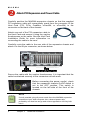
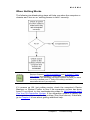
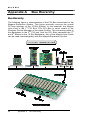
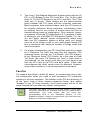
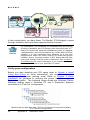
The Fan-Out Configuration is the
recommended solution. It typically
provides optimum performance
on most systems because there are
fewer PCI bridges between the
Computer CPU and the PCI cards.
In this configuration, you have fewer “Toll Booths” (PCI Bridges) to pass
through; therefore there are fewer opportunities for concern.
For clarification, it is necessary to understand that the amount
rd
of latency caused by any PCI Bridge (even those built into a 3
Party PCI card or the computer motherboard itself) is negligible
(“nanoseconds”) and will not produce any visible effect on most
systems. It is only mentioned here because on a few rare
configurations which use some unique PCI cards with special
software drivers, the total number of PCI buses that the data
must pass through COULD make a difference. See Chapter 5
Troubleshooting for more information if you suspect this could
be an issue with one of your specialty PCI cards.
Verify your configuration
Before you start installing your PCI cards (refer to Chapter 4 Install
Cards and Drives for more information), you should confirm that
everything is in proper working order. Refer to Chapter 3 Verify
Installation for guidance in verifying the proper installation of your
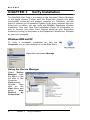
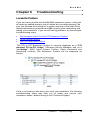
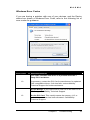
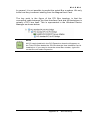
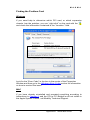
Expansion System. The following image shows the Windows Device
Manager display when a Windows PC has 2 Expansion Systems
connected in a “Fan-Out” configuration.
Windows Device Manager with 2 PCI to PCI Expansion Systems Installed
in a “Fan-Out Configuration.
36
Appendix B
Need More Slots?