1
Epson PowerLite 740c Projector
What To Do If You See a Blank Screen
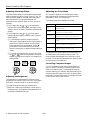
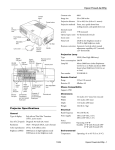
3. Press the P Power button on top of the projector or on the
remote control.
If you see a blank screen or the No Signal message after turning
on your computer or video source, try the following:
Power button
❏ Make sure the cables are connected correctly.
❏ Make sure the P Power light is green and not flashing and
the lens cover is off.
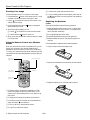
❏ Press the Source Search button on the projector or the
Search button on the remote control repeatedly until you
see the image you want to project. See page 5 for more
information about selecting the image source.
Projector
Remote control
If you’re using a Windows computer:
The projector beeps once and the P Power light flashes
green as the projector warms up, then an image begins to
appear. When the P Power light stops flashing and remains
green, the projector is ready for use.
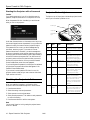
❏ Hold down the Fn key and press the function key that lets
you display on an external monitor. It may have an icon such
as
or it may be labelled CRT/LCD. Allow a few seconds
for the projector to sync up after pressing it. Check your
computer’s manual or online help for details.
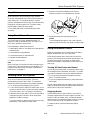
Warning:
Never look into the lens when the lamp is on. This can damage
your eyes, and is especially dangerous for children.
On most systems, the
or CRT/LCD key lets you toggle
between the LCD screen and the projector, or display on
both at the same time.
❏ If you’ve connected a Windows®-based computer to the
projector, you may see a New Hardware Wizard saying
your computer has found a plug-and-play monitor; if so,
click Cancel.
❏ Depending on your computer’s video card, you might need
to use the Display utility in the Control Panel to make sure
that both the LCD screen and external monitor port are
enabled. See your computer’s documentation or online help
for details.
❏ If you don’t see the image you want, press the Source
Search button on the projector or the Search button on
the remote control until you see the image you want to
project.
If you’re using a Macintosh® with OS X:
You may need to set up your system to display on the projector
screen as well as the LCD screen. Follow these steps:
❏ If you are prompted to enter a password, see “Starting the
Projector with a Password” on page 10.
1. From the Apple menu, select System Preferences, then
click Displays.
Note:
You can also use the Source buttons on the remote control to
switch between devices connected to the ports identified on each
button. For details, see page 5.
2. Select VGA Display or Color LCD, click Arrange or
Arrangement, and make sure Mirror Displays is checked.
If you’re using a Macintosh with OS 8.6 to 9.x:
If a projected image fails to appear, see “What To Do If You See
a Blank Screen” in the next column.
You may need to set up your system to display on the projector
screen as well as the LCD screen. Follow these steps:
When you’re done with your presentation, shut down the
projector as described on page 7. Shutting down the projector
correctly prevents premature lamp failure and possible damage
from overheating.
1. From the Apple menu, select Control Panels, then click
Monitors or Monitors and Sound.
2. Click the Arrange icon.
3. Drag one monitor icon on top of the other.
If the Arrange option isn’t available, try selecting one of the
Simulscan resolution settings. Click the Monitor icon, if
necessary, and then select a Simulscan resolution. (Allow a few
seconds for the projector to sync up after making the selection.)
4 - Epson PowerLite 740c Projector
8/04