1
Part 3
Inputting Characters and Symbols
This part of the manual tells you how to input characters. To make things easier
to understand, we call everything you input a character, regardless of whether it
is actually a letter, number, or symbol. Explanations here all use the default
settings that are in effect from the initial power-on screen.
For information on using other character styles, effects and sizes, see page 12.
Important!
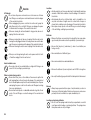
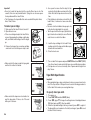
• You can input up to 63 characters per label. Further input becomes impossible after you input the 63rd character.
Display Symbols and Indicators
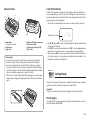
Before getting into actual input, you should first become acquainted with the
symbols and indicators used on the Label Printer display.
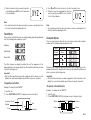
Function indicator
Effect indicators
Style indicators
Stamp printing indicator
Mirror image
printing
indicator
A A A A A A
A
Shift
indicator
Code
indicator
FUNCTION
SHIFT
CODE
CAPS
STAMP
MIRROR
M-FEED
6mm
CAS
• Code indicator
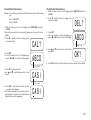
This indicator appears when you press the CODE key. While this indicator is on
the display, number keys 1 through 2 input the accents marked above them.
The keyboard automatically returns to normal (and the code indicator disappears) as soon as you input an accent.
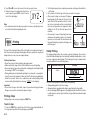
• Caps indicator
This indicator appears when the Label Printer is in the caps (upper-case) mode.
All letters you input in the caps mode are upper-case. When the caps mode
indicator is not shown on the display, all letters are input as lower-case.
Note that the Label Printer stays in the caps mode until you press the CAPS
key again.
If both the caps mode indicator and the shift indicator are shown on the display,
the keyboard is shifted to lower-case input.
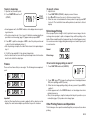
• Effect indicators
These indicators point to the character effect that is currently in use. You can
select between shading, underline, and box.
Manual feed
indicator
Caps indicator
• Shift indicator
This indicator appears when you press the SHIFT key. While this indicator is on
the display, the keyboard is shifted, so the letter keys input upper-case alpha
characters. The number keys input the punctuation symbols marked in the upper right corners of the keys.
If both the caps mode indicator and the shift indicator are shown on the display,
the keyboard is shifted to lower-case input.
The keyboard automatically unshifts (and the shift indicator disappears) as soon
as you input a character.
Cursor
6mm tape indicator
Character position marks
• Function indicator
This indicator appears when you press the FUNCTION key. Pressing a key
while this indicator is on the display causes the function marked above that key
to be executed.
• Style indicators
These indicators point to the character style that is currently in use. You can
select between normal, outline, shadow, and raised.
• Stamp printing indicator
This indicator appears when the Label Printer is set up for stamp printing. Labels you create with stamp printing can be attached to an optionally available
stamp holder and then used as a pre-inked stamp.
• Mirror image printing indicator
This indicator appears when the Label Printer is set up for mirror image printing.
Normal (non mirror image) printing is performed when this indicator is not shown.
E-9