1
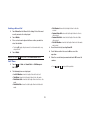
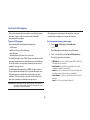
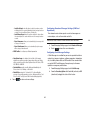
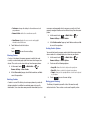
– Business Card: allows you to insert the contact information for an
entry from Address Book directly to your message as an attached file.
– Event: allows you to insert an Event entry from your calendar directly to
your message as an attached file.
– Tasks: allows you to insert an entry from your calendar tagged as a
Task directly to your message as an attached file.
– Memo: allows you to insert a presaved Memo (text) directly to your
message as an attached file.
– Favorites: allows you to add a web address from your Favorites list of
Internet sites as an attachment to the message.
4.
Touch
Send
to deliver the message to the selected
recipients.
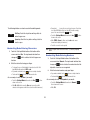
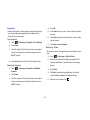
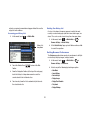
Attaching Business Card to a Message
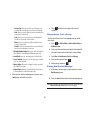
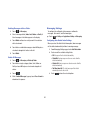
To attach your Business Card to an outgoing message, follow
these steps:
1.
Touch
➔ Address Book ➔ Address Book Settings ➔
My Business Card.
2.
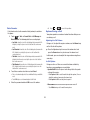
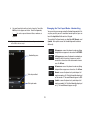
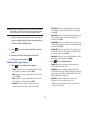
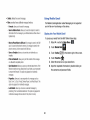
• Add Subject/Remove Subject: allows you to either add or delete a
subject field to the new message (multimedia messages only).
• Save to Drafts: saves the current message to the Drafts folder.
• Save as Template: allows you to save the message as a template
so you can use it again later.
• Delivery Options: allows you to configure the options associated
with sending the message.
• Request Reports: allows you to be alerted when the message is
received and when it is read (text messages only).
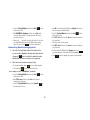
3. When you have finished composing your message, touch
Create your Business Card by entering the information that
you want (this must only be done once) and touch Save.
3.
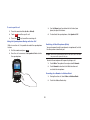
Touch More ➔ Send Business Card via ➔ Message.
4.
Enter your message and touch OK .
5.
Add recipient(s) and touch
Send
.
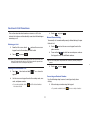
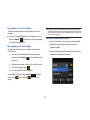
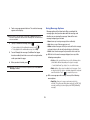
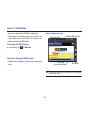
Viewing New Received Messages
1.
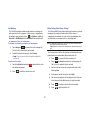
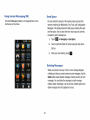
In Idle mode, new messages are indicated by icons and a
New Messages pop-up.
Send to and confirm the recipient(s).
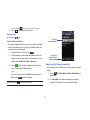
2.
Touch the View all button from the New Messages pop-up.
Note: If you accidentally exit from this notification screen, you will need to go
to Menu ➔ Messaging ➔ Inbox to access your messages.
38