1
The Operation section provides the
following options:
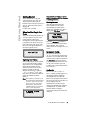
- User Password - Allows you to
change user password
- Programmable Keys - Allows
you to configure up to 2
programmable keys for a
specific function (speeddial, do
not disturb (DND), Extensible
Markup Lanaguage (XML),
flash, park, and pickup).
- Directory - Allows you to copy
the Callers List and Directory
List from your IP phone to
your PC.
- Reset - Allows you to restart
the IP phone when required.
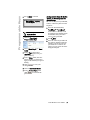
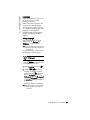
3. Enter the current user password
and press U.
4. Enter the new user password
and press U.
5. Re-enter the new user password
and press U.
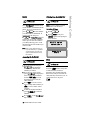
A message, "Password
Changed" displays on the
screen.
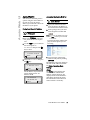
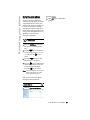
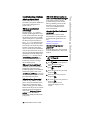
Aastra Web UI
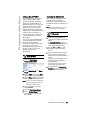
1. Click on Operation->User
Password.
Basic Settings
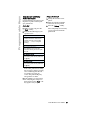
The Basic Settings section provides
the following options:
- Preferences - Allows you to set
suppression of DTMF
playback, set incoming
intercom settings, enable/
disable call waiting tone and
stuttered dial tone, and set
global tone set and ring tone.
- Call Forward - Allows you to
set a phone number
destination for where you want
calls forwarded.
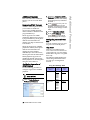
User Password
This category allows you to change
the web-access password for your
phone. Changing your password
ensures that only you can alter
your phone settings, and helps
keep your system secure. You can
change your user password using
the IP phone UI or the Aastra Web
UI.
IP Phone UI
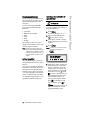
1. Press I on the phone to
enter the Options List.
2. Select User Password and
press U.
6
9112i IP Phone User Guide
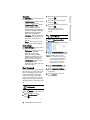
2. In the "Current Password" field,
enter the current user password.
Note: By default, the user name is
“user” (all lowercase) and the
password field is left blank. If
you have forgotten your password, contact your system
administrator for assistance.
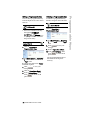
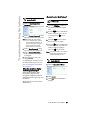
3. In the "New Password" field,
enter the new user password.
4. In the "Password Confirm"
field, enter the new user password again.
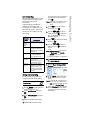
5. Click
changes.
to save your
User Password
Operation