1
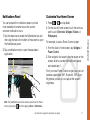
Notifications Panel
Customize Your Home Screen
You can expand the notification area to provide
more detailed information about the current
onscreen notification icons.
1.Tap the status bar to reveal the Notifications tab, and
then drag the tab to the bottom of the screen to open
the Notifications panel.
1.Press
and tap Add.
For example, to add a Power Control widget:
1.From the Add to Home screen, tap Widgets >
Power Control.
2.If the widget is too large for the free space on the
screen, slide to a screen with sufficient space,
and repeat step 1.
From your new Power Control widget, you can turn
wireless capabilities (WiFi, Bluetooth, GPS, Sync,
Brightness) on and off, and adjust the screen
brightness.
Note: The Notifications panel can also be opened on the Home
and then tapping More > Notifications.
screen by pressing
visit sprint.com/support for complete user guide
7
Android Basics
2.Tap a notification entry to open the associated
application.
>
2.On the Add to Home screen, touch the item you
wish to add (Shortcuts, Widgets, Folders, or
Wallpapers).