1
Appendix C Using the CLP Interface
This section explains how to use the Command Line Protocol (CLP) interface to administer a Dominion PX. In This Chapter
About the CLP Interface ...............................................................................125 Logging into the CLP interface ....................................................................126 Showing Outlet Information ........................................................................127 Turning an Outlet On or Off ........................................................................130 Querying an Outlet Sensor ...........................................................................130 About the CLP Interface
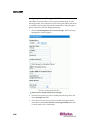
The Dominion PX provides a command line interface that enables data center administrators to perform certain basic management tasks. You can access the interface over a serial connection using a terminal emulation program such as HyperTerminal, or via a Telnet or SSH client such as PuTTY. Note: Telnet access to the Dominion PX is disabled by default because Telnet transmits in the clear and is insecure. To enable Telnet, select Device Settings ‐‐> Network and click the check box labeled Enable CLP‐Telnet Access. Note: About Terminal Emulation Programs ‐ HyperTerminal is available on many Windows OS. But HyperTerminal is not available on Windows Vista. PuTTY is a free program you can download from the internet. Please refer to PuTTYʹs documentation for details on configuration. The command line interface is based on the Systems Management Architecture for Server Hardware (SMASH) Command Line Protocol (CLP). Using this interface, you can do the following: •
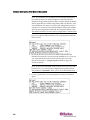
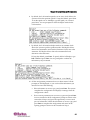
Display the name, power state (on or off), and sensors associated with each Dominion PX outlet •
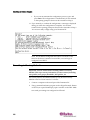
Turn each outlet on or off •
Display the status of the sensors associated with each outlet 125