1
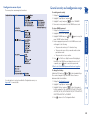
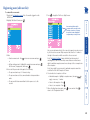
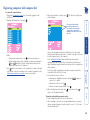
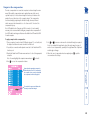
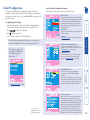
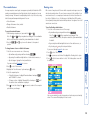
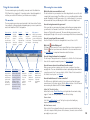
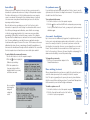
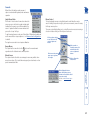
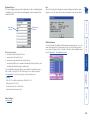
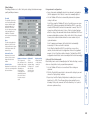
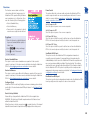
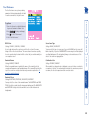
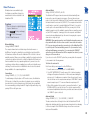
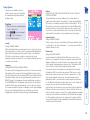
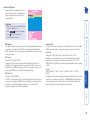
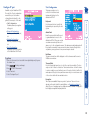
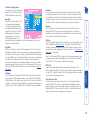
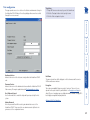
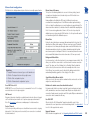
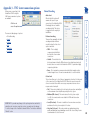
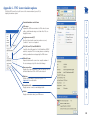
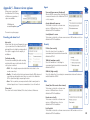
User Preferences Reminder Banner Settings: ENABLED, DISABLED When the reminder banner is enabled, the name of the currently selected computer will appear in a small reminder banner. This is normally located at the top of the screen in a central position but may be moved as required (see To move the reminder banner). Confirmation Box Settings: DISABLED, ENABLED When enabled, a confirmation box is displayed on screen for three seconds after a computer is selected. The confirmation box indicates the current user port and user name, the selected computer and the connection status. Reminder Colour Settings: BLUE/TRANS, PINK/TRANS, BLUE/WHITE, WHITE/RED You may select the colour of the reminder banner. The BLUE/TRANS and PINK/ TRANS select blue or pink text with a transparent background. The BLUE/WHITE and WHITE/RED settings select blue and white text on solid white and red backgrounds. Screen Saver Type Settings: BLANK, MOVING DOT You may select the type of screen saver. If you select BLANK then the screen will blank completely. If you select MOVING DOT then a moving dot will be displayed on a blank background. The dot regularly changes colour and bounces off the sides of the screen in a zigzag pattern. OSD Colour Settings: SCHEME 1, SCHEME 2, SCHEME 3 As you toggle between these options you will see the colour of the menu change to show the selected scheme. The menu schemes have been specially chosen to provide a high contrast with the colours that you would normally see on a computer screen. To get here 1 From a local, remote or global keyboard, log on as a standard or ‘admin’ user. 2 Press (hotkeys can change). 3 Press to select ‘More menus’. 4 Select ‘User Preferences’. The User Preferences are system operating parameters that are independently selectable for each user and affect only their screen. 69