1
Quick Setup
5. Connect FireBall to the Internet
1. Unpack Your New FireBall MP-200
• Unpack the FireBall, cables, and accessories (save the box).
• Install the included batteries into the remote.
• Make note of the serial number (located on the back).
6640 Intech Blvd., Indianapolis, Indiana 46278
Phone: 800-372-4368 Press "3” For Support
Hours: Monday - Friday 9:00am - 7pm EST
Fax: 317-616-6790
www.escient.com
Email: [email protected]
Document Number: M22150-02A1
February 2006
3. FireBall MP-200 and FireBall Mulit-Zone DVD Manager
Note: FireBall requires an Internet connection to play
Internet radio stations, and for general system
maintenance.
•
SERIAL NUMBER:_______________________________________________
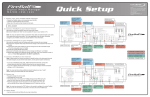
2. Connect FireBall to your Home Theater
A) Locate the included composite video and analog audio cables.
B) Connect FireBall to the "DVD" or other available A/V input on your receiver or
TV (not shown).
Note: You may use optional s-video or component video cables and optional
digital audio cables for the best picture and sound quality. Contact your Escient
dealer for more information.
•
FireBall
Multi-Zone DVD Manager
Note: You may need to purchase additional network
hardware such as a "router". Please contact your
Escient dealer for more information.
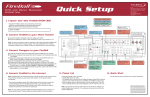
3. Connect FireBall MP-200 to a FireBall Multi-Zone DVD Manager
Note: The MP-200 automatically switches between the Escient Movies Guide
and the direct DVD input from the multi-zone DVDM Media manager, therefore
you are required to run direct video and audio cables from the zone 2 outputs of
the multi-zone DVDM to the MP-200.
A) To watch DVD movies in a second zone using the MP-200, connect a
composite video cable from VIDEO OUT COMPOSITE 2 on the multi-zone
DVDM to the COMPOSITE VIDEO IN on the MP-200.
B) Connect an analog audio cable from ANALOG AUDIO OUT 2 on the
multi-zone DVDM to ANALOG AUDIO IN on the MP-200.
C) Connect the included Ethernet cable to your home network.
6. Power Up!
•
•
Internet / Home Network
•
4. FireBall MP-200 and FireBall Music Server
OR
7. Quick Start
•
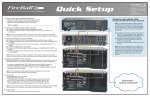
4. Connect FireBall MP-200 to a FireBall Music Server
•
Use the remote control and follow the on-screen
instructions.
FireBall
Music Server
Connect the FireBall MP-200 to your Ethernet network using a standard
Ethernet cable (included).
Note: There are optional wireless (WIFI or 802.11) network bridges that will allow
you to wirelessly connect your FireBall to your Ethernet network if there are no
Ethernet jacks close to where you install FireBall.
Plug FireBall into an AC outlet.
The Standby LED on the front of the FireBall will
begin to flash RED during the power on cycle.
When the LED turns solid RED, the FireBall is
ready for use.
Press the power button on the front panel or on the
remote control. The LED will turn solid BLUE and
video will be displayed on the TV when the unit is
on.
Note: You may have to press the "FB1" button on the
remote to configure it to control FireBall. Also be sure
the TV and receiver are turned on and set to the
correct FireBall input.
Note: You may use optional s-video or component video cables and optional
digital audio cables for the best picture and sound quality. Contact your Escient
dealer for more information.
FireBall MP-200 streams audio from FireBall Music Servers over an Ethernet
network. Connect the FireBall MP-200 to a FireBall Server via an Ethernet hub or
router using the included Ethernet cable. The FireBall MP-200 can also stream
Internet Radio stations if you have a broadband Internet connection.
If you have a broadband (cable, DSL, ISDN)
Internet Service Provider, connect the included
ethernet cable from FireBall's ethernet jack to your
ethernet network.
If you have a Dialup Internet Service Provider,
you’ll need to configure Internet connection sharing
on a PC connected to the phoneline.
Internet / Home Network
Note: The MP-200 requires an Internet connection to complete the
registration process. If the Internet connection method is dialup then an
external modem must be used with the MP-200. An alternate method would
be to use Internet connection sharing via a PC or dialup router. Contact your
Escient dealer for more information.
Time For Fun
Remote Overview
VOLUME CONTROL
Volume Up / Volume Down / Mute - Universal
remote can be configured to operate volume on
TVs and receivers. See manual for detailed
setup steps.
GUIDE
Guide / Player - toggles between Guide and
Player screens.
NAVIGATION & SELECT
Up / Down / Left / Right / Select - used to
navigate and select on-screen menus and
buttons.
INFO
Info - displays additional movie and music info.
TRANSPORT CONTROLS
Rewind / Play / Forward / Record / Stop /
Pause - used to control playback of movies and
music. Also used for text entry and for canceling
certain operations.
DVD FUNCTIONS
Subtitle / Audio - used to toggle subtitle and
audio tracks on and off when watching a movie.
DVDM-552 GUIDE SELECT
Movies / iRadio / Music - used to select DVDM
modes.
DISC PLAY FUNCTIONS
Previous / Next - skip disc functions.
FIREBALL SELECT
FireBall 1 / FireBall 2 / FireBall 3 / FireBall 4 use FB1 to control the DVDM. Use other FB
buttons if additional FireBall products are
installed.
Movies Guide - Browse and manage
your Movie collection
CHANNEL / PAGE CONTROL
Channel/Page Up/Down - used to page up and
down in Guide and Player screens.
CONTROL
Mode - changes music play modes: normal,
random, repeat etc.
Setup - displays Setup menu.
Options - displays Options menu.
ALL / NONE
Toggle All or None on Select Guides.
Music Guide - Browse and manage
your Music collection
Movie Player - display full screen
video (watch a movie)
Music Player - display and control
the currently playing music title
FireBall Media Server required for Music Control
MACRO FUNCTION
Macro Function - used to directly access various
music, movie and radio items and controls.
MUSIC FAVORITES
Add-Favorites / Play-Favorites - used to add the
currently highlighted music track to the Favorites
playlist and to play the favorites playlist.
OPTIONS
SETUP
Movie Options - allows you to create
custom groups, edit disc information
and access other movie features
Setup Menus - set user preferences
and configure external changers
Multi-Zone DVDM and Changers required for Movie Control
VIEW / MENU
View / Menu - toggles through various guide
views (artist, title, cover) and displays DVD
menu when watching a movie.
MUSIC PLAY FUNCTIONS
Repeat / Random - used to cause the system to
play the current group/genre in repeat or random
playback mode.
PLAYER
MOVIES
KEY PAD
Alpha / Numeric / Enter - used for entering
numbers and text. Also used for searching in
the movies, music and radio guides.
GUIDE
POWER
Power - used to toggle the current source device
on and off.
MUSIC
UNIVERSAL SOURCE SELECT
TV / Cable / Receiver / DVD - used to configure
the remote to control other devices. See manual
for details on the universal remote functions.
On-Screen Interface Overview
Music Options - allows you to create
playlists and groups, edit disc
information and access other music
features
RADIO
CODE SET
Code Set - used to set the universal IR source
buttons. See manual for details.
6640 Intech Blvd., Indianapolis, Indiana 46278
Phone: 800-372-4368 Press "3” For Support
Hours: Monday - Friday 9:00am - 7pm EST
Fax: 317-616-6790
www.escient.com
Email: [email protected]
Document Number: M22150-02A1
February 2006
Radio Guide - browse and manage
Internet Radio stations
Radio Player - displays the currently
playing iRadio station, location,
channels and speed (if available)
Radio Options - allows you to create
custom groups, tune new stations
and access other iRadio features
Broadband Internet connection required for Internet Radio Control
Watch a Movie
Multi-Zone DVDM and Changers required
• Press the Movies key on the remote.
• Highlight the Movie you want to watch.
• Press Play.
• The DVD movie will load and play.
Listen to Your Music
FireBall Media Server required
• Press the Music key on the remote.
• Highlight the Music Title you want to listen to.
• Press Play.
• The music begins to play.
Listen to an Internet Radio Station
Broadband Internet connection required
• Press the iRadio key on the remote.
• Highlight the Station you want to listen to.
• Press Play.
• FireBall will connect and begin to stream (play) the station.
©2006 Escient. All rights reserved. Escient and the Escient logo are registered trademarks and FireBall and
Physital are trademarks of Digital Networks North America, Inc. All other trademarks are property of their respective
owners. Escient reserves the right to change product hardware, features and software without notice. Upon any
change, materials are updated as quickly as possible, but may not be reflected in documents already distributed.
Supported hardware is updated continually. If you wish to interface with hardware that is not listed on this data
sheet, please call Escient at 800.372.4368.