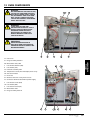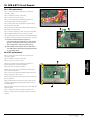
1
1
4
2
5
3
6
SERVICING
IMPORTANT:
Downloading from a USB will clear all existing
programs. Update the ‘SRB’ first, the ‘BTS’ second
and the ‘Icons’ third (found under the USB ‘Recipe’
heading).
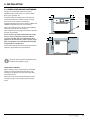
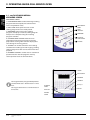
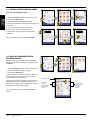
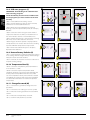
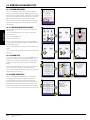
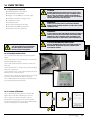
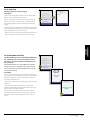
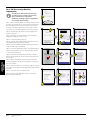
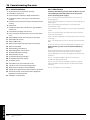
15.5.7 Switch on the oven and tap the top right of the
screen (1) to bypass the preheat stage.
15.5.8 Enter the password and select OK to display the
Settings menu, see (2).
15.5.9 Select the USB symbol (4).
15.5.10 Slide the Merrychef badge (oven front top
right) upwards and insert the USB Memory Stick into
the slot (3).
Do not remove USB during
download sequence as this
could corrupt the USB data.
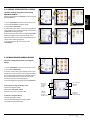
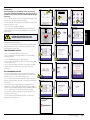
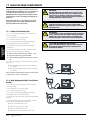
15.5.11 Once the USB has stopped flashing, select the
‘FIRMWARE’ USB symbol (5).
15.5.12 The current BTS (Touch Screen) & SRB (Smart
Relay Board) Firmware versions are displayed at the
top left of the screen (6).
7
8
9
10
11
12
14
15
SRB FIRMWARE UPDATE
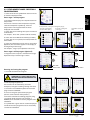
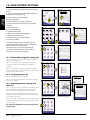
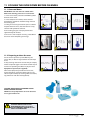
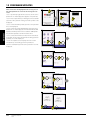
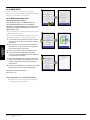
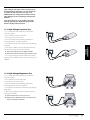
15.5.13 Select the ‘SRB’ file required (7).
15.5.14 Check the file information is correct before
selecting OK (8).
15.5.15 Update progress is displayed (9).
15.5.16 Select backspace (10) 3x to return to the USB
screen shown (11).
15.5.17 If the firmware versions are far apart an SRB
conflict could cause an error message (12) to be
displayed.
BTS FIRMWARE UPDATE
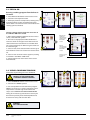
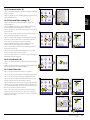
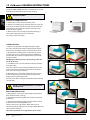
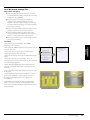
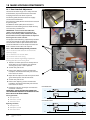
15.5.18 Select the ‘BTS’ file (13) with the correct file
version number. Note; a tinted band over a file name
indicates the file is not valid for that oven.
15.5.19 Check the file information shown is correct
before selecting OK (14), if not, select ‘X’ and locate the
correct file.
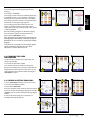
15.5.20 The file update progress is displayed (15).
At 50% the cooling fan stops operating, after 100%
various screen displays appear as the software reboots.
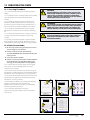
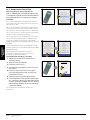
15.5.21 Check the screen shows the correct BTS
version was installed (16), if not, repeat the process
using the correct file.
15.5.22 Remove the USB and keep in a safe place.
Reposition the USB cover.
13
16
Service & Parts Manual original Instructions
Part Number 32Z3811GB
Issue 1
29