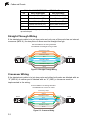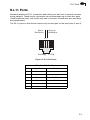
1
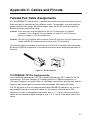
Powered by Accton
RG230
Indoor WiMAX
Residential Gateway
User Guide
www.edge-core.com
User Guide
RG230
Indoor IEEE 802.16e-2005 Mobile WiMAX Gateway,
with 2.3/2.5/3.5 GHz Frequency Band Support,
Four LAN (RJ-45) Ports,
Two VoIP (RJ-11) Ports,
and Optional 802.11g Wi-Fi
RG230
E032008-CS-R01
1*************
Compliances
Federal Communication Commission Interference Statement
This equipment has been tested and found to comply with the limits for a Class B digital
device, pursuant to Part 15 of the FCC Rules. These limits are designed to provide
reasonable protection against harmful interference in a residential installation. This
equipment generates, uses and can radiate radio frequency energy and, if not installed
and used in accordance with the instructions, may cause harmful interference to radio
communications. However, there is no guarantee that interference will not occur in a
particular installation. If this equipment does cause harmful interference to radio or
television reception, which can be determined by turning the equipment off and on, the
user is encouraged to try to correct the interference by one of the following measures:
• Reorient or relocate the receiving antenna
• Increase the separation between the equipment and receiver
• Connect the equipment into an outlet on a circuit different from that to which the receiver
is connected
• Consult the dealer or an experienced radio/TV technician for help
This device complies with Part 15 of the FCC Rules. Operation is subject to the following
two conditions: (1) This device may not cause harmful interference, and (2) this device
must accept any interference received, including interference that may cause undesired
operation.
FCC Caution: Any changes or modifications not expressly approved by the party
responsible for compliance could void the user’s authority to operate this equipment.
IMPORTANT NOTE: FCC Radiation Exposure Statement
This equipment complies with FCC radiation exposure limits set forth for an uncontrolled
environment. End users must follow the specific operating instructions for satisfying RF
exposure compliance. To maintain compliance with FCC RF exposure compliance
requirements, please follow operation instruction as documented in this manual.
This transmitter must not be co-located or operating in conjunction with any other antenna
or transmitter.
The availability of some specific channels and/or operational frequency bands are country
dependent and are firmware programmed at the factory to match the intended
destination. The firmware setting is not accessible by the end user.
Japan VCCI Class B
i
EC Conformance Declaration
Marking by the above symbol indicates compliance with the Essential Requirements of
the R&TTE Directive of the European Union (1999/5/EC). This equipment meets the
following conformance standards:
• EN 60950-1 (IEC 60950-1) - Product Safety
• EN 301 489-1, EN 301 489-4 - EMC requirements for radio equipment
• EN 50385 - Country specific SAR requirements
This device is intended for use in all European Community countries:
ii
About This Guide
Purpose
This guide details the hardware features of the WiMAX Residential Gateway including its
physical and performance-related characteristics, and how to install the device and use its
configuration software.
Audience
This guide is for PC users with a working knowledge of computers. You should be familiar
with basic networking concepts.
Conventions
The following conventions are used throughout this guide to show information:
Note: Emphasizes important information or calls your attention to related features or
instructions.
Caution: Alerts you to a potential hazard that could cause loss of data, or damage the
system or equipment.
Warning: Alerts you to a potential hazard that could cause personal injury.
Related Publications
The following publication gives basic information on how to install and use the WiMAX
Residential Gateway.
Quick Installation Guide
As part of the WiMAX Residential Gateway’s software, there is online help that describes
all configuration related features.
Revision History
This section summarizes the changes in each revision of this guide.
March 2008 Revision
This is the first revision of this guide. This guide is valid for software release v0.1.0.6.
iii
iv
Table of Contents
Chapter 1: Introduction
RG230 Hardware Description
Scan Button
Reset Button
WiMAX Antennas
WiMAX External Antenna Connectors
Power Status Indicator LED
Wi-Fi Status Indicator LED
WiMAX Signal Indicator LEDs
10BASE-T/100BASE-TX LAN Ports
VoIP Phone Ports
Power Adapter Socket
Backup Battery Charger (Optional)
SIM Card Slot
RG230 Wi-Fi Option
Chapter 2: Installing the RG230
Package Checklist
Installation Overview
Select a Location
Cable Connections
Chapter 3: Initial Configuration
Accessing the Web Management Interface
Using the Setup Wizard
The Advanced Setup Menu
Chapter 4: System Settings
Host Name
System Time
Administrator Settings
Firmware Update
Configuration Tools
System Status
System Log
Reset
1-1
1-2
1-3
1-3
1-3
1-3
1-4
1-5
1-5
1-5
1-6
1-6
1-6
1-7
1-8
2-1
2-1
2-1
2-1
2-2
3-1
3-1
3-3
3-12
4-1
4-1
4-2
4-3
4-3
4-4
4-6
4-8
4-9
v
Table of Contents
Chapter 5: Gateway Configuration
5-1
WAN Settings
Dynamic IP Address
Static IP Settings
L2TP Settings
PPPoE Settings
DNS
LAN
LAN Settings
DHCP Client List
NAT
Virtual Server
Port Mapping
DMZ
Firewall
Firewall Options
Client Filtering
MAC Control
Route
UPnP
5-2
5-3
5-3
5-4
5-5
5-6
5-7
5-7
5-8
5-8
5-8
5-10
5-11
5-11
5-12
5-13
5-14
5-15
5-16
Chapter 6: WiMAX Settings
6-1
Profile Configuration
Authentication
Subscriber Station Information
Antenna Setting
Chapter 7: VoIP Settings
SIP Account
SIP Setting
Dial Plan
Call Feature
Codecs
Call Block Setting
Phone Setting
Chapter 8: Wi-Fi Settings
Wireless Settings
Wireless Security
WEP Shared Key Security
WPA/WPA2 Security
vi
6-1
6-2
6-3
6-4
7-1
7-2
7-3
7-4
7-6
7-8
7-9
7-10
8-1
8-1
8-5
8-6
8-7
Table of Contents
WPA/WPA2 PSK Security
MAC Authentication
8-8
8-9
Appendix A: Troubleshooting
A-1
Diagnosing LED Indicators
Cannot Connect to the Internet
Cannot Access Web Management
Forgot or Lost the Password
Resetting the Unit
A-1
A-1
A-2
A-2
A-2
Appendix B: Specifications
B-1
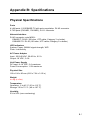
Physical Specifications
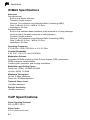
WiMAX Specifications
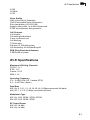
VoIP Specifications
Wi-Fi Specifications
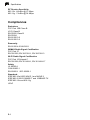
Compliances
B-1
B-2
B-2
B-3
B-4
Appendix C: Cables and Pinouts
Twisted-Pair Cable Assignments
10/100BASE-TX Pin Assignments
Straight-Through Wiring
Crossover Wiring
RJ-11 Ports
Appendix D: License Information
The GNU General Public License
C-1
C-1
C-1
C-2
C-2
C-3
D-1
D-1
Glossary
Index
vii
Table of Contents
viii
Tables
Table 1-1
Table 1-2
Table 1-3
Table 1-4
Table 1-5
Table 4-1
Table 5-1
Table 6-1
Table 8-1
Table A-1
Table C-1.
Table C-2.
RG230 Models
Power Status LED
Wi-Fi Status LED
WiMAX Signal Status LEDs
LAN Port Status LEDs
System Settings
Gateway Configuration
WiMAX Settings
Wi-Fi Settings
Troubleshooting Chart
10/100BASE-TX MDI and MDI-X Port Pinouts
RJ-11 Port Pinout
1-1
1-4
1-5
1-5
1-6
4-1
5-1
6-1
8-1
A-1
C-2
C-3
ix
Figures
Figure 1-1
Figure 1-2
Figure 1-3
Figure 1-4
Figure 1-5
Figure 1-6
Figure 2-1
Figure 3-1
Figure 3-2
Figure 3-3
Figure 3-4
Figure 3-5
Figure 3-6
Figure 3-7
Figure 3-8
Figure 3-9
Figure 3-10
Figure 3-11
Figure 3-12
Figure 4-1
Figure 4-2
Figure 4-3
Figure 4-4
Figure 4-5
Figure 4-6
Figure 4-7
Figure 4-8
Figure 4-9
Figure 4-10
Figure 4-11
Figure 4-12
Figure 5-1
Figure 5-2
Figure 5-3
Figure 5-4
Figure 5-5
Figure 5-6
Figure 5-7
Figure 5-8
Figure 5-9
Figure 5-10
Figure 5-11
Front of the RG230
Base of the RG230
Back of the RG230
RG230 LED Indicators
Front of the RG230
3.5 GHz RG230 with Wi-Fi
CPE Connections
Login Page
Home Page
Host Settings
Time Zone
WAN Type
WAN Type - Static IP Address
WAN Type - L2TP
WAN Type - PPPoE
Profile Configuration
DNS Configuration
Wizard Setup Finished
Advanced Setup
System Host Name
System Time
Setting a Password
Firmware Update
Configuration Tools
Restore Factory Default Configuration
Backup/Restore Settings
System Status – Internet
System Status – Gateway
System Status – Information
System Log
Reset Unit
WAN Settings
Dynamic IP Address
Static IP Settings
L2TP Settings
PPPoE Settings
DNS Settings
LAN Settings
DHCP Client List
Virtual Server
Port Mapping
DMZ Settings
1-2
1-2
1-3
1-4
1-7
1-8
2-2
3-1
3-2
3-3
3-4
3-5
3-6
3-7
3-8
3-9
3-10
3-11
3-12
4-1
4-2
4-3
4-3
4-4
4-4
4-5
4-6
4-6
4-7
4-8
4-9
5-2
5-3
5-3
5-4
5-5
5-6
5-7
5-8
5-9
5-10
5-11
x
Figures
Figure 5-12
Figure 5-13
Figure 5-14
Figure 5-15
Figure 5-16
Figure 5-17
Figure 6-1
Figure 6-2
Figure 6-3
Figure 6-4
Figure 6-5
Figure 7-1
Figure 7-2
Figure 7-3
Figure 7-4
Figure 7-5
Figure 7-6
Figure 7-7
Figure 8-1.
Figure 8-2.
Figure 8-3.
Figure 8-4.
Figure 8-5.
Figure 8-6.
Figure C-1
Figure C-2
Figure C-3
Figure C-4
Firewall Setting
Firewall Options
Client Filtering Settings
MAC Control
Routing Table
UPnP Setting
WiMAX Profile Configuration
WiMAX Profile Authentication - EAP-TTLS
WiMAX Profile Authentication - EAP-TLS
Subscriber Station Information
WiMAX Antenna Setting
SIP Account Settings
SIP Setting
Dial Plan Settings
Call Features
Codecs
Call Block Setting
Phone Setting
Wireless Settings
Wireless Security
WEP Shared Key Security
WPA/WPA2 Security
WPA/WPA2 PSK Security
MAC Authentication
RJ-45 Connector
Straight-Through Wiring
Crossover Wiring
RJ-11 Port Pinout
5-11
5-12
5-13
5-14
5-15
5-16
6-1
6-2
6-2
6-3
6-4
7-2
7-3
7-5
7-7
7-8
7-9
7-10
8-2
8-5
8-6
8-7
8-8
8-9
C-1
C-2
C-2
C-3
xi
Figures
xii
Chapter 1: Introduction
The RG230 WiMAX Residential Gateway is a WiMAX subscriber station designed to
provide Internet access for a home or small office. The unit provides a gateway
function between a WiMAX service provider and a local Ethernet LAN. The device
enables a service provider to deliver last mile broadband wireless access as an
alternative to wired DSL or cable modems.
The RG230 is a plug-and-play indoor unit (IDU). There are two available models for
each of the 2.3, 2.5, and 3.5 GHz WiMAX frequency bands. Which model you use
will depend on the frequency band of your service provider’s WiMAX service. The
RG230 models also include built-in WiMAX antennas, either standard
“omnidirectional” type or high-performance “switched-beam” type.
The RG230 includes four RJ-45 Ethernet switch ports for LAN connections and two
RJ-11 Voice over IP (VoIP) phone ports. An 802.11b/g Wi-Fi module is available for
the 3.5 GHz models that provides a local Wi-Fi access point service.
The following table lists the available RG230 models.
Table 1-1 RG230 Models
Frequency Band
Model Number
Description
2.3 GHz
RG230-2.3-4D2V-Omni
Including omnidirectional antennas.
RG230-2.3-4D2V-Switch
Including switched-beam antennas.
RG230-2.5-4D2V-Omni
Including omnidirectional antennas.
RG230-2.5-4D2V-Switch
Including switched-beam antennas.
2.5 GHz
3.5 GHz
RG230-3.5-4D2V1W-Omni
Including omnidirectional antennas and Wi-Fi.
RG230-3.5-4D2V1W-Switch
Including switched-beam antennas and Wi-Fi.
The RG230 offers a user-friendly web-based management interface for the
configuration of all the unit’s features. Any PC directly attached to the unit can
access the management interface using a web browser, such as Internet Explorer
(version 6.0 or above) or Firefox (version 1.5 or above).
The initial configuration steps can be made through the web browser interface using
the Setup Wizard. It is recommended to make the initial changes by connecting a
PC directly to one of the RG230’s LAN ports.
1-1
1
Introduction
RG230 Hardware Description
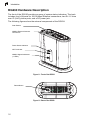
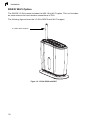
The front of the RG230 provides an array of system status indicators. The back
includes four LAN ports for 10/100 Mbps Ethernet connections, two RJ-11 Voice
over IP (VoIP) phone ports, and a DC power jack.
The following figures show the external components of the RG230:
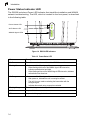
Scan Button
WiMAX External Antenna
Connectors
Power Status Indicator
Wi-Fi Indicator
WiMAX Signal Indicators
(7 LEDs)
Figure 1-1 Front of the RG230
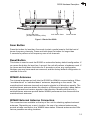
Reset Button
Figure 1-2 Base of the RG230
1-2
1
RG230 Hardware Description
LAN 1
LAN 2
LAN 3
LAN 4
RJ-45 LAN Ports
(include Link/Activity LEDs)
PHONE 1 PHONE 2
VoIP Phone Ports
DC IN
2A
10-19V
Power Socket
Figure 1-3 Back of the RG230
Scan Button
Press the button for less than 3 seconds to start a partial scan to find the best of
known frequency channels. Press and hold down the button for longer than
3 seconds to perform a full frequency scan of all channels.
Reset Button
This button is used to reset the RG230 or restore the factory default configuration. If
you press the button for less than 1 second, the unit will perform a hardware reset. If
you press and hold down the button for 5 seconds or more, any configuration
changes you may have made are removed, and the factory default configuration is
restored to the unit.
WiMAX Antennas
Two internal antennas are built into the RG230 for WiMAX communications. Either
“omnidirectional” or “switched-beam” antennas, depending on the model. The
omnidirectional antennas transmit and receive signals in all directions equally. The
switched-beam antennas detect the direction of the service provider’s base station
and only transmit and receive signals in that direction. Models with the built-in
switched-beam antennas provide better WiMAX performance than those with the
omnidirectional antennas.
WiMAX External Antenna Connectors
Two connectors are available on the top of the unit for attaching optional external
antennas. Depending on a user’s location, the use of an external antenna may
provide a better connection to a WiMAX base station. External antennas also offer
various possible mounting locations.
1-3
1
Introduction
Power Status Indicator LED
The RG230 includes a Power LED indicator that simplifies installation and WiMAX
network troubleshooting. The LED, which is located on the front panel, is described
in the following table.
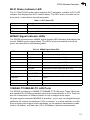
Power Status LED
Power
WiFi
Wi-Fi Status LED
WiMAX Signal LEDs
Figure 1-4 RG230 LED Indicators
Table 1-2 Power Status LED
Status
Description
On Green
The unit has a network association with a WiMAX base station.
Flashing Green
Indicates one of the following conditions:
On Orange
•
When flashing with three of the WiMAX signal LEDs turned on,
indicates authentication has failed.
•
When flashing with one of the WiMAX signal LEDs turned on, indicates
authentication has timed out.
Indicates one of the following conditions:
•
After power on, indicates the unit is running its self test.
•
The unit is in scan mode or selecting the base station with the
strongest signal.
•
Indicates the network entry process has restarted.
Flashing Orange
The unit is being reset to factory defaults.
On Red
A system failure has occured.
Off
No power is being supplied to the unit.
1-4
1
RG230 Hardware Description
Wi-Fi Status Indicator LED
The 3.5 GHz RG230 model, which supports Wi-Fi operation, includes a Wi-Fi LED
indicator that displays the Wi-FI network status. The LED, which is located on the
front panel, is described in the following table.
Table 1-3 Wi-Fi Status LED
Status
Description
On Green
The Wi-Fi radio is enabled and operating normally.
Flashing Green
Indicates data traffic in the Wi-Fi network.
Off
There is no Wi-Fi connection or the radio is disabled.
WiMAX Signal Indicator LEDs
The RG230 includes seven WiMAX signal strength LED indicators that display the
current WiMAX receive signal status. The LEDs, which are located on the front
panel, are described in the following table.
Table 1-4 WiMAX Signal Status LEDs
LED
Status
Description
1
On Green
Indicates the receive signal is 5 dB or more.
2
On Green
Indicates the receive signal is 8 dB or more.
3
On Green
Indicates the receive signal is 12 dB or more.
4
On Green
Indicates the receive signal is 15 dB or more.
5
On Green
Indicates the receive signal is 18 dB or more.
6
On Green
Indicates the receive signal is 20 dB or more.
7
On Green
Indicates the receive signal is 25 dB or more.
1 to 7 in sequence
Cycle On/Off Green
A full frequency scan is in progress.
4, 3&5, 2&6, 1&7 in
sequence
Cycle On/Off Green
Selecting a detected base station with the strongest
signal.
All 7 LEDs
Flashing Green
All 7 LEDs
Off
No power is being supplied to the unit.
10BASE-T/100BASE-TX LAN Ports
The RG230 provides four 10BASE-T/100BASE-TX RJ-45 ports. These LAN ports
are standard RJ-45 Ethernet network ports that connect directly to PCs. They can
also be connected to an Ethernet switch or hub to support more users.
All ports support automatic MDI/MDI-X operation, so you can use straight-through
cables for all network connections to PCs or servers, or to other switches or hubs.
Each of these ports support auto-negotiation, so the optimum transmission mode
(half or full duplex), and data rate (10 or 100 Mbps) is selected automatically.
1-5
1
Introduction
Each RJ-45 port includes a built-in LED indicator. This LED indicator is described in
the following table.
Table 1-5 LAN Port Status LEDs
LED
Status
Description
Link/Activity
On Green
Ethernet port has a valid link with an attached device.
Flashing Green
The port is transmitting or receiving data.
Off
Ethernet port has no link with another device.
VoIP Phone Ports
The RG230 provides two RJ-11 telephone ports that connect directly to a standard
(analog) telephone set. This allows a regular telephone to be used for making VoIP
calls over the Internet.
Power Adapter Socket
The power socket is located on the rear panel of the RG230. The power socket is for
the AC power adapter connection.
The unit is powered on when connected to its AC power adapter, and the power
adapter is connected to an AC power source between 100-240 volts at 50-60Hz.
Backup Battery Charger (Optional)
An optional backup battery charger can be used with the AC power adapter to
provide redundant power in the event that the AC supply fails.
The backup battery charger holds 10 rechargable AA-type batteries. The batteries
are charged while the AC power adapter is powering the RG230 unit. If the AC
power fails, the batteries can power the RG230 unit for up to five hours.
1-6
1
RG230 Hardware Description
SIM Card Slot
The RG230 also includes a standard SIM card slot that can be accessed by
removing the unit’s top cover.
Some WiMAX service providers may require an optional SIM Card to be installed in
the RG230 unit. The SIM card can include all required configuration details,
including security set up, operator information, and other end-user specific
parameters.
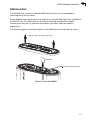
The following figure shows the location of the SIM card slot under the top cover.
Pull top cover up until it snaps free
SIM Card
Location of SIM card slot
Figure 1-5 Front of the RG230
1-7
1
Introduction
RG230 Wi-Fi Option
The RG230 3.5 GHz model includes the 802.11b/g Wi-Fi option. This unit includes
an extra antenna for local wireless connections to PCs.
The following figure shows the 3.5 GHz RG230 with Wi-Fi support.
2.4 GHz Wi-Fi Antenna
Figure 1-6 3.5 GHz RG230 with Wi-Fi
1-8
Chapter 2: Installing the RG230
This section describes how to install and connect the RG230 WiMAX Residential
Gateway.
Package Checklist
The RG230 package includes:
• RG230 unit with integrated antennas
• RJ-45 Category 5 network cable
• AC power adapter
• Quick Installation Guide
• Software Utilities and User Guide CD
Installation Overview
Before installing the RG230, verify that you have all the items listed in the package
checklist above. If any of the items are missing or damaged, contact your local
dealer. Also, be sure you have all the necessary tools and cabling before installing
the RG230.
Select a Location
The RG230 can be installed indoors on any horizontal surface, such as a desktop or
shelf. Be sure to select an suitable location for the device. Consider these points:
• Select a cool, dry place, which is out of direct sunlight.
• The device should have adequate space (approximately two inches) on all sides
for proper air flow.
• The device must be near an AC power outlet that provides 100 to 240 V, 50 to
60 Hz.
• The device should be accessible for network cabling and allow the status LED
indicators to be clearly visible.
Note:
If the RG230 displays a weak WiMAX receive signal, try moving it to another
location. Alternatively, you can connect optional external antennas to the unit to
improve performance.
2-1
2
Installing the RG230
Cable Connections
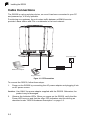
The RG230 is a plug-and-play device, so once it has been connected to your PC
and powered up, it is fully operable.
Functioning as a gateway, the unit routes traffic between a WiMAX service
provider’s base station and PCs or notebooks in the local network.
LAN 1
LAN 2
LAN 3
LAN 4
PHONE 1 PHONE 2
DC IN
2A
10-19V
AC Power Outlet
Notebook Computer
AC Power Adapter
Regular Phone
Figure 2-1 CPE Connections
To connect the RG230, follow these steps:
1.
Power on the RG230 by connecting the AC power adapter and plugging it into
an AC power source.
Caution: Use ONLY the power adapter supplied with the RG230. Otherwise, the
product may be damaged.
2.
2-2
Observe the Indicator LEDs. When you power on the RG230, verify that the
Power LED turns on and that the other LED indicators start functioning as
described under “RG230 Hardware Description” on page 1-2.
Cable Connections
3.
2
Connect Category 5 or better Ethernet cables from the RG230’s LAN ports to
the network ports of your PCs. Alternatively, you can connect the LAN ports to
an Ethernet switch or other devices. Make sure the length of each cable does
not exceed 100 meters (328 ft).
If your PCs are powered on, the RJ-45 LAN port LEDs on the RG230 should
turn on to indicate valid links.
4.
Connect one or two standard (analog) telephone sets to the RG230’s VoIP
ports using standard telephone cable with RJ-11 plugs.
The RG230 enables VoIP calls to be made through the unit using a standard
(analog) telephone set connected to a VoIP port, or from PCs or other network
devices connected to the LAN ports. Standard Session Initiation Protocol (SIP)
technology is used to make VoIP calls. You must access the web interface and
configure settings for your SIP service provider before being able to make VoIP
calls.
5.
Use your PC’s web browser to access the unit’s management interface and run
the Setup Wizard to make any configuration changes. For more information,
see Chapter 3, “Initial Configuration.”
Note:
If you use an optional external WiMAX antenna with the unit, be sure to access
the web management interface and configure the RG230 to use the correct
antenna. See “Antenna Setting” on page 6-4 for more information.
2-3
2
Installing the RG230
2-4
Chapter 3: Initial Configuration
The RG230 can be configured through its web management interface. The web
interface provides a simple Setup Wizard or Advanced Setup options.
Accessing the Web Management Interface
The RG230 has a default IP address of 192.168.1.1 and a subnet mask of
255.255.255.0. If your PC is set to have an IP address assigned by DHCP (Dynamic
Host Configuration Protocol), you can connect immediately to the web management
interface. Otherwise, you must first check if your PC’s IP address is set on the same
subnet as the RG230 (that is, the PC’s IP address starts 192.168.1.x).
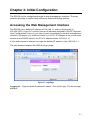
In the web browser’s address bar, type the default IP address: http://192.168.1.1.
The web browser displays the RG230’s login page.
Figure 3-1 Login Page
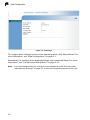
Logging In – Type the default password “admin,” then click Login. The home page
displays.
3-1
3
Initial Configuration
Figure 3-2 Home Page
To configure basic settings for the current operating mode, click Setup Wizard. For
more information, see “Initial Configuration” on page 3-1.
Alternatively, to configure more detailed settings, click Advanced Setup. For more
information, see “The Advanced Setup Menu” on page 3-12.
Note: It is recommended that you configure a user password as the first step under
“Administrator Settings” on page 4-3 to control management access to the unit.
3-2
Using the Setup Wizard
3
Using the Setup Wizard
The Setup Wizard takes you through the basic configuration steps for the current
operating mode.
Launching the Setup Wizard – To perform basic configuration, click Setup Wizard
on the home page.
When configuring the unit through the Setup Wizard you will need to proceed
through the following steps:
1.
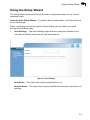
Host Settings – The Host Settings page defines a name that identifies your
unit and the domain name used by the local network.
Figure 3-3 Host Settings
Host Name – The name that uniquely identifies the unit.
Domain Name – The name that uniquely identifies the domain to which the unit
belongs.
3-3
3
2.
Initial Configuration
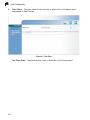
Time Zone – The time zone for the country in which the unit is being used,
expressed in GMT format.
Figure 3-4 Time Zone
Set Time Zone – Selects the time zone in which the unit is being used.
3-4
3
Using the Setup Wizard
3.
WAN Settings – The WAN Settings page is for specifying the type of
connection to your Internet service provider (ISP). When one of the options is
selected, the Wizard displays the appropriate configuration parameters.
Figure 3-5 WAN Type
Dynamic IP Address – Selects configuration for an Internet connection using
DHCP for IP address assignment.
Static IP Address – Selects configuration for an Internet connection using a
fixed IP assignment.
L2TP – Selects configuration for an Internet connection using the Layer 2
Tunneling Protocol, an access protocol often used for virtual private networks.
PPPoE – Selects configuration for an Internet connection using the
Point-to-Point Protocol over Ethernet (PPPoE), a common connection method
used for DSL access.
Note: For the Dynamic IP Address (DHCP) option, the unit requires no further
configuration and you can continue directly to next step. Selecting other WAN
types displays the parameters that are required for configuring the connection.
3-5
3
Initial Configuration
Figure 3-6 WAN Type - Static IP Address
For the static IP option, you are prompted for the following information (as
supplied by your ISP):
IP Address – If your ISP has assigned you a fixed IP address, enter the
address here.
Subnet Mask – Enter the subnet mask as supplied by your ISP.
ISP Gateway Address – The gateway IP address of your ISP.
3-6
3
Using the Setup Wizard
Figure 3-7 WAN Type - L2TP
For the L2TP option, you are prompted for the following information (specified
by the service provider):
User Name – Enter your user name for connecting to the L2TP service, as
supplied by the service provider. (Range: 1-32 characters)
Password – Specify the password for your connection, as supplied by the
service provider. (Default: No password)
L2TP Network Server – The IP address of the L2TP server, as specified by the
service provider.
Keep Alive – This option enables the unit to check periodically that the L2TP
connection is still operating. If the connection is found to be lost, the unit
automatically attempts to reconnect to the service provider. (Default: Enabled)
Keep Alive Time – The time period the unit waits before checking that the
L2TP connection is still operating. This parameter only applies when Keep Alive
is enabled. (Default: 60 seconds; Range: 10-180 seconds)
3-7
3
Initial Configuration
Figure 3-8 WAN Type - PPPoE
For the PPPoE option, you are prompted for the following information (specified
by the service provider):
PPPoE Network Server – The IP address of the PPPoE server, as specified by
the service provider.
Keep Alive – This option enables the unit to check periodically that the PPPoE
connection is still operating. If the connection is found to be lost, the unit
automatically attempts to reconnect to the service provider. (Default: Enabled)
Keep Alive Time – The time period the unit waits before checking that the
PPPoE connection is still operating. This parameter only applies when Keep
Alive is enabled. (Default: 60 seconds; Range: 10-180 seconds)
3-8
Using the Setup Wizard
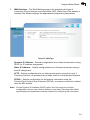
4.
3
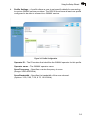
Profile Settings – A profile allows a user to set specific details for connecting
to various WiMAX service providers. The RG230 must have at least one profile
configured to be able to connect to a WiMAX service.
Figure 3-9 Profile Configuration
Operator ID – The ID number that identifies the WiMAX operator for this profile.
Operator name – The WiMAX operator name.
Scan Frequency – Specifies a center frequency to scan.
(Range: 2000-4000 MHz)
Scan Bandwidth – Specifies the bandwidth of the scan channel.
(Options: 3.50, 5.00, 7.00, 8.75, 10.00 MHz)
3-9
3
Initial Configuration
5.
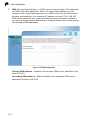
DNS (Domain Name System) – A DNS server is like an index of IP addresses
and Web host name addresses. When you type a Web address into your
browser, such as www.awbnetworks.com, a DNS server will find that name in
its index and translate it to a matching IP address, such as 211.21.189.106.
DNS server addresses are usually provided by service providers, however if
you want to specify certain other servers, this page allows you to enter primary
and secodary DNS addresses.
Figure 3-10 DNS Configuration
Primary DNS address – Address of the primary DNS server, specified in the
form of 0.0.0.0.
Secondary DNS address – Optional address of a secondary DNS server,
specified in the form of 0.0.0.0.
3-10
Using the Setup Wizard
6.
3
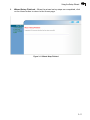
Wizard Setup Finished – When the wizard set up steps are completed, click
on the Home button to return to the Home page.
Figure 3-11 Wizard Setup Finished
3-11
3
Initial Configuration
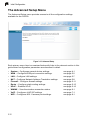
The Advanced Setup Menu
The Advanced Setup menu provides access to all the configuration settings
available for the RG230.
Figure 3-12 Advanced Setup
Each primary menu item is sumarized below with links to the relevant section in this
guide where configuration parameters are described in detail:
•
•
•
•
•
•
•
•
•
•
System – Configures general device settings.
WAN – Configure WAN port connection settings.
LAN – Configure LAN settings.
NAT – Configure Network Address Translation settings.
Firewall – Configure firewall settings.
Route – Configure static routing settings.
UPnP – Enables UPnP.
WiMAX – View the wireless connection status.
VoIP – Configures VoIP SIP settings.
WiFi – Configures 802.11 access point settings.
3-12
see page 4-1
see page 5-2
see page 5-7
see page 5-8
see page 5-11
see page 5-15
see page 5-16
see page 6-1
see page 7-1
see page 8-1
Chapter 4: System Settings
The RG230’s System menu allows you to perform general management functions
for the unit, including setting the system time, configuring an access password, and
upgrading the system software.
The System pages include the following options.
Table 4-1 System Settings
Menu
Description
Page
Host Name Config
Configures a host name and domain name
4-1
System Time
Configures the system time settings for updates from a time server
4-2
Administrator Settings
Configures user password for management access
4-3
Firmware Upgrade
Updates the current firmware
4-3
Configuration Tools
Restores the factory default settings, or save the unit’s current
settings
4-4
System Status
Displays WAN and LAN interface information and other system
details
4-6
System Log
Displays event log entries
4-8
Reset
Resets the device
4-9
Host Name
The RG230 allows you to define a name that identifies your unit and the domain
name used by the local network. Setting a host name enables the web interface to
be accessed using an easy-to-remember name instead of its IP address.
Figure 4-1 System Host Name
• Host Name – Enter the name chosen for the unit. (Default: cpe)
• Domain Name – Enter the domain to which the unit is connected.
4-1
4
System Settings
System Time
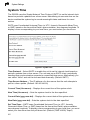
The RG230 uses the Simple Network Time Protocol (SNTP) to set its internal clock
based on periodic updates from a time server. Maintaining an accurate time on the
device enables the system log to record meaningful dates and times for event
entries.
SNTP uses Coordinated Universal Time (or UTC, formerly Greenwich Mean Time,
or GMT) based on the time at the Earth’s prime meridian, zero degrees longitude. To
display a time corresponding to your local time, you must select your time zone.
Figure 4-2 System Time
Time Protocol – Select SNTP to enable the unit to set its internal clock based on
periodic updates from a time server. The unit acts as an SNTP client, periodically
sending time synchronization requests to a specified time server. Alternatively, you
can select “None” and set the time and date manually. (Default: SNTP)
Time Server Address – The IP address of a time server that the unit attempts to
poll for a time update. (Default: 192.43.244.18)
Current Time (hh:mm:ss) – Displays the current time of the system clock.
New TIme (hh:mm:ss) – Sets the system clock to the time specified.
Current Date (yyyy:mm:dd) – Displays the current date of the system clock.
New Date (yyyy:mm:dd) – Sets the system clock to the date specified.
Set Time Zone – SNTP uses Coordinated Universal Time (or UTC, formerly
Greenwich Mean Time, or GMT) based on the time at the Earth’s prime meridian,
zero degrees longitude. To display a time corresponding to your local time, you must
select your time zone from the pull-down list. (Default: (GMT+08:00) Taipei)
4-2
Administrator Settings
4
Administrator Settings
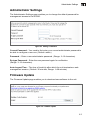
The Administrator Settings page enables you to change the default password for
management access to the RG230.
Figure 4-3 Setting a Password
Current Password – You need to first enter your current administrator password to
be able to configure a new one. (Default: admin)
Password – Enter a new administrator password. (Range: 3~12 characters)
Re-type Password – Enter the new password again for verification.
(Range: 3~12 characters)
Auto-Logout Time – The time of inactivity after which the unit terminates a web
management session. (Default: 30 minutes; Range: 1~99 minutes)
Firmware Update
The Firmware Update page enables you to download new software to the unit.
Figure 4-4 Firmware Update
4-3
4
System Settings
• Firmware Update – Downloads an operation code file from the web management
station to the RG230 using HTTP. Use the Browse button to locate the code file
locally on the management station and click Apply to proceed.
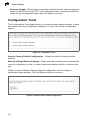
Configuration Tools
The Configurations Tools page allows you to restore factory default settings, or save
and restore the unit’s configuration settings to or from a file on the management
station.
Figure 4-5 Configuration Tools
Restore Factory Default Configuration – Resets the unit to its factory default
settings.
Backup Settings/Restore Settings – When selected, prompts either to backup the
current configuration to a file, or select a previously backed up file to restore to the
unit.
When you select “Restore Factory Default Configuration” and click Apply, a
confirmation page displays. Click the Restore button to continue.
Figure 4-6 Restore Factory Default Configuration
4-4
4
Configuration Tools
When you select “Backup Settings/Restore Settings” and click Apply, The following
page displays.
Figure 4-7 Backup/Restore Settings
Backup Settings – Saves the current configuration settings to a file named
“config.bin” on the web management station.
Restore Settings – Restores a saved configuration file to the unit. You can use the
Browse button to locate the file on the web management station.
4-5
4
System Settings
System Status
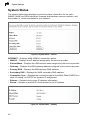
The system status page displays connectivity status information for the unit’s
WiMAX (WAN) and LAN interfaces, firmware and hardware version numbers, and
the number of clients connected to your network.
Figure 4-8 System Status – Internet
INTERNET – Displays WAN (WiMAX) connection status:
• WAN IP – Displays the IP address assigned by the service provider.
• Subnet Mask – Displays the WAN subnet mask assigned by the service provider.
• Gateway – Displays the WAN gateway address assigned by the service provider.
• Primary DNS – Displays the WAN primary DNS address.
• Secondary DNS – Displays the WAN secondary DNS address.
• Connection Type – Displays the connection type for the WAN. Either FIXED for a
static IP setting, or DHCPC for dynamic IP assignment.
• Release – Releases the current IP address information.
• Renew – Initiates a new DHCP client request for an IP address.
Figure 4-9 System Status – Gateway
4-6
4
System Status
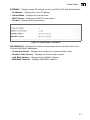
GATEWAY – Display system IP settings, as well as DHCP, NAT and firewall status:
• IP Address – Displays the unit’s IP address.
• Subnet Mask – Displays the subnet mask.
• DHCP Server – Displays the DHCP server status.
• Firewall – Displays the firewall status.
Figure 4-10 System Status – Information
INFORMATION – Displays the number of connected clients, as well as the unit’s
LAN and WAN MAC addresses:
• Connected Clients – Displays the number of connected clients, if any.
• Runtime Code Version – Displays the runtime code version.
• LAN MAC Address – Displays the LAN MAC address.
• WAN MAC Address – Displays WAN MAC address.
4-7
4
System Settings
System Log
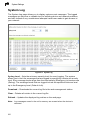
The System Log page allows you to display system event messages. The logged
messages can serve as a valuable tool for isolating device and network problems,
and also indicate if any unauthorized attempts have been made to gain access to
your network.
Figure 4-11 System Log
Syslog Level – Sets the minimum severity level for event logging. The system
allows you to limit the messages that are logged by specifying a minimum severity
level. Error message levels range from the most severe (Emergency) to least severe
(Debug). The message levels that are logged include the specified minimum level
up to the Emergency level. (Default: Info)
Download – Downloads the current log file to the web management station.
Clear – Deletes all entries in the current log file.
Refresh – Updates the displayed log entries on the web page.
Note: Log messages saved in the unit’s memory are erased when the device is
rebooted.
4-8
Reset
4
Reset
The Reset page allows you to restart the device’s software. If the unit stops
responding correctly or in some way stops functioning, performing a reset can clear
the condition.
Figure 4-12 Reset Unit
Reset – Resets the unit. All current settings are retained.
4-9
4
4-10
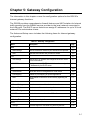
System Settings
Chapter 5: Gateway Configuration
The information in this chapter covers the configuration options for the RG230’s
Internet gateway functions.
The RG230 provides comprehensive firewall features and NAT isolation for Internet
traffic passing from the WiMAX service provider to the local network connected to
the LAN ports. The DHCP server feature can assign IP addresses for up to 32 local
network PCs and wireless clients.
The Advanced Setup menu includes the following items for Internet gateway
configuration.
Table 5-1 Gateway Configuration
Menu
Description
WAN
Page
5-2
WAN Settings
Sets the connection method of your Internet service provider
DNS
Specifies DNS servers that you want to access
LAN
5-2
5-6
5-7
LAN Settings
Sets the unit’s IP address and configures the DHCP server
for the local network
5-7
DHCP Client List
Displays connected DHCP clients that have been assigned
IP addresses by the DHCP server
5-8
Virtual Server
Allows the unit to be configured as a virtual server
5-8
Port Mapping
Enables IP port mapping for special applications
5-10
DMZ
Allows clients to connect to the unit directly bypassing the
firewall
5-11
Firewall Setting
Controls access to and from the local network
5-11
Firewall Options
Blocks scans of the network services from an outside hacker
5-11
Client Filtering
Blocks Internet access based on IP addresses
5-13
MAC Control
Blocks internet access based on MAC addresses
5-14
Displays the routing table
5-15
Provides support for Universal Plug and Play devices
5-16
NAT
5-8
Firewall
5-11
Route
Routing Table List
5-15
UPnP
Settings
5-16
5-1
5
Gateway Configuration
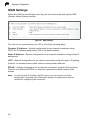
WAN Settings
Select the WAN connection type used by your service provider and specify DNS
(Domain Name System) servers.
Figure 5-1 WAN Settings
The unit can be connected to your ISP in one of the following ways:
Dynamic IP Address – Selects configuration for an Internet connection using
DHCP for IP address assignment. This is the default setting.
Static IP Address – Selects configuration for an Internet connection using a fixed IP
assignment.
L2TP – Selects configuration for an Internet connection using the Layer 2 Tunneling
Protocol, an access protocol often used for virtual private networks.
PPPoE – Selects configuration for an Internet connection using the Point-to-Point
Protocol over Ethernet (PPPoE), a common connection method used for DSL
access.
Note: For the Dynamic IP Address (DHCP) option, the unit requires no further
configuration. Selecting other WAN types displays the parameters that are
required for configuring the connection.
5-2
WAN Settings
5
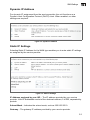
Dynamic IP Address
For dynamic IP assignment from the service provider, the unit functions as a
Dynamic Host Configuration Protocol (DHCP) client. When enabled, no other
settings are required.
Figure 5-2 Dynamic IP Address
Static IP Settings
Selecting Static IP Address for the WAN type enables you to enter static IP settings
as assigned by the service provider.
Figure 5-3 Static IP Settings
IP Address assigned by your ISP – The IP address provided by your service
provider. Valid IP addresses consist of four decimal numbers, 0 to 255, separated by
periods.
Subnet Mask – Indicates the subnet mask, such as 255.255.255.0.
Gateway – The gateway IP address provided by your service provider.
5-3
5
Gateway Configuration
L2TP Settings
If your service provider supports Layer 2 Tunneling Protocol (L2TP) for your Internet
connection, configure the settings described below.
Figure 5-4 L2TP Settings
User Name – Enter your user name for connecting to the L2TP service, as supplied
by the service provider. (Range: 1-32 characters)
Password – Specify the password for your connection, as supplied by the service
provider. (Default: No password)
L2TP Network Server – The IP address of the L2TP server, as specified by the
service provider.
Keep Alive – This option enables the unit to check periodically that the L2TP
connection is still operating. If the connection is found to be lost, the unit
automatically attempts to reconnect to the service provider. (Default: Enabled)
Keep Alive Time – The time period the unit waits before checking that the L2TP
connection is still operating. This parameter only applies when Keep Alive is
enabled. (Default: 60 seconds; Range: 10-180 seconds)
5-4
5
WAN Settings
PPPoE Settings
If your service provider supports Point-to-Point Protocol over Ethernet (PPPoE) for
your Internet connection, configure the settings described below.
Figure 5-5 PPPoE Settings
PPPoE Network Server – The IP address of the PPPoE server, as specified by the
service provider.
Keep Alive – This option enables the unit to check periodically that the PPPoE
connection is still operating. If the connection is found to be lost, the unit
automatically attempts to reconnect to the service provider. (Default: Enabled)
Keep Alive Time – The time period the unit waits before checking that the PPPoE
connection is still operating. This parameter only applies when Keep Alive is
enabled. (Default: 60 seconds; Range: 10-180 seconds)
5-5
5
Gateway Configuration
DNS
DNS (Domain Name System) server addresses are usually provided by service
providers, however if you want to specify certain servers, the DNS page enables you
to enter primary and secodary DNS addresses.
Figure 5-6 DNS Settings
Domain Name Server (DNS) Address – Address of the primary DNS server,
specified in the form of 0.0.0.0
Secondary DNS Address (optional) – Optional address of a secondary DNS
server, specified in the form of 0.0.0.0
5-6
5
LAN
LAN
The RG230 must have a valid IP address for management using a web browser and
to support other features. The unit has a default IP address of 192.168.1.1. You can
use this IP address or assign another address that is compatible with your existing
local network. The unit can also be enabled as a Dynamic Host Configuration
Protocol (DHCP) server to allocate IP addresses to local PCs.
LAN Settings
The RG230 includes a DHCP server that can assign temporary IP addresses to any
attached host requesting the service. Addresses are assigned to clients from a
common address pool configured on the unit. Configure an address pool by
specifying start and end IP addresses. Be sure not to include the unit's IP address in
the address pool range.
Figure 5-7 LAN Settings
IP Address – The IP address of the unit. Valid IP addresses consist of four decimal
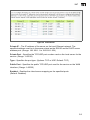
numbers, 0 to 255, separated by periods.The default setting is 192.168.1.1.
Subnet Mask – Indicates the local subnet mask is fixed as 255.255.255.0.
The Gateway acts as DHCP Server – Check this box to enable the DHCP server.
IP Pool Starting/Ending Address – Specifies the start and end IP address of a
range that the DHCP server can allocate to DHCP clients. You can specify a single
address or an address range. Note that the address pool range is always in the
same subnet as the unit’s IP setting. (Default: 192.168.1.2 to 192.168.1.254)
Lease Time – Selects a time limit for the use of an IP address form the IP pool.
When the time limit expires, the client has to request a new IP address.
(Default: Half hour; Options: Half hour, one hour, two hours, half day, one day,
two days, one week, two weeks)
5-7
5
Gateway Configuration
Local Domain Name – This optional parameter specifies the name of the domain
the unit is attached to.
DHCP Client List
The DHCP Client List page enables you to see the MAC address of devices that are
currently connected to the unit and have been assigned an IP address by the DHCP
server.
Figure 5-8 DHCP Client List
NAT
Network Address Translation (NAT) is a standard method of mapping multiple
"internal" IP addresses to one "external" IP address on devices at the edge of a
network. For the RG230, the internal (local) IP addresses are the IP addresses
assigned to local PCs by the DHCP server, and the external IP address is the IP
address assigned to the WiMAX interface.
Virtual Server
Using the NAT Virtual Server feature, remote users can access different servers on
your local network using your single public IP address.
Remote users accessing services such as web or FTP at your local site thorugh
your public IP address, are redirected (mapped) to other local server IP addresses
and TCP/UDP port numbers. For example, if you set Type/Public Port to TCP/80
(HTTP or web) and the Private IP/Port to 192.168.7.9/80, then all HTTP requests
from outside users forwarded to 192.168.7.9 on port 80. Therefore, by just using
your external IP address provided by your ISP, Internet users can access the
services they need at the local addresses to which you redirect them.
The more common TCP service port numbers include: HTTP: 80, FTP: 21, Telnet:
23, and POP3: 110.
5-8
5
NAT
Figure 5-9 Virtual Server
Private IP – The IP address of the server on the local Ethernet network. The
specified address must be in the same subnet as the RG230 and its DHCP server
address pool. (Range: 192.168.1.1 to 192.168.1.254)
Private Port – Specifies the TCP/UDP port number used on the local server for the
service. (Range: 1-65535)
Type – Specifies the port type. (Options: TCP or UDP; Default: TCP)
Public Port – Specifies the public TCP/UDP port used for the service on the WAN
interface. (Range: 1-65535)
Enabled – Enables the virtual server mapping on the specified ports.
(Default: Disabled)
5-9
5
Gateway Configuration
Port Mapping
Some applications, such as Internet gaming, videoconferencing, Internet telephony
and others, require multiple connections. These applications cannot work with
Network Address Translation (NAT) enabled. If you need to run applications that
require multiple connections, use port mapping to specify the additional public ports
to be opened for each application.
Figure 5-10 Port Mapping
Server IP – The IP address of the local server. (Range: 192.168.1.1 to
192.168.1.254)
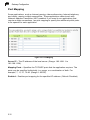
Mapping Ports – Specifies the TCP/UDP ports that the application requires. The
ports may be specified individually, in a range, or a combination of both. For
example, 7, 11, 57, 72-96. (Range: 1-65535)
Enabled – Enables port mapping for the specified IP address. (Default: Disabled)
5-10
5
Firewall
DMZ
If you have a client PC that cannot run an Internet application properly from behind
the NAT firewall, you can open the client up to unrestricted two-way internet access
by defining a virtual-DMZ (virtual-demilitarized-zone) host.
Figure 5-11 DMZ Settings
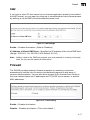
Enable – Enables the feature. (Default: Disabled)
IP Address of Virtual DMZ Host – Specifies the IP address of the virtual DMZ host.
(Range: 192.168.1.1 to 192.168.1.254; Default: 0.0.0.0)
Note: Adding a host to the DMZ may expose your local network to a variety of security
risks, so only use this option as a last resort.
Firewall
The RG230 provides extensive firewall protection by restricting connection
parameters to limit the risk of intrusion and defending against a wide array of
common hacker attacks. You can also block access to the Internet from clients on
the local network based on IP addresses and TCP/UDP port numbers, or specific
MAC addresses.
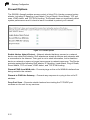
Figure 5-12 Firewall Setting
Enable – Enables the feature.
Disable – Disables the feature. (This is the default.)
5-11
5
Gateway Configuration
Firewall Options
The RG230’s firewall enables access control of client PCs, blocks common hacker
attacks, including IP Spoofing, Land Attack, Ping of Death, Smurf Attack, TCP null
scan, ICMP defect, and TCP SYN flooding. The firewall does not significantly affect
system performance and it is best to leave it enabled to protect your network.
Figure 5-13 Firewall Options
Enable Hacker Attack Protect – Network attacks that deny access to a network
device are called DoS attacks. DoS attacks are aimed at devices and networks with
a connection to the Internet. Their goal is not to steal information, but to disable a
device or network so users no longer have access to network resources. The Router
protects against the following DoS attacks: IP Spoofing, Land Attack, Ping of Death,
Smurf Attack, TCP null scan, ICMP defect, and TCP SYN flooding.
Discard PING from WAN side – Prevents pings on the unit’s WiMAX interface from
being routed to the network.
Discard to PING the Gateway – Prevents any response to a ping to the unit’s IP
address.
Drop Port Scan – Prevents outside hackers form testing the TCP/UDP port
numbers on the unit for any services.
5-12
5
Firewall
Client Filtering
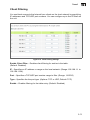
You can block access to the Internet from clients on the local network by specifying
IP addresses and TCP/UDP port numbers. You can configure up to five IP filters on
the unit.
Figure 5-14 Client Filtering Settings
Enable Client Filter – Enables client filtering for entries in the table.
(Default: Disabled)
IP – Specifies an IP address or range on the local network. (Range: 192.168.1.1 to
192.168.1.254)
Port – Specifies a TCP/UDP port number range to filter. (Range: 1-65535)
Type – Specifies the the port type. (Options: TCP or UDP; Default: TCP)
Enable – Enables filtering for the table entry. (Default: Disabled)
5-13
5
Gateway Configuration
MAC Control
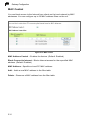
You can block access to the Internet from clients on the local network by MAC
addresses. You can configure up to 32 MAC address filters on the unit.
Figure 5-15 MAC Control
MAC Address Control – Enables the feature. (Default: Enabled)
Block Connect to Internet – Blocks Internet access for the scpecified MAC
address. (Default: Enabled)
MAC Address – Specifies a local PC MAC address.
Add – Adds a new MAC address to the filter table.
Delete – Removes a MAC address from the filter table.
5-14
5
Route
Route
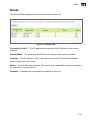
The Routing Table displays the list of static routes on the unit.
Figure 5-16 Routing Table
Destination LAN IP – The IP address that identifies the IP subnet of the remote
network.
Subnet Mask – The mask that identifies the IP subnet of the remote network.
Gateway – The IP address of the router within the local IP subnet that forwards
traffic to the remote IP subnet.
Metric – Cost for the local interface. This cost is only used when routes are imported
by a dynamic routing protocol.
Interface – Indicates the local network interface on the unit.
5-15
5
Gateway Configuration
UPnP
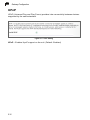
UPnP (Universal Plug and Play Forum) provides inter-connectivity between devices
supported by the same standard.
Figure 5-17 UPnP Setting
UPnP – Enables UpnP support on the unit. (Default: Enabled)
5-16
Chapter 6: WiMAX Settings
The RG230’s WiMAX menu enables you to configure WiMAX connection profiles,
view subscriber station information, and select an operating antenna.
The WiMAX pages include the following options.
Table 6-1 WiMAX Settings
Menu
Description
Profile
Configures WiMAX connection profiles
Page
6-1
SSinfo
Displays subscriber station information for the unit
6-3
Antenna Setting
Configures use of internal or external antennas
6-4
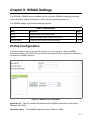
Profile Configuration
A profile allows a user to set specific details for connecting to various WiMAX
service providers. The RG230 must have at least one profile configured to be able to
connect to a WiMAX service.
Figure 6-1 WiMAX Profile Configuration
Operator ID – The ID number that identifies the WiMAX operator for this profile.
(Default: 00:00:02)
Operator name – The WiMAX operator name. (Default: AWB)
6-1
6
WiMAX Settings
Operator Restriction – When enabled, the user can only connect to the service
provider specified in the profile. The user cannot roam to other networks. When
disabled, the operator specified in the profile will be used when base stations are
detected, otherwise the user can roam to other networks. (Default: Disabled)
Scan Frequency – Specifies a center frequency to scan. (Range: 2000-4000 MHz)
Scan Bandwidth – Specifies the bandwidth of the scan channel. (Options: 3.50,
5.00, 7.00, 8.75, 10.00 MHz)
Add/Remove – Use the Add button to add a new center frequency and channel
bandwidth to scan. Use the Remove button to delete a frequency from the scan list.
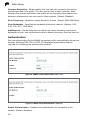
Authentication
Set user authentication for the WiMAX connection profile, as specified by the service
provider. Selecting EAP-TTLS or EAP-TLS displays the parameters that are
required for configuring the authentication method.
Figure 6-2 WiMAX Profile Authentication - EAP-TTLS
Figure 6-3 WiMAX Profile Authentication - EAP-TLS
Enable Authentication – Enables user authentication for connection to the
network. (Default: Disabled)
6-2
6
Subscriber Station Information
EAP Method – Selects the Extensible Authentication Protocol (EAP) method to use
for authentication. (Default: EAP-TTLS)
• EAP-TTLS – Tunneled Transport Layer Security. This security method provides for
certificate-based, mutual authentication of the client and network through an
encrypted channel. Unlike EAP-TLS, EAP-TTLS requires only server-side
certificates.
• EAP-TLS – Transport Layer Security. Provides for certificate-based and mutual
authentication of the client and the network. It relies on client-side and server-side
certificates to perform authentication and can be used to dynamically generate
user-based and session-based encryption keys to secure subsequent
communications between the user and the network.
Identity – A text string used by the authentication server to identify the realm of a
user without revealing the true identity. This identity can be used to proxy an
authentication request to another remote server. (Default: pseudo@realm)
Password – The user password required for EAP-TTLS authentication.
(Default: hello)
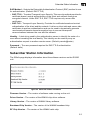
Subscriber Station Information
The SSInfo page displays information about the software versions on the RG230
unit.
Figure 6-4 Subscriber Station Information
Firmware Version – The version of software code running on the unit.
Driver Version – The version of the WiMAX chip driver software.
Library Version – The version of WiMAX library software.
Baseband Chip Version – The version of the WiMAX baseband chip.
RF Chip Version – The version of the WiMAX radio chip.
6-3
6
WiMAX Settings
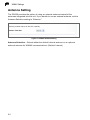
Antenna Setting
The RG230 provides the option of using an external antenna instead of the
antennas integrated into the unit. If you decide to use an external antenna, set the
Antenna Selection setting to “External.”
Figure 6-5 WiMAX Antenna Setting
Antenna Selection – Selects either the default internal antenna or an optional
external antenna for WiMAX communications. (Default: Internal)
6-4
Chapter 7: VoIP Settings
Voice over Internet Protocol (VoIP) technology is a way of using the Internet to make
phone calls. Phone calls can be tranmitted over the Internet by encoding a voice call
into data packets at one end and then decoding it back into voice calls at the other
end. This encoding and decoding is from a analog signal (your voice) into a digital
signal (data packets) and then back into an analog signal.
The RG230 uses Session Initiation Protocol (SIP) as the control mechanism that
sets up, initiates, and terminates calls between a caller and a called party. The SIP
messaging makes use of “Proxy,” “Redirect,” and “Registration” servers to process
call requests and find the location of called parties across the Internet. When SIP
has set up a call between two parties, the actual voice communication is a direct
peer-to-peer connection using the standard Real-Time Protocol (RTP), which
streams the encoded voice data across the network.
You can make VoIP calls by connecting a regular phone to one of the RG230’s
RJ-11 Phone ports. You can also make VoIP calls from your computer using a VoIP
application with a simple microphone and computer speakers. Using either method,
VoIP provides an experience identical to normal telephoning.
Before using the VoIP Phone ports on the RG230, you must have an account with a
SIP service provider and configure the required parameters through the web
interface. The RG230 allows the two RJ-11 Phone ports to be configured separately
with different settings.
The VoIP configuration pages include the following options.
Table 7-1. VoIP Settings
Menu
Description
SIP Account
Sets up basic SIP account details for Phone 1 and Phone 2
Page
7-2
SIP Setting
Configures SIP connection parameters
7-3
Dial Plan
Sets control strings for dialed phone numbers
7-4
Call Feature
Configures call forwarding options
7-6
Codecs
Select coder/decoders (codecs) to use for phone traffic
7-8
Call Block Setting
Set incoming and outgoing numbers to block
7-9
Phone Setting
Sets phone timeout parameters
7-10
7-1
7
VoIP Settings
SIP Account
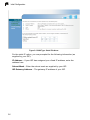
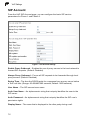
From the VoIP SIP Account page, you can configure the basic SIP service
parameters for Phone 1 and Phone 2.
Figure 7-1 SIP Account Settings
Enable Proxy Outbound – Enables the use of proxy servers in the local network to
forward SIP requests. (Default: Disabled)
Always Proxy Outbound – Forces all SIP requests to be forwarded through local
proxy servers. (Default: Disabled)
Expire Time – The time the RG230 waits for a response from a proxy server before
a VoIP call fails. (Range: 60-4294967295 seconds; Default: 3600 seconds)
User Name – The SIP account user name.
Auth. User Name – An alphanumeric string that uniquely identifies the user to the
SIP server.
Auth. Password – An alphanumeric string that uniquely identifies the SIP user’s
permission rights.
Display Name – The name that is displayed to the other party during a call.
7-2
7
SIP Setting
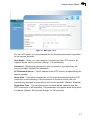
SIP Register – The IP address of the SIP registrar server. A registrar is a server that
accepts SIP register requests and places the information it receives in those
requests into the location service for the domain it handles.
SIP Register Port Number – The TCP port number used by the VoIP service
provider’s register server. (Range: 1-65535; Default: 5060)
Proxy Address – Address of the VoIP service provider SIP proxy server.
Proxy Port – The TCP port number used by the VoIP service provider’s SIP proxy
server. (Range: 1-65535; Default: 5060)
SIP Setting
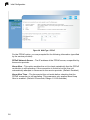
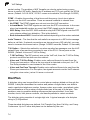
From the VoIP SIP Setting page you can configure SIP parameter details.
Figure 7-2 SIP Setting
RTP TX Packet Size – Specifies a maximum amount of time for transmission of a
RTP data packet. (Options: 10, 20, 30 ms; Default: 20 ms)
RTP Port Base/Limit – The Real-time Transport Protocol (RTP) and Real-time
Control Protocol (RTCP) do not use specified port numbers. You can specify a port
range that the RTP and RTCP traffic can use. Enter the port Base and Limit to define
the range. (Range: 1024-65535)
Stun Server – STUN (Simple Traversal of UDP through NAT (Network Address
Translation)) is a protocol that assists devices behind a NAT firewall or router with
7-3
7
VoIP Settings
packet routing. The problem of NAT firewalls can also be solved using a proxy
server to control SIP traffic. Specify the IP address and TCP port used by the STUN
server. (Default: 0.0.0.0:3478, “0.0.0.0” means not available; Port Range: 0-65535)
DTMF – Enables the sending of dual-tone multi-frequency (touch tone) phone
signals over the VoIP connection. There are several methods to choose from:
• No DTMF: The DTMF signals are not sent over the VoIP connection.
• In-band Mode: The DTMF signals are sent over the RTP voice stream. In the case
when low-bandwidth codecs are used, the DTMF signals may be distorted.
• 2833 Relay: Uses the RFC 2833 method to relay the DTMF signals over the RTP
voice stream without any distortion. (This is the default.)
• Both In-band and 2833: Uses the best method depending on the codecs selected.
Invite Timeout – The time that the unit waits for a response to a SIP Invite message
before a call fails. If network connections are slow and many SIP calls fail, you may
need to increase this timeout value. (Range: 0-56535 seconds; Default: 12 seconds)
T.38 Option – Selects the method to use when sending fax messages over the VoIP
network from a fax machine connected to one of the RJ-11 Phone ports on the
RG230. (Default: Voice and T.38 Fax Relay)
• T.38 Fax Relay: The SIP protocol sets up the VoIP call, then the T.38 Fax Relay
protocol sends the fax data over the network.
• Voice and T.38 Fax Relay: Enables voice calls and faxes to be sent from the
Phone port connection. When a fax tone signal is detected on the port, the T.38
Fax Relay standard is used instead of the voice codec.
• Voice and Fax Pass Through: Enables voice calls and faxes to be sent from the
Phone port connection. For this option, fax signals are sent over the VoIP network
using the voice codec, just as if it were a voice call.
Dial Plan
A dial-plan string can be specified to control phone numbers dialed out through the
RG230. A dial plan describes the number and pattern of digits that a user dials to
reach a particular telephone number. Access codes, area codes, specialized codes,
and combinations of the number of digits dialed can all be part of a dial plan. This
enables a user to predefine dialling sequences that are permitted. It can help
transfer, check, limit phone numbers, and handle prefixes to certain numbers.
The dial-plan string consists of a single digit rule. A typical example of a dial-plan
string is: [0123]xxxxxx.t
Three standard dial plans are defined; Call Transfer Key, New Call Key, and 3-way
Conference. Up to 10 other dial plans can be defined by the user.
7-4
7
Dial Plan
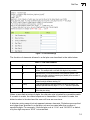
Figure 7-3 Dial Plan Settings
The function of elements allowed in a dial plan are described in the table below:
Table 7-1. Dial Plan Elements
Element
Example
Description
x
xxxx
Represents a digit of any value ( 0 to 9) that can be dialed on a
phone. This example has a rule with four digits of any number.
.
xx.
Indicates zero or more occurrences of the previous symbol. The
example acts like a wildcard, meaning any dialed phone number of
two or more digits is allowed.
0-9
01xx
Indicates dialed digits that must be matched. This example only
allows four-digit numbers starting “01.”
[ ]
[125-8]
Limits a dialed digit to specified values or a range of values. The
example specifies that only digits 1, 2, 5, 6, 7, and 8 are permitted.
t
xx.t
The timeout indicator that can placed after dialed digits or at the end
of the dial-plan string.
When a user dials a series of digits, the dial-plan rule is tested for a possible match.
If a match is made, the dialed sequence is transmitted. If no match is made, the
dialed number is blocked and the user will hear an error tone.
A dial-plan string cannot include spaces between elements. Dialed sequences that
are longer than specified in a dial-plan rule are truncated after the number of
specified digits. For example, if the dial-plan rule is “011x” and “0115678” is dialed,
only the digit sequence “0115” is transmitted.
7-5
7
VoIP Settings
Call Feature
The RG230 allows you to configure several call features, such as call waiting and
call-forwarding. Other call features can be implemented by pressing specific phone
buttons or entering dial patterns.
The table below describes the various call features available.
Note: Some call features may be dependent on support at the SIP server. Check with
the SIP service provider.
Table 7-1. VoIP Call Features
Call Feature
Description
Activation
Call Hold
Places an active call on hold for
an unlimited period of time.
Press the “Flash,” “Flash Hook,” or “Hold”
button on the phone.
Call Waiting
If during a call there is another
incoming call, an alert tone is
heard.
This feature must first be enabled using the web
interface. You can place the active call on hold
and switch to the incoming call. You can switch
between the two calls by placing the active call
on hold.
Call Switching
Calls two numbers, then
switches between them.
Dial the first number, then place it on hold. Dial
the key sequence “**” and wait until you hear
the dial tone, then dial the second number.
Placing the active call on hold switches to the
other call. If the active call is hung up, the phone
rings again to activate the other call.
Call Transfer
Transfers any received call to
another number you specify.
First place the received call on hold, then dial
the transfer key sequence “*#”. When you hear
a dial tone, enter the transfer phone number,
then hang up.
Call Forward
Forwards an incoming call to
another number.
This feature can be configured using the web
interface. You can specify forwarding numbers
for all calls, when busy, or for no answer.
3-Way Conference
Calls two numbers, then allows
all to talk together.
Dial the first number, then place it on hold. Dial
the key sequence “**” and wait until you hear
the dial tone, then dial the second number.
When the second call is active, dial “*3” to
establish the three-way conference.
7-6
7
Call Feature
Figure 7-4 Call Features
Call Waiting – Enables a call waiting alert. If during a call there is another incoming
call, an alert tone is heard. You can place the active call on hold (press the “Flash,”
“Flash Hook,” or “Hold” button on the phone) and switch to the incoming call.
(Default: Disabled)
Call Waiting Timeout – The time a second incoming call waits before a “no answer”
message is sent. (Range: 0-65535 seconds; Default: 30 seconds)
Always Forward Phone Number – Another phone number to which all incoming
calls are forwarded.
On Busy Forward Phone Number – Another phone number to which incoming
calls are forwarded when the phone is busy.
No Answer Forward Phone Number – Another phone number to which incoming
calls are forwarded when there is no answer.
Call Forward No Answer Timeout – The time a call waits for an answer before
being forwarded to the No Answer Forward Phone Number.
(Range: 0-65535 seconds; Default: 10 seconds)
7-7
7
VoIP Settings
Codecs
A codec (coder/decoder) is the way a voice analog signal is converted into a digital
bitstream to send over the network, and how it is converted back into an analog
signal at the receiving end. Codecs differ in the type of data compression that is
used to save network bandwidth and in the time delay caused in the signal. This
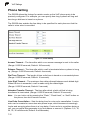
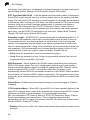
results in different voice quality experienced by the user.
The voice codecs in common use today have been standardized by the International
Telecommunication Union Telecommunication Standardization Sector (ITU-T) and
are identified by a standard number, such as G.711 or G.726. The same codec must
be supported at each end of a VoIP call to be able to encode and decode the signal.
Since devices in other networks may want to use different codecs, the RG230
provides support for several common standards.
Figure 7-5 Codecs
Codec – Lists the codecs supported by the RG230. You can enable specific codecs
to use, or enable all. Alternatively, you may want to disable certain codecs, such as
high-bandwidth codecs, to preserve network bandwidth.
• PCMA (G711.aLaw): The ITU-T G.711 with A-law standard codec that uses Pulse
Code Modulation (PCM) to produce a 64 Kbps high-quality voice data stream. This
standard is used in Europe and most other countries around the world.
• PCMU (G711.uLaw): The ITU-T G.711 with mu-law standard codec that uses
Pulse Code Modulation (PCM) to produce a 64 Kbps high-quality voice data
stream. This standard is used in North America and Japan.
• G723: The ITU-T G.723 standard codec that uses Adaptive Differential Pulse Code
Modulation (ADPCM) to produce data streams of 24 and 40 Kbps. This standard
has now been superceded by G.726.
• G729ab: The ITU-T G.729ab standard codec that uses Conjugate Structure
Algebraic-Code Excited Linear Prediction (CS-ACELP) with silence suppression to
7-8
7
Call Block Setting
produce a low-bandwidth data stream of 8 Kbps. Note that DTMF and fax tones do
not transport reliably with this codec, it is better to use G.711 for these signals.
• G726-16/24/32/40: The ITU-T G.726 standard codecs that use Adaptive
Differential Pulse Code Modulation (ADPCM) to produce good-quality,
low-bandwidth data streams of either 16, 24, 32, or 40 Kbps.
Priority Codec List – The RG230 automatically negotiates the codec to use for
each called party. You can specify a priority for the codecs that you prefer to use. For
example, you may want to use a low-bandwidth codec such as G729ab instead of a
high-bandwidth G711 codec. Select a codec in the list, then use the UP and DOWN
buttons to set the priority. The RG230 attempts to use the codec highest in the list
before trying the next lower one.
Call Block Setting
The RG230 can block certain incoming and outgoing phone numbers from making
calls through the unit. You can specify up to 15 incoming and 15 outgoing numbers
to block.
Figure 7-6 Call Block Setting
Phone – Selects either VoIP port PHONE1 or PHONE2.
Outgoing – Blocks outgoing calls from the listed numbers. (Valid characters 0-9)
Incoming – Blocks incoming calls from the listed numbers. (Valid characters 0-9)
7-9
7
VoIP Settings
Phone Setting
The RG230 allows the timings for certain events on the VoIP phone ports to be
precisely configured. For example, you can specify how long a phone will ring and
how long a dial tone is heard on a phone.
The RG230 also enables the line delay to be specified for each phone so that the
caller’s voice echo is cancelled.
Figure 7-7 Phone Setting
Answer Timeout – The time after which a no answer message is sent to the caller.
(Range: 0-65535 seconds; Default: 180 seconds)
Release Timeout – The time after which a call is terminated when a phone is hung
up. (Range: 0-65535 seconds; Default: 4 seconds)
Dial Tone Timeout – The length of time a dial tone is heard on a connected phone.
(Range: 0-65535 seconds; Default: 16 seconds)
Inter Digit Timeout – The maximum time delay allowed between each dialed digit.
When the time is exceeded, a call is made using the dialed digits.
(Range: 0-65535 seconds; Default: 2 seconds)
Attended Transfer Timeout – The time after which a held call that is being
transferred is terminated. (Range: 0-65535 seconds; Default: 32 seconds)
Note: You can hold a call by pressing the “Flash,” “Flash Hook,” or “Hold” button on
the phone, then dial a transfer number.
Line Echo Cancellation – Sets the delay time for voice echo cancellation. A voice
echo can be created on some two-wire phone loops, which becomes increasingly
louder and annoying when there is a long delay. If voice echo is a problem during a
call, you can adjust this parameter to try and reduce or remove it. (Options: 0, 8, 16,
24, 32, 36 milliseconds; Default: 0 milliseconds)
7-10
Chapter 8: Wi-Fi Settings
The RG230 model for the 3.5 GHz WiMAX band includes an IEEE 802.11g radio
interface for local Wi-Fi communications. The Wi-Fi set up pages include
configuration options for the radio signal characteristics and Wi-Fi security.
The Wi-Fi configuration pages include the following options.
Table 8-1 Wi-Fi Settings
Menu
Description
Page
Settings
Allows you configure basic radio parameters.
8-1
Security
Configures Wi-Fi security features.
8-5
MAC Authentication
Configures a client MAC address control list.
8-9
Wireless Settings
From the Wireless menu, click on Settings to configure the unit’s Wi-Fi radio
interface. The unit’s radio can operate in three modes, IEEE, 802.11b & g, 802.11g
only, and 802.11b only.
The IEEE 802.11g standard operates within the 2.4 GHz band at up to 54 Mbps.
Note that because the IEEE 802.11g standard is an extension of the IEEE 802.11b
standard, it allows clients with 802.11b wireless network cards to associate to an
802.11g access point.
8-1
8
Wi-Fi Settings
Figure 8-1. Wireless Settings
Interface Status – Enables the Wi-Fi radio.
Network Name (SSID) – The Service Set ID (SSID) that identifies the Wi-Fi
network. The SSID is case sensitive and can consist of up to 32 alphanumeric
characters. (Default: default)
Radio Channel – The radio channel used by the unit and its clients to communicate
with each other. This channel must be the same on the unit and all of its wireless
clients. The available channel settings are limited by local regulations. (Default: 1;
Range: 1-11)
Note: If you experience poor performance, you may be encountering interference from
another wireless device. Try changing the channel, as this may eliminate
interference and increase performance. Channels 1, 6, and 11, as the three
non-overlapping channels in the 2.4 GHz band, are preferred.
Auto Channel Select – Enables the unit to automatically select an available radio
channel. (Default: Enabled)
8-2
8
Wireless Settings
Working Mode – Selects the operating mode for the 802.11g radio.
(Default: B/G Mixed Mode)
• B/G Mixed Mode: Both 802.11b and 802.11g clients can communicate with the
unit (up to 54 Mbps).
• G Only Mode: Only 802.11g clients can communicate with the unit (up to
54 Mbps).
• B Only Mode: Both 802.11b and 802.11g clients can communicate with the unit,
but 802.11g clients can only transfer data at 802.11b standard rates (up to
11 Mbps).
Transmit Power – Adjusts the power of the radio signals transmitted from the unit.
The higher the transmission power, the farther the transmission range. Power
selection is not just a trade off between coverage area and maximum supported
clients. You also have to ensure that high-power signals do not interfere with the
operation of other radio devices in the service area. (Options: Auto, Full, Min;
Default: Auto)
Tx Data Rate – The maximum data rate at which the unit transmits unicast packets
on the Wi-Fi interface. The maximum transmission distance is affected by the data
rate. The lower the data rate, the longer the transmission distance. (Default: Auto)
Beacon Interval (1~65535) – Sets the interval at which beacon frames are
transmitted from the unit. The Beacon Interval unit is measured in microseconds.
The beacon signals enable wireless clients to maintain contact with the unit. They
also carry power-management information. (Range: 1-65535 microseconds;
Default: 100 microseconds)
DTIM Interval (1~255) – The Delivery Traffic Indication Map (DTIM) interval. The
rate at which client stations in sleep mode must wake up to receive broadcast/
multicast transmissions. The DTIM interval indicates how often the MAC layer
forwards broadcast/multicast traffic, for which it is necessary to wake up stations that
are using power-save mode. The default value of 3 beacons indicates that the unit
will save all broadcast/multicast frames and forward them after every third beacon.
Using small DTIM intervals delivers broadcast/multicast frames in a more timely
manner, but causes stations in power-save mode to wake up more often and drain
power faster. Using larger DTIM values reduces the power used by stations in
power-save mode, but delays the transmission of broadcast/multicast frames.
(Range: 1-255 beacons; Default: 3 beacons)
Fragment Length (256~2346) – Configures the minimum packet size that can be
fragmented when passing through the unit. Fragmentation of PDUs (Package Data
Units) can increase the reliability of transmissions because it increases the
probability of a successful transmission due to a smaller frame size. If there is
significant interference present, or collisions due to high network utilization, try
setting the fragment size to send smaller fragments. This will speed up the
retransmission of smaller frames. However, it is more efficient to set the fragment
8-3
8
Wi-Fi Settings
size larger if very little or no interference is present because it requires overhead to
send multiple frames. (Range: 256-2346 bytes; Default: 2346 bytes)
RTS Threshold (256~2432) – Sets the packet size threshold at which a Request to
Send (RTS) signal must be sent to a receiving station prior to the sending the data
frame. The unit sends RTS frames to a receiving station to negotiate the sending of
a data frame. After receiving an RTS frame, the station sends a CTS (clear to send)
frame to notify the unit that it can start sending data. If a packet size equals or
exceeds the RTS threshold, the RTS/CTS (Request to Send / Clear to Send)
mechanism will be enabled. Units contending for the medium may not be aware of
each other, and the RTS/CTS mechanism can solve this “Hidden Node Problem.”
(Range: 256-2432 bytes: Default: 2432 bytes)
Preamble Length – All IEEE 802.11 frames begin with an alternating pattern of 1s
and 0s called the preamble, which tells receiving stations that a frame is arriving.
This provides time for the receiving station to synchronize to the incoming data
stream. This parameter sets the length of the signal preamble that is used at the
start of a data transmission. Using a short preamble (96 microseconds) instead of a
long preamble (192 microseconds) can increase data throughput on the unit, but
requires that all clients can support a short preamble. (Default: Short)
• Short: Sets the preamble to short for increased throughput.
• Long: Sets the preamble to long. Using a long preamble ensures the unit can
support all 802.11b and 802.11g clients.
SSID Suppress – When enabled, the RG230 stops broadcasting the configured
SSID in its beacon signal. The unit is configured by default as an “open system,”
which broadcasts a beacon signal including the configured SSID. Wireless clients
with a configured SSID of “ANY” can read the SSID from the beacon, and
automatically set their SSID for immediate connection to the RG230. When enabled,
the unit does not include its SSID in beacon messages. This provides a basic level
of security, since wireless clients must be configured with the SSID to connect to the
RG230.
Frame Burst – Enables data transmission bursting to boost throughput. (Default:
Disabled)
CTS Protection Mode – When 802.11g and 802.11b clients operate together in the
same Wi-Fi network, there needs to be a mechanism that prevents 802.11b clients
interferring with 802.11g transmissions. This is achieved by sending
802.11b-compatible CTS (Clear to Send) or RTS/CTS (Request to Send / Clear to
Send) frames before each transmission. This mechanism decreases the
performance of 802.11g clients, but ensures that 802.11b clients can communicate
with the RG230. (Default:CTS Only)
• Disable: If there are no 802.11b clients in the network, the protection mode can be
disabled.
8-4
8
Wireless Security
• CTS Only: The transmitting client sends only a CTS frame to prevent others from
accessing the medium. This mechanism is effective for most neworks with mixed
802.11g and 802.11b clients.
• RTS/CTS: Both RTS and CTS frames must be exchanged before a client can send
data. There may be 802.11b clients in some networks that do not detect the CTS
frames from other stations. The full RTS/CTS exchange should solve most
connection problems, but it also has the greatest impact on network performance.
Factory Default – Click the Reset button to set all the Wi-Fi settings to their factory
default values.
Wireless Security
The RG230’s Wi-Fi interface is configured by default as an “open system,” which
broadcasts a beacon signal including the configured SSID. Wireless clients with a
configured SSID of “ANY” can read the SSID from the beacon, and automatically set
their SSID to allow immediate connection to the wireless network.
To implement wireless network security, you have to employ two main functions:
• Authentication – It must be verified that clients attempting to connect to the network
are authorized users.
• Traffic Encryption – Data passing between the unit and clients must be protected
from interception and evesdropping.
For a more secure network, the RG230 can implement one of several security
mechanisms. The security mechanism employed depends on the level of security
required, the network and management resources available, and the software
support provided on wireless clients.
To configure wireless security click on Security.
Figure 8-2. Wireless Security
8-5
8
Wi-Fi Settings
There are eight security options available. When you select the security type in the
table, the required settings are displayed. The option “Open System” together with
encryption disabled is equivalent to no security, all clients will be able to immediately
connect to the Wi-Fi network.
The following sections describe the security options available for the RG230 Wi-Fi
network.
WEP Shared Key Security
Wired Equivalent Privacy (WEP) provides a basic level of security, preventing
unauthorized access to the network and encrypting data transmitted between
wireless clients and the RG230. WEP uses static shared keys (fixed-length
hexadecimal or alphanumeric strings) that are manually distributed to all clients that
want to use the network.
When enabled, you must configure at least one WEP key for the Wi-Fi interface and
all its clients.
Figure 8-3. WEP Shared Key Security
Key 1 ~ Key 4 – Sets WEP key values. The user must first choose between ASCII
or Hexadecimal keys. At least one key must be specified. Each WEP key has an
index number. The selected key is used for authentication and encryption on the
Wi-Fi interface. Enter key values that match the key type and length settings.
(Default: Hex, 64 bits, no preset value)
• Key Type: Specifies keys as either ASCII or Hexadecimal values.
• Key Length: WEP keys can be set as 64, 128, or 152 bits in length.
• Key: Specify keys as either 5, 13, or 16 alphanumeric characters, or 10, 26, or 32
hexadecimal digits, depending on the selected key length.
Default Key Setting – Sets the WEP key used for authentication and encryption.
(Range: 1-4; Default: 1)
8-6
Wireless Security
8
WPA/WPA2 Security
The WPA and WPA2 modes use IEEE 802.1X as their basic framework for user
authentication and dynamic key management. IEEE 802.1X access security uses
Extensible Authentication Protocol (EAP) and requires a configured Remote
Authentication Dial-in User Service (RADIUS) authentication server to be accessible
in the enterprise network. If you select WPA or WPA2 mode, be sure to configure the
RADIUS settings displayed on the page.
The WPA-WPA2-Mixed mode is a transitional mode of operation for networks
moving from WPA security to WPA2. WPA-WPA2-Mixed mode allows both WPA and
WPA2 clients to associate to a common Wi-Fi interface.
Figure 8-4. WPA/WPA2 Security
RADIUS Setting – Configures RADIUS server settings for WPA, WPA2, or
WPA-WPA2-Mixed security modes.
• IP Address/Server Name – Specifies the IP address or domain name of the
RADIUS server.
• Port Number – The User Datagram Protocol (UDP) port number used by the
RADIUS server for authentication messages. (Range: 1024-65535; Default: 1812)
• Secret – A shared text string used to encrypt messages between the unit and the
RADIUS server. Be sure that the same text string is specified on the RADIUS
server. Do not use blank spaces in the string. (Maximum length: 20 characters)
8-7
8
Wi-Fi Settings
Note: This guide assumes that you have already configured a RADIUS server in the
attached wired network to support the unit. Configuration of RADIUS server
software is beyond the scope of this guide, refer to documentation provided with
the RADIUS server software.
WPA/WPA2 PSK Security
The WPA-PSK, WPA2-PSK, and WPA-WPA2-Mixed-PSK modes use a common
password phrase, called a Pre-Shared Key (PSK), that must be manually distributed
to all clients that want to connect to the network. The Pre-shared Key modes of
WPA/WPA2 remove the need for RADIUS server support in the attached network.
You can specify a key as an easy-to-remember form of letters and numbers. The
WPA Pre-shared Key can be input as ASCII string (8-63 characters) or Hexadecimal
format (length is 64). All wireless clients must be configured with the same key to
communicate with the VAP interface.
The WPA-WPA2-Mixed-PSK mode is a transitional mode of operation for networks
moving from WPA security to WPA2. WPA-WPA2-Mixed-PSK mode allows both
WPA and WPA2 clients to associate to a common Wi-Fi interface.
Figure 8-5. WPA/WPA2 PSK Security
WPA Pre-Shared Key – The key required for WPA-PSK, WPA2-PSK, and
WPA-WPA2-Mixed-PSK modes. There are.two methods for key entry: An ASCII
string of 8~63 characters in length (0~9, A~F, including spaces), or 64 hexadecimal
digits.
8-8
8
MAC Authentication
MAC Authentication
Wireless clients can be authenticated for network access by checking their MAC
address against a local database configured on the RG230. You can configure a list
of up to 32 wireless client MAC addresses in the filter list to either allow or deny
network access.
Figure 8-6. MAC Authentication
System Default – Specifies the action for MAC addresses listed in the local MAC
Authentication Table.
• Deny: Blocks access for all MAC addresses listed in the MAC Authentication
Table. Clients with MAC addresses not listed in the table are permitted access.
• Allow: Permits access for all MAC addresses listed in the MAC Authentication
Table. Clients with MAC addresses not listed in the table are denied access.
Local MAC Filter Settings – Adds new MAC addresses to the MAC Authentication
Table, or removes addresses currently listed in the table.
• MAC Address: Physical address of a client. Enter six pairs of hexadecimal digits
separated by colons; for example, 00:90:D1:12:AB:89.
• Permission: Select Add to list a new specified MAC address in the MAC
Authentication Table. Select Delete to remove the specified MAC address from the
table.
• Update: Performs the Add or Delete action on the specified MAC address.
MAC Authentication Table – Displays current entries in the MAC filter database.
8-9
8
8-10
Wi-Fi Settings
Appendix A: Troubleshooting
Diagnosing LED Indicators
Table A-1 Troubleshooting Chart
Symptom
Action
Power LED is Off
• AC power adapter may be disconnected. Check connections between
the unit, the AC power adapter, and the wall outlet.
Power LED is Red
• The unit has detected a system error. Reboot the unit to try and clear
the condition.
• If the condition does not clear, contact your local dealer for assistance.
WiMAX LED is Off
• Check with the WiMAX service provider for service coverage
information.
WiMAX Signal LEDs are Off
• Move the location of the unit.
• Check with the WiMAX service provider for service coverage
information.
LAN link LED is Off
• Verify that the unit and attached device are powered on.
• Be sure the cable is plugged into both the unit and corresponding
device.
• Verify that the proper cable type is used and its length does not exceed
specified limits.
• Check the cable connections for possible defects. Replace the
defective cable if necessary.
Cannot Connect to the Internet
If you cannot access the Internet from the PC, check the following:
• If you cannot access the Internet, be sure your WIndows system is correctly
configured for TCP/IP. The IP settings should be set to “obtain an IP address
automatically.”
• The WAN Type settings for the service provider may not be configured correctly.
Use the web interface to check that the WAN settings match those provided by the
service provider.
• You may be out of the service area of the WiMAX base station. Check with the
WiMAX service provider for service coverage information.
• If you cannot resolve the problem, check the System Status page of the web interface
and contact your WiMAX service provider.
A-1
A
Troubleshooting
Cannot Access Web Management
If the management interface cannot be accessed using a web browser:
• Be sure the management station is correctly configured for TCP/IP. The IP settings
should be set to “obtain an IP address automatically.”
• Try a Ping command from the management station to the unit’s IP address to verify
that the entire network path between the two devices is functioning correctly.
• Check that the management station has a valid network connection and that the
Ethernet port that you are using has not been disabled.
• Check the network cabling between the management station and the unit. If the
problem is not resolved, try using a different port or a different cable.
Forgot or Lost the Password
Set the unit to its default configuration by pressing the reset button on the back
panel for 5 seconds or more. Then use the default password “admin” to access the
management interface.
Resetting the Unit
If all other recovery measures fail and the unit is still not functioning properly, take
either of these steps:
• Reset the unit using the web interface, or through a power reset.
• Reset the unit to its factory default configuration by pressing the reset button on the
back panel for 5 seconds or more. Then use the default password “admin” to
access the management interface.
A-2
Appendix B: Specifications
Physical Specifications
Ports
4 LAN ports, 10/100BASE-TX with auto-negotiation, RJ-45 connector
2 FXS ports (PHONE1, PHONE2), RJ-11 connector
Network Interface
RJ-45 connector, auto MDI/X:
10BASE-T: RJ-45 (100-ohm, UTP cable; Category 3 or better)
100BASE-TX: RJ-45 (100-ohm, UTP cable; Category 5 or better)
LED Indicators
System: Power, WiMAX signal strength, WiFi
Ports: Link/Activity
AC Power Adapter
Input: 100-240 VAC, 50-60 Hz, 0.5 A
Output: 19 VDC, 3.4 A
Unit Power Supply
DC Input: 9~19 VDC, 2 A maximum
Power Consumption: 11 W maximum
Physical Size
169 x 184 x 80 mm (6.65 x 7.24 x 3.15 in)
Weight
x.x kg (x.x lbs)
Temperature
Operating: -5 to 45 °C (23 to 113 °F)
Storage: -40 to 75 °C (-40 to 167 °F)
Humidity
5% to 95% (non-condensing)
B-1
B
Specifications
WiMAX Specifications
Antennas
Omnidirectional:
Built-in dual dipole antennas
Transmit: Single antenna
Receive: Two antennas using Maximal-Ratio Combining (MRC)
Gain: 3 dBi at 2.5 GHz, 4 dBi at 3.5 GHz
Impedance: 50 Ohm
Switched-Beam:
Built-in dual switched-beam antennas (each antenna is a 5-way pentagon
structure with 4 flat-patch elements in each segment)
Transmit: Single antenna
Receive: Two antennas using Maximal-Ratio Combining (MRC)
Gain: 6 dBi at 2.5 GHz, 7 dBi at 3.5 GHz
Impedance: 50 Ohm
Operating Frequency
2.3-2.4 GHz, 2.496–2.69 GHz, or 3.4–3.6 GHz
Channel Bandwidth
3.50, 5.00, 7.00, 8.75, and 10.00 MHz
Modulation Scheme
Scaleable OFDMA employing Time-Division Duplex (TDD) mechanism
PRBS subcarrier randomization
Contains pilot, preamble, and ranging modulation
Modulation and Coding Types
Down Link: QPSK, 16 QAM, 64 QAM
Up Link: QPSK, 16 QAM
Maximum Throughput
Up link: 5 Mbps maximum
Down link: 20 Mbps maximum
Transmit Power Level
+26 dBm maximum
Receive Sensitivity
-94 dBm maximum
VoIP Specifications
Voice Signaling Protocol
SIP v2 (RFC 3261)
Voice Codec
G.711 (a-law and u-law)
B-2
Wi-Fi Specifications
B
G.726
G.729ab
G.723
Voice Quality
VAD (Voice Activity Detection)
CNG (Comfortable Noise Generation)
Echo cancellation (G.165/G.168)
Adaptive jitter buffer, up to 200 milliseconds
DTMF tone detection and generation
Call Features
Call transfer
Call waiting/hold/retrieve
3-way conference call
Call blocking
T.38 fax relay
Dial plan (E.164 dialing plan)
Call forwarding: No Answer/Busy/All
REN (Ring Equivalent Number)
3 REN total in system
Wi-Fi Specifications
Maximum 802.11b/g Channels
FCC/IC: 1-11
ETSI: 1-13
France: 10-13
MKK: 1-14
Operating Frequency
2.4 ~ 2.4835 GHz (US, Canada, ETSI)
2.4 ~ 2.497 GHz (Japan)
Data Rate
802.11g: 6, 9, 11, 12, 18, 24, 36, 48, 54 Mbps (automatic fall back)
802.11b: 1, 2, 5.5, 11 Mbps (automatic fall back)
Modulation Type
802.11g: CCK, BPSK, QPSK, OFDM
802.11b: CCK, BPSK, QPSK
RF Output Power
802.11b: 18 dBm
802.11g: 14 dBm
B-3
B
Specifications
RF Receive Sensitivity
802.11b: -88 dBm @ 11 Mbps
802.11g: -74 dBm @ 54 Mbps
Compliances
Emissions
FCC Part 15B Class B
VCCI Class B
EN 55022 Class B
EN 55024
EN 61000-3-2
EN 61000-3-3
Emmunity
EN 61000-4-2/3/4/5/6/11
WiMAX Radio Signal Certification
FCC Part 27
EN 300 326, EN 300 326-1, EN 300 326-3
Wi-Fi Radio Signal Certification
FCC Part 15 Subpart C
EN 300 328, EN 301 489-1, EN 301 489-17
Safety
UL 60950-1
CSA 60950-1
EN 60950-1 / IEC 60950-1
Standards
IEEE 802.16e-2005 WAVE 1 and WAVE 2
IEEE 802.3-2005 10BASE-T and 100BASE-TX
IEEE 802.11b and 802.11g
UPnP
B-4
Appendix C: Cables and Pinouts
Twisted-Pair Cable Assignments
For 10/100BASE-TX connections, a twisted-pair cable must have two pairs of wires.
Each wire pair is identified by two different colors. For example, one wire might be
green and the other, green with white stripes. Also, an RJ-45 connector must be
attached to both ends of the cable.
Caution: Each wire pair must be attached to the RJ-45 connectors in a specific
orientation. (See “Straight-Through Wiring” on page C-2 and “Crossover
Wiring” on page C-2 for an explanation.)
Caution: DO NOT plug a phone jack connector into the RJ-45 port. Use only twisted-pair
cables with RJ-45 connectors that conform with FCC standards.
The following figure illustrates how the pins on the RJ-45 connector are numbered.
Be sure to hold the connectors in the same orientation when attaching the wires to
the pins.
8
1
8
1
Figure C-1 RJ-45 Connector
10/100BASE-TX Pin Assignments
Use unshielded twisted-pair (UTP) or shielded twisted-pair (STP) cable for RJ-45
connections: 100-ohm Category 3 or better cable for 10 Mbps connections, or
100-ohm Category 5 or better cable for 100 Mbps connections. Also be sure that the
length of any twisted-pair connection does not exceed 100 meters (328 feet).
The RJ-45 ports on the unit supports automatic MDI/MDI-X operation, so you can
use straight-through or crossover cables for all network connections to PCs,
switches, or hubs. In straight-through cable, pins 1, 2, 3, and 6, at one end of the
cable, are connected straight through to pins 1, 2, 3, and 6 at the other end of the
cable.
C-1
C
Cables and Pinouts
Table C-1. 10/100BASE-TX MDI and MDI-X Port Pinouts
Pin
MDI-X Signal Name
MDI Signal Name
1
Receive Data plus (RD+)
Transmit Data plus (TD+)
2
Receive Data minus (RD-)
Transmit Data minus (TD-)
3
Transmit Data plus (TD+)
Receive Data plus (RD+)
6
Transmit Data minus (TD-)
Receive Data minus (RD-)
4,5,7,8
Not used
Not used
Note: The “+” and “-” signs represent the polarity of the wires that make
up each wire pair.
Straight-Through Wiring
If the twisted-pair cable is to join two ports and only one of the ports has an internal
crossover (MDI-X), the two pairs of wires must be straight-through.
EIA/TIA 568B RJ-45 Wiring Standard
10/100BASE-TX Straight-through Cable
White/Orange Stripe
Orange
End A
1
2
3
4
5
6
7
8
White/Green Stripe
Blue
White/Blue Stripe
Green
White/Brown Stripe
1
2
3
4
5
6
7
8
End B
Brown
Figure C-2 Straight-Through Wiring
Crossover Wiring
If the twisted-pair cable is to join two ports and either both ports are labeled with an
“X” (MDI-X) or neither port is labeled with an “X” (MDI), a crossover must be
implemented in the wiring.
EIA/TIA 568B RJ-45 Wiring Standard
10/100BASE-TX Crossover Cable
White/Orange Stripe
Orange
End A
1
2
3
4
5
6
7
8
White/Green Stripe
Blue
White/Blue Stripe
Green
White/Brown Stripe
Brown
Figure C-3 Crossover Wiring
C-2
1
2
3
4
5
6
7
8
End B
RJ-11 Ports
C
RJ-11 Ports
Standard telephone RJ-11 connectors and cabling can be found in several common
wiring patterns. These six-pin connectors can accommodate up to three wire pairs
(three telephone lines), but usually only one or two pairs of conductor pins and wires
are implemented.
The RJ-11 ports on this device contain only one wire pair on the inner pins (3 and 4).
Red or
Blue/White
Green or
White/Blue
R T
123456
R = Ring
T = Tip
Figure C-4 RJ-11 Port Pinout
Table C-2. RJ-11 Port Pinout
Pin
Signal Name
Wire Color
1
Not used
2
Not used
3
Line 1 Ring
Red or Blue/White
4
Line 1 Tip
Green or White/Blue
5
Not used
6
Not used
C-3
C
C-4
Cables and Pinouts
Appendix D: License Information
This product includes copyrighted third-party software subject to the terms of the
GNU General Public License (GPL), GNU Lesser General Public License (LGPL), or
other related free software licences. The GPL code used in this product is distributed
WITHOUT ANY WARRANTY and is subject to the copyrights of one or more
authors. For details, refer to the section “The GNU General Public License” below, or
refer to the applicable licence as included in the source-code archive.
The GNU General Public License
GNU GENERAL PUBLIC LICENSE
Version 2, June 1991
Copyright (C) 1989, 1991 Free Software Foundation, Inc.
59 Temple Place, Suite 330, Boston, MA 02111-1307 USA
Everyone is permitted to copy and distribute verbatim copies of this license
document, but changing it is not allowed.
Preamble
The licenses for most software are designed to take away your freedom to share
and change it. By contrast, the GNU General Public License is intended to
guarantee your freedom to share and change free software--to make sure the
software is free for all its users. This General Public License applies to most of the
Free Software Foundation's software and to any other program whose authors
commit to using it. (Some other Free Software Foundation software is covered by
the GNU Library General Public License instead.) You can apply it to your
programs, too.
When we speak of free software, we are referring to freedom, not price. Our
General Public Licenses are designed to make sure that you have the freedom to
distribute copies of free software (and charge for this service if you wish), that you
receive source code or can get it if you want it, that you can change the software or
use pieces of it in new free programs; and that you know you can do these things.
To protect your rights, we need to make restrictions that forbid anyone to deny you
these rights or to ask you to surrender the rights. These restrictions translate to
certain responsibilities for you if you distribute copies of the software, or if you
modify it.
For example, if you distribute copies of such a program, whether gratis or for a fee,
you must give the recipients all the rights that you have. You must make sure that
they, too, receive or can get the source code. And you must show them these terms
so they know their rights.
D-1
D
License Information
We protect your rights with two steps: (1) copyright the software, and (2) offer you
this license which gives you legal permission to copy, distribute and/or modify the
software.
Also, for each author's protection and ours, we want to make certain that everyone
understands that there is no warranty for this free software. If the software is
modified by someone else and passed on, we want its recipients to know that what
they have is not the original, so that any problems introduced by others will not
reflect on the original authors' reputations.
Finally, any free program is threatened constantly by software patents. We wish to
avoid the danger that redistributors of a free program will individually obtain patent
licenses, in effect making the program proprietary. To prevent this, we have made it
clear that any patent must be licensed for everyone's free use or not licensed at all.
The precise terms and conditions for copying, distribution and modification follow.
GNU GENERAL PUBLIC LICENSE TERMS AND CONDITIONS FOR COPYING,
DISTRIBUTION AND MODIFICATION
0.
This License applies to any program or other work which contains a notice
placed by the copyright holder saying it may be distributed under the terms of
this General Public License. The "Program", below, refers to any such program
or work, and a "work based on the Program" means either the Program or any
derivative work under copyright law: that is to say, a work containing the
Program or a portion of it, either verbatim or with modifications and/or
translated into another language. (Hereinafter, translation is included without
limitation in the term "modification".) Each licensee is addressed as "you".
Activities other than copying, distribution and modification are not covered by
this License; they are outside its scope. The act of running the Program is not
restricted, and the output from the Program is covered only if its contents
constitute a work based on the Program (independent of having been made by
running the Program). Whether that is true depends on what the Program does.
1.
You may copy and distribute verbatim copies of the Program's source code as
you receive it, in any medium, provided that you conspicuously and
appropriately publish on each copy an appropriate copyright notice and
disclaimer of warranty; keep intact all the notices that refer to this License and
to the absence of any warranty; and give any other recipients of the Program a
copy of this License along with the Program.
You may charge a fee for the physical act of transferring a copy, and you may at
your option offer warranty protection in exchange for a fee.
2.
D-2
You may modify your copy or copies of the Program or any portion of it, thus
forming a work based on the Program, and copy and distribute such
modifications or work under the terms of Section 1 above, provided that you
also meet all of these conditions:
The GNU General Public License
D
a). You must cause the modified files to carry prominent notices stating that
you changed the files and the date of any change.
b). You must cause any work that you distribute or publish, that in whole or in
part contains or is derived from the Program or any part thereof, to be
licensed as a whole at no charge to all third parties under the terms of this
License.
c).
If the modified program normally reads commands interactively when run,
you must cause it, when started running for such interactive use in the
most ordinary way, to print or display an announcement including an
appropriate copyright notice and a notice that there is no warranty (or else,
saying that you provide a warranty) and that users may redistribute the
program under these conditions, and telling the user how to view a copy of
this License. (Exception: if the Program itself is interactive but does not
normally print such an announcement, your work based on the Program is
not required to print an announcement.)
These requirements apply to the modified work as a whole. If identifiable
sections of that work are not derived from the Program, and can be reasonably
considered independent and separate works in themselves, then this License,
and its terms, do not apply to those sections when you distribute them as
separate works. But when you distribute the same sections as part of a whole
which is a work based on the Program, the distribution of the whole must be on
the terms of this License, whose permissions for other licensees extend to the
entire whole, and thus to each and every part regardless of who wrote it.
Thus, it is not the intent of this section to claim rights or contest your rights to
work written entirely by you; rather, the intent is to exercise the right to control
the distribution of derivative or collective works based on the Program.
In addition, mere aggregation of another work not based on the Program with
the Program (or with a work based on the Program) on a volume of a storage or
distribution medium does not bring the other work under the scope of this
License.
3.
You may copy and distribute the Program (or a work based on it, under Section
2) in object code or executable form under the terms of Sections 1 and 2 above
provided that you also do one of the following:
a). Accompany it with the complete corresponding machine-readable source
code, which must be distributed under the terms of Sections 1 and 2 above
on a medium customarily used for software interchange; or,
b). Accompany it with a written offer, valid for at least three years, to give any
third party, for a charge no more than your cost of physically performing
source distribution, a complete machine-readable copy of the
corresponding source code, to be distributed under the terms of Sections 1
and 2 above on a medium customarily used for software interchange; or,
D-3
D
License Information
c).
Accompany it with the information you received as to the offer to distribute
corresponding source code. (This alternative is allowed only for
noncommercial distribution and only if you received the program in object
code or executable form with such an offer, in accord with Subsection b
above.)
The source code for a work means the preferred form of the work for making
modifications to it. For an executable work, complete source code means all
the source code for all modules it contains, plus any associated interface
definition files, plus the scripts used to control compilation and installation of the
executable. However, as a special exception, the source code distributed need
not include anything that is normally distributed (in either source or binary form)
with the major components (compiler, kernel, and so on) of the operating
system on which the executable runs, unless that component itself
accompanies the executable.
If distribution of executable or object code is made by offering access to copy
from a designated place, then offering equivalent access to copy the source
code from the same place counts as distribution of the source code, even
though third parties are not compelled to copy the source along with the object
code.
4.
You may not copy, modify, sublicense, or distribute the Program except as
expressly provided under this License. Any attempt otherwise to copy, modify,
sublicense or distribute the Program is void, and will automatically terminate
your rights under this License. However, parties who have received copies, or
rights, from you under this License will not have their licenses terminated so
long as such parties remain in full compliance.
5.
You are not required to accept this License, since you have not signed it.
However, nothing else grants you permission to modify or distribute the
Program or its derivative works. These actions are prohibited by law if you do
not accept this License. Therefore, by modifying or distributing the Program (or
any work based on the Program), you indicate your acceptance of this License
to do so, and all its terms and conditions for copying, distributing or modifying
the Program or works based on it.
6.
Each time you redistribute the Program (or any work based on the Program),
the recipient automatically receives a license from the original licensor to copy,
distribute or modify the Program subject to these terms and conditions. You
may not impose any further restrictions on the recipients' exercise of the rights
granted herein. You are not responsible for enforcing compliance by third
parties to this License.
7.
If, as a consequence of a court judgment or allegation of patent infringement or
for any other reason (not limited to patent issues), conditions are imposed on
you (whether by court order, agreement or otherwise) that contradict the
conditions of this License, they do not excuse you from the conditions of this
License. If you cannot distribute so as to satisfy simultaneously your
obligations under this License and any other pertinent obligations, then as a
D-4
The GNU General Public License
D
consequence you may not distribute the Program at all. For example, if a
patent license would not permit royalty-free redistribution of the Program by all
those who receive copies directly or indirectly through you, then the only way
you could satisfy both it and this License would be to refrain entirely from
distribution of the Program.
If any portion of this section is held invalid or unenforceable under any
particular circumstance, the balance of the section is intended to apply and the
section as a whole is intended to apply in other circumstances.
It is not the purpose of this section to induce you to infringe any patents or other
property right claims or to contest validity of any such claims; this section has
the sole purpose of protecting the integrity of the free software distribution
system, which is implemented by public license practices. Many people have
made generous contributions to the wide range of software distributed through
that system in reliance on consistent application of that system; it is up to the
author/donor to decide if he or she is willing to distribute software through any
other system and a licensee cannot impose that choice.
This section is intended to make thoroughly clear what is believed to be a
consequence of the rest of this License.
8.
If the distribution and/or use of the Program is restricted in certain countries
either by patents or by copyrighted interfaces, the original copyright holder who
places the Program under this License may add an explicit geographical
distribution limitation excluding those countries, so that distribution is permitted
only in or among countries not thus excluded. In such case, this License
incorporates the limitation as if written in the body of this License.
9.
The Free Software Foundation may publish revised and/or new versions of the
General Public License from time to time. Such new versions will be similar in
spirit to the present version, but may differ in detail to address new problems or
concerns.
Each version is given a distinguishing version number. If the Program specifies
a version number of this License which applies to it and "any later version", you
have the option of following the terms and conditions either of that version or of
any later version published by the Free Software Foundation. If the Program
does not specify a version number of this License, you may choose any version
ever published by the Free Software Foundation.
10. If you wish to incorporate parts of the Program into other free programs whose
distribution conditions are different, write to the author to ask for permission.
For software which is copyrighted by the Free Software Foundation, write to the
Free Software Foundation; we sometimes make exceptions for this. Our
decision will be guided by the two goals of preserving the free status of all
derivatives of our free software and of promoting the sharing and reuse of
software generally.
D-5
D
License Information
NO WARRANTY
11. BECAUSE THE PROGRAM IS LICENSED FREE OF CHARGE, THERE IS NO
WARRANTY FOR THE PROGRAM, TO THE EXTENT PERMITTED BY
APPLICABLE LAW. EXCEPT WHEN OTHERWISE STATED IN WRITING THE
COPYRIGHT HOLDERS AND/OR OTHER PARTIES PROVIDE THE
PROGRAM "AS IS" WITHOUT WARRANTY OF ANY KIND, EITHER
EXPRESSED OR IMPLIED, INCLUDING, BUT NOT LIMITED TO, THE
IMPLIED WARRANTIES OF MERCHANTABILITY AND FITNESS FOR A
PARTICULAR PURPOSE. THE ENTIRE RISK AS TO THE QUALITY AND
PERFORMANCE OF THE PROGRAM IS WITH YOU. SHOULD THE
PROGRAM PROVE DEFECTIVE, YOU ASSUME THE COST OF ALL
NECESSARY SERVICING, REPAIR OR CORRECTION.
12. IN NO EVENT UNLESS REQUIRED BY APPLICABLE LAW OR AGREED TO
IN WRITING WILL ANY COPYRIGHT HOLDER, OR ANY OTHER PARTY
WHO MAY MODIFY AND/OR REDISTRIBUTE THE PROGRAM AS
PERMITTED ABOVE, BE LIABLE TO YOU FOR DAMAGES, INCLUDING
ANY GENERAL, SPECIAL, INCIDENTAL OR CONSEQUENTIAL DAMAGES
ARISING OUT OF THE USE OR INABILITY TO USE THE PROGRAM
(INCLUDING BUT NOT LIMITED TO LOSS OF DATA OR DATA BEING
RENDERED INACCURATE OR LOSSES SUSTAINED BY YOU OR THIRD
PARTIES OR A FAILURE OF THE PROGRAM TO OPERATE WITH ANY
OTHER PROGRAMS), EVEN IF SUCH HOLDER OR OTHER PARTY HAS
BEEN ADVISED OF THE POSSIBILITY OF SUCH DAMAGES.
END OF TERMS AND CONDITIONS
D-6
Glossary
10BASE-T
IEEE 802.3 specification for 10 Mbps Ethernet over two pairs of Category 3 or better
UTP cable.
100BASE-TX
IEEE 802.3u specification for 100 Mbps Fast Ethernet over two pairs of Category 5
or better UTP cable.
Advanced Encryption Standard (AES)
An strong encryption algorithm that implements symmetric key cryptography.
Authentication
The process to verify the identity of a client requesting network access.
Auto-Negotiation
Signalling method allowing each node to select its optimum operational mode
(speed and duplex mode) based on the capabilities of the node to which it is
connected.
Base Station
A WIMAX service provider’s equipment that is installed at a fixed location to provide
network connectivity for subscriber stations within a defined service area.
Broadcast Key
Broadcast keys are sent to stations using 802.1X dynamic keying. Dynamic
broadcast key rotation is often used to allow the access point to generate a random
group key and periodically update all key-management capable wireless clients.
CPE (Customer-Premises Equipment)
Terminal equipment provided by a service provider that is located at a subscriber’s
premises and supports a communication channel between a customer and the
service provider’s central office.
Domain Name System (DNS)
A system used for translating host names for network nodes into IP addresses.
Dynamic Host Configuration Protocol (DHCP)
Provides a framework for passing configuration information to hosts on a TCP/IP
network. DHCP is based on the Bootstrap Protocol (BOOTP), adding the capability
of automatic allocation of reusable network addresses and additional configuration
options.
Glossary-1
Glossary
Encryption
Data passing between the access point and clients can use encryption to protect
from interception and evesdropping.
Extensible Authentication Protocol (EAP)
An authentication protocol used to authenticate network clients. EAP is combined
with IEEE 802.1X port authentication and a RADIUS authentication server to provide
“mutual authentication” between a client, the access point, and the a RADIUS server
Ethernet
A popular local area data communications network, which accepts transmission
from computers and terminals.
File Transfer Protocol (FTP)
A TCP/IP protocol used for file transfer.
Hypertext Transfer Protocol (HTTP)
HTTP is a standard used to transmit and receive all data over the World Wide Web.
IEEE 802.16e
A standard that provides mobile broadband wireless access using Scalable
Orthogonal Frequency Division Multiple Access (SOFDMA).
Local Area Network (LAN)
A group of interconnected computer and support devices.
MAC Address
The physical layer address used to uniquely identify network nodes.
Network Time Protocol (NTP)
NTP provides the mechanisms to synchronize time across the network. The time
servers operate in a hierarchical-master-slave configuration in order to synchronize
local clocks within the subnet and to national time standards via wire or radio.
Orthogonal Frequency Division Multiplexing (ODFM)
OFDM allows multiple users to transmit in an allocated band by dividing the
bandwidth into many narrow bandwidth carriers.
RJ-45 Connector
A connector for twisted-pair wiring.
Glossary-2
Glossary
Simple Network Management Protocol (SNMP)
The application protocol in the Internet suite of protocols which offers network
management services.
Simple Network Time Protocol (SNTP)
SNTP allows a device to set its internal clock based on periodic updates from a
Network Time Protocol (NTP) server. Updates can be requested from a specific NTP
server, or can be received via broadcasts sent by NTP servers.
Subscriber Station
A general term for a customer’s WIMAX terminal equipment that provides
connectivity with a base station.
Transmission Control Protocol/Internet Protocol (TCP/IP)
Protocol suite that includes TCP as the primary transport protocol, and IP as the
network layer protocol.
Trivial File Transfer Protocol (TFTP)
A TCP/IP protocol commonly used for software downloads.
UTP
Unshielded twisted-pair cable.
Glossary-3
Glossary
Glossary-4
Index
A
E
AC power adapter 1-6
administrator password, setting 4-3
administrator settings 4-3
Advanced Setup menu 3-12
antennas 1-3
authentication
type 8-4, 8-5
auto-logout time 4-3
encryption 8-5
ESSID 3-3
Ethernet ports 1-5
F
factory defaults, restoring 4-4
firewall protection 5-11
firmware update 4-3, 4-4
fixed-IP xDSL 3-5, 5-2
B
backup settings 4-4
button, Reset 1-3
C
cable assignments C-1
cable connections 2-2
channels, maximum B-3
checklist 2-1
client filter, enable 5-13
configuration, basic 3-3
configuration, saving 4-4
contents, package 2-1
D
data rate, options B-3
default settings, restore 4-4
defaults, factory 4-4
DHCP client request 4-6
DHCP server 5-7
discard ping 5-12
DMZ host 5-10
DNS 5-6
domain name 4-1
Domain Name System 3-10
downloading software 4-3
dynamic IP, cable modem 3-5, 5-2
G
Gateway address 5-3, 5-15
gateway function 2-2
GPL information D-1
H
hacker attack, prevention 5-11, 5-12
hardware, description 1-2
host name 4-1
I
IEEE 802.11g 8-1
configuring interface 8-1
installation, connecting cables 2-2
Internet connection, block 5-14
Internet gateway settings 5-1
IP address 3-6, 5-3, 5-7
IP filters 5-13
ISP connection 3-5
ISP gateway address 3-6
L
L2TP 3-5, 5-2
LAN status information 4-7
LEDs 1-4, 1-5
license information D-1
log
messages 4-8
Index-1
Index
logging, system messages 4-8
login, web 3-1
lost password, recovery A-2
restore settings 4-4
RJ-45 ports 1-5
runtime code version 4-7
M
S
MAC address filters 5-14
mapping ports, NAT 5-10
MDI/MDI-X, automatic 1-5
security, options 8-5
service provider connection 3-5
Setup Wizard
DNS 3-10
host settings 3-3
launching 3-3
time zone 3-4
WAN type 3-5
Simple Network Time Protocol See
SNTP
SNTP 4-2
enabling client 4-2
software update 4-3
SSID Broadcast 3-3
status information 4-6
subnet mask 3-6, 5-3, 5-7, 5-15
subscriber station 1-1
system clock, setting 4-2
system indicators 1-4, 1-5
system information 4-7
system log 4-8
system status 4-6
system time 4-2
O
open system 8-4, 8-5
operating frequency B-2, B-3
operator network number 6-1
P
package checklist 2-1
panels, front and rear 1-2
password, setting 4-3
ping discard 5-12
pinouts C-1
port indicators 1-4, 1-5
port mapping, NAT 5-10
port scan prevention 5-12
power socket 1-6
power supply, specifications B-1
PPPoE 3-5, 5-2
private IP 5-9
private port 5-9
proxy server address 3-10, 7-3
proxy server port 7-3
public port 5-9
R
rear panel sockets 1-6
reboot unit 4-9, A-2
register server
address 7-3
port 7-3
Reset button 1-3
resetting the unit 4-9, A-2
Index-2
T
time updates 4-2
troubleshooting A-1
U
upgrading software 4-3
UPnP 5-16
W
WAN connection type 4-6
WAN Settings 3-5
Index
web management interface
access 3-1
login 3-1
troubleshooting A-2
WiMAX connection status 6-1
Wizard, setup 3-3
Index-3
Index
Index-4
RG230
E032008-CS-R01
1************