1
Creating a VPN connection
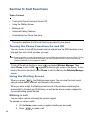
If your company has set up a virtual private network (VPN), you can create a VPN
connection to gain access to your corporate network over an Internet connection.
1. On the Home screen, press Start > More > Settings > Connections >
More... > VPN.
2. Select New..., or press the Menu soft key and select Add.
3. Enter the requested information.
•
•
•
•
•
•
•
•
•
•
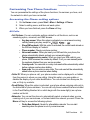
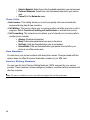
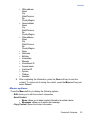
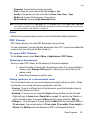
Description: Enter a name for the connection.
VPN type: Select the type of VPN.
Server: Enter the VPN server name.
Connects from: Select the type of network from which you will connect to
VPN (typically The Internet).
Connects to: Select the type of network to which you will connect (typically
Work).
User name: Enter your user name for the VPN.
Password: Enter your password.
Domain: Enter the domain name, if required.
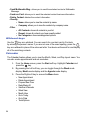
IPSec authentication: If you selected IPSec/L2TP for VPN type, select the
type of authentication.
IPSec Pre-shared key: If you selected Pre-Shared Key for IPSec
authentication, enter the shared key.
Note: If you are not sure about the information to enter, ask your network administrator.
4. When you have finished, press the Done soft key.
Setting up data connections
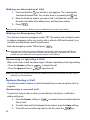
After creating connection profiles, you can assign a profile to each network type.
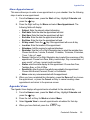
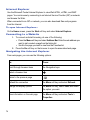
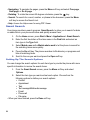
1. On the Connections screen, press the Menu soft key and select Advanced.
2. Select a connection profile in each network.
3. Press the Done soft key.
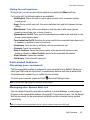
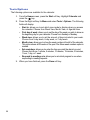
Adding a URL exception
Some URL addresses for web pages on your company intranet may use periods, for
example: intranet.companyname.com. To view these pages in Internet Explorer, you
must create a URL exception.
Note: You do not need to create URL exceptions for Internet URL addresses.
90