1
WF200 802.11g Wireless Router
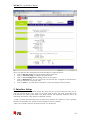
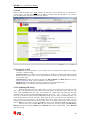
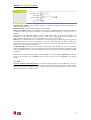
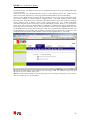
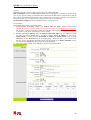
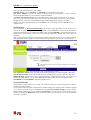
time zone and Greenwich Mean Time (GMT).
Daylight Saving: Choose “Enabled” or “Disabled” to use daylight savings time.
NTP Server Address: Type the IP address or domain name of your timeserver. Check with your
ISP/network administrator if you are unsure of this information.
A Network Time Protocol (NTP) server can automatically set the router time for you. If you use an
NTP server, you will only need to select your time zone. If you manually set the time, you can enable
Daylight Saving. The router will automatically adjust when Daylight Saving goes into effect.
When you are done making changes, click on SAVE to save your changes or on CANCEL to exit
without saving.
8.3 Firmware
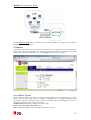
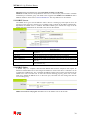
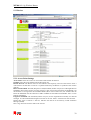
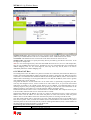
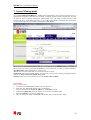
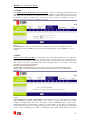
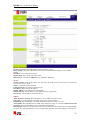
You can upgrade the firmware and Romfile of the router in this page. Make sure the firmware you
want to use is on the local hard drive of the computer. Click on Browse to browse the local had drive
and locate the firmware to be used for the update. Then press UPGRADE to upload new Firmware. It
might take several minutes, don’t power off it during upgrading. Device will restart after the
upgrade!!
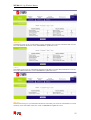
After a success upload, the system automatically restarts. Please wait for the device to finish restarting.
This should take about 2 minutes or more. You need to log in again if you want to access the device.
Current Firmware Ver.: This filed displays the current firmware version.
New Firmware Location: Type or browse in the location of the file you want to upload in this field.
New Romfile Location: Type or browse the location of the Romfile you want to upload in this field.
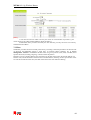
Romfile Backup: This function is for saving the firmware configuration file. After you configure all
settings for ADSL Router, you can click “ROMFILE SAVE” button to save the configured file.
UPGRADE: Click UPGRADE to begin the upload process.
8.4 System Restart
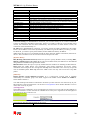
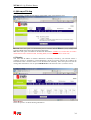
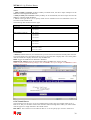
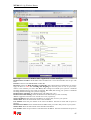
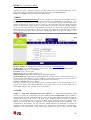
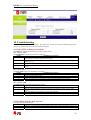
The SysRestart screen allows you to restart your router with either its current settings still in place or
the factory default settings.
If you wish to restart the router using the factory default settings (for example, after a firmware upgrade
or if you have saved an incorrect configuration), select Factory Default Settings to reset to factory
default settings. Otherwise, you can select Current Settings. You may also reset your router to factory
settings by holding the DEFAULT button on the back panel of your router in for 10-12 second while
the router is turned on.
51